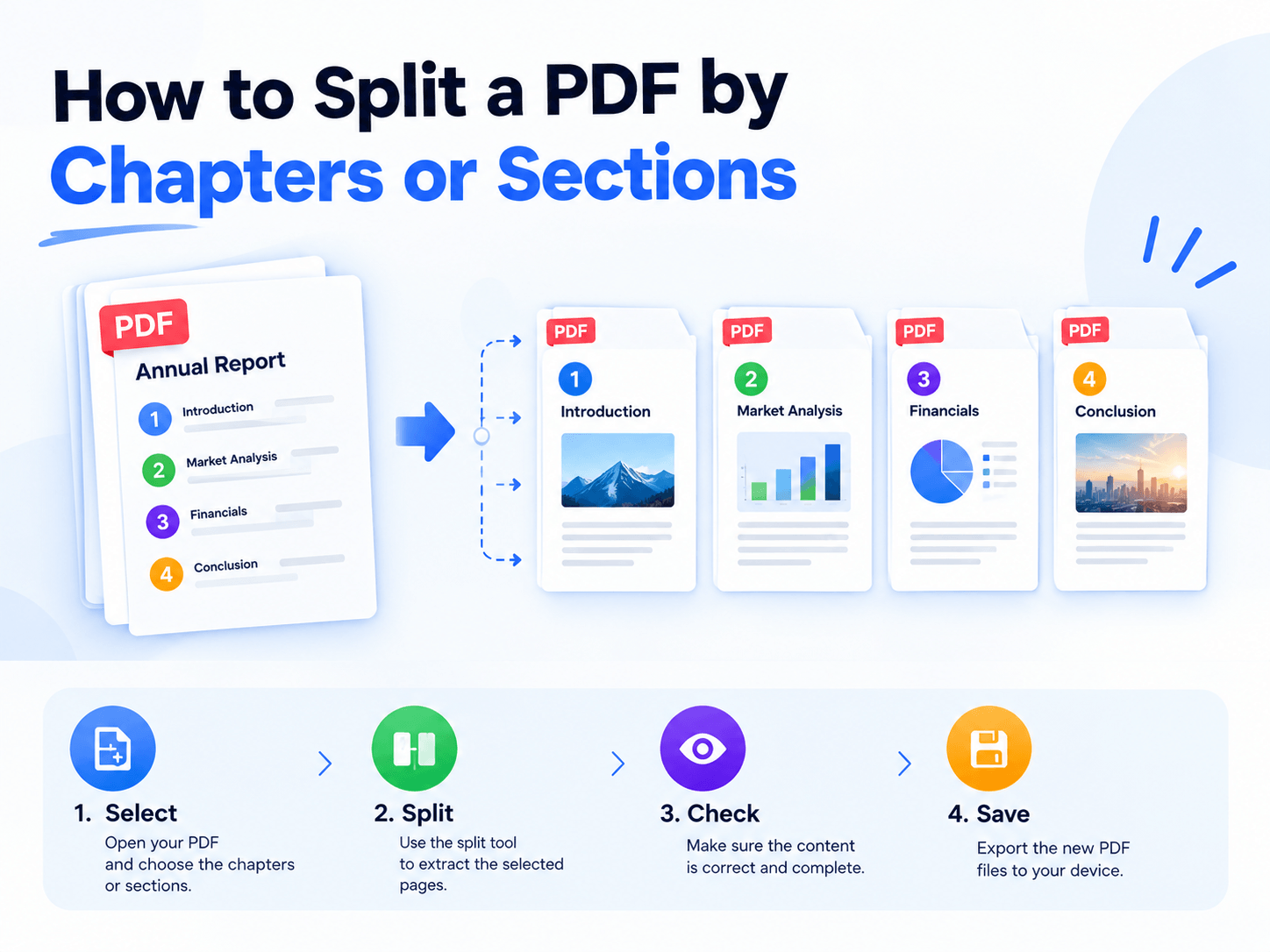
How to Split a PDF by Chapters or Sections

A long PDF isn’t always meant to stay as one file.

Books, manuals, reports, and training materials often contain clearly defined chapters or sections. If different parts need to be shared, archived, or managed separately, splitting the PDF by its content structure can be more useful than dividing it at arbitrary page numbers.

How to Split a PDF by Chapters or Sections – Step-by-Step Guide

Think in Sections, Not Page Counts

A simple page-range split might produce files like:

Pages 1–25 → File 1
Pages 26–50 → File 2

But that doesn’t guarantee each file contains a complete section.

A better approach is to identify natural boundaries first:

Introduction → Chapter 1 → Chapter 2 → Chapter 3 → Appendix

Each section can then become its own PDF.

This works especially well for:

🔵 Ebooks and digital textbooks
🔵 Technical manuals
🔵 Training materials
🔵 Annual or financial reports
🔵 Large business documents

The Goal: Complete, Usable Files

A good split should create documents that make sense on their own.

Before splitting, check where each chapter or section begins and ends. Keep related pages together, including tables, references, and supporting pages that belong to the same section.

The result should be more than smaller files—it should be logically structured files.

Split Large PDFs Locally

For sensitive documents, uploading a large PDF to an online service may not be ideal.
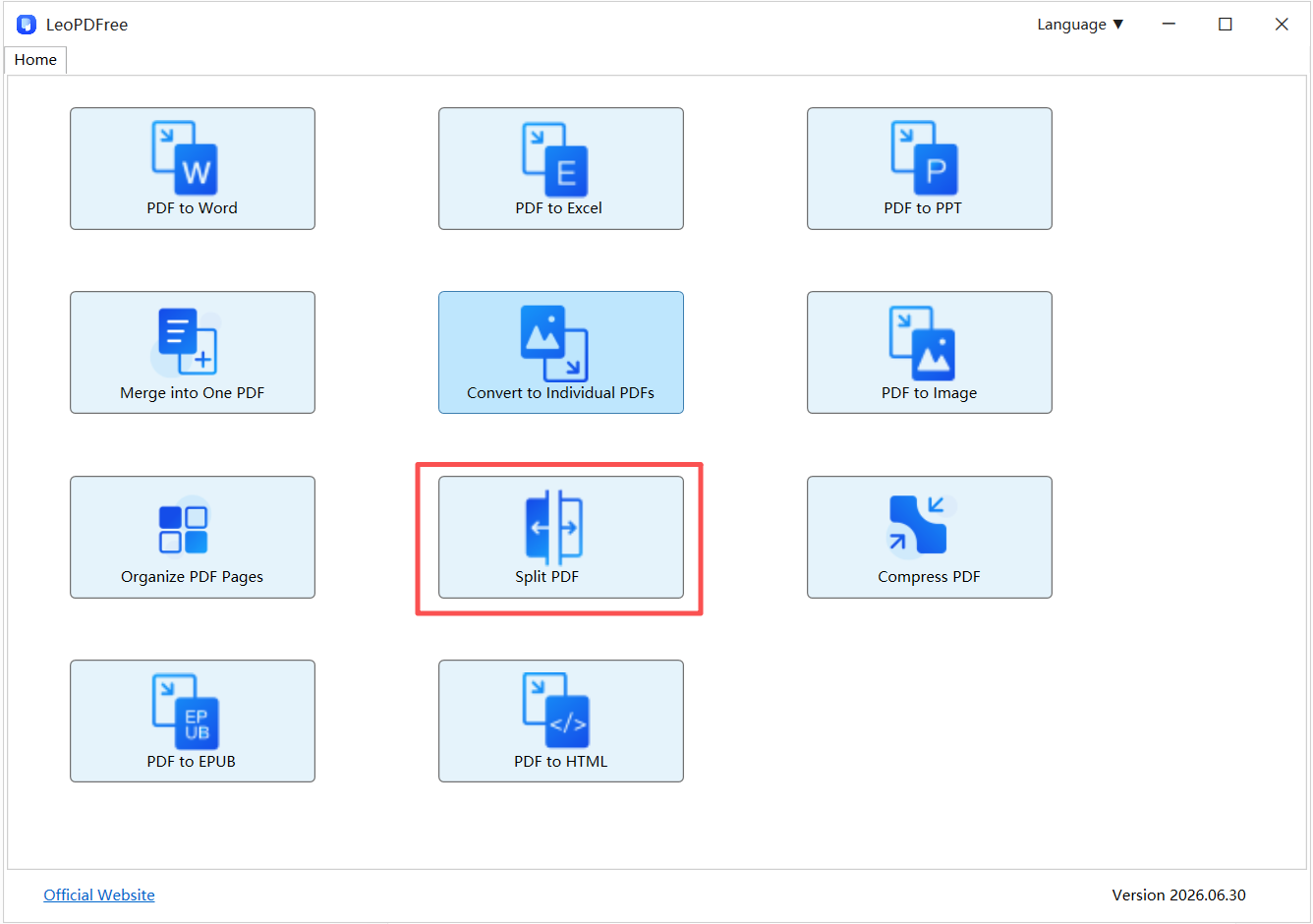
LeoPDF provides an offline way to split PDFs on Windows. You can separate a large document into smaller files based on the page ranges that correspond to individual chapters or sections.

It also supports page extraction, deletion, reordering, merging, compression, and PDF format conversion, making it useful when a document needs more than one type of page-level operation.

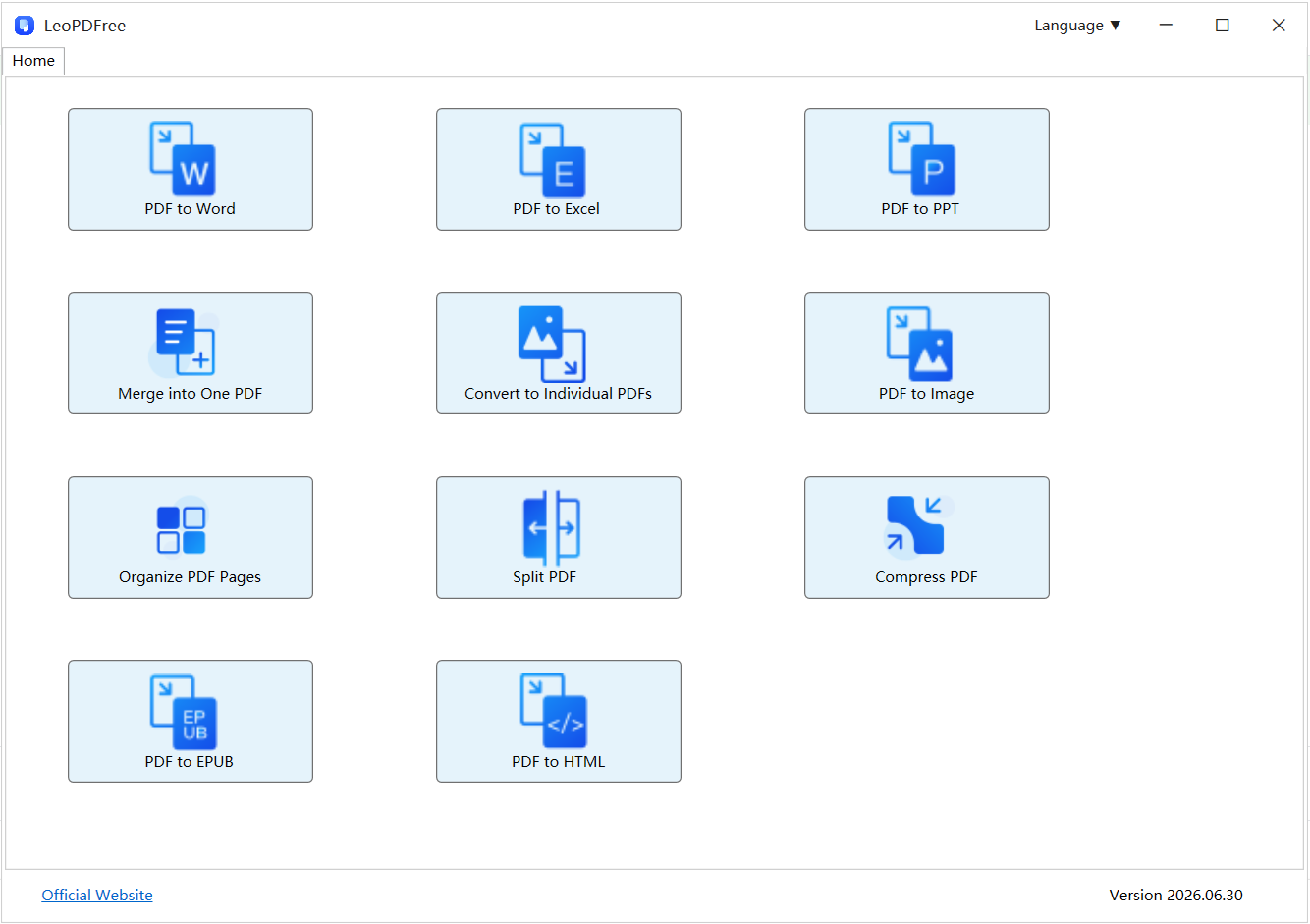
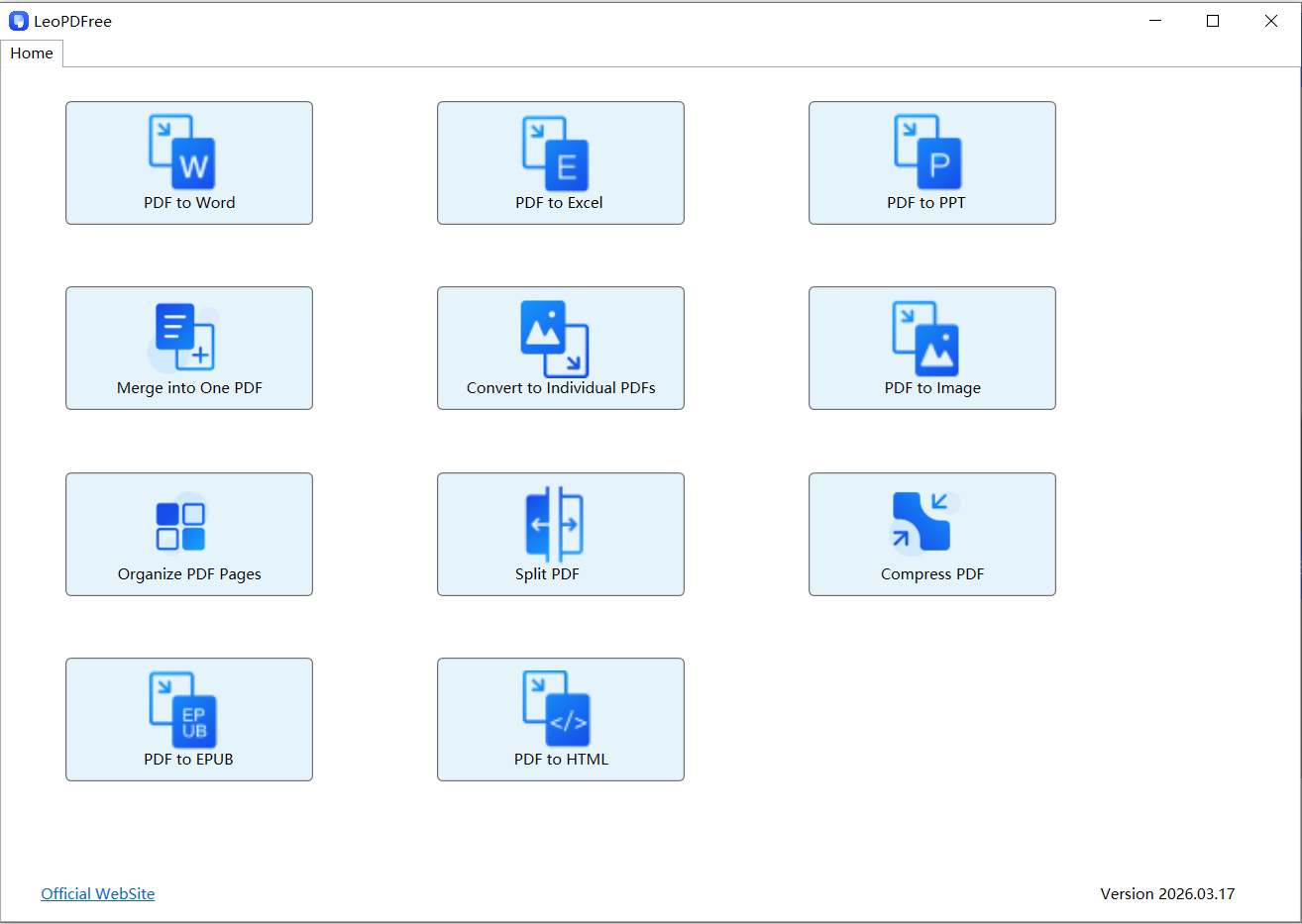
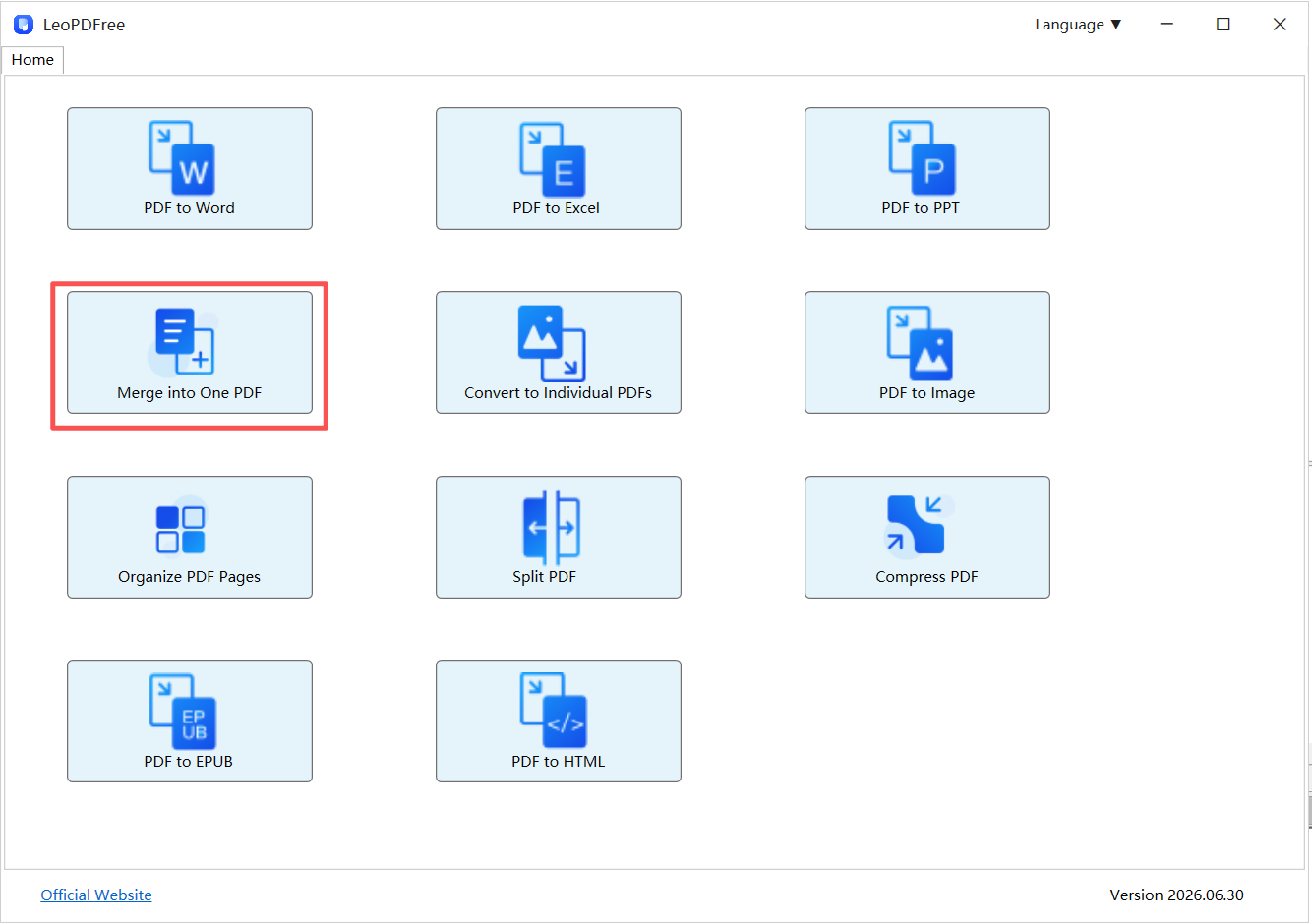
LeoPDFree PDF Splitter Interface

Free DownloadSecure Download

Because processing happens locally, the original PDF doesn’t need to be uploaded to a third-party website.

A Better Structure for Large PDFs

Instead of asking:

“How many pages should each file contain?”

Ask:

“Where does each section naturally begin and end?”

That small change produces PDFs that are easier to name, share, archive, and use.

Final Takeaway

Splitting a PDF by chapters or sections is more useful than simply dividing it into equal page ranges. The objective is to create smaller files that preserve the document’s logical structure.

With LeoPDF, you can split large PDFs locally on Windows and turn individual sections into manageable, standalone files—without uploading the original document.

Free DownloadSecure Download

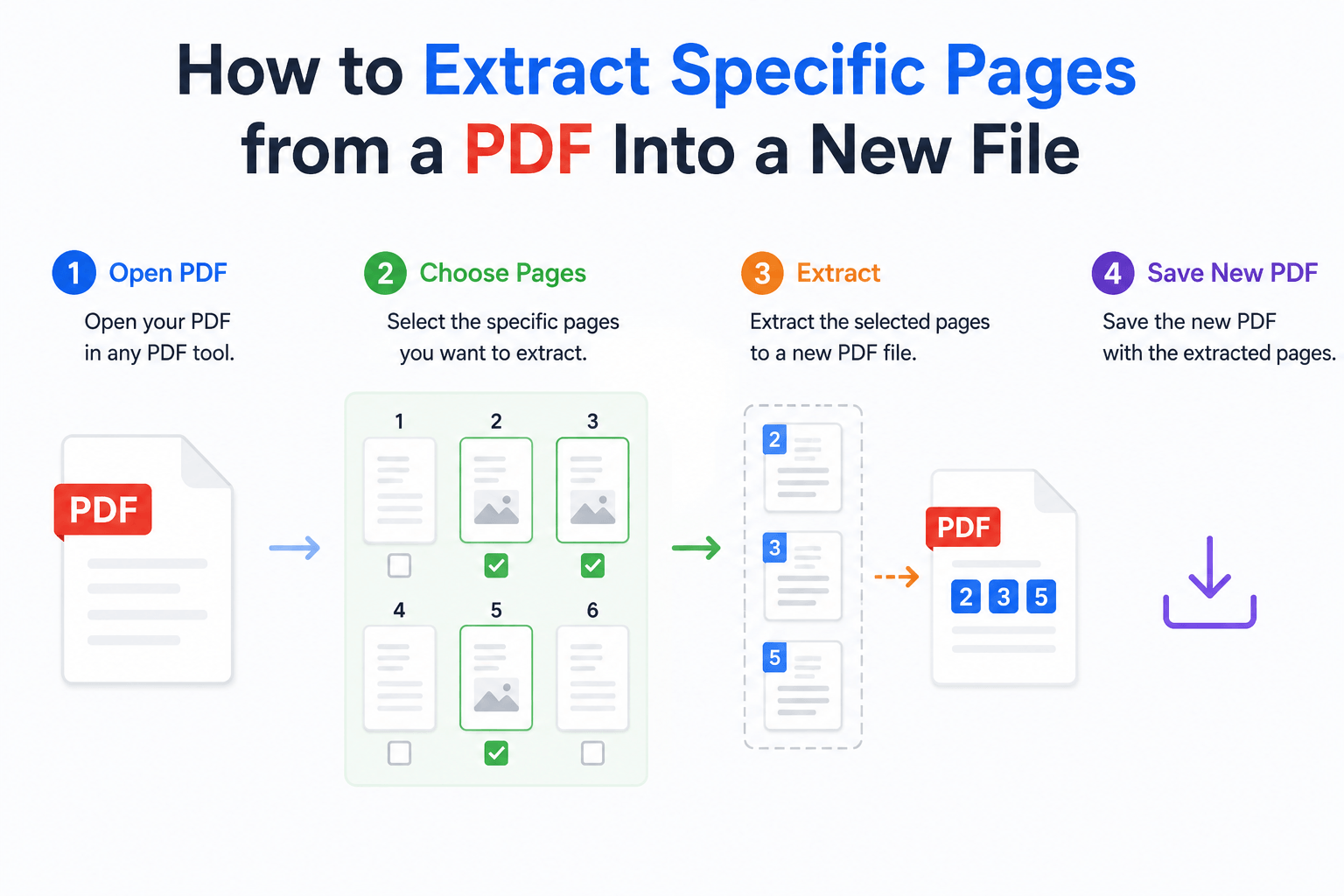
How to Extract Specific Pages from a PDF Into a New File

Sometimes you don’t need the entire PDF—you only need a few pages.

A 200-page report might contain three pages you need to send to a client. A long manual may contain one relevant section. Instead of editing the original document or rebuilding it, you can extract those pages into a separate PDF.

How to Extract Specific Pages from a PDF Into a New File

Extract, Don’t Rebuild

The key is to treat the PDF as a collection of pages rather than one document that must be edited.

For example:

Original PDF:
Pages 1–120

Pages needed:
12, 18–21, 47

New PDF:
Pages 12, 18–21, and 47

The original file remains unchanged, while the extracted pages become a new, independent PDF.

This approach is useful when you need to:

🔵 Send only selected pages
🔵 Create a short reference document
🔵 Separate a specific section from a large PDF
🔵 Share part of a report without distributing the entire file

What to Check Before Extraction

Not every extraction task is simply “pick a page and save.”

Before creating the new file, check three things:

Check Why It Matters
Page selection Avoid missing or extra pages
Page sequence Keep the extracted document readable
Output file Make sure only the intended pages are included

📢 For related pages, keeping their original order usually produces the cleanest result.

A Faster Way to Extract Pages

If you work with PDFs regularly, an offline tool can make this process much simpler.

LeoPDF lets you select the pages you need and create a separate PDF without rebuilding the document from scratch. It also supports PDF splitting, page deletion, page reordering, merging, compression, and format conversion.

LeoPDFree PDF Page Extraction Interface

Free DownloadSecure Download

Because LeoPDF processes files locally on Windows, you can extract pages without uploading the original PDF to an online service. That’s particularly useful for reports, contracts, internal documents, and other files you don’t want to send to a third-party server.

Keep the Original File Intact

The advantage of page extraction is that you don’t have to rebuild or modify the source document.

You simply create a new PDF from the required pages:

Select → Extract → Save

The original stays intact, while the new file is ready for sharing or further use.

Final Takeaway

When you only need part of a PDF, extracting the relevant pages is usually more efficient than editing or rebuilding the entire document.

With LeoPDF, you can extract selected pages locally on Windows and create a separate PDF without uploading the original file.

It’s a simple way to turn a large PDF into a smaller, purpose-built document—while keeping the original safely untouched.

Free DownloadSecure Download

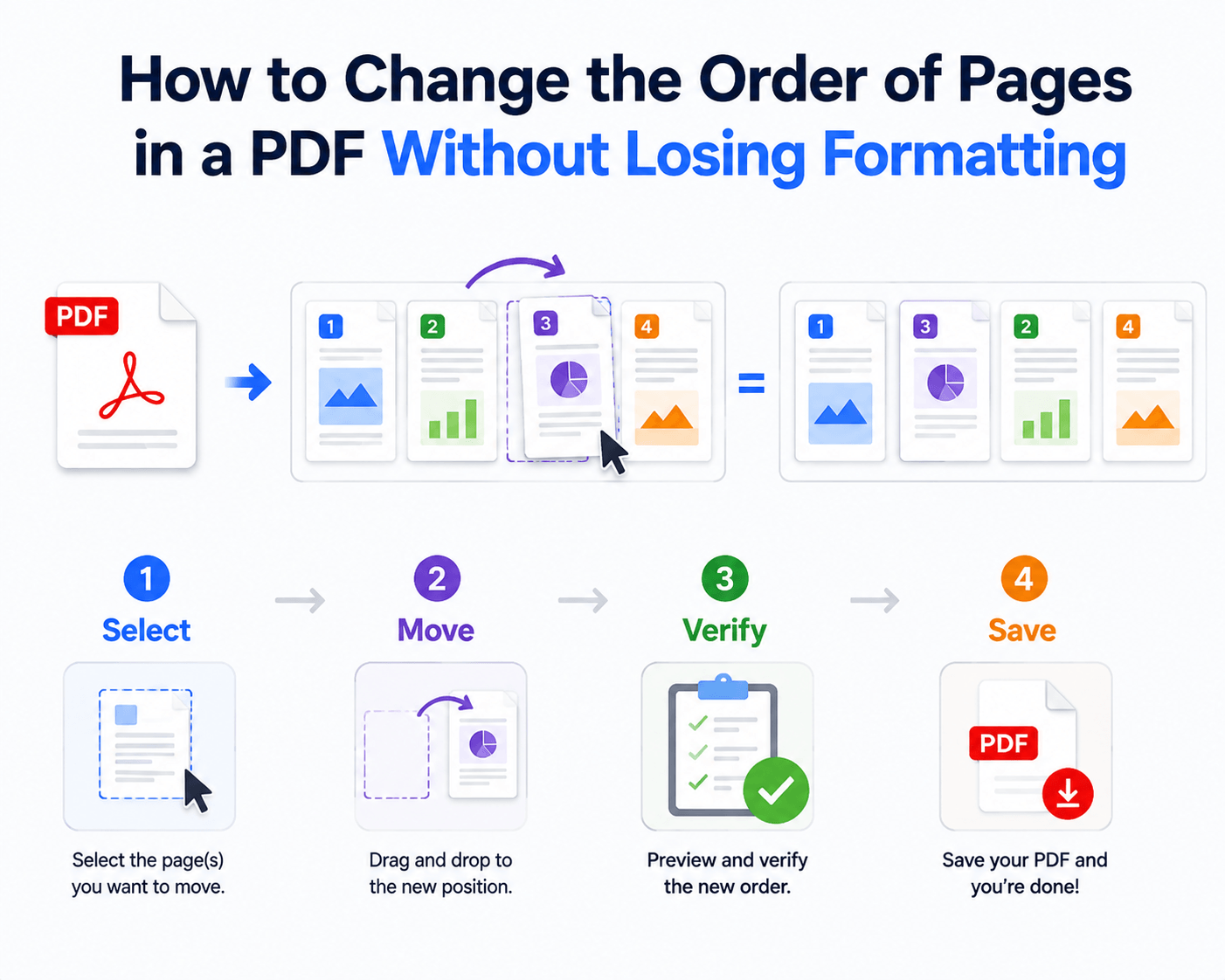
How to Change the Order of Pages in a PDF Without Losing Formatting

Need to move a few PDF pages but worried about breaking the layout? You usually don’t need to edit the content at all. Change the page sequence, not the page

Need to move a few PDF pages but worried about breaking the layout?

You usually don’t need to edit the content at all.
Change the page sequence, not the page itself.

What Actually Changes?

Suppose your PDF contains:

1 → 2 → 3 → 4 → 5

You want:

1 → 3 → 2 → 4 → 5

The pages move, but their text, images, fonts, and layout stay on the pages.

That’s the key difference between reordering and editing.

Why Formatting Usually Stays Intact

PDF page content and page order are separate aspects of a document.

When a PDF organizer moves a page, it can change the page’s position in the document without modifying the content on that page. Adobe’s current PDF tools use thumbnail-based drag-and-drop for this workflow and state that rearranging pages preserves the document’s styling and formatting.

So you generally don’t need to:

❌ Copy and paste text
❌ Recreate the document
❌ Re-export every page

The Safe Way to Reorder Pages

Use a simple four-step workflow:

Select → Move → Verify → Save

1. Select

Open the page thumbnail view and select the page or page range.

2. Move

Drag it to the required position. Multiple pages can also be moved together in supported PDF organizers.

3. Verify

Check page numbers, chapter transitions, headers, footers, and bookmarks.

4. Save

Save the reordered document as a new file.

How to Change the Order of Pages in a PDF Without Losing Formatting

Reorder vs. Rebuild

Approach Formatting Risk Work Required Best Use
Reorder Pages Low Low Change page sequence
Copy & Paste Content Higher High Edit page content
Rebuild PDF Higher Very High Major document changes

The rule is simple:
If the content is already correct, don’t rebuild it.

When Formatting Problems Can Still Appear

Reordering itself is usually straightforward, but problems can come from other operations.

Watch for:

⚠ Converting the PDF to another format
⚠ Re-exporting pages repeatedly
⚠ Replacing pages
⚠ Editing fonts or text
⚠ Using incompatible PDF software

If you only need to change page order, keep the operation as simple as possible.

Online vs. Offline

Feature Online Tools Offline Tools
Installation None Required
File Upload Usually required Not required
Internet Required Not required
Local Processing No Yes
Sensitive Files More consideration Better suited

Online tools are convenient for quick, non-sensitive documents. For confidential PDFs, local processing gives you more control over the file.

A Simple PDF Workflow with LeoPDF

LeoPDF is a free Windows PDF tool for everyday document management.

You can use it to:

✅ Reorder PDF pages
✅ Delete unwanted pages
✅ Split PDFs
✅ Merge PDFs
✅ Compress PDFs
✅ Convert PDFs

For example:

Reorder → Delete → Compress → Share

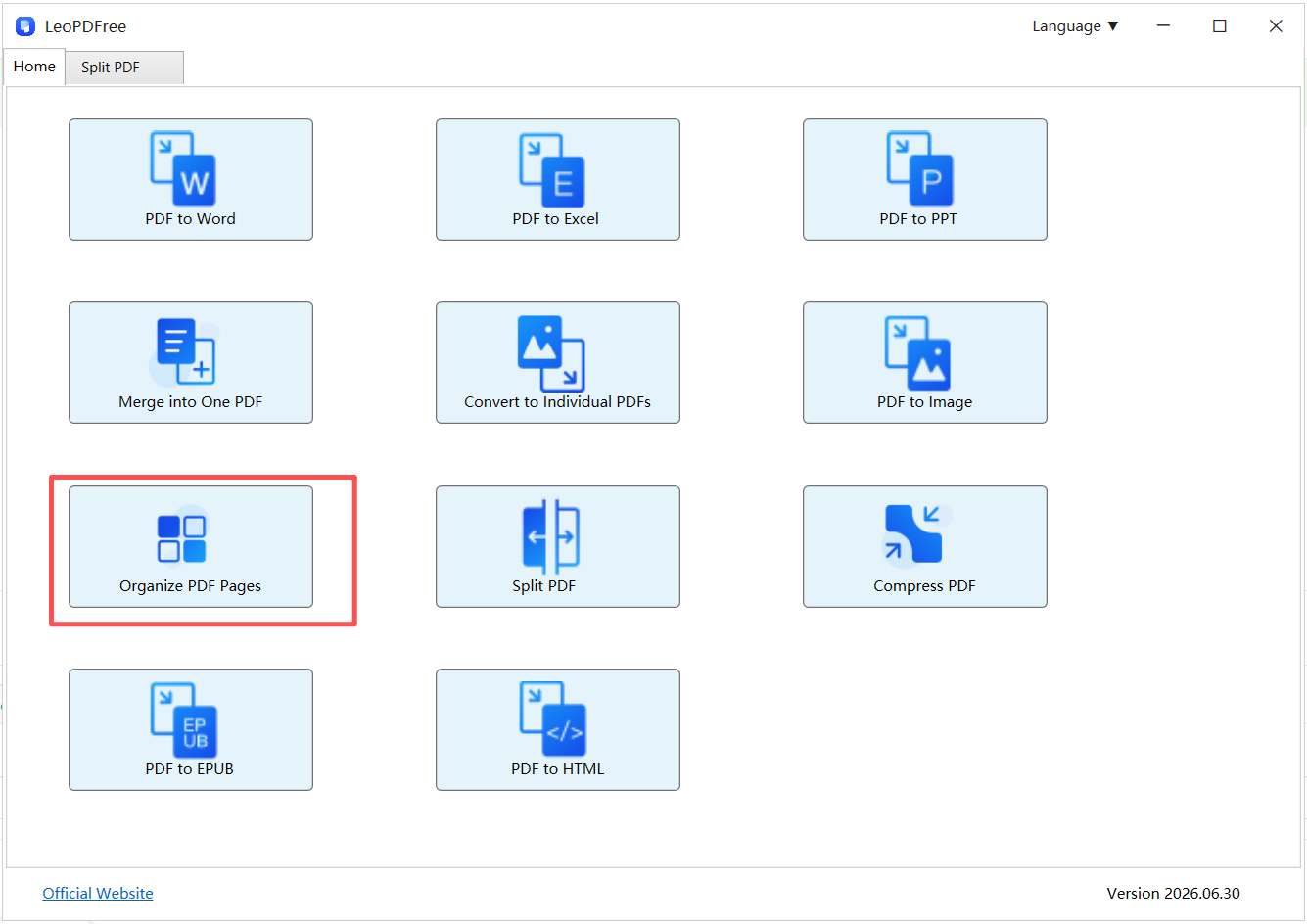
LeoPDF PDF Page Organizer Interface

Free DownloadSecure Download

Instead of rebuilding the document, you can organize the existing pages and keep the workflow focused.

Final Takeaway

Changing PDF page order shouldn’t mean changing the PDF’s content.

Move the pages. Keep the formatting. Verify the result.

For simple page-order changes, structural editing is usually the cleanest approach.

Review a large document efficiently

  • Use thumbnails to locate misplaced chapters, blank pages and duplicate pages.
  • Check the cover, chapter transitions, appendix, references and attachments after moving pages.
  • Check bookmarks and links you rely on; rearranging pages does not guarantee that every manually written page reference updates.
  • Keep Document-Original.pdf and save the result separately as Document-Reordered.pdf.

For a concrete illustrated workflow, see the PDF page-order tutorial. Use the page organizer supplied by your chosen application; you do not need to rebuild correctly rendered page contents.

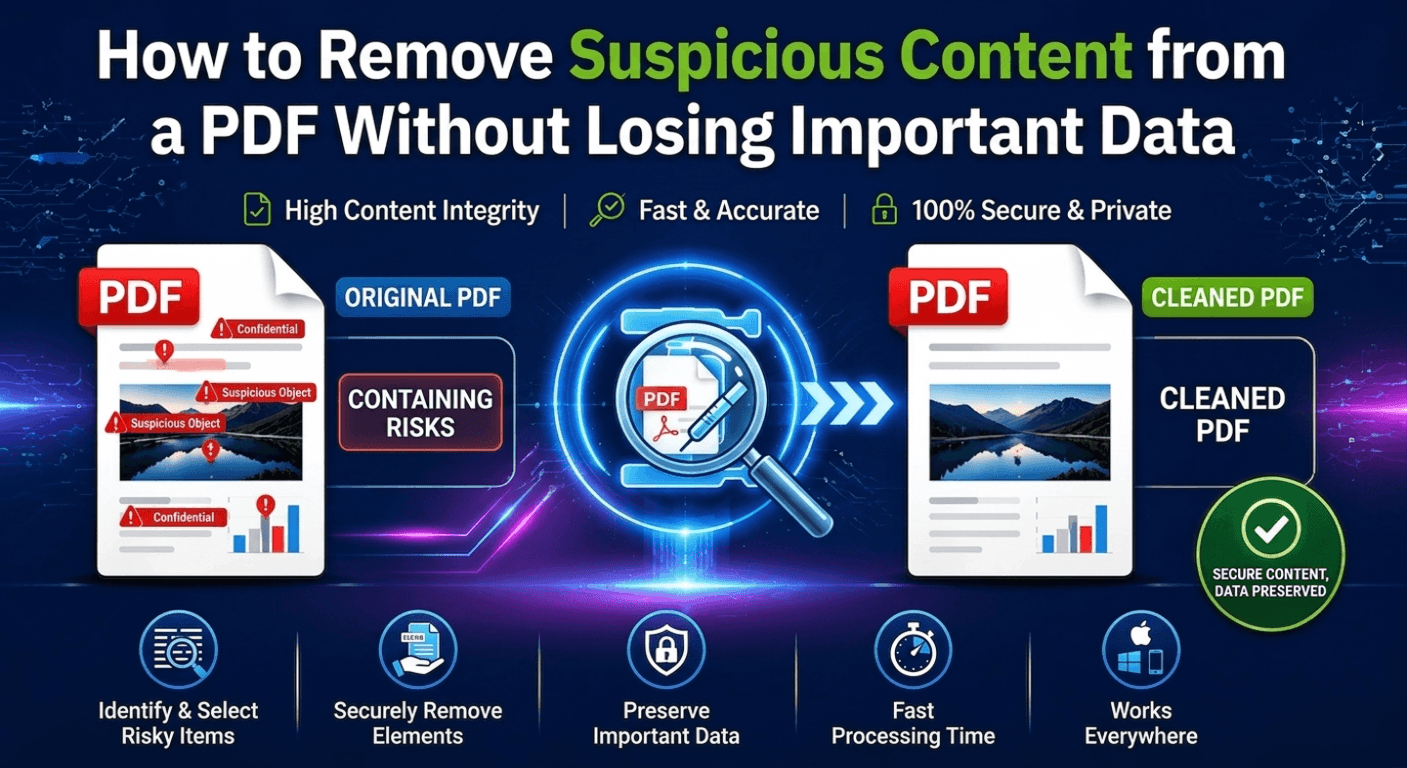
How to Remove Suspicious Content from a PDF Without Losing Important Data

A PDF can look completely normal and still contain information you do not want to share.

Behind the visible pages, a PDF may include:

🔵 Metadata
🔵 Embedded files
🔵 Hidden objects
🔵 Comments
🔵 Unnecessary pages
🔵 Previous editing information

Before sending an important document, cleaning and organizing your PDF is a smart security practice.

The goal is not to destroy the file.

The goal is:

Remove unnecessary content while keeping the important information intact.

How to Remove Suspicious Content from a PDF Without Losing Important Data

What Makes a PDF Need Cleaning?

A PDF is more than text and images.

It is a structured document that may contain additional elements.

Common items to review include:

PDF Element Why Check It
Metadata May reveal author or editing information
Embedded Files Could contain unwanted attachments
Comments May expose internal notes
Hidden Objects Increase document complexity
Extra Pages May contain information you do not want to share

Why Removing Only Visible Content Is Not Enough

Many users think:

“Delete the page and the problem is solved.”

But PDF files can contain more than what appears on the screen.

A professional cleanup process should consider:

✔ Document structure
✔ Hidden information
✔ Unused pages
✔ File organization

A cleaner PDF is easier to share, store, and manage.

Three Practical Ways to Clean Up a PDF

Method 1: Remove Unnecessary Pages

One of the simplest ways to reduce information exposure is deleting pages you no longer need.

Examples:

⏺ Remove draft pages
⏺ Delete duplicate pages
⏺ Remove internal notes pages
⏺ Keep only the final version

This is especially useful before sending contracts, reports, or business documents.

Method 2: Remove Extra Document Information

Review and remove unnecessary elements such as:

⏺ Comments
⏺ Attachments
⏺ Document properties

This helps create a cleaner final PDF.

Method 3: Recreate the PDF When Necessary

For heavily edited or converted PDFs, rebuilding the document may provide a cleaner structure.

Typical workflow:

Original PDF

↓

Convert content

↓

Create a new PDF

↓

Review final output

Always check formatting after conversion.

Online PDF Cleaners vs Offline PDF Tools

Many online PDF tools provide quick processing.

However, the workflow usually requires:

Upload → Cloud Processing → Download

For sensitive documents, this creates additional privacy considerations.

Feature Online PDF Tools Offline PDF Tools
File Upload Required Not required
Privacy Control Depends on service Higher control
Large Files Internet-dependent More stable
Document Management Basic More flexible
Sensitive Documents Higher concern Better choice

A Better PDF Management Workflow with LeoPDF

While LeoPDF does not provide advanced PDF security scanning or suspicious content detection, it helps users manage PDF documents more efficiently.

LeoPDFree PDF Page Organizer Interface

Free DownloadSecure Download

Before sharing a PDF, users can organize and clean their files by:

✅ Removing unnecessary PDF pages
✅ Splitting large PDF documents
✅ Merging required pages together
✅ Compressing PDF file size
✅ Converting PDF to Word, Excel, and other formats
✅ Rearranging PDF documents

For example:

A financial report may contain:

🔵 Cover page
🔵 Internal draft pages
🔵 Final report pages
🔵 Extra attachments

With LeoPDF, users can remove unnecessary pages and keep only the content that needs to be shared.

This creates a cleaner and more professional PDF workflow.

PDF Cleanup Options Comparison

Task Manual Editing Online Tools LeoPDFree
Delete PDF Pages Difficult Available Available
Split PDF Files Limited Available Available
Compress PDF Limited Available Available
Convert PDF Limited Available Available
Local Processing Yes No Yes

Before Sharing a PDF: Quick Security Checklist

Before sending a document:

✅ Remove unnecessary pages

Only keep the information the recipient needs.

✅ Review document details

Check:

🔵 Author information
🔵 Comments
🔵 Extra attachments

✅ Use trusted PDF software

Avoid uploading confidential documents to unknown websites.

Final Thoughts

PDF security is not only about protecting files from threats.

It is also about controlling what information you share.

A professional PDF workflow includes:

✔ Removing unnecessary content
✔ Organizing pages properly
✔ Keeping important information only
✔ Using reliable PDF tools

For everyday PDF management, LeoPDF provides a simple, completely free solution for converting, compressing, splitting, merging, and organizing PDF files.

Clean documents are easier to manage.

And better document control means better data protection.

Free DownloadSecure Download

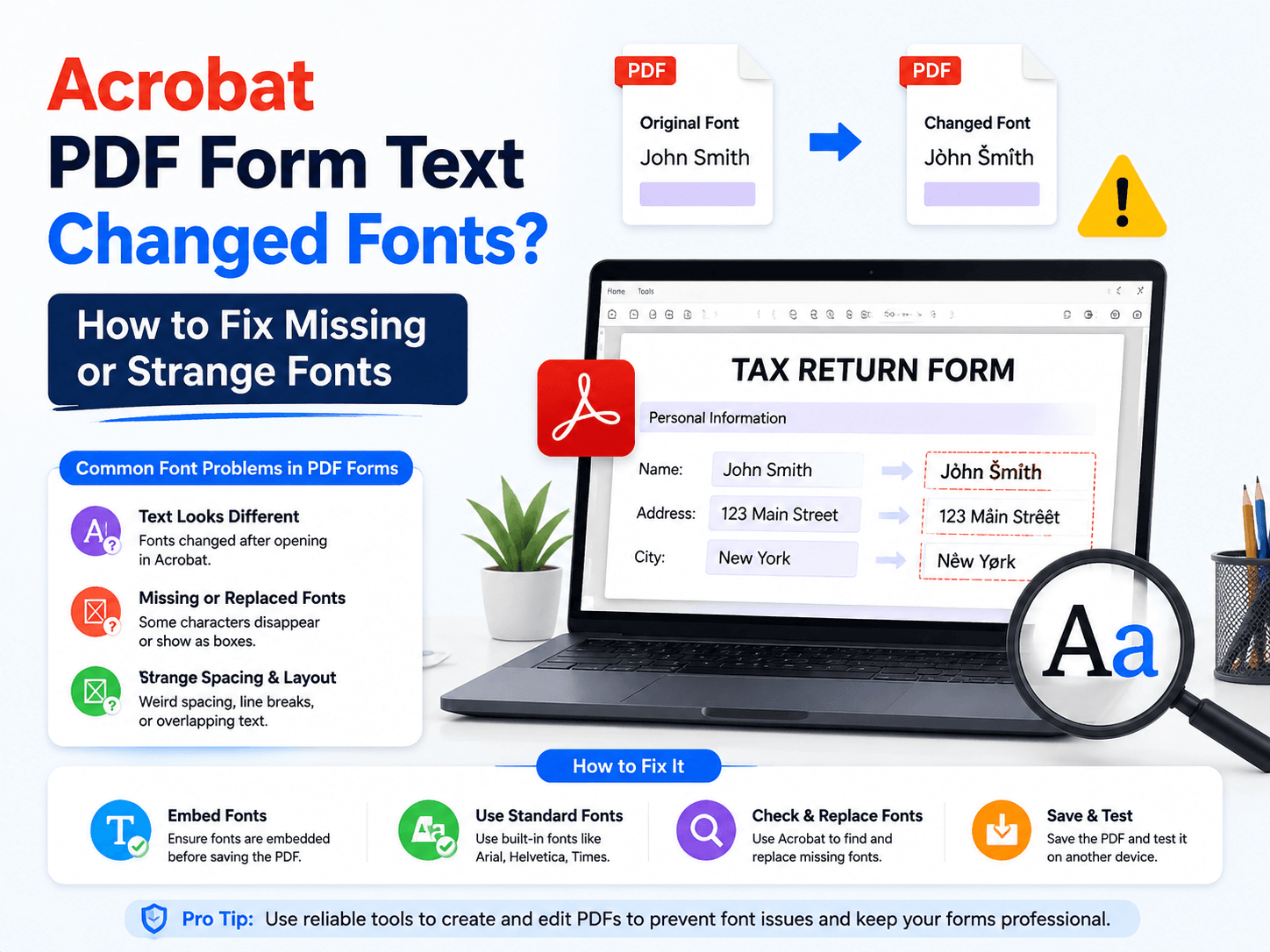
Acrobat PDF Form Text Changed Fonts? How to Fix Missing or Strange Fonts

You open a PDF form in Adobe Acrobat, edit a field, and suddenly the text looks different.

The font changes.

The spacing breaks.

The characters appear smaller, larger, or completely wrong.

This is one of the most common PDF form problems — and the reason is usually not Acrobat itself.

The real issue is font handling inside the PDF structure.

How to Fix Missing or Changed Fonts in Acrobat PDF Forms

Why Do PDF Form Fonts Change in Acrobat?

A PDF does not work like a Word document.

Instead of storing text as simple editable content, PDFs rely on:

🔵 Embedded fonts
🔵 Font encoding
🔵 Form field settings
🔵 Document compatibility rules

When a PDF form does not contain the required font information, Acrobat may automatically replace it with another available font.

This process is called font substitution.

The result:

❌ Wrong font style
❌ Different text size
❌ Misaligned form fields
❌ Missing special characters

Common Causes of Strange PDF Fonts

1. Missing Embedded Fonts

The original PDF creator may not have embedded the fonts correctly.

Without embedded fonts, Acrobat has to find a replacement font.

That replacement may not match the original design.

2. Form Field Font Settings Are Different

Interactive PDF forms have their own field properties.

A text field may use:

🔵 Default system fonts
🔵 Automatic font selection
🔵 Incorrect size settings

This can cause unexpected changes during editing.

3. PDF Created by Different Software

PDF files created by different applications may handle fonts differently.

For example:

🔵 Design software
🔵 Scanners
🔵 Online PDF generators
🔵 Older PDF editors

Each tool may create PDF structures in different ways.

How to Fix PDF Font Problems in Acrobat

Solution 1: Check Font Information

In Acrobat:

1️⃣. Open the PDF
2️⃣. Go to document properties
3️⃣. Check the Fonts section
4️⃣. Confirm whether fonts are embedded

If fonts are missing, the PDF may not display correctly on other devices.

Solution 2: Edit Form Field Properties

For PDF forms:

1️⃣. Open Prepare Form mode
2️⃣. Select the problematic field
3️⃣. Open field properties
4️⃣. Check font and size settings

Choose a standard font and test again.

Solution 3: Recreate the PDF with Embedded Fonts

If the original PDF has incorrect font settings, the best solution is often recreating the document.

When exporting:

✔ Embed fonts
✔ Use standard PDF settings
✔ Avoid unnecessary conversions

A properly created PDF is easier to edit later.

Why Online PDF Editors May Not Fix Font Issues

Many online PDF tools look convenient.

Upload PDF → Edit → Download

But they often have limitations:

🔵 Limited font control
🔵 Automatic conversions
🔵 Unknown rendering engines
🔵 Possible formatting changes

For simple edits, online tools are fine.

For complex PDF forms, font accuracy matters.

Prevent PDF Font Problems Before They Happen

A professional PDF workflow should follow these rules:

✅ Use embedded fonts
✅ Keep the original source file
✅ Avoid repeated PDF conversions
✅ Use reliable PDF software

Most PDF problems happen before editing even begins.

Good PDF creation prevents future formatting issues.

Need Other PDF Tasks? Try LeoPDF

While LeoPDF currently does not support advanced PDF form editing or font correction, it focuses on essential PDF workflows that many users need every day.

pdf convert at LeoPDFree

Free DownloadSecure Download

With LeoPDF, you can:

✅ Convert PDF to Word, Excel, and other formats
✅ Compress large PDF files
✅ Split PDF documents
✅ Merge PDF files
✅ Organize PDF pages

It provides a simple, completely free solution for everyday PDF management.

For users who need reliable PDF conversion, compression, and document processing without complicated subscriptions, LeoPDF offers a lightweight alternative.

Final Thoughts

PDF font problems are usually caused by missing fonts, incorrect encoding, or incompatible document creation settings.

Acrobat can help diagnose these issues, but the best solution is creating PDFs correctly from the beginning.

Use embedded fonts.

Keep clean PDF structures.

Choose the right tool for each task.

A well-built PDF should look the same everywhere — no matter which device opens it.

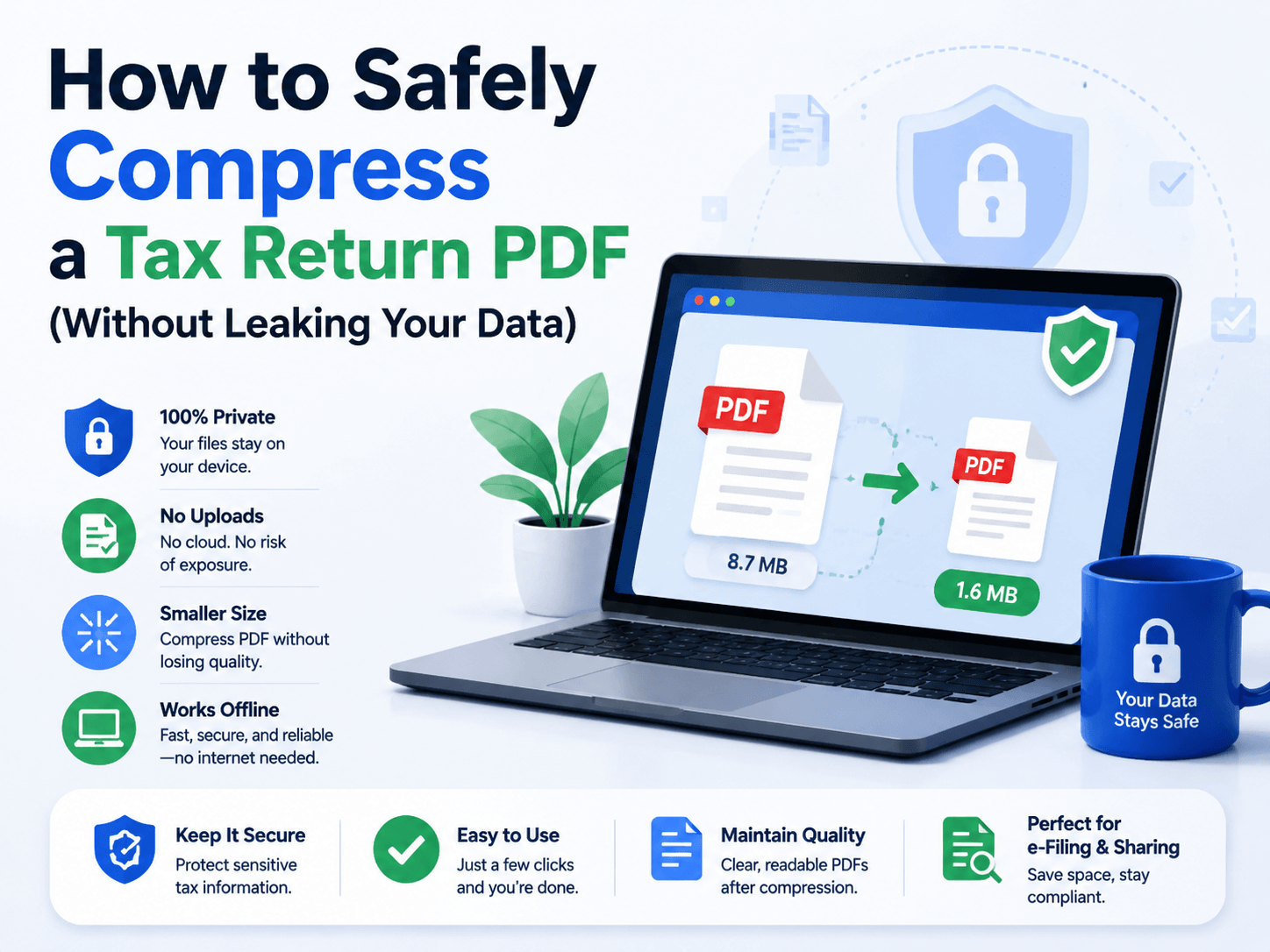
How to Safely Compress a Tax Return PDF (Without Leaking Your Data)

Tax return PDFs contain some of your most sensitive information, including income records, identification details, and financial data.

When the file size becomes too large for email or online submission, compression is necessary. But the real challenge is not just reducing file size.

It is protecting your data during the process.

A secure PDF compressor should provide two things:

✅ Smaller file size
✅ No unnecessary data exposure

How to Safely Compress a Tax Return PDF Without Leaking Your Data

Why Tax PDFs Should Not Be Uploaded Randomly

Online PDF compressors are convenient because they require no installation.

The workflow is simple:

Upload PDF → Process Online → Download Result

However, this means your document leaves your device.

For ordinary files, this may not be a concern.

For tax returns, financial statements, or legal documents, uploading sensitive files to third-party servers introduces additional privacy risks.

Online PDF Compressors vs Offline Tools

Online tools are suitable for quick, non-sensitive documents.

However, they often depend on:

🔵 Internet speed
🔵 Server availability
🔵 Service privacy policies

Offline PDF tools process files directly on your computer.

This means:

🔵 No file uploads
🔵 Faster processing for large PDFs
🔵 Better control over sensitive documents

Compress Tax PDFs Locally with LeoPDF

For Windows users, LeoPDF provides a simple offline PDF compression solution.

Instead of uploading your tax documents to online servers, LeoPDF processes files locally on your device.

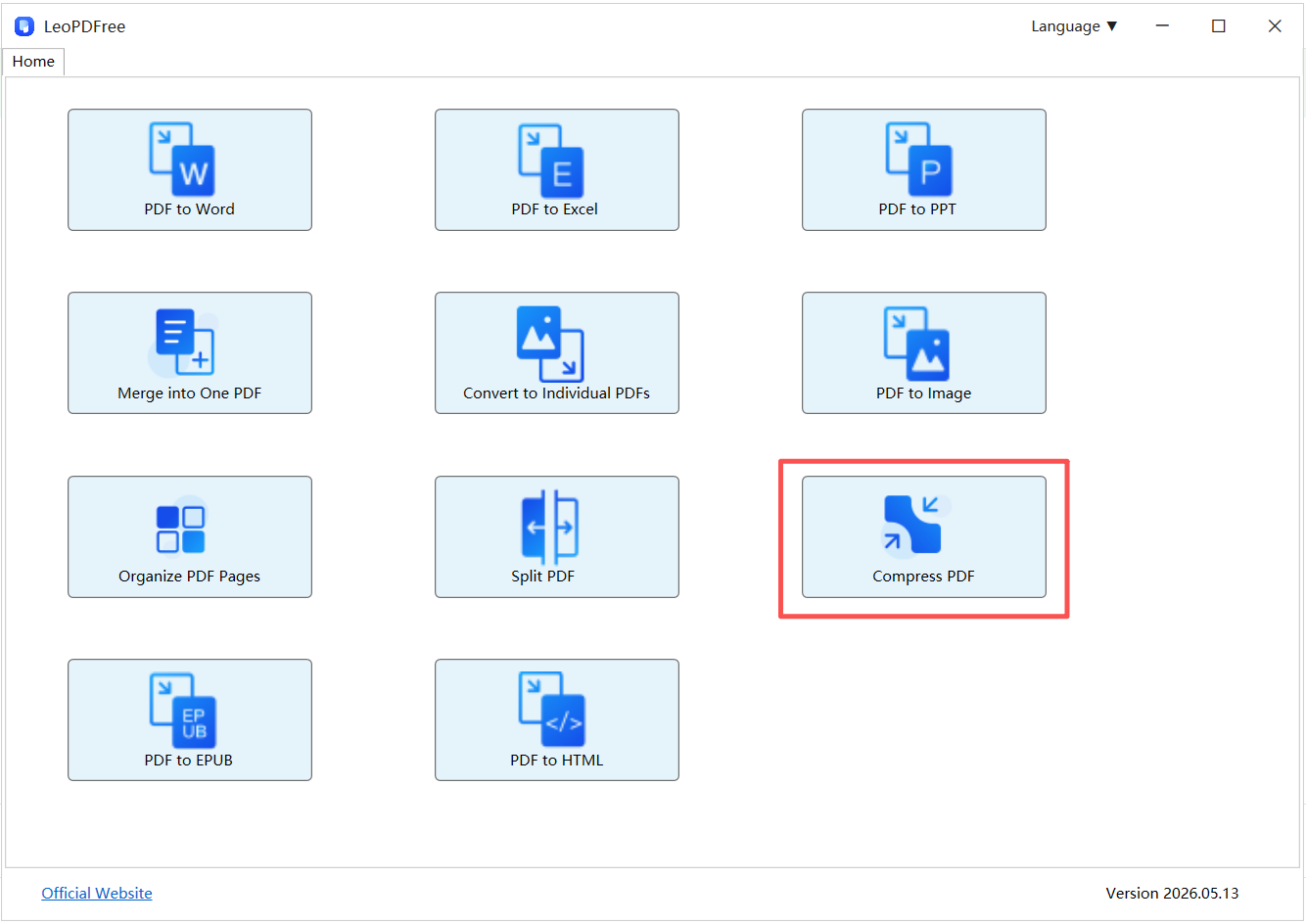
LeoPDFree PDF Compression Interface

Free DownloadSecure Download

Key advantages:

✅ Local PDF compression
✅ No file upload required
✅ No watermark added
✅ Stable performance for large files
✅ Simple Windows workflow

This makes it suitable for:

🔵 Tax return PDFs
🔵 Financial reports
🔵 Business documents
🔵 Personal records

Online vs Offline PDF Compression Comparison

Feature Online Compressors Offline Tools (LeoPDF)
File Upload Required Not required
Privacy Depends on service Files stay local
Large PDF Processing Internet-dependent More stable
Data Control Limited Higher control
Best For Public documents Sensitive files

Best Practices for Compressing Tax PDFs

1. Keep the Original File

Always save a backup copy before compression.

2. Avoid Unknown Free Compressors

Free does not always mean secure. Check how files are processed and stored.

3. Compress Before Sharing

Reduce file size before:

🔵 Email attachments
🔵 Tax portals
🔵 Cloud storage

This avoids upload failures and improves efficiency.

Final Thoughts

Compressing a tax return PDF is not only a file-size task.

It is also a data protection decision.

Online compressors are convenient for simple documents, but sensitive files deserve more control.

For Windows users, an offline solution like LeoPDF provides a safer workflow:

🔒 No uploads
⚡ Local processing
📄 Better privacy control

Make your PDF smaller without giving up control of your data.

Free DownloadSecure Download

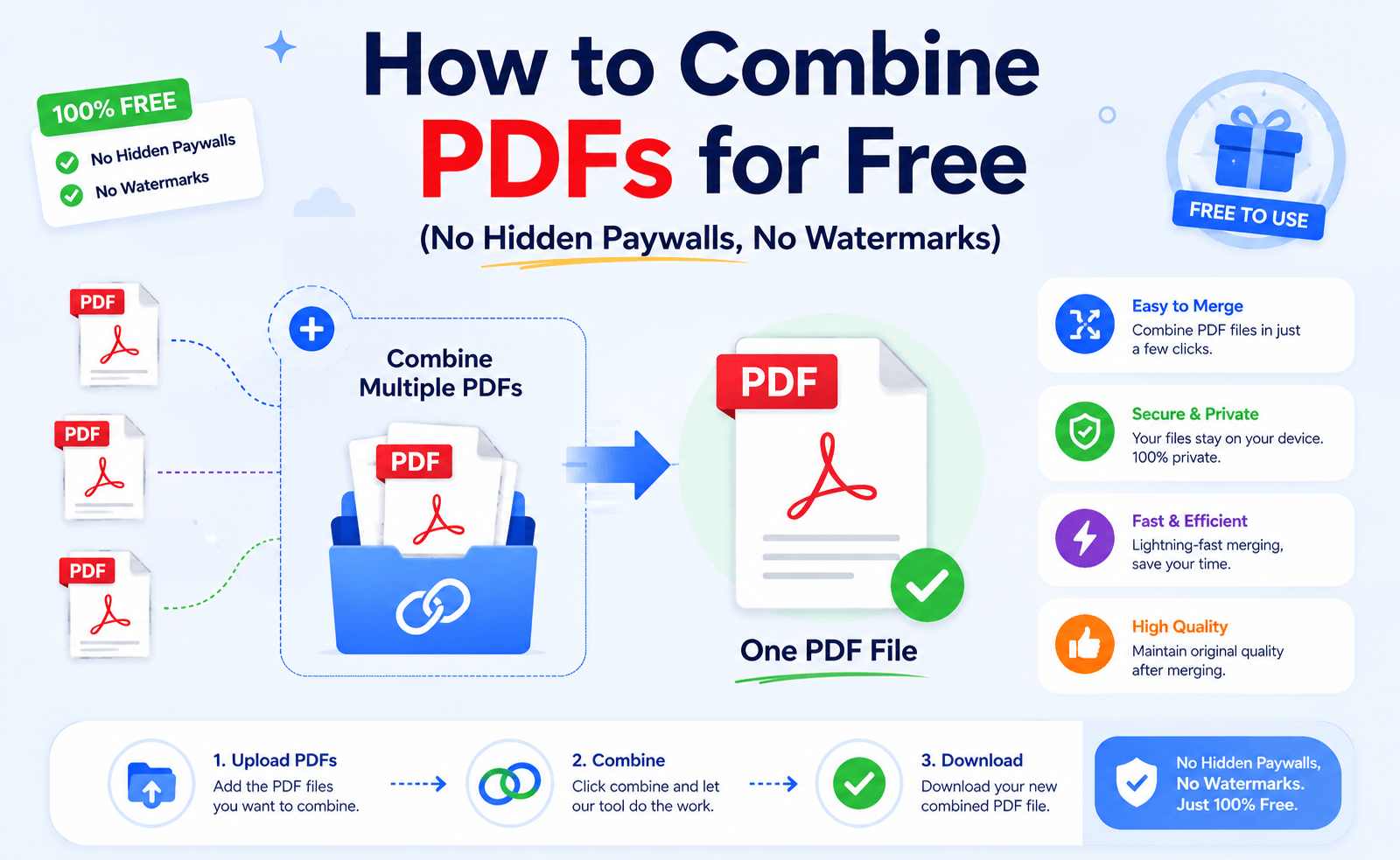
How to Combine PDFs for Free (No Hidden Paywalls, No Watermarks)

How to Combine PDF Files for Free Without Paywalls or Watermarks

Free should actually mean free.

Yet that’s rarely what happens when you search for a PDF merger.

You combine two files…

Click Download…

Then suddenly:

💳 Upgrade to Premium.

Or even worse:

💧 Your PDF now has a watermark.

If you’ve ever experienced that, you’re not alone.

The good news?

You don’t need to pay a subscription—or accept watermarks—just to merge a few PDF files.

Here’s how to do it the smarter way.

Why “Free” PDF Tools Aren’t Always Free

Many online PDF services advertise free merging.

What they don’t always mention is what comes afterward.

You might run into:

🚫 File limits

🚫 Daily usage limits

🚫 Premium-only downloads

🚫 Watermarked output

🚫 Upload restrictions

Sometimes the merge itself is free—but getting your finished PDF isn’t.

That’s why it’s worth looking beyond the first search result.

The Two Ways to Merge PDFs

There are really only two options.

🌐 Option 1: Online PDF Mergers

Browser-based tools are great when you’re using a shared computer or only need to merge a couple of small files.

The process is simple:

Upload

↓

Arrange pages

↓

Merge

↓

Download

Quick and convenient.

But convenience comes with trade-offs.

Large files upload slowly.

Private documents leave your computer.

Some websites lock advanced features behind a paywall.

💻 Option 2: Offline PDF Tools

Desktop software works differently.

Everything happens on your own computer.

No uploads.

No waiting for servers.

No surprise download restrictions.

For Windows users who merge PDFs regularly, this often creates a smoother experience.

LeoPDF: Built for Simple PDF Merging

If your goal is simply to combine PDFs without paying for features you don’t need, LeoPDF keeps things straightforward.

LeoPDFree PDF Merger Interface

Free DownloadSecure Download

Instead of adding subscriptions and unnecessary complexity, it focuses on the basics:

✅ Merge multiple PDFs into one

✅ Preserve the original layout

✅ No watermark added

✅ Process files locally

✅ Free for everyday use

For reports, invoices, study materials, or scanned documents, that’s often all you need.

Online vs Offline PDF Merging

Feature Online PDF Tools Offline Tools (LeoPDF)
Installation Not required Required
File Upload Yes No
Watermark Risk Possible No
Privacy Depends on the service Files stay local
Large Files Upload required More reliable
Best For Occasional use Frequent Windows users

Three Tips Before You Merge PDFs

📑 Organize First

Place files in the correct order before combining them.

A few seconds here can save editing later.

📦 Merge Once

Instead of merging files repeatedly, prepare everything first and create one final PDF.

It keeps your workflow cleaner.

🔒 Think About Privacy

If the document contains contracts, financial records, or internal files, local processing is usually the safer choice.

Who Should Use Online Tools?

Online PDF mergers make sense when:

✔ You’re using a public computer.

✔ The files aren’t confidential.

✔ You only need a quick, one-time merge.

Who Should Use Offline Tools?

Desktop tools are a better fit if you:

✔ Merge PDFs every week.

✔ Work with large documents.

✔ Handle sensitive files.

✔ Prefer software that works without internet access.

Final Thoughts

Merging PDFs shouldn’t feel like unlocking a paid feature in a mobile game.

If a tool says it’s free, downloading your own document shouldn’t require a subscription or leave a watermark behind.

Online PDF mergers are convenient for quick jobs.

But for regular Windows users, an offline tool like LeoPDF offers a simpler workflow:

⚡ No hidden paywalls

🔒 No file uploads

💧 No watermarks

📄 Just one clean PDF—ready to share.

Sometimes, the best PDF merger isn’t the one with the longest feature list.

It’s the one that quietly gets the job done.

Free DownloadSecure Download

Free PDF Compression on Windows: LeoPDFree, PDF24 and Online Options

Adobe Acrobat has been the name people think of when they hear “PDF.” And for good reason. It’s powerful, reliable, and packed with professional features. But here’s the question many

Adobe Acrobat has been the name people think of when they hear “PDF.”

And for good reason.

It’s powerful, reliable, and packed with professional features.

But here’s the question many Windows users are starting to ask:

Do you really need an expensive PDF subscription just to reduce file size?

For many everyday tasks, the answer is no.

Free PDF Compression on Windows: LeoPDFree, PDF24 and Online Tools

If your main goal is simply to:

📉 Reduce large PDF files
📧 Send documents through email
💾 Save storage space
🚀 Upload files faster

A lightweight PDF compression tool may be all you need.

This guide explores free Adobe Acrobat alternatives for Windows, compares desktop tools with online compressors, and explains which option makes the most sense for different workflows.

Why Look for an Adobe Acrobat Alternative?

Adobe Acrobat is designed as a complete PDF ecosystem.

It includes:

✔ Advanced editing
✔ OCR recognition
✔ Digital signatures
✔ Document collaboration
✔ Enterprise features

But many users never touch these functions.

Their actual needs are much simpler:

“I just need this 80MB PDF to become smaller.”

“I need to upload this document.”

“I want to send this report without hitting the attachment limit.”

Paying for a full PDF suite just for compression can feel unnecessary.

That’s where free PDF tools come in.

What Makes a Good PDF Compression Tool?

A good compressor is not just about creating the smallest file.

The best tools balance:

📦 File Size Reduction

Can it significantly reduce large PDFs?

👀 Visual Quality

Does text stay sharp?

Do images remain readable?

🔒 Privacy

Does your document stay on your computer?

⚡ Performance

Can it handle large files without waiting forever?

Free PDF Compression Options for Windows

🥇 Option 1: LeoPDF — Simple, Free, and Offline

For users who want a lightweight Adobe Acrobat alternative, LeoPDF focuses on the features people actually use.

Instead of a complicated interface filled with advanced settings, it provides a straightforward workflow:

Open PDF → Compress → Save

Simple.

No subscription.

No account registration.

No file upload.

Because LeoPDF processes documents locally on Windows, files stay on your device during compression.

LeoPDFree Free PDF Compression Interface for Windows

This makes it a practical option for:

📄 Business reports
📚 Large documents
🔐 Private files
📊 Presentations

Option 2: Online PDF Compressors — Convenient but Limited

Online tools such as iLovePDF and similar browser-based services are popular because they require no installation.

The workflow is simple:

🌐 Open website
⬆ Upload PDF
⚙ Process file
⬇ Download result

For quick tasks, this is convenient.

However, online tools have limitations.

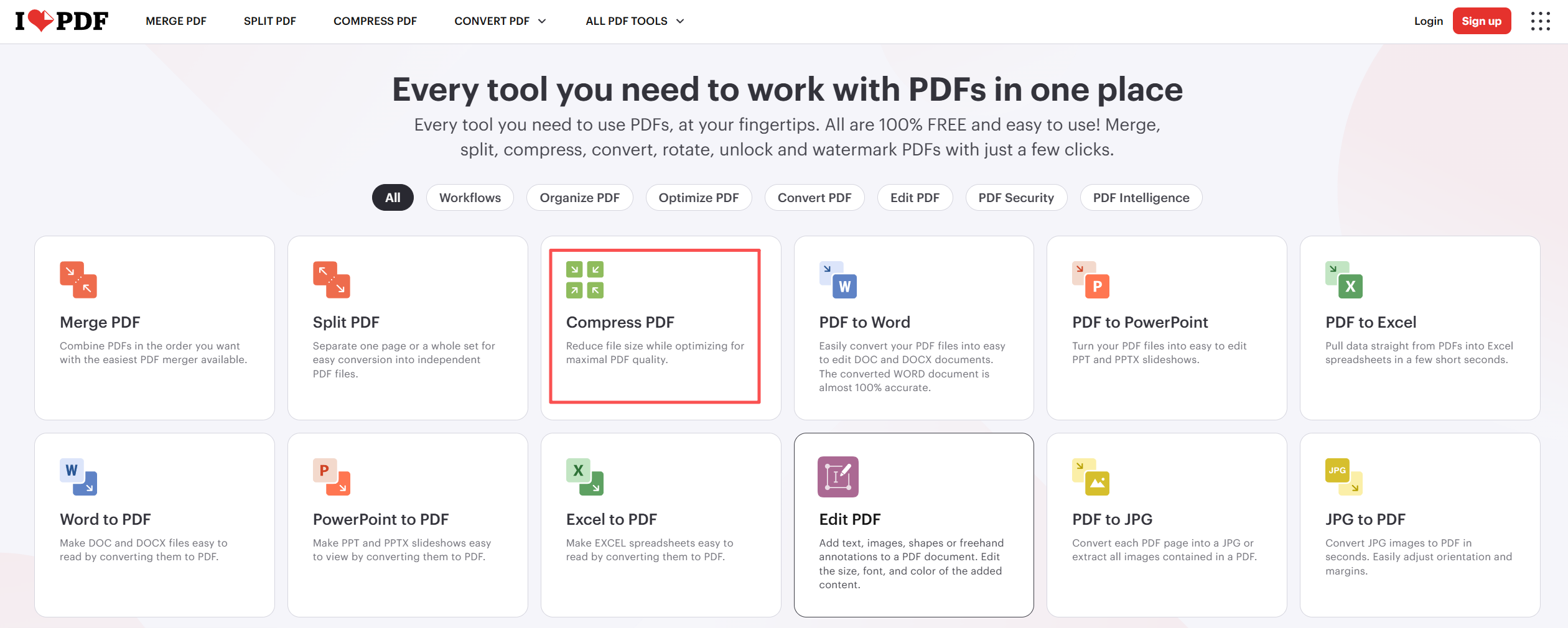
ilovepdf PDF Compression Tool Interface on Windows

The Hidden Cost of Online Convenience

1. Upload Time

A small PDF?

No problem.

A 200MB scanned document?

The upload alone may take several minutes.

Your actual compression hasn’t even started yet.

2. Privacy Concerns

Ask yourself:

Would you upload this document to a third-party server?

For public brochures, probably fine.

For:

🔒 Contracts
🔒 Financial reports
🔒 Customer documents

Many users prefer keeping files local.

3. Less Control

Many online compressors provide only basic choices:

Low compression

Medium compression

High compression

But you often don’t know:

How image quality changes
What data is removed
How the final PDF is optimized

Desktop Tools vs Online Compressors

Feature Free Desktop Tools (LeoPDF) Online Compressors
Installation Required Not required
File Upload No Yes
Privacy Files stay local Depends on service
Large PDF Handling More stable Limited by internet speed
Performance Consistent Depends on connection
Best For Regular users Quick one-time tasks

When Should You Choose a Free Alternative Instead of Adobe Acrobat?

A free PDF compressor is usually enough if you:

✅ Only need basic compression
✅ Work mainly with PDF size reduction
✅ Don’t need advanced editing tools
✅ Prefer simple software

For example:

A student reducing lecture notes.

A business employee sending reports.

A freelancer sharing project files.

These users usually don’t need a full professional PDF suite.

When Does Adobe Acrobat Still Make Sense?

Adobe Acrobat remains a strong choice for professionals who need:

🏢 Enterprise document workflows

✍ Advanced editing

🔍 OCR scanning

📝 Digital signatures

📂 Document management

If PDF editing is your daily job, professional software may justify the cost.

But for basic compression?

A lighter tool is often enough.

The Smarter Way to Choose a PDF Compressor

Before choosing a tool, ask three simple questions:

Question 1:

Do my files contain sensitive information?

If yes:

➡ Prefer offline tools.

Question 2:

Do I regularly compress large PDFs?

If yes:

➡ Desktop software will usually be faster.

Question 3:

Do I need advanced PDF editing features?

If no:

➡ A free PDF compressor may already cover your needs.

Final Thoughts

Adobe Acrobat is a powerful PDF solution, but powerful does not always mean necessary.

For users who simply need to reduce PDF file sizes on Windows, free alternatives can provide a faster and simpler experience.

Online compressors are useful for quick, non-sensitive tasks.

Professional suites are ideal for advanced workflows.

But for everyday PDF compression, tools like LeoPDF offer a practical middle ground:

✅ Free
✅ Offline
✅ Simple
✅ Privacy-focused

The best PDF tool is not always the one with the most features.

Sometimes, it’s the one that solves your problem without making the process more complicated.

Another named Windows option: PDF24 Creator

PDF24 Creator is free Windows software for private and business use. Its desktop compression tool works locally. Add your PDF, select an output setting and save a separate copy. Inspect detailed images and small text; local processing alone does not prove a lossless result.

Here, the free LeoPDF recommendation refers to LeoPDFree for Windows and its supported tasks. Check the edition comparison before assuming another platform offers the same operations or payment model.

Compress once, then share

  • Keep an original copy and choose the local or online route according to the document’s handling requirements.
  • Set an output folder, run one conversion and inspect the result before attaching or uploading it.
  • If the file is still too large, review image needs or split it where appropriate; do not assume repeated compression is harmless.

A local workflow avoids the upload and download stages. Its speed and output quality still depend on the software, settings, computer and source document.

Questions about your LeoPDF edition?

Contact xuehui@leopdf.com with your platform, app version and the task you need.

4 Ways to Reduce PDF File Size While Keeping It Readable

Balance PDF size and readability, distinguish lossless and lossy compression, and inspect a separate output copy.

Reducing file size is a trade-off to verify. “Readable” and “lossless” are not identical: image downsampling can change detail even when the copy remains useful. Keep the original and compare the chosen output.

You finally finish your report, presentation, or project document.

Then you see it:

“The file size is too large to upload.”

4 Ways to Reduce PDF File Size While Keeping Text and Images Readable

Sound familiar?

A PDF can become surprisingly huge because of hidden elements inside the file — high-resolution images, scanned pages, embedded fonts, and unnecessary data.

The quick solution many people try is uploading the PDF to an online compressor and hoping for the best.

But reducing PDF size isn’t just about making the number smaller.

A good compression method should keep:

✅ Clear text
✅ Sharp images
✅ Original formatting
✅ Professional appearance

So what actually works?

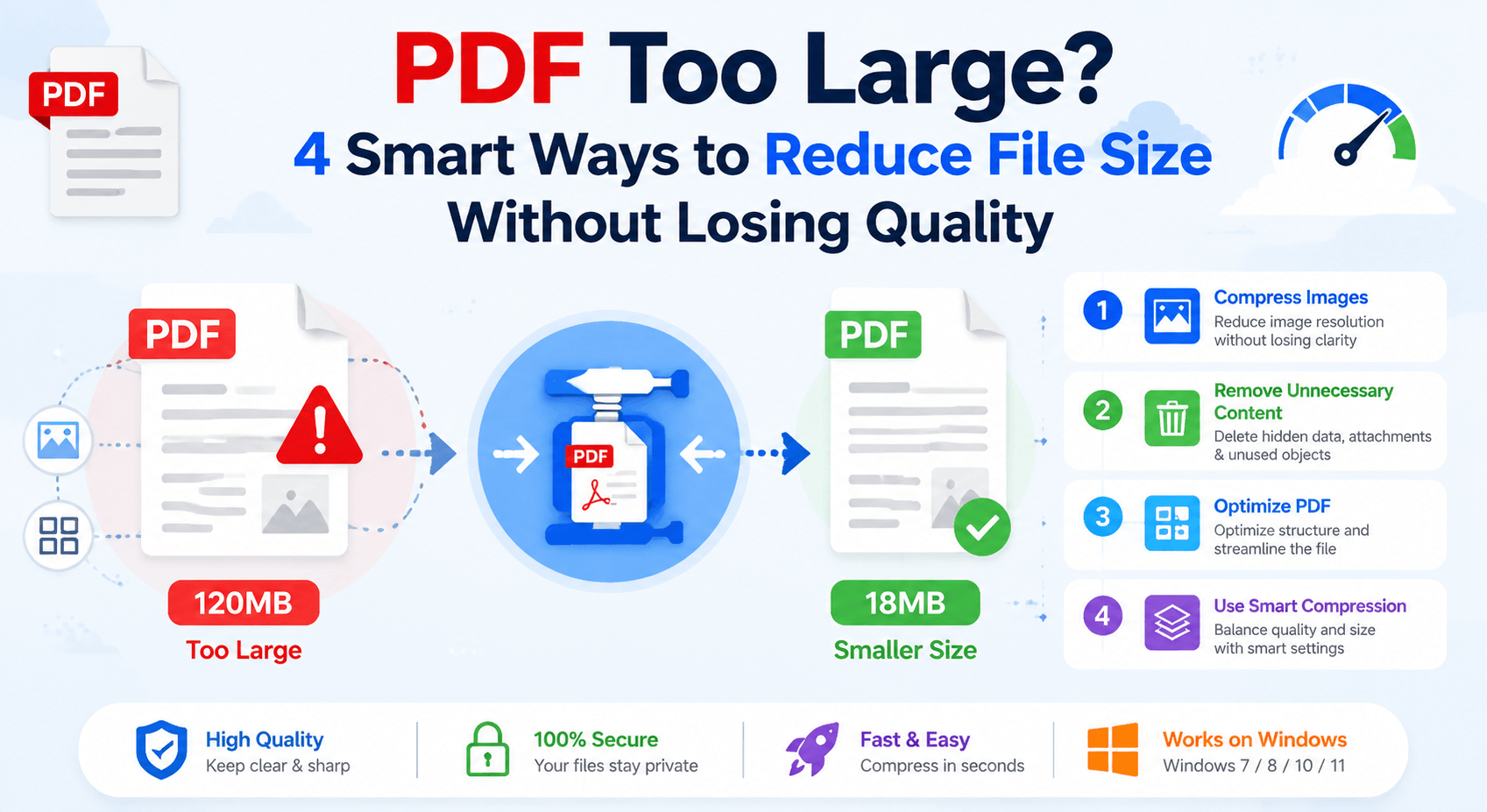
Here are 4 smart ways to reduce PDF file size while checking readability.

1. Compress Images Inside the PDF

Best for: Image-heavy PDFs, presentations, brochures, scanned documents

Images are often the biggest reason a PDF becomes oversized.

A single high-resolution photo can add several megabytes to a document.

Instead of reducing the entire PDF blindly, smart compression focuses on optimizing large image resources.

Before compression:

📷 300 DPI images
📄 Large file size
🐢 Slow sharing and uploading

After smart optimization:

✨ Balanced image resolution
📉 Smaller file size
👀 Still clear and readable

The key is finding the right balance.

Over-compressing images creates:

❌ Blurry screenshots
❌ Pixelated graphics
❌ Poor reading experience

A quality PDF compressor should reduce unnecessary image data while keeping important details intact.

2. Remove Unnecessary PDF Data

Best for: Business documents, exported files, old PDFs

Many PDF files contain hidden information that users never notice.

Examples include:

🗂 Old metadata
🔤 Duplicate fonts
📎 Unused objects
🖼 Hidden resources
🔄 Previous editing information

This extra data increases file size without improving the document.

A smart PDF optimization process removes unnecessary elements while keeping the visible content unchanged.

Think of it like cleaning up a crowded workspace:

Before:

📦 Too many unused items
🐌 Slower performance
💾 Wasted storage

After:

✨ Only essential content remains
⚡ Faster loading
📁 Smaller file size

3. Convert Scanned PDFs the Smart Way

Best for: Scanned books, invoices, contracts, archived documents

Scanned PDFs are among the hardest files to reduce.

Why?

Because they are usually made up of images instead of real text.

A 100-page scanned document may contain hundreds of high-resolution images.

Simply compressing it aggressively can make the text difficult to read.

A better approach is:

✅ Optimize scan resolution
✅ Reduce unnecessary image quality
✅ Keep text readable

For scanned documents, the goal isn’t the smallest possible file.

The goal is:

The smallest file that still feels like the original document.

4. Use a Local PDF Compressor Instead of Uploading Files

Best for: Large PDFs, private documents, frequent users

Many people use online PDF compressors because they are convenient.

No installation.

Open a browser.

Upload a file.

Download the result.

For occasional small files, this works well.

However, large or sensitive PDFs create additional concerns.

Online Tools vs Offline Tools

Feature Online Compressors Offline Tools (LeoPDF)
Installation Not required Required
Upload Files Yes No
Privacy Depends on service Files stay on your device
Large PDF Speed Internet-dependent More stable
Workflow Quick tasks Regular use

With offline tools like LeoPDF, files are processed directly on your computer.

LeoPDFree PDF Compression Interface

That means:

🔒 No file upload
⚡ Faster processing for large documents
🛡 Better privacy protection
📂 Full control over your files

For users who regularly handle reports, contracts, or business documents, local compression is often the smarter choice.

Quick Decision Guide: Which Method Should You Use?

📸 Your PDF contains many images?

Choose:

➡ Image optimization

Best for:

▪ Presentations
▪ Marketing materials
▪ Photo-heavy documents

🗃 Your PDF was created from multiple editors?

Choose:

➡ Remove unnecessary PDF data

Best for:

▪ Business files
▪ Exported documents
▪ Frequently edited PDFs

📚 Your PDF is a scanned document?

Choose:

➡ Smart scan optimization

Best for:

▪ Books
▪ Receipts
▪ Archives

🔐 Your PDF contains private information?

Choose:

➡ Offline compression with tools like LeoPDF

Best for:

▪ Contracts
▪ Financial documents
▪ Internal files

Common Mistakes That Make PDF Compression Worse

Many users accidentally damage document quality by doing these things:

❌ Compressing the same PDF multiple times
❌ Using extremely aggressive compression settings
❌ Converting PDF pages into images
❌ Uploading confidential documents without considering privacy

Remember:

Smaller doesn’t always mean better.

The goal is a PDF that is:

✅ Smaller
✅ Clear
✅ Secure
✅ Easy to share

Final Thoughts

A large PDF file doesn’t always mean something is wrong.

It usually means the document contains more data than necessary.

The smartest way to reduce PDF size is not to destroy quality — it’s to remove what the document doesn’t need.

Whether you optimize images, clean unnecessary data, improve scanned files, or use a local tool like LeoPDF, the right approach can significantly reduce file size while keeping your documents professional.

Because the best compressed PDF is not the smallest one.

It’s the one that stays sharp, readable, and ready to use.

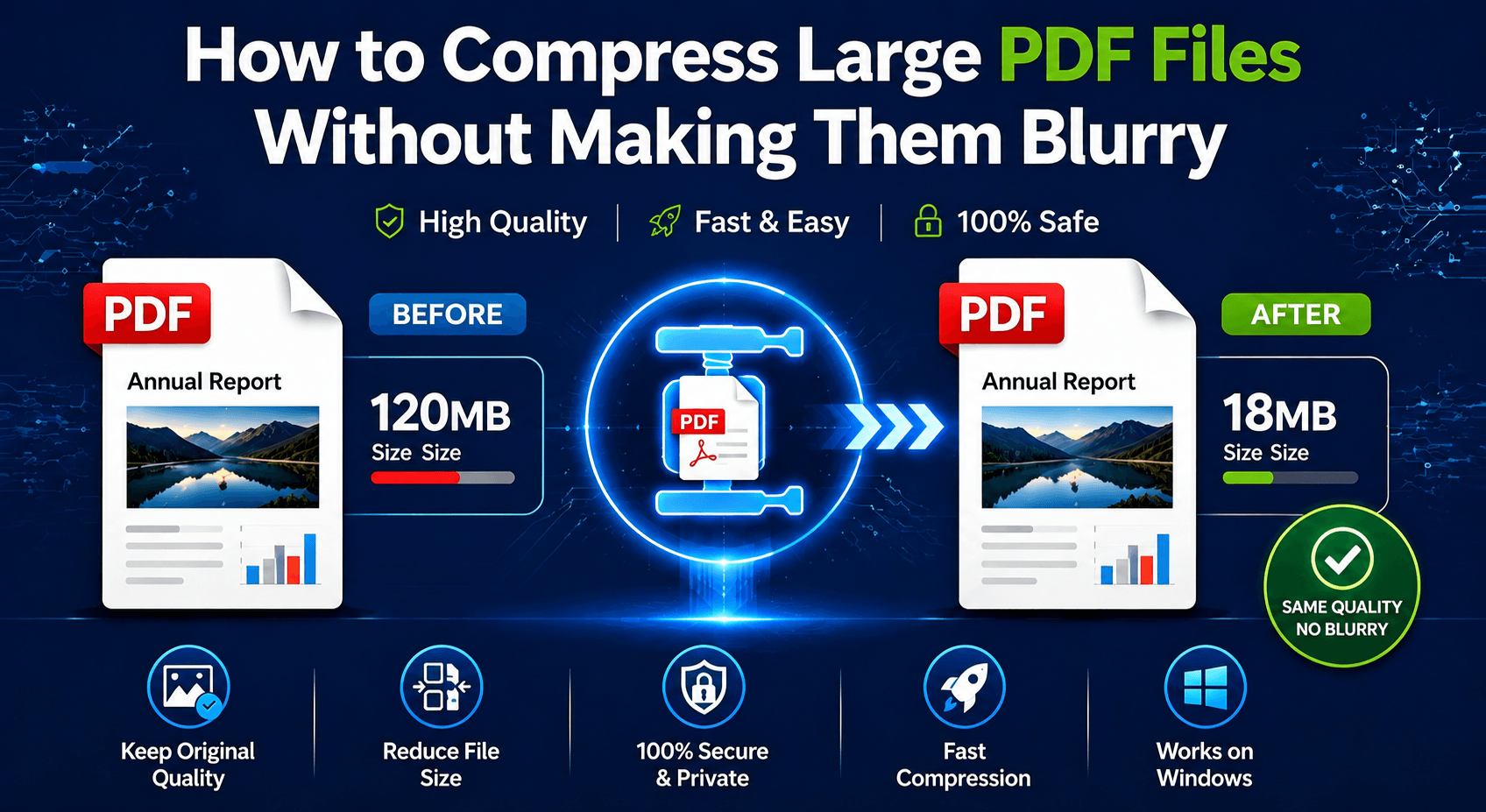
How to Compress Large PDF Files Without Making Them Blurry

A smaller PDF file is useful.

A blurry PDF is not.

Many people think PDF compression is simply about reducing file size. Upload the document, click “Compress,” and download the result.

But that’s where problems often begin.

Images become unclear. Text looks softer. Charts lose detail. Important documents suddenly look like low-quality scans.

The real goal of PDF compression isn’t just making files smaller.

It’s finding the right balance between file size, readability, and document quality.
‌

How to Compress Large PDF Files Without Losing Image Clarity

In this guide, we’ll explain why PDFs become blurry after compression, compare online and offline compression methods, and show how to reduce large PDF files while keeping them professional-looking.

Why Do PDFs Become Blurry After Compression?

A PDF is not just a collection of pages.

Inside every PDF are different elements:

Text objects
⏺ Images
⏺ Fonts
⏺ Graphics
⏺ Metadata
⏺ Embedded resources

When a compressor reduces file size, it usually targets the largest elements first—especially images.

The problem happens when a tool compresses too aggressively.

Common results include:

❌ Low-resolution images
❌ Unclear screenshots
❌ Pixelated charts
❌ Difficult-to-read text

A good PDF compressor should reduce unnecessary data without damaging the parts users actually need.

The Biggest Mistake: Choosing File Size Over Quality

A common mistake is chasing the smallest possible PDF.

But the smallest file is not always the best file.

For example:

A 50MB presentation compressed down to 2MB may look impressive.

But if images become unreadable and text loses clarity, the document is no longer useful.

A better approach is:

Compress smart, not aggressively.

The goal should be:

✔ Smaller file size
✔ Clear text
✔ Readable images
✔ Professional appearance

Online PDF Compressors: Convenient, But Not Always Ideal

Online PDF compression tools are popular because they don’t require any software installation. For example, iLovePDF.

iLovePDF PDF Compression Interface

1. Open a website.

2. Upload your file.

3. Wait for processing.

Download the compressed PDF.

For small, non-sensitive documents, this workflow is perfectly fine.

However, online tools have several limitations.

⏺ Upload Time Can Slow Everything Down

⏺ Less Control Over Compression Quality

⏺ Privacy Concerns,Not every PDF should leave your computer.

Offline PDF Compression: More Control and Better Privacy

Offline PDF tools work differently.

Instead of sending your document to a server, everything happens locally on your computer.

This provides several advantages:

✔ No file uploads
✔ Faster processing for large PDFs
✔ Better privacy protection
✔ More predictable results

For example, LeoPDF processes PDF files locally, allowing users to reduce file size without sending documents to external servers.

LeoPDFree PDF Compression Interface

Free DownloadSecure Download

This makes it a practical option for users who frequently handle business files, reports, or large documents.

Online vs Offline PDF Compression

Feature Online Compressors Offline Tools (LeoPDF)
Installation Not required Required
File Upload Yes No
Privacy Depends on service policy Files stay local
Large PDF Processing Limited by internet speed More stable
Quality Control Usually basic More predictable
Best For Quick, simple tasks Regular and professional use

How to Keep PDF Quality While Reducing File Size

If you want better compression results, follow these principles:

1. Avoid Repeated Compression

Every additional compression step may reduce quality.

Try to compress the original PDF instead of compressing an already compressed file.

2. Keep Images at a Reasonable Resolution

High-resolution images are often the biggest reason PDFs become large.

However, reducing image quality too much creates blurry results.

The best compression keeps images sharp while removing unnecessary file size.

3. Use Tools That Preserve Document Structure

A quality PDF compressor should understand the difference between:

⏺ Text
⏺ Images
⏺ Layout elements

Simply converting pages into images can destroy the advantages of the PDF format.

Who Should Use Online Compressors?

Online tools are a good choice if you:

✔ Compress PDFs occasionally
✔ Work with small files
✔ Don’t handle confidential information
✔ Need a quick solution without installing software

For example, compressing a simple brochure before emailing it may only take a few seconds.

Who Should Use Offline Tools Like LeoPDF?

An offline solution makes more sense if you:

✔ Compress PDFs frequently
✔ Work with large files
✔ Handle private documents
✔ Want consistent performance
✔ Prefer keeping files on your own device

For many everyday users, an offline PDF compressor provides the best balance between convenience, privacy, and quality.

Frequently Asked Questions

Does PDF compression always reduce image quality?

No.

A well-designed compressor can remove unnecessary data while keeping the document visually clear.

Quality loss usually happens when compression settings are too aggressive.

Why are scanned PDFs so large?

Scanned PDFs are basically collections of high-resolution images.

Unlike text-based PDFs, they require image optimization to reduce file size effectively.

Is a free PDF compressor good enough?

For most users, yes.

If you mainly need smaller files for email, storage, or sharing, a free offline tool like LeoPDF can handle everyday compression needs without requiring a subscription.

Final Thoughts

The best PDF compressor is not the one that creates the smallest file.

It’s the one that creates a smaller file without sacrificing usability.

Online compressors are convenient and useful for quick tasks.

Offline tools provide stronger privacy, better consistency, and more reliable performance for larger or sensitive documents.

If your goal is to compress large PDFs without making them blurry, focus on one thing:

Reduce unnecessary file size—without destroying the quality that makes the document valuable.