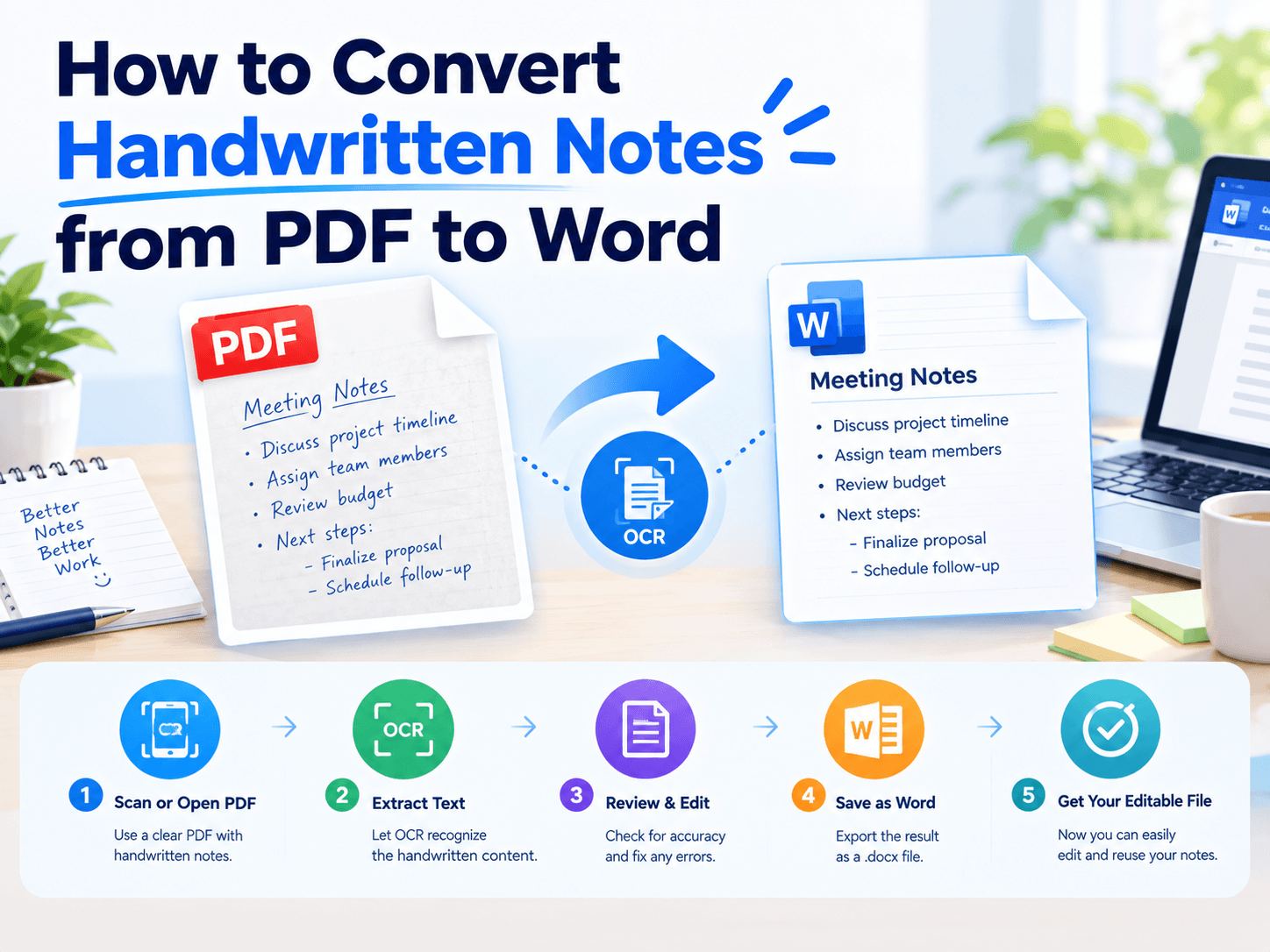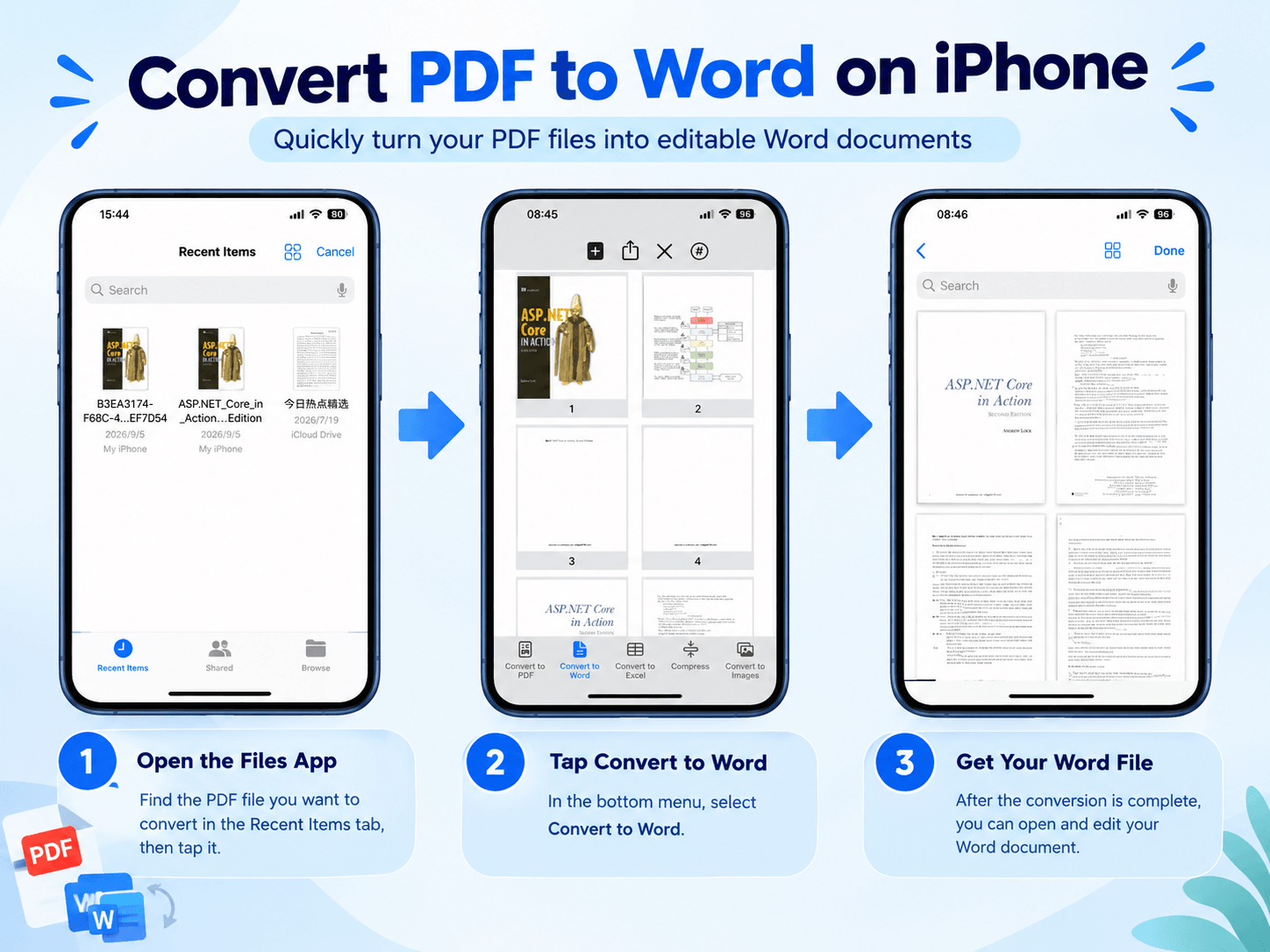
How to Convert PDF to Word Offline for Free on Windows

PDF is great for reading and sharing documents. But when you need to edit text, update a contract, revise a report, or reuse existing content, Word is much easier to work with.

Online converters are widely available, but they often require you to upload your files. If your documents contain contracts, financial records, or other private information, you may prefer to handle the conversion directly on your computer.
Convert PDF to Word Offline for Free on Windows

LeoPDFree offers a free offline way to convert PDF to Word on Windows 10 and 11. No account registration, no file uploads, and no internet connection required during conversion.

Why Convert PDF to Word?

PDF and Word serve different purposes.

PDF is ideal for reading, sharing, and preserving a fixed layout. Word makes it easier to edit text, adjust formatting, and reuse document content.

For example, you might want to:

⏺ Edit text in an existing contract or report.
⏺ Update dates, headings, and paragraphs.
⏺ Reuse content from a PDF in a new Word document.
⏺ Modify tables, images, and page layouts.

If you frequently work with existing PDF documents, converting them to Word can be much easier than recreating everything from scratch.

Convert PDF to Word Offline for Free with LeoPDFree

For digital PDFs that contain selectable text, LeoPDFree provides a straightforward conversion process. Everything is handled locally on your Windows computer.

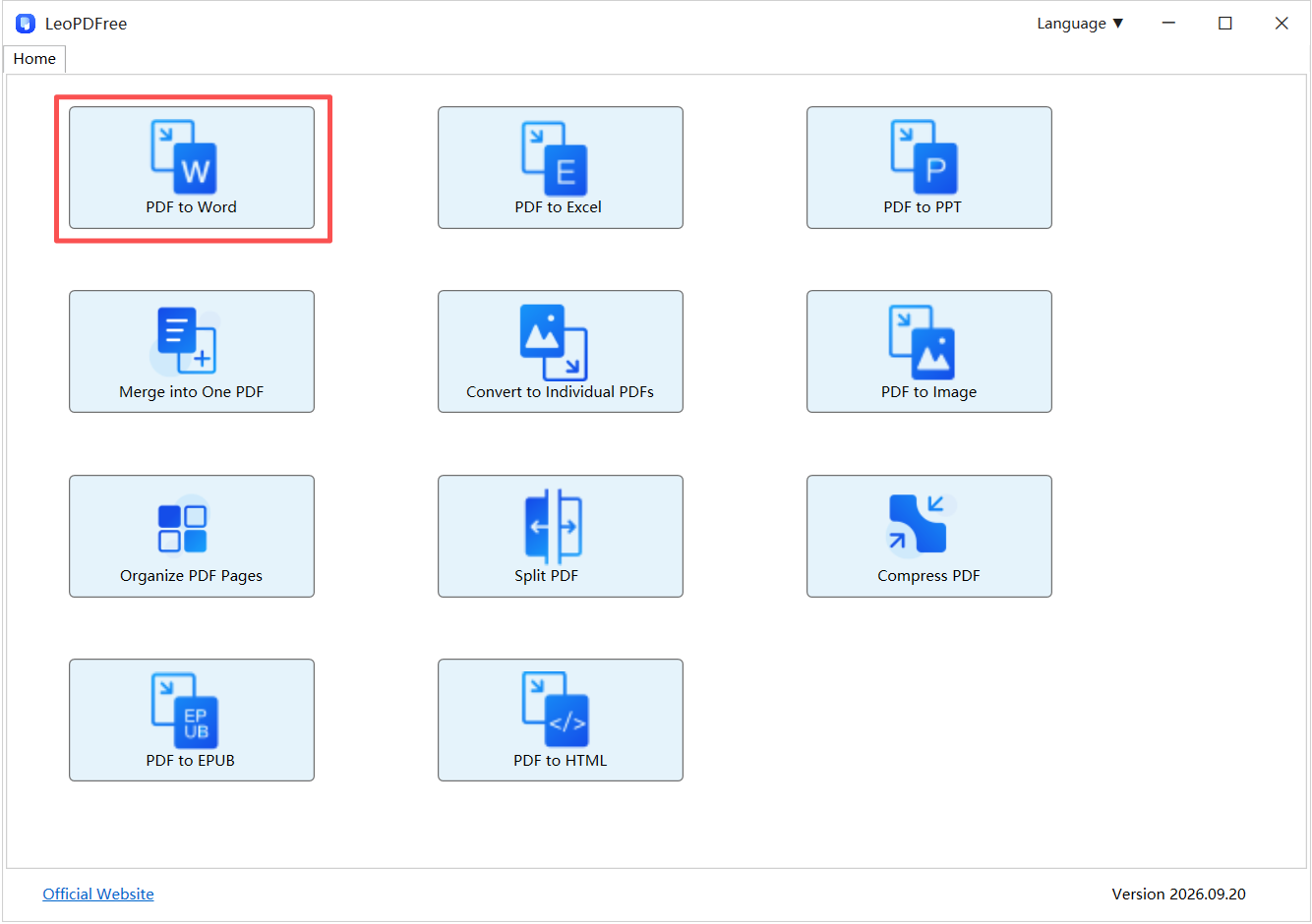
Step 1: Open PDF to Word

Launch LeoPDFree and select PDF to Word from the main interface.
ConvertPDFtoWordOffline

Free DownloadSecure Download

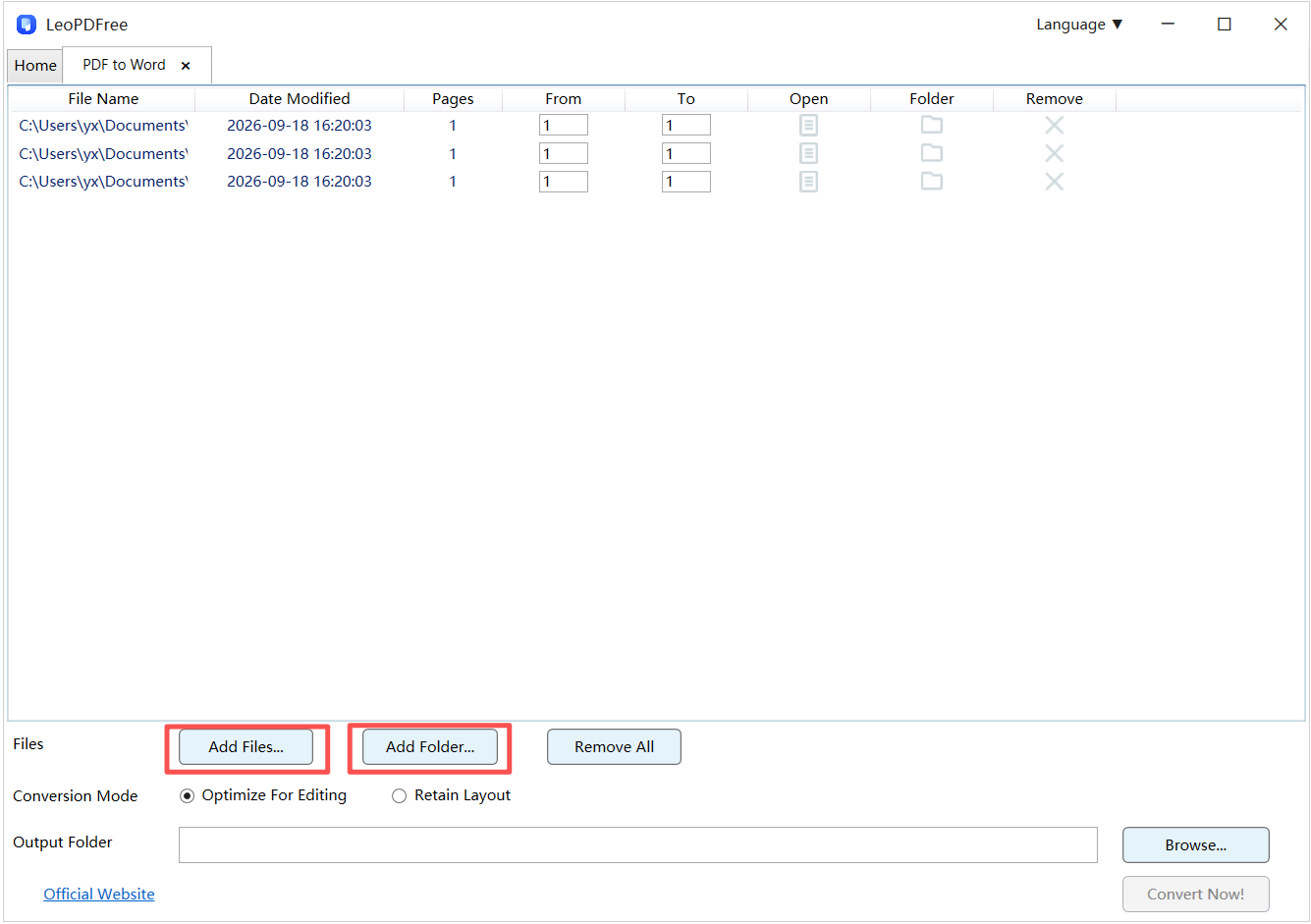
Step 2: Add Your PDF Files

Click Add Files… to select the PDF documents you want to convert.
If you need to process multiple documents, you can also use Add Folder… to import an entire folder and avoid adding files one by one.
ConvertPDFtoWordOffline

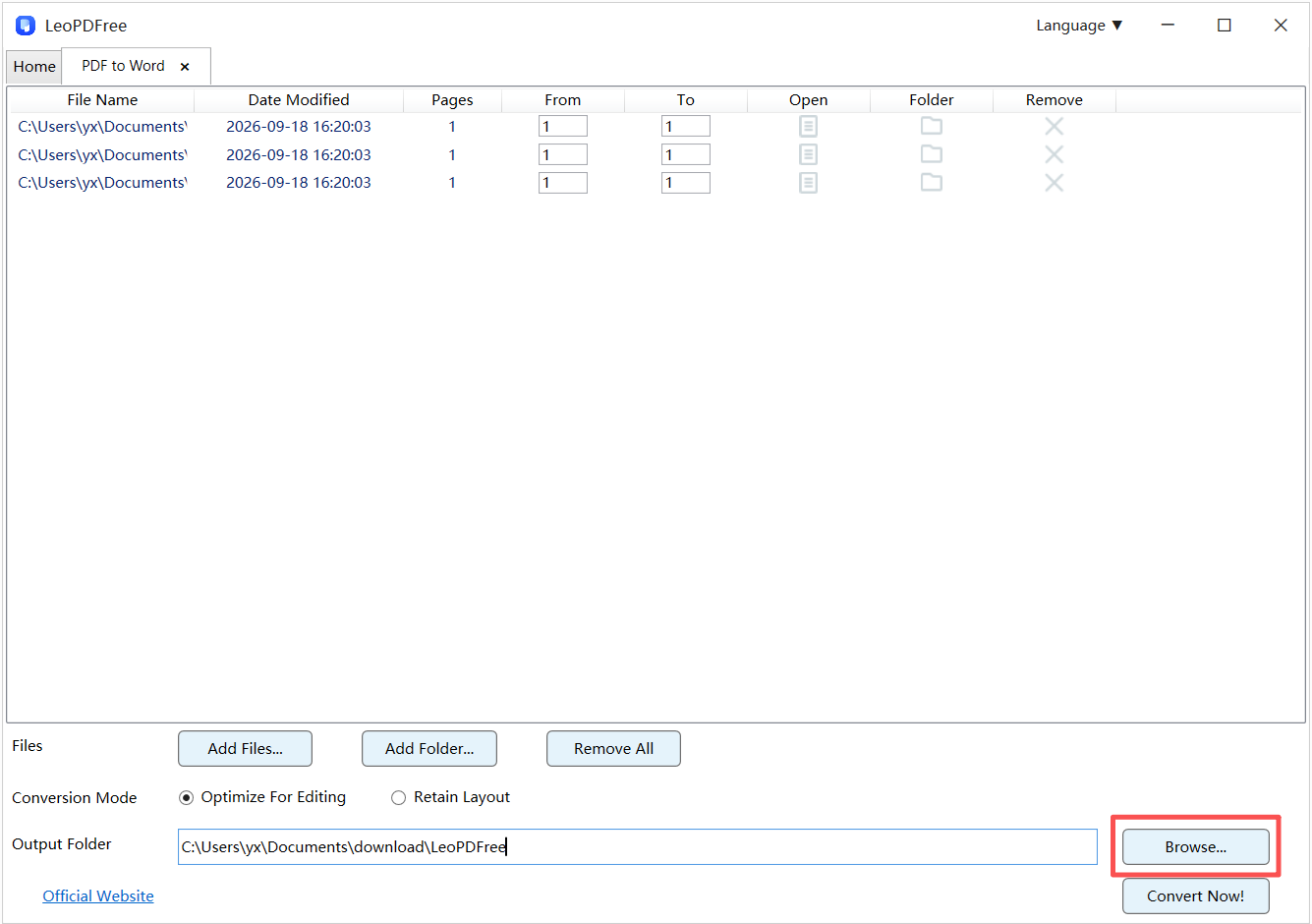
Step 3: Choose an Output Folder

Click Browse… to select where you want to save the converted Word documents.
Choose a folder that’s easy to find so you can quickly access your files after conversion.
ConvertPDFtoWordOffline

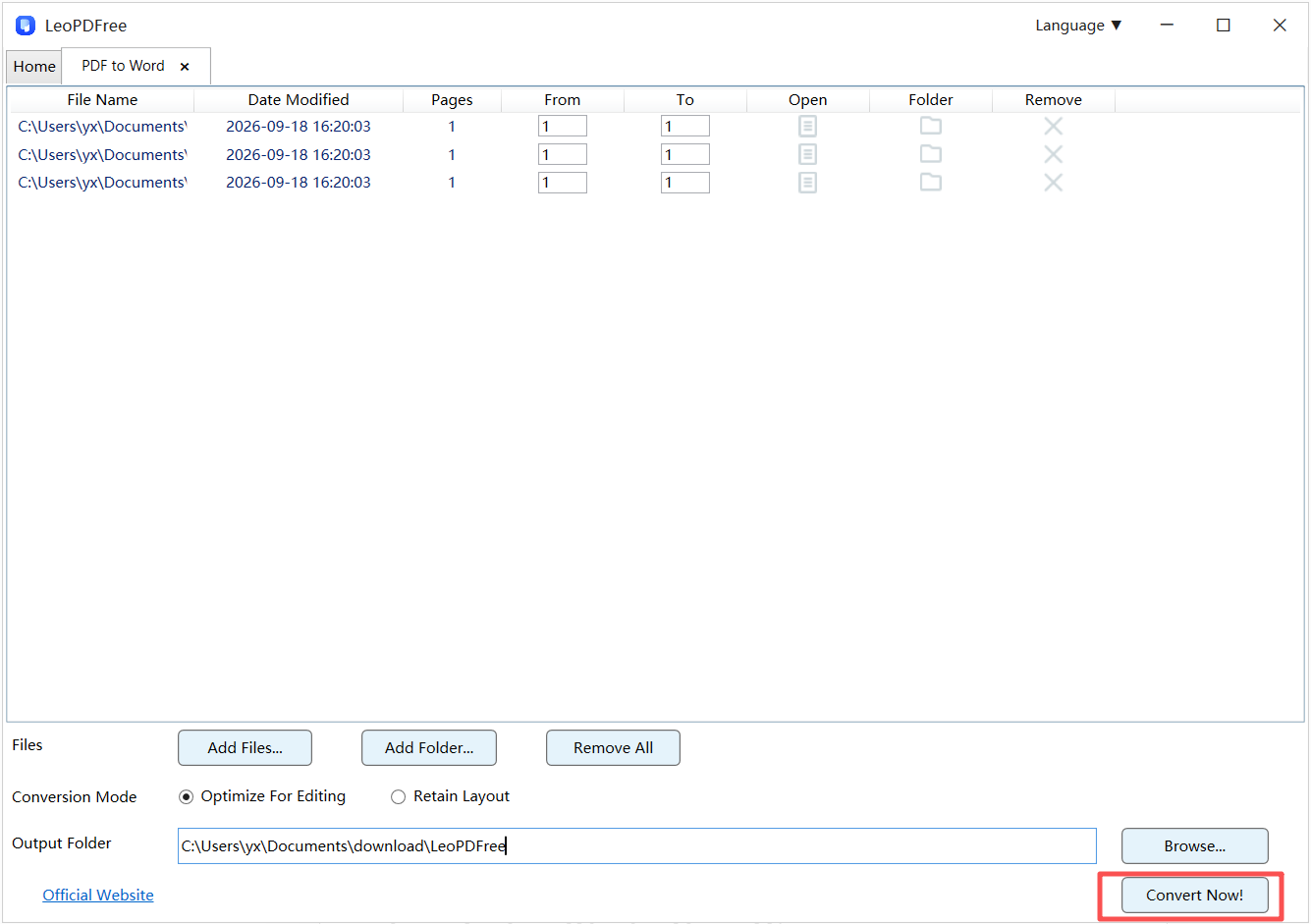
Step 4: Start the Conversion

Once your files and output location are ready, click Convert Now!.

Wait for the conversion to finish. When the success message appears, click Check Now to locate your converted documents.
ConvertPDFtoWordOffline

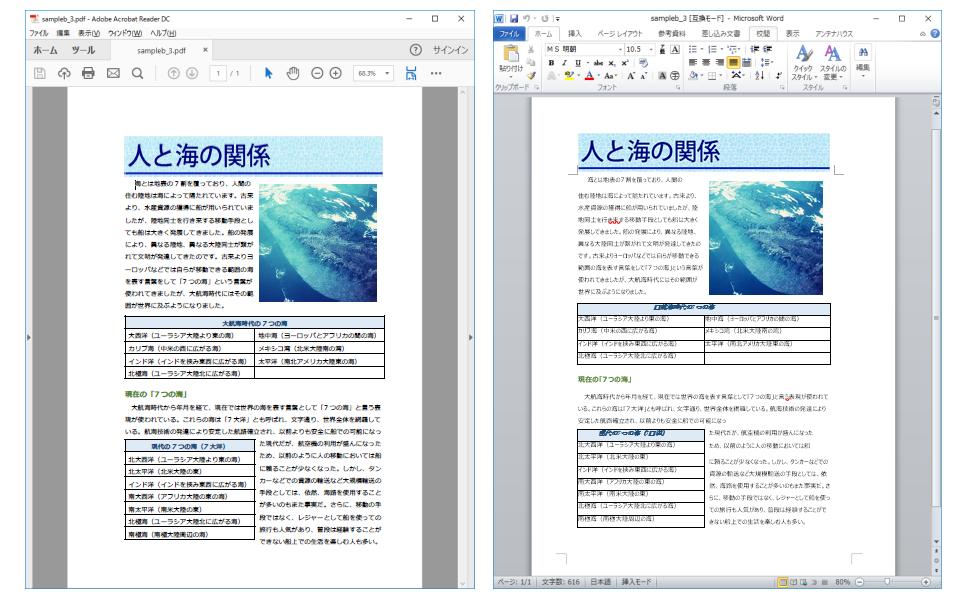
Step 5: Review Your Word Document

Open the converted file in Microsoft Word. Check the text order, paragraph spacing, image placement, and table structure. Compare it with the original PDF to make sure the conversion meets your expectations.
ConvertPDFtoWordOffline

Which PDFs Work Best with LeoPDFree?

Not all PDFs are structured the same way. Understanding your document type before conversion can help you choose the right tool.

PDF Type Works with LeoPDFree? Notes
Standard digital PDFs Yes Selectable text can be converted directly.
PDFs with images and tables Yes Review the layout after conversion.
Reports with complex formatting Yes Some spacing or table adjustments may be needed.
Scanned PDFs No OCR is required.
Handwritten PDFs No OCR is required, and manual review may be necessary.

Here’s a simple way to check your PDF: Open it and try selecting some text with your mouse. If you can select individual words, the document usually contains readable text. If the entire page behaves like an image, you’ll need OCR.

Need OCR for Scanned PDFs? Here’s Another Option

This is one of the key differences between LeoPDFree for Windows and other LeoPDF versions.
LeoPDFree focuses on free offline PDF conversion and does not currently support OCR. It cannot directly recognize text in scanned images or handwritten pages.
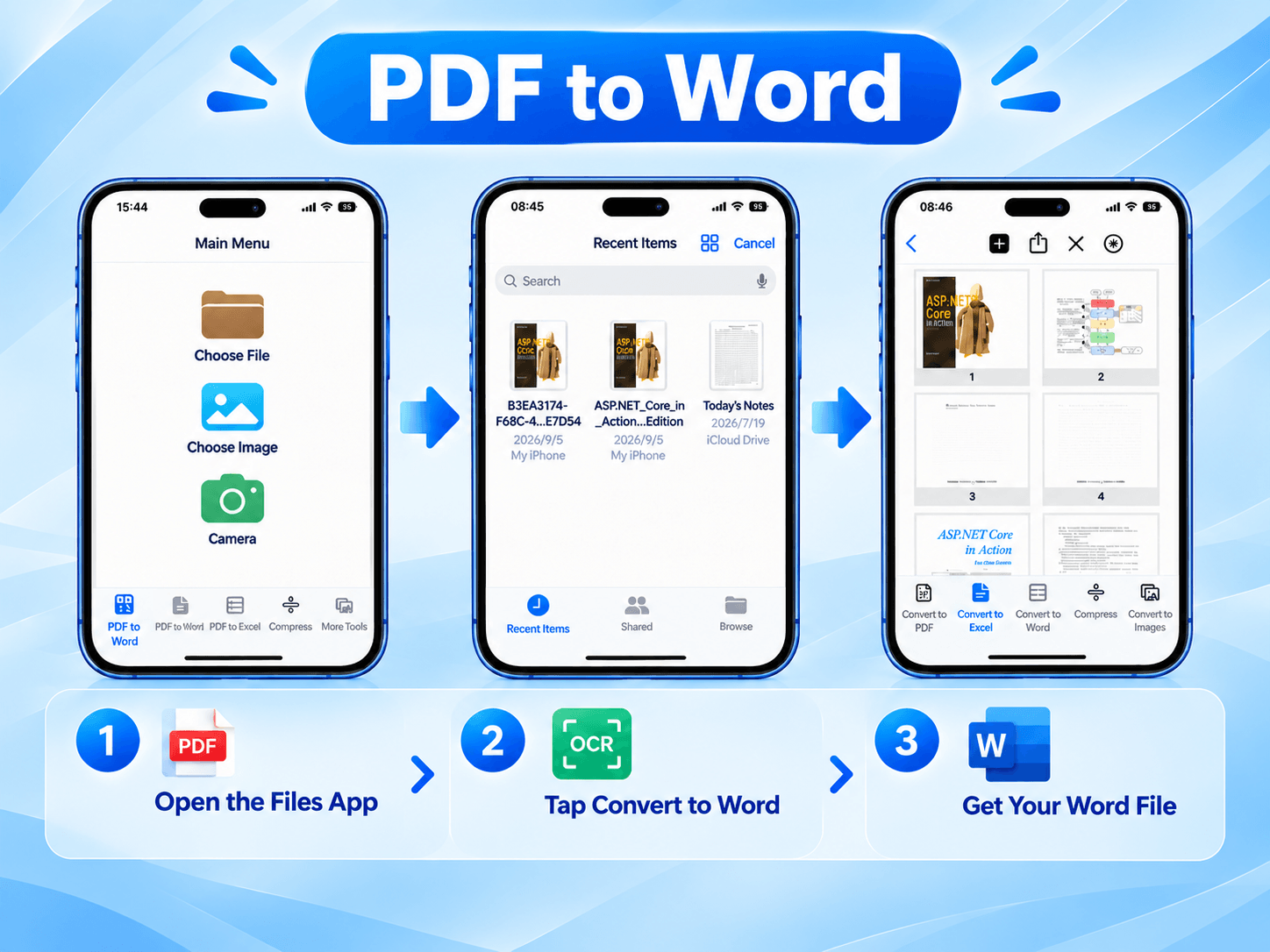
If you need to convert scanned PDFs into editable Word documents, you can use LeoPDF for Mac or iPhone, which supports OCR.
ConvertPDFtoWordiphone

LeoPDF can recognize text in scanned documents through OCR and use the recognized content for Word conversion. This is useful for scanned contracts, printed reports, and image-based documents.
Keep in mind that LeoPDF’s Word conversion is a paid feature that uses cloud processing and requires an internet connection. Blurry scans and handwriting may still require manual proofreading.

LeoPDFree vs. LeoPDF: Which One Should You Choose?

The choice depends on the type of PDF you’re working with.

Our Needs Recommended Version
Convert regular digital PDFs for free LeoPDFree for Windows
Convert PDFs offline without uploading files LeoPDFree for Windows
Recognize text in scanned PDFs LeoPDF for Mac / iPhone
Convert scanned PDFs to Word LeoPDF for Mac / iPhone
Recognize text in images or handwriting LeoPDF with OCR

In short: Choose LeoPDFree for regular digital PDFs and free offline conversion. Choose an OCR-enabled LeoPDF version when you need to extract text from scanned or image-based documents.

Start Converting Your PDF Files

If you’re using Windows and need a free PDF-to-Word converter that works offline, LeoPDFree is a practical option.

Free DownloadSecure Download

It lets you convert supported PDF files into editable Word documents without uploading them to an online service.
For scanned documents, you can explore the OCR-enabled LeoPDF versions instead.

Choose the right tool for your documents and make PDF editing easier.
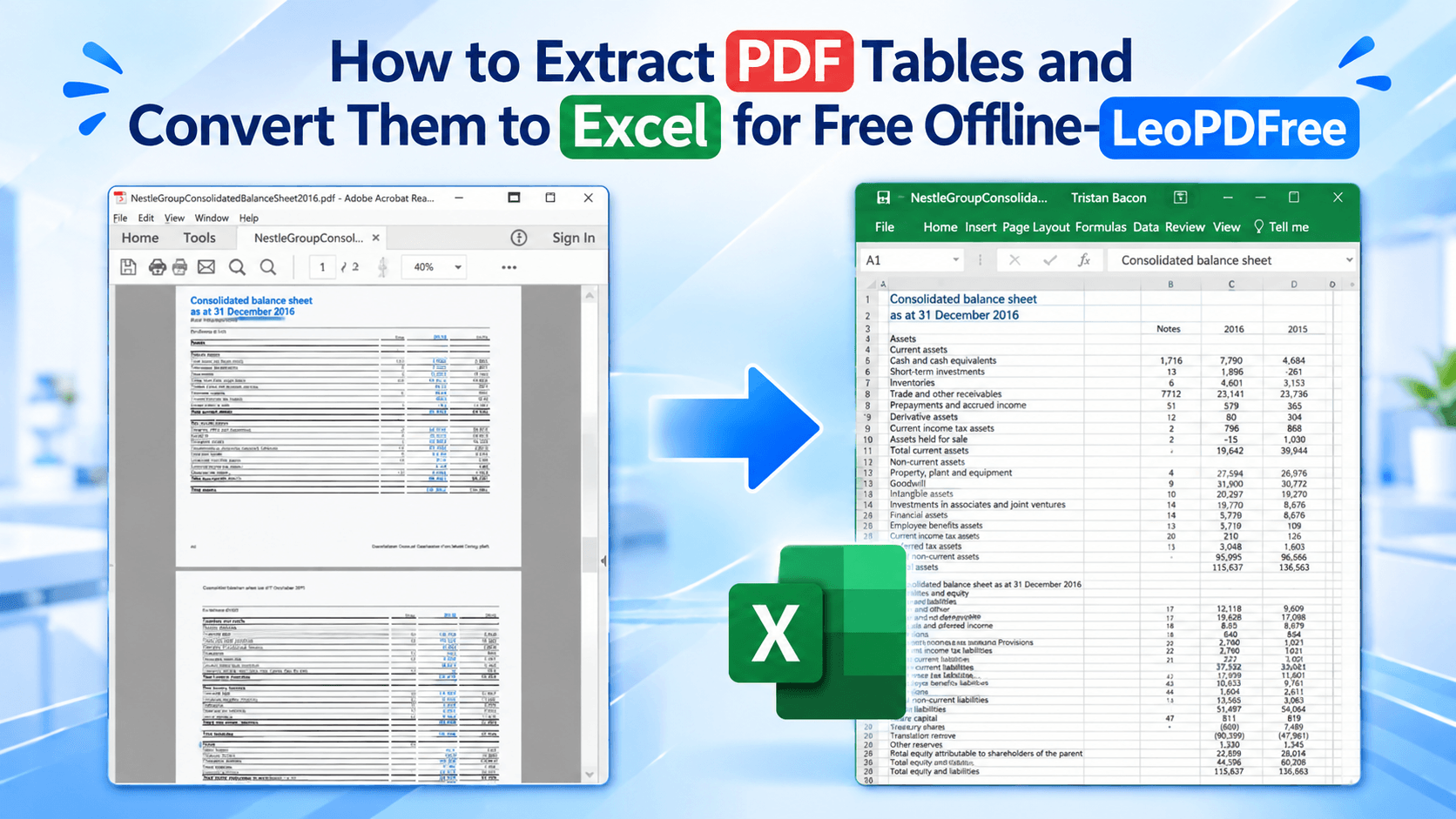
How to Extract PDF Tables and Convert Them to Excel for Free Offline— LeoPDFree

Need to move PDF tables into Excel? Copying and pasting often leads to misaligned columns, misplaced numbers, and messy formatting. Rebuilding tables manually takes even more time.

A simpler solution is to convert PDF files directly to Excel.

Free Offline PDF to Excel Converter – LeoPDFree

With LeoPDFree , Windows 10 and 11 users can convert supported PDF files to Excel for free, entirely offline—without uploading documents to a website.

1. Can Your PDF Be Converted Directly?

First, identify the type of PDF you’re working with.

PDF Type Recommended Method
Digital PDF with selectable text Direct conversion
Financial reports and invoices Convert and verify the data
Multi-page tables Check data continuity across pages
Scanned PDFs OCR required
Handwritten tables OCR required; manual corrections may be needed

Quick test: Try selecting a word or number in your PDF. If you can select individual text, direct conversion may work. If the entire page behaves like an image, OCR is usually required.

2. Convert PDF Tables to Excel Offline with LeoPDFree

Follow these simple steps:

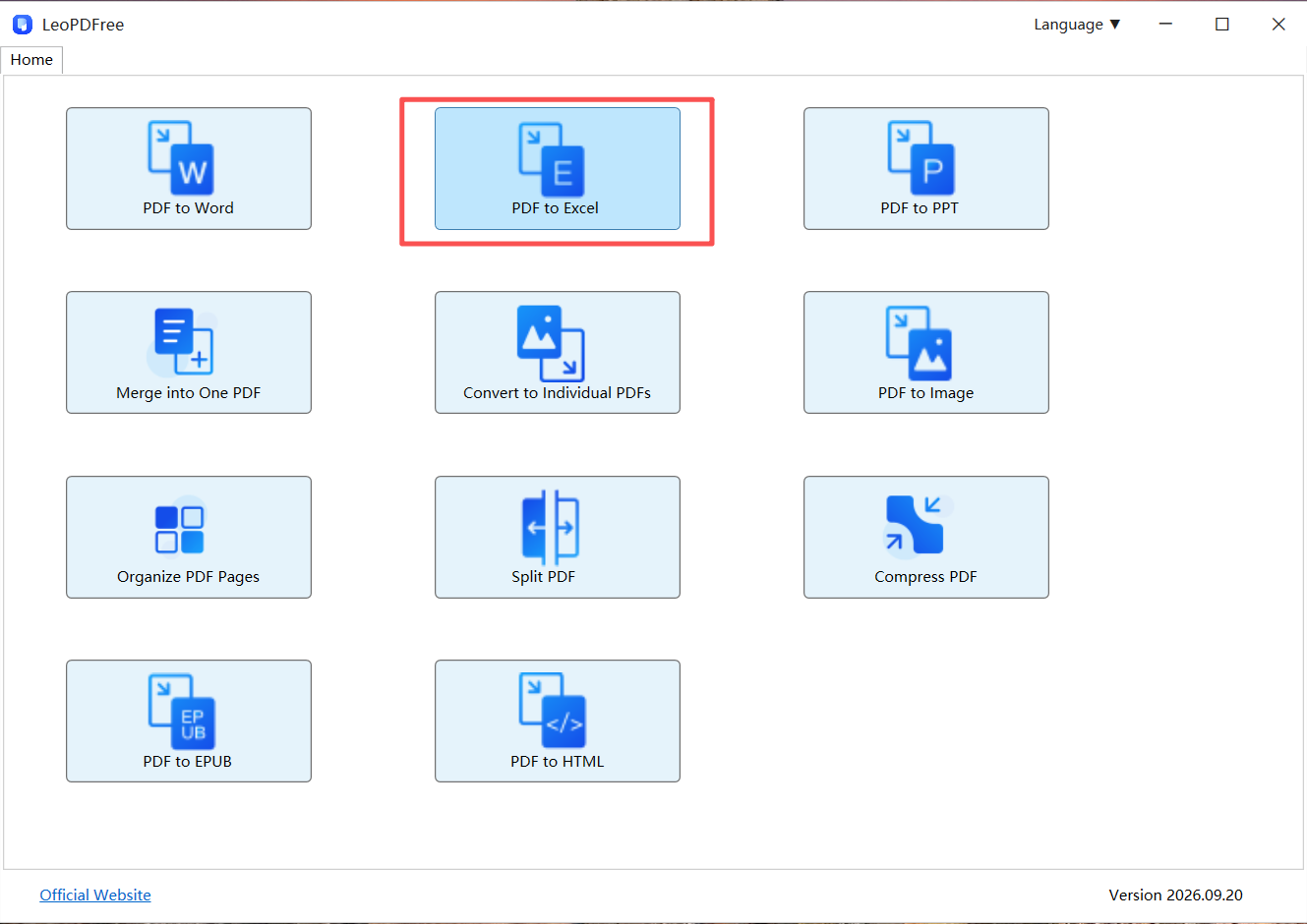
1.Open LeoPDFree on your Windows computer, select PDF to Excel, and add your PDF files.

Free Offline PDF to Excel Converter – LeoPDFree

Free DownloadSecure Download

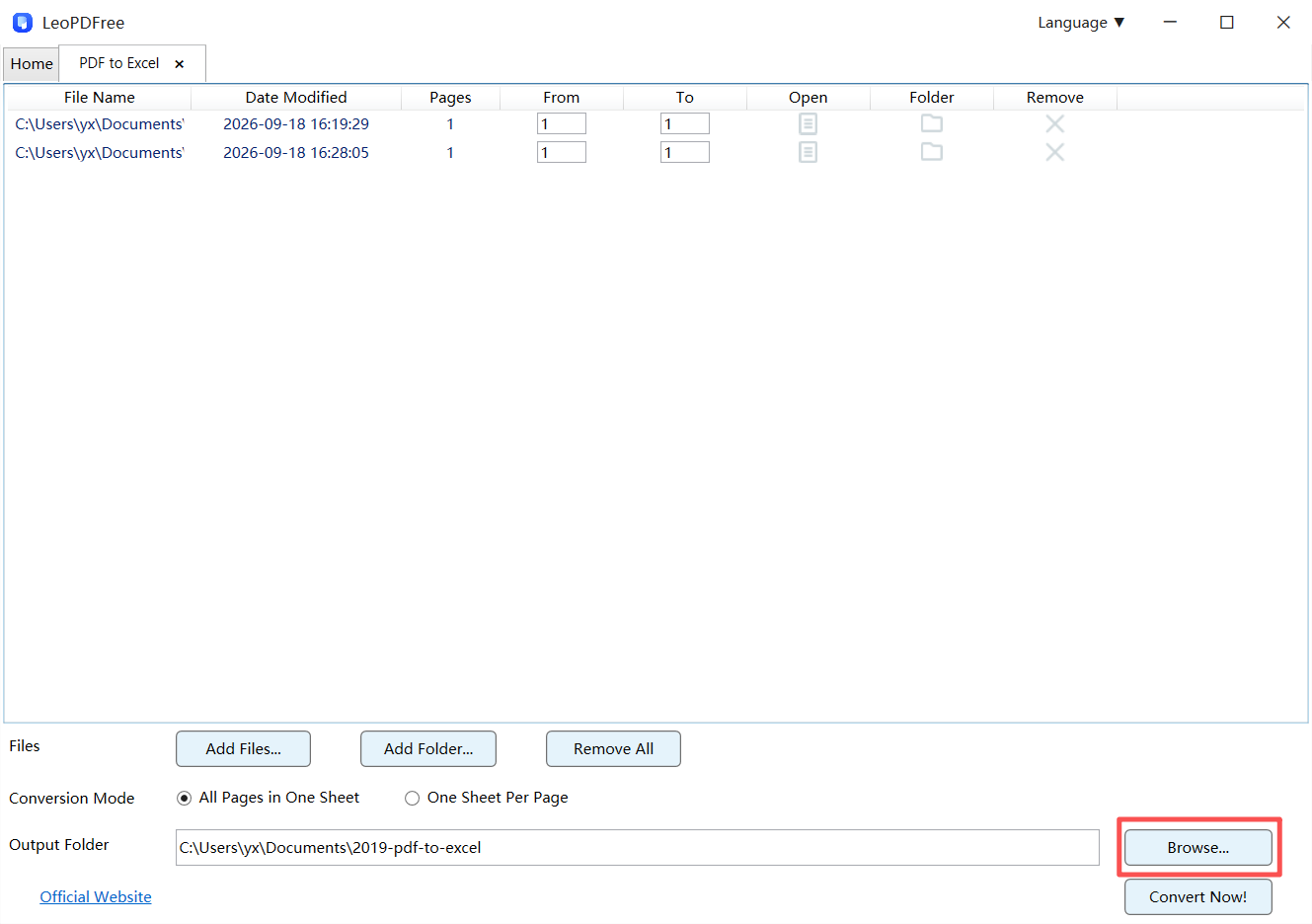
2.Choose Conversion Mode, then click Browse… to select your output folder.

Free Offline PDF to Excel Converter – LeoPDFree

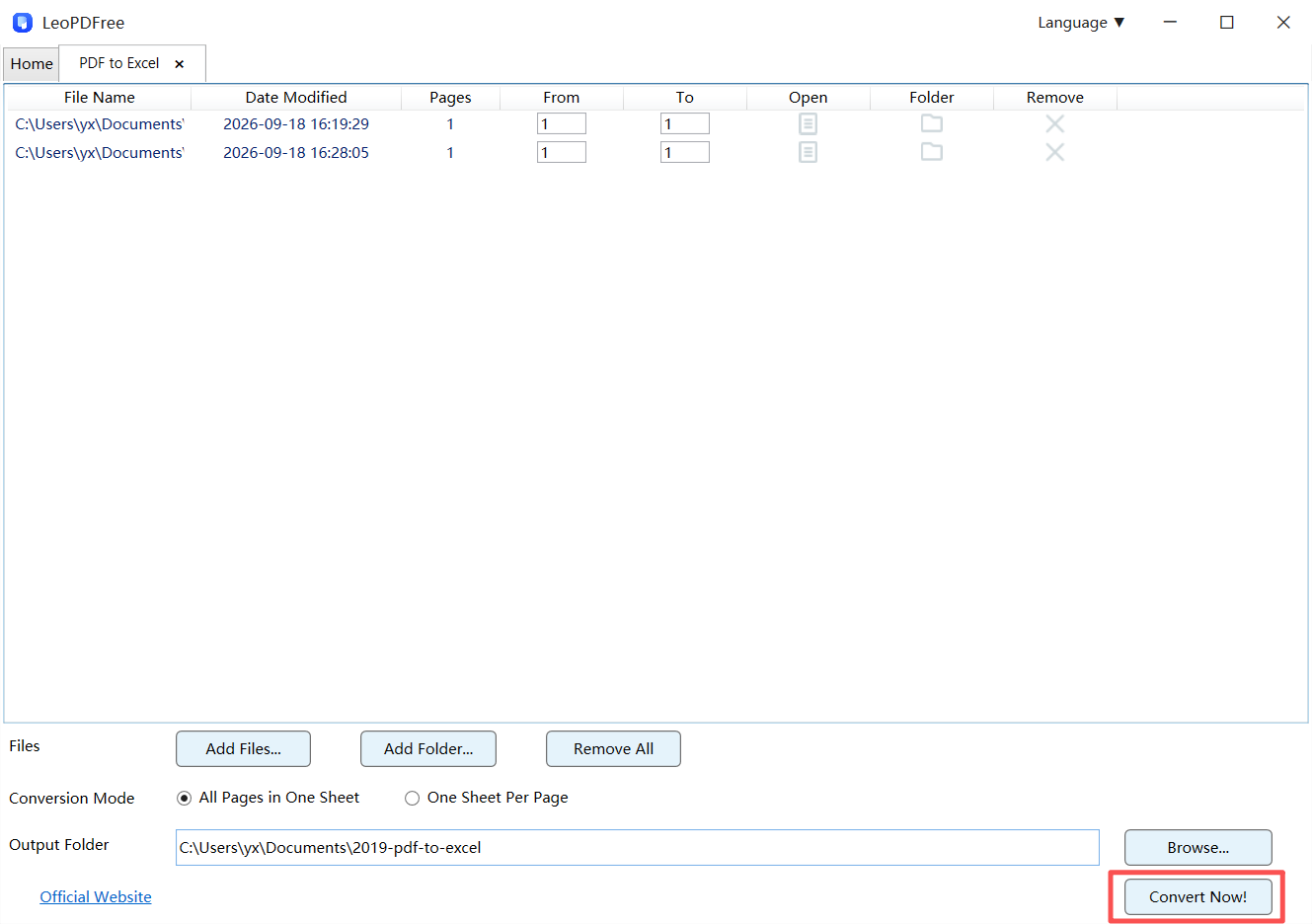
3.Click Convert Now! to start the conversion, then open the Excel file to review the results.

Free Offline PDF to Excel Converter – LeoPDFree

👉 The conversion takes place locally on your computer. No online upload is needed.

3. Common PDF Table Conversion Issues

PDF and Excel use different layouts. As a result, some table elements may not transfer perfectly.

PDF Layout Issue Possible Conversion Problem
Merged headers Split or misaligned headings
Wrapped text Uneven row alignment
Tables without borders Incorrect column placement
Multi-page tables Disconnected records
Footnotes Extra rows mixed with data

👉 After conversion, check the rows, columns, numbers, dates, and totals.

4. What About Scanned PDF Tables?

The Windows version of LeoPDFree does not currently support OCR. It is designed for supported digital PDFs and cannot directly recognize text inside scanned images.

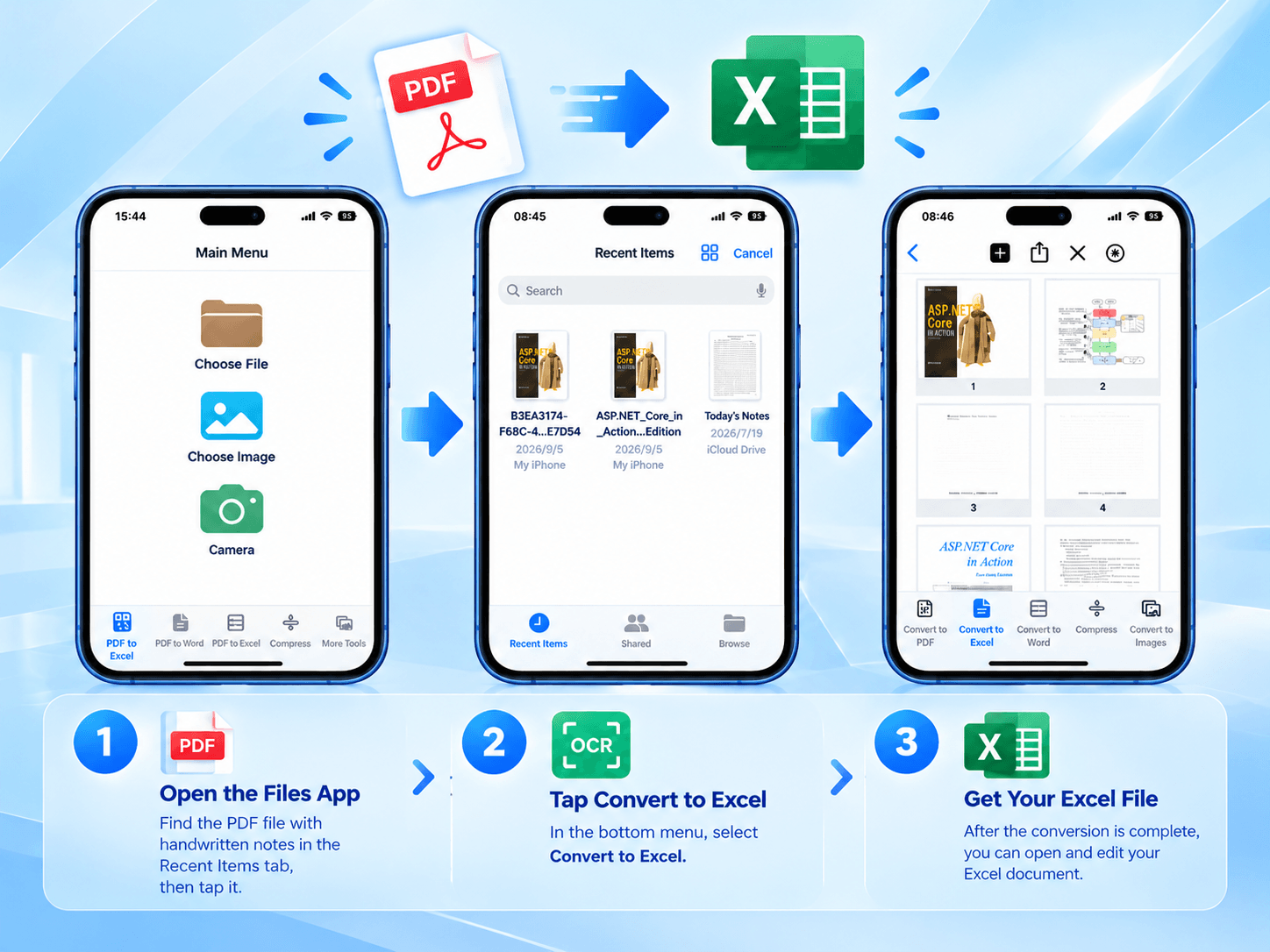
For scanned or handwritten tables, the Mac and iPhone versions of LeoPDF offer OCR-powered PDF-to-Excel conversion. These Word and Excel conversion features use cloud processing and require an internet connection. Always review the extracted data for recognition errors.

Free Offline PDF to Excel Converter – LeoPDFree

5. Manual Copying vs. LeoPDFree

Feature Manual Copy and Paste LeoPDFree
Data extraction Manual selection Direct conversion
Table formatting Often needs cleanup Preserves supported table layouts
Multiple files Repetitive work Easier batch processing
File upload Not always required Not required
Software cost Free Free

Final Thoughts

Extracting PDF tables shouldn’t mean copying data row by row into Excel.

For supported digital PDFs, LeoPDFree provides a free offline PDF-to-Excel solution for Windows 10 and 11.

No file uploads. No paid subscription. Just convert, review, and work with your data in Excel.

Download LeoPDFree and make PDF table extraction easier.

Free DownloadSecure Download

Free Offline PDF to XLSX Converter for Windows 10 and 11— LeoPDFree

PDFs are great for preserving and displaying documents, but they’re not always convenient when you need to work with the data inside them.

For example, sales reports, invoices, and financial records are often saved as PDFs. If you need to sort, filter, calculate, or chart that data, converting the PDF to Excel (XLSX) makes the process much easier.

For Windows 10 and Windows 11 users, LeoPDFree offers a free, offline way to convert supported PDF files to Excel. The conversion takes place locally on your computer, so there’s no need to upload files or rely on an online conversion service.

This guide covers the practical benefits of PDF-to-XLSX conversion, why offline processing matters, and how to choose the right tool for different types of PDF files.

Free Offline PDF to XLSX Converter for Windows 10 and 11— LeoPDFree

1. Why Convert PDF to XLSX?

PDF is designed to preserve document layouts, while Excel is built for working with data. Once a PDF table is converted to XLSX, you can perform a range of tasks more easily.

Data Task PDF Excel (XLSX)
View tables Yes Yes
Edit data Limited Yes
Sort and filter Limited Yes
Calculate totals Not convenient Yes
Create charts Limited Yes
Pivot table analysis No native support Yes

For example, after converting a monthly sales report to Excel, you can filter records by product or date, sort sales figures, calculate total revenue, and create charts.

The real benefit is turning static PDF data into information you can edit and analyze.

2. Why Choose an Offline PDF to Excel Converter?

Online converters typically require you to upload a PDF before processing it on a remote server. Offline tools work differently: they handle the conversion directly on your computer.

Here’s how the two approaches compare.

Feature Online Converters LeoPDFree
Installation required Usually no Yes
File upload Usually required Not required
Processing location Remote server Local computer
Internet required during conversion Usually yes No
Free to use Depends on the service Yes
Privacy control Depends on the provider Files can stay on your device
Best for Occasional conversions Regular PDF processing

For sales reports, customer records, financial statements, and other sensitive documents, local processing reduces the privacy risks associated with uploading files to third-party servers.

If you regularly work with PDFs or prefer not to send documents over the internet, an offline converter is worth considering.

3. How to Convert PDF to Excel with LeoPDFree

LeoPDFree is a free PDF conversion and management tool for Windows. It supports converting compatible PDF files into XLSX spreadsheets.

Follow these steps to get started.

Step 1: Add Your PDF File


Download and install LeoPDFree. Open the app, click PDF to Excel, and import the PDF you want to convert, such as an invoice, sales report, or data table.

Free Offline PDF to XLSX Converter

Free DownloadSecure Download


Step 2: Configure the Conversion


Select Conversion Mode, click Browse… to choose where to save the output file, and adjust the available settings as needed.

Windows 10 and 11

Step 3: Start the Conversion


Click Convert Now! to begin converting the file.

LeoPDFree

Step 4: Review the Results


Open the converted Excel file and check column alignment, number formats, dates, and key totals. Fix any misplaced data or incorrect values before using the spreadsheet for analysis or reporting.

4. Which PDFs Can Be Converted, and Which Need OCR?


PDF files can store information in different ways. The conversion method you need depends on the type of content in your document.

PDF Type OCR Required? Recommended Tool
Digital invoices Usually no LeoPDFree for Windows
Digital sales reports Usually no LeoPDFree for Windows
Product price lists Usually no LeoPDFree for Windows
Scanned invoices Yes LeoPDF for Mac/iPhone
Photos of tables Yes LeoPDF for Mac/iPhone
Handwritten financial records Yes LeoPDF for Mac/iPhone

What is OCR?


OCR stands for Optical Character Recognition. It identifies text in scanned images or photos and converts it into machine-readable data.

Please note that the Windows version of LeoPDFree does not currently support OCR. If you’re working with scanned PDFs, photos, or handwritten documents, consider the paid LeoPDF app for Mac or iPhone.

These versions offer OCR-powered PDF-to-Excel conversion. However, Word and Excel conversions use cloud processing and require an internet connection. Results from blurry images, complex tables, or difficult handwriting may still need manual review.

convert pdf to ppt at LeoPDF

5. What Should You Check After Conversion?


Converting a PDF to Excel doesn’t guarantee that every piece of data will be accurate. For financial reports and business records, pay particular attention to these details.

Check What to Review Potential Issue
Column alignment Whether values appear under the correct columns Incorrect product-to-price matching
Number formats Decimal points, negative numbers, and currency symbols Incorrect calculations
Date formats Whether dates are recognized correctly Sorting problems
Data completeness Missing or duplicated records Inaccurate statistics
Totals Whether key totals match the original PDF Financial discrepancies

For important documents, spot-check the beginning, middle, and end of the spreadsheet. Also verify key totals against the original PDF.

6. Which LeoPDF Version Should You Choose?


Different editions of LeoPDF are designed for different PDF processing needs.

Your Requirement Recommended Version Cost
Convert digital PDFs to Excel LeoPDFree for Windows Free
Convert PDFs offline LeoPDFree for Windows Free
Convert scanned PDFs with OCR LeoPDF for Mac/iPhone Paid
Recognize handwritten documents LeoPDF for Mac/iPhone Paid

The choice is straightforward:
🔵 Windows 10/11 users: Use free LeoPDFree for offline conversion when the PDF contains selectable text.
🔵 Mac/iPhone users: Choose the OCR-enabled paid version when you need to recognize scanned or handwritten content.

Final Thoughts


If you regularly convert invoices, sales reports, or other digital PDFs to Excel, a free offline tool can reduce repetitive work and eliminate the need to upload documents to third-party conversion services.


LeoPDFree for Windows offers:

🔵 Free PDF-to-XLSX conversion
🔵 Local offline processing
🔵 No file uploads required
🔵 Support for Windows 10 and 11
🔵 Everyday PDF conversion and management features

For scanned PDFs or handwritten documents, choose the OCR-enabled LeoPDF app for Mac or iPhone instead.


LeoPDFree is designed for free offline conversion, while the Mac and iPhone versions of LeoPDF are the better choice when OCR is needed. Choose the right tool for your PDF, and make your data easier to work with.

How to Convert PDF to Excel Offline for Free on Window

PDFs are designed to preserve a document’s appearance, while Excel is built for calculating, filtering, and analyzing data.

When you need to organize invoices, analyze sales reports, or consolidate transaction records, converting PDF to Excel (XLSX) can save hours of manual data entry.

But an efficient conversion process involves more than turning a file into a spreadsheet. It should also produce usable data while protecting your files.

How to Convert PDF to Excel Offline for Free on Window

Identify Your PDF Type Before Converting

Different PDF files can present very different conversion challenges. Before choosing a tool, determine what kind of document you have.


PDF Type Main Conversion Challenge What to Check After Conversion
Digital PDF tables Rows and columns may shift Table structure and column alignment
Invoices and financial reports Decimals and negative values may be misread Amounts, dates, and totals
Multi-page PDF reports Data may break across pages Data order and completeness
Scanned PDFs Text may exist only as images OCR recognition quality
Handwritten tables Handwriting can be difficult to recognize Numbers, text, and field alignment

One important distinction: Digital PDFs generally contain selectable text, while scanned PDFs may contain only images. Scanned and handwritten documents usually require OCR (optical character recognition) to extract text.

Why Choose an Offline PDF-to-Excel Converter?

Online converters are convenient, but they typically require you to upload your files. Offline tools can process documents directly on your computer.


Comparison Online Converters LeoPDFree for Windows
Cost Free tiers may have restrictions Free
Internet access Usually required Local processing can work without an internet connection after installation
File uploads Usually required Not required
Privacy control Depends on the provider’s policies Files can remain on your computer
Upload-size restrictions May apply Avoids online upload restrictions
Best for Occasional conversions Windows users who regularly process PDFs offline

Online services vary in their free-tier limits, file-size restrictions, and privacy policies. If you handle financial reports, customer records, or confidential business documents, offline conversion can reduce the privacy risks associated with uploading files to third-party services.

Convert PDF to Excel with LeoPDFree

For Windows users, LeoPDFree offers free, offline PDF conversion, making it a practical option for supported digital PDF files.

Follow these three steps:

Step 1: Select your PDF


After installing LeoPDFree, open the app and click “PDF to Excel.” Then import the PDF you want to convert, such as an invoice, sales report, or data table.

LeoPDFree PDF to Excel Converter Interface

Free DownloadSecure Download

Step 2: Select “Conversion Mode,” then click “Browse…” to choose where to save the converted file.


Edit and configure the added files, then choose where to save the converted files.

PDF to XLSX Conversion Settings in LeoPDFree

Step 3: Convert and Review the Results


Click “Convert Now!” to start the conversion. Once it’s complete, open the Excel file and check the column alignment, number formats, dates, and key totals. If you find misaligned data or incorrect values, fix them before using the file for analysis or reporting.


Convert PDF to Excel Offline with LeoPDFree

Please note that the Windows version of LeoPDFree does not currently support OCR. If you’re working with scanned PDFs or handwritten documents, consider using the Mac or iPhone version of LeoPDF instead.

How to Check Conversion Quality Quickly

Don’t judge the result solely by whether the file exported successfully. What matters is whether the data can be used accurately.

Check Recommended Method Potential Problem
Table structure Compare selected rows with the original PDF Misaligned columns or incorrectly merged cells
Numeric accuracy Verify sample amounts and decimals Misread digits or missing minus signs
Data completeness Check the first and last rows Missing records
Multi-page continuity Review the transition between pages Split rows or disrupted ordering
Calculation results Recalculate key totals Errors affecting calculations

For a basic review, sample the beginning, middle, and end of the spreadsheet. For financial reports and other business-critical data, conduct a more thorough verification.

There is no single accuracy rate that applies to every PDF conversion. Results depend on the original file quality, table complexity, and extraction method.

How to Convert Scanned or Handwritten PDFs

If the text in a PDF comes from scanned images, a standard converter may not be able to extract it directly. This is where OCR becomes important.

Choose your approach based on the document type:

Check Recommended Method Potential Problem
Table structure Compare selected rows with the original PDF Misaligned columns or incorrectly merged cells
Numeric accuracy Verify sample amounts and decimals Misread digits or missing minus signs
Data completeness Check the first and last rows Missing records
Multi-page continuity Review the transition between pages Split rows or disrupted ordering
Calculation results Recalculate key totals Errors affecting calculations

If you need to extract data from scanned or handwritten PDFs, consider the paid LeoPDF app for mac and iPhone. It includes OCR tools that can help recognize text in document images and extract data.

Convert PDF to Excel on Mobile with LeoPDF

OCR does not guarantee perfect results. Handwritten numbers, blurry scans, and complex tables can still cause recognition errors, so review the extracted data before using it.

Final Recommendations

When choosing a PDF-to-Excel workflow, start by identifying the document type, then consider privacy, conversion quality, and the need for data verification.

Digital PDFs: Use LeoPDFree for free, offline conversion on Windows.

Scanned or handwritten PDFs: Consider the paid LeoPDF iOS app with OCR tools.

Financial and business data: Always verify critical figures before using the spreadsheet.

An effective PDF-to-Excel workflow should do more than reduce manual data entry. It should help you produce usable data, maintain reliable results, and avoid unnecessary file uploads.

Free Offline PDF to Excel Converter for Windows: Convert PDF to XLSX

A PDF can show a perfect financial report while hiding a frustrating problem: the numbers look organized, but they aren’t ready for analysis.

If you need to calculate totals, filter transactions, or compare monthly figures, converting PDF to Excel (XLSX) can turn a static document into a more practical working file.

The key isn’t just conversion. It’s getting data you can actually use.

convert pdf to ppt at freepdfconvert.com

1. The PDF-to-Excel Reality Check

👉 Different PDFs behave differently during conversion. The source file often matters more than the converter itself.
PDF Type Typical Conversion Challenge What to Verify in Excel
Digital tables Split or merged columns Column alignment
Financial statements Negative values and decimals Numerical accuracy
Multi-page reports Repeated headers and broken rows Table continuity
Scanned documents Text trapped in images Whether OCR is available
Complex layouts Notes mixed with data Reading order

Important: A normal PDF-to-Excel converter may not recognize text inside scanned images. OCR is usually required, and even OCR results need checking.

2. What Does Offline Conversion Change?

👉 Think of PDF conversion as a choice between sending your file away and processing it on your own computer.
Comparison Online Converter Offline Windows Converter
Internet connection Usually required Usually not required after installation
File transfer Uploads to a service Files can remain on your PC
Sensitive reports Depends on the provider’s policies Better control over local files
Large documents Upload speed and service limits may matter Avoids upload delays
Ongoing cost May include paid tiers or usage limits Depends on the software’s license

For invoices, payroll reports, sales figures, and internal financial data, local processing can reduce exposure to third-party services. It does not replace good device security or backups.

3. A Smarter Way to Convert PDF to XLSX

Use this three-stage workflow instead of converting and trusting the result immediately.

01 — Select

Choose the PDF containing the tables you need. If possible, start with a digital PDF rather than a scan.

02 — Convert

Use an offline PDF-to-Excel tool for Windows to export the content to an .xlsx workbook.

03 — Validate

Check a few high-impact items before using the spreadsheet:

  • Do the row and column boundaries match the original?
  • Are decimal points, minus signs, and dates correct?
  • Do key totals still add up?
  • Did tables spanning multiple pages remain in the right order?

A visually convincing spreadsheet can still contain incorrect values. Always verify figures before using them for accounting, reporting, or business decisions.

4. How Much Checking Is Enough?

Use a risk-based review rather than checking every cell with equal attention.

Data Type Priority Quick Test
Account balances High Compare against the PDF
Dates and transaction IDs High Check several entries
Formulas and totals High Recalculate independently
Descriptive text Medium Scan for missing words
Decorative formatting Lower Review only if it affects interpretation

The more consequential the data, the more carefully it should be checked. There is no universal accuracy percentage that applies to every PDF converter or document.

5. Choosing a Free Offline Tool

LeoPDF is a desktop option for Windows users who want to convert PDFs to Excel without uploading files to an online service. It also supports other everyday PDF tasks, including merging, splitting, compression, and page organization.

convert pdf to ppt at freepdfconvert.com

Free DownloadSecure Download

Please note that the Windows version of LeoPDF does not currently support OCR. If your PDF is scanned, you can download the LeoPDF app with OCR tools to recognize the text and extract data more reliably.

The Bottom Line

PDF-to-Excel conversion is successful only when the resulting spreadsheet is useful—not merely when the export finishes.

Choose an offline converter when privacy and avoiding upload limits matter. Then validate the rows, columns, and critical figures before relying on the XLSX file.

Convert the document. Check the data. Then put the spreadsheet to work.

How to Convert Handwritten Notes from PDF to Word: A Step-by-Step Guide

Handwritten notes are easy to save as PDFs but harder to reuse in Word. The challenge isn’t simply converting the file format—it’s recognizing handwriting accurately enough to create editable text.

Handwritten notes are easy to save as PDFs but harder to reuse in Word. The challenge isn’t simply converting the file format—it’s recognizing handwriting accurately enough to create editable text.

The most reliable workflow combines OCR (optical character recognition), a quick accuracy check, and targeted editing.

How to Convert Handwritten Notes from PDF to Word – Step-by-Step Guide

Step 1: Identify What Your PDF Actually Contains

👉 Before choosing a conversion method, check whether the PDF contains selectable text or scanned images of handwriting.

PDF Type What It Contains Best Next Step
Text-based PDF Existing digital text Try direct PDF-to-Word conversion
Scanned handwritten notes Images of handwriting Use handwriting-capable OCR
Mixed notes Handwriting, diagrams, and printed text Use OCR, then review each element

Important: Microsoft Word can convert many text-based PDFs, but its documentation warns that handwritten text is seldom recognized reliably through its standard PDF import process.

Step 2: Improve the Source Before Running OCR

👉 A few minutes of preparation can prevent unnecessary corrections later.
⏺ Check image clarity: Blurry letters and low-resolution scans can cause recognition errors.
⏺ Correct page orientation: Rotate sideways or upside-down pages.
⏺ Remove irrelevant pages: Focus on the notes you actually need.
⏺ Separate complex content: Equations, diagrams, and overlapping annotations may need manual handling.

For example, a clear page with consistent handwriting is generally easier to recognize than a page containing cramped cursive, arrows, and handwritten corrections. OCR performance depends on both image quality and writing style.

Processing, price and a three-level review

LeoPDF store editions use paid cloud processing for conversion to Word or Excel, with OCR for scanned text and handwriting. Files processed in the cloud are deleted when conversion completes. Other supported tasks are free and local. LeoPDFree for Windows provides free local Word/Excel conversion without OCR; it cannot recognize handwritten scans.

  • Text: compare words, punctuation, names and technical terms with the scanned source.
  • Data: verify dates, numbers and formulas; a recognized digit can still be wrong.
  • Structure: inspect paragraphs, headings, diagrams and reading order. Try clear, typical and difficult pages before a large batch.

Step 3: Convert the Handwriting into Editable Text

👉 Use a tool that explicitly supports OCR for scanned documents and handwriting where available.
On iPhone or iPad: LeoPDF for iOS offers AI-powered OCR for PDFs, scans, and photos, with conversion to editable Word files. This can be useful when your handwritten notes are already on your phone or tablet. Check the app’s current conversion options and availability before processing a large document.
Explore LeoPDF on the App Store
A typical workflow is:

1️⃣. Open LeoPDF and import the PDF or scan.
2️⃣. Choose the PDF-to-Word conversion option.
3️⃣. Run OCR to recognize the text.
4️⃣. Export the result and open it in Microsoft Word.

LeoPDF PDF to Word Conversion on Mobile

The exact result depends on handwriting legibility, language, scan quality, and page complexity.

Step 4: Measure the Result Before Editing Everything

👉 Don’t assume a Word file is accurate just because it opens successfully. Test a few representative pages first.

Checkpoint What to Compare
Words Missing or incorrectly recognized words
Numbers Dates, formulas, measurements, and calculations
Paragraphs Reading order and line breaks
Headings Section hierarchy
Diagrams Labels, arrows, and annotations

For a practical quality check, review 10 pages or 10% of the document, whichever is smaller, if the file is long enough to make sampling useful. Include both clear and difficult pages. This is a suggested review strategy, not a guarantee of accuracy.

Pay particular attention to numbers and technical terms: one misread digit can change the meaning of an entire calculation.

Step 5: Turn the Extracted Text into a Useful Word Document

👉 OCR extracts text; it doesn’t always recreate the organization of your original notes.
After conversion:

▪ Apply Word heading styles to titles and sections.
▪ Rebuild lists and tables where necessary.
▪ Keep essential diagrams as images if their layout is difficult to reproduce.
▪ Compare important figures against the original PDF.
▪ Save the final document as a .docx file.

Final Takeaway

Converting handwritten notes from PDF to Word works best as a two-stage process: first recognize the handwriting, then review and organize the converted content.

For clear handwriting, OCR can significantly reduce the amount of retyping required. However, if your notes contain cursive handwriting, mathematical formulas, or extensive annotations, allow extra time for manual proofreading.

LeoPDF for iOS helps you perform OCR directly on your iPhone or iPad, while Microsoft Word is ideal for subsequent text editing and formatting. If you need additional PDF management tools, you can also download LeoPDF for Windows.

Free DownloadSecure Download

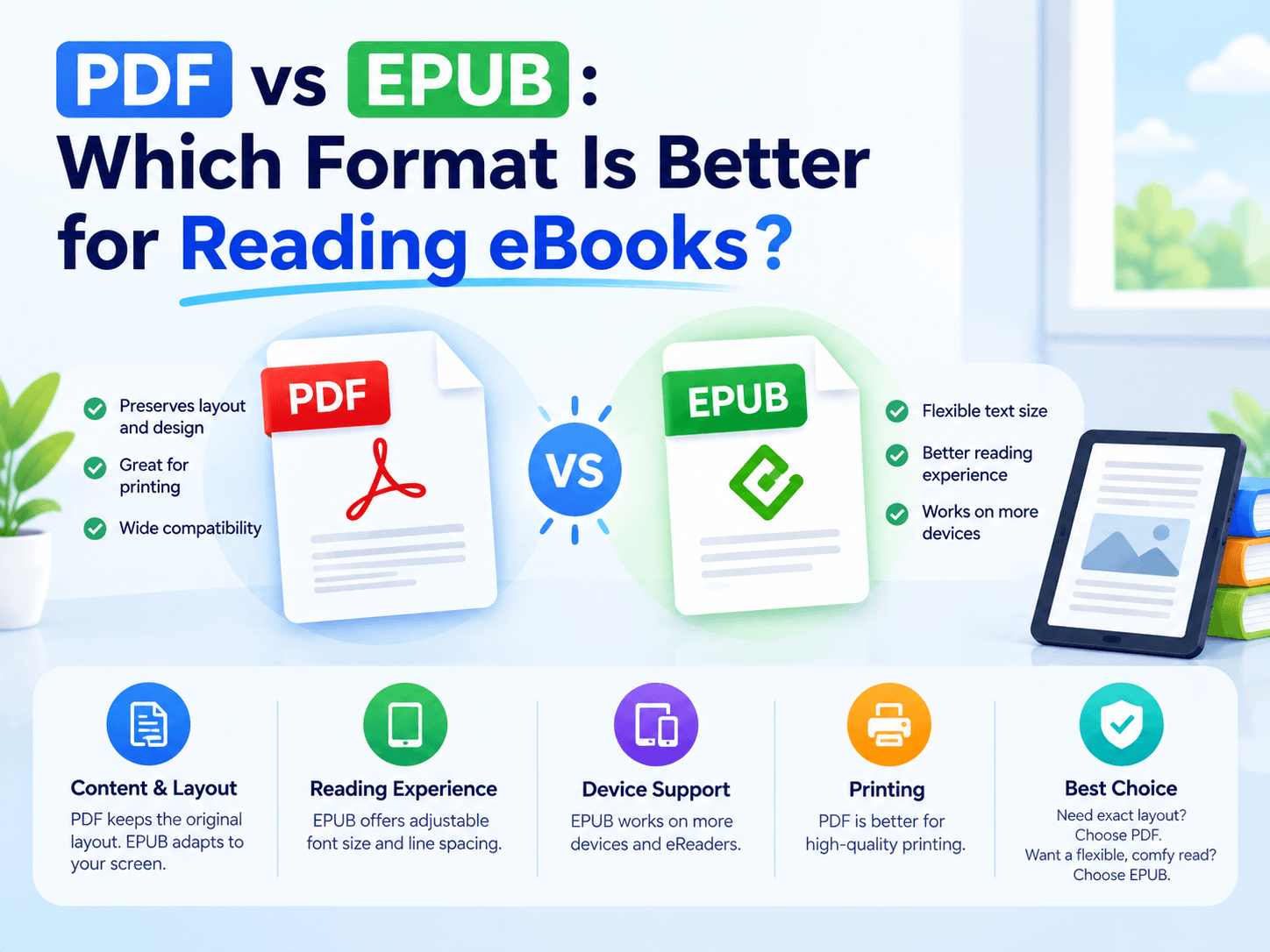
PDF vs EPUB: Which Format Is Better for Reading eBooks?

PDF and EPUB are both widely used for digital books, but they solve different reading problems. The simplest way to understand the difference is: PDF protects the page. EPUB adapts

PDF and EPUB are both widely used for digital books, but they solve different reading problems.

The simplest way to understand the difference is:

PDF protects the page. EPUB adapts the content.

PDF vs EPUB: Which eBook Format Is Better for Reading?

One-Minute Comparison

Reading Need PDF EPUB
Keep the original layout Excellent Limited
Resize text Limited Excellent
Read on a phone Good Excellent
Read long-form text Good Excellent
Preserve tables and graphics Excellent Depends
Keep exact page numbers Excellent Limited
Print the document Excellent Limited

If your priority is layout accuracy, PDF is usually the better fit.

If your priority is comfortable reading on different screens, EPUB has an advantage.

What Happens When You Change the Font?

This is one of the biggest differences between PDF and EPUB.

With PDF, larger text usually means more zooming and scrolling.

With a reflowable EPUB, text can automatically rearrange itself when the font size changes.

That’s why EPUB works particularly well for novels, essays, and other text-heavy books.

What About Complex Books?

Not every ebook is made up of simple paragraphs. Technical books, magazines, and illustrated publications may depend heavily on their original page layout.

Content Better Fit
Plain text EPUB
Large tables PDF
Technical diagrams PDF
Magazine-style pages PDF
Long chapters EPUB
Fixed page references PDF

If the position of text, images, or diagrams matters, PDF can preserve the original structure more effectively.

Don’t Compare Page Counts

A 200-page PDF does not necessarily become a 200-page EPUB.

PDF: 200 fixed pages

EPUB: Content reflows according to screen size, font size, and reader settings.

So the final EPUB may display more or fewer pages.

When evaluating a conversion, focus on readability, headings, images, tables, and paragraph structure rather than page count.

A Smarter Conversion Workflow

You don’t always need to convert the entire PDF.

For example:

150-page PDF

🔵 20 pages — unnecessary content
🔵 15 pages — appendix
🔵 115 pages — useful content

EPUB eBook Format with Reflowable Text

Instead of:

150 pages → EPUB

Try:

150 pages → 115 useful pages → EPUB

Before conversion, you can remove unwanted pages, extract selected sections, reorder pages, or split the document.

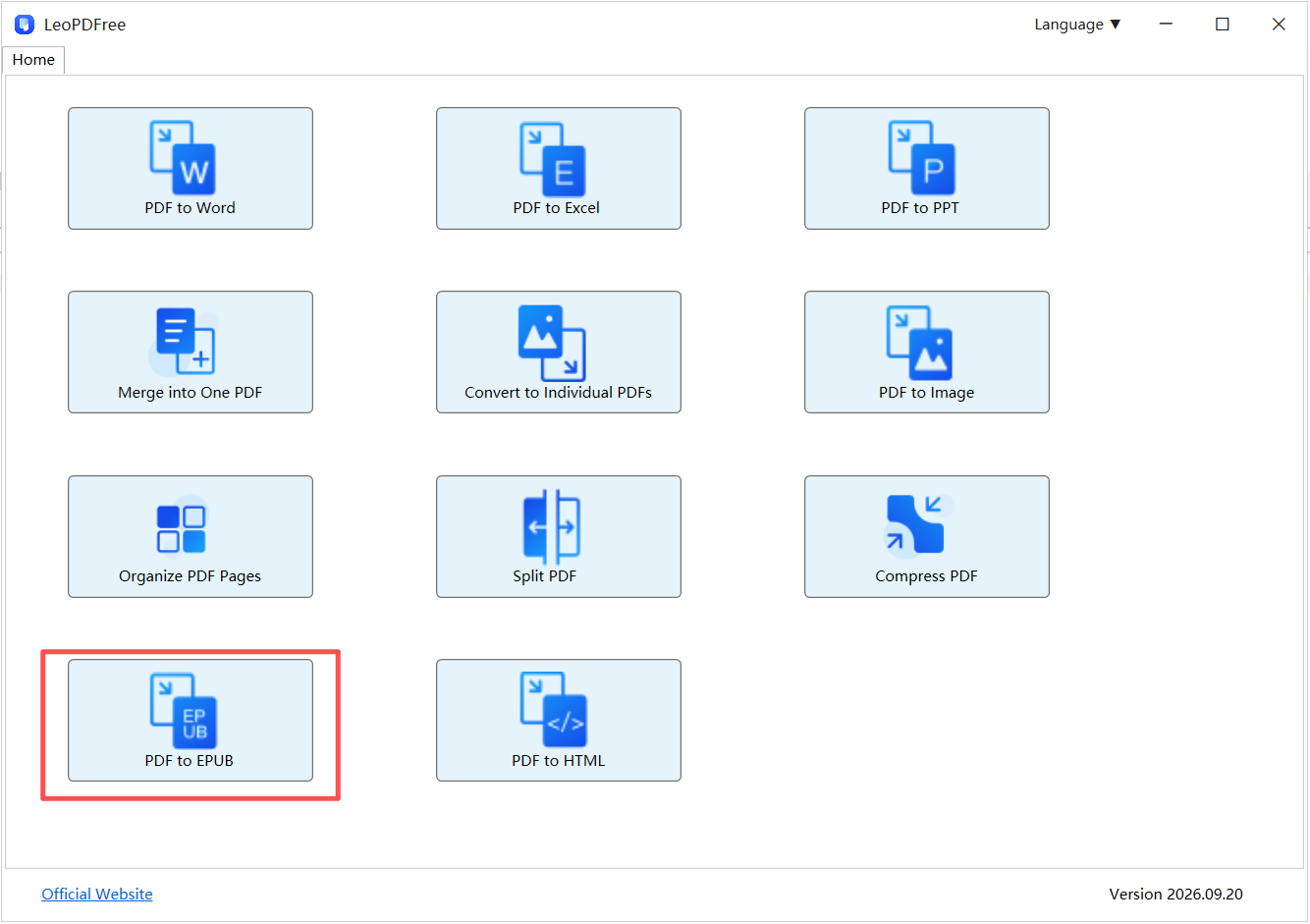
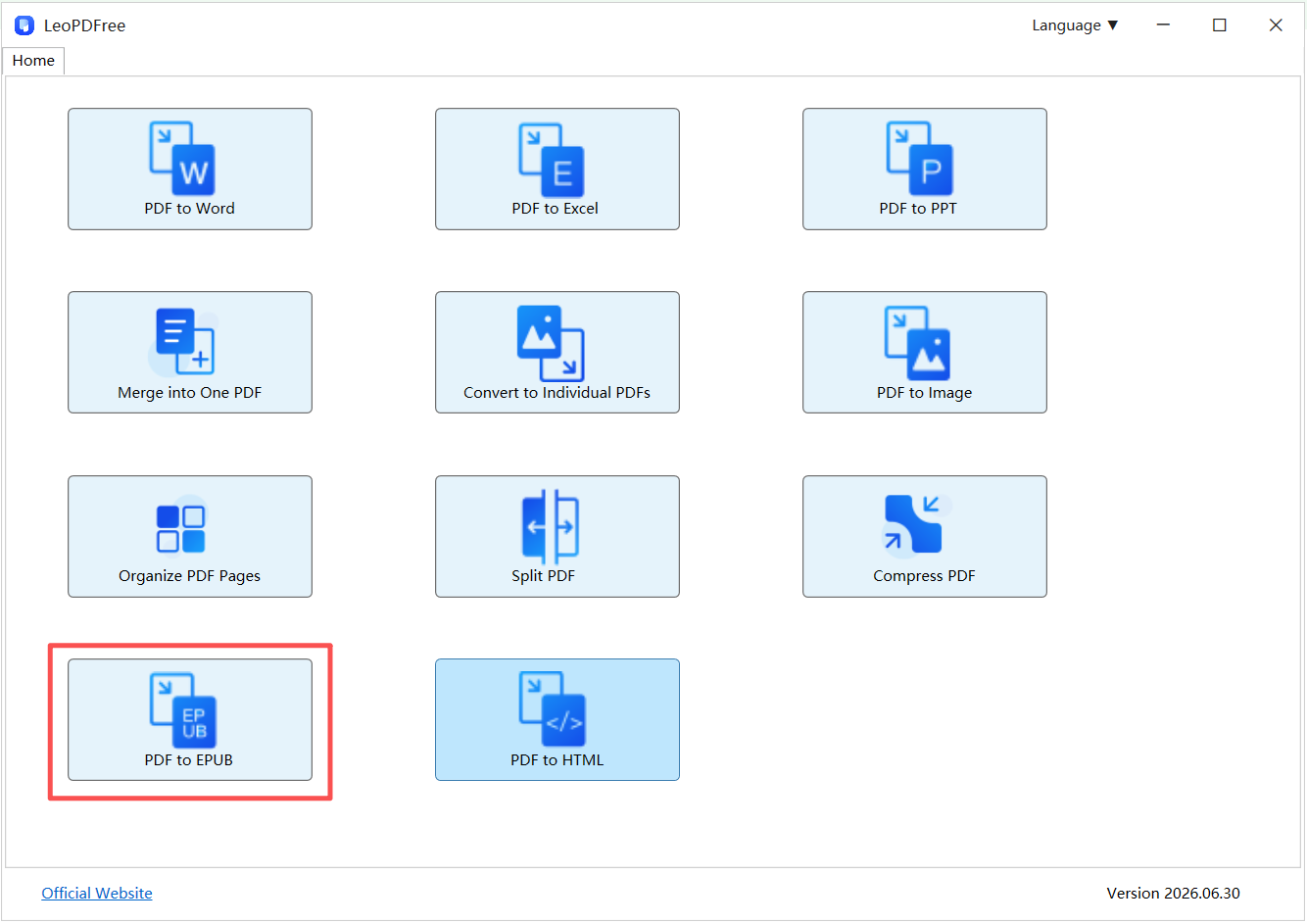
LeoPDFree PDF to EPUB Converter Interface

Free DownloadSecure Download

Use the supported local page-ordering, deletion, page-range splitting, merging or compression task when preparing the source. LeoPDF does not provide standalone page extraction.

PDF or EPUB?

Use this simple rule:

Choose PDF when the page matters.

Choose EPUB when the reading experience matters.

Your Priority Recommended Format
Exact layout PDF
Flexible text size EPUB
Phone reading EPUB
Complex visual design PDF
Long-form reading EPUB
Print-ready document PDF

Final Takeaway

PDF is built around a fixed page, while EPUB is designed to make content more adaptable to different reading environments.

Neither format is universally better. The right choice depends on whether you want to preserve the original document or optimize it for reading.

If you need to prepare a PDF before conversion, LeoPDF provides a free local way to clean up and organize the source file before creating your ebook.

Accessibility and publishing structure

Reflowable text can improve reading at a larger font size, but the file extension alone does not make an ebook accessible. Check headings, reading order, alternative text and the capabilities of the reader. A fixed-layout EPUB is also possible; compare the actual publication rather than treating all EPUB files as identical.

For a PDF source that you will revise regularly, keep the editable original when available. Converting a finished page repeatedly can lose useful structure. Choose a reading copy separately from the version intended for printing.

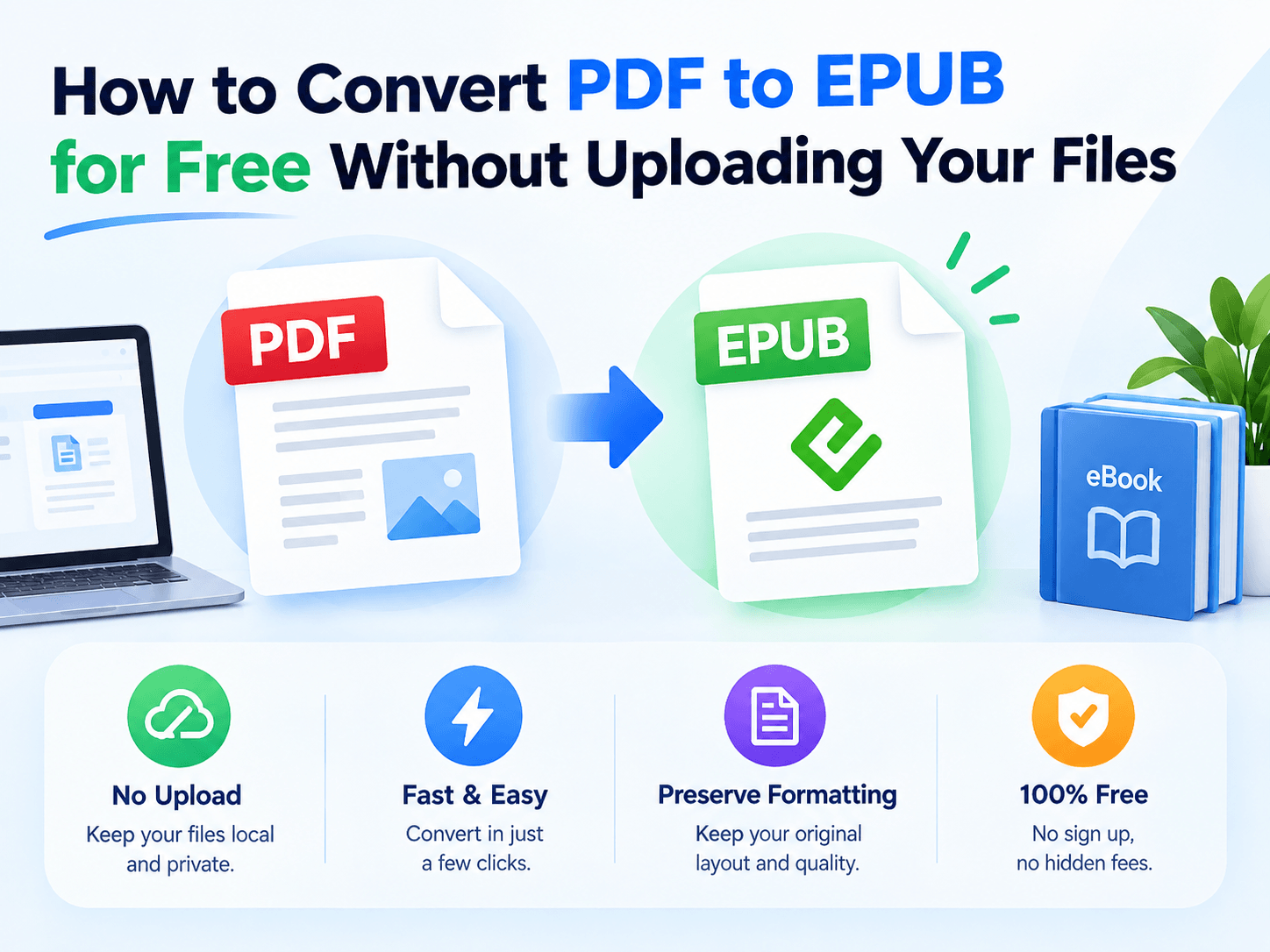
How to Convert PDF to EPUB for Free Without Uploading Your Files

PDF is great for preserving a document’s original layout. EPUB is built for something different: comfortable reading across different screen sizes. If you’re trying to read a long PDF on

PDF is great for preserving a document’s original layout. EPUB is built for something different: comfortable reading across different screen sizes.

If you’re trying to read a long PDF on a phone or e-reader, converting it to EPUB can make a noticeable difference.

How to Convert PDF to EPUB for Free Without Uploading Your Files

The key question is: how can you convert it without uploading the original file?

PDF vs. EPUB: Same Content, Different Reading Model

PDF EPUB
Layout Fixed Reflowable
Small-screen reading More zooming Text adapts
Font resizing Limited by page design Built for resizing
Page structure Preserved Rebuilt
Best for Print-style documents Digital reading

EPUB’s reflowable design allows content to adapt to the reader’s screen and settings.

That makes EPUB particularly useful for text-heavy documents such as books, reports, and long-form articles.

The Privacy Difference

There are two ways to approach PDF conversion:

Upload model

PDF → Online Server → EPUB

Local model

PDF → Your Computer → EPUB

For a public document, either workflow may be acceptable.

For an unpublished manuscript, business report, private notes, or other sensitive PDF, keeping the source file on your own computer can be preferable.

Don’t Expect a Perfect Page-for-Page Copy

his is the part many PDF-to-EPUB guides skip.

Conversion isn’t simply changing .pdf to .epub.

A PDF might contain:

🔵 Fixed text positions
🔵 Multiple columns
🔵 Tables
🔵 Images
🔵 Headers and footers
🔵 Complex page designs

EPUB has to rebuild that content into a different reading structure.

A simple text document may convert cleanly, while a heavily designed magazine can require manual cleanup. EPUB 3 also supports fixed-layout publications, but that is different from the normal reflowable reading experience.

A quick quality expectation

PDF Type Expected EPUB Result
Novel / text document ★★★★★
Simple report ★★★★☆
Technical document ★★★☆☆
Multi-column paper ★★★☆☆
Magazine / complex design ★★☆☆☆
Scanned PDF without text Requires OCR

The ratings above are practical expectations, not a universal conversion benchmark.

A Better Conversion Workflow

Instead of converting everything blindly, use a simple three-stage process:

01 — Check the PDF

Make sure the text is selectable. A scanned PDF may contain page images rather than actual text.

02 — Convert for reading

Choose EPUB when you need resizable, reflowable text rather than the original page layout.

03 — Check the result

Open the EPUB and quickly review headings, paragraphs, tables, and images.

That final check matters because PDF-to-EPUB conversion is essentially a layout reconstruction, not a file-extension change.

Where LeoPDF Fits

If your PDF needs cleanup before conversion, LeoPDF can handle the preparation locally on your computer.

For example, you can prepare the pages using supported deletion, ordering, splitting or merging operations where appropriate, then choose the required conversion.

This is useful when the original PDF is 100 pages but the EPUB only needs a 30-page chapter or selected section.

100-page PDF → Select relevant content → Clean up → Convert → EPUB

LeoPDFree PDF to EPUB Converter Interface

📢 The advantage is that the original document doesn’t need to be uploaded to an online PDF service during the local editing process.

One Simple Rule

Use PDF when preserving the exact page appearance is the priority.

Use EPUB when reading flexibility matters more than fixed page layout.

If privacy matters too, keep the conversion workflow local whenever practical.

Convert the prepared PDF to EPUB

  1. Keep the original PDF. Try a representative short document first, especially if the source has columns, tables or images.
  2. In your LeoPDF edition, open the PDF-to-EPUB function and add the PDF you want to convert.
  3. Choose the available page selection and an output folder, then run the conversion. Interface labels may differ by version.
  4. Open the saved EPUB in the ebook reader you intend to use. Change font size and inspect headings, reading order, images, tables and missing text.
  5. If the layout is unsuitable, keep the original PDF for those pages rather than assuming another conversion will reconstruct the source perfectly.

PDF-to-EPUB is a free local task in LeoPDFree and the store editions. Files are not uploaded for this operation. EPUB conversion is different from OCR; do not expect the free Windows edition to recognize handwriting or recover selectable text from a scan. For edition-specific help, see the PDF-to-EPUB guide.

Final Takeaway

Converting PDF to EPUB isn’t just about changing formats. It’s about changing how the content behaves.

PDF = fixed layout

EPUB = adaptable reading

For text-heavy PDFs, EPUB can provide a more flexible reading experience on phones, tablets, and e-readers. For complex layouts or scanned documents, expect additional cleanup or OCR before conversion.

And when the source file is private, a local workflow can keep the original PDF on your own computer instead of sending it to a third-party server.

Use a small representative sample

  • Try continuous text, a heading boundary and a page containing a table or image.
  • Increase the font size in the intended EPUB reader; inspect reading order and missing or duplicated paragraphs.
  • Keep the original PDF when a complex page cannot be represented usefully as reflowable text.

Page preparation and PDF-to-EPUB conversion are separate operations. LeoPDF does not provide a standalone page-extraction feature; choose supported page-range splitting, deletion or ordering only when needed.

Questions about your LeoPDF edition?

Contact xuehui@leopdf.com with your platform, app version and the task you need.

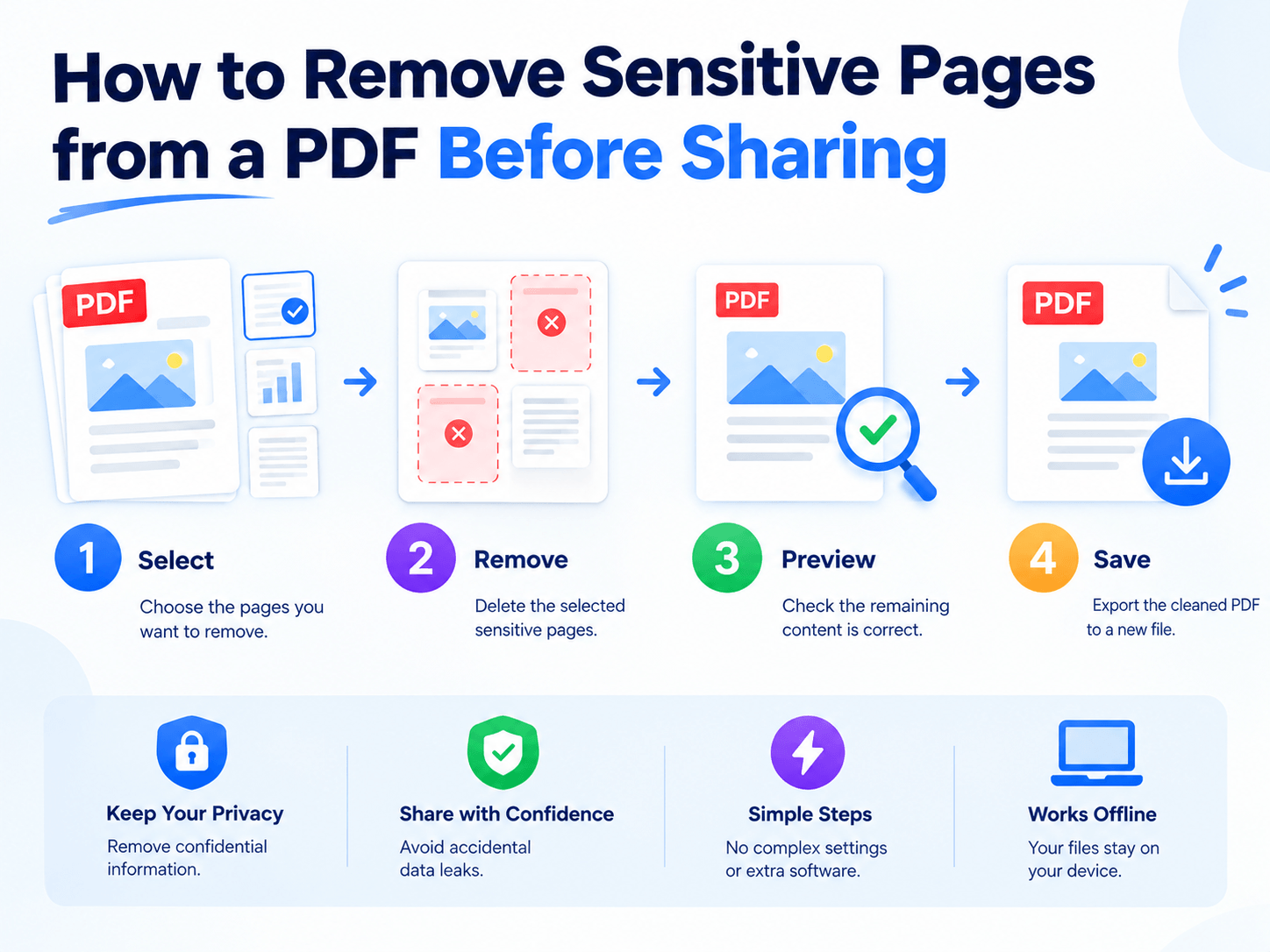
How to Remove Sensitive Pages from a PDF Before Sharing

A PDF may be ready to send—but that doesn’t mean every page belongs in the copy you’re sharing.

Internal notes, pricing details, draft pages, or private information can easily end up in a document intended for a client or colleague.

The simplest solution is to remove information that the recipient doesn’t need.

How to Remove Sensitive Pages from a PDF Before Sharing

Reduce the Information Footprint

📢 Consider a 30-page report:

Content Pages
Client-facing information 8
Internal analysis 10
Draft material 5
Private notes 3
Appendices 4

If the recipient only needs the first 8 pages, sending all 30 creates unnecessary exposure.

A better approach is:

30-page master → 8-page sharing copy

✔ Keep the original file unchanged and create a separate version for distribution.

Delete or Redact?

📢 These two operations solve different problems.

Situation Best Approach
Entire page is unnecessary Delete the page
Only part of a page is sensitive Redact the content
Only several pages are needed Extract those pages
Pages are out of sequence Reorder them

✔ If an entire page contains internal information, deleting it is usually cleaner than trying to cover the content visually.

Keep the Original, Create a Share Copy

Don’t modify the master document just to prepare one external copy.

Use a simple workflow:

Master PDF → Remove sensitive pages → Review → Save as a new PDF

For example:

Project_Report.pdf → Project_Report_Client.pdf

✔ This keeps the complete source document available while limiting what you actually share.

Use Local PDF Processing for Private Files

For confidential documents, uploading the original PDF to an online service may not be ideal.

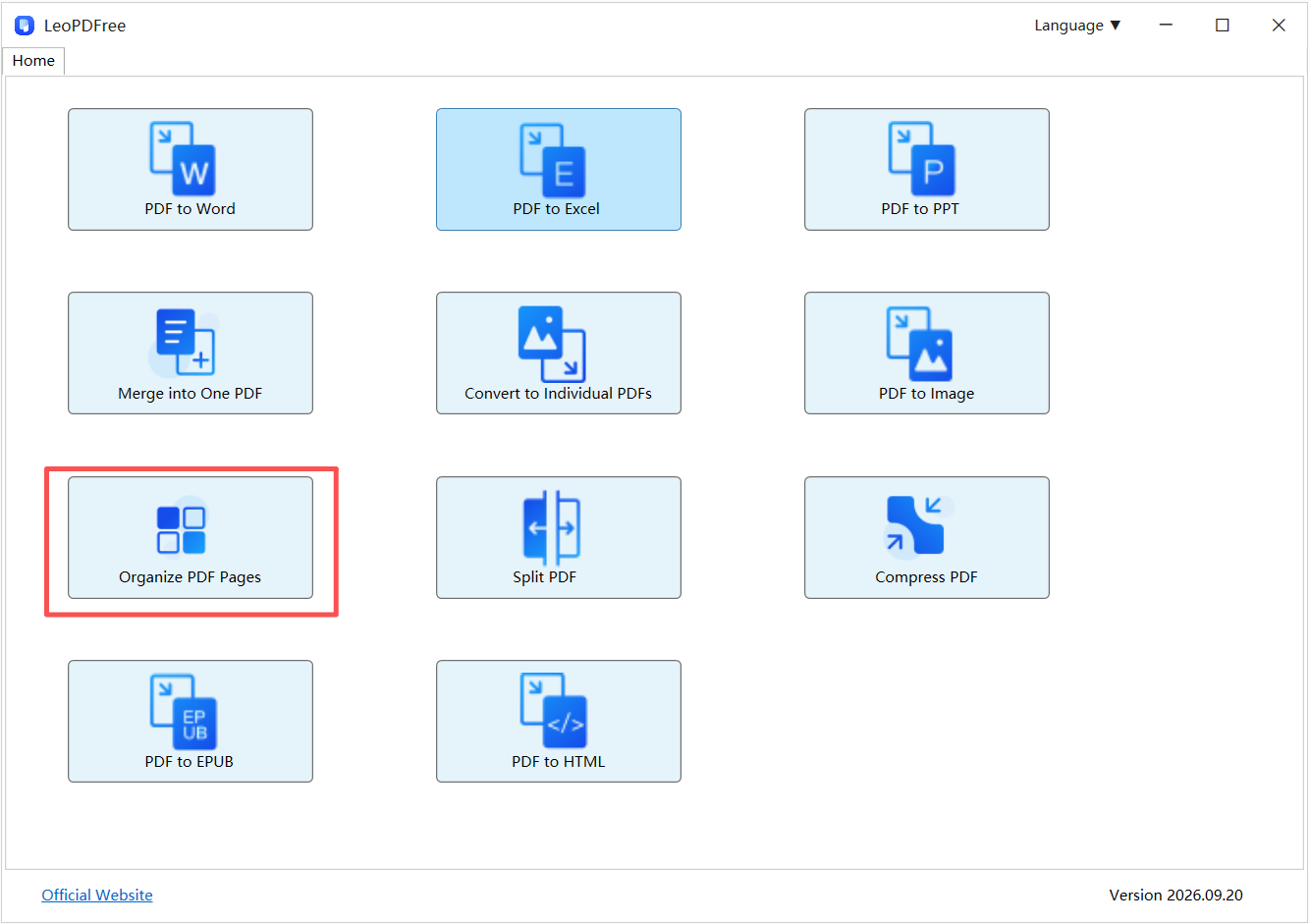
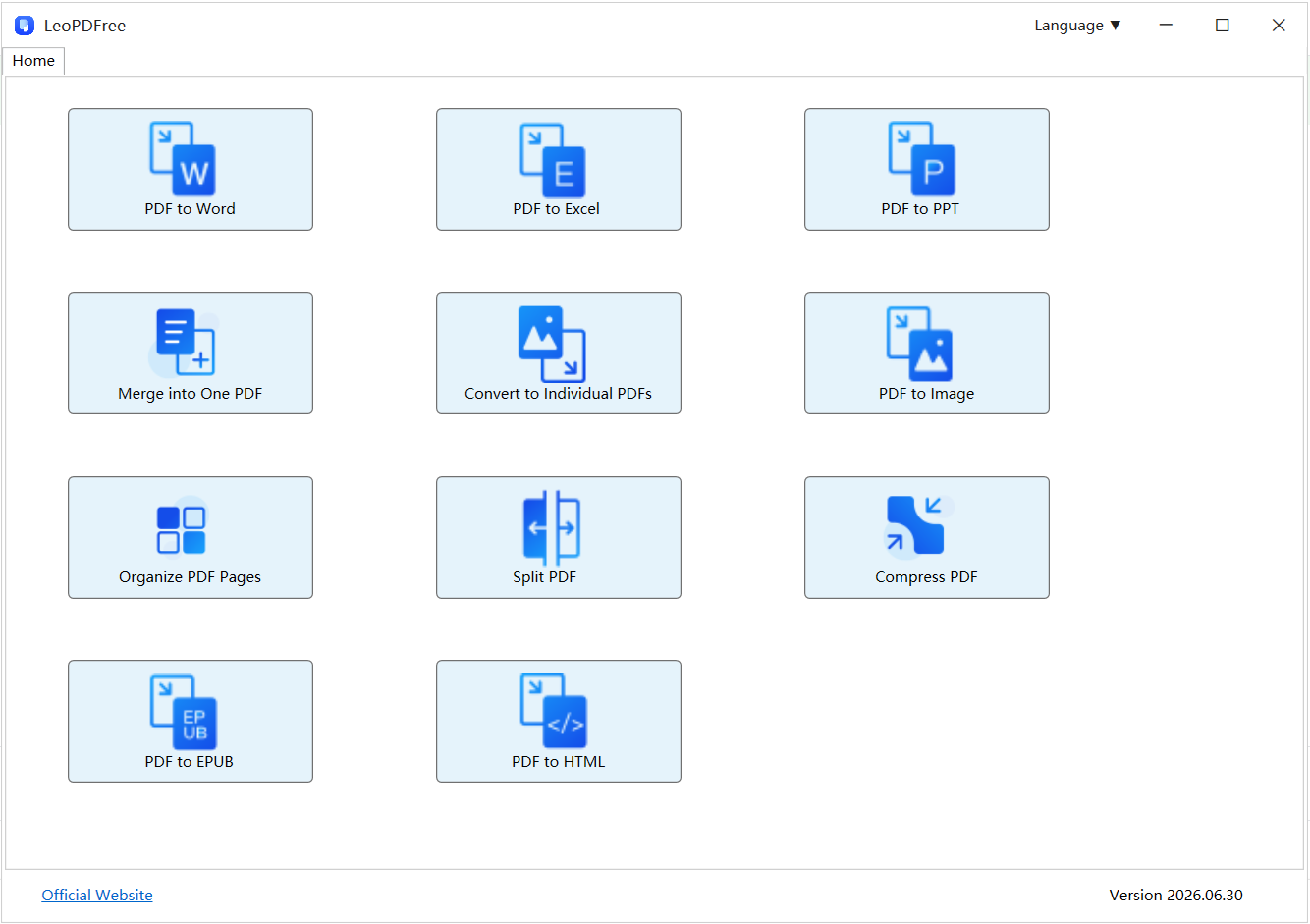
LeoPDF provides a free desktop workflow for Windows, allowing you to delete pages, extract selected pages, reorder content, split or merge PDFs, and save the result locally.

That makes it useful when the goal is simply to prepare a clean sharing copy without uploading the original document.

LeoPDF PDF Page Organizer Interface

Free DownloadSecure Download

📢 LeoPDF also has a Ios version.

Final Takeaway

Before sharing a PDF, don’t just ask whether the document is finished.

Ask:

“Does the recipient need every page?”

If not, remove the unnecessary information and create a separate sharing copy.

Send less → expose less → share with more confidence.

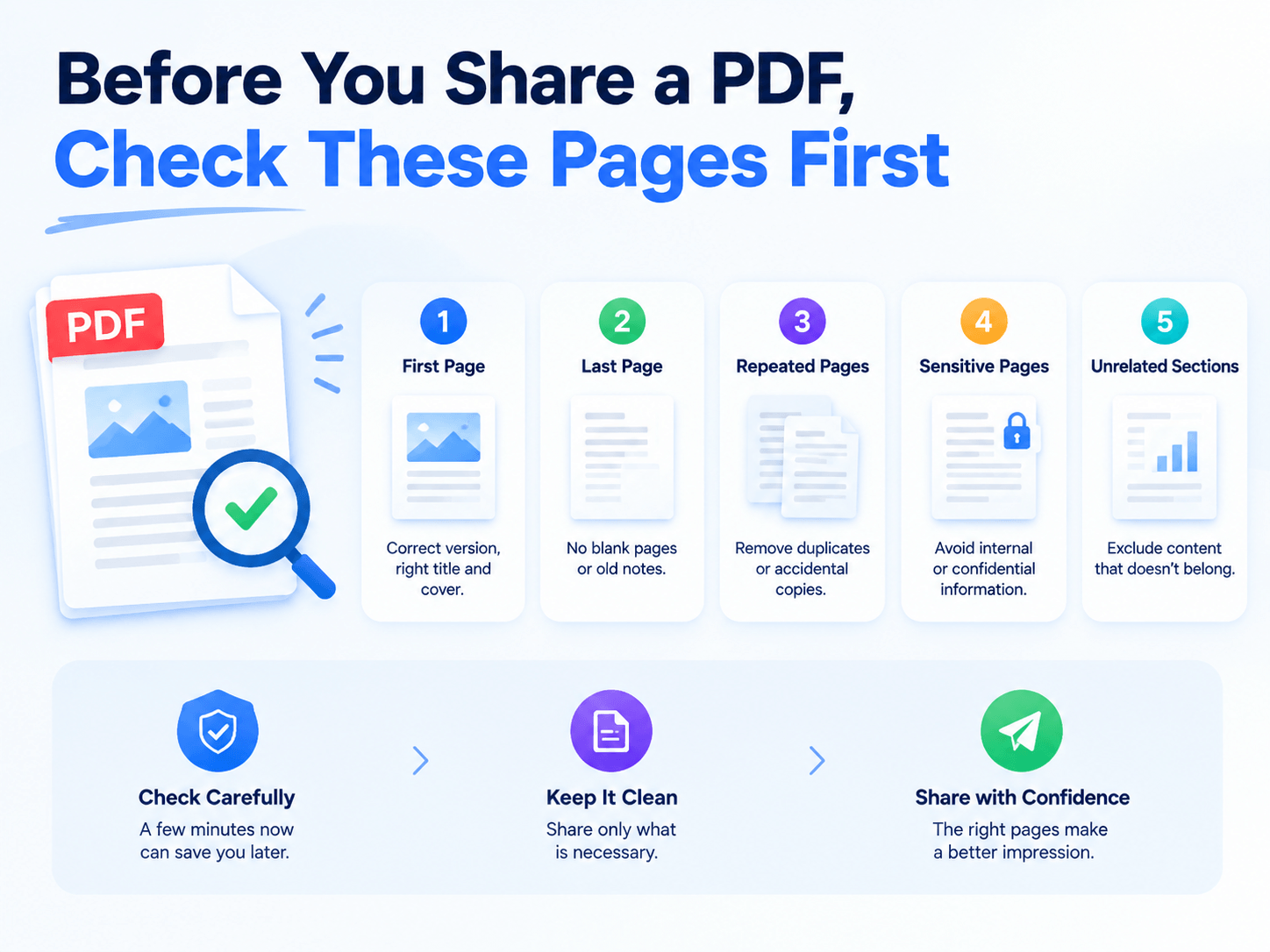
Before You Share a PDF, Check These Pages First

A PDF can look finished and still contain pages you shouldn’t send.

Before attaching a report, contract, presentation, or internal document to an email, take a quick look at the pages that are most likely to cause problems.

You may find an outdated page, a blank sheet, a duplicate, or an entire section that the recipient doesn’t need.

Before Sharing a PDF, Check These Pages for Sensitive Information

The Pre-Send Page Check

You don’t need to review every word. Focus on the pages that can change what the recipient receives.

Check First What to Look For
First page Wrong version, outdated cover, incorrect title
Last page Blank page, old notes, unnecessary attachments
Repeated pages Duplicates or accidental copies
Sensitive pages Internal information not meant for the recipient
Unrelated sections Content that belongs in a separate document

📢 This quick check can prevent a surprisingly common mistake: sending more information than intended.

Fix the File Without Rebuilding It

Finding a problem doesn’t mean you need to recreate the entire PDF.

Use the smallest operation that solves the problem:
Wrong page → Reorder
Unwanted page → Delete
Useful section → Extract
Separate document needed → Split

📢 The advantage is simple: you change the document structure without rewriting its contents.

One Tool for the Final Cleanup

LeoPDF makes these page-level tasks straightforward on Windows.

You can delete unnecessary pages, extract selected pages into a new PDF, reorder pages when the sequence is wrong, or split a large document into separate files.

Because LeoPDF works locally, you can handle the cleanup without uploading the original PDF to an online service.

That makes it particularly useful when you’re preparing business reports, contracts, internal documents, or other files that shouldn’t leave your computer.
‌

Review PDF Pages Before Sharing with LeoPDFree

Free DownloadSecure Download

A 30-Second Habit

Before clicking Send, quickly scan the first page, last page, repeated pages, and any section containing information intended for a different audience.

If something looks wrong, fix the structure instead of rebuilding the document.

📢 Check → Clean up → Share

Final Takeaway

A professional PDF isn’t just correctly formatted—it contains exactly the information the recipient needs.

A quick page-level check can catch unnecessary, outdated, duplicate, or misplaced content before it becomes an embarrassing attachment mistake.

With LeoPDF, you can delete, extract, reorder, or split pages locally and prepare a cleaner PDF without rebuilding the original file.