
Tips & guides
How to Extract Specific Pages from a PDF Into a New File
Published
Sometimes you don’t need the entire PDF—you only need a few pages.
A 200-page report might contain three pages you need to send to a client. A long manual may contain one relevant section. Instead of editing the original document or rebuilding it, you can extract those pages into a separate PDF.
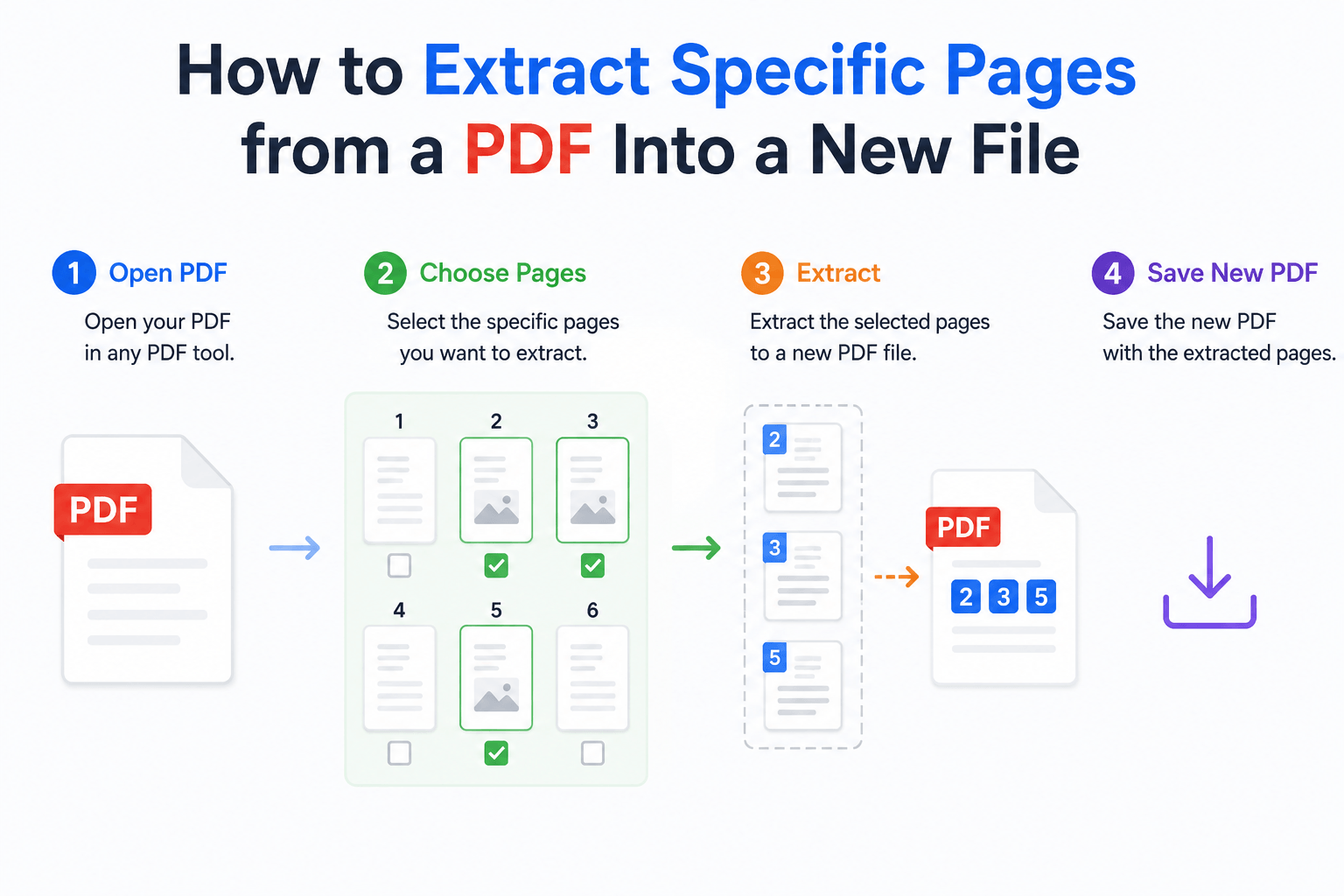
Extract, Don’t Rebuild
The key is to treat the PDF as a collection of pages rather than one document that must be edited.
For example:
Original PDF:
Pages 1–120
Pages needed:
12, 18–21, 47
New PDF:
Pages 12, 18–21, and 47
The original file remains unchanged, while the extracted pages become a new, independent PDF.
This approach is useful when you need to:
🔵 Send only selected pages
🔵 Create a short reference document
🔵 Separate a specific section from a large PDF
🔵 Share part of a report without distributing the entire file
What to Check Before Extraction
Not every extraction task is simply “pick a page and save.”
Before creating the new file, check three things:
| Check | Why It Matters |
|---|---|
| Page selection | Avoid missing or extra pages |
| Page sequence | Keep the extracted document readable |
| Output file | Make sure only the intended pages are included |
📢 For related pages, keeping their original order usually produces the cleanest result.
A Faster Way to Extract Pages
If you work with PDFs regularly, an offline tool can make this process much simpler.
LeoPDF lets you select the pages you need and create a separate PDF without rebuilding the document from scratch. It also supports PDF splitting, page deletion, page reordering, merging, compression, and format conversion.
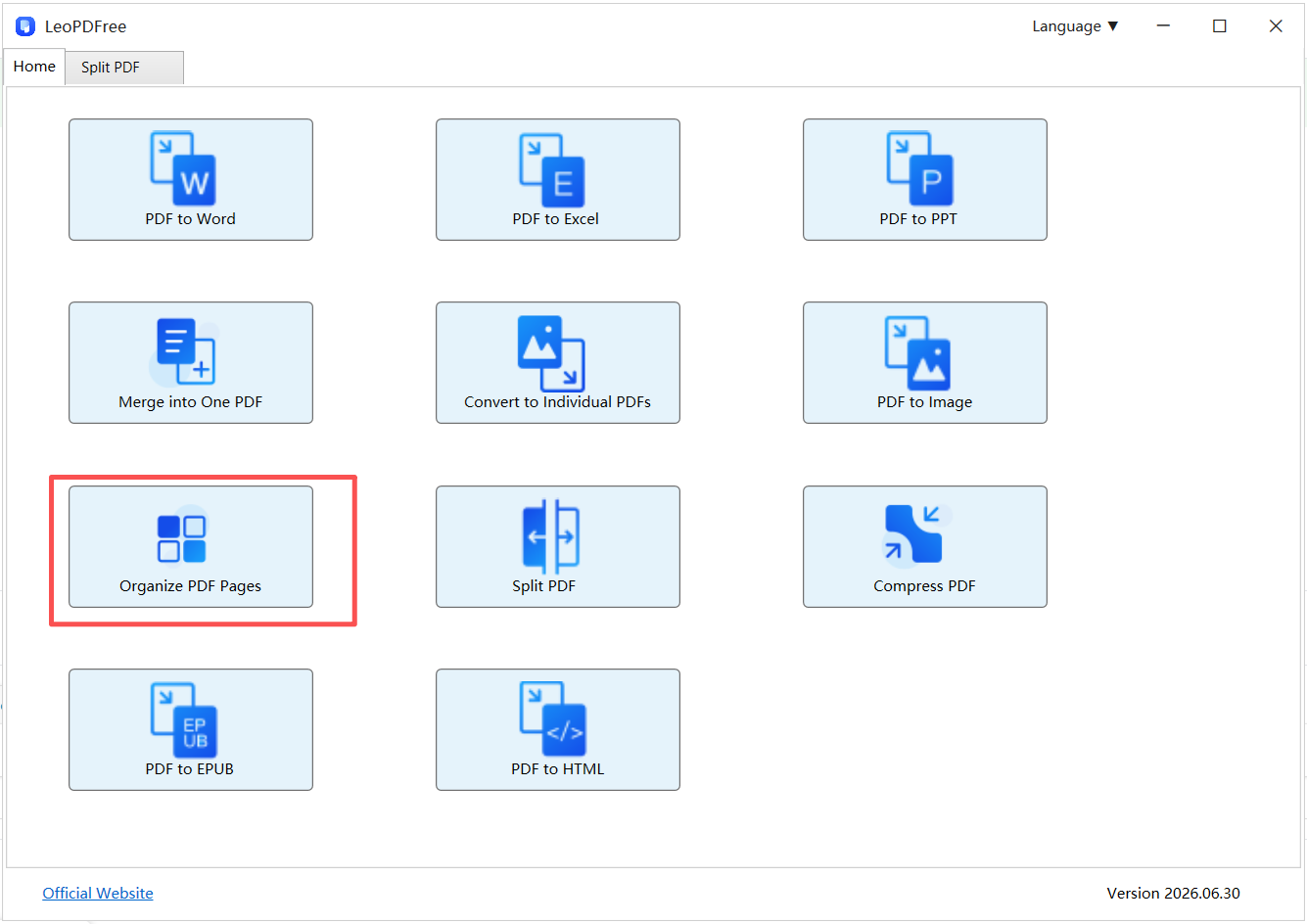
Because LeoPDF processes files locally on Windows, you can extract pages without uploading the original PDF to an online service. That’s particularly useful for reports, contracts, internal documents, and other files you don’t want to send to a third-party server.
Keep the Original File Intact
The advantage of page extraction is that you don’t have to rebuild or modify the source document.
You simply create a new PDF from the required pages:
Select → Extract → Save
The original stays intact, while the new file is ready for sharing or further use.
Final Takeaway
When you only need part of a PDF, extracting the relevant pages is usually more efficient than editing or rebuilding the entire document.
With LeoPDF, you can extract selected pages locally on Windows and create a separate PDF without uploading the original file.
It’s a simple way to turn a large PDF into a smaller, purpose-built document—while keeping the original safely untouched.