
Tips & guides
Before You Share a PDF, Check These Pages First
Published
A PDF can look finished and still contain pages you shouldn’t send.
Before attaching a report, contract, presentation, or internal document to an email, take a quick look at the pages that are most likely to cause problems.
You may find an outdated page, a blank sheet, a duplicate, or an entire section that the recipient doesn’t need.
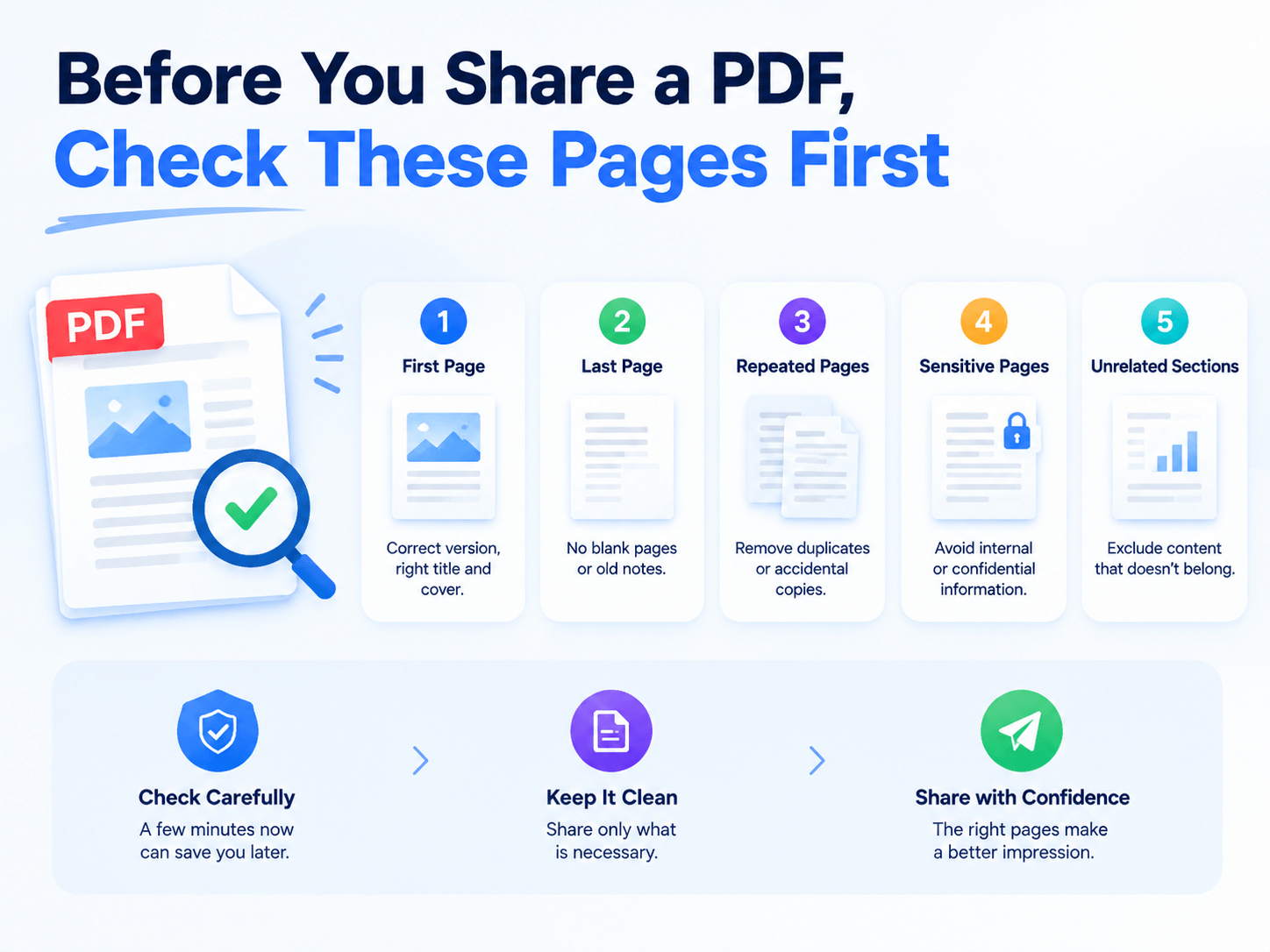
The Pre-Send Page Check
You don’t need to review every word. Focus on the pages that can change what the recipient receives.
| Check First | What to Look For |
|---|---|
| First page | Wrong version, outdated cover, incorrect title |
| Last page | Blank page, old notes, unnecessary attachments |
| Repeated pages | Duplicates or accidental copies |
| Sensitive pages | Internal information not meant for the recipient |
| Unrelated sections | Content that belongs in a separate document |
📢 This quick check can prevent a surprisingly common mistake: sending more information than intended.
Fix the File Without Rebuilding It
Finding a problem doesn’t mean you need to recreate the entire PDF.
Use the smallest operation that solves the problem:
Wrong page → Reorder
Unwanted page → Delete
Useful section → Extract
Separate document needed → Split
📢 The advantage is simple: you change the document structure without rewriting its contents.
One Tool for the Final Cleanup
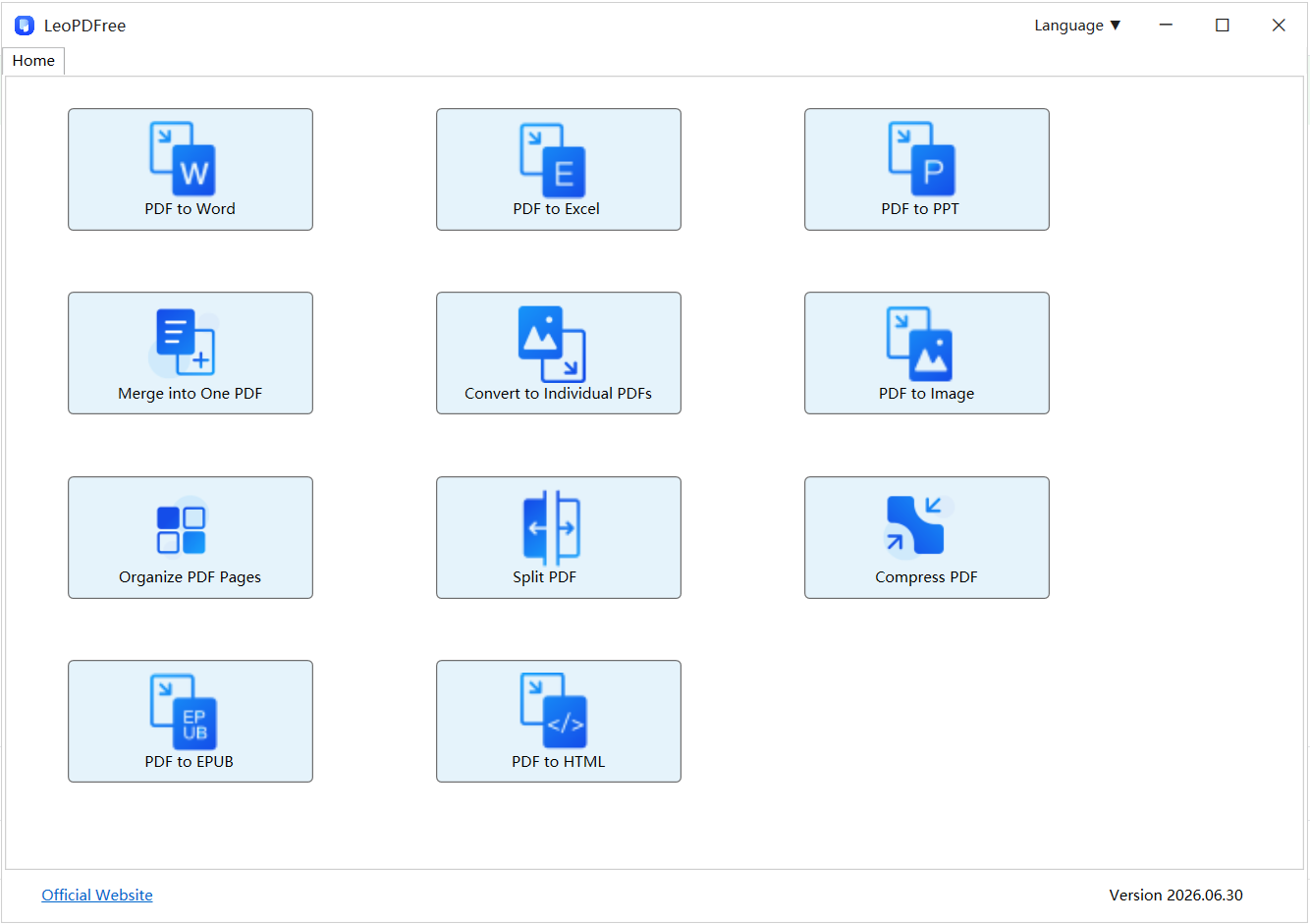
LeoPDF makes these page-level tasks straightforward on Windows.
You can delete unnecessary pages, extract selected pages into a new PDF, reorder pages when the sequence is wrong, or split a large document into separate files.
Because LeoPDF works locally, you can handle the cleanup without uploading the original PDF to an online service.
That makes it particularly useful when you’re preparing business reports, contracts, internal documents, or other files that shouldn’t leave your computer.
A 30-Second Habit
Before clicking Send, quickly scan the first page, last page, repeated pages, and any section containing information intended for a different audience.
If something looks wrong, fix the structure instead of rebuilding the document.
📢 Check → Clean up → Share
Final Takeaway
A professional PDF isn’t just correctly formatted—it contains exactly the information the recipient needs.
A quick page-level check can catch unnecessary, outdated, duplicate, or misplaced content before it becomes an embarrassing attachment mistake.
With LeoPDF, you can delete, extract, reorder, or split pages locally and prepare a cleaner PDF without rebuilding the original file.