
Tips & guides
How to Convert PDF to EPUB for Free Without Uploading Your Files
Published
PDF is great for preserving a document’s original layout. EPUB is built for something different: comfortable reading across different screen sizes.
If you’re trying to read a long PDF on a phone or e-reader, converting it to EPUB can make a noticeable difference.
The key question is: how can you convert it without uploading the original file?
PDF vs. EPUB: Same Content, Different Reading Model
| EPUB | ||
|---|---|---|
| Layout | Fixed | Reflowable |
| Small-screen reading | More zooming | Text adapts |
| Font resizing | Limited by page design | Built for resizing |
| Page structure | Preserved | Rebuilt |
| Best for | Print-style documents | Digital reading |
EPUB’s reflowable design allows content to adapt to the reader’s screen and settings.
That makes EPUB particularly useful for text-heavy documents such as books, reports, and long-form articles.
The Privacy Difference
There are two ways to approach PDF conversion:
Upload model
PDF → Online Server → EPUB
Local model
PDF → Your Computer → EPUB
For a public document, either workflow may be acceptable.
For an unpublished manuscript, business report, private notes, or other sensitive PDF, keeping the source file on your own computer can be preferable.
Don’t Expect a Perfect Page-for-Page Copy
his is the part many PDF-to-EPUB guides skip.
Conversion isn’t simply changing .pdf to .epub.
A PDF might contain:
🔵 Fixed text positions
🔵 Multiple columns
🔵 Tables
🔵 Images
🔵 Headers and footers
🔵 Complex page designs
EPUB has to rebuild that content into a different reading structure.
A simple text document may convert cleanly, while a heavily designed magazine can require manual cleanup. EPUB 3 also supports fixed-layout publications, but that is different from the normal reflowable reading experience.
A quick quality expectation
| PDF Type | Expected EPUB Result |
|---|---|
| Novel / text document | ★★★★★ |
| Simple report | ★★★★☆ |
| Technical document | ★★★☆☆ |
| Multi-column paper | ★★★☆☆ |
| Magazine / complex design | ★★☆☆☆ |
| Scanned PDF without text | Requires OCR |
The ratings above are practical expectations, not a universal conversion benchmark.
A Better Conversion Workflow
Instead of converting everything blindly, use a simple three-stage process:
01 — Check the PDF
Make sure the text is selectable. A scanned PDF may contain page images rather than actual text.
02 — Convert for reading
Choose EPUB when you need resizable, reflowable text rather than the original page layout.
03 — Check the result
Open the EPUB and quickly review headings, paragraphs, tables, and images.
That final check matters because PDF-to-EPUB conversion is essentially a layout reconstruction, not a file-extension change.
Where LeoPDF Fits
If your PDF needs cleanup before conversion, LeoPDF can handle the preparation locally on your computer.
For example, you can prepare the pages using supported deletion, ordering, splitting or merging operations where appropriate, then choose the required conversion.
This is useful when the original PDF is 100 pages but the EPUB only needs a 30-page chapter or selected section.
100-page PDF → Select relevant content → Clean up → Convert → EPUB
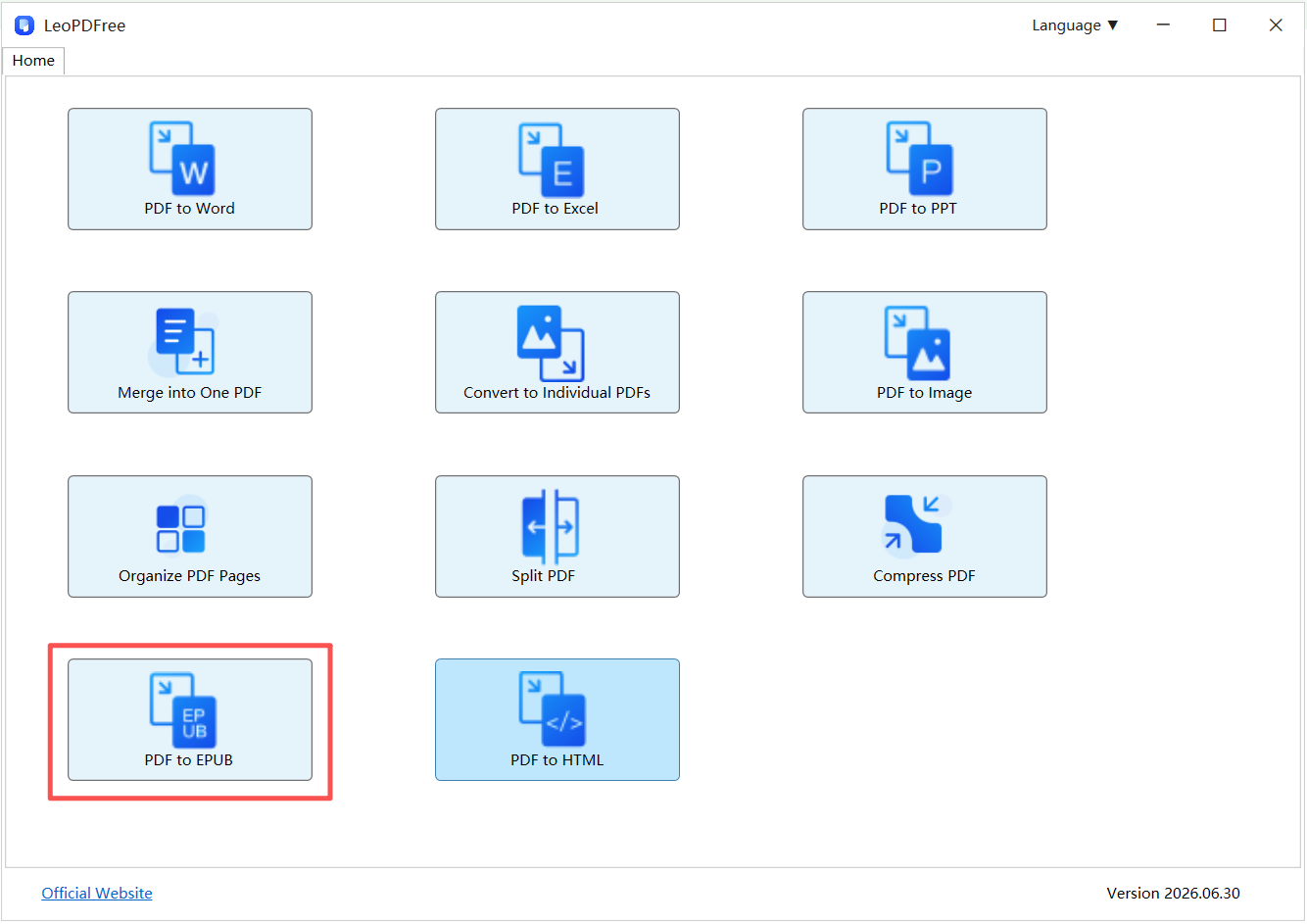
📢 The advantage is that the original document doesn’t need to be uploaded to an online PDF service during the local editing process.
One Simple Rule
Use PDF when preserving the exact page appearance is the priority.
Use EPUB when reading flexibility matters more than fixed page layout.
If privacy matters too, keep the conversion workflow local whenever practical.
Convert the prepared PDF to EPUB
- Keep the original PDF. Try a representative short document first, especially if the source has columns, tables or images.
- In your LeoPDF edition, open the PDF-to-EPUB function and add the PDF you want to convert.
- Choose the available page selection and an output folder, then run the conversion. Interface labels may differ by version.
- Open the saved EPUB in the ebook reader you intend to use. Change font size and inspect headings, reading order, images, tables and missing text.
- If the layout is unsuitable, keep the original PDF for those pages rather than assuming another conversion will reconstruct the source perfectly.
PDF-to-EPUB is a free local task in LeoPDFree and the store editions. Files are not uploaded for this operation. EPUB conversion is different from OCR; do not expect the free Windows edition to recognize handwriting or recover selectable text from a scan. For edition-specific help, see the PDF-to-EPUB guide.
Final Takeaway
Converting PDF to EPUB isn’t just about changing formats. It’s about changing how the content behaves.
PDF = fixed layout
EPUB = adaptable reading
For text-heavy PDFs, EPUB can provide a more flexible reading experience on phones, tablets, and e-readers. For complex layouts or scanned documents, expect additional cleanup or OCR before conversion.
And when the source file is private, a local workflow can keep the original PDF on your own computer instead of sending it to a third-party server.
Use a small representative sample
- Try continuous text, a heading boundary and a page containing a table or image.
- Increase the font size in the intended EPUB reader; inspect reading order and missing or duplicated paragraphs.
- Keep the original PDF when a complex page cannot be represented usefully as reflowable text.
Page preparation and PDF-to-EPUB conversion are separate operations. LeoPDF does not provide a standalone page-extraction feature; choose supported page-range splitting, deletion or ordering only when needed.
Questions about your LeoPDF edition?
Contact xuehui@leopdf.com with your platform, app version and the task you need.