
Tips & guides
Free Offline PDF to XLSX Converter for Windows 10 and 11— LeoPDFree
Published
PDFs are great for preserving and displaying documents, but they’re not always convenient when you need to work with the data inside them.
For example, sales reports, invoices, and financial records are often saved as PDFs. If you need to sort, filter, calculate, or chart that data, converting the PDF to Excel (XLSX) makes the process much easier.
For Windows 10 and Windows 11 users, LeoPDFree offers a free, offline way to convert supported PDF files to Excel. The conversion takes place locally on your computer, so there’s no need to upload files or rely on an online conversion service.
This guide covers the practical benefits of PDF-to-XLSX conversion, why offline processing matters, and how to choose the right tool for different types of PDF files.
1. Why Convert PDF to XLSX?
PDF is designed to preserve document layouts, while Excel is built for working with data. Once a PDF table is converted to XLSX, you can perform a range of tasks more easily.
| Data Task | Excel (XLSX) | |
|---|---|---|
| View tables | Yes | Yes |
| Edit data | Limited | Yes |
| Sort and filter | Limited | Yes |
| Calculate totals | Not convenient | Yes |
| Create charts | Limited | Yes |
| Pivot table analysis | No native support | Yes |
For example, after converting a monthly sales report to Excel, you can filter records by product or date, sort sales figures, calculate total revenue, and create charts.
The real benefit is turning static PDF data into information you can edit and analyze.
2. Why Choose an Offline PDF to Excel Converter?
Online converters typically require you to upload a PDF before processing it on a remote server. Offline tools work differently: they handle the conversion directly on your computer.
Here’s how the two approaches compare.
| Feature | Online Converters | LeoPDFree |
|---|---|---|
| Installation required | Usually no | Yes |
| File upload | Usually required | Not required |
| Processing location | Remote server | Local computer |
| Internet required during conversion | Usually yes | No |
| Free to use | Depends on the service | Yes |
| Privacy control | Depends on the provider | Files can stay on your device |
| Best for | Occasional conversions | Regular PDF processing |
For sales reports, customer records, financial statements, and other sensitive documents, local processing reduces the privacy risks associated with uploading files to third-party servers.
If you regularly work with PDFs or prefer not to send documents over the internet, an offline converter is worth considering.3. How to Convert PDF to Excel with LeoPDFree
LeoPDFree is a free PDF conversion and management tool for Windows. It supports converting compatible PDF files into XLSX spreadsheets.
Follow these steps to get started.
Step 1: Add Your PDF File
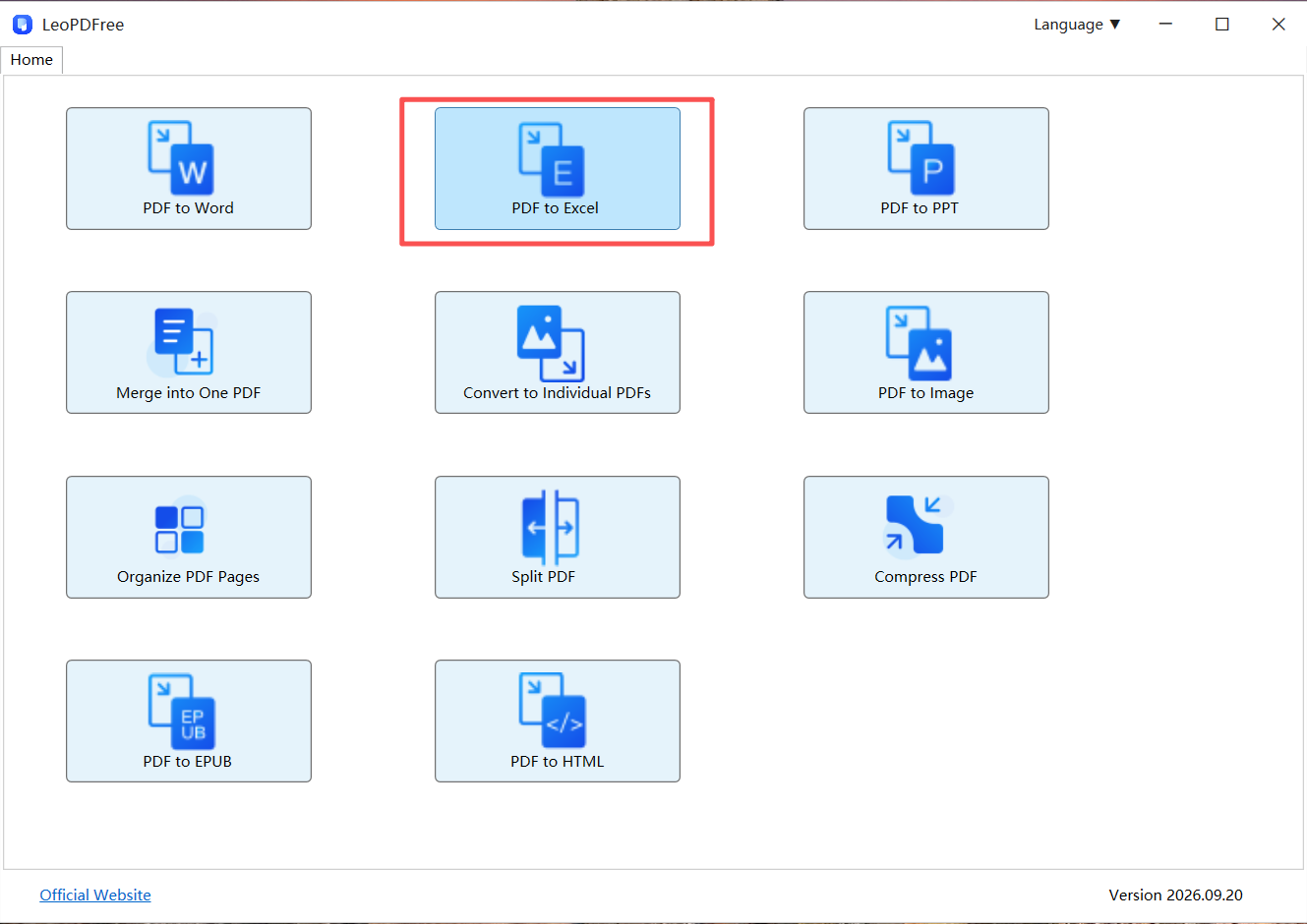
Download and install LeoPDFree. Open the app, click PDF to Excel, and import the PDF you want to convert, such as an invoice, sales report, or data table.
Step 2: Configure the Conversion
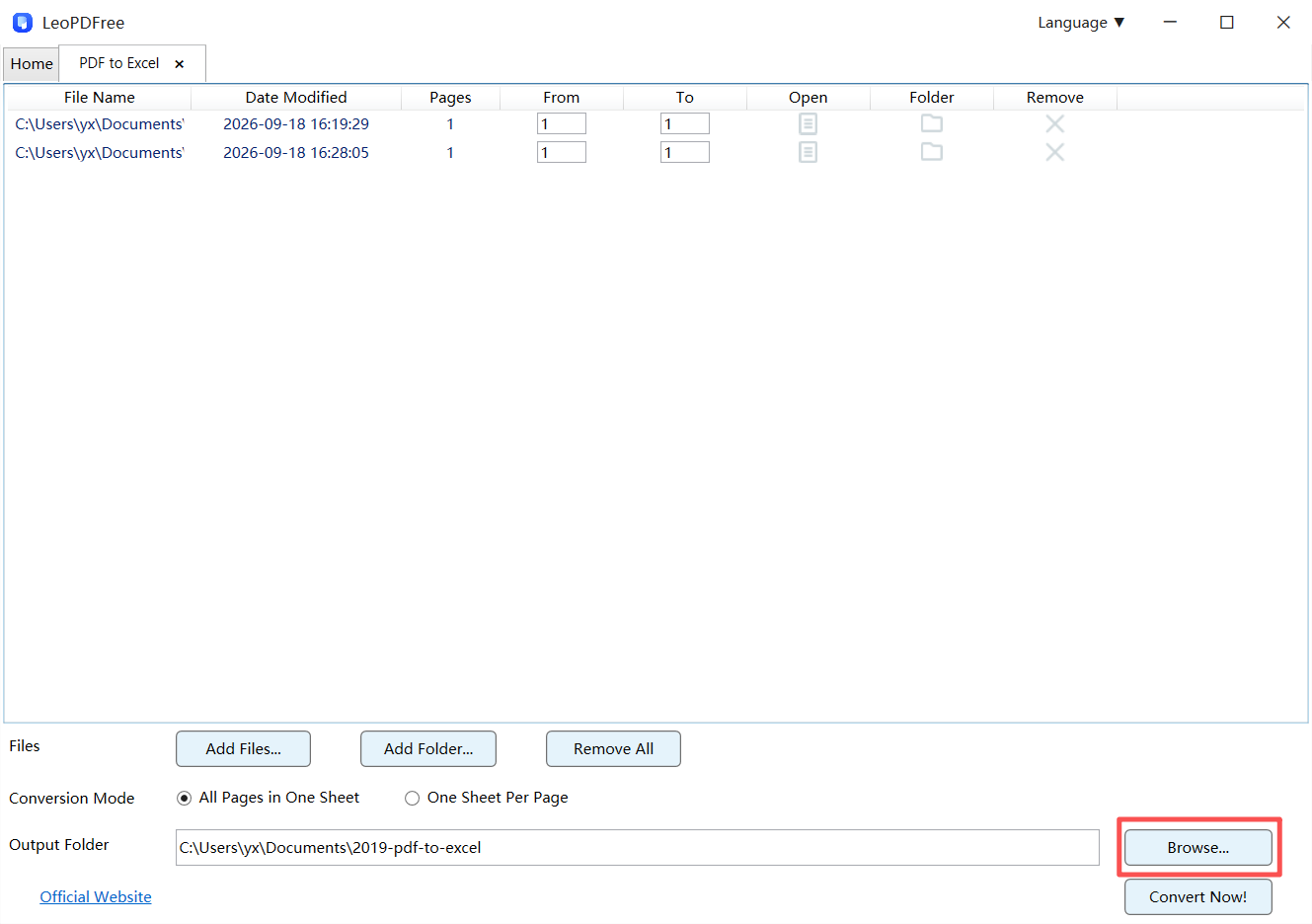
Select Conversion Mode, click Browse… to choose where to save the output file, and adjust the available settings as needed.
Step 3: Start the Conversion
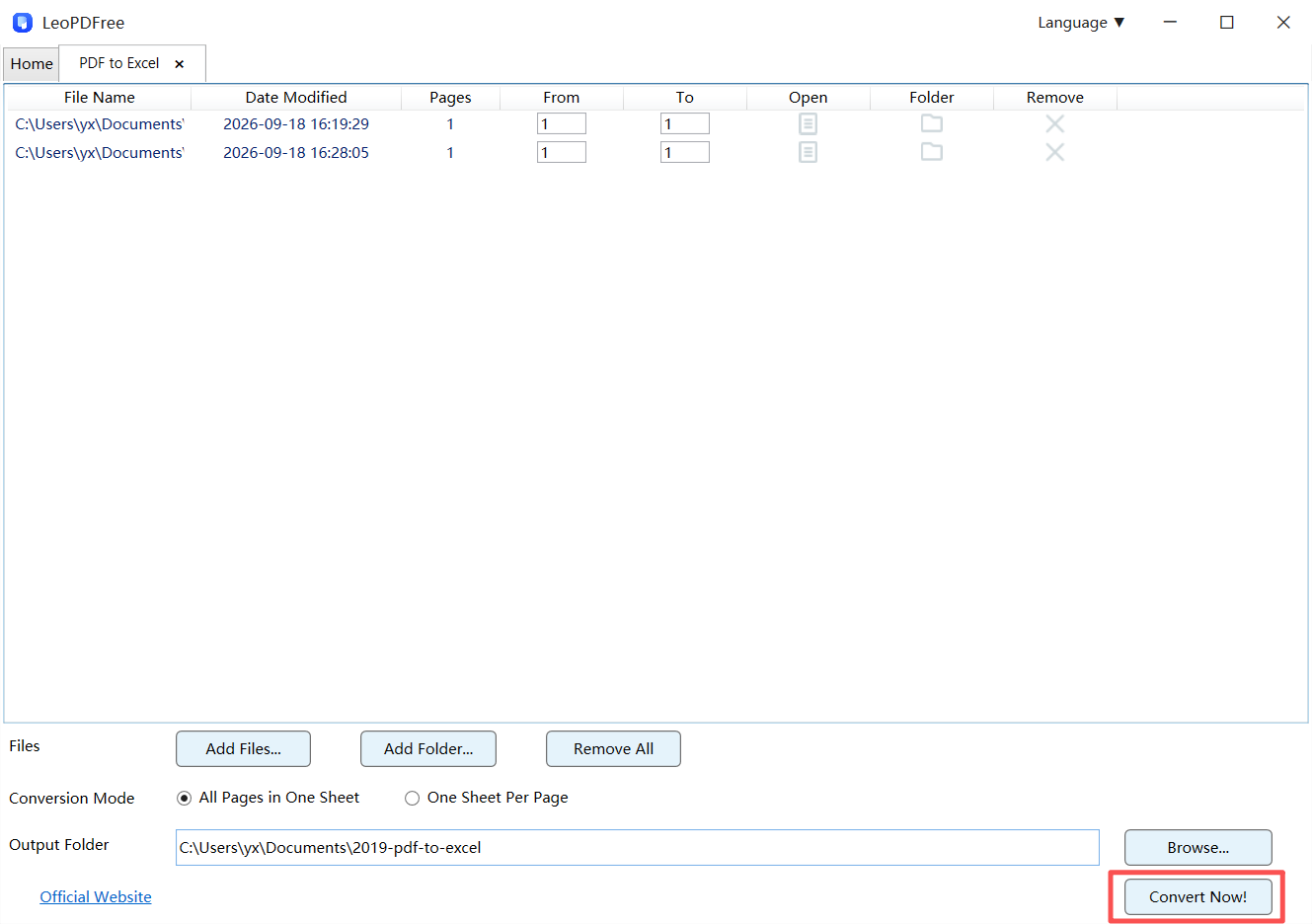
Click Convert Now! to begin converting the file.
Step 4: Review the Results
Open the converted Excel file and check column alignment, number formats, dates, and key totals. Fix any misplaced data or incorrect values before using the spreadsheet for analysis or reporting.
4. Which PDFs Can Be Converted, and Which Need OCR?
PDF files can store information in different ways. The conversion method you need depends on the type of content in your document.
| PDF Type | OCR Required? | Recommended Tool |
|---|---|---|
| Digital invoices | Usually no | LeoPDFree for Windows |
| Digital sales reports | Usually no | LeoPDFree for Windows |
| Product price lists | Usually no | LeoPDFree for Windows |
| Scanned invoices | Yes | LeoPDF for Mac/iPhone |
| Photos of tables | Yes | LeoPDF for Mac/iPhone |
| Handwritten financial records | Yes | LeoPDF for Mac/iPhone |
What is OCR?
OCR stands for Optical Character Recognition. It identifies text in scanned images or photos and converts it into machine-readable data.
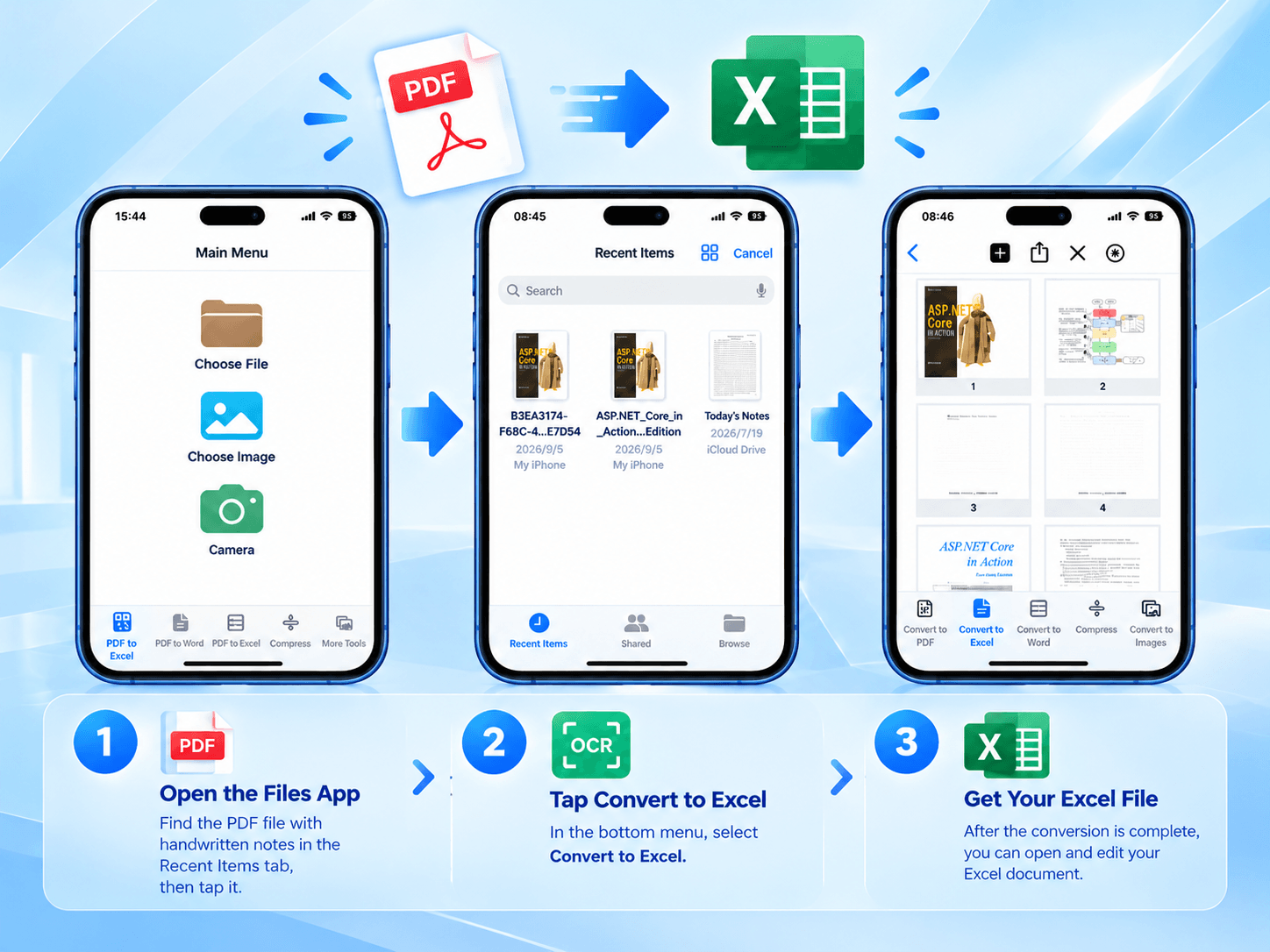
Please note that the Windows version of LeoPDFree does not currently support OCR. If you’re working with scanned PDFs, photos, or handwritten documents, consider the paid LeoPDF app for Mac or iPhone.
These versions offer OCR-powered PDF-to-Excel conversion. However, Word and Excel conversions use cloud processing and require an internet connection. Results from blurry images, complex tables, or difficult handwriting may still need manual review.
5. What Should You Check After Conversion?
Converting a PDF to Excel doesn’t guarantee that every piece of data will be accurate. For financial reports and business records, pay particular attention to these details.
| Check | What to Review | Potential Issue |
|---|---|---|
| Column alignment | Whether values appear under the correct columns | Incorrect product-to-price matching |
| Number formats | Decimal points, negative numbers, and currency symbols | Incorrect calculations |
| Date formats | Whether dates are recognized correctly | Sorting problems |
| Data completeness | Missing or duplicated records | Inaccurate statistics |
| Totals | Whether key totals match the original PDF | Financial discrepancies |
For important documents, spot-check the beginning, middle, and end of the spreadsheet. Also verify key totals against the original PDF.
6. Which LeoPDF Version Should You Choose?
Different editions of LeoPDF are designed for different PDF processing needs.
| Your Requirement | Recommended Version | Cost |
|---|---|---|
| Convert digital PDFs to Excel | LeoPDFree for Windows | Free |
| Convert PDFs offline | LeoPDFree for Windows | Free |
| Convert scanned PDFs with OCR | LeoPDF for Mac/iPhone | Paid |
| Recognize handwritten documents | LeoPDF for Mac/iPhone | Paid |
The choice is straightforward: 🔵 Windows 10/11 users: Use free LeoPDFree for offline conversion when the PDF contains selectable text. 🔵 Mac/iPhone users: Choose the OCR-enabled paid version when you need to recognize scanned or handwritten content.
Final Thoughts
If you regularly convert invoices, sales reports, or other digital PDFs to Excel, a free offline tool can reduce repetitive work and eliminate the need to upload documents to third-party conversion services.
LeoPDFree for Windows offers:
🔵 Free PDF-to-XLSX conversion 🔵 Local offline processing 🔵 No file uploads required 🔵 Support for Windows 10 and 11 🔵 Everyday PDF conversion and management featuresFor scanned PDFs or handwritten documents, choose the OCR-enabled LeoPDF app for Mac or iPhone instead.
LeoPDFree is designed for free offline conversion, while the Mac and iPhone versions of LeoPDF are the better choice when OCR is needed. Choose the right tool for your PDF, and make your data easier to work with.