
Tips & guides
How to Convert PDF to Excel Offline for Free on Window
Published
PDFs are designed to preserve a document’s appearance, while Excel is built for calculating, filtering, and analyzing data.
When you need to organize invoices, analyze sales reports, or consolidate transaction records, converting PDF to Excel (XLSX) can save hours of manual data entry.
But an efficient conversion process involves more than turning a file into a spreadsheet. It should also produce usable data while protecting your files.
Identify Your PDF Type Before Converting
Different PDF files can present very different conversion challenges. Before choosing a tool, determine what kind of document you have.
| PDF Type | Main Conversion Challenge | What to Check After Conversion |
|---|---|---|
| Digital PDF tables | Rows and columns may shift | Table structure and column alignment |
| Invoices and financial reports | Decimals and negative values may be misread | Amounts, dates, and totals |
| Multi-page PDF reports | Data may break across pages | Data order and completeness |
| Scanned PDFs | Text may exist only as images | OCR recognition quality |
| Handwritten tables | Handwriting can be difficult to recognize | Numbers, text, and field alignment |
One important distinction: Digital PDFs generally contain selectable text, while scanned PDFs may contain only images. Scanned and handwritten documents usually require OCR (optical character recognition) to extract text.
Why Choose an Offline PDF-to-Excel Converter?
Online converters are convenient, but they typically require you to upload your files. Offline tools can process documents directly on your computer.
| Comparison | Online Converters | LeoPDFree for Windows |
|---|---|---|
| Cost | Free tiers may have restrictions | Free |
| Internet access | Usually required | Local processing can work without an internet connection after installation |
| File uploads | Usually required | Not required |
| Privacy control | Depends on the provider’s policies | Files can remain on your computer |
| Upload-size restrictions | May apply | Avoids online upload restrictions |
| Best for | Occasional conversions | Windows users who regularly process PDFs offline |
Online services vary in their free-tier limits, file-size restrictions, and privacy policies. If you handle financial reports, customer records, or confidential business documents, offline conversion can reduce the privacy risks associated with uploading files to third-party services.
Convert PDF to Excel with LeoPDFree
For Windows users, LeoPDFree offers free, offline PDF conversion, making it a practical option for supported digital PDF files.
Follow these three steps:
Step 1: Select your PDF
After installing LeoPDFree, open the app and click “PDF to Excel.” Then import the PDF you want to convert, such as an invoice, sales report, or data table.
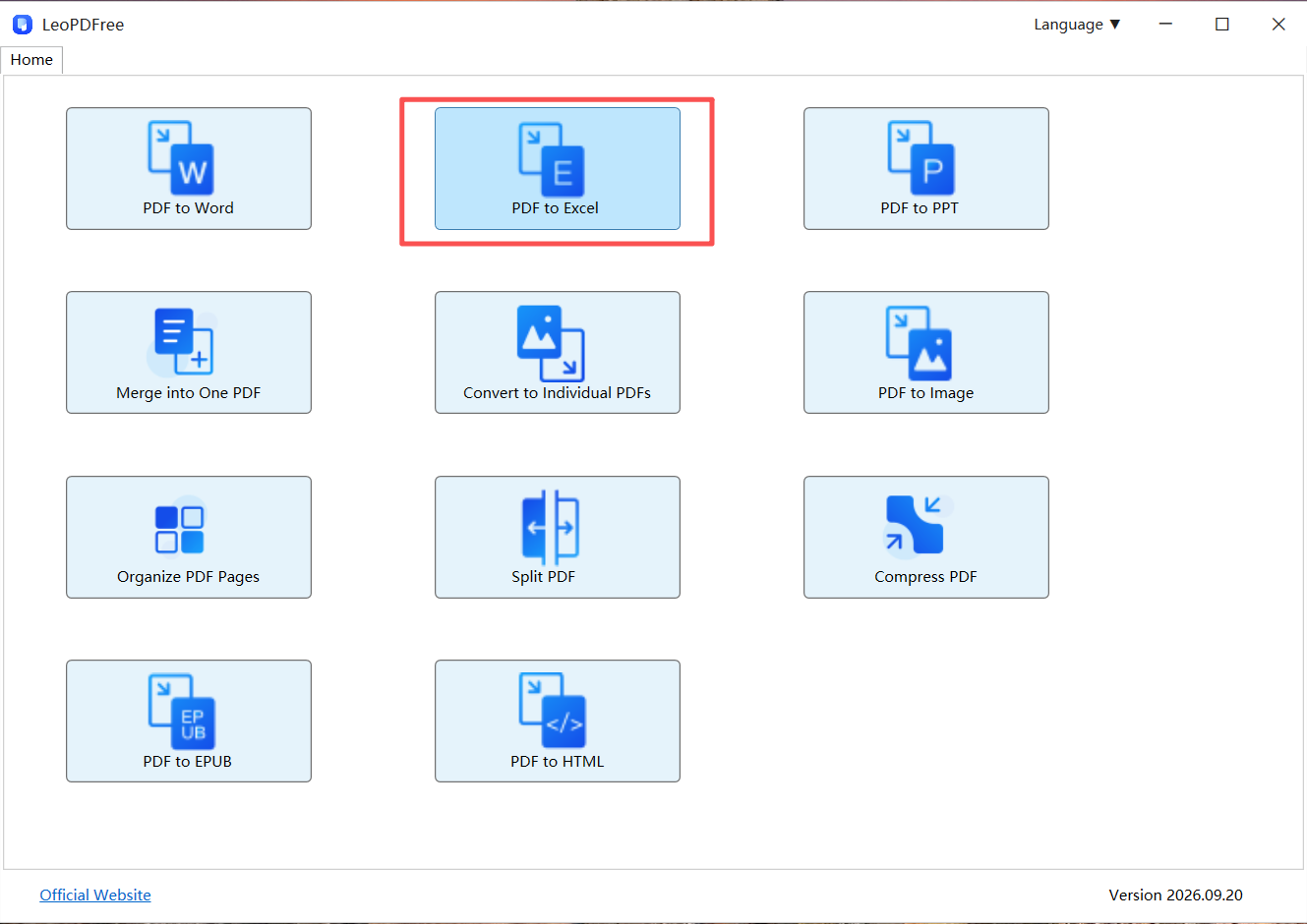
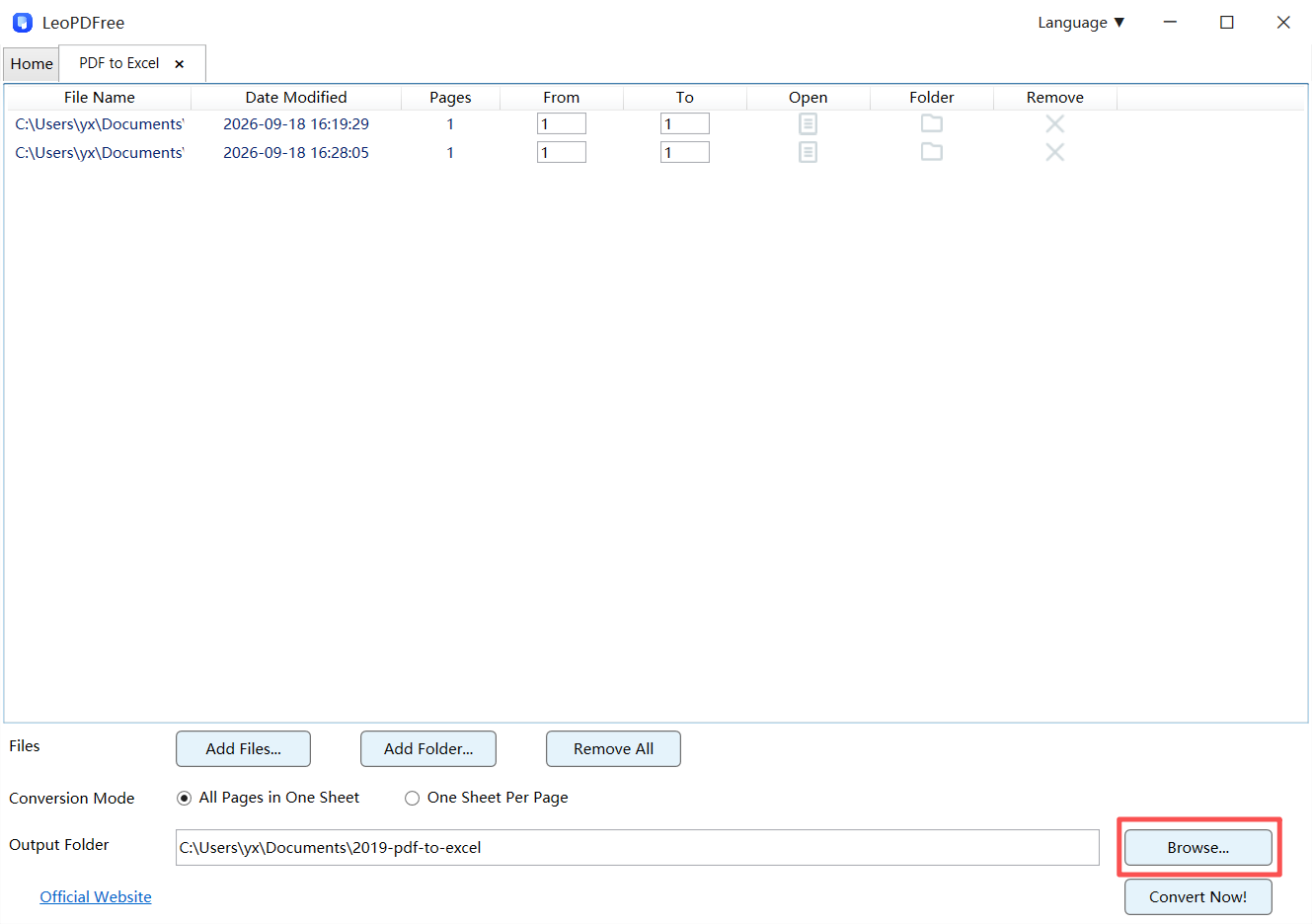
Step 2: Select “Conversion Mode,” then click “Browse…” to choose where to save the converted file.
Edit and configure the added files, then choose where to save the converted files.
Step 3: Convert and Review the Results
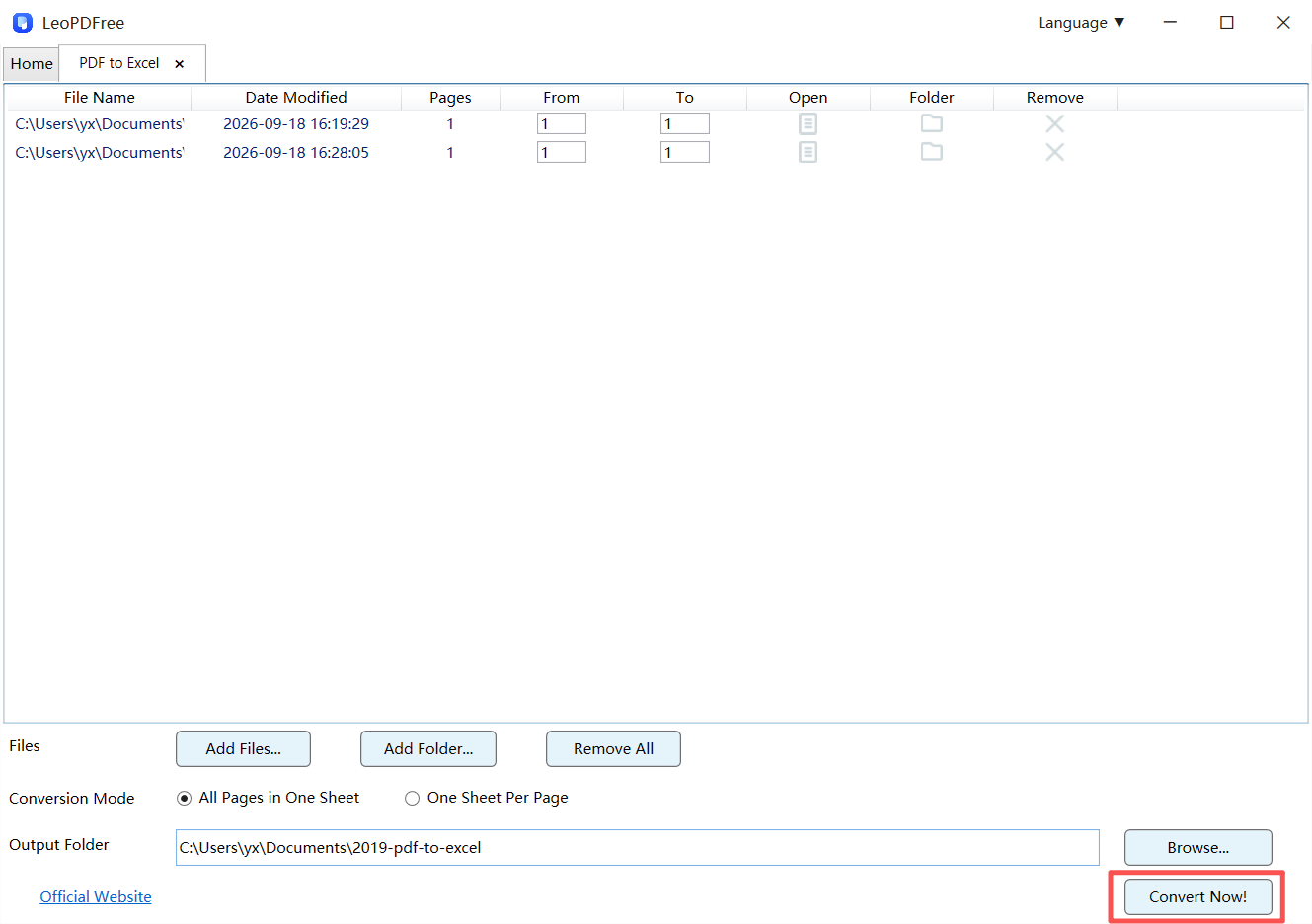
Click “Convert Now!” to start the conversion. Once it’s complete, open the Excel file and check the column alignment, number formats, dates, and key totals. If you find misaligned data or incorrect values, fix them before using the file for analysis or reporting.
Please note that the Windows version of LeoPDFree does not currently support OCR. If you’re working with scanned PDFs or handwritten documents, consider using the Mac or iPhone version of LeoPDF instead.
How to Check Conversion Quality Quickly
Don’t judge the result solely by whether the file exported successfully. What matters is whether the data can be used accurately.
| Check | Recommended Method | Potential Problem |
|---|---|---|
| Table structure | Compare selected rows with the original PDF | Misaligned columns or incorrectly merged cells |
| Numeric accuracy | Verify sample amounts and decimals | Misread digits or missing minus signs |
| Data completeness | Check the first and last rows | Missing records |
| Multi-page continuity | Review the transition between pages | Split rows or disrupted ordering |
| Calculation results | Recalculate key totals | Errors affecting calculations |
For a basic review, sample the beginning, middle, and end of the spreadsheet. For financial reports and other business-critical data, conduct a more thorough verification.
There is no single accuracy rate that applies to every PDF conversion. Results depend on the original file quality, table complexity, and extraction method.
How to Convert Scanned or Handwritten PDFs
If the text in a PDF comes from scanned images, a standard converter may not be able to extract it directly. This is where OCR becomes important.
Choose your approach based on the document type:
| Check | Recommended Method | Potential Problem |
|---|---|---|
| Table structure | Compare selected rows with the original PDF | Misaligned columns or incorrectly merged cells |
| Numeric accuracy | Verify sample amounts and decimals | Misread digits or missing minus signs |
| Data completeness | Check the first and last rows | Missing records |
| Multi-page continuity | Review the transition between pages | Split rows or disrupted ordering |
| Calculation results | Recalculate key totals | Errors affecting calculations |
If you need to extract data from scanned or handwritten PDFs, consider the paid LeoPDF app for mac and iPhone. It includes OCR tools that can help recognize text in document images and extract data.
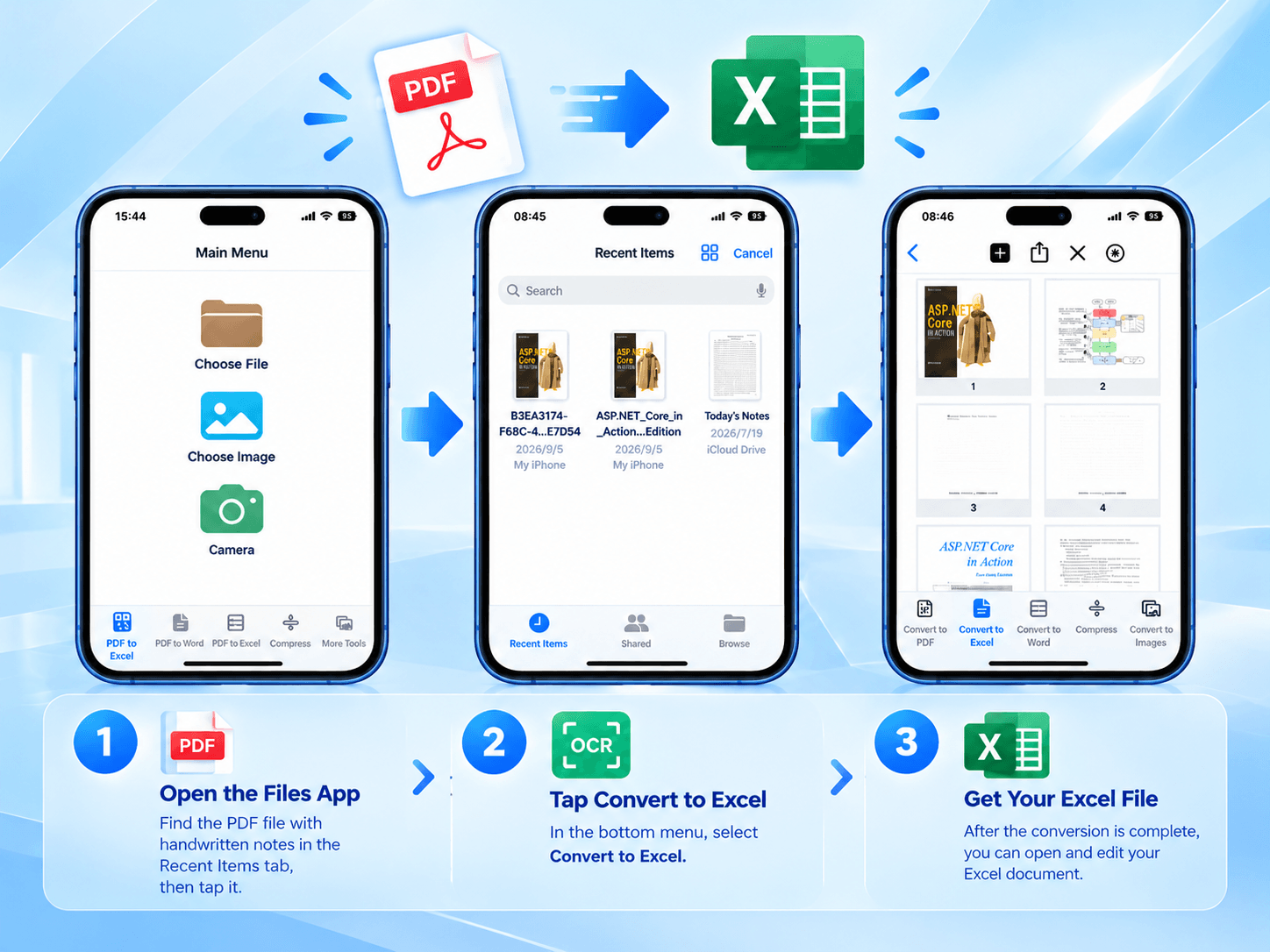
OCR does not guarantee perfect results. Handwritten numbers, blurry scans, and complex tables can still cause recognition errors, so review the extracted data before using it.
Final Recommendations
When choosing a PDF-to-Excel workflow, start by identifying the document type, then consider privacy, conversion quality, and the need for data verification.
Digital PDFs: Use LeoPDFree for free, offline conversion on Windows.
Scanned or handwritten PDFs: Consider the paid LeoPDF iOS app with OCR tools.
Financial and business data: Always verify critical figures before using the spreadsheet.
An effective PDF-to-Excel workflow should do more than reduce manual data entry. It should help you produce usable data, maintain reliable results, and avoid unnecessary file uploads.