
Tips & guides
Free Offline PDF to Excel Converter for Windows: Convert PDF to XLSX
Published
A PDF can show a perfect financial report while hiding a frustrating problem: the numbers look organized, but they aren’t ready for analysis.
If you need to calculate totals, filter transactions, or compare monthly figures, converting PDF to Excel (XLSX) can turn a static document into a more practical working file.
The key isn’t just conversion. It’s getting data you can actually use.
1. The PDF-to-Excel Reality Check
👉 Different PDFs behave differently during conversion. The source file often matters more than the converter itself.| PDF Type | Typical Conversion Challenge | What to Verify in Excel |
|---|---|---|
| Digital tables | Split or merged columns | Column alignment |
| Financial statements | Negative values and decimals | Numerical accuracy |
| Multi-page reports | Repeated headers and broken rows | Table continuity |
| Scanned documents | Text trapped in images | Whether OCR is available |
| Complex layouts | Notes mixed with data | Reading order |
2. What Does Offline Conversion Change?
👉 Think of PDF conversion as a choice between sending your file away and processing it on your own computer.| Comparison | Online Converter | Offline Windows Converter |
|---|---|---|
| Internet connection | Usually required | Usually not required after installation |
| File transfer | Uploads to a service | Files can remain on your PC |
| Sensitive reports | Depends on the provider’s policies | Better control over local files |
| Large documents | Upload speed and service limits may matter | Avoids upload delays |
| Ongoing cost | May include paid tiers or usage limits | Depends on the software’s license |
3. A Smarter Way to Convert PDF to XLSX
Use this three-stage workflow instead of converting and trusting the result immediately.
01 — Select
Choose the PDF containing the tables you need. If possible, start with a digital PDF rather than a scan.
02 — Convert
Use an offline PDF-to-Excel tool for Windows to export the content to an .xlsx workbook.
03 — Validate
Check a few high-impact items before using the spreadsheet:
- Do the row and column boundaries match the original?
- Are decimal points, minus signs, and dates correct?
- Do key totals still add up?
- Did tables spanning multiple pages remain in the right order?
A visually convincing spreadsheet can still contain incorrect values. Always verify figures before using them for accounting, reporting, or business decisions.
4. How Much Checking Is Enough?
Use a risk-based review rather than checking every cell with equal attention.
| Data Type | Priority | Quick Test |
|---|---|---|
| Account balances | High | Compare against the PDF |
| Dates and transaction IDs | High | Check several entries |
| Formulas and totals | High | Recalculate independently |
| Descriptive text | Medium | Scan for missing words |
| Decorative formatting | Lower | Review only if it affects interpretation |
The more consequential the data, the more carefully it should be checked. There is no universal accuracy percentage that applies to every PDF converter or document.
5. Choosing a Free Offline Tool
LeoPDF is a desktop option for Windows users who want to convert PDFs to Excel without uploading files to an online service. It also supports other everyday PDF tasks, including merging, splitting, compression, and page organization.
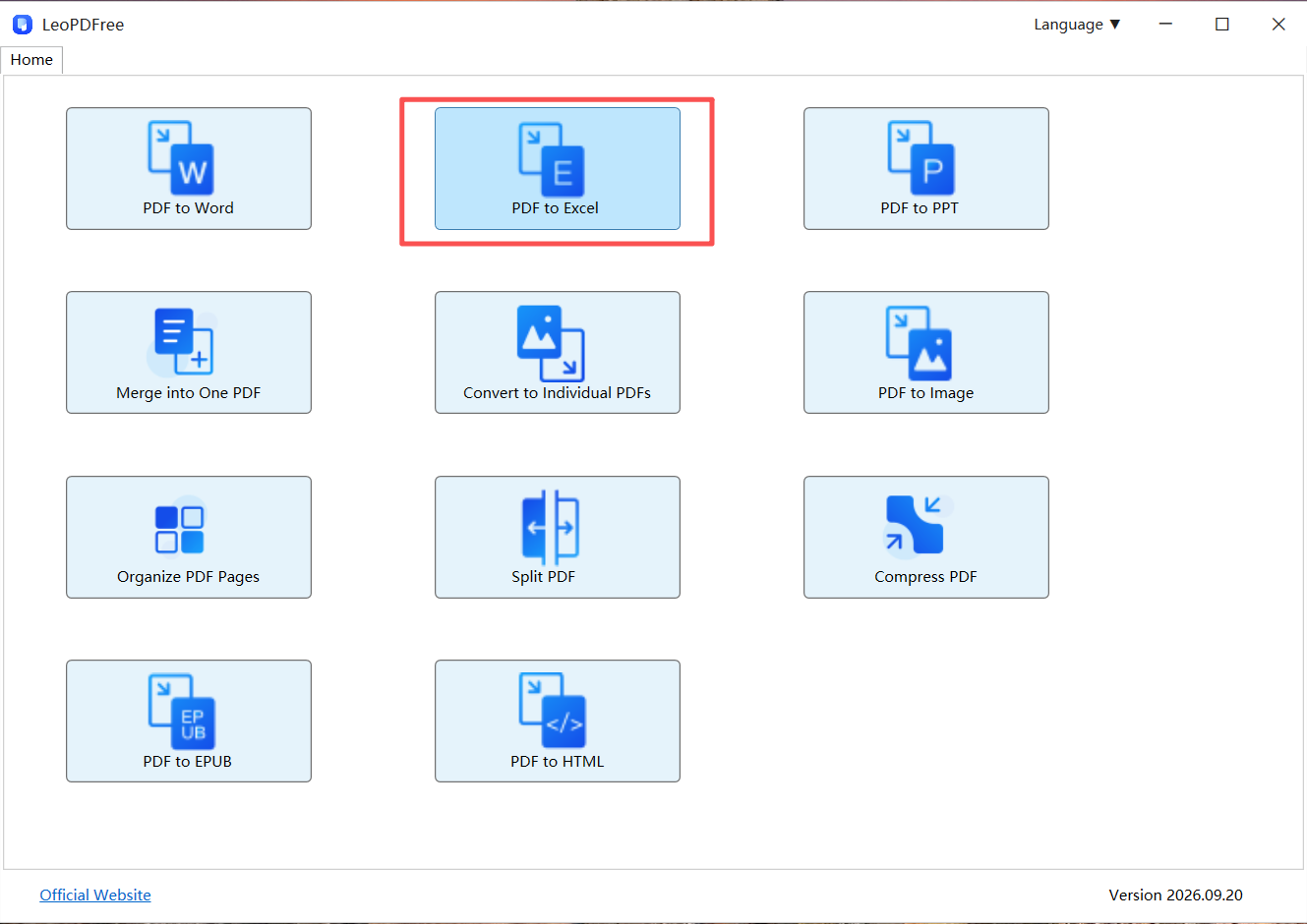
Please note that the Windows version of LeoPDF does not currently support OCR. If your PDF is scanned, you can download the LeoPDF app with OCR tools to recognize the text and extract data more reliably.
The Bottom Line
PDF-to-Excel conversion is successful only when the resulting spreadsheet is useful—not merely when the export finishes.
Choose an offline converter when privacy and avoiding upload limits matter. Then validate the rows, columns, and critical figures before relying on the XLSX file.
Convert the document. Check the data. Then put the spreadsheet to work.