
LeoPDF user guide
How to Convert PDF to EPUB Using LeoPDF?
Published
Convert a PDF into an EPUB for reading in an ebook app. The steps below retain the original four Windows screenshots and explain how to select files, choose pages, convert and open the result.
PDF to EPUB is free and offline in both editions. Files are processed locally on your computer or device and are not uploaded for this conversion.
Choose your edition
LeoPDFree for Windows: all supported conversions and file-processing tasks run locally on your computer without uploading your files for processing. Word and Excel conversion is free, but does not include OCR.
LeoPDF app store editions: Word and Excel conversion is paid and uses cloud processing, with OCR for PDFs, images, scans and handwriting. Conversion files are deleted when processing completes. Other supported conversion and file-processing tasks run locally without uploading your files for processing.
Use the edition and platform page to choose the appropriate download or app store. The screenshots below show the original LeoPDFree Windows interface; control names can vary by version. They do not show cloud OCR or identical controls on every platform.
Illustrated Windows PDF-to-EPUB workflow
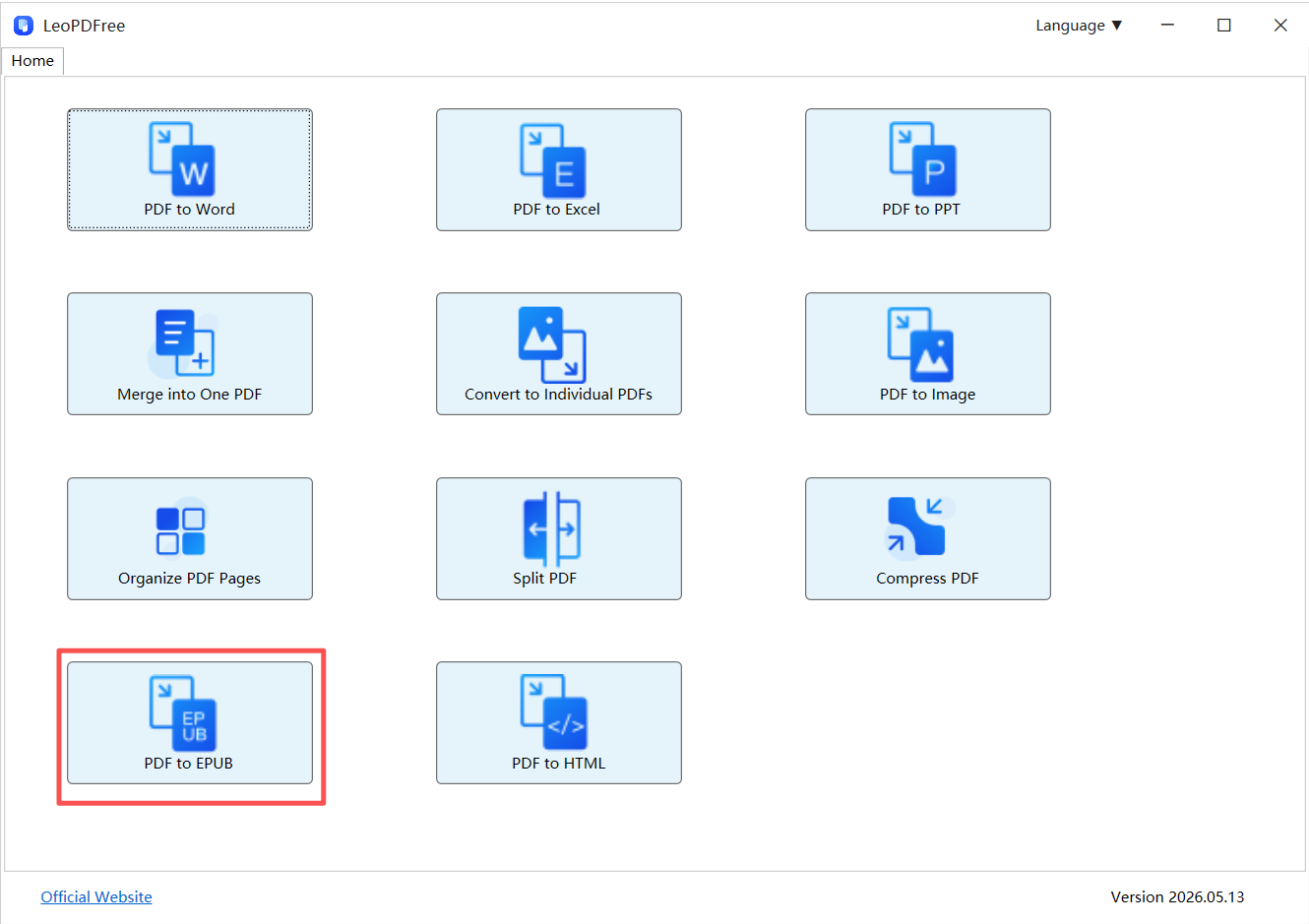
Step 1. Open PDF to EPUB
Launch LeoPDFree and choose PDF to EPUB on the home screen. This workflow starts with a PDF and creates an EPUB; it does not convert Word documents to PDF.
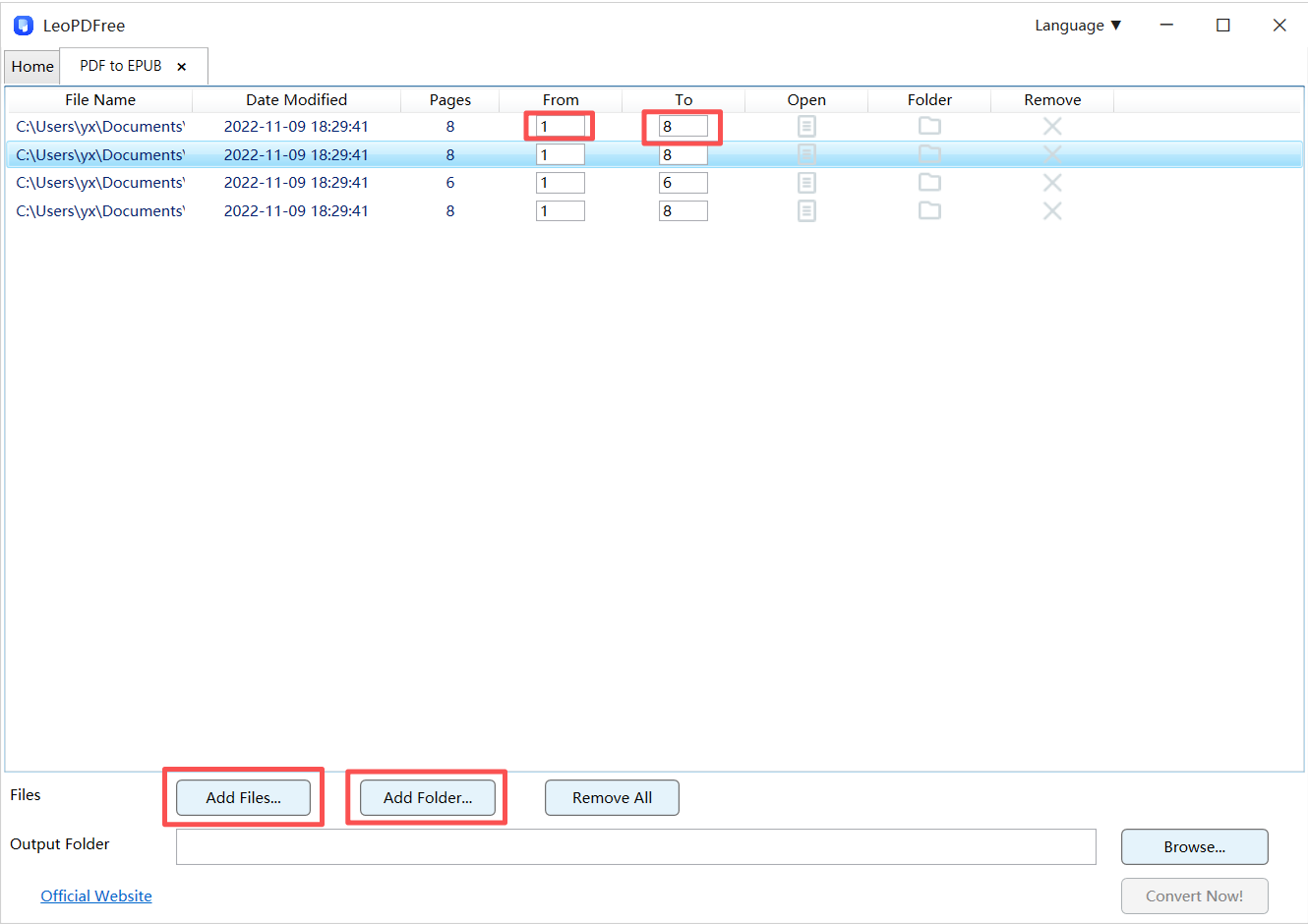
Step 2. Add PDFs and choose the pages
Click Add Files… to select your PDFs, or use Add Folder… to add files from a folder. You can queue more than one PDF. Check the file list, then set the From and To values for each file if you want to convert a particular page range.
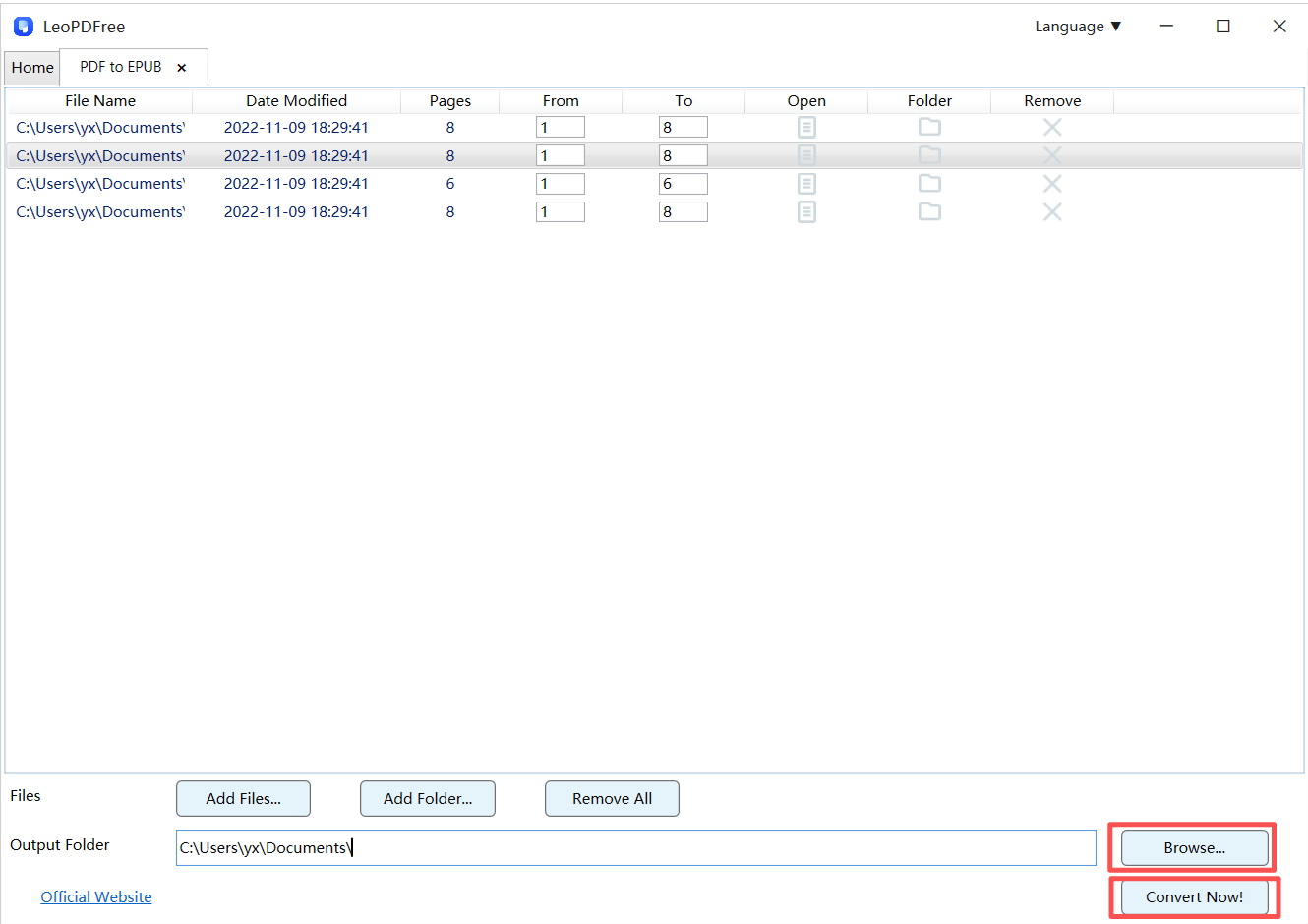
Step 3. Choose the output folder and convert
Click Browse… beside Output Folder and choose where to save the EPUB files. Check the selected PDFs, page ranges and destination, then click Convert Now!. Wait for the local conversion to finish.
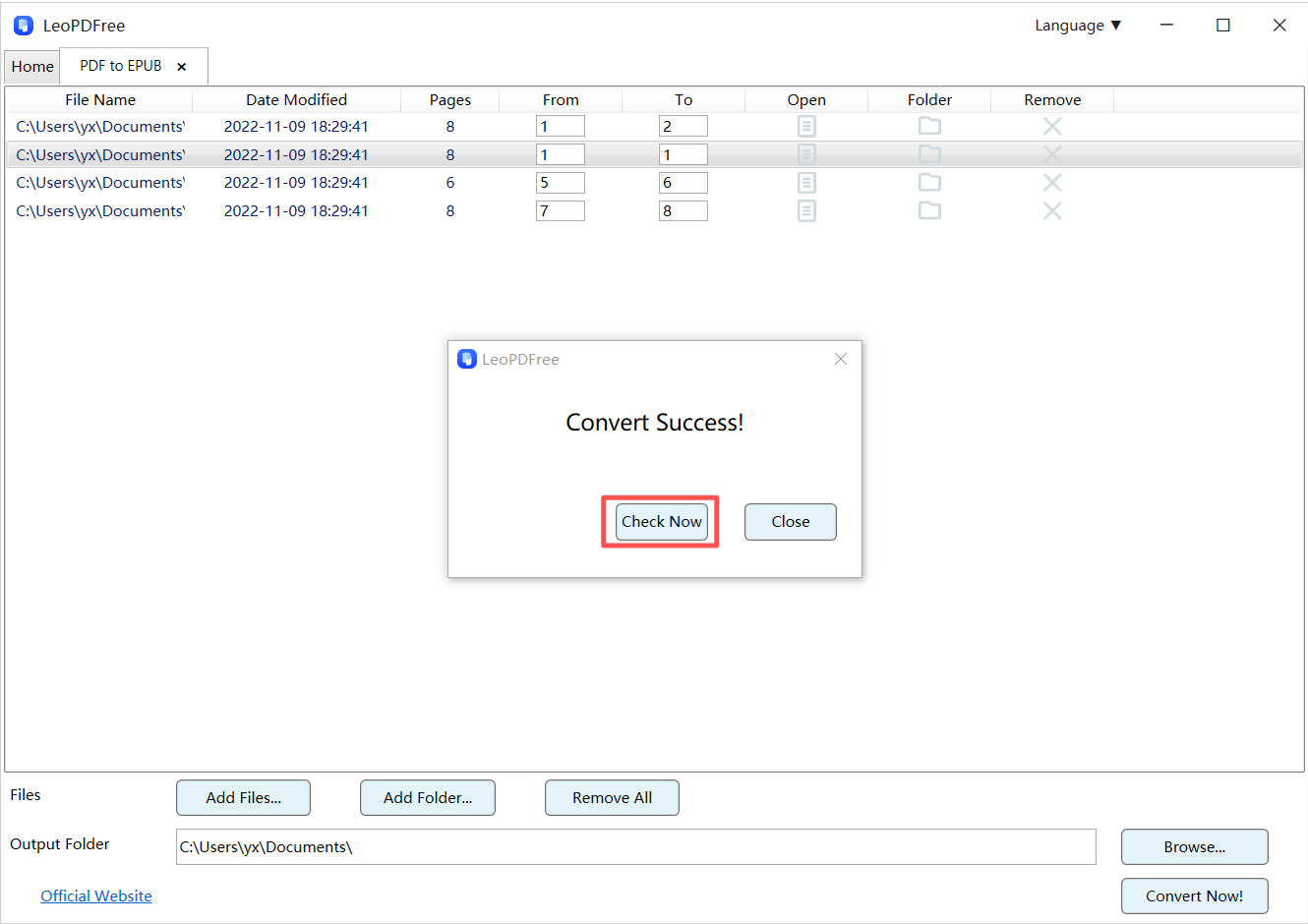
Step 4. Open and check the EPUB
When the completion message appears, click Check Now to review the output, or open the chosen output folder. Open the EPUB in your preferred reading app and compare its content with the source PDF.
Check the reading experience
A PDF preserves page layout, while EPUB readers can reflow text to fit the screen. Review reading order, headings, paragraph breaks, tables and illustrations. Try a different text size in your reading app to check that the result is comfortable to read.
A completion message confirms that processing finished; it does not guarantee perfect layout or recognized text from a scanned page. LeoPDFree has no OCR. Keep the source PDF and check image-based or complex pages carefully.
For a different output, see PDF to Word, PDF to Excel or PDF to PowerPoint.
Need help?
Contact xuehui@leopdf.com with your platform, app version, conversion type and a description of what happened. Do not email confidential documents just to report a problem.