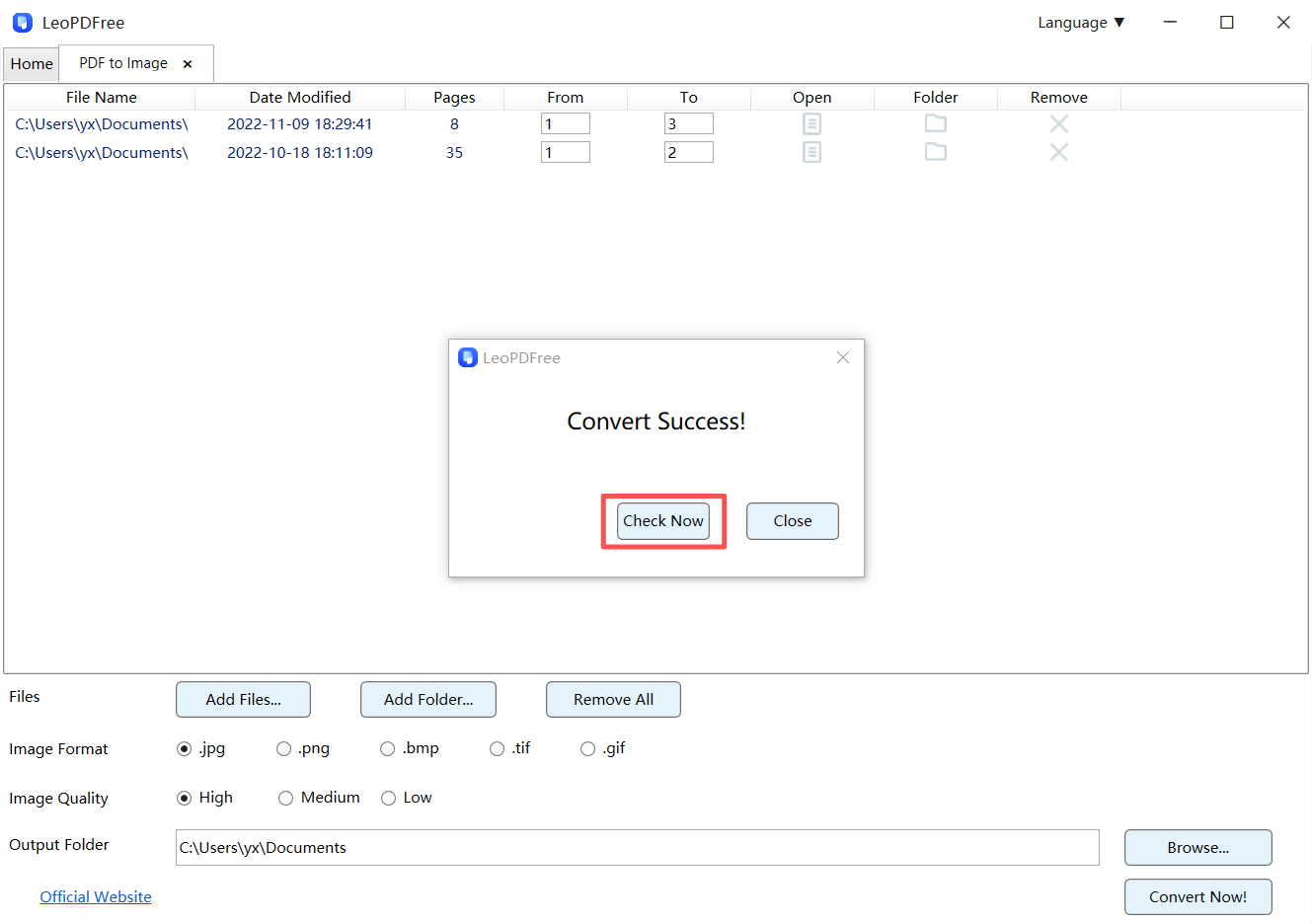
Step 1. Download LeoPDF, launch it on your computer. Click on “PDF to Image” on the first screen to continue.
Free DownloadSecure Download
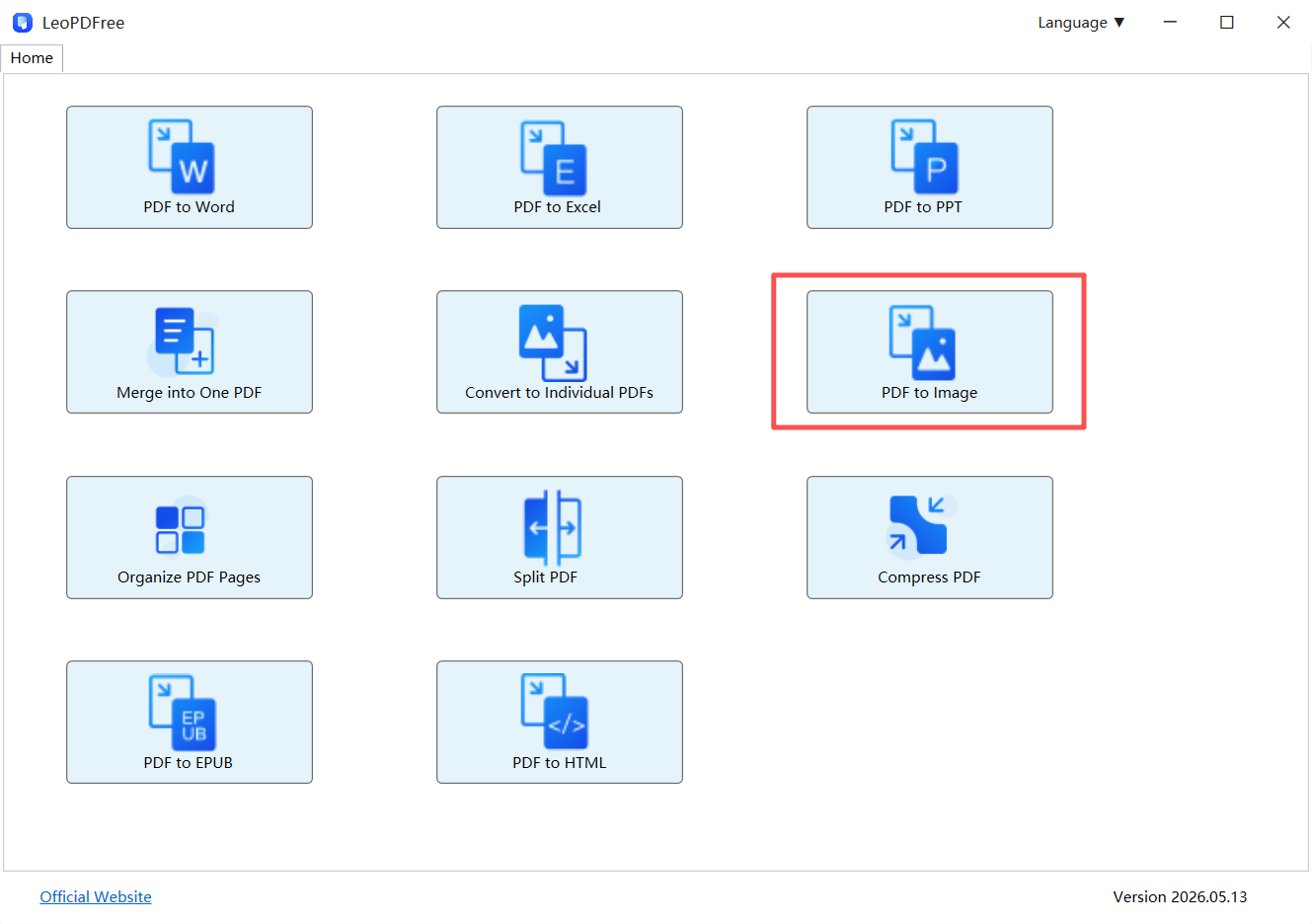
Step 2. On the next screen, you can drag and drop your PDF file directly into the conversion box, copy and paste it right in, or click the “Add Files…” button to add your document. Next, select your preferred image type under “Image Format” and choose your desired conversion quality under “Image Quality,” as shown below.
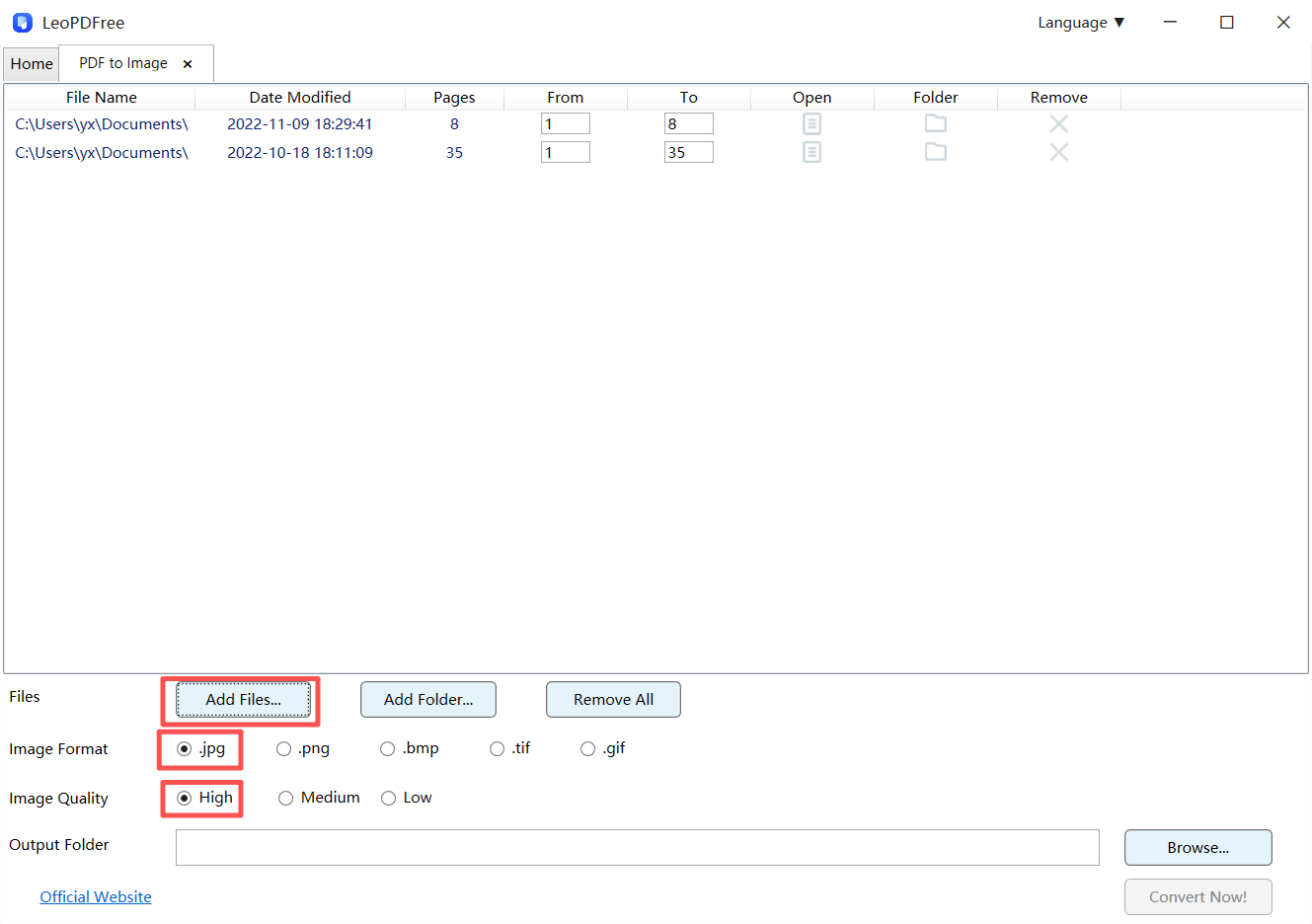
Step 3. Next, you can edit the page numbers in the file list to select the specific pages you want to convert. Then, click the “Browse…” button to set the save path for your converted file. Once all the preparation is done, simply click the “Convert Now!” button to start the process, as shown below.
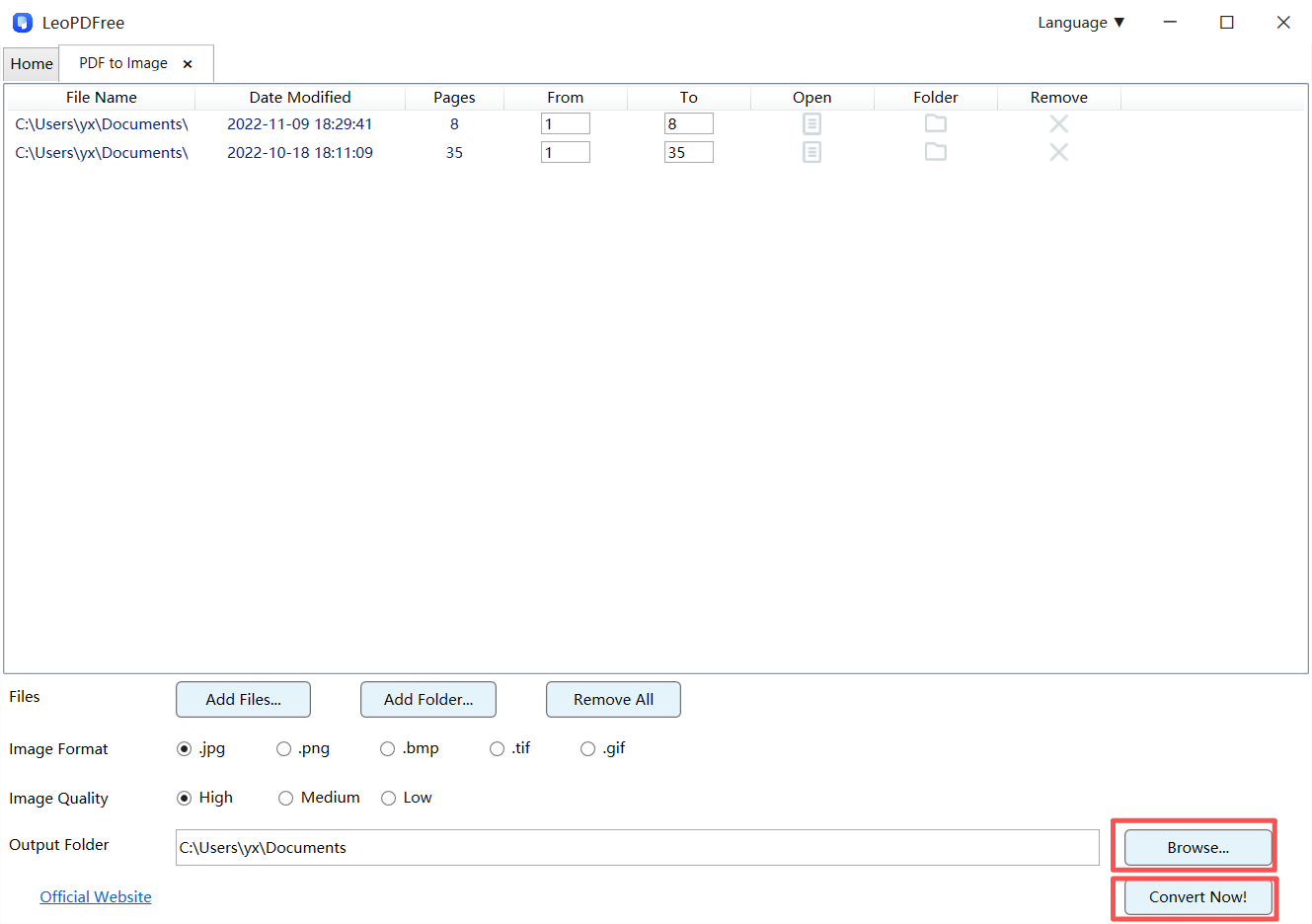
Step 4. LeoPDF will quickly complete the conversion based on the file size. When the completion window pops up, you can click the “Check Now” button to instantly view your converted file, as shown below.