
LeoPDF user guide
How to Convert PDF to Word Using LeoPDF?
Published
Turn a PDF into an editable Word document using the edition that matches your source. The four original Windows screenshots below show LeoPDFree local conversion; a separate section explains the store-edition OCR workflow for images and scans.
Choose the processing method before you start. LeoPDFree converts locally for free without OCR. LeoPDF store editions provide paid Word conversion with cloud processing and OCR support.
Choose your edition
LeoPDFree for Windows: all supported conversions and file-processing tasks run locally on your computer without uploading your files for processing. Word and Excel conversion is free, but does not include OCR.
LeoPDF app store editions: Word and Excel conversion is paid and uses cloud processing, with OCR for PDFs, images, scans and handwriting. Conversion files are deleted when processing completes. Other supported conversion and file-processing tasks run locally without uploading your files for processing.
Use the edition and platform page to choose the appropriate download or app store. The screenshots below show the original LeoPDFree Windows interface; control names can vary by version. They do not show cloud OCR or identical controls on every platform.
Check whether the PDF contains text
Try selecting and copying a sentence from several pages. Selectable text is a useful first check for local conversion, although copying can still reveal encoding or reading-order problems. If the pages are only scans or photographs, use the OCR workflow described below instead.
Illustrated Windows PDF-to-Word workflow
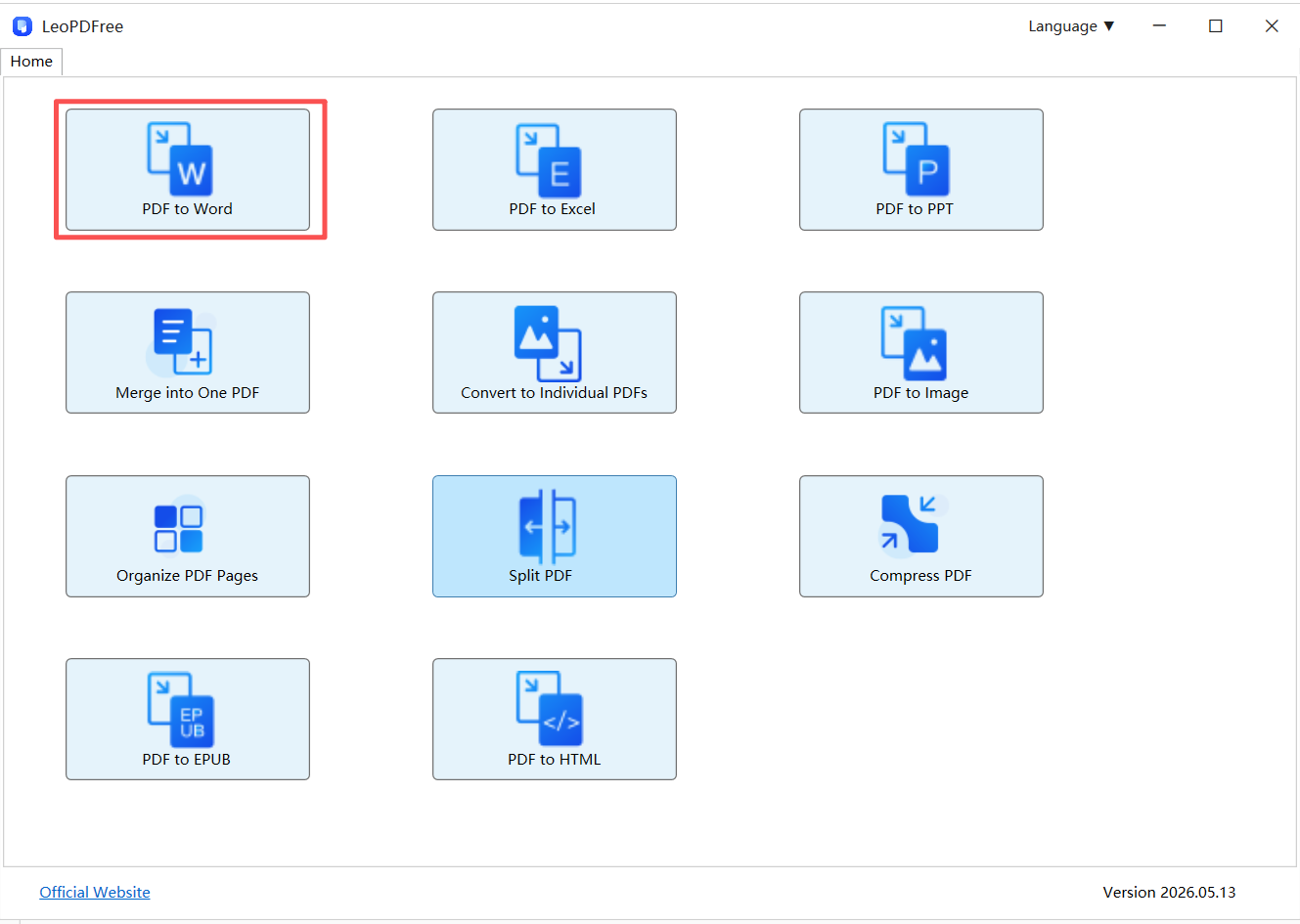
Step 1. Open PDF to Word
Launch LeoPDFree and choose PDF to Word on the home screen. Use a PDF containing usable text for this free, offline workflow.
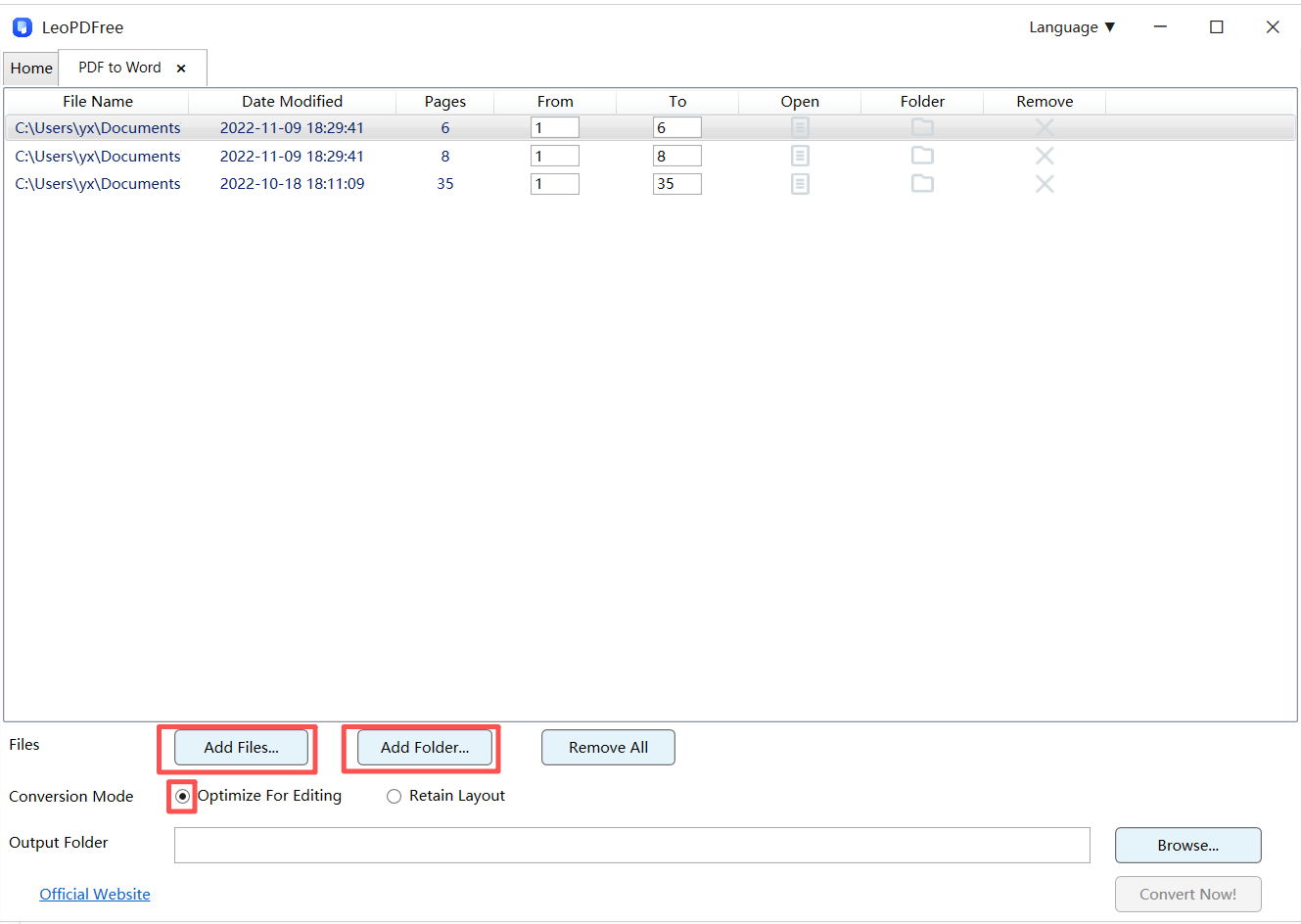
Step 2. Add PDFs and choose a conversion mode
Click Add Files… or Add Folder… to build the file list. You can queue multiple PDFs. Under Conversion Mode, choose the available option that fits your task: the illustrated version offers Optimize For Editing and Retain Layout. Compare a representative page if you are unsure which result works better for your document.
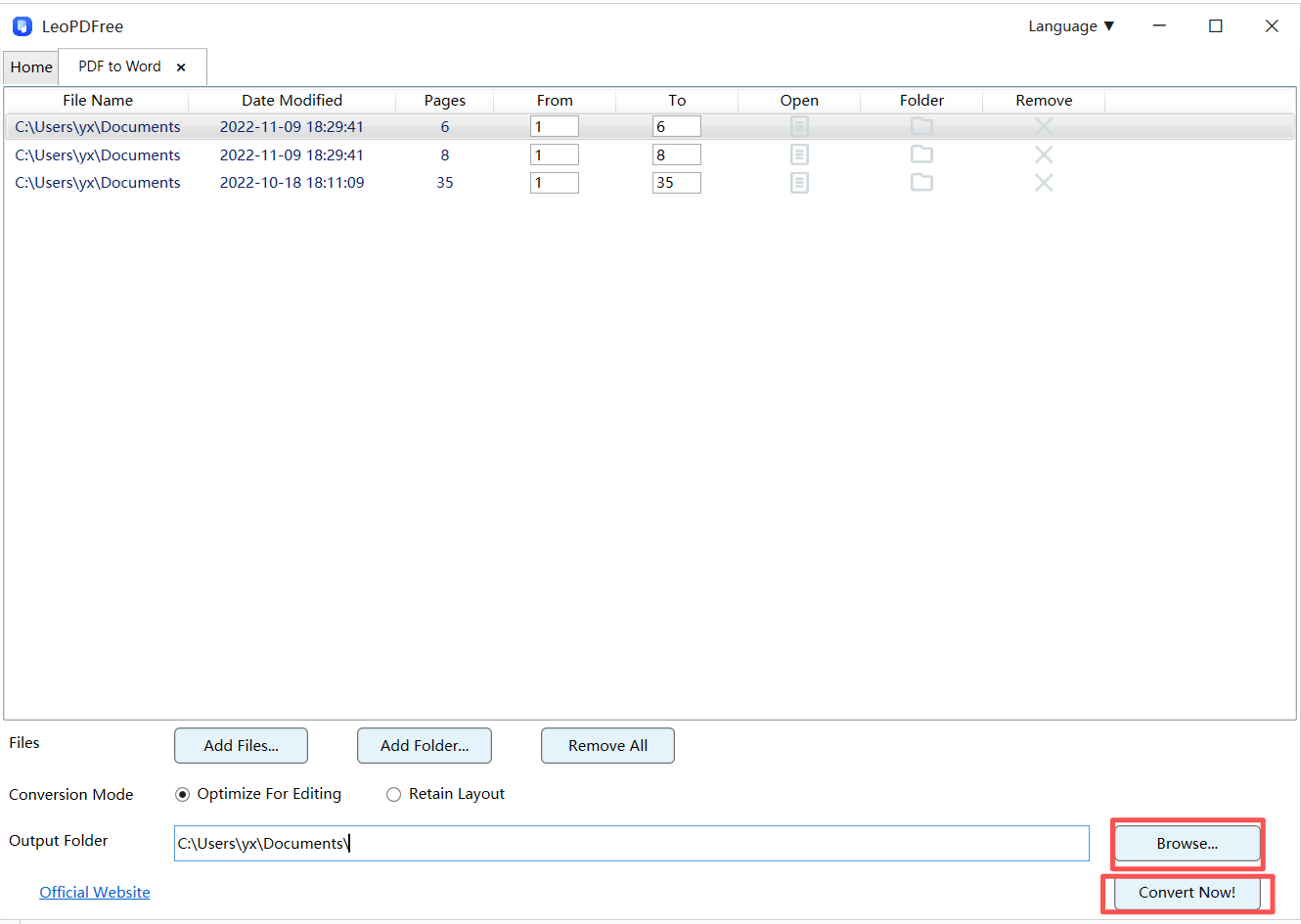
Step 3. Set the page range and output folder
Check the From and To fields beside each PDF to select the pages you want. Click Browse… to choose the output folder. When the source files, page ranges and destination are ready, click Convert Now!.
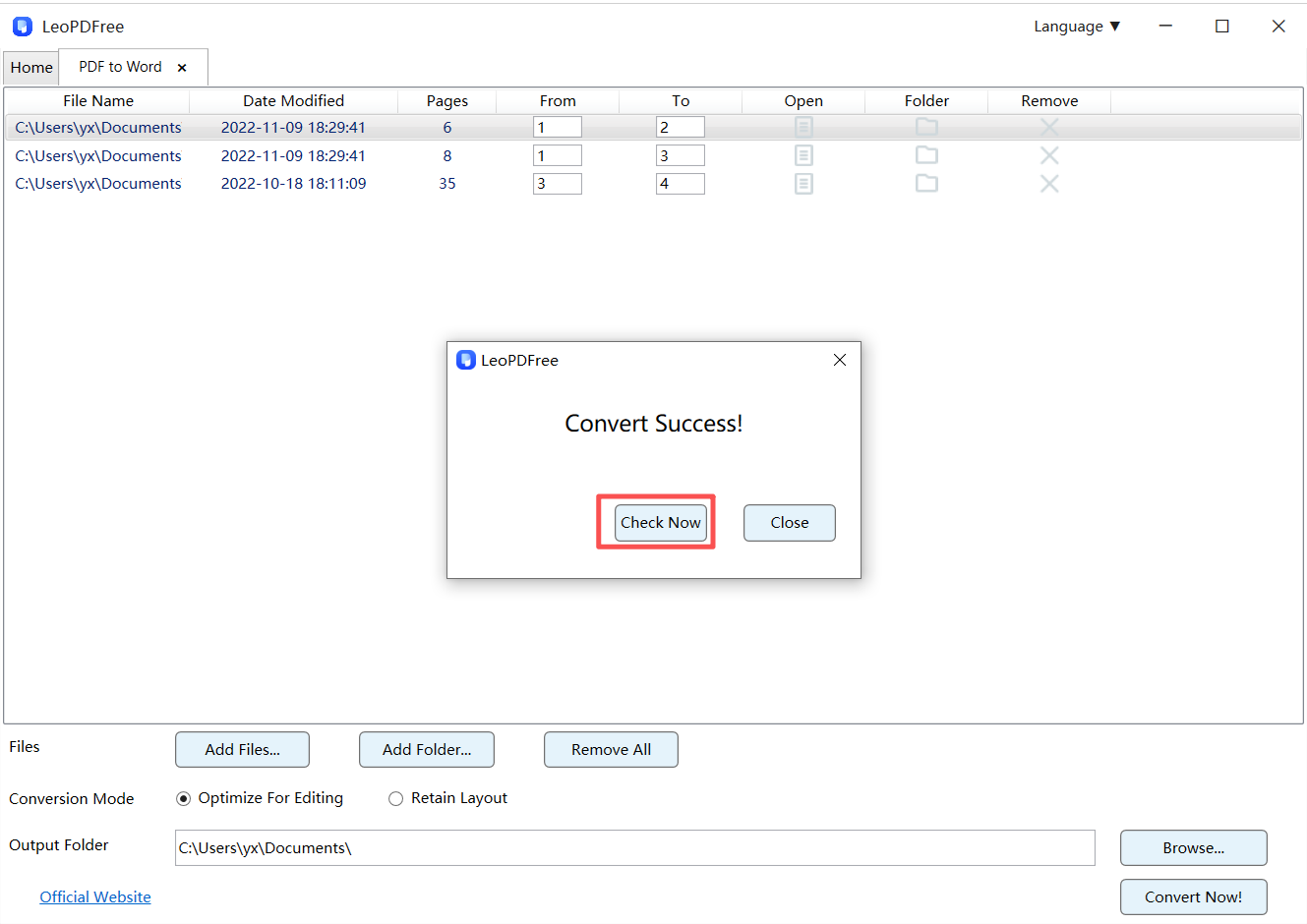
Step 4. Open the Word document
Wait for conversion to finish. Click Check Now in the completion message, or open the output folder you selected. Open the converted document in your word processor before editing or sharing it.
Review the Word result
Compare headings, paragraph order, tables, page breaks, footnotes and unusual symbols with the source PDF. A finished conversion can still need manual formatting changes. Keep the original PDF and an untouched copy of the converted document for comparison.
Convert images and scans to Word with OCR
If a PDF page is only a photograph or scan, use a LeoPDF app store edition with OCR. Images and handwriting also need recognition before their visible words can become editable text. LeoPDFree does not include OCR, and putting an image into a PDF does not add text recognition.
- Open your LeoPDF store app and choose conversion to Word.
- Add the PDF, image or scan using the source options available in your installed app.
- Review the purchase or conversion-credit information before starting. This is a paid cloud task and requires an internet connection.
- Convert, save or export the document, and compare the recognized text with the source.
Files processed in the cloud are deleted when conversion completes. Check handwriting, faint characters, names and numbers carefully. See the scanned PDF to Word guide for source preparation and result checks.
Need help?
Contact xuehui@leopdf.com with your platform, app version, conversion type and a description of what happened. Do not email confidential documents just to report a problem.