
Tips & guides
How to Convert a Scanned PDF to an Editable Word Document?
Published
To turn a scanned PDF into an editable Word document, use OCR and review the recognized text. A normal PDF-to-Word converter without OCR cannot read words that exist only as pixels.
Why a scanned PDF needs OCR
It is possible to convert scanned PDF to Word. However, for the conversion process to go smoothly, you will need to use a tool that has the OCR (Optical Character Recognition) functionality.
If you are scanning documents and saving them as PDF files, most times, the documents are stored as images. The purpose of the OCR is to extract the text from the image and save it in an editable format. Recognition methods vary by tool.
OCR systems differ. Do not assume every application follows the same character-isolation or font-matching algorithm. For a practical first check, try selecting and copying a line from the source: image-only pages need recognition, while PDFs with a text layer may already contain selectable text.
Prepare the source and choose processing location
Keep the original. Check page rotation, legibility, shadows and cropped edges before recognition. If you can rescan a blurred page, improving the source may help more than repeating conversion. Select the document language where the tool offers that option; names, handwriting, equations and complex layouts still need review.
Check whether the selected operation processes documents locally or on a server. An installed application can still use cloud processing. For sensitive material, confirm authorization and the applicable handling and retention rules. Being online does not by itself prove poor security, and being offline does not certify software or guarantee output quality.
Use LeoPDF cloud OCR for Word output
In the LeoPDF app store edition, choose conversion to Word, add the PDF, image or scan and review the payment/credit requirement shown in the app. Start conversion, save the result and compare it with the source. Exact controls differ by platform; this is not a new screenshot-based test.
This Word/Excel OCR workflow is paid and cloud-based. Conversion files are deleted when processing completes. Other supported LeoPDF operations are local. The free Windows website edition, LeoPDFree, does not include OCR: choose it for local conversion of text-based PDFs, not recognition of image-only scans. See the edition guide to choose a platform.
Other OCR services from the original article
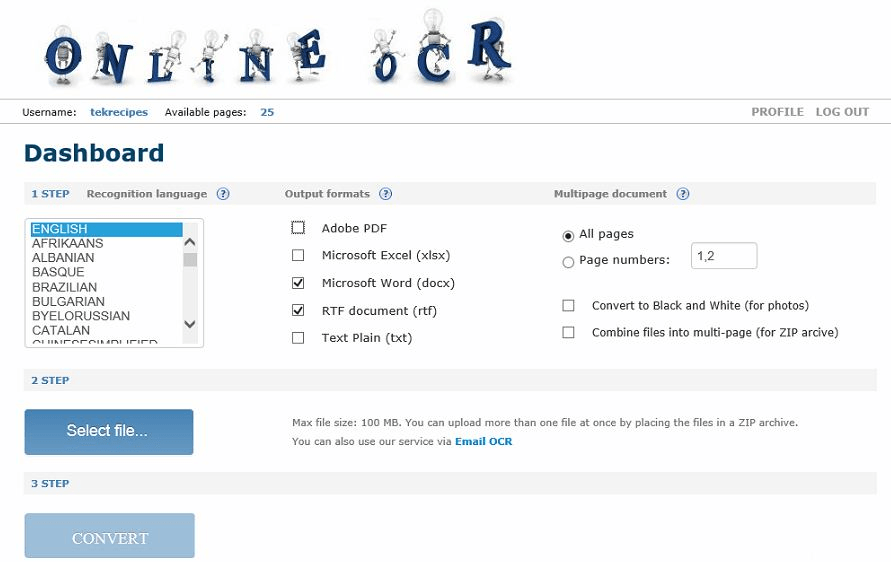
The OnlineOCR website provides file selection, language and output choices. Confirm that Word output, the current allowance and the service’s handling rules fit your document before selecting it. Do not assume a language count or upload limit in an old screenshot is current.
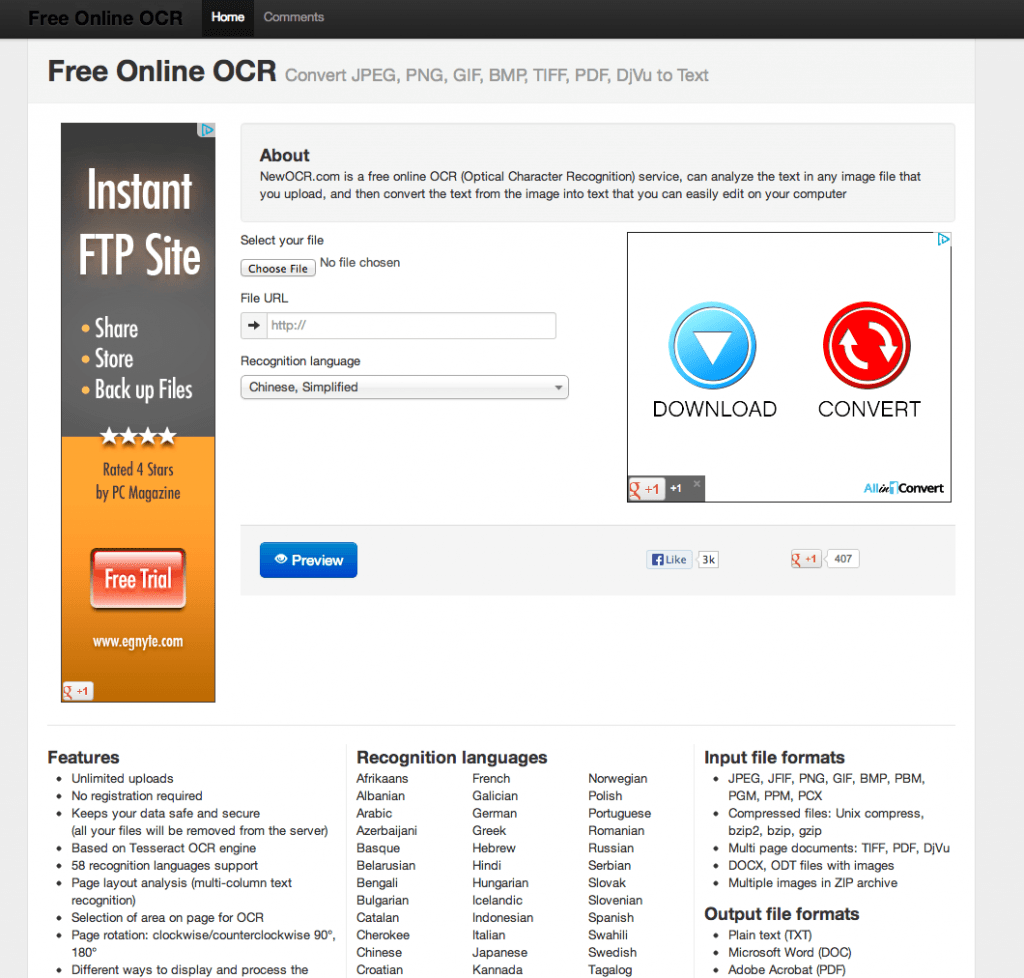
NewOCR also documents text recognition, language selection and output options. Choose the required output and review the result. A service claiming accurate recognition is not evidence that your document will be error-free.
For a local OCR workflow, choose an application with text-recognition support. LeoPDFree’s local Word conversion does not include OCR; LeoPDF store editions provide paid cloud OCR.
Review the recognized document
- Compare names, dates, reference numbers and missing lines with the scan.
- Check columns, paragraph order and footnotes rather than just page appearance.
- Review easily confused characters such as I/l/1 and O/0.
- Check handwriting individually; recognition confidence varies.
- For tables, check row and column placement as well as the recognized values.
Save a separate corrected copy. If recognition is poor, check the source image, language selection and an alternative OCR workflow using a non-sensitive sample. For spreadsheet output, use the separate OCR-to-Excel guide.