
Tips & guides
Free Offline PDF to Word for Windows — LeoPDFree
Published
LeoPDFree is the free Windows website edition for converting supported PDFs to Word locally. No file upload is needed for this workflow. It does not include OCR, so start with a PDF that contains usable text rather than photographed pages.
Check whether the PDF contains text
Try selecting and copying a sentence from several pages. A successful selection is a useful first check, but copied text may still have encoding or reading-order problems. If the pages are only images, use an OCR-to-Word workflow instead. Some PDFs mix text and scanned pages, so check more than the first page.
Convert PDF to Word with LeoPDFree
Follow these steps to convert a PDF containing usable text to Word locally with LeoPDFree. Download LeoPDFree for Windows or choose your edition.
Step 1. Open LeoPDFree. Click “PDF To Word Batch” on the main menu. This tool can convert PDF to Word.
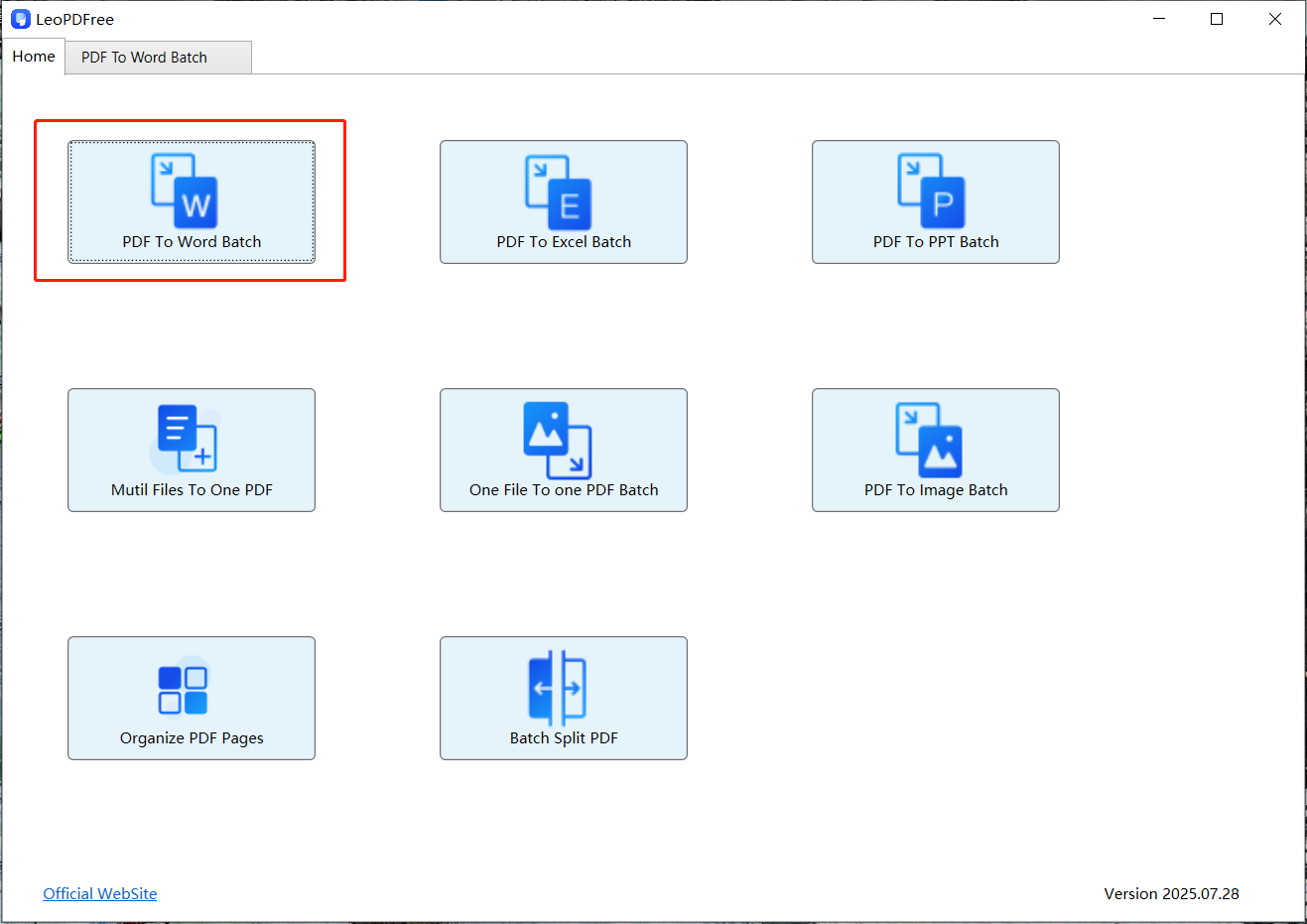
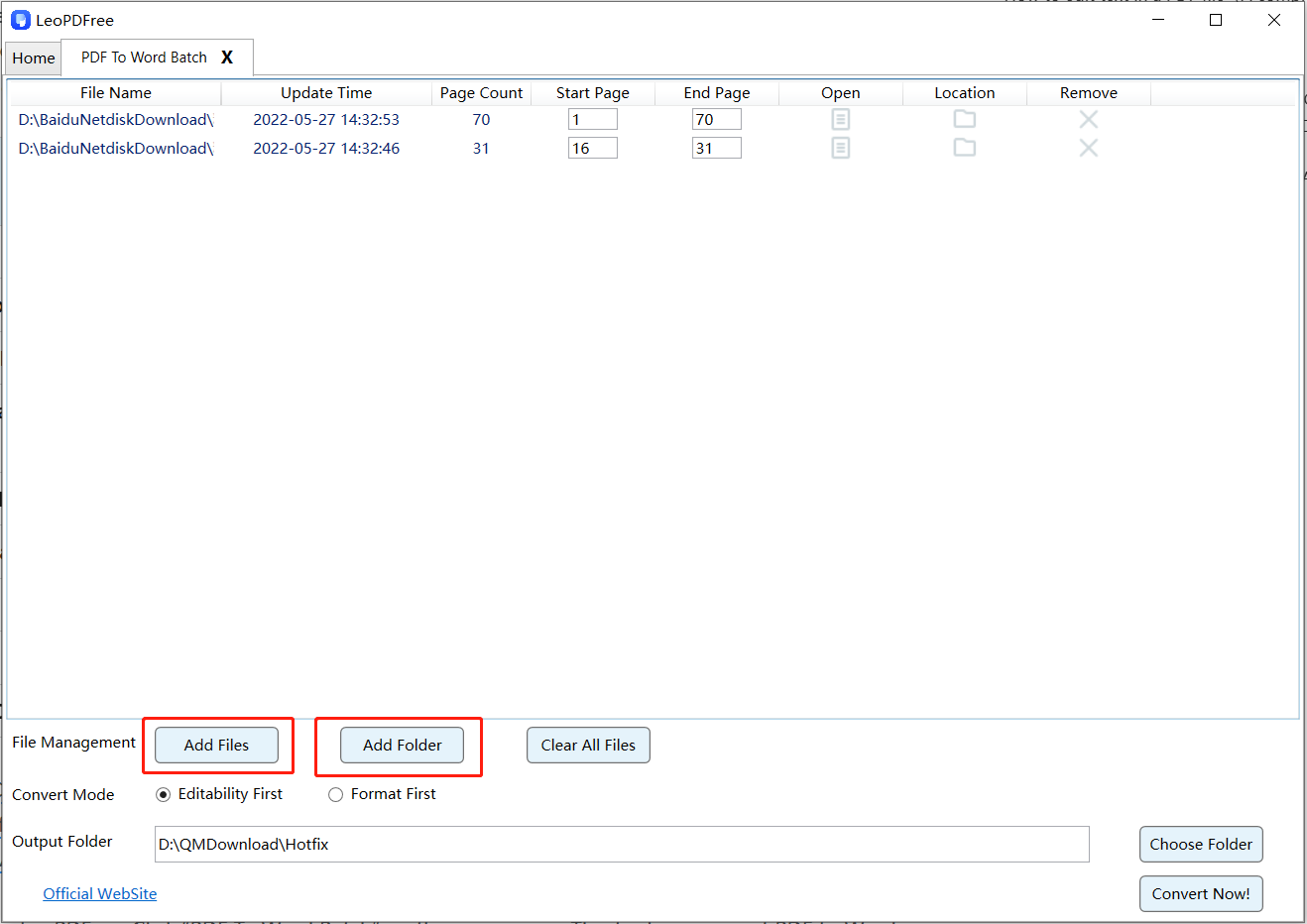
Step 2. In the second step of PDF conversion, there are two options available:
Click the ”Add Files” button to select the PDF files you want to convert.
Click ”Add Folder” to add all PDF files in the directory for conversion.
As shown in the figure below:
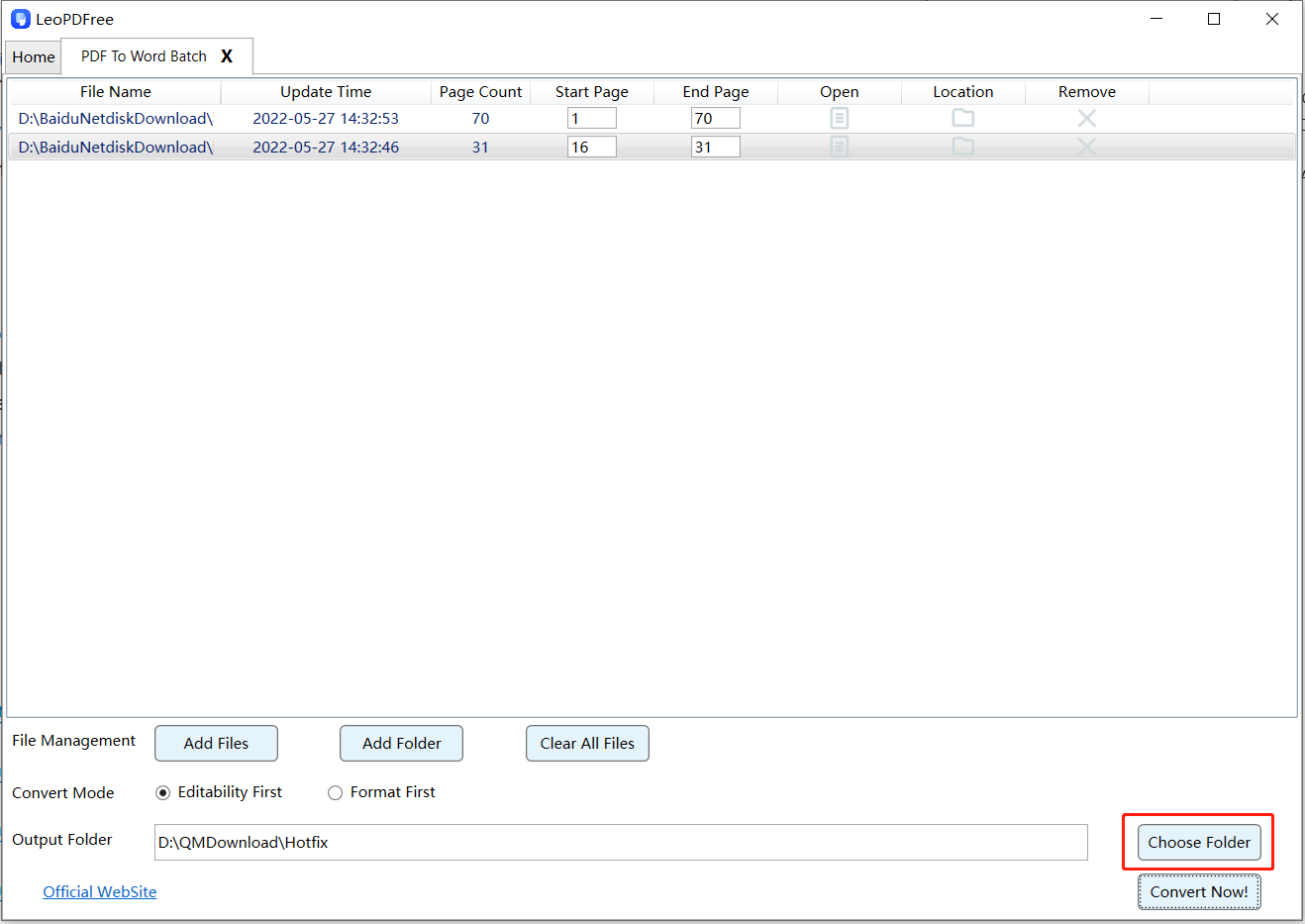
Step 3. Click the ”Choose Folder” button on the interface to select the destination path for the converted files, as shown in the figure below:
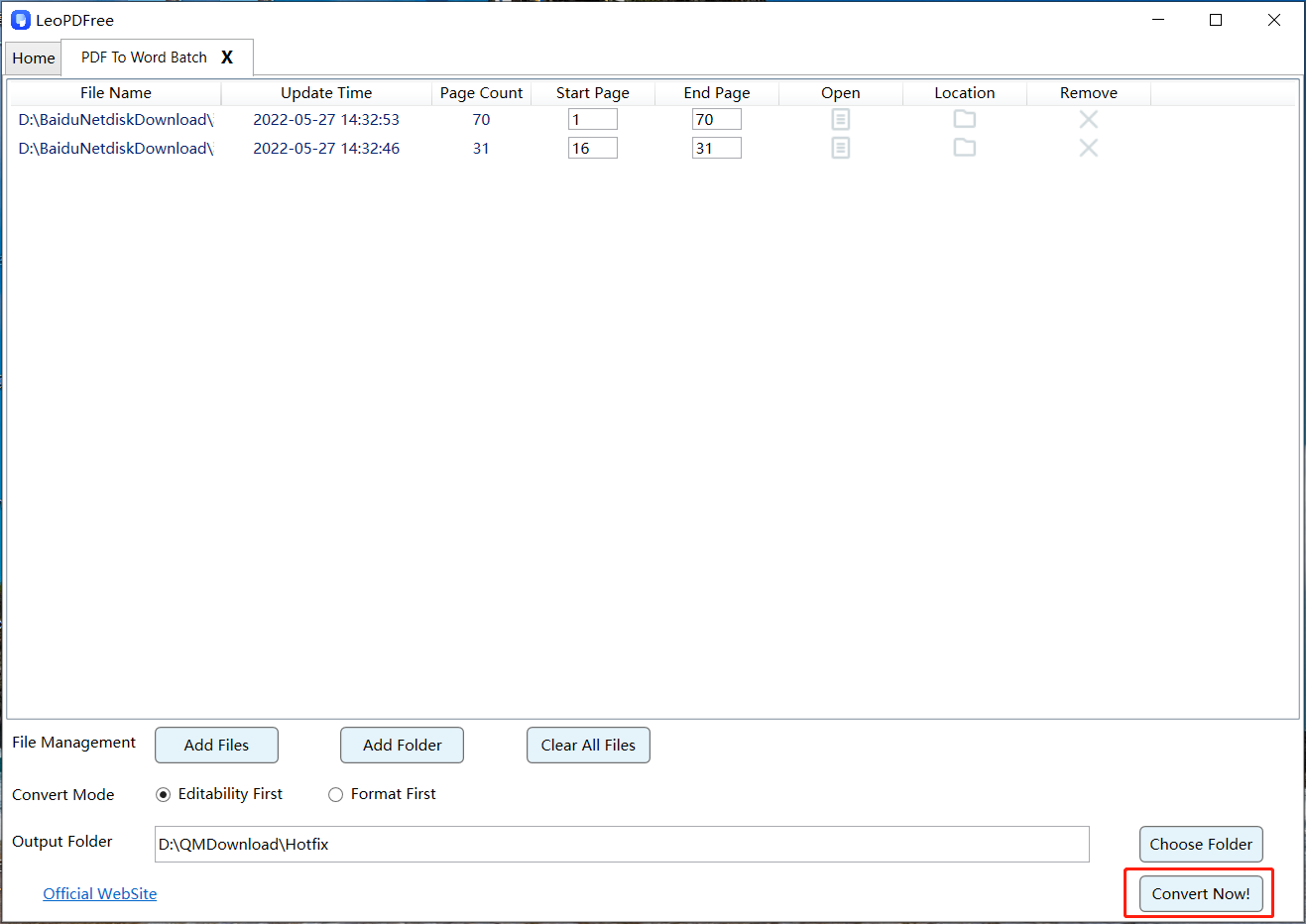
Step 4.Once all the files to be converted have been added, click the ”Convert Now!” button on the interface, and the files will be processed. As shown in the figure below:
Step 5
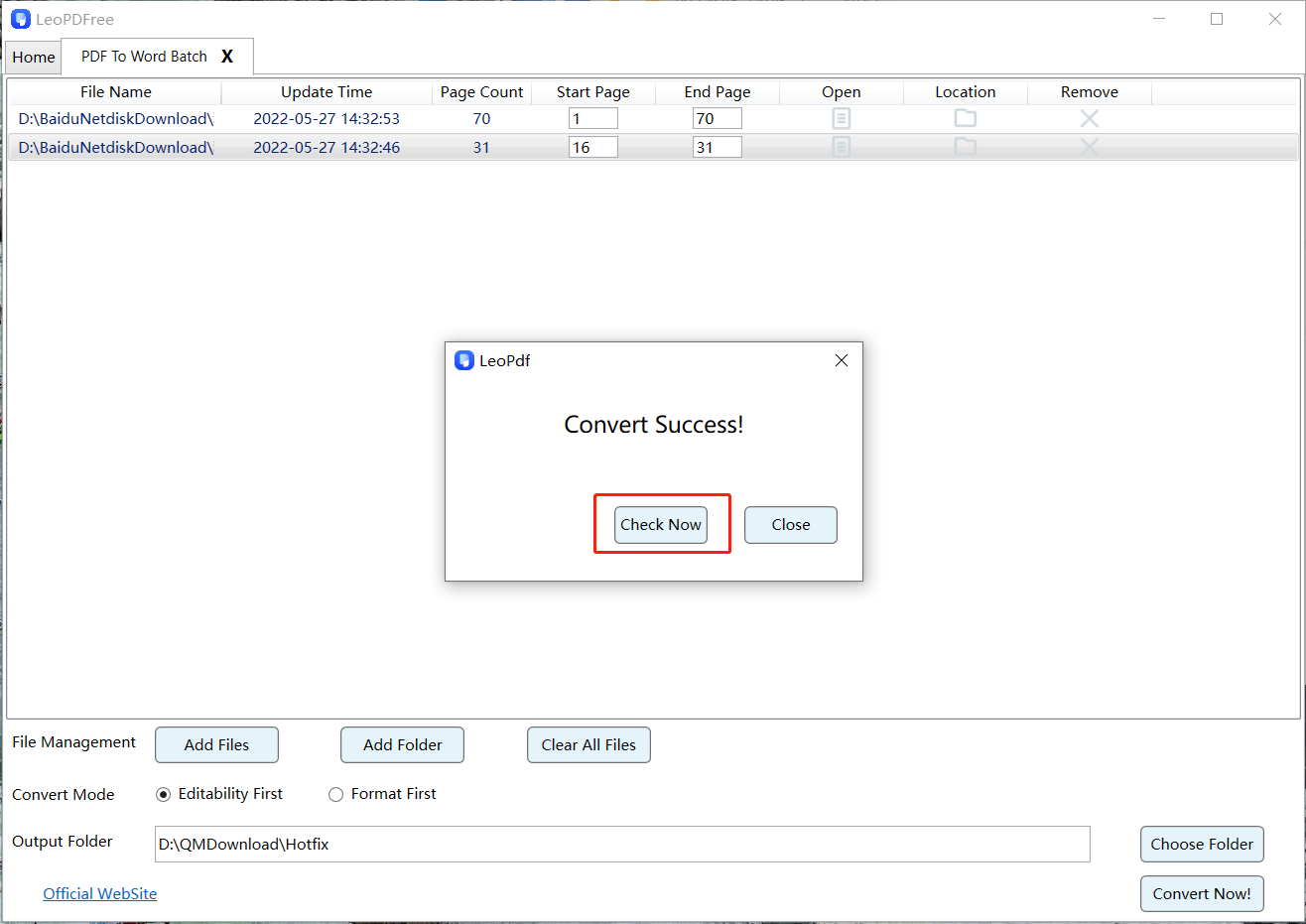
Wait for the conversion to complete; processing time depends on the files and computer. A ”Convert Success!” prompt will appear, and you can click the ”Check Now” button on the interface to view the converted files.
Check the Word file before using it
Compare headings, paragraph order, tables, page breaks, footnotes and unusual symbols with the source. Keep both the original PDF and an untouched conversion result before making changes. A completion message confirms processing finished; it does not certify that every layout element was recovered.
If text is selectable but the output is poor, test a representative page, check copying from the source and compare the reading order. Decorative layouts and multiple columns may need manual correction. A bigger file or higher resolution does not by itself improve conversion of text already embedded in the PDF.
When you need OCR instead
LeoPDF app store editions provide paid cloud Word/Excel conversion with OCR for PDFs, images and scans. Conversion files are deleted when processing completes. Other supported operations are local. LeoPDFree’s Word/Excel conversion is free and local but has no OCR; these are distinct workflows rather than a free OCR entitlement.
See the handwriting guide for that input, and review recognition carefully. Neither local nor cloud conversion guarantees perfect layout or recognition. For supported features and platforms, use the edition guide.