
Tips & guides
How to Extract PDF Tables and Convert Them to Excel for Free Offline— LeoPDFree
Published
Need to move PDF tables into Excel? Copying and pasting often leads to misaligned columns, misplaced numbers, and messy formatting. Rebuilding tables manually takes even more time.
A simpler solution is to convert PDF files directly to Excel.
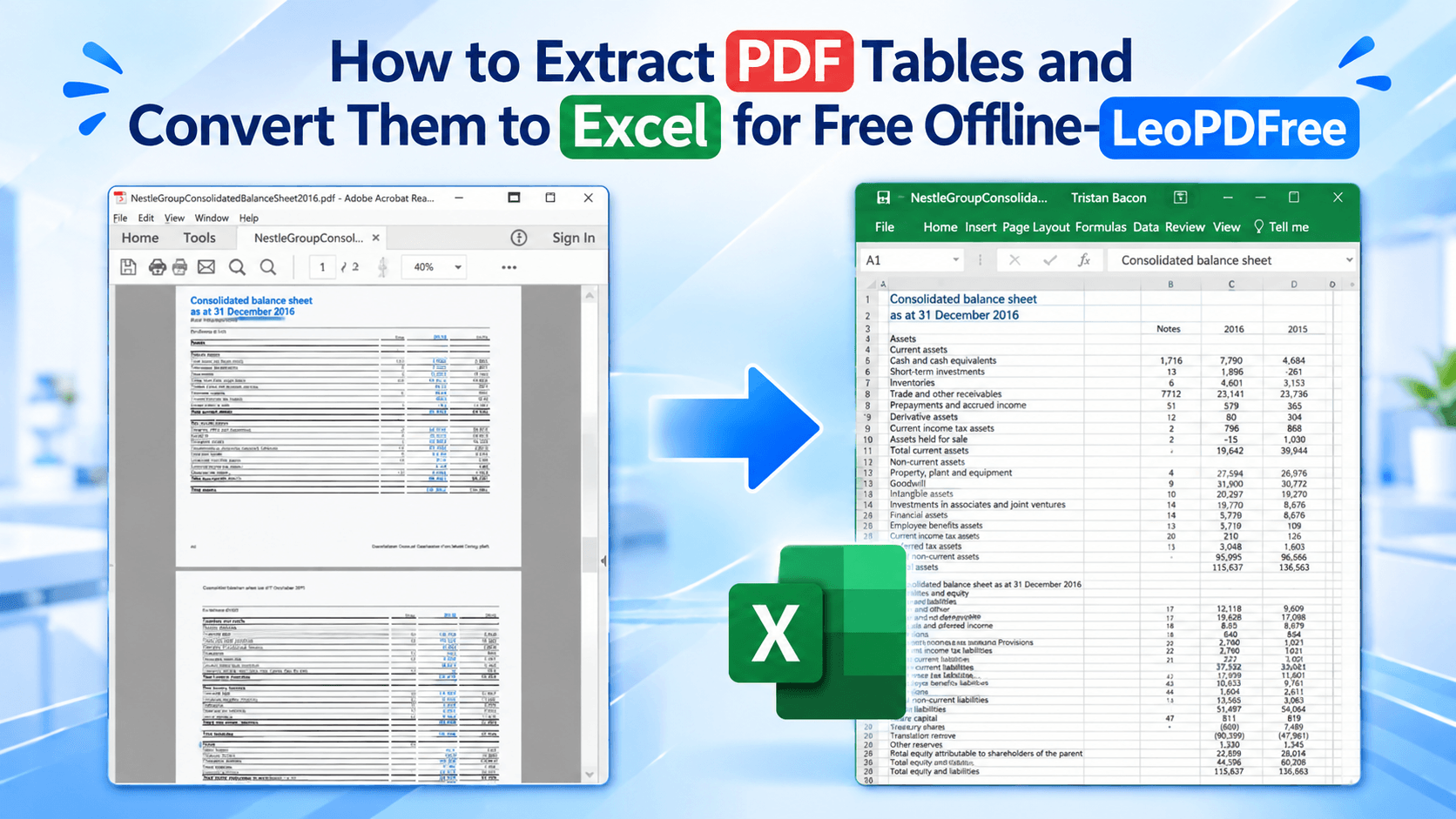
With LeoPDFree , Windows 10 and 11 users can convert supported PDF files to Excel for free, entirely offline—without uploading documents to a website.
1. Can Your PDF Be Converted Directly?
First, identify the type of PDF you’re working with.
| PDF Type | Recommended Method |
|---|---|
| Digital PDF with selectable text | Direct conversion |
| Financial reports and invoices | Convert and verify the data |
| Multi-page tables | Check data continuity across pages |
| Scanned PDFs | OCR required |
| Handwritten tables | OCR required; manual corrections may be needed |
Quick test: Try selecting a word or number in your PDF. If you can select individual text, direct conversion may work. If the entire page behaves like an image, OCR is usually required.
2. Convert PDF Tables to Excel Offline with LeoPDFree
Follow these simple steps:1.Open LeoPDFree on your Windows computer, select PDF to Excel, and add your PDF files.
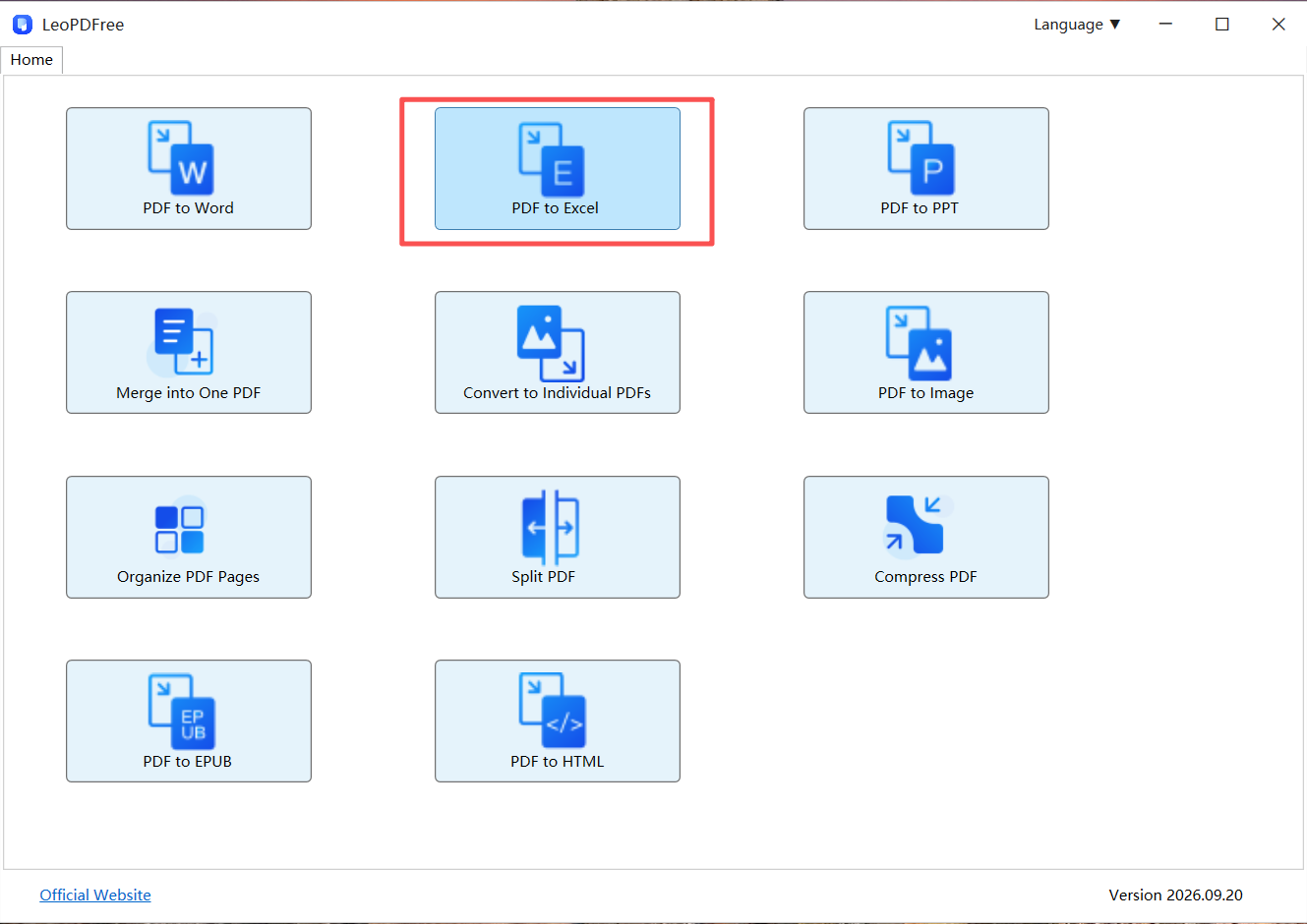
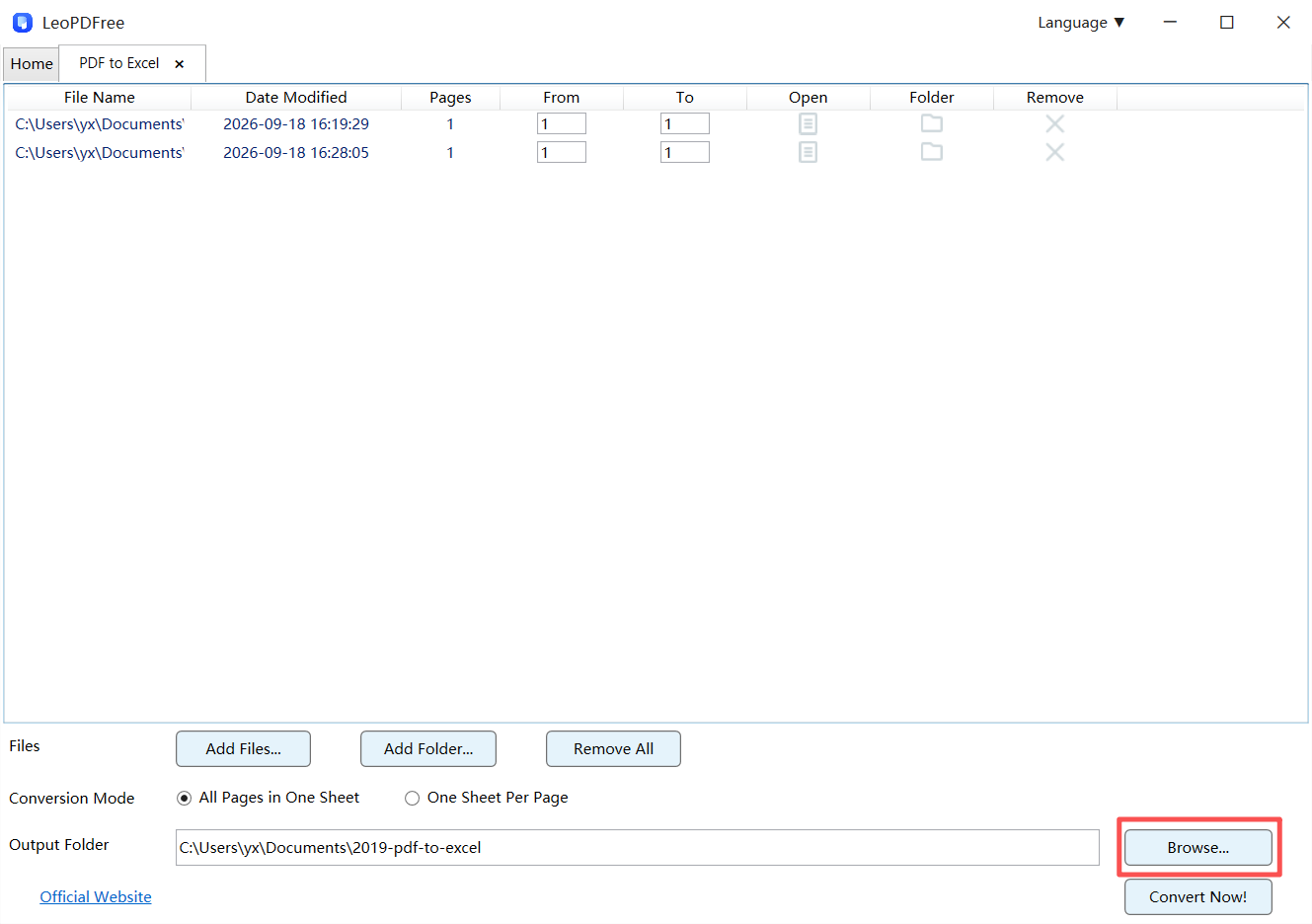
2.Choose Conversion Mode, then click Browse… to select your output folder.
3.Click Convert Now! to start the conversion, then open the Excel file to review the results.
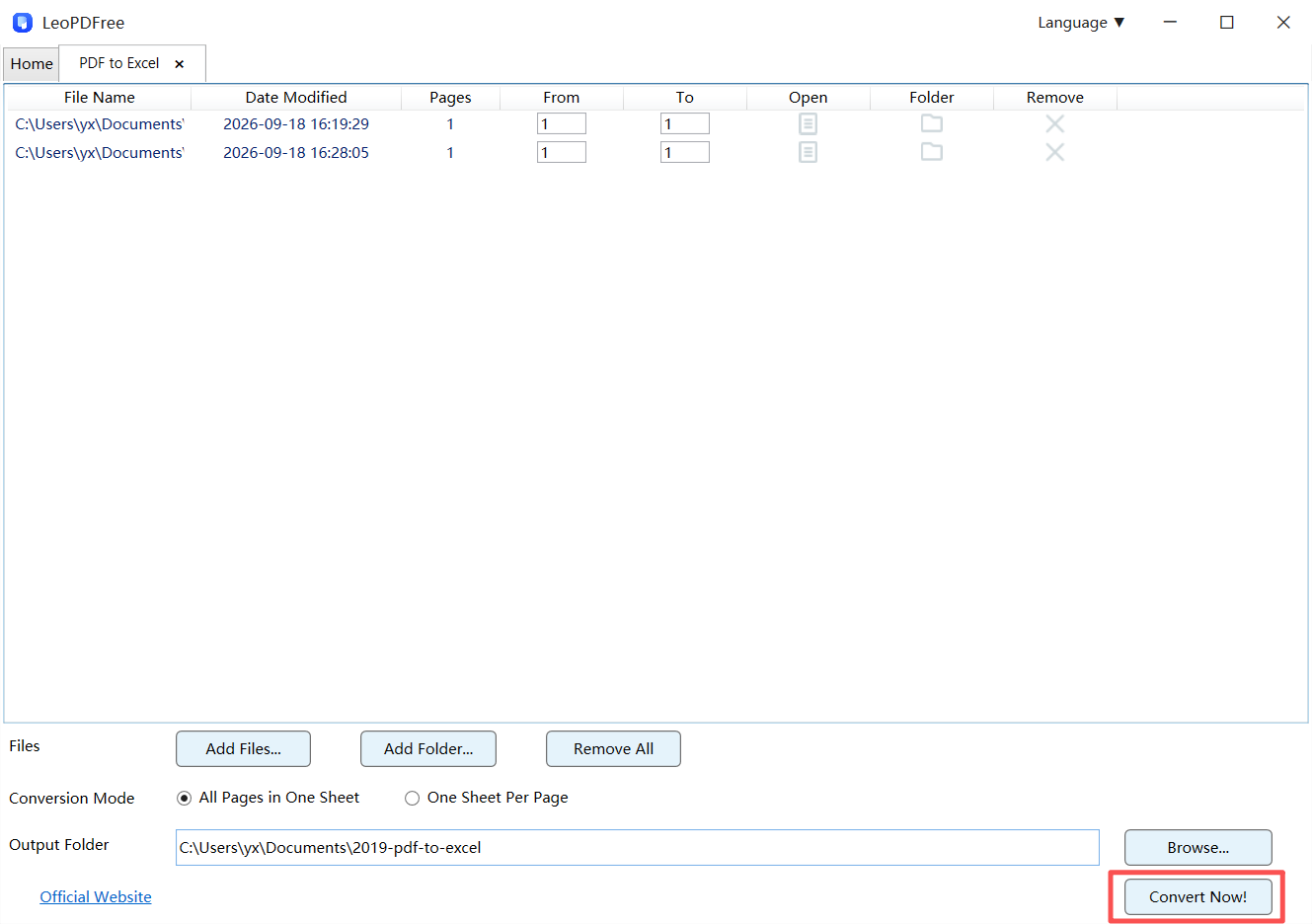
👉 The conversion takes place locally on your computer. No online upload is needed.
3. Common PDF Table Conversion Issues
PDF and Excel use different layouts. As a result, some table elements may not transfer perfectly.
| PDF Layout Issue | Possible Conversion Problem |
|---|---|
| Merged headers | Split or misaligned headings |
| Wrapped text | Uneven row alignment |
| Tables without borders | Incorrect column placement |
| Multi-page tables | Disconnected records |
| Footnotes | Extra rows mixed with data |
👉 After conversion, check the rows, columns, numbers, dates, and totals.
4. What About Scanned PDF Tables?
The Windows version of LeoPDFree does not currently support OCR. It is designed for supported digital PDFs and cannot directly recognize text inside scanned images.
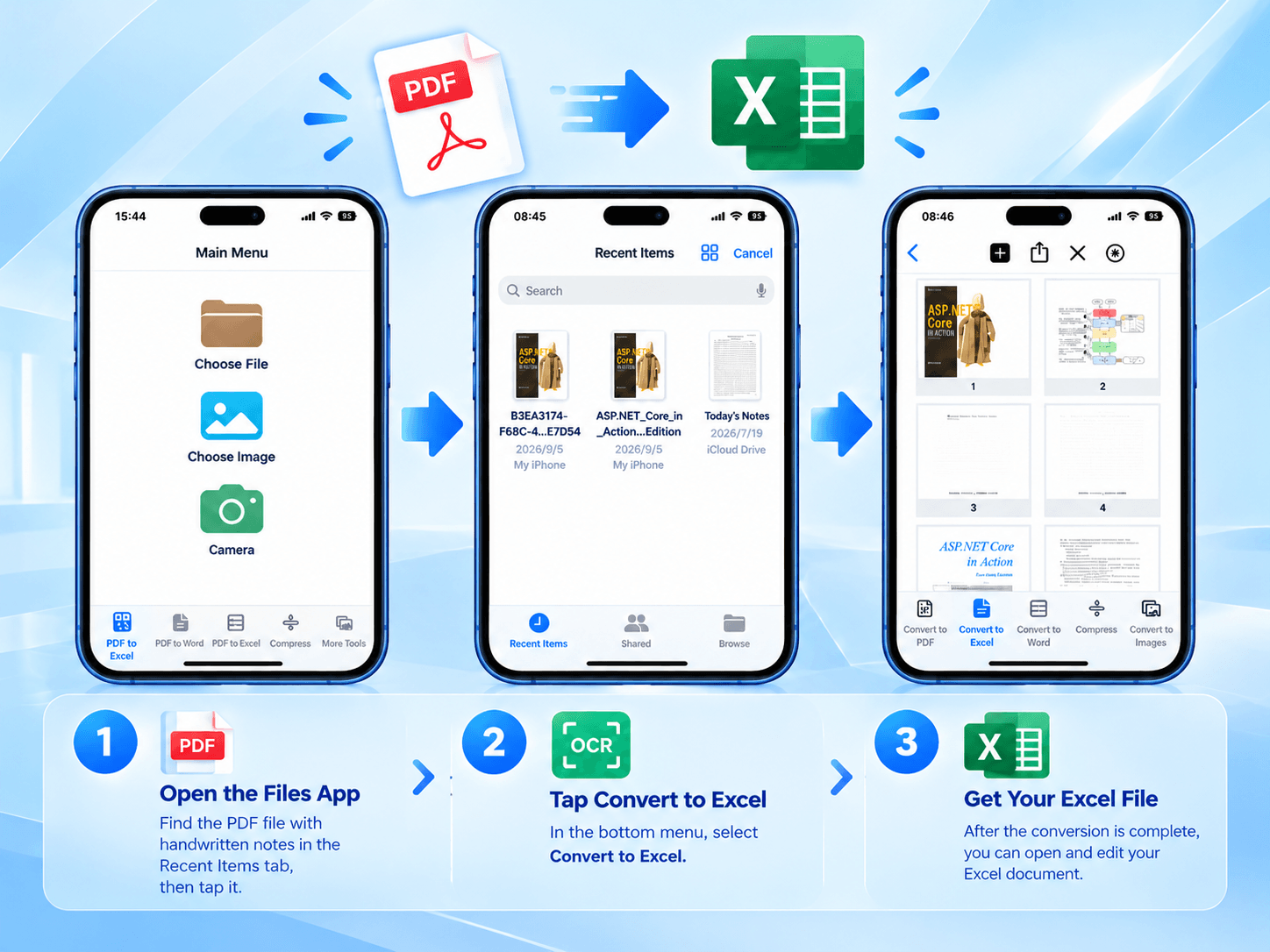
For scanned or handwritten tables, the Mac and iPhone versions of LeoPDF offer OCR-powered PDF-to-Excel conversion. These Word and Excel conversion features use cloud processing and require an internet connection. Always review the extracted data for recognition errors.
5. Manual Copying vs. LeoPDFree
| Feature | Manual Copy and Paste | LeoPDFree |
|---|---|---|
| Data extraction | Manual selection | Direct conversion |
| Table formatting | Often needs cleanup | Preserves supported table layouts |
| Multiple files | Repetitive work | Easier batch processing |
| File upload | Not always required | Not required |
| Software cost | Free | Free |
Final Thoughts
Extracting PDF tables shouldn’t mean copying data row by row into Excel.
For supported digital PDFs, LeoPDFree provides a free offline PDF-to-Excel solution for Windows 10 and 11.
No file uploads. No paid subscription. Just convert, review, and work with your data in Excel.
Download LeoPDFree and make PDF table extraction easier.