
Tips & guides
How to Convert PDF to Word Offline for Free on Windows
Published
PDF is great for reading and sharing documents. But when you need to edit text, update a contract, revise a report, or reuse existing content, Word is much easier to work with.
Online converters are widely available, but they often require you to upload your files. If your documents contain contracts, financial records, or other private information, you may prefer to handle the conversion directly on your computer.
LeoPDFree offers a free offline way to convert PDF to Word on Windows 10 and 11. No account registration, no file uploads, and no internet connection required during conversion.
Why Convert PDF to Word?
PDF and Word serve different purposes.
PDF is ideal for reading, sharing, and preserving a fixed layout. Word makes it easier to edit text, adjust formatting, and reuse document content.
For example, you might want to:
⏺ Edit text in an existing contract or report. ⏺ Update dates, headings, and paragraphs. ⏺ Reuse content from a PDF in a new Word document. ⏺ Modify tables, images, and page layouts.If you frequently work with existing PDF documents, converting them to Word can be much easier than recreating everything from scratch.
Convert PDF to Word Offline for Free with LeoPDFree
For digital PDFs that contain selectable text, LeoPDFree provides a straightforward conversion process. Everything is handled locally on your Windows computer.
Step 1: Open PDF to Word
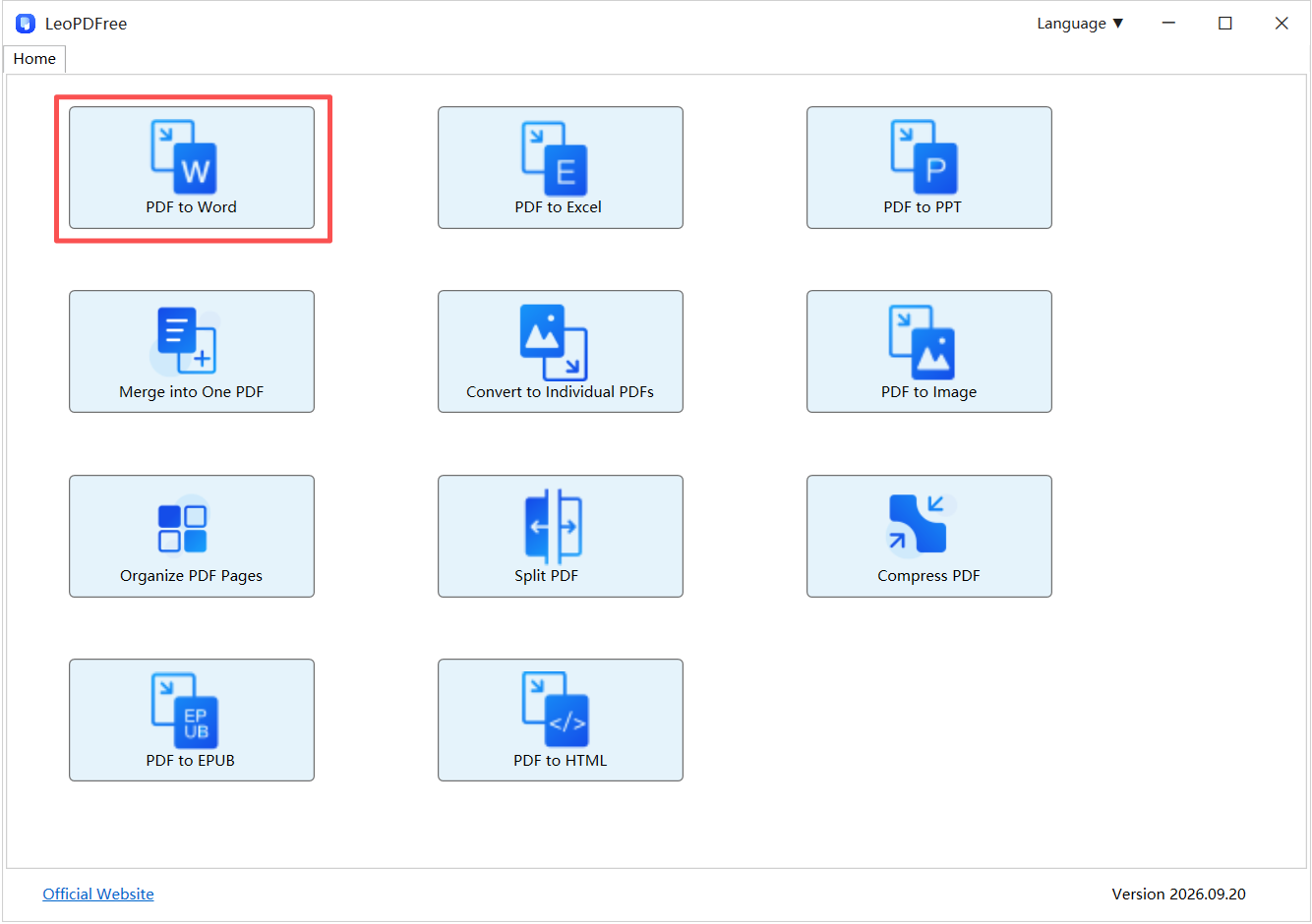
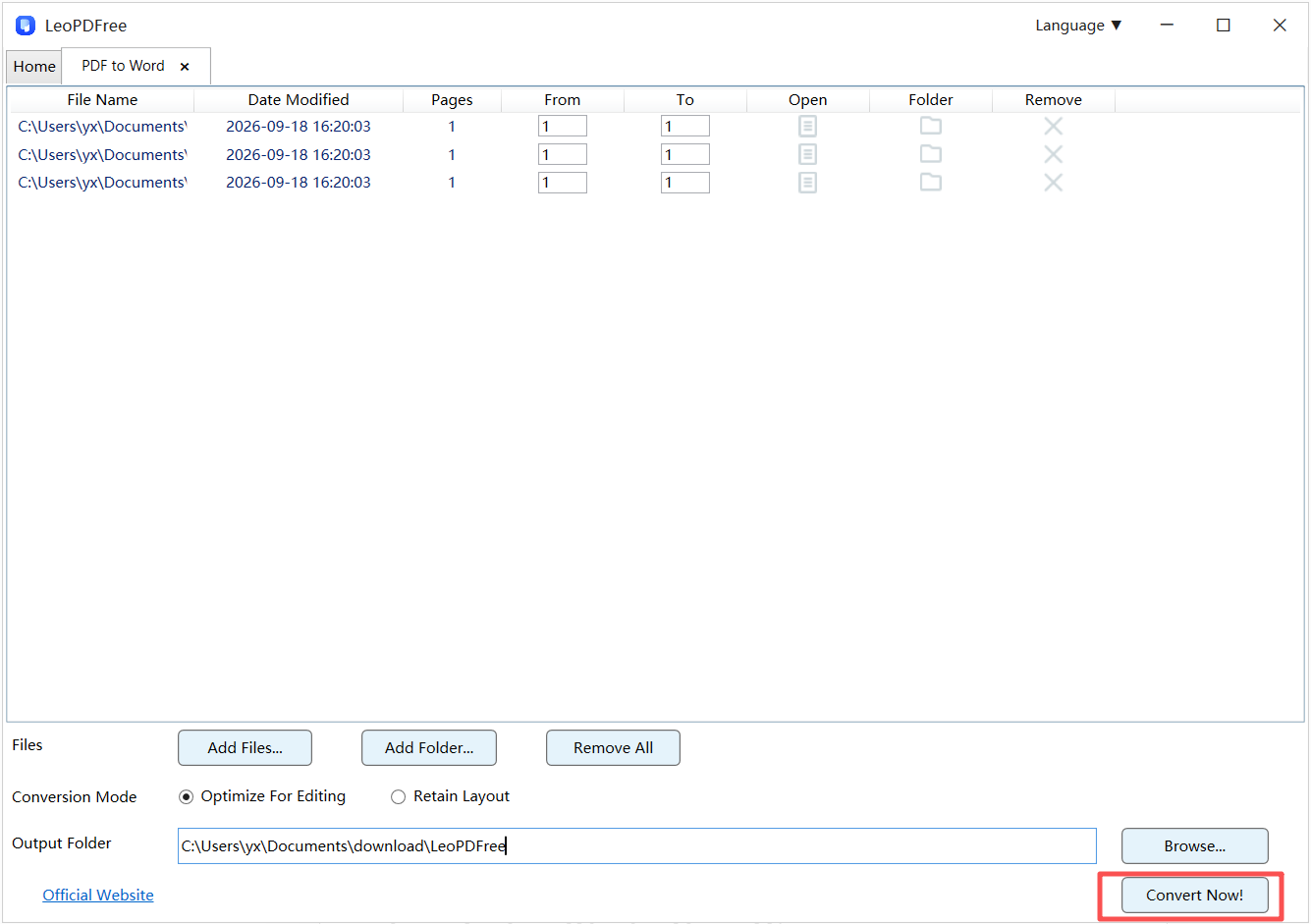
Launch LeoPDFree and select PDF to Word from the main interface.
Step 2: Add Your PDF Files
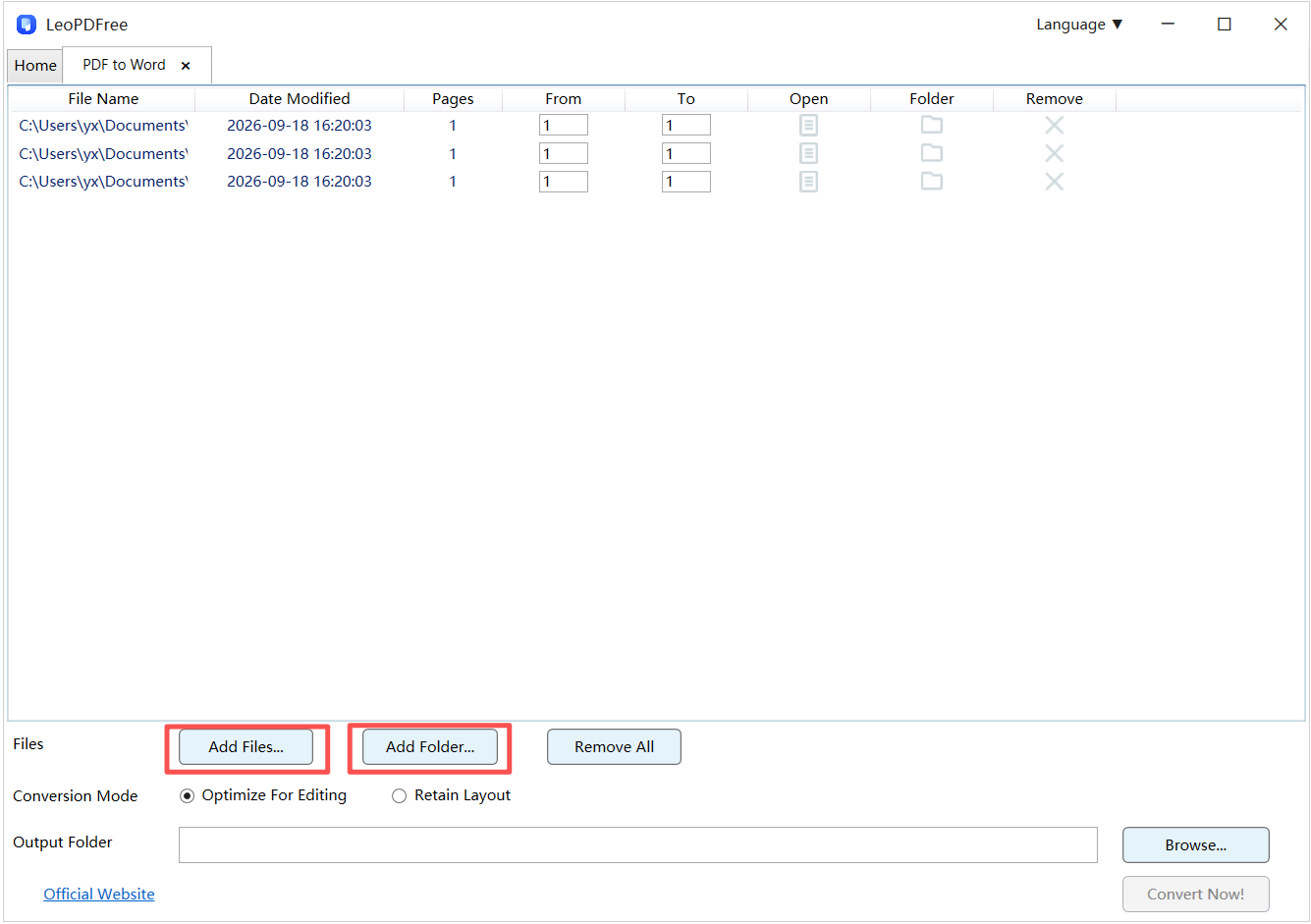
Click Add Files… to select the PDF documents you want to convert. If you need to process multiple documents, you can also use Add Folder… to import an entire folder and avoid adding files one by one.
Step 3: Choose an Output Folder
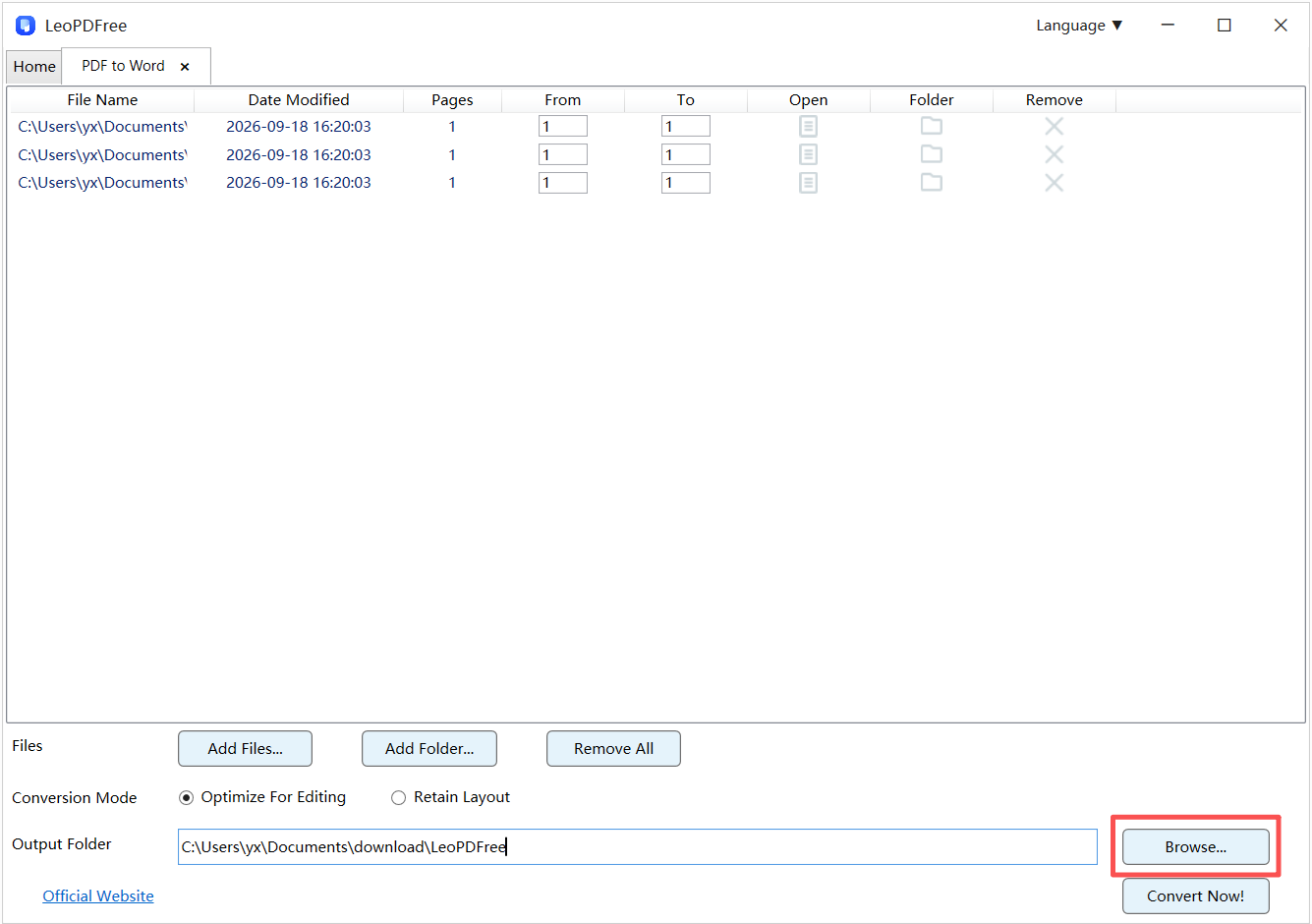
Click Browse… to select where you want to save the converted Word documents. Choose a folder that’s easy to find so you can quickly access your files after conversion.
Step 4: Start the Conversion
Once your files and output location are ready, click Convert Now!.
Wait for the conversion to finish. When the success message appears, click Check Now to locate your converted documents.
Step 5: Review Your Word Document
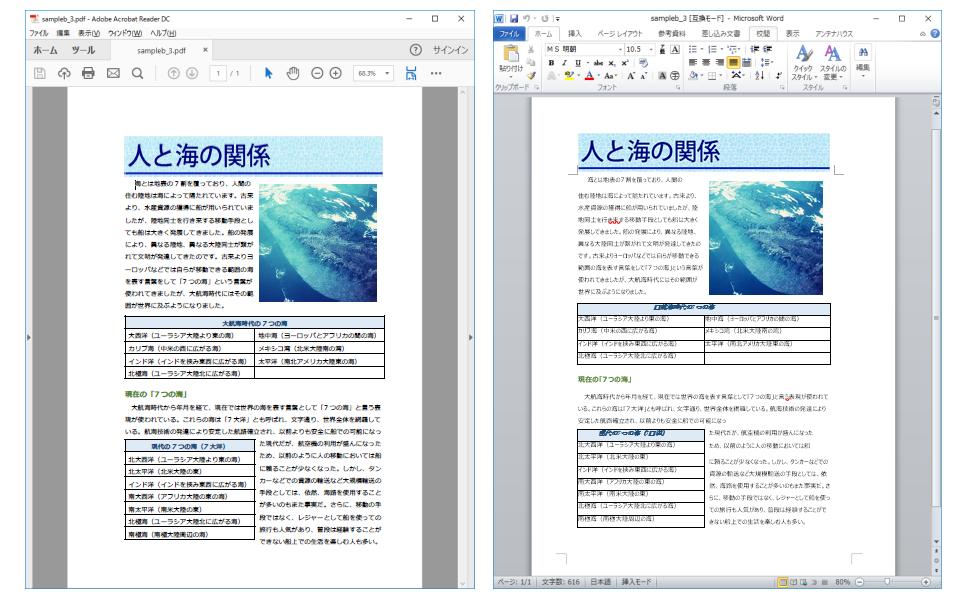
Open the converted file in Microsoft Word. Check the text order, paragraph spacing, image placement, and table structure. Compare it with the original PDF to make sure the conversion meets your expectations.
Which PDFs Work Best with LeoPDFree?
Not all PDFs are structured the same way. Understanding your document type before conversion can help you choose the right tool.
| PDF Type | Works with LeoPDFree? | Notes |
|---|---|---|
| Standard digital PDFs | Yes | Selectable text can be converted directly. |
| PDFs with images and tables | Yes | Review the layout after conversion. |
| Reports with complex formatting | Yes | Some spacing or table adjustments may be needed. |
| Scanned PDFs | No | OCR is required. |
| Handwritten PDFs | No | OCR is required, and manual review may be necessary. |
Here’s a simple way to check your PDF: Open it and try selecting some text with your mouse. If you can select individual words, the document usually contains readable text. If the entire page behaves like an image, you’ll need OCR.
Need OCR for Scanned PDFs? Here’s Another Option
This is one of the key differences between LeoPDFree for Windows and other LeoPDF versions. LeoPDFree focuses on free offline PDF conversion and does not currently support OCR. It cannot directly recognize text in scanned images or handwritten pages. If you need to convert scanned PDFs into editable Word documents, you can use LeoPDF for Mac or iPhone, which supports OCR.