
Tips & guides
How to Split a PDF by Chapters or Sections
Published
A long PDF isn’t always meant to stay as one file.
Books, manuals, reports, and training materials often contain clearly defined chapters or sections. If different parts need to be shared, archived, or managed separately, splitting the PDF by its content structure can be more useful than dividing it at arbitrary page numbers.
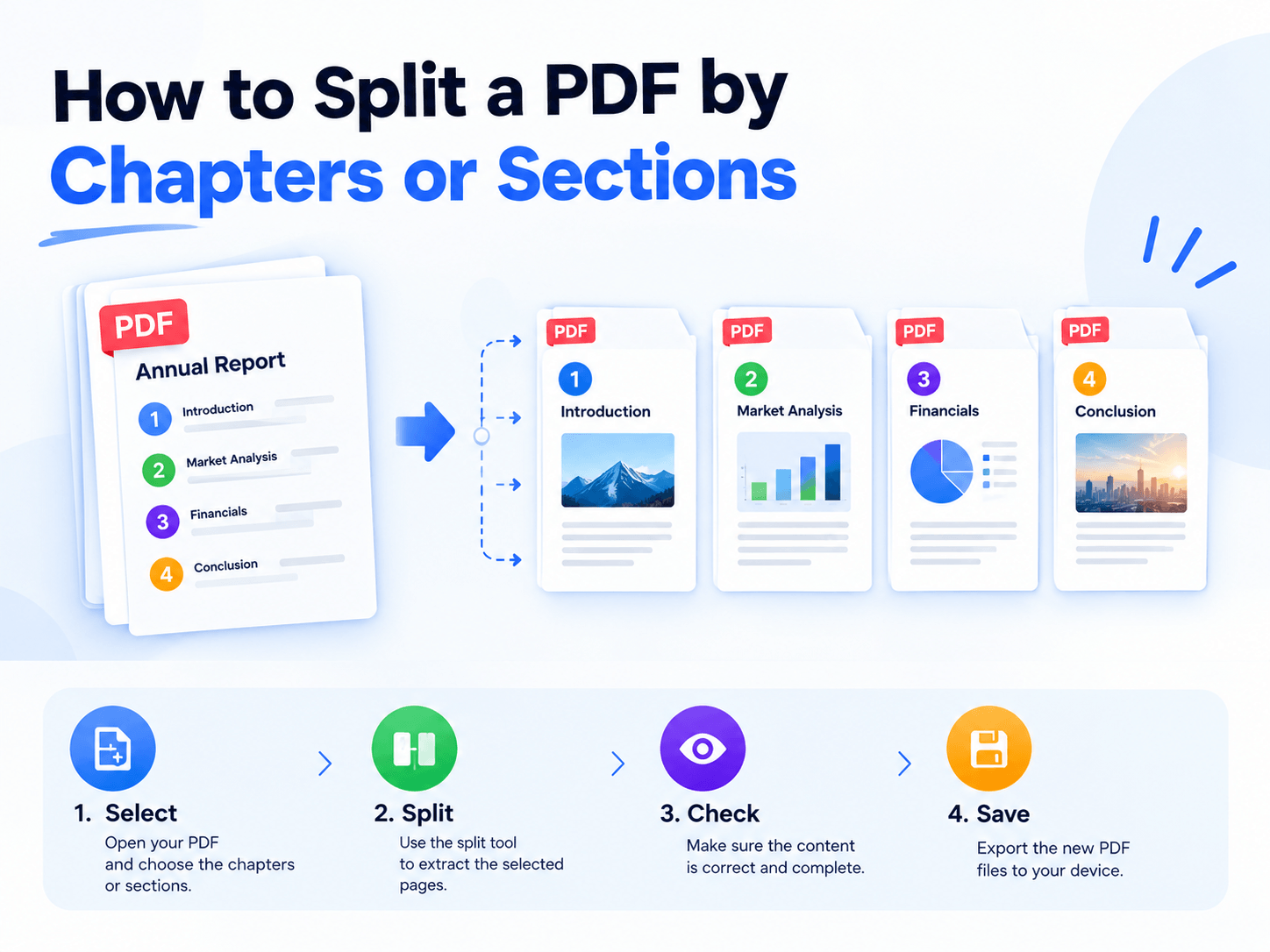
Think in Sections, Not Page Counts
A simple page-range split might produce files like:
Pages 1–25 → File 1
Pages 26–50 → File 2
But that doesn’t guarantee each file contains a complete section.
A better approach is to identify natural boundaries first:
Introduction → Chapter 1 → Chapter 2 → Chapter 3 → Appendix
Each section can then become its own PDF.
This works especially well for:
🔵 Ebooks and digital textbooks
🔵 Technical manuals
🔵 Training materials
🔵 Annual or financial reports
🔵 Large business documents
The Goal: Complete, Usable Files
A good split should create documents that make sense on their own.
Before splitting, check where each chapter or section begins and ends. Keep related pages together, including tables, references, and supporting pages that belong to the same section.
The result should be more than smaller files—it should be logically structured files.
Split Large PDFs Locally
For sensitive documents, uploading a large PDF to an online service may not be ideal.
LeoPDF provides an offline way to split PDFs on Windows. You can separate a large document into smaller files based on the page ranges that correspond to individual chapters or sections.
It also supports page extraction, deletion, reordering, merging, compression, and PDF format conversion, making it useful when a document needs more than one type of page-level operation.
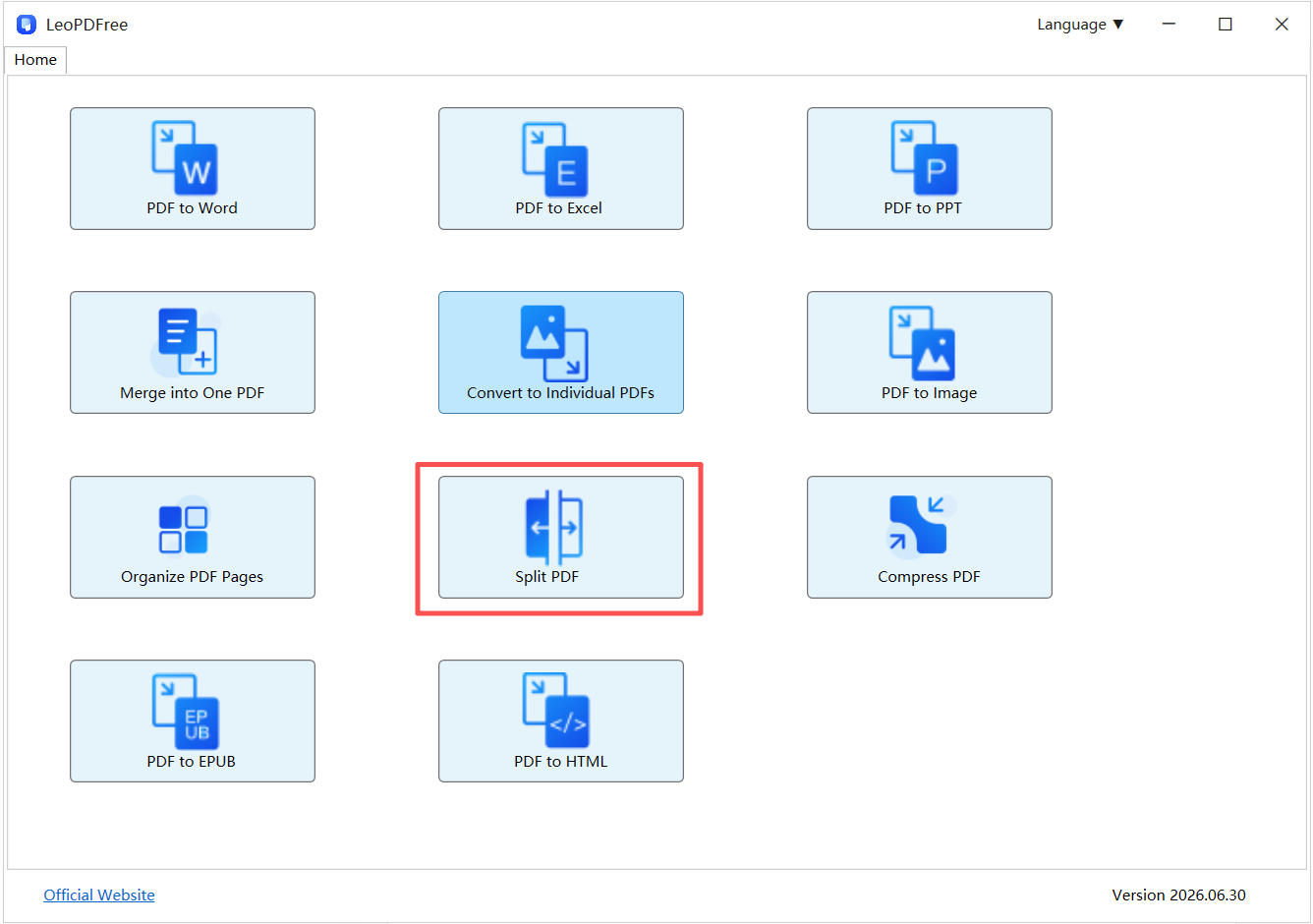
Because processing happens locally, the original PDF doesn’t need to be uploaded to a third-party website.
A Better Structure for Large PDFs
Instead of asking:
“How many pages should each file contain?”
Ask:
“Where does each section naturally begin and end?”
That small change produces PDFs that are easier to name, share, archive, and use.
Final Takeaway
Splitting a PDF by chapters or sections is more useful than simply dividing it into equal page ranges. The objective is to create smaller files that preserve the document’s logical structure.
With LeoPDF, you can split large PDFs locally on Windows and turn individual sections into manageable, standalone files—without uploading the original document.