The PDF Compression Showdown: Privacy, Speed, and Control

Compressing a PDF is easy.

Choosing the right tool isn’t.

Some users simply want to make an email attachment smaller. Others need to compress hundreds of scanned documents without sacrificing readability. And for businesses, privacy can be just as important as file size.

That’s why there isn’t a single “best” PDF compressor.

The right choice depends on how you work, what kind of PDFs you handle, and how much control you need over the final result.

In this guide, we’ll compare the three most common types of PDF compressors and explain where each one performs best.
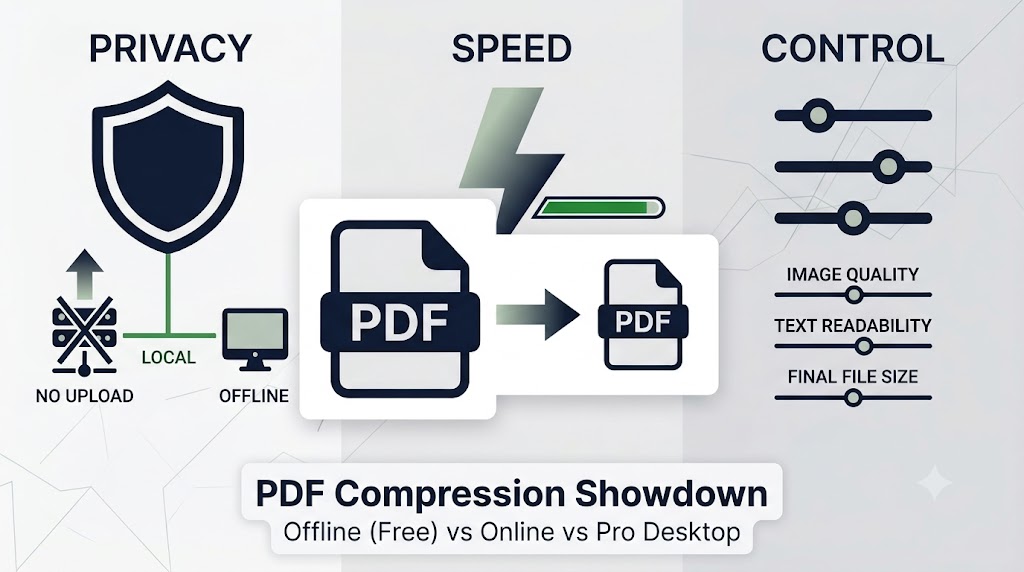
PDF Compression Comparison: Privacy, Speed, and Control

Three Approaches at a Glance

🖥 Offline Desktop Tools

Examples: LeoPDF
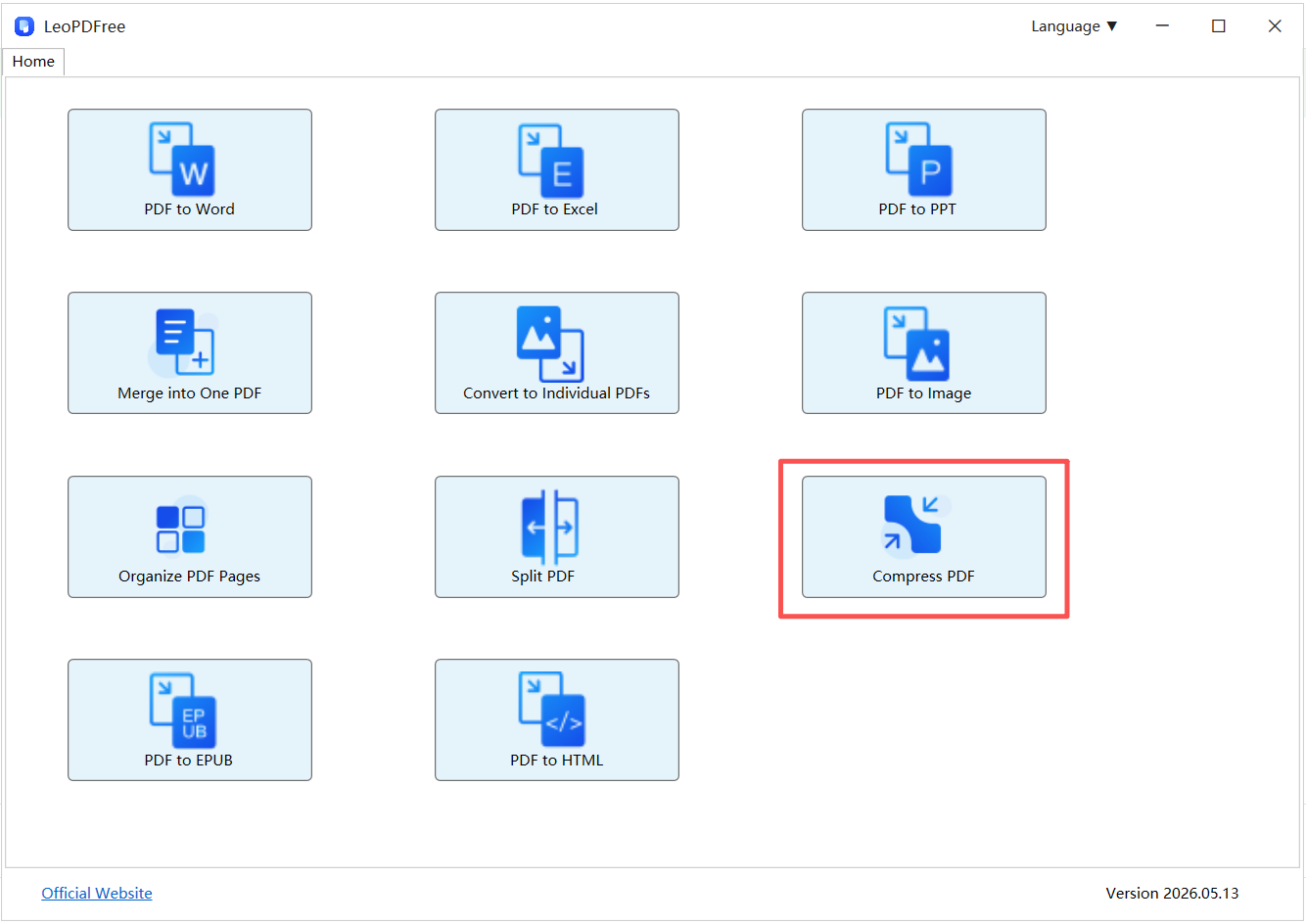
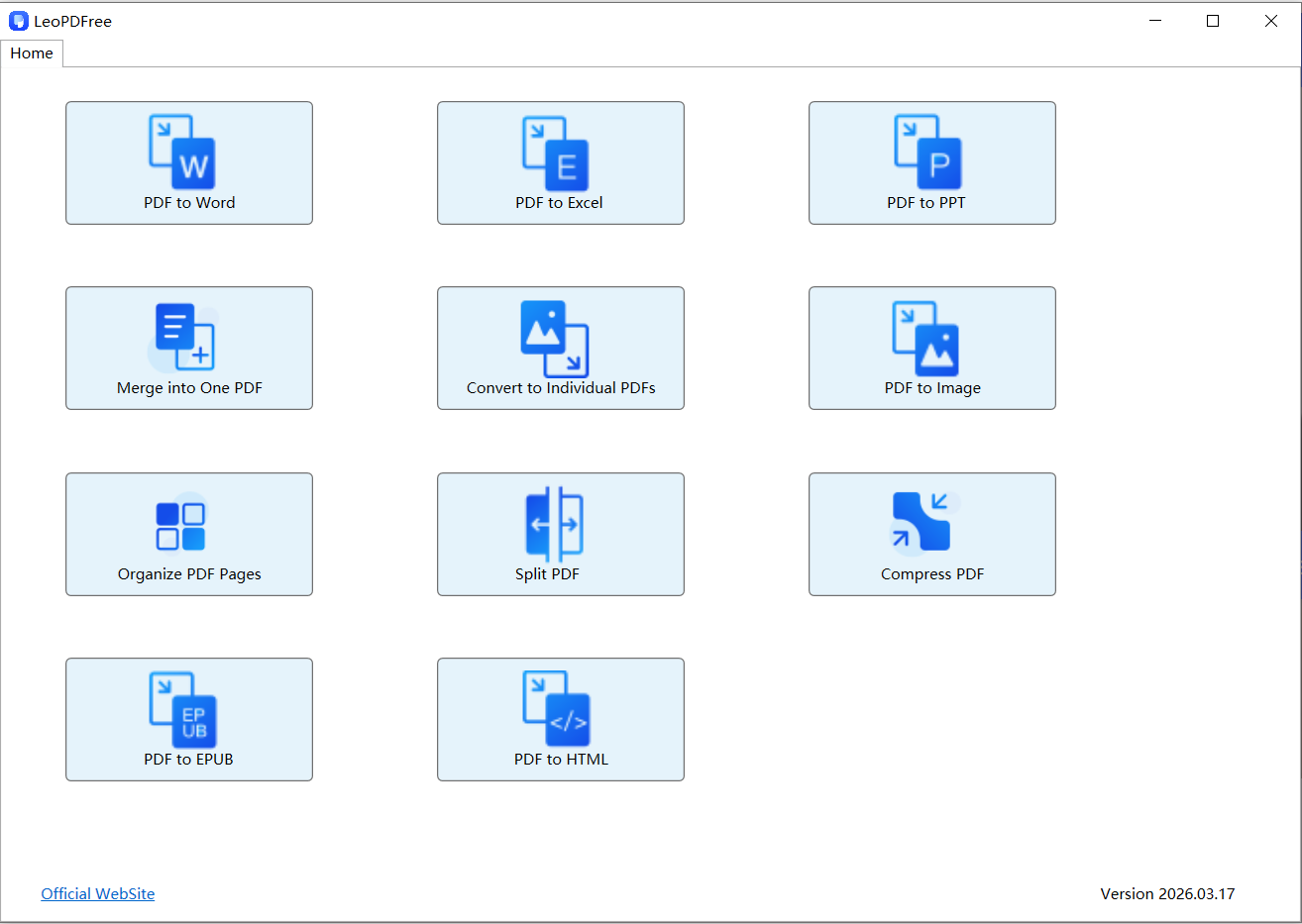
LeoPDFree Offline PDF Compression Interface

Offline tools process PDFs directly on your computer, so your files never leave your device. They’re a practical choice for everyday use, especially if you regularly work with large or confidential documents.

Best for: Privacy, speed, and routine PDF tasks.

🌐 Online PDF Compressors

Examples: iLovePDF, Smallpdf

Browser-based tools require no installation and are available almost anywhere with an internet connection.

They’re convenient for occasional use, but large uploads and internet speed can affect the overall experience.

Best for: Quick, one-time jobs on public or shared devices.

💼 Professional PDF Software

Examples: Adobe Acrobat

Professional PDF suites offer advanced optimization, OCR, editing, digital signatures, and document management.

They also come with a higher price and a steeper learning curve.

Best for: Professional publishing, legal documents, and enterprise workflows.

Feature Comparison

Feature Offline Desktop Online Tools Professional Suite
Installation Required Not required Required
File Upload No Yes No
Privacy Excellent Depends on the service Excellent
Large PDF Performance Excellent Moderate Excellent
Compression Controls Good Basic Advanced
Cost Usually Free Free / Subscription Subscription

When Privacy Matters Most

If you’re compressing contracts, invoices, medical records, or internal company documents, uploading files to an online service may not be an option.

Offline software keeps every step of the process on your own computer.

For example, LeoPDF compresses PDFs locally, helping reduce file size without sending documents to external servers.

If data security is part of your workflow, offline tools are usually the safest choice.

When Speed Is More Important Than Features

People often assume online tools are faster because they open instantly in a browser.

That isn’t always true.

For a small PDF, online compressors work well.

But once file sizes grow, uploading often takes longer than the compression itself.

Offline applications avoid this bottleneck because they process files immediately after opening them.

If you regularly handle presentations, scanned reports, or image-heavy PDFs, local processing is generally much more efficient.

How Much Control Do You Really Need?

Not everyone needs dozens of compression settings.

For most users, selecting a quality preset and clicking Compress is enough.

That’s where tools like LeoPDF strike a good balance—they provide straightforward compression while preserving document readability for everyday work.

Professional software, on the other hand, is designed for users who need detailed control over image resolution, font embedding, color profiles, and PDF optimization.

Unless you’re preparing files for commercial printing or professional publishing, those advanced settings may never be necessary.

Which Tool Fits Your Workflow?

Choose an Offline Tool If You…

✔ Compress PDFs regularly

✔ Work with confidential documents

✔ Need reliable performance for large files

✔ Prefer keeping everything on your own computer

Choose an Online Tool If You…

✔ Only compress PDFs occasionally

✔ Are using a borrowed or shared computer

✔ Don’t want to install additional software

✔ Aren’t working with sensitive information

Choose Professional Software If You…

✔ Edit PDFs every day

✔ Need OCR or advanced document editing

✔ Require precise compression settings

✔ Already subscribe to Adobe Acrobat or similar software

Frequently Asked Questions

Does compressing a PDF always reduce quality?

Not necessarily.

Modern PDF compressors often remove unnecessary metadata and optimize embedded resources before reducing image quality.

The result depends largely on the compression level you choose.

Why are scanned PDFs harder to compress?

Unlike text-based PDFs, scanned documents are mostly made up of images.

Reducing their size usually requires image optimization, which is why scanned PDFs often remain larger than digitally created documents.

Are free offline PDF compressors good enough?

For most users, yes.

If your goal is to reduce file size for email, cloud storage, or document sharing, a free offline tool such as LeoPDF provides all the essential features without requiring a subscription.

Final Thoughts

No single PDF compressor is perfect for every situation.

Online tools offer convenience.

Professional software delivers maximum control.

But for everyday users who value privacy, speed, and simplicity, an offline desktop application is often the most practical choice.

Whether you’re sharing business reports, school assignments, or personal documents, choosing the right tool isn’t just about creating a smaller PDF.

It’s about finding a workflow that’s efficient, reliable, and fits the way you work.
PDF Compression Explained: Balance File Size and Readability

Balance PDF size and readability, distinguish lossless and lossy compression, and inspect a separate output copy.

Reducing file size is a trade-off to verify. “Readable” and “lossless” are not identical: image downsampling can change detail even when the copy remains useful. Keep the original and compare the chosen output.

Big PDFs are productivity killers. They clog inboxes, bounce off upload limits, slow down client approvals, and make sharing “final_v7_really_final.pdf” feel harder than it should be. The good news:
PDF compression is no longer a niche, technical chore. With the right approach, you can reduce file size dramatically while keeping text sharp, images clear, and layouts intact.
In this guide, you’ll learn what PDF compression actually does, when to use different compression levels, and how to get consistent results—ncluding a professional way to compress PDFs using LeoPDF, a free offline desktop client.

PDF Compression Explained: Balancing File Size and Readability

What Is PDF Compression (And Why Does It Work)?

A PDF is a container: it can hold text, fonts, images, vectors, forms, and metadata. File size grows for a few common reasons:

⏺ High-resolution images (scanned pages, screenshots, camera photos)
⏺ Embedded fonts (especially multiple font families or full font sets)
⏺ Redundant objects (repeated resources stored inefficiently)
⏺ Unoptimized structure (inefficient encoding, bloated metadata)

PDF compression reduces size by optimizing these components—most often by re-encoding images, removing unnecessary data, and reorganizing internal objects for efficiency.

The Two Main Types of PDF Compression

1) Lossless Compression (Best for Text-Heavy PDFs)

Lossless compression reduces size without changing visible quality.
It’s ideal for:
⏺ Contracts, invoices, reports
⏺ Forms and documentation
⏺ PDFs with mostly text and vector graphics
You won’t always get massive reductions, but you’ll keep fidelity intact.

2) Lossy Compression (Best for Image-Heavy PDFs)

Lossy compression reduces file size by downsampling and re-encoding images. It’s best for:

⏺ Scanned documents
⏺ Portfolios and brochures with photos
⏺ Large slide exports
The key is choosing a level that keeps images readable while hitting your target size.

What “Good” PDF Compression Looks Like (Practical Targets)

Different workflows need different results. Here are realistic goals:

⏺ Email-friendly: under 10–15 MB
⏺ Web upload / forms: under 5–10 MB
⏺ Fast sharing / messaging apps: under 2–5 MB
⏺ Archive-friendly: smaller, but prioritize legibility and searchability
If your PDF includes scans, consider OCR separately—compression and OCR solve different problems.

Common PDF Compression Mistakes to Avoid

1. Over-compressing scanned text
– Aggressive image compression can turn small fonts into blurry artifacts.

2. Flattening everything unnecessarily
– Flattening may break form fields, links, or selectable text.

3. Compressing repeatedly
– Multiple compression passes compound quality loss, especially for images.

4. Ignoring privacy
– Uploading sensitive PDFs to unknown web tools can create compliance risk.

If privacy matters, an offline compressor is often the smarter option.

Why Offline PDF Compression Is a Smart Choice (Privacy + Stability)

Online compressors are convenient—but they aren’t always appropriate. Offline compression helps when you need:

⏺ Data privacy: keep files on your device (no upload)
⏺ Predictable performance: compress large batches without browser limits
⏺ Reliable output: consistent settings, fewer web-tool quirks
⏺ Work anywhere: no internet required
That’s where a dedicated desktop client becomes valuable.

A Professional Way to Compress PDFs: LeoPDF Free Offline Desktop Client

If you want compression that feels “enterprise-grade” without paying for it, LeoPDF’s free offline client is a strong option—especially for users who regularly handle large PDFs and want to keep documents local.

What makes LeoPDF a practical choice?

⏺ Offline compression: your PDFs stay on your computer
⏺ Fast processing: ideal for large documents and repeat workflows
⏺ Quality control: choose compression strength based on your needs
⏺ Business-friendly workflow: compress files before emailing, uploading, or archiving—without relying on browser tools

Best use cases for LeoPDF compression

⏺ Compressing scanned PDFs before submission
⏺ Reducing marketing PDFs to meet upload limits
⏺ Sending multi-page documents by email without size errors
⏺ Handling sensitive materials where cloud uploads are not acceptable

LeoPDFree PDF Compression Interface for Windows

If your goal is to compress PDFs efficiently while keeping control over privacy and output quality, LeoPDF provides a clean, offline path to smaller files—without the “upload and hope” model.

How to Choose the Right Compression Level (Quick Guide)

Use these rules of thumb:
⏺ Low compression (highest quality):
Contracts, manuals, technical docs, text-heavy files
⏺ Medium compression (balanced):
Most business PDFs, mixed text + images
⏺ High compression (smallest size):
Large scanned documents when size matters more than perfect clarity

For scanned documents, always open the compressed result and zoom in on small text (e.g., 200–300%) before sharing.

PDF Compression FAQ

Can PDF compression reduce quality?

Yes—lossy compression can reduce image clarity. Lossless compression generally preserves quality.

Why is my PDF still large after compressing?

Usually because it contains:
⏺ very high-res images,
⏺ multiple embedded fonts,
⏺ or already-optimized content where there’s little left to reduce.

Is it safe to compress PDFs online?

It depends on the tool and the sensitivity of your document. For confidential files, an offline tool like LeoPDF is a safer workflow.

What’s the best way to compress a scanned PDF?

Use compression optimized for images, avoid extreme settings, and consider OCR separately if you need searchable text.

Bottom Line: Smaller PDFs, Faster Work

PDF compression is one of the easiest ways to speed up collaboration—less waiting, fewer upload failures, and smoother sharing across email and web platforms.

If you want a privacy-first, professional workflow, using LeoPDF’s free offline desktop client is a clean solution: compress locally, control quality, and keep your files where they belong—on your machine.

5 PDF Splitting Mistakes Almost Everyone Makes

Splitting a PDF seems straightforward. Select a few pages, click a button, and you’re done. At least, that’s the theory. In reality, many users accidentally create extra work, damage document

Splitting a PDF seems straightforward.

Select a few pages, click a button, and you’re done.

At least, that’s the theory.

In reality, many users accidentally create extra work, damage document quality, or even expose sensitive information during the process.

5 Common PDF Splitting Mistakes and How to Avoid Them

👉 Here are five common PDF splitting mistakes—and how to avoid them.

❌ Mistake #1: Using Screenshots Instead of Splitting the PDF

This is surprisingly common.

Instead of splitting page ranges directly, some users take screenshots and save them as images.

The result?

⏺ Lower image quality
⏺ Larger file sizes
⏺ Lost text searchability
⏺ Broken document structure

✔ What to Do Instead

Use a proper PDF splitter that extracts pages directly from the original file.
Check the output quality and required functionality before sharing.

❌ Mistake #2: Splitting Before Reviewing the Document

Many people immediately start splitting pages without checking the document structure.

Later they discover:

⏺ Missing pages
⏺ Incorrect page order
⏺ Incomplete sections

✔ What to Do Instead

Before splitting:

1. Review the document
2. Identify logical sections
3. Confirm page ranges

A few extra seconds can save a lot of cleanup work later.

❌ Mistake #3: Uploading Sensitive Files to Random Websites

Not every PDF contains public information.

Many documents include:

⏺ Contracts
⏺ Financial records
⏺ Client information
⏺ Internal reports

Uploading these files to unknown online services can introduce unnecessary privacy risks.

✔ What to Do Instead

Whenever possible, use an offline PDF splitter such as LeoPDF.

Because LeoPDF processes files locally, your documents stay on your own device instead of being uploaded to third-party servers.

❌ Mistake #4: Repeatedly Exporting the Same PDF

Some users split a PDF, save it, reopen it, edit it again, and then export it multiple times.

Each extra processing step increases the chance of:

⏺ Formatting changes
⏺ Quality loss
⏺ File inconsistencies

✔ What to Do Instead

Plan the workflow first.

Make the required changes once and export only when you’re finished.

❌ Mistake #5: Choosing a Tool Based Only on Features

Many PDF tools advertise dozens of features.

But more features don’t necessarily mean better results.

A tool packed with options may still struggle with the most important task:

Preserving the original document.

✔ What to Do Instead

Focus on reliability first.

A good PDF splitter should:

✔ Preserve formatting
✔ Maintain image quality
✔ Handle large files smoothly
✔ Keep document structure intact

LeoPDF supports local page-range splitting and page organization. A standalone page-extraction feature is not included; use a documented operation for the result you need.

🥇 Recommended Tool: LeoPDF

If you frequently work with PDF files, LeoPDF offers a simple and reliable way to manage them.

With LeoPDF, you can:

✔ Split PDFs by page range
✔ Split a selected page range into output files
✔ Reorder PDF pages before or after splitting
✔ Create multiple PDF files at once
✔ Check the saved formatting
✔ Use supported LeoPDFree Windows tasks free

LeoPDFree PDF Splitter Interface

Free DownloadSecure Download

👉 Because everything happens locally, there is no need to upload sensitive documents.

Quick Summary

Mistake Better Approach
Taking screenshots Split page ranges directly
Splitting too early Review document structure first
Uploading sensitive files Use offline tools like LeoPDF
Repeated exports Minimize processing steps
Chasing features Prioritize document quality

Final Takeaway

Most PDF splitting problems aren’t caused by the PDF itself.

They’re caused by workflow mistakes.

If you want cleaner, faster, and more reliable results:

✔ Split page ranges instead of taking screenshots
✔ Review documents before splitting
✔ Keep sensitive files local
✔ Avoid unnecessary exports
✔ Use LeoPDF or another reliable offline PDF splitter to preserve document quality

👉 The smartest PDF workflow isn’t about doing more.

It’s about avoiding the mistakes that cause problems in the first place.

Why screenshots are a different result

A screenshot captures visible pixels, not the original text, links or page objects. Enlarging it can reveal reduced detail, and a PDF made from screenshots may no longer support the same text search. If your goal is separate PDF sections, use supported splitting rather than making image copies.

Before sharing, check that all intended pages are present and in order. This check is more useful than assuming that any tool always preserves every document property.

Free Offline PDF Splitters: LeoPDFree, PDFsam and Quality Checks

Not all PDF splitters are created equal. Many free tools can split a PDF into smaller files—but some also introduce new problems: ⏺ Blurry images ⏺ Broken formatting ⏺ Missing

Not all PDF splitters are created equal.

Many free tools can split a PDF into smaller files—but some also introduce new problems:

⏺ Blurry images
⏺ Broken formatting
⏺ Missing bookmarks
⏺ Unexpected compression
⏺ Reduced document quality

If preserving the original document matters, choosing the right PDF splitter is critical.
‌

Free Offline PDF Splitters: LeoPDFree and PDFsam Compared

👉 Here are the best types of free offline PDF splitter tools that actually maintain document quality in 2026.

Why Quality Loss Happens During PDF Splitting

Technically, splitting a PDF should be simple.

The problem is that some tools don’t simply split page ranges—they rebuild the PDF entirely.

When that happens, documents may suffer from:

⏺ Font substitutions
⏺ Image recompression
⏺ Layout shifts
⏺ Metadata loss

👉 The more processing involved, the greater the chance of quality degradation.

What a Good PDF Splitter Should Do

A professional PDF splitter should:

✔ Split page ranges directly from the original document
✔ Preserve fonts and images
✔ Keep page layouts unchanged
✔ Maintain document structure
✔ Avoid unnecessary recompression

In short:

The best PDF splitter is often the one that changes the least.

Best Option for Most Users: Offline PDF Splitters

For everyday PDF workflows, local tools avoid an upload step.

Tools like LeoPDF make it easy to:

⏺ Split PDFs by page range
⏺ Split a supported page range into separate output files
⏺ Create multiple PDF files at once
⏺ Reorder pages before splitting
⏺ Check the saved formatting
⏺ Use the supported LeoPDFree Windows features free

LeoPDFree Free Offline PDF Splitter for Windows

👉 Because processing happens locally, there is no need to upload files to external servers.

What Local Processing Changes

Offline Tools Online Tools
No upload required Upload required
Original files stay local Files sent to servers
Better privacy Potential data exposure
No upload connection needed Internet-dependent
Formatting depends on the tool and settings Compression risks

👉 For large PDFs and business documents, local processing often produces more consistent results.

Common PDF Splitting Methods Compared

Method Quality Retention Ease of Use
Screenshots Poor Medium
Online Splitters Good Easy
Offline PDF Tools Excellent Easy

👉 The difference becomes especially noticeable when working with reports, contracts, presentations, or image-heavy PDFs.

Pro Tip: Extract Pages Instead of Rebuilding Files

Many users unknowingly recreate PDFs after splitting.

A better approach is:

👉 Extract the pages you need directly from the original file.

This helps preserve:

⏺ Fonts
⏺ Images
⏺ Page structure
⏺ Document quality
⏺ Internal formatting

Less processing generally means better results.

Who Should Use Offline PDF Splitters?

Offline PDF splitters are particularly useful for:

⏺ Businesses
⏺ Legal professionals
⏺ Students
⏺ Accountants
⏺ Researchers
⏺ Anyone handling sensitive documents

👉 If privacy and document integrity matter, offline tools are usually the safer choice.

Final Takeaway

If you’re looking for a free PDF splitter that actually preserves quality:

✔ Choose an offline LeoPDF splitter whenever possible
✔ Avoid unnecessary recompression
✔ Split page ranges instead of rebuilding PDFs
✔ Keep sensitive documents on your own device
✔ Prioritize formatting retention over flashy features

👉 In most cases, the suitable PDF splitter isn’t the one with the most features.

Choose a tool and settings that meet your requirements, then verify the complete output instead of relying on a promise of exact preservation.

Another free local option: PDFsam Basic

PDFsam Basic documents splitting by page rules, size or bookmarks. Add a copy, choose the split rule offered by the application and set an output folder. Run it and verify the resulting page ranges. For bookmark splitting, inspect the existing bookmark levels first; a file without a suitable outline needs a different split rule.

Here, the free LeoPDF recommendation refers to LeoPDFree for Windows and its supported tasks. Check the edition comparison before assuming another platform offers the same operations or payment model.

Choose sections before checking quality

Plan the intended sections and give each output a clear name. Check the beginning and end of every section, the page sequence and any navigation features you still need. A range splitter and a bookmark-based splitter do not necessarily offer the same controls.

Keep the operation focused: split the PDF rather than converting its pages to screenshots and rebuilding them. Local processing avoids an upload, but it does not by itself establish better formatting retention than another tool.

Questions about your LeoPDF edition?

Contact xuehui@leopdf.com with your platform, app version and the task you need.

How to Organize and Split PDF Pages Without Adobe

Adobe Acrobat is powerful—but not everyone wants to pay for a subscription just to rearrange a few pages or split a PDF.

The good news?

In 2026, organizing and splitting PDF pages without Adobe is easier than ever. With the right workflow, you can reorder pages, extract sections, and create new PDFs in minutes while preserving the original formatting.
‌

How to Organize and Split PDF Pages Without Adobe Acrobat

Why Organize PDF Pages First?

Many users immediately split a PDF and then realize the pages are out of order.

A smarter approach is:

1️⃣. Review the document
2️⃣. Reorder pages if needed
3️⃣. Remove unnecessary pages
4️⃣. Split the PDF into separate files

This creates cleaner, more professional results.

The Best Method: Use an Offline PDF Tool

For most users, an offline PDF tool provides the easiest solution.

Tools like LeoPDF allow you to:

✔ Reorder PDF pages with drag-and-drop simplicity
✔ Split PDFs by page range
✔ Extract selected pages
✔ Create multiple PDF files at once
✔ Preserve the original formatting
✔ Use all features completely free

LeoPDFree PDF Page Organizer Interface for Windows

Free DownloadSecure Download

📢Since everything is processed locally, there’s no need to upload sensitive documents.

Common PDF Organization Tasks

Most PDF page management projects fall into one of four categories:

Task Example
Reorder Pages Move Chapter 3 before Chapter 2
Extract Pages Save pages 10–20 as a new PDF
Delete Pages Remove blank or duplicate pages
Split Documents Create separate PDFs from one file

👉Mastering these basic tasks can dramatically improve document organization.

Why Offline Tools Often Work Better

Many online PDF services require file uploads.

That creates several potential issues:

▪ Privacy concerns
▪ Upload limits
▪ Slow processing for large files
▪ Browser-related restrictions

👉Offline tools eliminate these problems entirely.

Offline vs Online PDF Management

Offline Tools Online Tools
No upload required Upload required
Better privacy Files leave your device
Faster for large PDFs Internet-dependent
More stable Browser limitations

👉For business documents, local processing is usually the safer option.

Avoid These Common Mistakes

❌ Splitting before organizing

Always verify page order first.

❌ Using screenshots

Screenshots convert documents into images and destroy PDF structure.

❌ Rebuilding PDFs repeatedly

Multiple exports can increase the risk of formatting inconsistencies.

Pro Tip: Extract Instead of Recreate

Whenever possible:

👉 Extract pages directly from the original PDF.

This helps preserve:

🔵 Layout
🔵 Fonts
🔵 Images
🔵 Bookmarks
🔵 Overall document quality

The fewer changes you make, the better the final result.

Final Takeaway

If you need to organize and split PDF pages without Adobe:

✔ Reorder pages before splitting
✔ Use an offline tool like LeoPDF
✔ Keep sensitive files on your computer
✔ Extract pages instead of rebuilding documents
✔ Preserve the original formatting whenever possible

👉 The smartest PDF workflow isn’t the most complicated one.

It’s the one that keeps your documents organized while making the fewest possible changes to the original file.

Free DownloadSecure Download

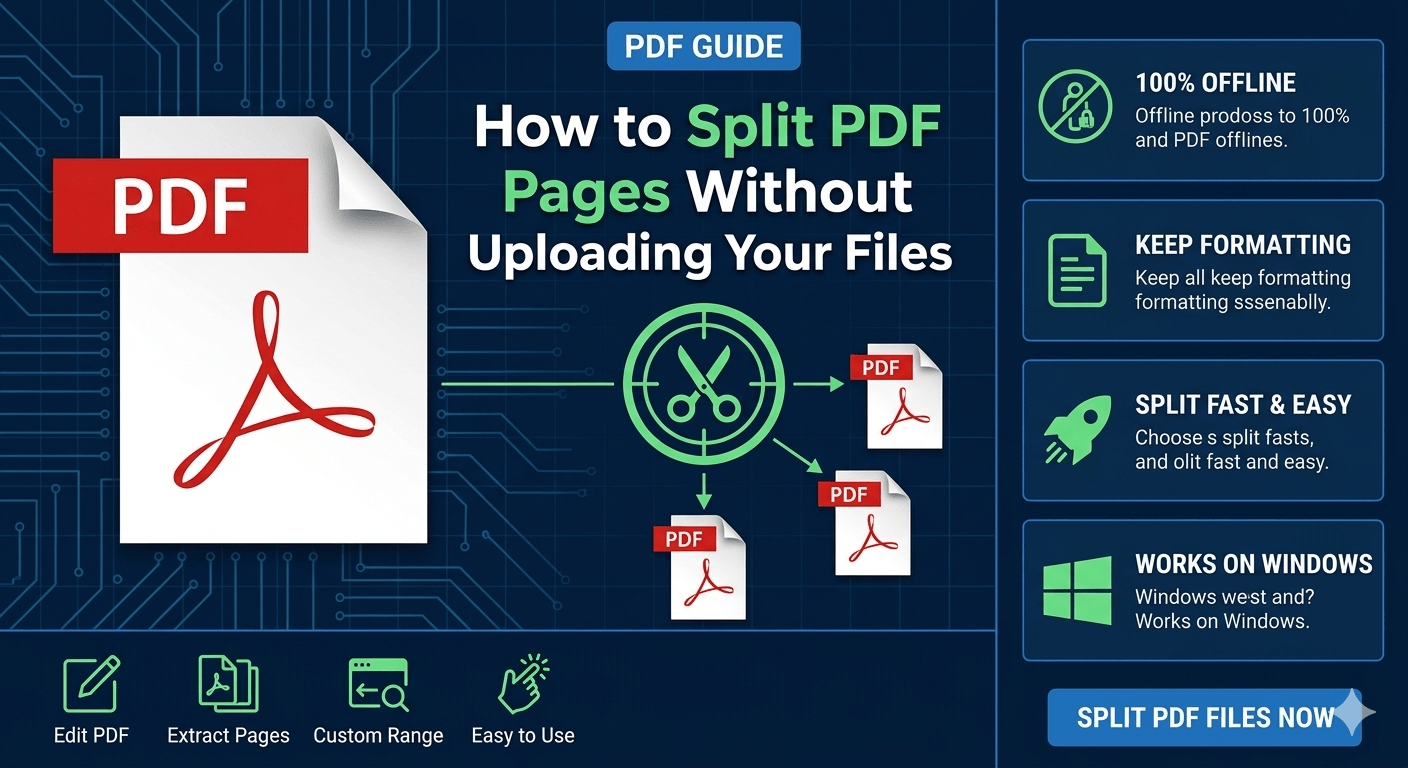
How to Split PDF Pages Without Uploading Your Files

Many online PDF tools ask you to upload your documents before you can split them.

That may seem convenient—but it’s not always the safest option.

If your PDFs contain contracts, financial reports, business documents, or personal information, uploading them to a third-party server may create unnecessary privacy risks.

Fortunately, there’s a better way.

How to Split PDF Pages Without Uploading Your Files

In 2026, you can split PDF pages directly on your computer without uploading a single file.

Why Avoid Uploading PDFs?

When using online PDF services, your files typically:

▪ Leave your device
▪ Travel through external servers
▪ Depend on internet connectivity
▪ May be subject to file-size limits

Even when a service claims to delete uploaded files, many users prefer to keep sensitive documents completely local.

The Safer Solution: Offline PDF Splitting

Offline PDF tools process documents directly on your computer.

This means:

✔ No uploads required
✔ Better privacy protection
✔ Faster processing for large files
✔ More reliable performance
✔ Full control over your documents

For privacy-conscious users, this is often the preferred workflow.

🥇The Best Method Explained: Use an Offline PDF Splitter — LeoPDF

For most users, this is the easiest option.

Tools like LeoPDF allow you to:

▪ Split PDFs by page range
▪ Extract specific pages
▪ Create multiple PDF files
▪ Reorder pages before or after splitting
▪ Preserve the original formatting
▪ Use all features completely free

Because everything happens locally, your files never leave your computer.

How It Works:

Step 1

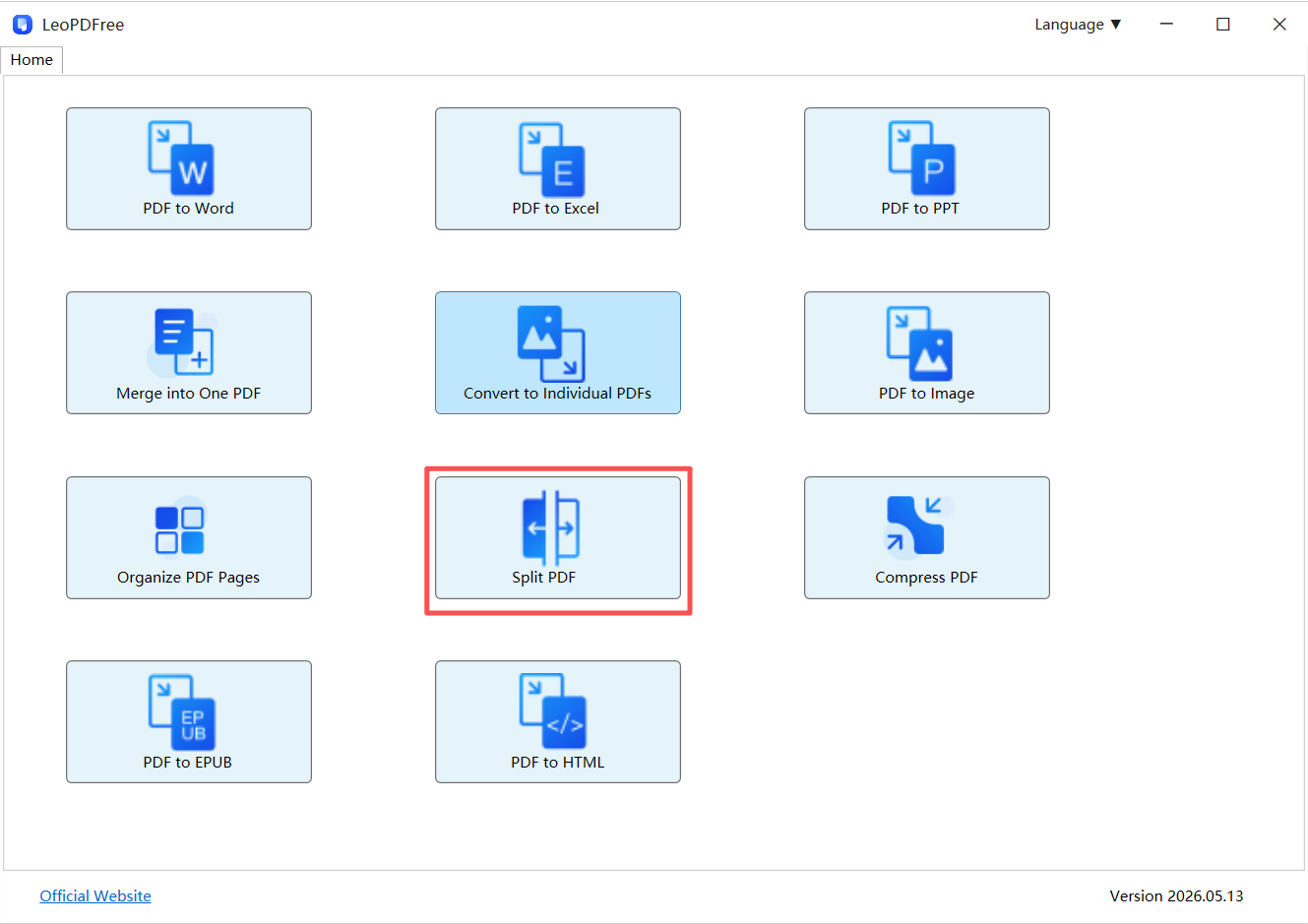
Download and install LeoPDF on your computer for free. Launch the software, then click the “Split PDF” button on the main interface to get started, as shown below.

LeoPDFree Offline PDF Splitter Interface

Free DownloadSecure Download

Step 2

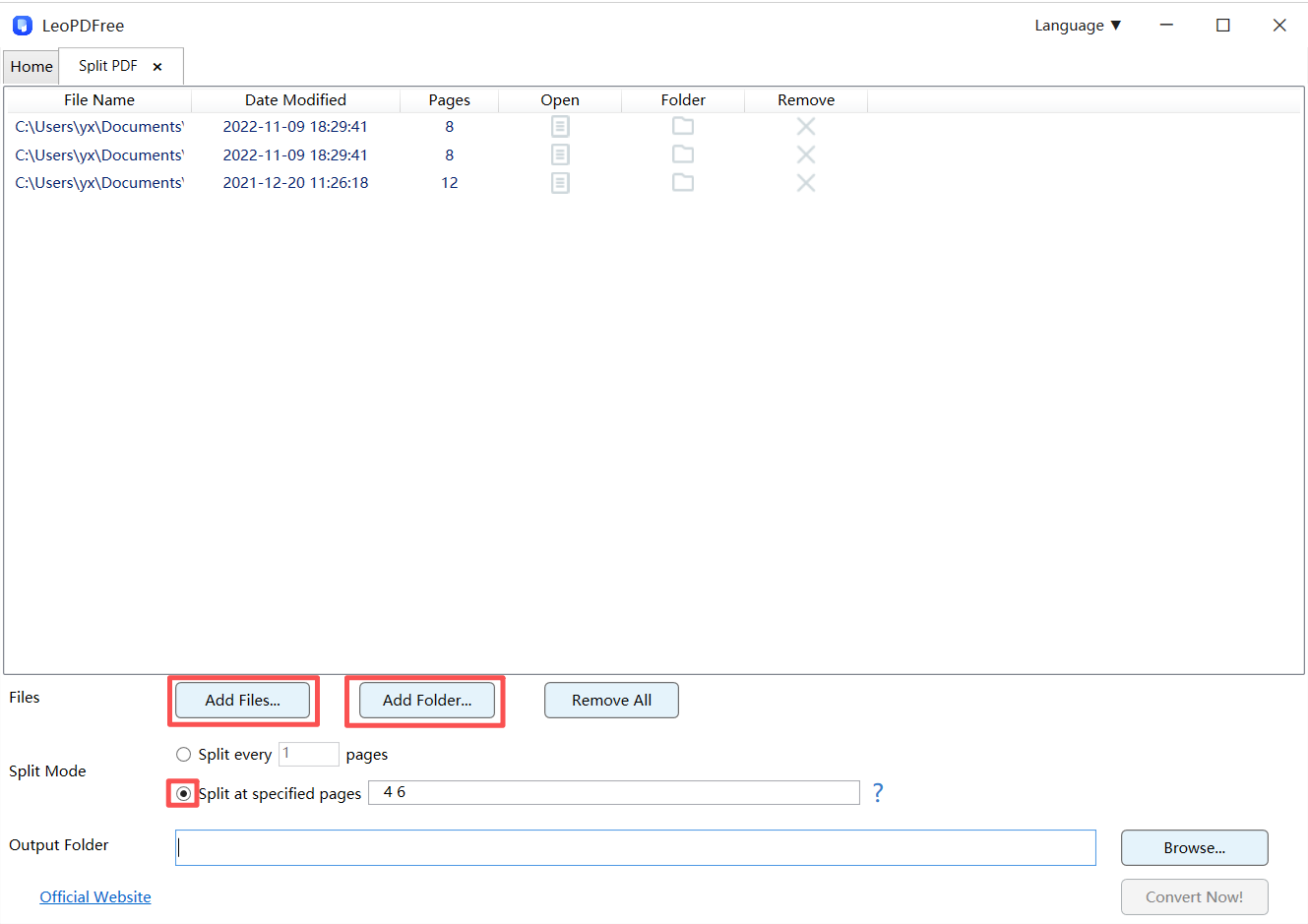
In the PDF Split window, click “Add Files…” or “Add Folder…” to add the files you want to split. You can also simply drag and drop PDF files directly into the split window, or paste copied files into it.

Once the PDF files have been added, click “Split Mode” and choose the splitting method that best fits your needs, as shown below.

Select PDF Pages to Split in LeoPDFree

Step 3

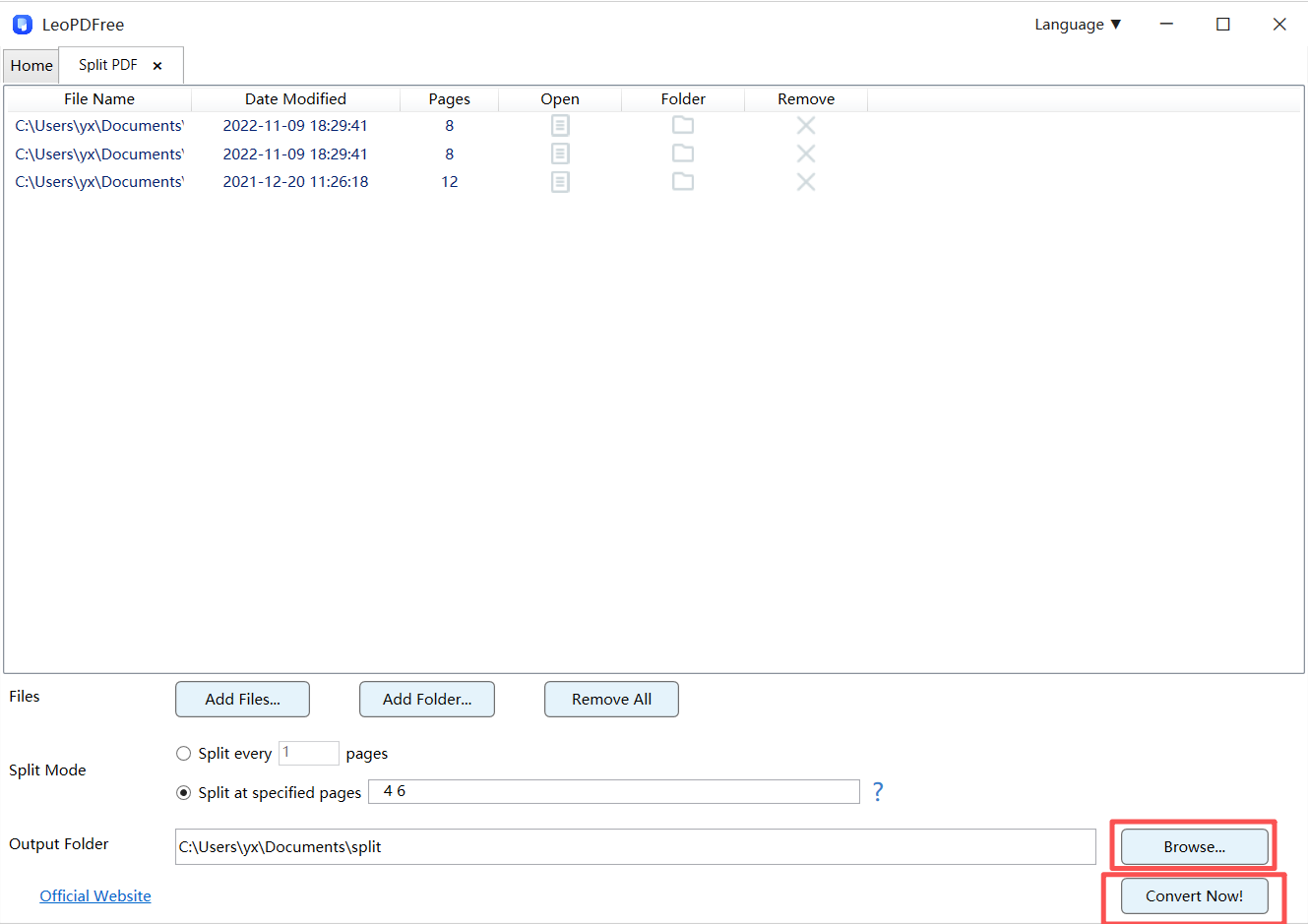
Next, click the “Browse…” button to choose a save location for the split files. Once all the settings are configured, simply click the “Convert Now!” button on the interface.

LeoPDF will quickly complete the splitting process based on the size of your PDF file, making the entire task fast and hassle-free.

Split PDF Pages Locally on Windows with LeoPDFree

Step 4

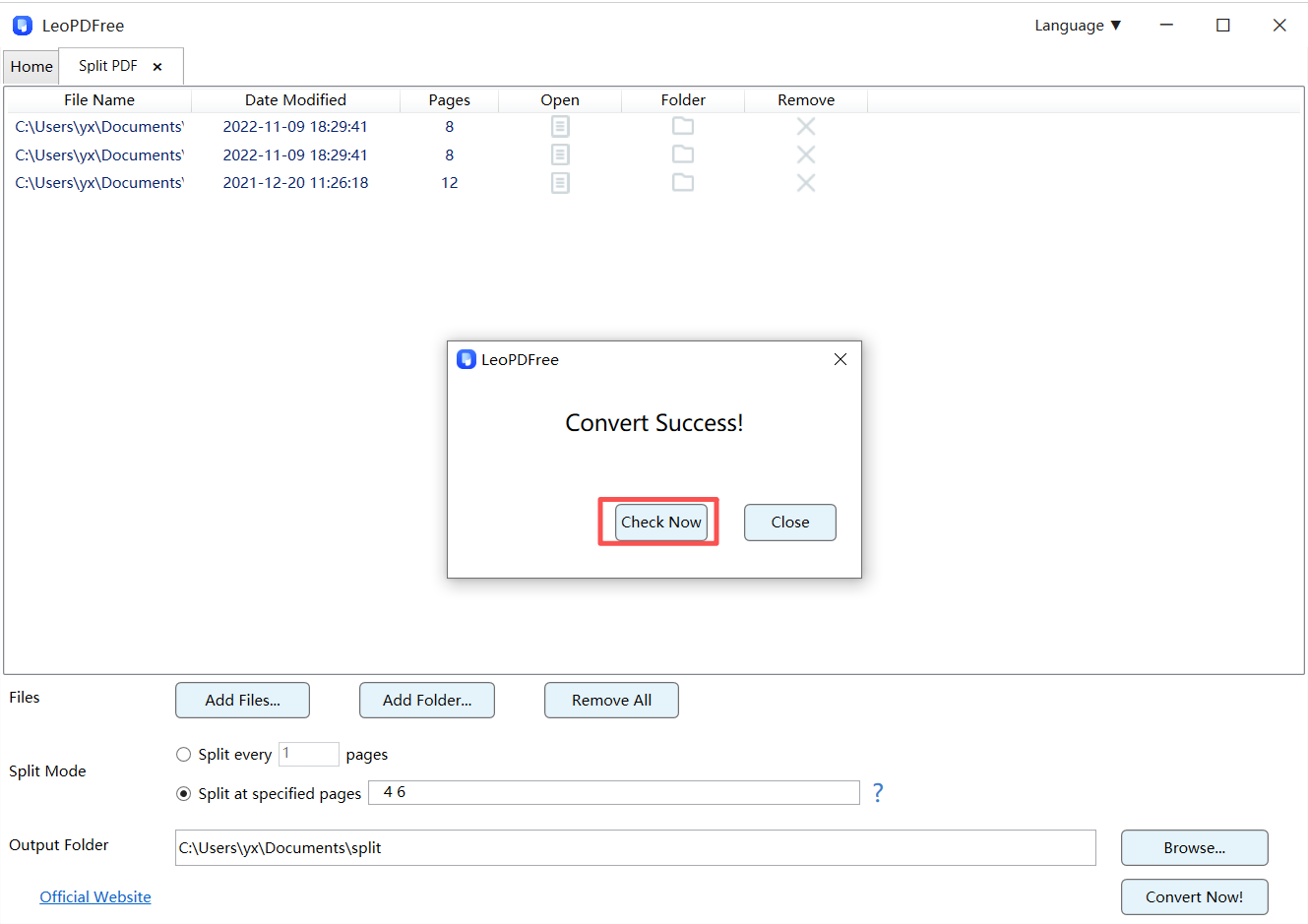
When a pop-up window appears, it means all files have been successfully split. At that point, you can click the “Check Now” button to quickly preview the results of the split files.

It’s really that simple! Give it a try and let LeoPDF help you solve your PDF splitting needs in just a few clicks.

Save Selected PDF Pages as Separate Files with LeoPDFree

Offline vs Online PDF Splitters

Offline Tools Online Tools
No upload required Upload required
Better privacy Files leave your device
Faster for large files Internet-dependent
More stable Browser limitations

📢 For large PDFs or sensitive documents, offline tools usually provide a better overall experience.

Best Situations for Offline Splitting

Offline PDF splitters are especially useful for:

▪ Legal documents
▪ Financial records
▪ Client contracts
▪ Medical files
▪ Internal company reports

📢 In these cases, minimizing file exposure is often just as important as splitting the PDF itself.

Common Mistakes to Avoid

❌ Uploading confidential documents unnecessarily

If a task can be completed locally, there’s often no reason to send files elsewhere.

❌ Taking screenshots instead of splitting PDFs

Screenshots destroy document structure and reduce usability.

❌ Rebuilding PDFs repeatedly

Multiple exports can increase the chance of formatting issues.

Quick Tip

Instead of creating a brand-new PDF from scratch:

👉 Extract the pages you need directly.

This helps preserve:

▪ Layout
▪ Fonts
▪ Images
▪ Document structure

Final Takeaway

If you want to split PDF pages without uploading your files:

✔ Use an offline PDF splitter like LeoPDF
✔ Keep sensitive documents on your own device
✔ Extract pages directly whenever possible
✔ Preserve the original formatting and structure

👉 The most secure PDF workflow is often the simplest one:

Keep your files local, make only the changes you need, and let your documents stay under your control.

Free DownloadSecure Download

PDF Splitting on Windows: Free Workflows and Edition Limits

Choose a Windows PDF-splitting workflow by page rules, local processing and edition limits, then verify a representative output.

Need to split a PDF without paying for expensive software?

You’re not alone.

Whether you’re organizing reports, extracting pages from contracts, or separating large PDF files into smaller sections, a reliable PDF splitter can save a significant amount of time.

The options below focus on documented workflows, edition conditions and output checks. Verify the required operation with a representative file.
‌

PDF Splitting on Windows: Free Tools and Edition Limitations

What Makes a Good PDF Splitter?

A quality PDF splitter should:

✔ Preserve the original formatting
✔ Maintain image quality
✔ Support large PDF files
✔ Be easy to use
✔ Protect your privacy

Most importantly, it should split files without rebuilding or damaging the document.

LeoPDFree: supported local Windows workflows

Best For:

Everyday PDF management

LeoPDF stands out because it focuses on simplicity and speed.

Key features include:

✔ Split PDFs by page range
✔ Split a supported page range into separate output files
✔ Reorder pages before or after splitting
✔ Create multiple PDF files at once
✔ Preserve the original layout
✔ Completely free to use

LeoPDFree Free PDF Splitter Interface for Windows

Since everything is processed locally, files never need to leave your computer.

For users who value privacy and convenience, LeoPDF is an option for supported local page workflows, It’s also available for Mac and iOS.

🥈 PDFsam Basic

Best For:

Advanced splitting tasks

PDFsam Basic offers:

✔ Split by bookmarks
✔ Split by file size
✔ Batch processing
✔ Merge and split workflows

While powerful, the interface may feel slightly technical for beginners.

🥉 PDF-XChange Editor

Best For:

Users who need additional PDF editing features

Besides splitting PDFs, it also supports:

✔ Annotation
✔ Text editing
✔ Document markup
✔ Page management

It’s feature-rich but can be overwhelming if your only goal is PDF splitting.

Quick Comparison

Tool Best For Ease of Use Offline
LeoPDF Everyday use Excellent Yes
PDFsam Basic Advanced workflows Good Yes
PDF-XChange Editor Editing + splitting Good Yes

Why Offline Tools Are Winning Again

Many online PDF splitters require users to upload documents to remote servers.

That can create concerns around:

▪ Privacy
▪ Security
▪ Upload limits
▪ Large file handling

Offline tools avoid these issues entirely.

Offline vs Online PDF Splitters

Offline Tools Online Tools
No upload required Upload required
Better privacy Files leave your device
Faster for large files Internet-dependent
More stable Browser limitations

For business documents and sensitive files, offline tools are often the better choice.

Common Mistakes to Avoid

❌ Using screenshots

Screenshots convert PDFs into images and destroy document structure.

❌ Repeated exporting

Multiple exports can introduce formatting inconsistencies.

❌ Choosing tools based only on marketing claims

The best PDF splitter is usually the one that preserves the original file with the fewest changes.

Final Verdict

If you’re looking for the best free PDF splitter for Windows in 2026:

🥇 LeoPDF is an option for supported local workflows thanks to its simplicity, offline workflow, and completely free feature set.

🥈 PDFsam Basic is ideal for advanced splitting scenarios.

🥉 PDF-XChange Editor is a solid option if you also need PDF editing tools.

👉 At the end of the day, the best PDF splitter isn’t the one with the most features—it’s the one that keeps your PDF intact while getting the job done in seconds.

Check before choosing

The free and paid editions of a product may expose different page-management commands. PDFsam Basic’s split documentation describes its available rules. Do not infer that PDF-XChange Editor offers every advertised split or extraction workflow in its free tier. Keep an unchanged source, try your intended page ranges and verify every saved output before choosing a regular workflow.

Questions about your LeoPDF edition?

Contact xuehui@leopdf.com with your platform, app version and the task you need.

What’s the Easiest Way to Import PDF Tables into Excel? (2026 Beginner-Friendly Guide)

Copying tables from a PDF into Excel sounds simple…
until the columns break, numbers shift, and everything turns into a mess.

The Easiest Way to Import PDF Tables into Excel – Beginner-Friendly Guide

If you’ve ever seen:

⏺ broken rows
⏺ merged cells
⏺ missing data
⏺ or random formatting chaos

you’re definitely not alone.

The truth is:

👉 PDFs were never designed for spreadsheet editing.

But in 2026, there are now smarter and much easier ways to extract PDF tables into Excel without spending hours fixing formatting manually.

This guide covers:
✔ why PDF tables break
✔ the easiest conversion methods
✔ which tools actually work
✔ and how to preserve formatting as much as possible

🧠 Why PDF Tables Are So Hard to Import into Excel

Most people think PDFs store “real tables.”

They usually don’t.

A PDF mainly stores:

⏺ text positions
⏺ visual coordinates
⏺ layout appearance

Excel, on the other hand, expects:

⏺ rows
⏺ columns
⏺ structured data

👉 That mismatch is exactly why PDF-to-Excel conversions often fail.

🔍 First: Identify Your PDF Type

Before converting anything, figure out what kind of PDF you have.

PDF Type Typical Problem Difficulty
Text-based PDF Columns shift Medium
Scanned PDF No data detected High
Complex layouts Broken tables Very High
Multi-page tables Split rows High

👉 Choosing the wrong method is the #1 reason formatting gets destroyed.

🥇 Method 1: Use an Offline PDF-to-Excel Tool Like LeoPDF (The Easiest Option for Most People)

Best For:

⏺ beginners
⏺ business reports
⏺ invoices
⏺ financial tables
⏺ regular office files

This is usually the fastest and simplest option.

Especially when using lightweight offline tools like LeoPDF.

Why Offline Tools Work Better

Offline Tools Online Tools
Better privacy Requires upload
More stable Browser limitations
Better formatting retention Formatting often breaks
No internet required Upload/download delays

👉 If your PDF contains sensitive information, offline tools are usually the smarter choice.

Recommended Workflow

Step 1

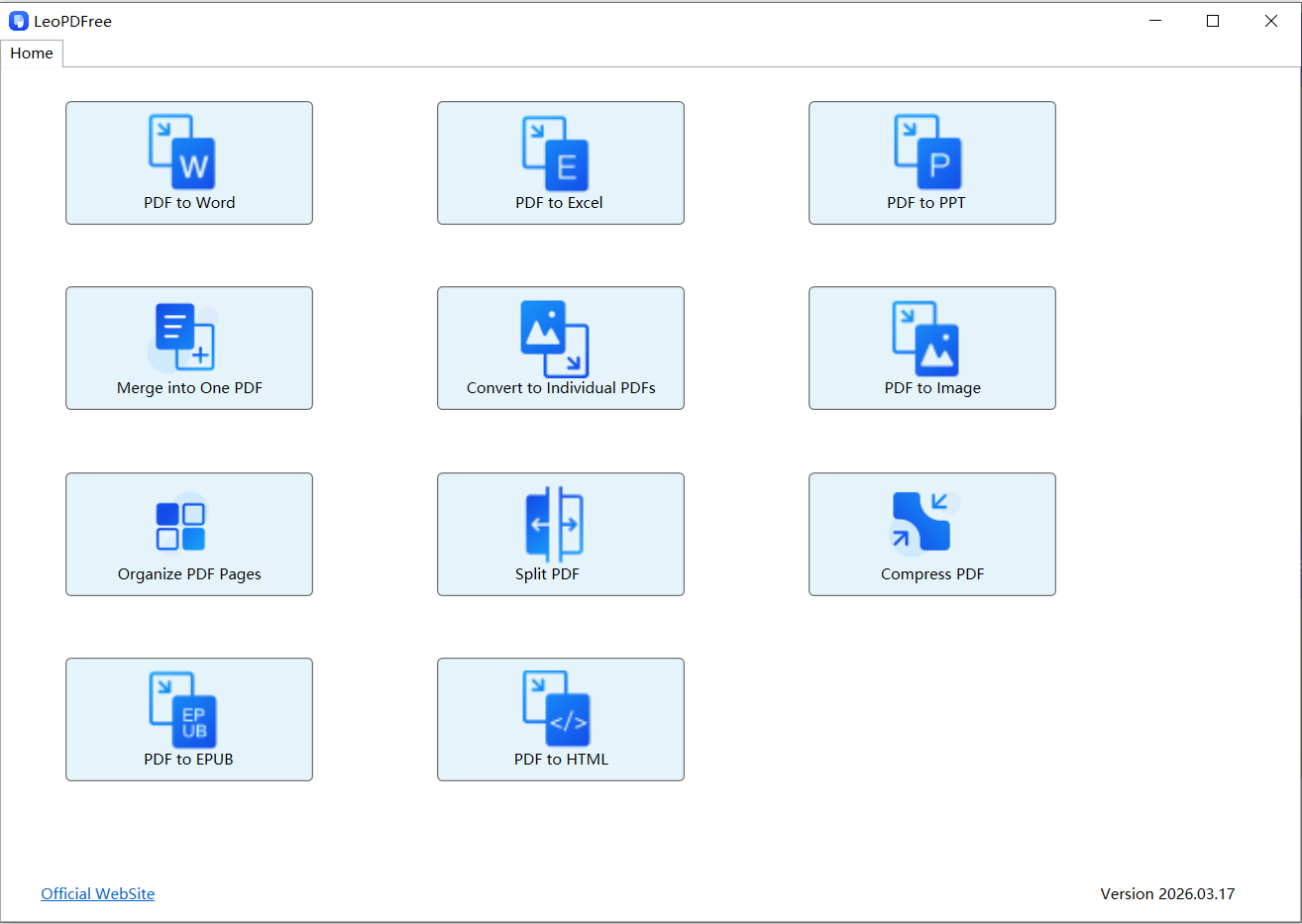
Download LeoPDF for free and install it on your computer. Once installed, open the app as shown below.

LeoPDFree PDF to Excel Converter Interface

Free DownloadSecure Download

Step 2

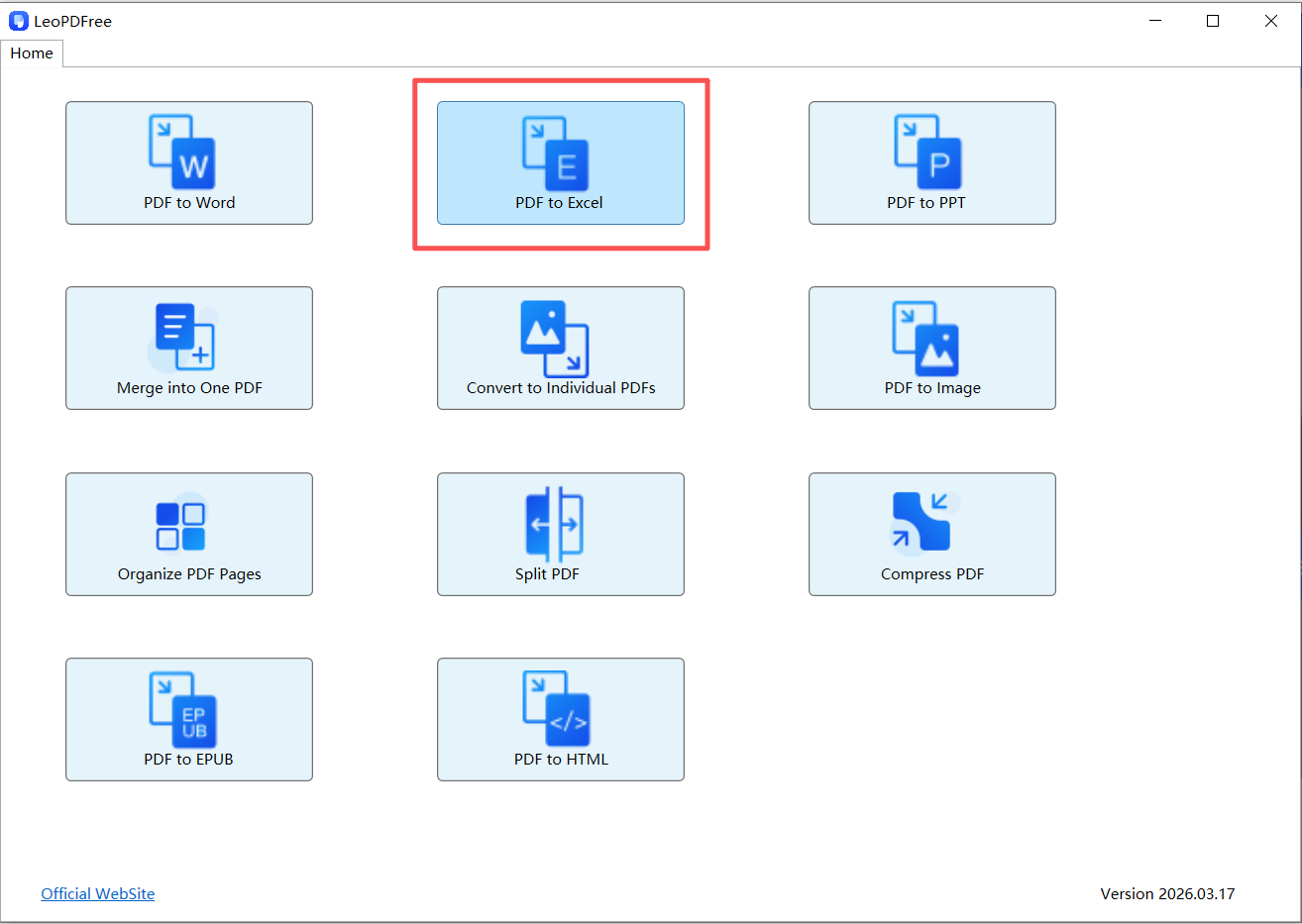
Click the “PDF to Excel” button on the software interface. Then, drag the PDF you want to extract tables from into the window. You can also copy and paste it or click “Add Files…” to add your documents, as shown below.

Choose PDF to Excel Conversion Options in LeoPDFree

Step 3

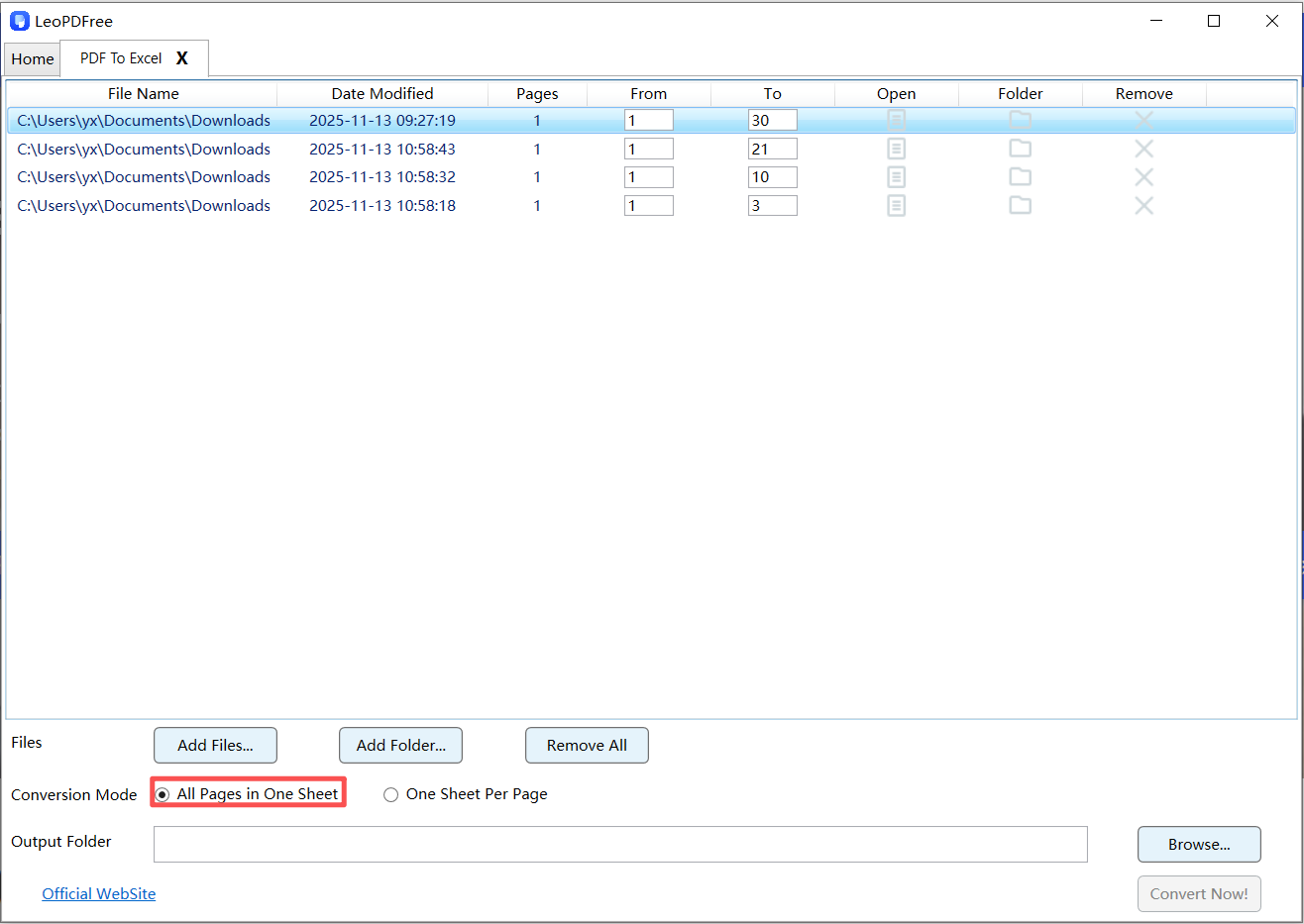
Next, select an option under “Conversion Mode.” For this guide, we’ll use “All Pages in One Sheet” as an example, as shown below.

Convert PDF Tables into Excel Worksheets with LeoPDFree

Step 4

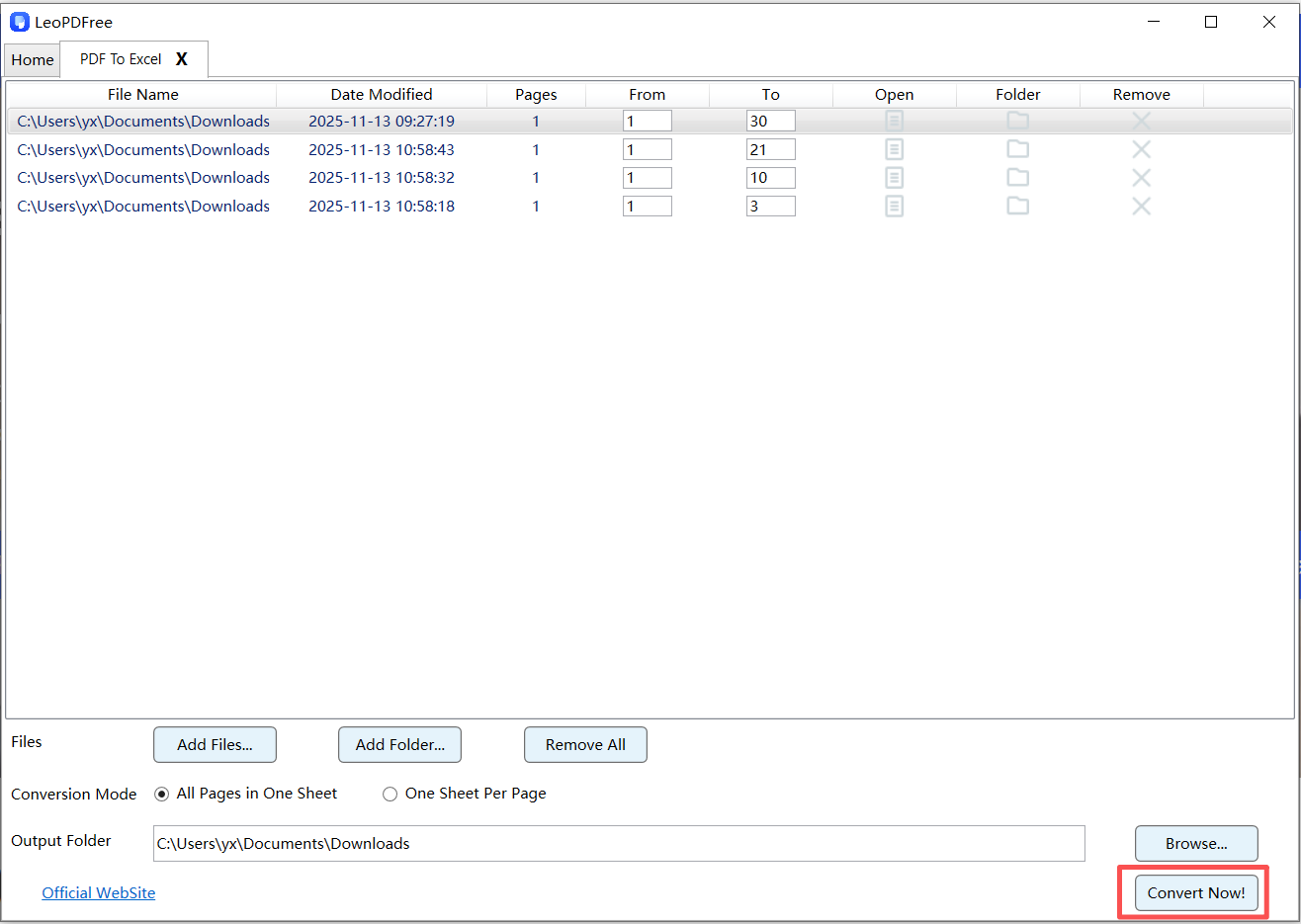
Next, click the “Browse…” button to set the save path for your newly converted file. Once everything is ready, simply click the “Convert Now!” button. The software will quickly complete the process based on the file size, as shown below.

	Check Table Rows and Columns After PDF to Excel Conversion

👉 It’s just that quick, convenient, and best of all—completely free!

Why This Method Is So Popular

Because modern offline converters can now:

⏺ detect table boundaries
⏺ preserve rows/columns better
⏺ reduce formatting cleanup
⏺ handle larger files more reliably

👉 For everyday users, this is usually the easiest solution.

🥈 Method 2 — Use OCR for Scanned PDFs

If your PDF is actually a scanned image:

👉 normal conversion won’t work.

You’ll need:

OCR (Optical Character Recognition)

OCR allows software to recognize:

⏺ text
⏺ numbers
⏺ table structures

inside scanned documents.

Signs You Need OCR

What You See Real Problem
Blank Excel output PDF is scanned
Cannot select text No text layer
Missing data Image-based document

Important Reality

OCR is powerful — but not perfect.

Scanned PDFs with:

⏺ blurry text
⏺ handwriting
⏺ shadows
⏺ skewed scans

can still create formatting issues.

🥉 Method 3 — The “HTML Bridge” Trick (Underrated)

This method is surprisingly effective for complex tables.

How It Works

PDF → HTML → Excel

Instead of converting directly:

⏺ the table structure is first rebuilt in HTML
⏺ then imported into Excel

Why It Sometimes Works Better

Because HTML naturally understands:

⏺ rows
⏺ columns
⏺ table hierarchy

while PDFs mainly store visual positioning.

Best For

⏺ multi-column tables
⏺ complex layouts
⏺ structured reports
⏺ data-heavy PDFs

⚠️ Biggest Mistakes That Ruin PDF Table Conversions

❌ Copy/Paste Directly into Excel

This often destroys:

⏺ alignment
⏺ spacing
⏺ cell structure

❌ Using Random Online Converters

Some tools:

⏺ compress data
⏺ limit file size
⏺ break formatting badly

❌ Ignoring PDF Type

Text PDFs and scanned PDFs require completely different workflows.

📊 Which Method Is Best?

Method Best For Difficulty Formatting Retention
Offline LeoPDF Tool Everyday use Easy High
OCR Conversion Scanned PDFs Medium Medium
HTML Workflow Complex tables Advanced Very High

🏁 Final Takeaway

If you want the easiest way to import PDF tables into Excel:

✔ Start by identifying the PDF type
✔ Use offline tools LeoPDF whenever possible
✔ Use OCR only for scanned files
✔ Avoid unnecessary conversions

👉 The biggest secret is this:

PDF conversion is not about “extracting text” —

it’s about rebuilding structure correctly.

Free DownloadSecure Download

🔥 One Important Insight

The best PDF-to-Excel workflow is the one that requires the least manual fixing afterward.

Don’t Upload Sensitive Data: 3 Best Secure Offline PDF Tools for Windows (2026 Guide)

In 2026, one of the biggest mistakes people still make is uploading sensitive PDFs to random online converters.

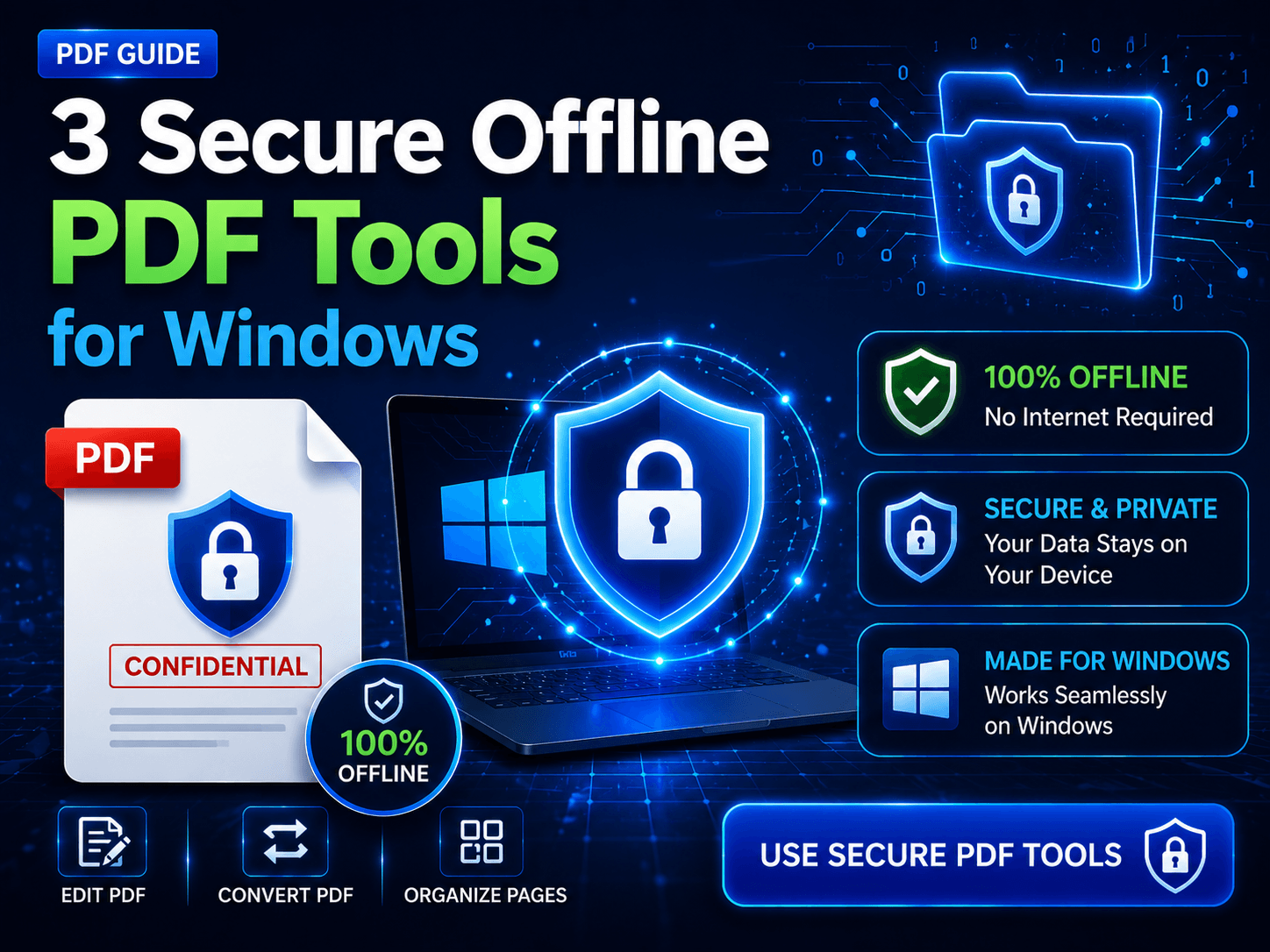
3 Secure Offline PDF Tools for Windows to Protect Sensitive Documents

Think about what’s inside those files:

⏺ tax documents
⏺ contracts
⏺ invoices
⏺ personal IDs
⏺ business reports
⏺ internal company files

Once a file is uploaded, you usually lose control over:

⏺ where it’s stored
⏺ how long it’s kept
⏺ who can access it
⏺ whether it’s actually deleted

That’s exactly why more users are moving back to:
👉 offline PDF tools

This guide covers:
✔ why offline PDF software is safer
✔ what features actually matter
✔ and the 3 best secure offline PDF tools for Windows in 2026

🧠 Why Offline PDF Tools Matter Again

For years, online PDF tools focused on one thing:

👉 convenience

But convenience often comes with tradeoffs.

Online PDF Tools Offline PDF Tools
Requires upload Files stay local
Depends on internet Fully offline
Potential privacy risks Better data control
May compress files Preserves quality

If your PDFs contain:

⏺ financial data
⏺ legal contracts
⏺ client information
⏺ internal documents

then privacy matters far more than convenience.

🔍 What Makes a PDF Tool “Secure”?

A secure PDF tool isn’t just about passwords or encryption.

The best offline tools usually provide:

✔ local processing
✔ no forced cloud sync
✔ stable file handling
✔ predictable exports
✔ no hidden uploads

👉 The goal is simple:

Your files never leave your computer.

🥇 LeoPDF — Best Everyday Offline PDF Tool

Why It Stands Out

One thing I really like about LeoPDF is that it focuses on what a lot of modern PDF software seems to overlook:

👉 It’s simple, lightweight, fully offline, and completely free.

It doesn’t constantly push:

⏺ Cloud accounts
⏺ Online services
⏺ Subscription plans

Instead, it stays focused on what actually matters:

✔ Getting local PDF tasks done quickly and efficiently

LeoPDFree Offline PDF Editor Interface for Windows

Free DownloadSecure Download

Best Features

⏺ Fully offline processing
⏺ Beginner-friendly
⏺ Fast performance
⏺ Good formatting retention
⏺ Strong PDF conversion support

Best For

⏺ invoices
⏺ contracts
⏺ office documents
⏺ financial files
⏺ daily PDF tasks

Limitations

⏺ No advanced OCR suite
⏺ Not built for enterprise collaboration

👉 But for everyday secure PDF handling, it’s one of the most practical options available.

🥈 PDF-XChange Editor — Best for Advanced Users

Why Power Users Prefer It

PDF-XChange Editor is built for users who need:

⏺ advanced editing
⏺ annotations
⏺ security settings
⏺ digital signatures
⏺ deeper PDF control

Unlike many cloud-first platforms, it still gives users strong offline functionality.

PDF-XChange Creator Desktop Interface on Windows

Biggest Strength

👉 Granular editing control

This is the type of tool professionals appreciate when precision matters.

Downsides

⏺ More complex interface
⏺ Higher learning curve

👉 Great for experienced users, less ideal for beginners.

🥉 PrimoPDF — Best Lightweight Classic PDF Tool
Why Some Users Still Love PrimoPDF

In a world filled with bloated PDF software, PrimoPDF keeps things refreshingly simple.

PrimoPDF PDF Management Interface

It focuses on:
✔ lightweight offline PDF handling
✔ easy PDF creation
✔ straightforward workflows

without pushing:

⏺ cloud sync
⏺ online accounts
⏺ unnecessary features

Best Features

⏺ Small installation size
⏺ Fast and lightweight
⏺ Local PDF processing
⏺ Works well on older PCs
⏺ Simple user experience

Best For

⏺ basic PDF creation
⏺ simple document conversion
⏺ lightweight office workflows
⏺ users who prefer minimal software

Limitations

⏺ Limited advanced editing
⏺ No OCR features
⏺ Not ideal for complex layouts

👉 PrimoPDF is best for users who want:

“simple, stable, and offline”

⚠️ The Risk Most People Ignore

Many online PDF services claim:

“Your files are deleted after 1 hour.”

But here’s the issue:

👉 you still uploaded the file.

For sensitive documents, even temporary exposure can be risky.

Especially for:

⏺ legal paperwork
⏺ medical records
⏺ financial reports
⏺ confidential business files

📊 Quick Comparison

Tool Best For Biggest Advantage Main Weakness
LeoPDF Everyday secure workflows Simple + offline No OCR
PDF-XChange Editor Advanced editing Powerful controls Complex UI
PrimoPDF Lightweight PDF tasks Fast + minimal Limited features

🏁 Final Takeaway

If your PDFs contain sensitive data:

✔ Avoid random online PDF websites
✔ Prioritize offline processing whenever possible
✔ Keep your files stored locally
✔ Choose tools based on your workflow — not just marketing hype

👉 The safest PDF is the one that never leaves your computer.

And when it comes to fully free offline tools,
LeoPDF stands out as one of the simplest and safest choices for local PDF handling.

Free DownloadSecure Download

Reorganize or Edit a PDF: Three Workflows and Their Layout Risks

Separate page reordering, Word conversion and source editing, and check how each affects the final PDF layout.

Reordering pages and editing their contents are different jobs. Start by deciding whether you need to change sequence, revise text, or rebuild a layout. Keep the original PDF and choose the smallest operation that meets the requirement.

1. Reorganize pages without editing their contents

When only the order is wrong, use a page-organization tool rather than converting the document. Check the thumbnail sequence, move the required pages, save a copy and verify that the expected pages remain. This changes organization, not the page’s text formatting.

Use the page-organization controls in LeoPDFree to arrange PDF pages. Save a new copy and check the page order before sharing it.

Recommended Workflow

Step 1

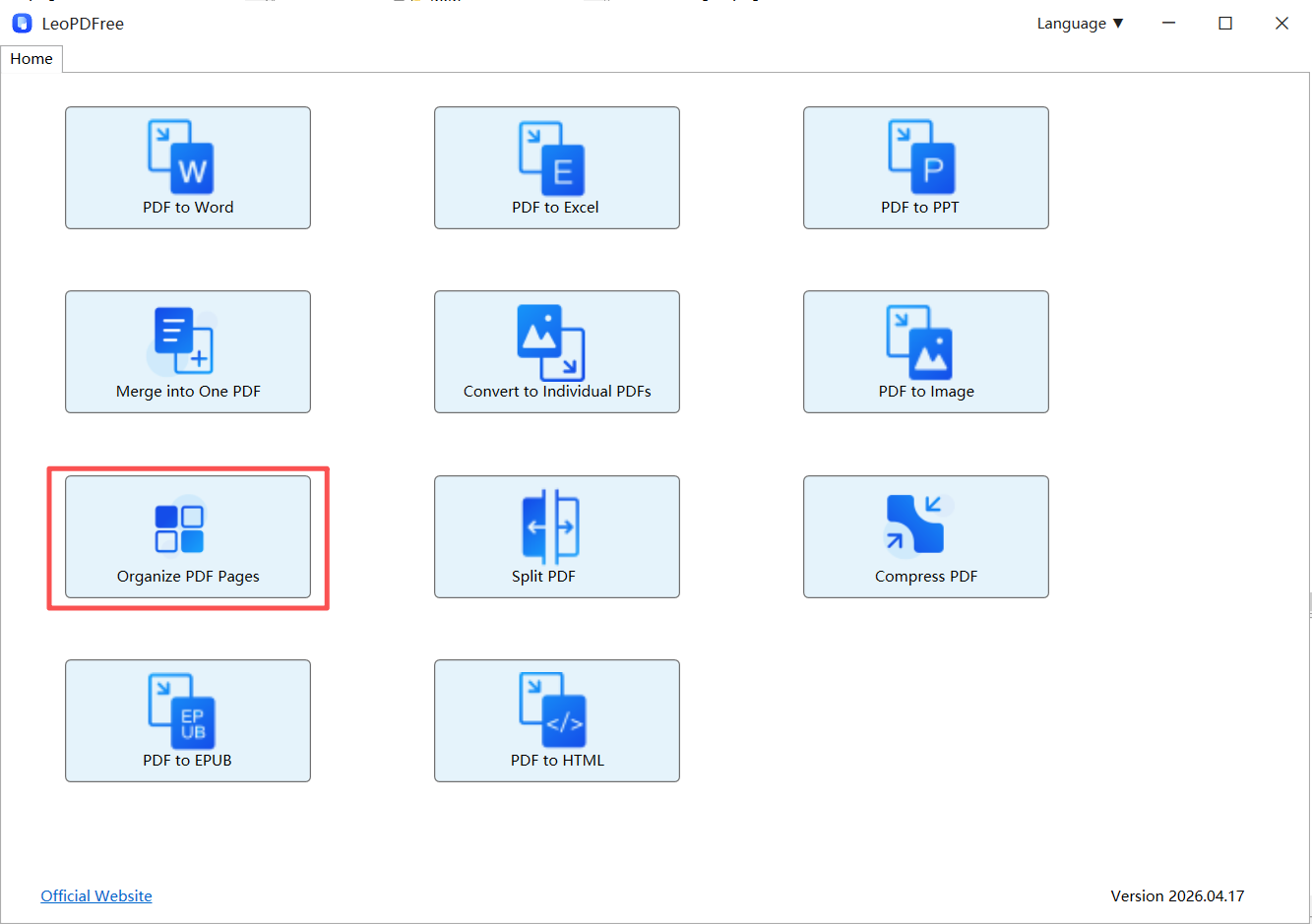
Download and successfully install LeoPDF on your computer for free. Open the software and click the “Organize PDF Pages” button on the interface to start loading the PDF file whose page order you want to rearrange, as shown below.

LeoPDFree PDF Page Organizer Interface

Step 2

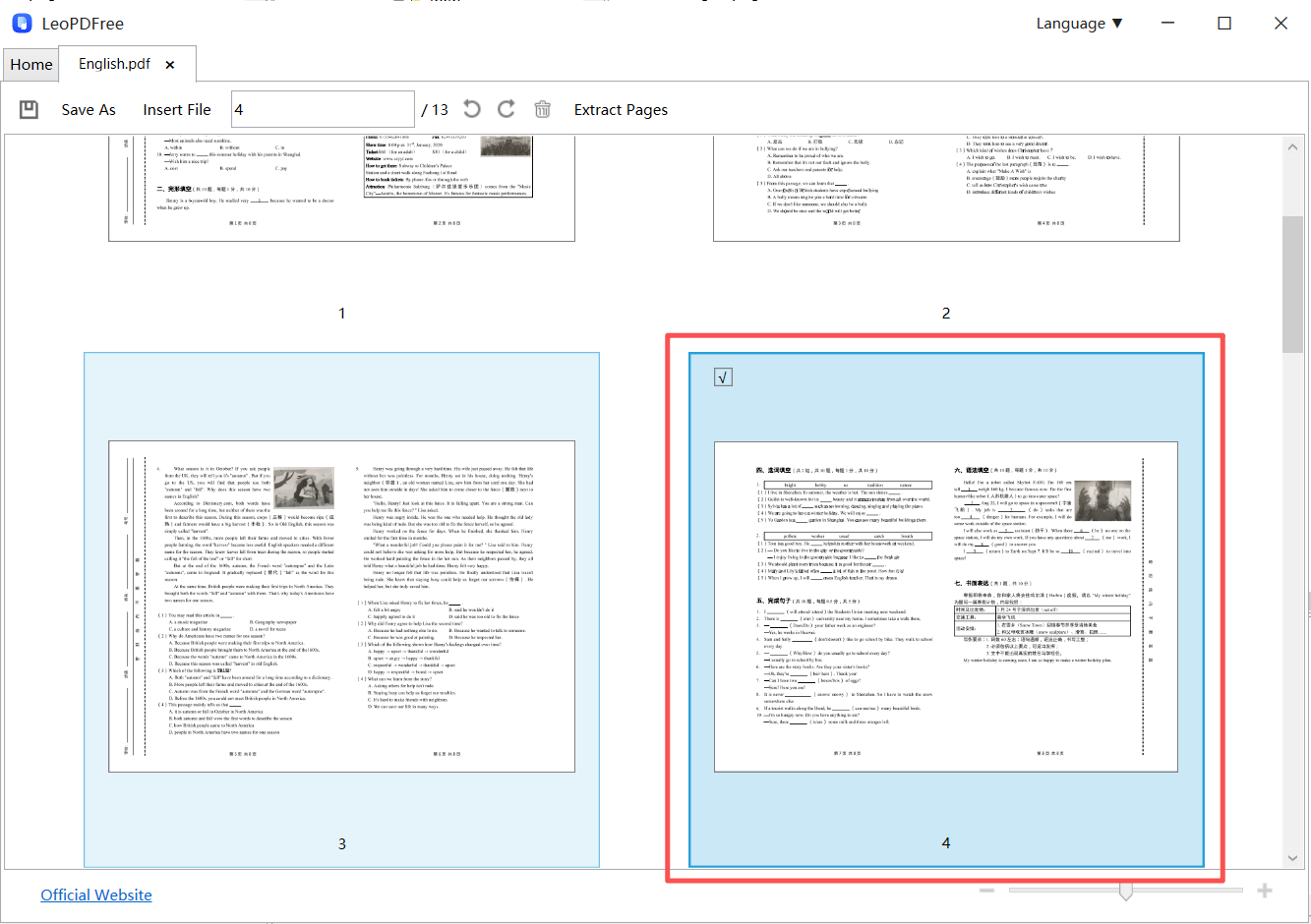
In the thumbnail view interface, add the PDF files you want to reorder. You can add files by pressing Ctrl + C or simply dragging and dropping the PDF files with your mouse.
After the PDF files are loaded, you can rearrange the pages according to your needs. Click to select pages with your mouse, or enter specific page numbers in the editing box above to quickly select the pages whose order you want to change, as shown below.

Rearrange PDF Pages by Dragging and Dropping in LeoPDFree

Step 3

Next, simply drag the selected pages with your mouse to the position you want. It’s that easy, as shown below.

Edit PDF Content with a Desktop PDF Editor

Step 4

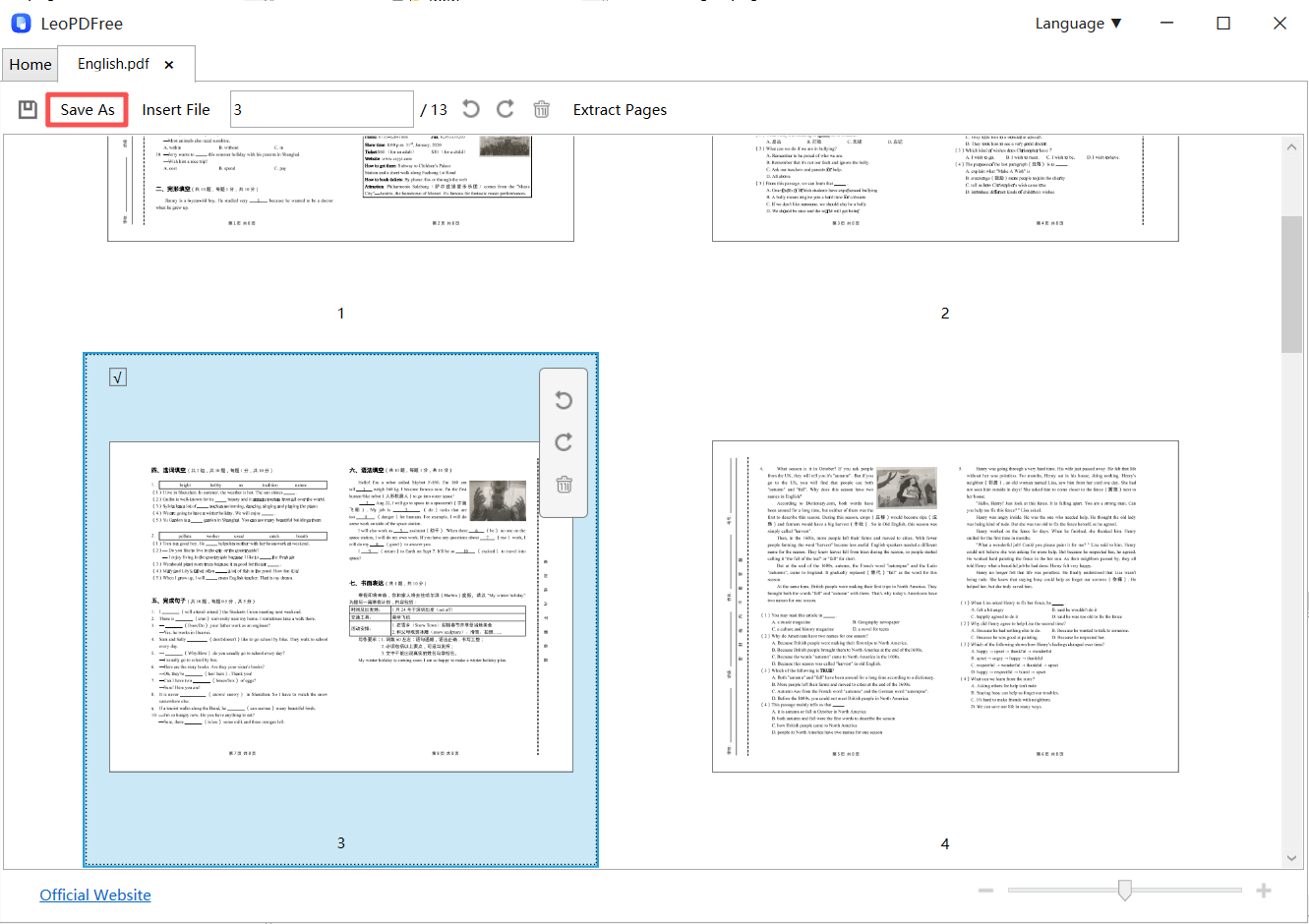
Once you’ve finished rearranging the pages, you can also click the “Delete” button to remove any unwanted pages, or use the “Rotate” button to fix upside-down pages.
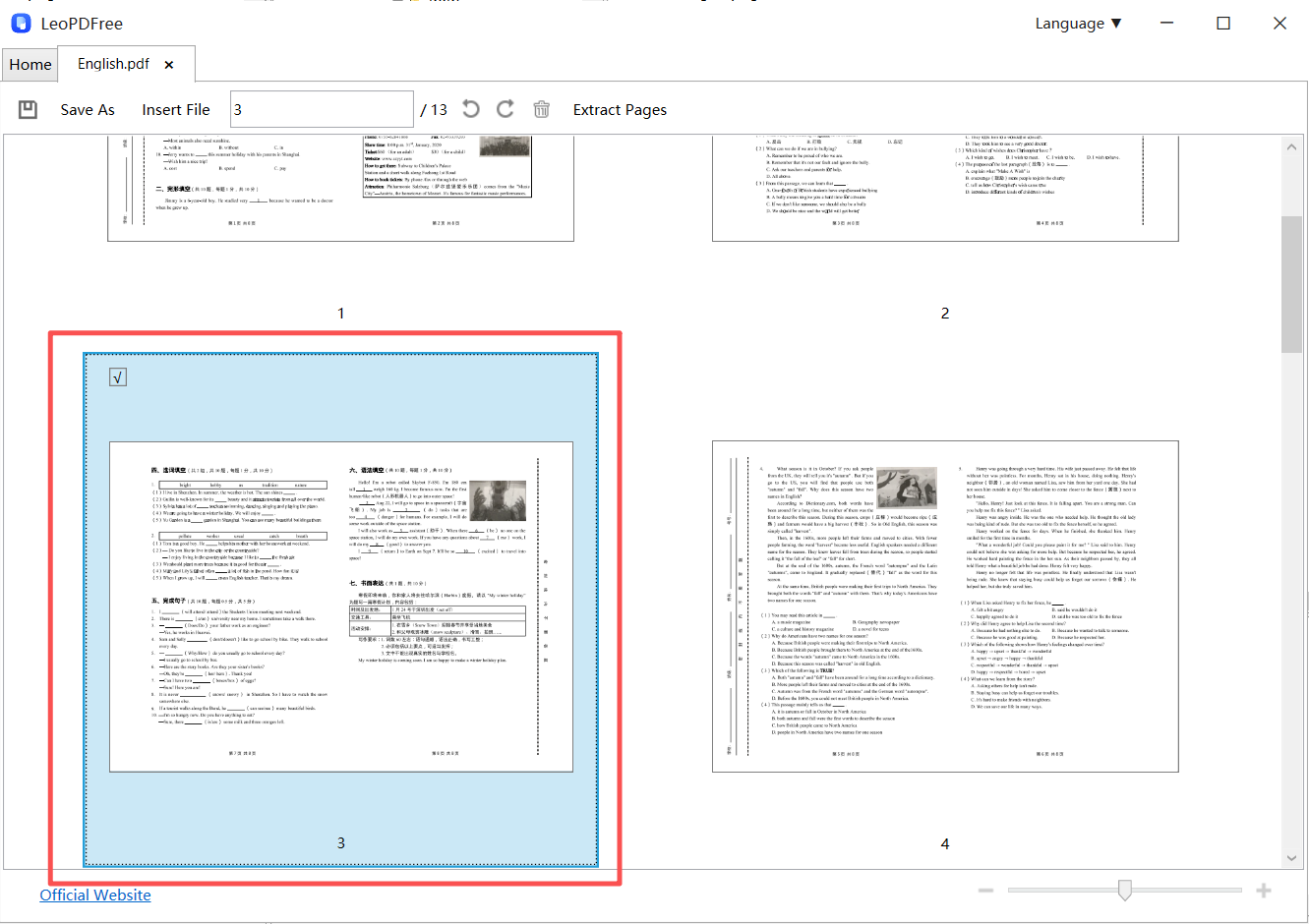
When everything looks good, make sure to click the “Save As” button to save the new PDF layout. That’s all there is to it — simple and easy! As shown below, give it a try now.

Review PDF Formatting After Reorganizing Pages

2. Convert to Word when you need editable content

Choose the processing method before converting

LeoPDFree for Windows converts supported text-based PDFs to Word or Excel locally for free, without OCR. It does not upload files for these operations. LeoPDF store editions provide paid Word/Excel conversion with cloud OCR, including scanned text and handwriting; files processed in the cloud are deleted when conversion completes. Other supported tasks are free and local. Do not use the free Windows workflow as a substitute for OCR.

Open the PDF-to-Word function, add the document and save the Word output. Review paragraphs, fonts, columns and tables before editing. Export the edited document to PDF from a suitable word processor. This is a conversion-and-rebuild workflow, so the original layout is not guaranteed.

3. Revise the source or rebuild the required section

If the source Word, spreadsheet or design document is available, edit that source and export a new PDF. Otherwise, manually rebuilding a limited section may be clearer than repeatedly converting the whole document. An HTML intermediary is useful only when it actually contains suitable structure; it is not a universal layout-preservation trick.

Compare the final copy

Use the page-organization controls in LeoPDFree to arrange PDF pages. Save a new copy and check the page order before sharing it.

Questions about your LeoPDF edition?

Contact xuehui@leopdf.com with your platform, app version and the task you need.