
Many online PDF tools ask you to upload your documents before you can split them.
That may seem convenient—but it’s not always the safest option.
If your PDFs contain contracts, financial reports, business documents, or personal information, uploading them to a third-party server may create unnecessary privacy risks.
Fortunately, there’s a better way.
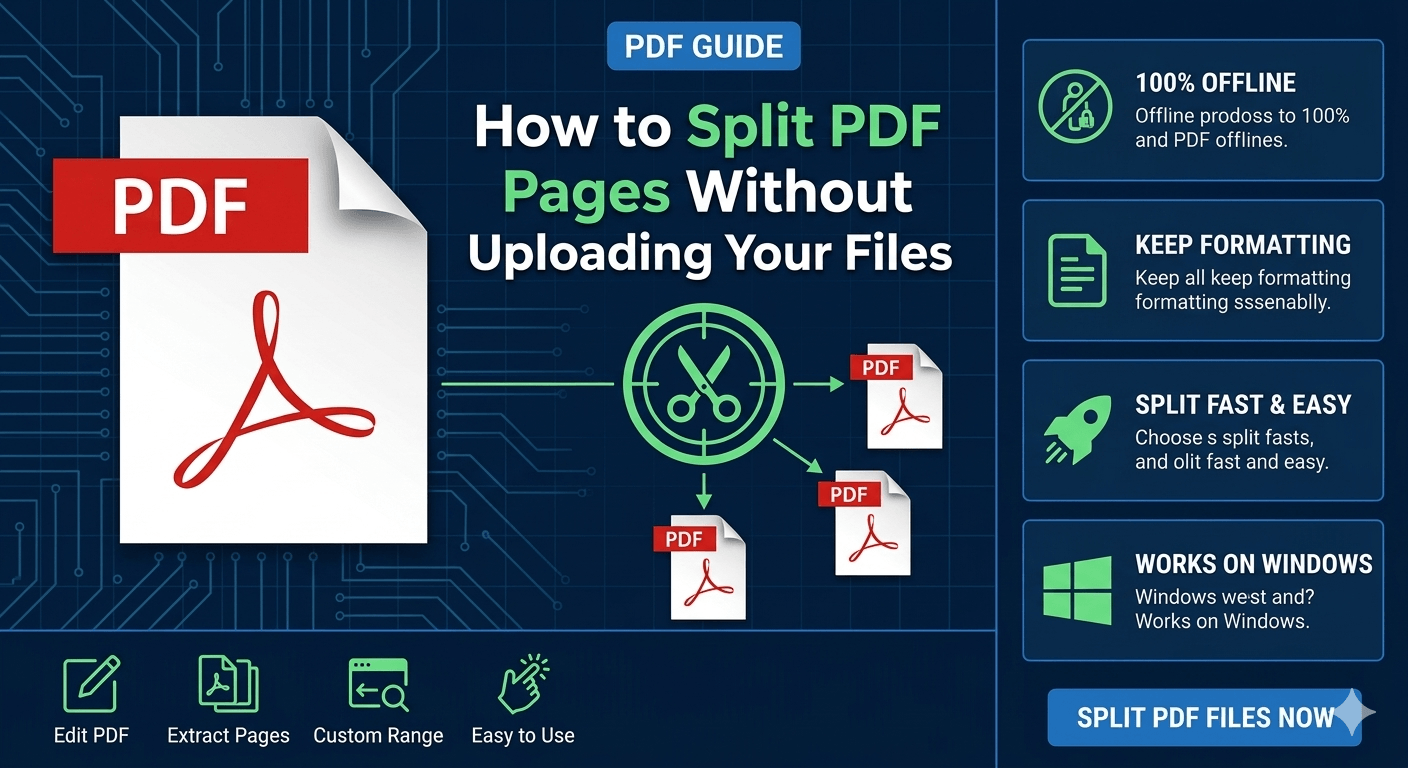
In 2026, you can split PDF pages directly on your computer without uploading a single file.
Why Avoid Uploading PDFs?
When using online PDF services, your files typically:
▪ Leave your device
▪ Travel through external servers
▪ Depend on internet connectivity
▪ May be subject to file-size limits
Even when a service claims to delete uploaded files, many users prefer to keep sensitive documents completely local.
The Safer Solution: Offline PDF Splitting
Offline PDF tools process documents directly on your computer.
This means:
✔ No uploads required
✔ Better privacy protection
✔ Faster processing for large files
✔ More reliable performance
✔ Full control over your documents
For privacy-conscious users, this is often the preferred workflow.
🥇The Best Method Explained: Use an Offline PDF Splitter — LeoPDF
For most users, this is the easiest option.
Tools like LeoPDF allow you to:
▪ Split PDFs by page range
▪ Extract specific pages
▪ Create multiple PDF files
▪ Reorder pages before or after splitting
▪ Preserve the original formatting
▪ Use all features completely free
▪ Use all features completely free
Because everything happens locally, your files never leave your computer.
How It Works:
Step 1
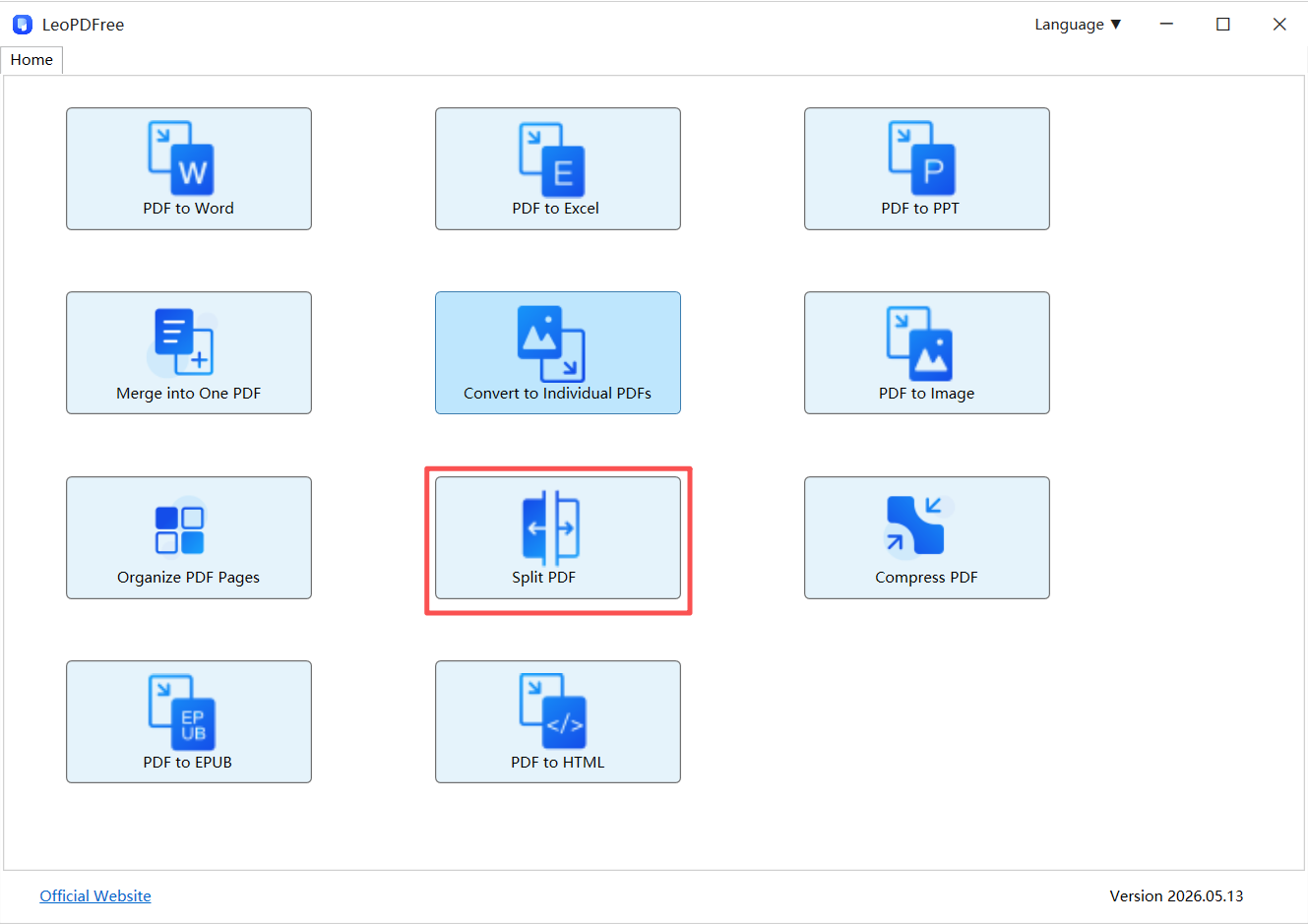
Download and install LeoPDF on your computer for free. Launch the software, then click the “Split PDF” button on the main interface to get started, as shown below.
Free DownloadSecure Download
Step 2
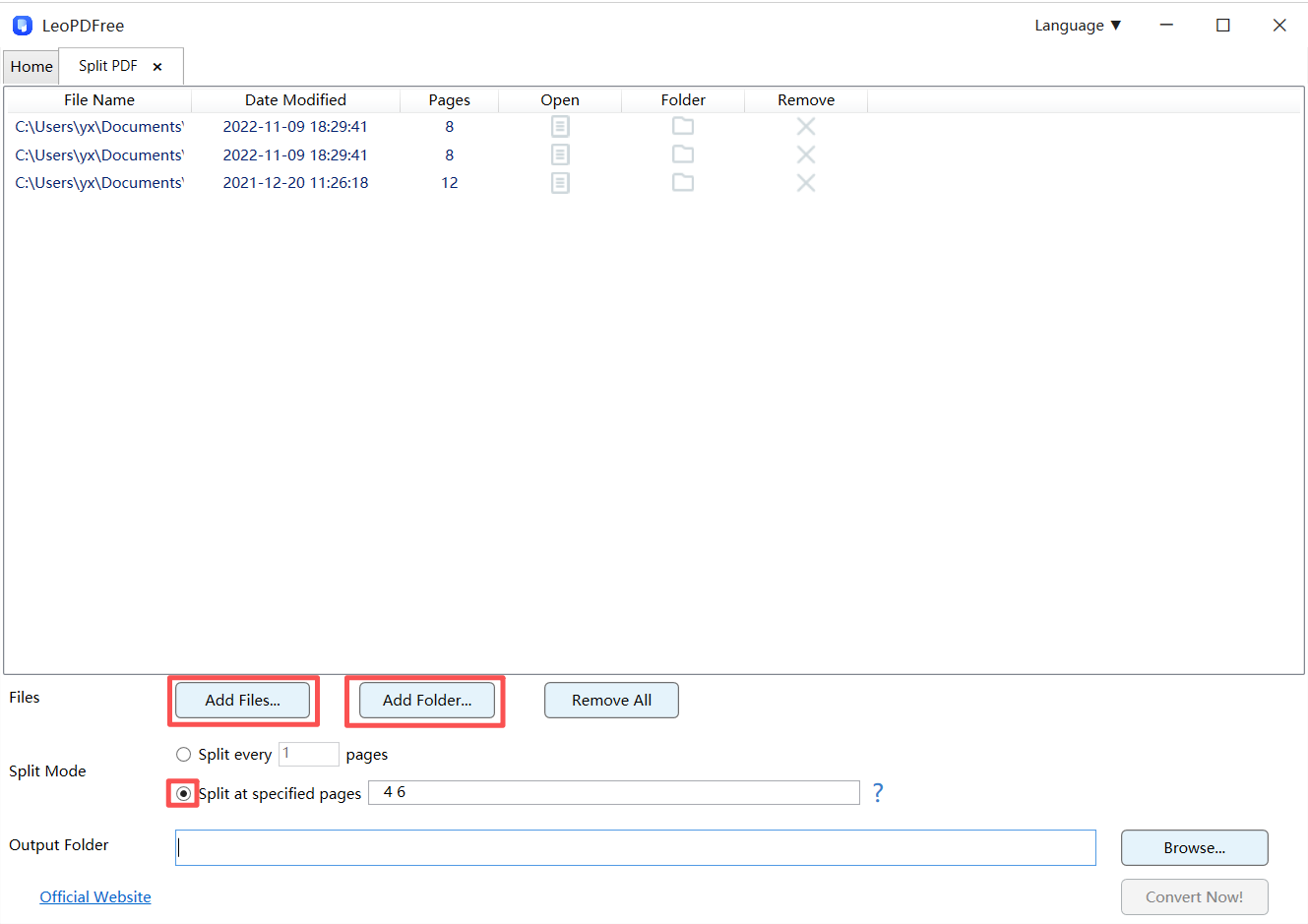
In the PDF Split window, click “Add Files…” or “Add Folder…” to add the files you want to split. You can also simply drag and drop PDF files directly into the split window, or paste copied files into it.
Once the PDF files have been added, click “Split Mode” and choose the splitting method that best fits your needs, as shown below.
Step 3
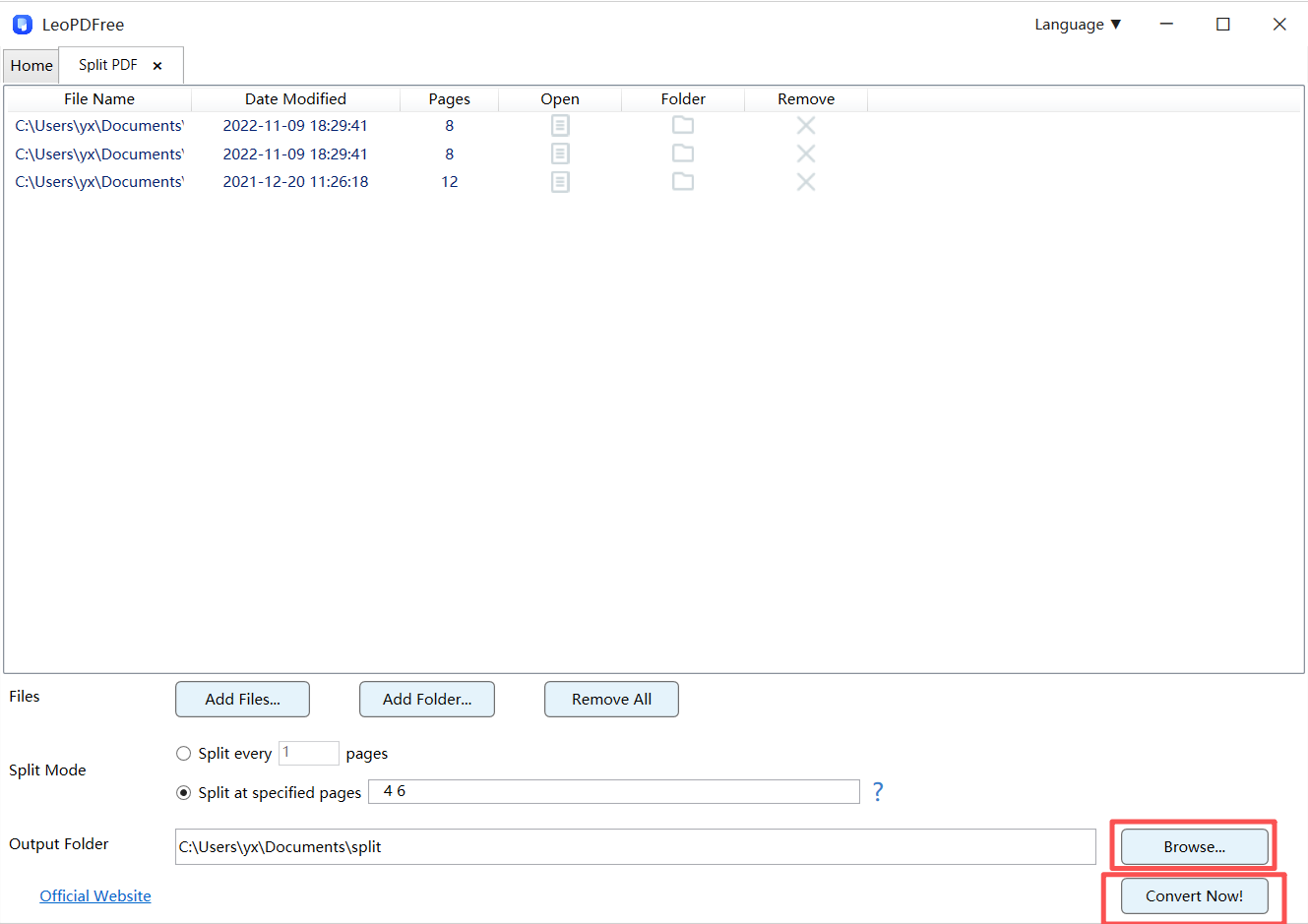
Next, click the “Browse…” button to choose a save location for the split files. Once all the settings are configured, simply click the “Convert Now!” button on the interface.
LeoPDF will quickly complete the splitting process based on the size of your PDF file, making the entire task fast and hassle-free.
Step 4
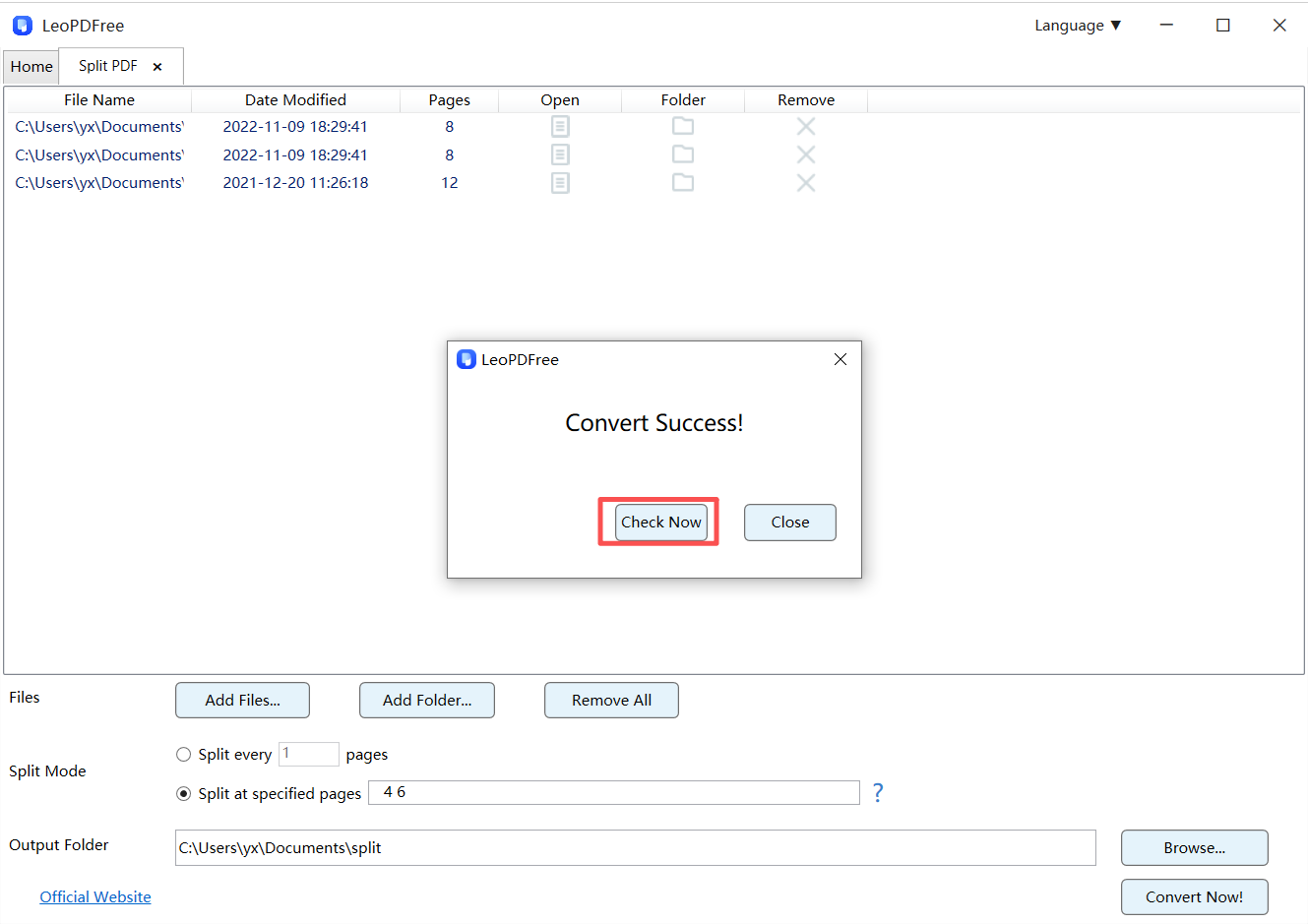
When a pop-up window appears, it means all files have been successfully split. At that point, you can click the “Check Now” button to quickly preview the results of the split files.
It’s really that simple! Give it a try and let LeoPDF help you solve your PDF splitting needs in just a few clicks.
Offline vs Online PDF Splitters
| Offline Tools | Online Tools |
|---|---|
| No upload required | Upload required |
| Better privacy | Files leave your device |
| Faster for large files | Internet-dependent |
| More stable | Browser limitations |
📢 For large PDFs or sensitive documents, offline tools usually provide a better overall experience.
Best Situations for Offline Splitting
Offline PDF splitters are especially useful for:
▪ Legal documents
▪ Financial records
▪ Client contracts
▪ Medical files
▪ Internal company reports
📢 In these cases, minimizing file exposure is often just as important as splitting the PDF itself.
Common Mistakes to Avoid
❌ Uploading confidential documents unnecessarily
If a task can be completed locally, there’s often no reason to send files elsewhere.
❌ Taking screenshots instead of splitting PDFs
Screenshots destroy document structure and reduce usability.
❌ Rebuilding PDFs repeatedly
Multiple exports can increase the chance of formatting issues.
Quick Tip
Instead of creating a brand-new PDF from scratch:
👉 Extract the pages you need directly.
This helps preserve:
▪ Layout
▪ Fonts
▪ Images
▪ Document structure
Final Takeaway
If you want to split PDF pages without uploading your files:
✔ Use an offline PDF splitter like LeoPDF
✔ Keep sensitive documents on your own device
✔ Extract pages directly whenever possible
✔ Preserve the original formatting and structure
👉 The most secure PDF workflow is often the simplest one:
Keep your files local, make only the changes you need, and let your documents stay under your control.
Free DownloadSecure Download
