
ApowerPDF and LightPDF: Product Changes and What to Check

Review ApowerPDF’s transition to LightPDF, then check the relevant edition, account access and document workflow before choosing a tool.

If you found ApowerPDF through an older review, check the product now offered before installing or purchasing. The official product page identifies LightPDF as the successor to ApowerPDF. This overview explains that change and offers evaluation criteria; it does not claim a new hands-on test of the historical 2021 edition.

Start with the current product identity

The Apowersoft product page now presents LightPDF, with editing, conversion, OCR, forms and page-management features. It also links to desktop downloads and online tools. Confirm the platform and edition needed for your task instead of assuming that every advertised feature is included in one installation.

Check system requirements, output restrictions and purchase terms on the current offer. A free download does not establish that all editing or export functions remain free.

Check an existing ApowerPDF account separately

Apowersoft’s brand upgrade announcement explains the transition and account differences. Do not assume that an older ApowerPDF account or purchase automatically provides access to a new LightPDF account or every current service. Use the vendor’s instructions or support for your particular purchase.

If you already have a working installation, retain its version and license details while checking upgrade options. An old review’s interface, price or supported system should not be treated as the current offer.

Evaluate the operation you need

  • For editing, check whether the tool changes existing text or only adds a comment.
  • For OCR, compare recognized words and figures with the scanned source.
  • For conversion, open the saved output in its intended application.
  • For forms, check the completed fields and the copy sent to the recipient.

Use a representative document rather than relying only on a feature list. Review tables, page breaks, diagrams and small writing. Keep the original available and do not interpret a successful preview as proof that every detail survives export.

Review desktop and online workflows separately

Check the selected feature’s processing location and account requirements before using a sensitive document. A product family that offers an installed app and online services should not be described as entirely offline without checking the specific operation.

When a conversion-focused alternative fits

LeoPDFree provides supported conversions locally on Windows without uploading files for processing. Its free PDF-to-Word and PDF-to-Excel conversion has no OCR. Store editions offer paid cloud Word or Excel conversion with OCR, deleting cloud files when conversion completes.

See the LeoPDF edition comparison. LeoPDFree does not provide direct PDF editing, signing or form filling, so choose it for a supported conversion rather than as a complete replacement for an editor.

Questions about LeoPDF?

Contact xuehui@leopdf.com with your platform, app version and a description of your question.
5 Ways to Convert BMP to PDF

Convert BMP images to PDF with five local or online options, and check page layout without assuming a smaller or sharper result.

A BMP image and a PDF serve different purposes. Putting a bitmap into a PDF can make distribution more convenient, but it does not automatically improve its detail or make the file smaller. Choose one of these five workflows and retain the original image for comparison.

1. Use LeoPDFree on Windows

LeoPDFree supports BMP-to-PDF conversion locally on Windows without uploading files for processing. Choose image-to-PDF conversion, add the BMP source and save the result. Check the output’s page layout and image detail.

Find the current installer through the edition comparison. This creates a new PDF from an image; it should not be confused with directly inserting an image into an existing PDF page.

2. Export with Preview on Mac

Open the BMP in Preview and use File > Export, choosing PDF as the destination format. Apple’s export guide explains the image-export workflow. Save under a separate name and compare the result. This operation uses the local application rather than an online upload.

3. Arrange the image in LibreOffice

Create a Writer document and use Insert > Image to place the BMP. Adjust its position and page layout, then use PDF export. This is a useful local choice when captions or other document content need to accompany the image.

4. Use Adobe’s online image converter

Adobe’s image-to-PDF converter accepts BMP among its listed formats. Upload the image, complete conversion and download the PDF. Check current account and free-use conditions. This is server processing, so decide whether uploading is appropriate before selecting the file.

5. Use Icecream PDF Converter

The Icecream product page lists BMP input for PDF creation and local processing. Add the picture in its conversion-to-PDF workflow, check the available orientation, margins and size settings, and save the output. Its free edition has limitations; verify them for your intended use.

Review the PDF before sharing

  • Look for distortion caused by changing the image’s proportions.
  • Check that margins and page edges do not cut off labels.
  • Compare small writing, diagrams and colors with the source.
  • Check the actual file size if an upload limit matters.

For a scanned document, creating a PDF does not by itself add recognized text. Keep image conversion separate from OCR, and do not judge a workflow only by whether the PDF opens successfully.

Questions about LeoPDF?

Contact xuehui@leopdf.com with your platform, app version and a description of your question.
4 Ways to Convert JPG to PDF on Windows

Choose among four JPG-to-PDF workflows on Windows, with clear differences between local conversion, page layout and online processing.

A JPG photo can become a PDF without retyping its contents. Choose a workflow according to whether you need straightforward conversion, control over the surrounding page or access from a browser. Keep the original photograph and check orientation, borders and detail in the finished PDF.

1. Convert locally with LeoPDFree

LeoPDFree for Windows supports JPG-to-PDF conversion locally without uploading files for processing. Use its image-to-PDF function, select the JPG source and save the output. Open the result and check the picture rather than assuming that conversion improves the original image.

Use the edition comparison and current download entry. Check the offered installer’s system requirements; an older Windows release mentioned in a historical article is not a compatibility guarantee for the latest software.

2. Create a page in LibreOffice

For a picture with a caption or a particular page layout, create a Writer document, choose Insert > Image, and position the JPG. Use PDF export after reviewing the page.

This local workflow is useful when the image should sit inside a document rather than simply become a standalone PDF. Inspect the page preview so the picture does not unexpectedly flow onto another page.

3. Use Adobe’s online converter

Open Adobe’s JPG-to-PDF tool, select the image, complete the conversion and download the result. Review the current free-use, account and file conditions instead of assuming unlimited access.

The image is uploaded to an online service. Choose a local option if uploading the photograph is unsuitable for its contents or your organization’s requirements.

4. Use Icecream PDF Converter

Icecream PDF Converter lists JPG input for PDF creation and describes processing on the PC. Choose conversion to PDF, add the image and review available page-layout controls before saving. Check the free edition’s restrictions for the task you intend to perform.

Choose settings for the intended use

A document meant for printing and one meant for quick screen reading can require different page sizes and image detail. Avoid stretching a small photograph to fill a large page without checking the result.

  • Confirm portrait or landscape orientation.
  • Check whether margins or cropping hide anything important.
  • Inspect the saved PDF at a useful zoom.
  • Keep an unchanged source for future exports.

Converting the picture to PDF does not automatically make its text searchable, editable or more accurate. Treat text recognition as a separate requirement rather than a property of the PDF extension.

Questions about LeoPDF?

Contact xuehui@leopdf.com with your platform, app version and a description of your question.
Smallpdf Review: Features, Free Limits and File Privacy

Smallpdf features, free-plan limits and file-handling considerations, with practical output checks and an explanation of when a local PDF tool may fit better.

For sensitive documents, decide whether an upload-based workflow fits your requirements. Use the publisher’s download and file-handling information when choosing a tool.

Part 1. Smallpdf Review: Safety, Features, Performance & Pricing

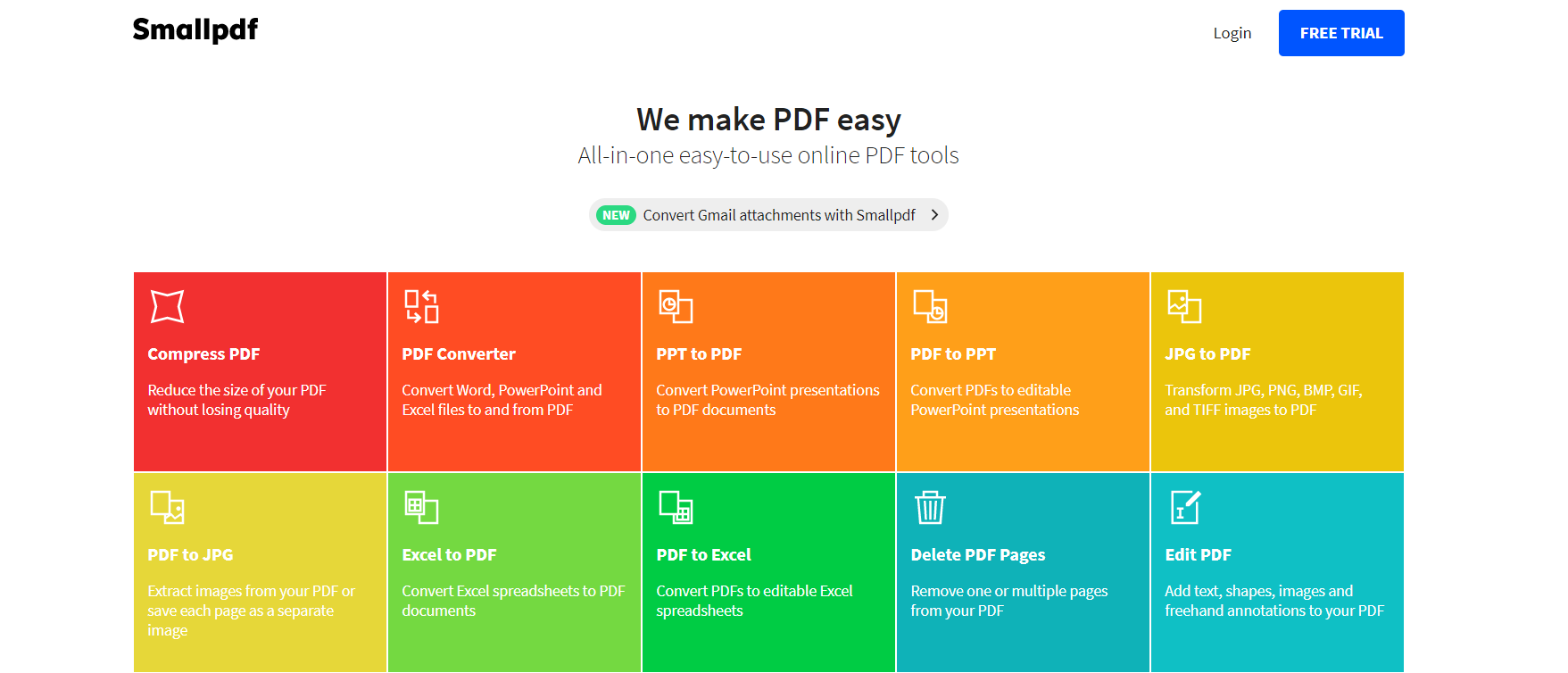
In short, Smallpdf is a collection of PDF tools. Users can compress PDF files, convert them to various formats, convert other documents to PDF, and plenty more.

smallpdf
Smallpdf PDF tools.

It is online and free to use, but there are perks that come with paying for a Pro subscription. The limits of not paying aren't too restrictive, fortunately, but nonetheless are still there.

1.1 Is it Safe to Use?

1.2 Features of Smallpdf

In this next section of our Smallpdf review, we are going to discuss some features. When it comes to managing a PDF file, here are the things that you can do with Smallpdf:

  • Convert between PDF and supported Office or image formats.
  • Compress PDF files to reduce the file size
  • Delete pages from a PDF
  • Edit an existing PDF using the available editing tools.
  • Merge multiple PDFs or split a PDF into multiple files
  • Rotate pages in a PDF file
  • Add eSignature boxes to pages
  • Remove, add, and manage any PDF protection

Free access and paid plans have different processing allowances. Compare the available features, file limits and billing terms on the publisher’s pricing page before choosing a plan.

1.3 Pros and cons

Try the operation with a representative document and check the output. For conversion, compare text and table structure; for compression, compare readability and file size.

  • User-friendly design with minimal ads (no ads for Pro users)
  • Has a variety of useful PDF tools
  • Cheaper than a lot of competitors
  • Effective for heavily compressing files
  • Compare readability and image detail after compression.

– Negatives

  • Can't be used as an offline tool without the top Pro subscription
  • To use Smallpdf for a long time, a subscription is needed
  • File names are changed after using the site

1.4 Price of Smallpdf

  • 2. Process multiple PDFs at the same time
  • 3. Ads are removed from the site
  • 4. Access to all the PDF tools without limits
  • 5. PDFs can be signed with the online eSignature
  • Use the HTTPS connection provided by the service for uploads and downloads.

Publisher’s product information · Plans and licensing

LeoPDF for local PDF tasks

LeoPDFree is the free Windows edition. Its supported conversions, merging, splitting, page organization and compression run locally on your computer without uploading files for processing. PDF-to-Word and PDF-to-Excel conversion do not include OCR.

LeoPDF app store editions provide paid cloud Word and Excel conversion with OCR for PDFs, images and scans. Conversion files are deleted when processing completes. Other supported conversion and file-processing tasks run locally on your device.

Choose the edition and platform that fits your document. For creating a PDF from an editable Word or Excel document, use that document application’s PDF export or a PDF printer. LeoPDF does not provide Word/Excel-to-PDF, signing, form filling, direct PDF editing, page or embedded-image extraction, or encryption/decryption.

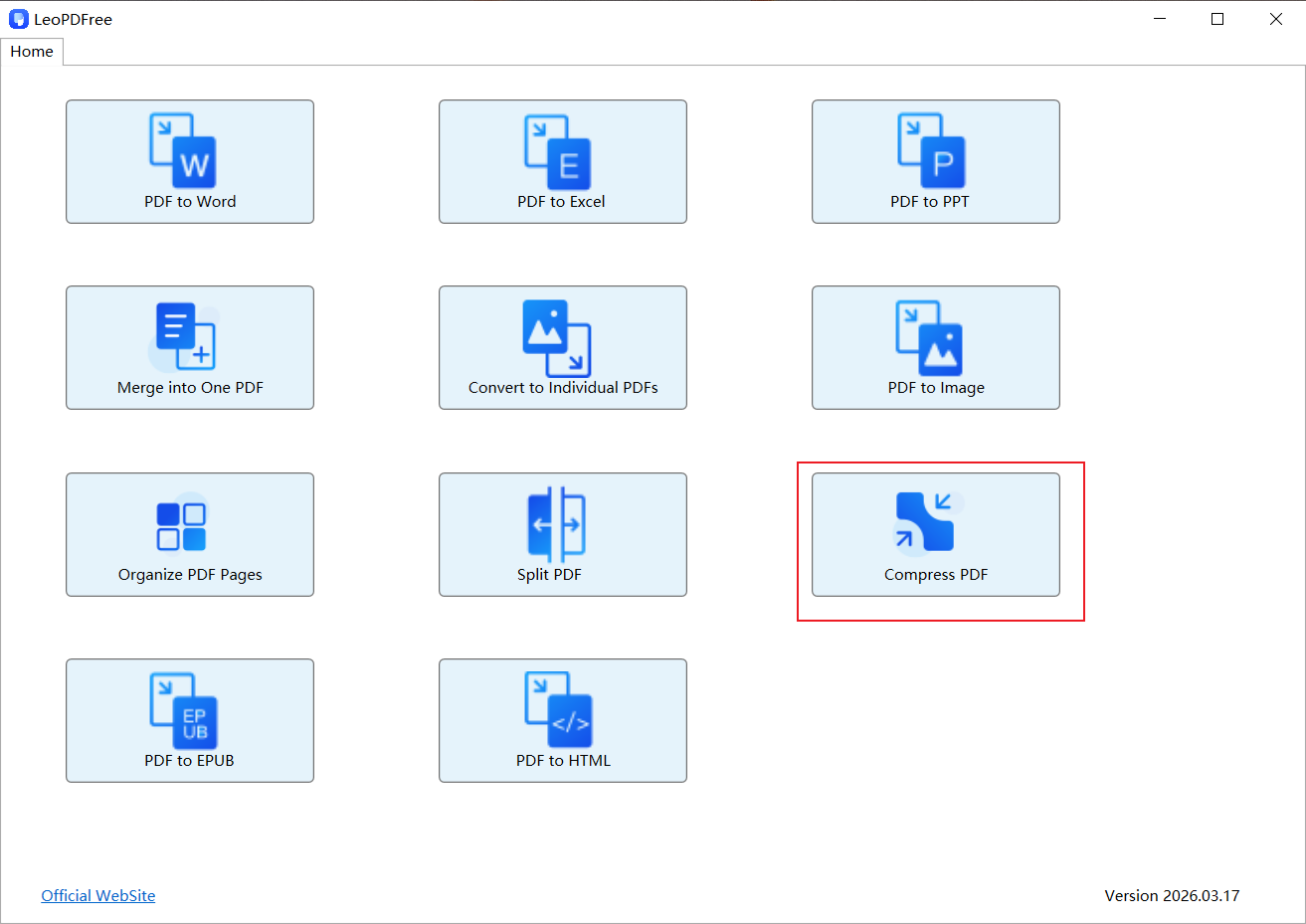
Compress a PDF with LeoPDFree

Launch LeoPDFree and select Compress PDF.

make a pdf smaller using LeoPDF
LeoPDFree Compress PDF tool.

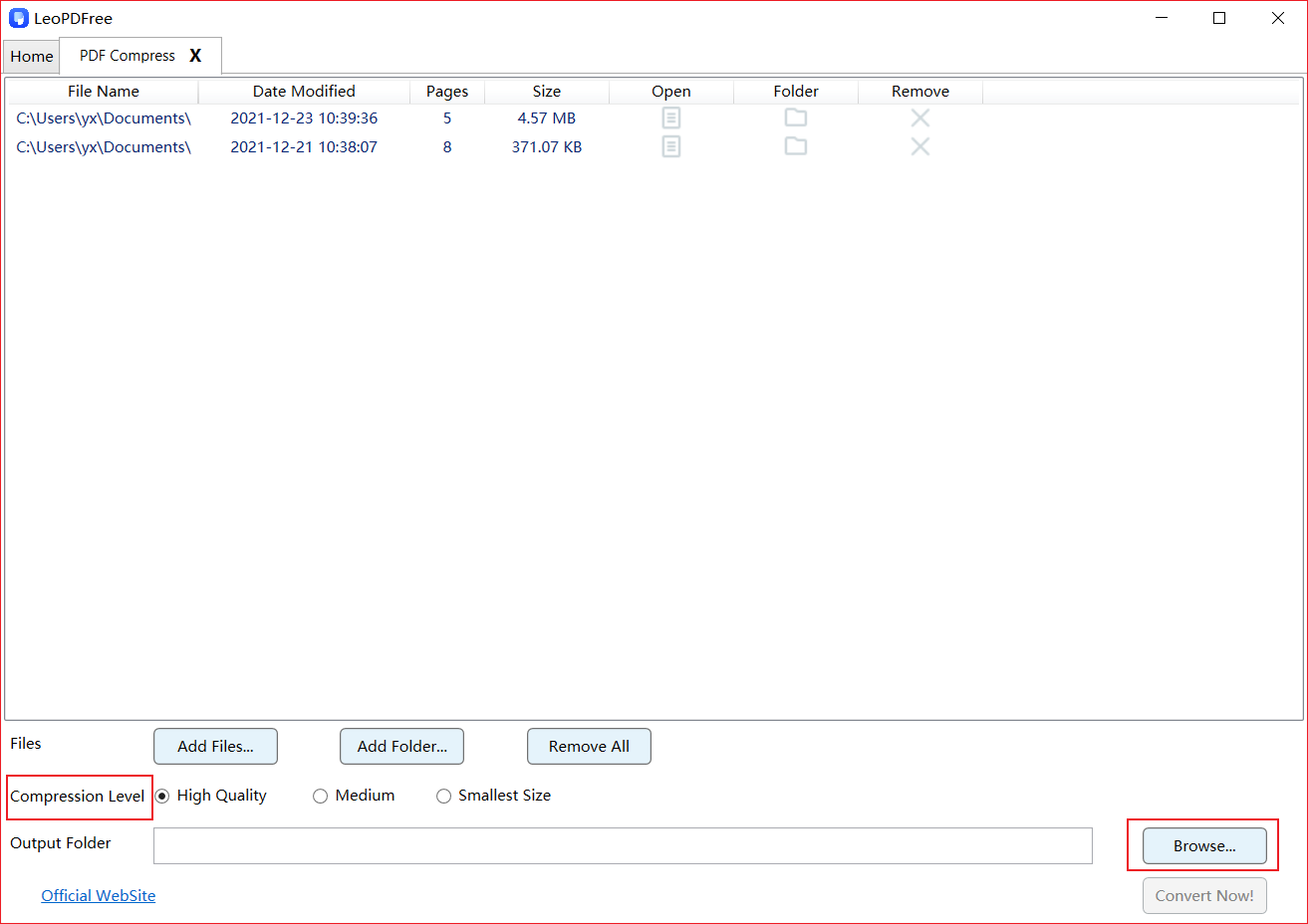
Click Add Files… or Add Folder… to import the PDFs. Choose the compression settings and use Browse… to select an output folder. Compare quality and file size using a representative document.

LeoPDF compress
Choose PDFs, compression settings and an output folder.

Click Compress Now!. Open the resulting PDFs and check text, images and page order before replacing your source files.

How to Add Pages to a PDF/Merge Two PDF Files?

Insert existing PDF pages or combine complete PDF files using local workflows, then verify page order and document features.

Adding pages can mean inserting a few pages from another PDF or appending an entire document. Decide which result you need before starting. Keep unchanged originals and work on copies, so a misplaced page or an unexpected save does not replace your source files.

Insert pages with Preview on Mac

Apple’s Preview combining guide describes copying page thumbnails between PDFs. Duplicate the files first, open both documents and show View > Thumbnails. Select the required thumbnails in the source and drag them into the destination sidebar at the intended position.

Check where the insertion marker appears. Adding pages at the end and placing them between existing pages produce different documents. Reopen the result and inspect the pages on both sides of the insertion.

Append a complete PDF in Preview

The same Apple guide describes dragging a PDF’s icon from Finder into the sidebar of an open document to add the entire file. This is useful when all of the second document belongs in the combined version.

Preview can save changes automatically, which is why duplicating first matters. Keep the combined file under a clear name and compare its page count and order with the intended sequence.

Merge complete files with PDFsam Basic

The official PDFsam merge guide describes adding the source PDFs, arranging them in order, choosing the output filename and running the merge. PDFsam Basic is free, available for Windows, macOS and Linux, and processes the files locally.

Use this method when combining complete documents in sequence. Do not confuse changing file order with editing the text on their pages. Check any optional settings before running the task rather than assuming every document feature is retained in exactly the same way.

Review the combined document

  • Compare the expected and actual page counts.
  • Check the first and last page of each inserted section.
  • Review orientation and any mixed paper sizes.
  • Test bookmarks, links and fields where they matter.
  • Confirm that internal references still make sense after insertion.

Adding pages does not automatically rewrite a table of contents or printed page numbers in the existing text. If those need updating, use an appropriate source-document or editing workflow instead of assuming a merge will do it.

Keep conversion and page management separate

Creating a PDF from images or exporting a PDF to Word is a different job from inserting existing PDF pages. Use the tool appropriate to the required operation. The LeoPDF edition comparison covers supported conversion choices; the local page-management methods above are documented separately by Apple and PDFsam.

Questions about LeoPDF?

Contact xuehui@leopdf.com with your platform, app version and a description of your question.

4 Ways to Convert XLSX to PDF

A spreadsheet needs more preparation for PDF export than simply changing its file extension. Wide columns, multiple worksheets and print settings can produce extra pages or text too small to

A spreadsheet needs more preparation for PDF export than simply changing its file extension. Wide columns, multiple worksheets and print settings can produce extra pages or text too small to read. Review the output before sending it.

LeoPDFree does not support Excel-to-PDF conversion. Its PDF-to-Excel feature works in the opposite direction. The four methods below use tools that provide spreadsheet export or conversion.

1. Export from desktop Excel

If you already have access to desktop Excel, open the workbook and choose File > Save As or Save a Copy, then PDF as the file type. Review the export options and save the result. See Microsoft’s PDF export instructions.

Check which sheets or selection are included. Existing access to Excel is a separate product arrangement, not a free converter license.

2. Use Google Sheets

Open the XLSX through Google Sheets and review the workbook. Choose File > Print, select the relevant sheet, workbook or cells, and inspect page settings such as orientation and scaling. Continue through the browser’s PDF-saving controls. Google explains these options in its Sheets printing guide.

This is an online workflow. Opening a workbook in a different spreadsheet app can affect its contents or layout, so check the displayed values and the resulting PDF.

3. Export from LibreOffice Calc

Open the workbook in Calc and inspect its sheets. Use File > Export As > Export as PDF, review the range and output settings, and save a copy. See LibreOffice’s export documentation. This provides a desktop alternative when you work with a local file.

4. Use PDF24’s online Excel-to-PDF tool

Choose the workbook in PDF24’s Excel-to-PDF service, run conversion and download the PDF. This uploads the file for server processing. Decide whether that is suitable before selecting a workbook containing private information.

Review the pages, not just the filename

  • Confirm that the intended sheets are included.
  • Look for clipped columns, very small text and unexpected blank pages.
  • Check totals, displayed dates and important numbers against the workbook.
  • Inspect page breaks around headings and tables.

If the PDF is difficult to read, return to the workbook and adjust its page layout before exporting again. Forcing a large sheet onto a single page may make it less useful than a readable multi-page report.

Keep the XLSX source so you can revise formulas and create a new PDF later. A PDF copy should not be treated as a replacement for the editable workbook or its calculation behavior.

Windows and Mac export checks

Desktop Excel’s available PDF export controls depend on its version and platform. Use the offered PDF save/export option, select the required worksheets or print area and inspect the preview. Do not install an old Office plugin solely because a historical tutorial mentions it.

For wide sheets, inspect orientation, scaling, column clipping and repeated headings. Avoid making an entire workbook fit one unreadably small page.

Questions about LeoPDF?

Contact xuehui@leopdf.com with your platform, app version and a description of your question.

3 PDF-to-Image Conversion Options

Compare three PDF-to-image options by processing location, output format and the result you need.

A PDF-to-image converter creates pictures of PDF pages. Choose an output format and processing location that fit your task, then inspect a sample before converting a large document. The options below are different workflows, not a claim that one tool produces the best result for every PDF.

1. LeoPDFree for local Windows conversion

LeoPDFree is the free Windows edition. Its supported conversions and file-processing work run locally on your computer without uploading files for processing. PDF-to-image conversion includes JPG, PNG, BMP and TIFF output.

Choose PDF-to-image conversion in your installed app, add the PDF, select the required format and review the available output settings. Save the result and open it in a suitable viewer. See the PDF-to-image user guide.

LeoPDF store editions also perform this supported image conversion locally. Paid cloud processing with OCR applies to conversion to Word or Excel, rather than this image task. Use the stable 64-bit Windows download, 32-bit download or edition comparison, checking package requirements first.

2. PDF24’s online PDF-to-images tool

The PDF24 online converter lets you select a PDF, choose the image output offered by the tool, run conversion and download the result. This is an upload workflow with server processing. Check its current options and requirements before choosing it for your file.

3. FreeConvert’s online PDF-to-JPG tool

FreeConvert provides a PDF-to-JPG workflow. Select the option for converting pages when you want full-page images, review the settings, then convert and download. The service also describes a separate embedded-image extraction option; that is a different task.

This online workflow uploads your document. Check current file limits, account requirements and processing terms rather than assuming that every option is unlimited or entirely local.

Check the output before sharing it

  • Count the output pages or images and verify their order.
  • Inspect small text, fine lines, diagrams and page orientation.
  • Check file size and readability at the intended display size.
  • Confirm that the receiving application accepts the chosen format.

A picture of a page does not provide the same editable or selectable text as a document conversion. It is also different from extracting the original pictures embedded inside a PDF, which LeoPDFree does not support.

Keep the PDF as a reference. Compare the actual outputs for your document instead of relying on generic speed, quality or privacy rankings.

Questions about LeoPDF?

Contact xuehui@leopdf.com with your platform, app version and a description of your question.

4 Best Free DOCX to PDF Converters

Compare four free DOCX-to-PDF workflows, including a desktop office suite and browser-based options.

You do not necessarily need a dedicated converter to turn a DOCX document into a PDF. The four options below provide different workflows: a desktop office suite, two web office apps and an online conversion service. Choose based on your document and whether uploading it is appropriate.

LeoPDFree does not support DOCX-to-PDF or Word-to-PDF conversion. Use an office application or converter that provides the task. Free access can still involve an account or service limits; check the terms shown for your use.

1. LibreOffice Writer

LibreOffice is a free desktop office suite. Open the DOCX in Writer, check its appearance, then choose File > Export As > Export as PDF. Review the options and save the output. Its PDF export help describes the settings.

This is useful when you want to work with a local copy. Check the document after opening it in a different office application rather than assuming that all fonts and page breaks stay identical.

2. Word for the web

Microsoft offers free web versions of its office apps with a Microsoft account. In Word for the web, open your document and choose File > Export > Download as PDF. Check whether you want comments included, then download the copy.

See Microsoft’s export instructions. This is an online account workflow, and should not be confused with a free license for desktop Word or every Microsoft 365 feature.

3. Google Docs

Open your DOCX through Google Drive and Google Docs, review it, then choose File > Download > PDF Document. See Google’s download guide. Keep the original DOCX in case the web editor changes formatting.

The file is handled through Google’s service. Use an appropriate account and check whether your document can be uploaded there.

4. PDF24’s online Word-to-PDF tool

With PDF24’s Word-to-PDF service, select the Word document, run the conversion and download the resulting PDF. The online tool uploads the document for processing; it is separate from a local desktop workflow.

Check the result before choosing a regular method

  • Compare page count, tables, fonts and images with the source.
  • Check comments, headers, footers and links.
  • Keep the editable DOCX and save a distinct PDF copy.
  • Confirm account and usage requirements before converting more files.

If you already have licensed desktop Word, its built-in PDF export is another option. It is separate from the four free workflows above. For selection criteria, read our Word-to-PDF converter guide.

Questions about LeoPDF?

Contact xuehui@leopdf.com with your platform, app version and a description of your question.

How to Convert Google Doc to PDF?

Download a Google document as PDF directly from Google Docs, and review the saved copy before sharing.

You can save a Google document as a PDF directly from Google Docs. There is no need to download a Word file and send it through another converter just to create a shareable PDF copy.

Download the document as PDF

  1. Open the document in Google Docs on your computer.
  2. Choose File > Download.
  3. Select PDF Document as the file type.
  4. Open the downloaded file and check the pages.

Google explains the download controls in its guide to creating, viewing and downloading files. You need access that permits downloading; ask the owner if the option is unavailable for a shared document.

Use print preview when you need to inspect the pages

Open File > Print to inspect the print workflow. In a compatible browser, choose Save as PDF as the destination when available, review the settings and save a copy. Google also documents printing in its Docs printing guide.

Check the preview before saving. If a table crosses the page boundary or the final page is unexpectedly blank, return to the document and fix the layout, then create a fresh PDF. Repeatedly converting an already exported file is usually unnecessary when you still have the source document.

Check the exported copy

  • Compare the page order and page count with your document.
  • Look at tables, headings, images, headers and footers.
  • Check that links you intend to share work in the saved PDF.
  • Confirm that the copy contains only the information you want to send.

Open the actual downloaded PDF rather than relying only on how the document looks in the editor. If the recipient reports a problem, keep that output so you can compare the same file with your source.

A PDF download and a shared document link are different

A downloaded PDF is a separate copy. Later edits to the Google document do not automatically update a file that you already sent. Create and send a new copy when the content changes, and use a filename that helps the recipient identify it.

Sharing a Google document instead uses Google Drive’s access controls. See Google’s sharing instructions if collaboration is the real goal. Decide whether the recipient needs a fixed copy or access to the source.

Do you need LeoPDFree for this?

No. LeoPDFree does not support Word-to-PDF conversion and is not required for Google Docs’ PDF export. Use the document app’s own export for this task. For another PDF conversion, first check the LeoPDF edition and feature information rather than assuming support from a different conversion direction.

Questions about LeoPDF?

Contact xuehui@leopdf.com with your platform, app version and a description of your question.

How to Add an Image to an Existing PDF

Add a picture to an existing PDF with an editor, or update the source document and export a fresh PDF.

Adding a photograph or diagram to an existing PDF requires a different operation from converting that picture into a new PDF. First decide whether the image belongs on an existing page or should become a separate document. For an existing page, use a PDF editor or revise the source document.

Use an editor to place the image

Adobe’s Acrobat image-insertion guide describes opening the PDF, choosing Edit, then selecting Image and Choose image. Select a local picture, place it on the page, and adjust its size and position. Confirm that your edition includes editing access.

Work on a copy and save the edited result with a clear filename. The steps above refer to choosing an existing image; generating an image through a connected service is a separate workflow.

Prepare a suitable picture

  • Use an image you have permission to include.
  • Choose a source that remains readable at the intended display or print size.
  • Crop unnecessary margins in an image editor if needed.
  • Keep an unchanged copy of the picture and the PDF.

Place the image where it will not hide text, page numbers or important labels. A diagram should be large enough to read without stretching it out of proportion. Check the relationship between the illustration and the paragraph that explains it.

Revise the source when layout must change

If you still have the original document, adding the picture there can be easier when nearby paragraphs need to move. Insert the image in the source application, adjust the layout, and use that application’s PDF export. Reopen the new PDF and compare it with the intended result.

This approach is different from converting the old PDF back into an editable format. Conversion may change paragraph flow, fonts or tables, so it should not be assumed to reconstruct the exact source.

Review the finished document

Check the whole affected page, the surrounding pages and the final page count. Look for obscured text, unexpected cropping and illustrations that are too small. If a document has interactive or signed elements, check the requirements for making changes before distributing an edited copy.

When image-to-PDF conversion is enough

If the aim is a separate PDF made from JPG, PNG or BMP pictures, LeoPDFree provides that supported conversion locally on Windows without uploading files for processing. See the edition comparison for current download options.

LeoPDFree does not directly edit existing PDF pages. Creating a new picture-based PDF should not be described as inserting a picture into an existing document, filling a form or placing a signature.

Questions about LeoPDF?

Contact xuehui@leopdf.com with your platform, app version and a description of your question.