6 Ways to Convert Screenshot to PDF on Windows/Mac

Convert saved screenshots to PDF with six Windows or Mac workflows, distinguishing local processing from online uploads.

Start with a saved screenshot in a format the chosen tool accepts, such as PNG or JPG. Crop unintended screen content before conversion and keep the original image. These six workflows create PDF copies for different platforms and layout needs; changing the container does not automatically add recognized text or recover missing image detail.

1. LeoPDFree on Windows

LeoPDFree supports JPG, PNG and BMP image-to-PDF conversion locally without uploading files for processing. Choose the image-to-PDF function, add the saved screenshot and save the output. Check orientation and visible borders in the PDF.

Find current download choices through the edition comparison. Converting an image into a new PDF does not mean editing an existing PDF page.

2. Preview on Mac

Apple’s Preview export guide describes exporting an image to another format. Open the screenshot, choose File > Export, select PDF and save a new copy. This uses the local application rather than a website upload.

3. LibreOffice for screenshots with captions

Create a Writer document and use Insert > Image to place the screenshot. Add captions or explanatory text where needed, then use PDF export. Review page breaks and picture proportions before saving.

This is a local document-layout workflow. It is useful when the result should contain more than a standalone picture.

4. Adobe’s online image converter

Adobe’s image-to-PDF converter accepts PNG and other listed image formats. Upload the screenshot and download the converted file. Review current free-use and account conditions. This sends the screenshot to Adobe for processing.

5. PDF24 Creator on Windows

PDF24 Creator offers installed Windows tools for creating PDFs from images and describes local processing. Use its creation workflow, arrange the intended content and save the PDF. Distinguish the installed application from PDF24’s separate online services.

6. Icecream PDF Converter

Icecream PDF Converter lists image inputs for creating PDFs and describes processing on the PC. Add the screenshot, choose the available layout settings and save the result. Check the free edition’s restrictions rather than assuming every operation is unlimited.

Review what the recipient will see

  • Check for cropped labels, unexpected margins and rotation.
  • Inspect small text without stretching the picture beyond useful readability.
  • Confirm page order if the result contains several screenshots.
  • Check the saved PDF and keep the original images.

If searchable or editable text is required, treat OCR as a separate task and compare recognized content with the screenshot. An image-based PDF alone does not supply that recognition.

Questions about LeoPDF?

Contact xuehui@leopdf.com with your platform, app version and a description of your question.

5 Ways to Convert PDF to BMP Offline and Online

Compare five local and online PDF-to-BMP workflows, selecting whole pages and checking raster detail and output settings.

PDF-to-BMP conversion renders a page as a bitmap image. It is different from extracting a photograph embedded inside the document or recognizing the text. Keep the original PDF and choose settings appropriate to the intended image size. These five workflows offer different local and online options, not a measured quality ranking.

1. LeoPDFree on Windows

LeoPDFree supports PDF-to-BMP conversion locally on Windows without uploading files for processing. Select PDF-to-image conversion, choose BMP and save the output. Compare the number of images with the pages you intended to convert.

Use the edition comparison and current download entry. This produces page images; LeoPDFree does not extract individual embedded images from a PDF.

2. GIMP for local raster conversion

GIMP’s PDF import dialog lets you select pages and choose whether to open them as images or layers. For separate page files, open the selected pages as images and review the import dimensions or resolution.

Use image export to produce BMP files, reviewing the BMP export settings for your installed version. Importing several pages as layers should not be assumed to export a separate BMP for every layer automatically.

3. Photoshop when you already have access

Adobe documents opening PDF pages in Photoshop and lists BMP among its supported image formats. Import the required pages, review raster settings and save a BMP copy using the format options available for the image.

This is a licensed image-editor workflow, not a free converter recommendation. Check image-mode and format restrictions if BMP is unavailable for the document as currently configured.

4. PDF Candy online

PDF Candy provides a dedicated online PDF-to-BMP tool. Upload a suitable file, complete the conversion and download the results. Review current usage restrictions and processing terms. This sends the document to an online service.

5. CloudConvert online

CloudConvert’s PDF-to-BMP route offers another upload-based option. Confirm BMP as the output, review the settings offered and download the completed files. Check the service’s current account and usage conditions before starting.

Check the raster output

  • Compare page count and image order.
  • Inspect small text, thin lines and page edges.
  • Confirm the pixel dimensions and compatibility required by the receiving program.
  • Check actual file sizes rather than assuming BMP is a smaller format.

Rasterization does not retain the PDF’s selectable text or interactive fields as working document elements. Choose a different output when the recipient needs those features, and keep the original available for comparison.

Questions about LeoPDF?

Contact xuehui@leopdf.com with your platform, app version and a description of your question.

Microsoft Print to PDF Missing or Not Working: Troubleshooting Steps

Diagnose Microsoft Print to PDF by checking the selected destination, save location, app behavior and Windows printing components.

If Microsoft Print to PDF is missing or produces no usable file, first identify what fails: finding the printer, starting the job or saving the output. These are different problems. The checks below concern Windows PDF-printing workflows; do not assume an older Windows installation has the same built-in component or feature controls.

Check the destination and save step

Open the application’s print dialog and confirm that Microsoft Print to PDF is the selected destination. A physical printer or a different virtual printer produces a different result. Check the selected page range and the document preview before starting.

When the save prompt appears, choose a writable local folder and a new filename. Avoid overwriting the source. If you cannot find the result, check the chosen folder and open the saved file directly rather than relying only on a recent-files list.

Test another file and application

Microsoft’s application-printing troubleshooting guide recommends testing a different file and another application to separate app-specific failures from broader printing problems.

Use a small, non-sensitive test document. If another application saves a valid PDF, inspect the original application’s settings and document before changing Windows components. If every test fails, investigate the shared printing setup.

Check whether the component is present

Microsoft documents Print to PDF as an optional Windows feature. Check the installed printers and Windows feature controls for your release. If the feature is available but disabled, enable it through Windows and complete any required restart before testing again.

On a managed computer, ask the administrator if the feature is unavailable or controlled by policy. Do not install a driver from an unrelated download site just because it promises to restore PDF printing.

Use the relevant Windows diagnostics

Microsoft’s Windows printing guide describes the Get Help printer troubleshooter for current supported workflows. Follow diagnostics appropriate to your Windows release and the actual symptom. Physical-printer cable or ink checks do not explain a virtual PDF save failure.

If the problem persists, note the Windows version, affected application, selected destination and any error before seeking support. Avoid changing several system components at once, because that makes it harder to identify which step helped.

Separate printing from format conversion

An application’s own PDF export may offer another way to produce the document while printing is investigated. That is different from installing a converter or repairing Windows. LeoPDFree does not provide Word/Excel-to-PDF conversion; see the edition comparison for its supported tasks.

Questions about LeoPDF?

Contact xuehui@leopdf.com with your platform, app version and a description of your question.

iLovePDF Review: Tools, Plan Limits and Upload Privacy

A practical iLovePDF review covering tools, subscription limits, upload privacy and output checks, plus the distinction between local conversion and cloud OCR.

The internet is full of hundreds upon hundreds of PDF toolkits and one of the online toolkits you've probably stumbled upon is iLovePDF. With this toolkit, users are able to perform some common and useful tasks. In this iLovePDF review we're going to examine all of the important factors.

iLovePDF In-depth Review: Pricing, Performance & Cons

What is iLovePDF?

iLovePDF is an online platform which offers a selection of PDF-related tools. These range from simple page rotations to file conversions, and even PDF unlocks.

ilovepdf
iLovePDF tools and settings.

A portion of iLovePDF features are free and don't require a paid subscription, but for limitless access users are required to sign up for an annual or monthly subscription. Although many of this toolkit's tools can be used online, the desktop version is downloadable for Windows and Mac computers.

Plans and Pricing for iLovePDF

Following on from our previous comments, the pricing plans for iLovePDF are within reason (which is more than we can say about most other toolkits on the internet).

Let's start by breaking down what a free account has access to. This account type has access to all except for a few tools and every file that you upload is securely transferred through an HTTPS connection. For non-tech obsessed people, this is more secure than the standard HTTP connection.

Free access and paid plans have different processing allowances. Compare the available features, file limits and billing terms on the publisher’s pricing page before choosing a plan.

ilovepdf pricing
iLovePDF tools and settings.

The file size upload limit is also raised and your account can use the desktop and web versions without annoying and intrusive ads.

iLovePDF Performance

Try the operation with a representative document and check the output. For conversion, compare text and table structure; for compression, compare readability and file size.

ilovepdf function1
iLovePDF tools and settings.

Among the key selling points is the conversion features. Various file formats can be converted to PDF and PDF can convert to those formats too. That's not all, with iLovePDF you can encrypt your PDF files, compress them, view and review existing PDF documents, and even repair damaged or corrupt PDFs. The latter feature is definitely an eye-catching feature for those who previously experienced data loss.

OCR (Optical Character Recognition) can be greatly useful and this is another top-tier feature that iLovePDF gives customers access to. This tool lets you turn handwritten notes into readable PDF documents – a fantastic way to easily transcribe meetings or school notes.

ilovepdf function2
iLovePDF tools and settings.

As if it wasn't already impressive, iLovePDF enables users to add watermarks to PDFs, manage passwords, insert page numbers, and batch processing is supported. Don't worry about all of this being difficult to use. Since the software has a minimalist design, finding your way around and locating certain features as easy as could be.

Remember that if you have a free account then there are a number of limitations your access, however these features are still impressive.

We could keep going on about all the amazing things which iLovePDF is able to provide, but there are a few downsides that come with this PDF toolkit.

Cons of iLovePDF

  • Uploading documents can take a while
  • Processing PDFs can also take a long time (e.g. converting or splitting)
  • Complete access requires a paid subscription
  • Internet connection is required the whole time

Online Alternatives to iLovePDF

The following alternatives cover different PDF creation and editing tasks.

What You Should Mind When Using Online Tool?

Even though we can't ignore the cons of iLovePDF, it wouldn't be fair to lay all the blame with it. There are also some cons to online tools in general.

  • File Security. Security measures can be put in place by the creators of these online tools but there's only so much they can do. Even if these sites are incredibly secure there are still other risks like users using an unprotected public Wi-Fi network.
  • Internet Access. Online tools require us to have one thing: an internet connection. Most people wouldn't find this concerning but if you do work whenever you travel, it could be helpful to use an offline tool.

1. To PDF

As the name suggests, this online converter designed to help you convert files to PDF, including Word, images, XPS, etc. It is an extremely easy-to-use online tool that does a few things very well.

+ Features

  • Very easy to use – providing a straight forward step for PDF conversion.
  • Web-based – no need to download a program to your computer
  • Free application – no need to purchase to enjoy the full version
  • Bulk conversion – can convert up to 20 files each time

+ Cons

  • Has no access to cloud drives.
  • Lack of PDF management functions

2. Sodapdf

Sodapdf s a complete PDF management solution as iLovePDF. It provides both online and offline (program) solution for your needs. The program has nearly the most comprehensive editing and preview functions across the network.

  • Online integration – allow you to select a file from storage platforms like Dropbox, Google Drive, and OneDrive
  • User-friendly interface – the interface is clean and comfortable for most users
  • Full range of features – it has a full range of functions to help you manage your PDF effectively
  • The free trial has many limits
  • It's expensive for most users

LeoPDF for local PDF tasks

LeoPDFree is the free Windows edition. Its supported conversions, merging, splitting, page organization and compression run locally on your computer without uploading files for processing. PDF-to-Word and PDF-to-Excel conversion do not include OCR.

LeoPDF app store editions provide paid cloud Word and Excel conversion with OCR for PDFs, images and scans. Conversion files are deleted when processing completes. Other supported conversion and file-processing tasks run locally on your device.

Choose the edition and platform that fits your document. For creating a PDF from an editable Word or Excel document, use that document application’s PDF export or a PDF printer. LeoPDF does not provide Word/Excel-to-PDF, signing, form filling, direct PDF editing, page or embedded-image extraction, or encryption/decryption.

Publisher’s product information · Plans and licensing

Best Free Offline & Online PNG to PDF converters 2021

PNG files are generally classed as high-quality images. And while high quality is always a good thing, large PNG files can be difficult to send via email or other online methods. For this reason, many people like to convert their PNG images to PDF format. This can help to reduce your file size, making it easier for you to transfer images from one device to another. But how can you use a PNG to PDF converter offline to get the task done? Today we’ll show you how:

The Best Free Offline PNG to PDF Converter

When it comes to converting PNG files to PDF format, there are several different methods that you can use. With that being said, the best way to do this offline is with a software program like LeoPDF.

LeoPDF is a completely free to use program that requires no registration or activation fee. The best thing about it is that it can be downloaded and used offline, which eliminates any risks that come with using an online converter. With LeoPDF you can:

LeoPDF – Free PDF Converter

  • Convert PNG files to PDF format offline absolutely free of cost (no registration or activation fees)
  • Adjust orders automatically according to your image info or use manual adjustments
  • Convert your files without any size limitations
  • Allow you to convert png files in bulk with fast conversion speeds
  • Convert your files with simple, easy to use instructions
Free Download 100% Clean & Safe

Here’s how to use LeoPDF PNG to PDF converter:

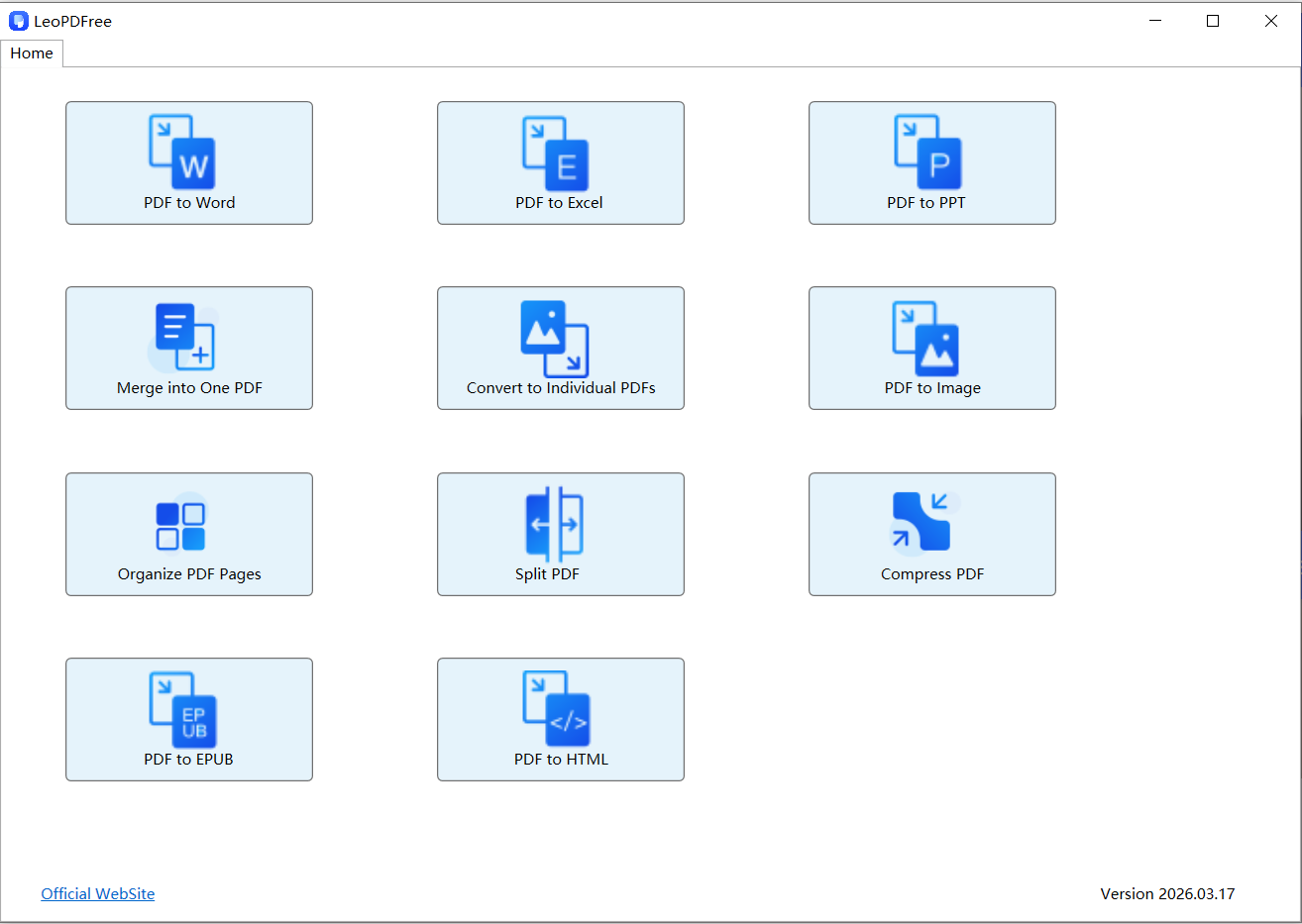
Step 1: Download, install, and open LeoPDF. From its home interface, click on “Convert to Individual PDFs” box.

convert image to pdf using LeoPDF

Step 2: Click ‘Add Files…’ or ‘Add Folder…’ to import the image files you want to convert. Then, click the ‘Browse…’ button to select a destination path for your new files, as shown in the figure below.

convert image to pdf using LeoPDF step 2

Step 3: Once everything is ready, click ‘Convert Now!’ to begin the process. The software will quickly complete the conversion based on the file size. When a small window pops up indicating completion, click ‘Check Now’ to instantly view the converted results, as shown in the figure below.

convert image to pdf using LeoPDF step 3

And it’s that simple! With the help of the LeoPDF PNG to PDF converter offline, you can make the conversions of files simple, quick, and easy – and it’s all for free!

Top 4 Online PNG to PDF Converters

Png2pdf

If you are okay doing your conversions online, then Png2pdf is one of the best places that you can do that. It only takes one minute to use, and doesn’t require much technological knowledge at all. Just upload your file, wait for it to convert, and then download. Here’s how to use it:

png2pdf

Step 1: Go to Png2pdf website

Step 2: Below the instructions, you will see a series of small boxes. Click on the one that says “Any to PDF”

Step 3: Click “Upload files” and select the file you would like to convert

Step 4: Click “combined”

Step 5: Wait for conversion to take place and then download your new file.

SodaPDF

Another online conversion tool that you can use to convert your documents from PNG to PDF is called SodaPDF. Like Png2Pdf, this png to pdf converter allows you to convert your documents within seconds, and then download them or have them sent directly to your email. Here’s how to use it:

soda png to pdf

Step 1: Go to sodapdf website

Step 2: Drag and drop the files you would like to convert into the “Drop Files Here” box, or upload your photos by clicking “Choose file”

Step 3: Click on “download now”

Step 4: Wait for conversion process to take place, and select how you would like to download them.

Classicpdf

Though it’s not a PNG to PDF converter offline, ClassicPDF is another software program that you can use online to convert your images. This tool can be accessed from anywhere at anytime to help you covert your files to PDF format. Here’s how to use it:

classicpdf png to pdf

Step 1: Go to classicpdf website.

Step 2: Select PNG file to convert by clicking on “Choose file”, by dragging and dropping, or by entering a URL.

Step 3: Type in the email address that you would like the converted file to be sent to.

Step 4: Click “convert now”.

Step 5: Wait for a few minutes and then check email to receive your converted file.

Image2PDF

The final online png to pdf converter that we would recommend is Image2PDF. Like the other online PDF conversion tools, this tool can come in very handy when you’re on the road and don’t have access to an offline PDF conversion tool. Here’s how to use it:

image2pdf png to pdf

Step 1: Visit online2pdf website.

Step 2: Click on “Select files”.

Step 3: Under “convert to:” select “PDF”.

Step 4: Click convert. Wait for process to complete. Download your file.

Cons of Online PNG to PDF Converters

Whenever possible, we always recommend selecting a PNG to PDF converter offline. As handy as online converters can be, they also come along with their pitfalls. What pitfalls are we referring to?

  • Online converters pose a risk to your online safety, opening up the possibility of downloading viruses or Trojans
  • When you use them, there is no guarantee that your information is being kept private
  • They reduce the quality of your images
  • They limit your file size, meaning you won’t be able to convert larger images
  • They are limited in the number of features that they offer

In conclusion, online converters can be a great option when you are on the go, but if you have access to your home computer, we recommend downloading a PNG to PDF converter offline like LeoPDF.

With LeoPDF, you can convert your documents offline, ensuring that your computer and privacy remain safe and secure. In addition, the quality of your images will remain the same, you can upload as many files as you want, and you have access to plenty of additional PDF features.

Free DownloadSecure Download

How to Make a PDF Editable for Free? [Solved]

Choose an editable document or a PDF editing tool, and check whether scanned pages require OCR.

“Make a PDF editable” can mean converting it to a document you can revise or changing the PDF itself. It can also be confused with filling a form or adding a signature. Identify the task first, because one feature does not automatically provide all the others.

Convert a PDF into an editable document

LeoPDFree for Windows provides free local PDF-to-Word conversion without OCR. All its supported conversions and file-processing work run on your computer without uploading files for processing. Use this route for an appropriate non-OCR source, then edit the converted document in a word processor.

If the PDF consists of scanned pages, choose a text-recognition workflow. LeoPDF store editions provide paid cloud conversion to Word or Excel with OCR support for scanned text and handwriting. Cloud files are deleted when conversion completes. LeoPDFree does not include OCR.

  1. Choose the edition and conversion that fit the source document.
  2. Add the PDF and create the Word output.
  3. Open the result in a compatible editor.
  4. Compare it with the PDF before relying on the text or layout.

See our PDF-to-Word guide or compare editions. Desktop Word users can also open a PDF there to create a converted copy; Microsoft describes the limitations. Do not assume that a converted page will reproduce every original element.

Use Google Docs for an online text workflow

Google Drive can open a suitable uploaded PDF through Open with > Google Docs to convert its contents to text. Formatting may not transfer. See Google’s conversion instructions. This is an upload workflow, so consider whether the file belongs in that service.

Direct PDF editing is a separate task

LeoPDFree does not provide direct PDF editing, form filling or signing. If your goal is to change the PDF itself, use an application that explicitly supports that operation, or ask the author for the editable source. Do not treat a converted Word file as an in-place edit of the original PDF.

For a small correction, obtaining the source document may avoid reconstructing a complex layout. If access restrictions prevent the work, request an appropriate copy; LeoPDFree does not remove PDF passwords.

Review before sharing

  • Check names, numbers, symbols and recognized text against the source.
  • Inspect tables, columns, headings and page breaks.
  • Keep both the original PDF and the edited document.
  • Use the editor’s own export if you need a fresh PDF; LeoPDFree does not support Word-to-PDF conversion.

Questions about LeoPDF?

Contact xuehui@leopdf.com with your platform, app version and a description of your question.

PDFelement Overview: Choosing an Edition for Your PDF Tasks

Evaluate PDFelement by edition, required PDF task, OCR needs and the actual saved output.

If you are assessing a PDFelement 7 installation, distinguish that version from the product currently offered by Wondershare. Current feature pages do not establish the capabilities, support or license rights of an older installation. This overview uses official product information and evaluation criteria, not a hands-on benchmark of version 7.

Identify the task and edition

Wondershare’s PDFelement product page describes PDF editing, conversion, annotation, forms, signing and OCR, alongside desktop, mobile, online and cloud offerings. Check the edition and platform that actually provides your required feature.

A free download is not proof that every feature or export is permanently free. Review the selected product’s trial, purchase and output conditions before depending on it for recurring work. Keep the current offer separate from an old review’s price or screenshot.

Editing and text recognition need different checks

For a PDF with selectable text, try the exact change you need: editing existing words, adding an annotation or creating a field. Those operations should not be treated as interchangeable.

For scanned pages, check the OCR workflow and its output options in the relevant edition. Recognition quality depends on the source, so compare names, numbers and table boundaries with the original. Do not assume that every scan becomes a perfectly reconstructed editable document.

Evaluate a representative document

  1. Keep an unchanged source and use a suitable working copy.
  2. Perform the required edit, conversion or form operation.
  3. Save or export the result using the access available to your account.
  4. Open the output outside the editor and compare it with the source.

Check the full workflow rather than only whether a preview opens. Inspect fonts, images, page order, fields and any content that crosses page boundaries. Confirm that the recipient’s application can use the result.

Check where the selected operation runs

The product family includes online and cloud services as well as installed apps. Review the specific feature’s processing and account requirements; installation alone does not establish that every operation is local.

When a converter is sufficient

LeoPDFree for Windows provides supported conversions locally without uploading files for processing. Its PDF-to-Word and PDF-to-Excel output is free and has no OCR. Store editions provide paid cloud Word or Excel conversion with OCR, deleting cloud files when conversion completes. See the edition comparison.

LeoPDFree does not provide direct PDF editing, signing or form filling. Choose it for a supported conversion rather than describing it as a substitute for every editor feature.

Compare the version, feature availability, processing location and saved output before choosing a tool. Keep the original and do not use a broad feature list as a quality guarantee.

Questions about LeoPDF?

Contact xuehui@leopdf.com with your platform, app version and a description of your question.

PDFBinder Full Review: Is It the Best Choice for PDF Merging?

Assess PDFBinder as a focused PDF merger, using its project documentation without assuming current compatibility or broader editing features.

PDFBinder is a small, focused tool for combining PDF documents. Whether it fits your work depends on the files you need to merge and the environment in which you can run it. This overview uses the original project documentation rather than claiming a new installation test, security audit or performance comparison.

What the original project describes

The PDFBinder repository describes a simple application for merging several PDFs into one. Its README identifies version 1.2 and explains adding source documents, arranging them and saving an output file. It is not a feature list for a complete PDF editor.

The README links to the project’s former Google Code website. Treat this as historical project documentation, not evidence that an old installer has been tested on every current Windows release. Check the source and suitability of any package before using it.

Understand the merging workflow

The documented workflow is to add PDFs through the source-document button or drag them into the application, move them into the intended order, and save the combined output. Choose a separate output name so the source documents remain available for comparison.

This combines documents in sequence. Do not assume that rearranging input files changes their text, repairs damaged pages or automatically updates the page numbers written inside them.

Review a representative result

  • Compare the expected total page count with the merged file.
  • Check the boundary between each pair of source documents.
  • Inspect mixed orientations and paper sizes.
  • Test required links, bookmarks or fields in the saved output.

A successful save is only the start of the review. If a document contains interactive or signed elements, check its requirements before treating a merged copy as an equivalent replacement. Keep the originals even when the combined version appears correct.

Consider another documented local workflow

PDFsam Basic documents a local merge workflow for Windows, macOS and Linux. On Mac, Apple also documents combining PDFs with Preview. Compare the current requirements and the saved result rather than choosing only by an old review’s interface screenshots.

Choose by the actual task

A merger is different from an editor or a converter. If you need to change existing PDF text, complete forms or export a spreadsheet, select a tool that explicitly provides that operation. For conversion choices, see the LeoPDF edition comparison; do not treat conversion and document merging as interchangeable jobs.

Questions about LeoPDF?

Contact xuehui@leopdf.com with your platform, app version and a description of your question.

Top 4 Ways to Copy Text from PDF (Secured & Unsecured)

Copy selectable PDF text or use an OCR workflow for scans, while checking access and output accuracy.

When copying from a PDF fails, first identify the cause: the page may contain selectable text, a scanned image or document restrictions. The right approach depends on that distinction. None of the methods below should be treated as a promise to unlock every secured file.

1. Copy selectable text in your PDF reader

Try highlighting a short sentence and using the reader’s Copy command, then paste it into a document. Check the sample before selecting a large section. If characters appear in the wrong order, select smaller blocks and compare them with the original page.

If the document blocks copying, check its permissions and ask the owner for the access or source text you need. LeoPDFree does not provide password removal or decryption.

2. Use Preview’s text selection on a Mac

In Preview, use the text-selection tool, select the words and choose Edit > Copy. Apple also documents a column-selection option in its PDF text-copying guide. This works with selectable text; it should not be presented as automatic OCR for every scanned page.

3. Open a suitable PDF in desktop Word

If you already have a supported desktop Word version, open the PDF there and accept the conversion prompt. Word makes an editable copy from which you can select text. Text-heavy files are more suitable than graphics-heavy pages, and the layout can change. See Microsoft’s explanation. Access to Word is separate from a free PDF reader.

4. Recognize scanned text with an OCR workflow

If a page is a photograph or scan, use OCR to recognize its characters before copying them. LeoPDF store editions support OCR in paid cloud conversion to Word or Excel. For a text-document workflow, choose Word output, review it, then copy the required text. Cloud files are deleted when conversion completes.

LeoPDFree’s Windows PDF-to-Word conversion is free and local, without OCR. It can be used for the appropriate non-OCR conversion, but should not be recommended as a way to recognize scanned text. See the PDF-to-Word guide or compare editions before choosing.

Check what you copied

  • Compare names, figures, symbols and OCR text against the PDF.
  • Check the reading order in columns and around tables.
  • Remove unwanted repeated headers and repair broken paragraphs.
  • Keep the source so uncertain passages can be checked again.

If the problem is an access restriction rather than a scan, request a permitted copy. Recognizing characters and changing document security are separate tasks.

Questions about LeoPDF?

Contact xuehui@leopdf.com with your platform, app version and a description of your question.

PDF vs JPEG: Differences in Quality, File Size and Uses

Compare PDF and JPEG for photos, documents, image quality and file size. Learn when image-to-PDF conversion helps and when you need OCR instead.

Choose JPEG for an individual photograph that needs to remain an image. Choose PDF when you need a document with ordered pages or a consistent page layout. Neither format is always smaller or clearer: the source, resolution and export settings determine the result.

JPEG versus PDF comparison
JPEG and PDF serve different purposes.

PDF and JPEG: the practical difference

PDF stands for Portable Document Format. A PDF can contain text, vector graphics and raster images, including JPEG-compressed images. JPEG is associated with the Joint Photographic Experts Group; everyday .jpg and .jpeg photographs usually use lossy compression. The official JPEG overview also describes other coding modes, so “every JPEG operation is lossy” would be too broad.

Choose by the result you need
Your goal Useful starting point What to check
Share or upload one photograph JPEG Accepted format, pixel dimensions and visible compression artifacts.
Send several photographed pages as one document PDF Page order, rotation, margins and readable text.
Share a laid-out report with text and diagrams PDF exported from its source Fonts, page breaks, links and recipient requirements.
Turn a scan into editable Word or Excel OCR conversion Recognized words, table structure and numbers—not only the extension.

What is useful about PDF?

Tidy Storage. When it comes to images, using a PDF is particularly great for organising the photos. Consider this: you get home from vacation and have hundreds of photos. Instead of having a folder full of them, put them in a PDF and create a photo album.

pdf format
PDF document example.

A PDF can keep multiple pages in a defined order and combine text with images. That makes it convenient for a report, receipt bundle or photo-based document. Keep original photographs separately when you may need to crop or re-export them later. A PDF containing photos is not a substitute for a photo archive.

Which preserves image quality?

Putting a JPEG inside a PDF does not restore detail already lost during capture or compression. A converter may embed the image unchanged or resample and recompress it. A PDF exported from editable text and vector artwork may stay sharp when enlarged, while a photographed page remains limited by its pixel resolution.

jpeg format
JPEG image example.

Keep the original image or source document. Avoid repeatedly saving a photograph with lossy JPEG settings. For small text, diagrams or screenshots, inspect edges and letters at the intended reading size rather than assuming a format name guarantees clarity. See Adobe’s JPEG/PDF comparison for an overview of the formats’ different roles.

Is PDF smaller than JPEG?

There is no fixed size advantage. A PDF can add document structure around the same image, contain several high-resolution pages or use stronger image compression. Compare exports made from the same source at settings that keep the text readable. Renaming .jpg to .pdf does not convert it, and conversion alone is not a guaranteed way to meet an upload limit.

For a form upload, first check which formats and maximum sizes the recipient accepts. If a PDF is required, create a PDF and then inspect its size and readability. If JPEG is accepted, sending the original photograph may avoid an unnecessary conversion.

Does image-to-PDF conversion make text searchable?

Not by itself. A PDF made from photographed pages can contain only images. OCR is a separate recognition step that can produce text or editable output, and its results need checking. Test whether you can select a known word; visual appearance alone does not show whether a text layer exists.

LeoPDFree on Windows performs supported conversion and file processing locally, without uploading files, but its Word/Excel conversion has no OCR. The LeoPDF app store editions provide paid cloud Word/Excel conversion with OCR for PDFs, images and scans; conversion files are deleted when processing completes. Other supported operations, including image-to-PDF conversion, run locally. Compare the editions before choosing an OCR workflow.

Convert JPEG images to PDF with LeoPDFree

Use the edition/download page or the stable Windows 64-bit download. LeoPDF supports JPG, PNG and BMP input for image-to-PDF conversion. Keep originals and check the output page order, orientation, cropping and readability.

Use LeoPDFree to turn your JPEG images into a PDF. Select the images, arrange them in the intended order and choose an output folder, then convert and review the result.

convert image to pdf using LeoPDF
Choose the image-to-PDF operation in LeoPDFree.

Step 2. Once you launch it, click on the “Merge into One PDF ” feature.In the window that opens, click ‘Add Files…’ or ‘Add Folder…’ to select one or more images for conversion, as shown in the figure below.

convert image to pdf using LeoPDF step 2
Select images and set the PDF output options.

Step 3. Choose the output location and start the conversion. Reopen the PDF and check every page. Processing time depends on the files and computer; no conversion-time guarantee is made here.

For a fuller walkthrough, see convert images to PDF. To turn recognized table content into cells instead, use the OCR-to-Excel guide. Converting images to a PDF does not itself make a spreadsheet.