PDFsam Review: A Good Tool to Manage PDF or Not?

Compare PDFsam editions and check whether page organization, conversion or PDF editing is your actual task.

PDFsam is a product family rather than one application with every PDF feature. Start by identifying the edition and the operation you need. This overview uses the vendor’s documentation and a practical evaluation checklist; it does not report a hands-on performance benchmark.

What PDFsam Basic provides

PDFsam Basic is described by its developer as a free, open-source desktop application for splitting, merging, mixing, rotating, extracting and inserting PDF pages. Its document-processing workflow runs locally on Windows, macOS and Linux.

That makes it relevant when the task concerns pages and documents rather than rewriting paragraphs. Check the required module and the current system requirements before installing. Do not assume that a page-organizing feature is also a text editor or an OCR converter.

Basic, Visual and Enhanced are different editions

The official edition and download page distinguishes Basic from Visual’s additional visual PDF tools and Enhanced’s Windows editing and conversion features. Features, trial access and purchase terms depend on the selected product. Check the edition rather than transferring a feature list from one to another.

Try a representative page workflow

  1. Keep a copy of the source files and decide which pages the result should contain.
  2. Choose the relevant module in the installed edition.
  3. Review page ranges, order and output settings before running it.
  4. Save to a separate output location and inspect the result.

Compare more than the page count. Check orientation, bookmarks, links, forms and annotations if those properties matter to your document. A newly created file should be reviewed as an output, not assumed to reproduce every behavior of its sources.

Where a conversion tool fits

If you need Word, Excel, PowerPoint, EPUB or page-image output, choose a converter that explicitly supports the required direction. Those tasks differ from splitting or merging existing PDF pages.

LeoPDFree for Windows provides supported conversions locally without uploading files for processing. Its PDF-to-Word and PDF-to-Excel conversion is free and has no OCR. Store editions provide paid cloud Word or Excel conversion with OCR; cloud files are deleted when conversion completes. See the edition comparison.

LeoPDFree does not support page extraction, direct PDF editing, signing or form filling. It should not be presented as a complete substitute for every PDFsam edition.

Choose by the output you need

Compare the actual operation, processing location, edition terms and saved result. Download from the vendor’s official site and check the current requirements. Free or open-source status does not remove the need to review your output, and a paid edition is not automatically necessary for a task already covered by Basic.

Questions about LeoPDF?

Contact xuehui@leopdf.com with your platform, app version and a description of your question.

WPS PDF to Word Converter Review 2023

By converting PDFs to Microsoft Word documents, you make it possible to edit the file. PDFs can be edited without conversions although only with a PDF editor (not something everyone has access to).

Thus, it’s convenient to convert and use Word instead. The question is, which converter is worth your while? And also, are the converters you research as effective as they claim to be? Some users are aware of WPS PDF to Word Converter and if you’re interested in this one, be sure to read our review first.

Review of WPS PDF to Word Converter

A quick online search will find that there are thousands of converters, so what makes WPS PDF to Word Converter so special? For the most part, this is a normal program that is in-line with what we expect it to do. Basic conversions can be done, from a PDF to Word or Word to PDF again and even PDF to image. Plenty of other features can be accessed with this tool:

  • ● PDF can be split and converted as multiple files
  • ● Converts PDF files to various Word formats such as DOC, DOCX, and RTF
  • ● PDFs can be converted simultaneously/in bulk
  • ● Can also merge PDFs into a single file or separate a PDF into more than one file
  • ● All formatting is kept from the original PDF after converting to Word
  • ● Full version is priced at $19.99 per year

wps converter

The WPS website provides other tools too, but only a few of them are specific to PDFs. On top of the converter’s desktop application and online tool, there’s an Android app too. WPS PDF for viewing and editing documents on the go. When it comes to the Windows PDF converter, even though it seems plain and basic, it’s got a lot of generic (yet essential) features that can’t be overlooked.

Cons of This Tool

To remain objective, after analysing WPS PDF to Word Converter’s key features, we also took a look at what areas it lacked in.

  • Only offers Windows support (not Mac or Linux)
  • The free version only allows users to convert a small number of PDF pages
  • PDF merging and splitting is only available if you get the paid version

Is There a Crack Version or Free License Key?

Since this PDF converter is a paid service, you may wonder how to get it for free. A common way to achieve this would be with a cracked version of the software but be warned. Not only are cracks dangerous and risky (they can include viruses or harmful malware), but they’re illegal too. If the creators of the software find out about you using a crack, they could take legal action.

Another way of getting free access is with a free license key. Although these aren’t illegal and are sometimes actually distributed by the creators for promotional purposes, they’re usually a waste of time. Unless you receive a free key directly from a reputable source, it’s likely already been used and won’t work.

Can I Use the WPS PDF to Word Online Converter?

Yes and no. Can you use the online converter? Yes. Should you use the online converter? No.

Although the WPS PDF to Word Converter is also available as an online tool, that isn’t necessarily a good thing.

Online tools rely on using an internet connection and if the connection isn’t secure, the file you upload is vulnerable to privacy breaches. Furthermore, some websites don’t offer legitimate converters and the converted file may be infected with a virus.

Best Free Alternative to WPS Converter

So far, we’ve explained a lot about WPS PDF to Word converter and there are some unavoidable downsides included in our review. If those cons are making you reconsider that software option then take a look at LeoPDF, an alternative and greatly more effective solution.

LeoPDF WPS PDF Converter (Free) WPS PDF Converter (Paid)
Price Free Free $19.99/year
PDF to Word/Excel/PPT right Limited 3 pages of PDF right
Word to PDF right wrong wrong
PDF to Image/Image to PDF right wrong wrong
Merge PDF right Limited 3 pages of PDF right
Extract Image from PDF right wrong wrong
Split PDF right Limited 3 pages of PDF right
Compress PDF right wrong wrong
Encrypt PDF wrong wrong wrong

With this PDF toolkit you can get a lot of things done: convert, merge or split, extract pages and images, and a number of other tasks that every PDF toolkit should have. To give you more insight into this software, here’s how to convert PDF to Word.

Step 1. Download and open LeoPDFree. Click on “PDF to Word” on the main interface, as shown in the image below.

convert pdf to word step 1

Step 2. Either drag the PDF you want to convert onto the LeoPDF window or click “Add File…” and select it this way.

  • 1. Enter a page range for the PDF file you want to convert, based on your needs.
  • 2. Select the conversion mode that fits your requirements.
  • 3. Click the “Browse…” button in the bottom right corner to set the save path for your new converted file.

convert pdf to word step 3

Step 3. Press the “Convert Now!” button to complete the conversion.

This couldn’t be easier and unlike WPS PDF Converter, you aren’t required to buy a license. LeoPDF is completely free with no unexpected charges. use it for as long as you want.

Conclusion

In conclusion, our thoughts on WPS PDF to Word Converter are mixed. Whilst it offers a simple service that isn’t difficult to use, we must take into account the downsides and the fact that it’s $19.99/year. These two factors are enough to persuade us that LeoPDF PDF to Word Converter is significantly better and ideal for lots of different PDF jobs. We recommend you download it for free and see for yourself!

Free DownloadSecure Download

Icecream PDF Converter In-depth Review: Does It Work?

Evaluate Icecream PDF Converter’s conversion directions, free-version limits and local-processing claims against your actual document task.

Icecream PDF Converter is a conversion application, so start by specifying the direction you need: creating a PDF from another format or exporting an existing PDF. Those tasks can have different output options. This review is based on official documentation rather than a new installation test or a speed comparison.

Match the format and direction

The official Icecream PDF Converter page lists creation and export formats, OCR, batch processing and page-layout controls. Check the exact input and output combination for the edition you plan to use; support for one direction does not establish support for its reverse.

For example, converting a picture into a new PDF is different from adding that picture to an existing page. Likewise, exporting a PDF to Word is different from changing the original PDF’s text directly.

Review the free edition’s conditions

The vendor describes a free version with limitations and no watermark. Confirm the current restrictions and any paid requirements for your intended task before relying on it for repeated or batch work. A free download should not be interpreted as unrestricted access to every advertised operation.

Check the current system requirements for the offered installer. Do not choose an old operating system merely because a historical review or an older installer description mentions it.

Understand the processing claim

Icecream describes the converter as processing documents locally on the PC without a processing upload. That is the vendor’s description, not an independent security audit of the software or a guarantee about every related service. Download through the official source and review the settings relevant to your workflow.

Check a saved sample

  1. Keep the original file and choose a separate output location.
  2. Select the exact conversion direction and format.
  3. Review page order, orientation and margins where applicable.
  4. Open the exported file in the application that will use it.
  5. Compare small text, figures and any recognized text with the source.

For OCR output, pay particular attention to names, table boundaries and numbers. For picture-based output, judge whether the resolution is sufficient for the intended use. Do not infer accurate conversion from a preview alone.

Compare LeoPDF by supported task

LeoPDFree offers supported conversions locally on Windows without uploading files for processing. Its free PDF-to-Word and PDF-to-Excel output has no OCR. Store editions provide paid cloud Word or Excel conversion with OCR, deleting cloud files when conversion completes.

Use the edition comparison to choose. LeoPDFree does not convert Word, Excel or EPUB into PDF and does not provide direct PDF editing, so it should not be presented as an equivalent for every Icecream operation.

Questions about LeoPDF?

Contact xuehui@leopdf.com with your platform, app version and a description of your question.

Wondershare PDF Converter Overview: Features, Limits and Alternatives

Compare Wondershare PDF Converter editions, OCR requirements and saved results before choosing a conversion workflow.

Wondershare PDF Converter and PDF Converter Pro should be evaluated by the output you need, the edition available to you and the type of source PDF. This overview uses the vendor’s published information and a practical evaluation checklist. It does not claim a hands-on performance benchmark or a guaranteed result for every document.

Check the exact product and edition

The official PDF Converter comparison distinguishes standard conversion from Pro features such as OCR. Check the product name and platform on the download and purchase pages; do not assume that a different Wondershare PDF application provides the same license or feature set.

For a scan, OCR availability matters more than the number of formats listed. For a PDF with selectable text, ordinary conversion may meet the task, but the actual exported document still needs review.

Assess conversion quality with a useful sample

  • For Word output, inspect paragraph order, headings and page breaks.
  • For Excel output, compare cell boundaries, decimal places and totals.
  • For image output, inspect small text and the required page range.
  • For a scanned source, compare recognized words and numbers with the image.

Choose a sample containing the features you encounter in real work. A simple one-page document cannot establish how a converter will handle a long report with tables, columns or illustrations. Keep the source and compare the saved output in the application that will use it.

Read trial and purchase conditions before committing

Wondershare publishes a PDF Converter Pro for Windows guide covering conversion, OCR and registration. Treat the guide as product-specific documentation, and confirm the current trial restrictions, supported system and purchase terms for the installer offered to you.

Older screenshots and a historic price are not reliable evidence of a current offer. Check whether the available access lets you complete and save your intended task before planning a large batch.

Consider a narrower alternative

LeoPDFree provides supported conversions locally on Windows, without uploading files for processing. Its PDF-to-Word and PDF-to-Excel conversion is free and has no OCR. Store editions provide paid cloud Word or Excel conversion with OCR for scanned text and handwriting; cloud files are deleted when conversion completes.

See the edition comparison. LeoPDFree does not provide direct PDF editing, signing, form filling or Word/Excel-to-PDF conversion. Choose it for a confirmed supported direction rather than assuming it covers every feature in Wondershare’s product family.

Make the decision from the result

Compare the required output, recognition needs, processing location and total purchase conditions. A long feature list or a fast preview should not replace checking the file you will actually send or edit.

Questions about LeoPDF?

Contact xuehui@leopdf.com with your platform, app version and a description of your question.

How to Print Secured PDF?

Check a protected PDF’s printing permissions, then print an authorized copy or ask its owner for access.

A PDF can require a password to open, restrict printing or use another form of access control. Being able to view the pages does not necessarily mean that printing is allowed. Check the document’s settings before treating the issue as a printer fault.

Identify the restriction

Open the PDF using the required access. Review its security or permission settings in your PDF application and check whether printing is permitted. A prompt for an opening password and a restriction on changing permissions serve different purposes.

If you cannot open the file or do not have the permission needed for your task, ask the owner for the password, an authorized printable copy or the relevant pages. That can resolve the issue without reconstructing the document.

When printing is allowed

  1. Open the document in a PDF reader that supports it.
  2. Use the reader’s Print command and choose the intended printer.
  3. Check the selected pages, paper size, orientation and scaling.
  4. Inspect the preview and print a small sample if needed.

Compare the sample with the PDF. Check small text, page edges and any annotations that need to appear. When a page is cropped or scaled incorrectly, review the print settings rather than assuming that its password is the cause.

If you are authorized to change password settings

Adobe Acrobat provides security controls for removing an opening-password requirement or editing and printing restrictions when you have the required access. Its password-removal instructions explain the settings and the permissions-password prompt.

Save a separate copy and test the specific permission you changed. Access to those controls depends on the Acrobat product. Do not assume that knowing an opening password always gives you the separate permission needed to change security settings.

What LeoPDFree does not do

LeoPDFree does not remove PDF passwords or decrypt protected PDFs, including when the password is known. Its supported format conversions should not be presented as a universal way to make restricted files printable.

For more context, see our password-protection guide. If a document uses a different protection system, obtain the appropriate access from its owner rather than assuming that password-setting instructions apply.

Keep the source and the intended result

Retain the original PDF and check the printed pages before distributing them. A paper copy can omit interactive behavior, links or other document properties. Confirm that it contains the information the recipient actually needs.

Questions about LeoPDF?

Contact xuehui@leopdf.com with your platform, app version and a description of your question.

Top 4 Cheap or Free Alternatives to Adobe Acrobat

Choose among four task-specific Acrobat alternatives, checking free features, licensing and the actual output before relying on them.

You may not need a complete Acrobat replacement if your task is conversion, combining pages or a small set of viewing and editing operations. These four alternatives address different needs. Compare the required operation and the saved result rather than assuming that a free download duplicates every Acrobat feature.

1. LeoPDFree for supported conversions

LeoPDFree for Windows processes supported conversions locally without uploading files for processing. Its PDF-to-Word and PDF-to-Excel conversion is free and has no OCR. Use the edition comparison to check current download choices and supported tasks.

The store editions’ Word/Excel conversion is a paid cloud workflow with OCR; cloud files are deleted when conversion completes. LeoPDFree does not provide direct PDF editing, signing, form filling, password removal or Word/Excel-to-PDF conversion. Choose it for the relevant conversion, not as an equivalent to the whole Acrobat suite.

2. PDFsam Basic for page organization

PDFsam Basic is free, open-source software for operations such as merging and splitting PDFs, with local processing. It can be a suitable choice when the task concerns existing pages rather than rewriting text on them.

Distinguish Basic from the vendor’s other products. Check the operation and output settings before assuming that a paid edition’s editing tools belong to the free application.

3. PDF24 Creator for Windows PDF tasks

PDF24 Creator is advertised as free for private and business use on Windows, with local document tools and a PDF printer. Check the feature that matches your task rather than inferring a particular export from the broad collection of tools.

The installed Creator application and PDF24’s online services are different processing routes. If keeping the source on the PC is a requirement, select and review the desktop workflow.

4. PDF-XChange Editor’s free features

PDF-XChange Editor provides a Windows PDF viewer/editor with free and licensed features. Its evaluation limitations explain that using licensed features without the required license can add demo stamps. Check your exact operation and save a test copy before relying on the free mode.

Do not assume that every visible toolbar command is an unrestricted free feature. Review the current edition and purchase conditions if the operation requires a license.

Make a task-specific choice

Keep an unchanged original and try a representative working copy. Open the saved output outside the selected application and inspect text, tables, page order and any required fields or links. Include repair effort and paid access requirements in the comparison; no single free tool should be presented as a guaranteed replacement for every editing, conversion and collaboration workflow.

Questions about LeoPDF?

Contact xuehui@leopdf.com with your platform, app version and a description of your question.

How to Open PDF in Word? [Solved]

Open a PDF in Word for editing, or choose a local or OCR conversion workflow suited to the document.

Opening a PDF in Word is useful when you need an editable document. If you only need to read the PDF, a PDF reader may be sufficient. For editing, begin by checking whether the pages contain selectable text or scanned images.

Open the PDF in desktop Word

  1. Open a supported desktop version of Microsoft Word.
  2. Use File > Open to select the PDF.
  3. Accept the conversion prompt, then inspect the resulting document.
  4. Save the editable copy as a Word document and keep the original PDF.

Microsoft explains that Word creates a converted copy and that text-heavy documents tend to work better than pages dominated by graphics. Layout can change, and some content may appear as an image rather than editable text. See Microsoft’s guide to opening PDFs in Word.

Choose a LeoPDF conversion workflow

LeoPDFree for Windows provides free local PDF-to-Word conversion without OCR. All its supported conversion and file-processing work runs on your computer without uploading your files for processing. This can be a suitable route when you need Word output from an appropriate non-OCR source.

LeoPDF store editions provide paid cloud conversion to Word or Excel with OCR support for scanned text and handwriting. Cloud files are deleted when conversion completes. These store-edition conversions need an internet connection and the applicable purchase or conversion allowance.

Select PDF to Word in your chosen app, add the source and save the result. See the PDF-to-Word user guide for the workflow. Use the stable 64-bit Windows download, 32-bit download or edition comparison to choose the appropriate product.

Review the editable document

  • Compare headings, paragraphs and the order of text in columns.
  • Check tables, footnotes, symbols and page breaks.
  • Verify names and numbers against the source, especially after OCR.
  • Check whether images and diagrams are readable and positioned usefully.

Keep the PDF beside the Word document during review. Make corrections before reusing important passages rather than assuming that a successful conversion means every element was reconstructed correctly.

If the result is not editable

Try selecting individual words in the source. If a page is only a scan, use an OCR-capable workflow; LeoPDFree does not provide OCR. If access restrictions prevent the operation, ask the document owner for a suitable copy. LeoPDFree does not remove PDF passwords.

Direct PDF editing and Word-to-PDF export are separate features from PDF-to-Word conversion. LeoPDFree does not provide those tasks, so use the relevant document application for further editing or exporting.

Questions about LeoPDF?

Contact xuehui@leopdf.com with your platform, app version and a description of your question.

6 Best Free PDF Signers You Should Know

Compare six PDF-signing choices with free software or free access, distinguishing signature marks from certificate-based signing.

First check what the recipient means by a signed PDF. A typed, drawn or captured signature mark is different from a certificate-based digital signature. The six options below address different workflows, with free software or access conditions that should be checked before use. They are not a measured security or accuracy ranking.

1. Preview on Mac

Apple’s Preview signing guide describes capturing and placing a signature in a PDF. Use the built-in signature tool, position the mark and save a separate copy. Check the result without assuming that a visible signature provides certificate-based validation.

2. Adobe Acrobat Reader

Adobe documents signing with Acrobat Reader through typed, drawn or image-based signatures. Basic signing is distinct from paid document editing or requesting a managed signing workflow. Review signature-saving and cloud-account settings if you do not want to reuse a saved signature through connected services.

3. LibreOffice for certificate-based signing

LibreOffice documents signing an existing PDF through File > Digital Signatures > Sign Existing PDF. This uses a suitable signing certificate rather than simply placing handwriting on the page. The software is free; obtaining an appropriate certificate and satisfying the recipient’s trust requirements are separate matters.

4. Sejda’s online signing tool

Sejda offers an online workflow for adding a signature. Upload a suitable PDF, create or select the signature, position it and download the result. Check current free-use and file restrictions. The document is uploaded, so review whether that is appropriate before selecting it.

5. PDF24’s online signing tool

PDF24 provides an online signature-placement tool advertised as free. Select the document, add the signature and save the finished copy. Inspect the downloaded file and the service’s processing terms; do not infer certificate validation merely from the appearance of a handwritten mark.

6. Smallpdf’s online signer

Smallpdf provides a PDF-signing service with free access conditions. Check the current limits and whether your task is signing a copy yourself or requesting signatures from others. Review any account, upload and paid-workflow requirements instead of assuming all signing services are included without charge.

Check the completed document

  • Confirm the correct version, pages and signature position.
  • Reopen the saved file and check visible content.
  • For a certificate signature, inspect the viewer’s validation result.
  • Follow the recipient’s required submission workflow.

A signature image does not automatically make a PDF tamper-proof or satisfy every signing requirement. Keep the original and the final copy. LeoPDFree does not provide PDF signing or form filling; see the edition comparison for its supported conversion tasks.

Questions about LeoPDF?

Contact xuehui@leopdf.com with your platform, app version and a description of your question.

6 Best PDF Page Extractors You Should Know

Taking a few pages from an otherwise huge document is just one situation where a PDF page extractor comes in handy. This tool simply scans the PDF to identify the pages you need to extract, copies them into another file, and saves a completely separate PDF.

pdf page extractor

Believe it or not, this is a problem some users encounter daily in their office. Rather than only giving readers one specific solution, we’ve gone ahead and found a variety of online and offline tools to choose from.

Part 1. Top 3 Offline PDF Page Extractor

To start with we’ll be focusing on the offline PDF page extractors. An offline software can be preferable due to there not being an internet requirement or file size limits that prevent you from handling certain PDFs.

1Best Free PDF Page Extractor – LeoPDF

Besting all other extractors is LeoPDF, a totally free toolkit that provides converting, compression, extracting, and PDF protection tools. It may be surprising to find a program that doesn’t limit free users but this is it, and here’s how to use LeoPDF’s page extraction feature.

Free DownloadSecure Download

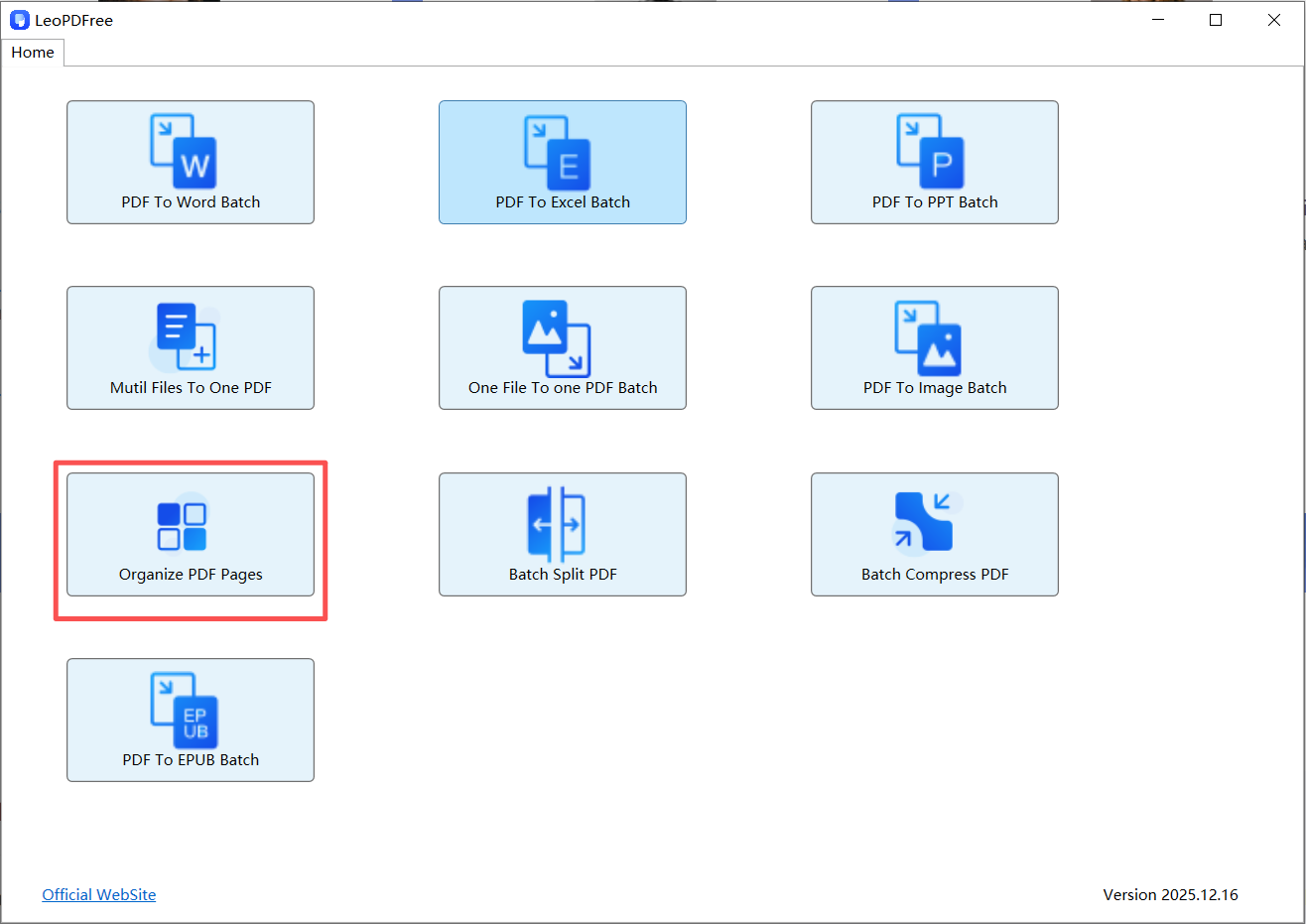
Step 1. Launch LeoPDF. And click on “Organize PDF Pages” on the main menu.
leopdf extract pdf pages

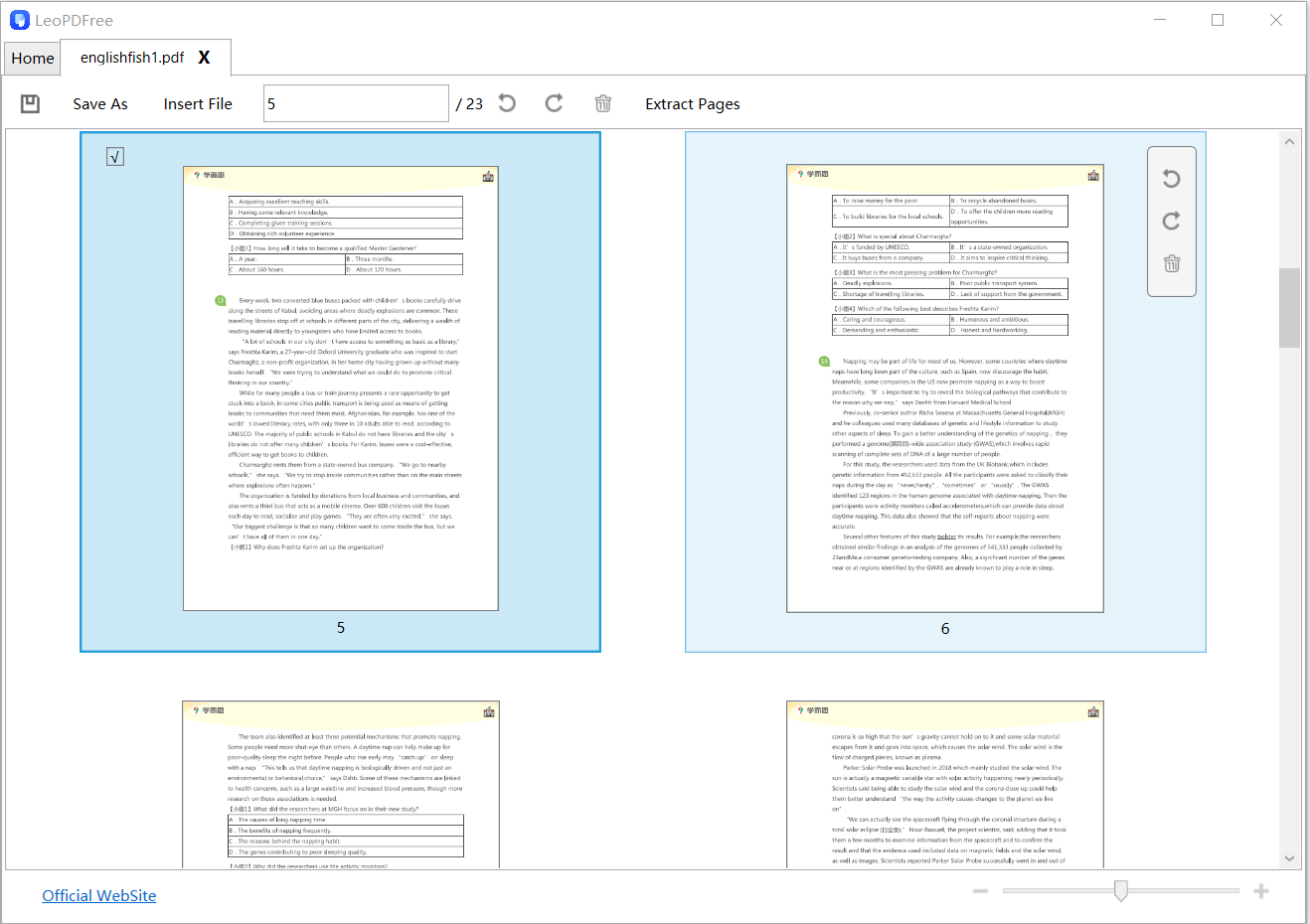
Step 2. Add the PDF file you wish to extract from. Then, select the pages by either dragging your mouse to frame the area or entering the page numbers in the input box above, as shown in the image below.
LeoPDF select page to extract

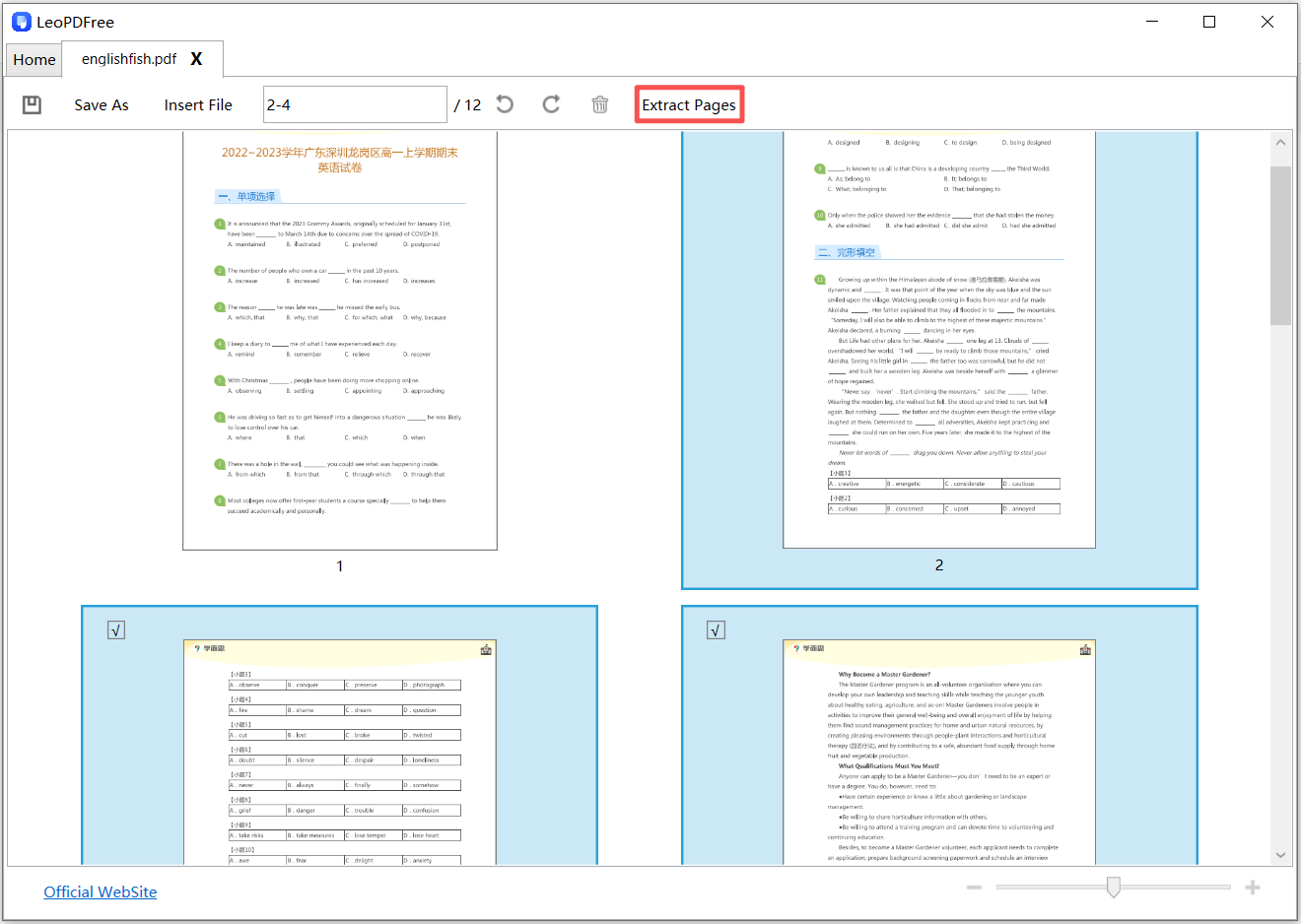
Step 3. Finally, click “Extract Pages” and seconds later the extraction will be done.
LeoPDF extract pages complete

As well as this, you can extract pages in bulk meaning there’s no time wasted from individually processing files. Remember that LeoPDF is among the small group of toolkits that doesn’t charge users so there’s no reason to search for a different solution!

2PDFelement

A full-on professional PDF editor like PDFelement may be more the type of software you’re looking for. Rather than being only essential tools, PDFelement lets users create documents from the very beginning.

pdfelement

Simple edits, format conversions, OCR scanning, and digital signature signing only touches on what can be done with it. The free trial can be appealing to users but it is heavily limiting and if you truly want a free PDF page extractor, this isn’t it.

+ POSITIVES

  • ● Lots of basic and advanced features
  • ● Allows bulk PDF page extractions
  • ● Not reduced to just being a page extractor
  • ● Can open and display multiple PDFs at the same time
  • ● Different page viewing modes

– NEGATIVES

  • ● Free trial prints a PDFelement watermark on all PDFs
  • ● Overwhelming layout for users who only want one tool

3Adobe Acrobat

Adobe Acrobat is the final software suggestion we’ve got and it’s possibly one you’ve considered already. Using this program can be confusing if you’re like most people and have only used it as a PDF viewer because there are a lot of useful feature. Therefore if you aren’t familiar with Adobe Acrobat, it’s not easy to learn quickly.

extract pages from pdf adobe acrobat

That said, if you’ve got a rough idea of how it works, extracting PDF pages can take a short amount of time. Purchasing Acrobat’s pro version is necessary otherwise restrictions are in place.

+ POSITIVES

  • ● Well-known and easy to use
  • ● Extract pages from multiple PDFs at the same time
  • ● Reduce PDF file sizes by removing unneeded pages

– NEGATIVES

  • ● Not ideal for beginners, this is a professional program
  • ● Adobe Acrobat’s full version is expensive

Part 2. Top 3 Online PDF Page Extractor

We’ll be explaining why an online PDF page extractor is less preferable to software but first, here are some online extractors to consider.

1iLovePDF

Most noticeable among the online tools is iLovePDF which expands itself to be a toolbox more than it is a page extractor. Import files from your Dropbox cloud storage, or Google Drive, and save the final PDF back to either account after.

ilovepdf page extractor

Other tools as well as page extraction are merging, compressing, and converting can all be done directly from iLovePDF.

+ POSITIVES

  • ● Import PDF from cloud storage and save extracted pages back on cloud account
  • ● Free to use, no payment is required for access to page extracting
  • ● Extract individual pages or a page range

– NEGATIVES

  • ● Removing PDF pages can’t be done directly
  • ● Identifying specific pages is difficult due to small thumbnails

2Sejda

Sejda isn’t getting as much attention as the online PDF page extractor iLovePDF, but it is virtually identical in terms of the features it includes.

sejda page extractor

The PDF extraction feature works by splitting the original PDF to remove unwanted pages. It’s worth mentioning that any documents have to be under 200 pages and can’t exceed 50 MB. Keep those limits in mind when deciding on an extractor.

+ POSITIVES

  • ● Online PDFs can have pages extracted using the URL
  • ● Dropbox and Google PDFs can be managed from Sejda
  • ● Selecting pages is easy because of bigger page thumbnails

– NEGATIVES

  • ● Files can’t be more than 50 MB or 200 pages
  • ● 3 PDFS can be processed each hour

3Smallpdf

Another tool which is reputable and relatively popular is Smallpdf. It’s simple, gets straight to the point and extracts the chosen pages, and even has a few extra features.

smallpdf page extractor

After the PDF has been uploaded, Smallpdf gives two options: extract or merge. Both of them are easy to understand and use, not to mention there are numerous settings to change in the process.

+ POSITIVES

  • ● Simple and easily navigable interface
  • ● Extract pages from multiple PDFs at the same time
  • ● Sync Dropbox storage with Smallpdf
  • ● Other tools like converting, PDF editing, and compressions are available

– NEGATIVES

  • ● Has a cap on the PDF file size
  • ● Extract pages from 2 PDFs each hour
  • ● Users need a subscription for all Small PDF fools

Important Things to Know About Online Tools

To quickly cover some important aspects of using online tools, here’s what you need to know:

  • Online tools don’t have powerful server power, thus the PDF quality isn’t as great as software solutions produce
  • There is always the risk that the page extraction website is unsafe (it may be hacked, PDFs could be infected with viruses, and your connection could be unencrypted)
  • Online tools have file size limits which are usually small, meaning a lot of PDFs are too large to be uploaded and extracted

Conclusion

The next time you’re in need of an offline or online PDF page extractor, direct your attention towards our list. Each of the solutions we’ve given you are among the best tools for this specific job. After much thought being put into our decision, LeoPDF is irrefutably the greatest extraction tool for PDF documents and thus we recommend that software.

Free DownloadSecure Download

Top 6 PDF to Excel (xlsx & xls) Converters You Should Never Miss

Compare six PDF-to-Excel choices, distinguishing ordinary conversion from OCR and checking spreadsheet data against the source.

PDF-to-Excel conversion should be judged by the spreadsheet you can actually use. First determine whether the PDF contains selectable text or scanned page images. These six choices include two distinct LeoPDF editions and four other vendors; they are not six independent vendors or a measured accuracy ranking.

1. LeoPDFree for free local conversion

LeoPDFree for Windows converts PDF to Excel locally without uploading files for processing. This conversion is free and has no OCR. Choose it for a supported source and review the saved spreadsheet; a scanned table should not be assumed to become recognized cells without OCR.

2. LeoPDF store editions for cloud OCR

The store editions provide paid cloud Word or Excel conversion with OCR support for scanned text and handwriting. Files processed in the cloud are deleted when conversion completes. Compare this with the Windows free edition through the edition comparison.

This is a different processing and payment workflow. Other supported conversion and file tasks in the store editions run locally; the paid cloud exception concerns conversion to Word or Excel.

3. Adobe Acrobat online

Adobe’s PDF-to-Excel tool converts an uploaded PDF to spreadsheet output. Review current free-use and account conditions. Check the selected service’s OCR requirements for scans instead of assuming that every advertised free conversion includes recognition.

4. ABBYY FineReader PDF

ABBYY’s conversion overview describes converting PDF information into Excel and explains OCR for image-based documents. Check the current FineReader edition, platform and license conditions before adopting a recognition workflow.

5. Wondershare PDFelement

Wondershare documents PDF-to-Excel conversion with PDFelement, including recognition for scanned content. Confirm that your edition and platform provide the required conversion and OCR access. A trial download does not establish unrestricted saved output.

6. Smallpdf

Smallpdf’s online converter produces XLSX output and distinguishes basic conversion from OCR access through Pro. Its free conversion has usage restrictions. This is an upload-based service, so review whether it fits the document and your handling requirements.

Check data before using the workbook

  • Compare decimal places, negative signs, dates and currency values.
  • Check rows split across pages and repeated table headings.
  • Inspect merged cells, blank cells and column boundaries.
  • Verify totals against the source and recalculate as needed.

Text that resembles a number may be stored as text, and a displayed total may not be a working formula. Check the workbook’s behavior before relying on calculations. If an older XLS format is required, confirm the actual exported format and the receiving application’s compatibility rather than assuming every converter provides both XLS and XLSX.

Questions about LeoPDF?

Contact xuehui@leopdf.com with your platform, app version and a description of your question.