
Bullzip PDF Printer Review: Uses, Licensing and Limitations

Bullzip PDF Printer explained: Windows print-to-PDF workflow, licensing checks, output verification and the difference between PDF creation and Office conversion.

PDF tools aren't scarce these days and whatever you want to do with a PDF document, there's most likely a tool out there that you can use. One tool that has caught our attention recently was Bullzip PDF Printer and with it, you are given the capability to print documents from various formats as PDF documents.

This might seem like an obscure concept, but it means people can take their files and create presentable documents out of them. After all, PDF is the best format for presenting documents in a readable way.

Back to Bullzip PDF Printer, we've had users questioning how good of a tool it is and thus, we're going to review it.

Part 1. Bullzip PDF Printer Review

Right off the bat, what is Bullzip PDF Printer? In basic terms, it's a virtual printer that you install on your computer. After you open a document, which could be almost any type of document (for example, Microsoft Word or a Notepad file), you'll be able to "print" it.
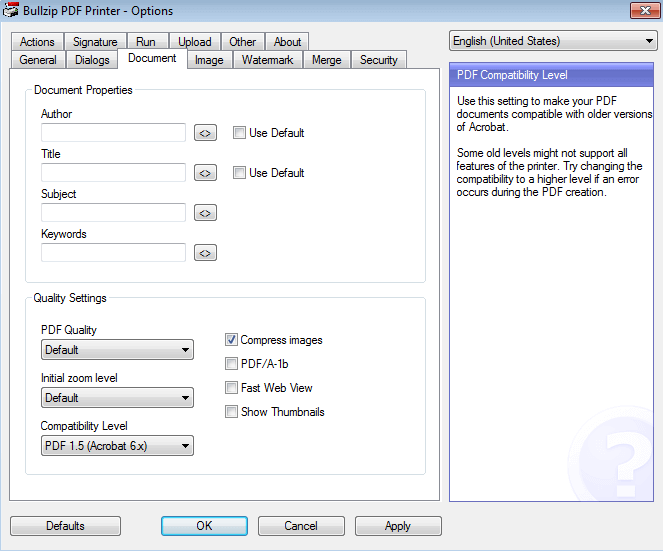
bullzip pdf printer
Bullzip PDF Printer settings.

But by printing a document with Bullzip PDF Printer, you're not actually printing a physical copy – you're creating it as a PDF file instead. There are pros and cons of this tool and first, we're going to list the main features it offers:

  • Can be used to convert virtually any document to PDF
  • PDF files can have password protection added to them upon printing
  • Includes various quality settings (lower quality means lower file size, and vice versa)
  • You can add a watermark to the PDF when printing

Most of these features are pretty standard for a basic PDF tool, but that shouldn't take away from Bullzip PDF Printer being handy. The next thing we want to look at is the cons that come with it.

Cons of Bullzip PDF Printer

  • Check whether text in the printed PDF remains selectable and searchable. Image-only source pages need OCR if you require recognized text.
  • When printing a PDF, the suggested filename uses the original filename twice instead of only once (renaming this takes unnecessary time)

Performance

For this last part of the Bullzip PDF Printer review, our focus will be on how well it performs. To quickly summarise the most important points, here's what we got out of the performance review.

  • Bullzip PDF Printer does not have a lot of functionality and is only suitable for printing documents as PDF
  • With the quality options, it's possible to print PDFs that are suited for a specific device (e.g. you can print a PDF specifically to be printed or as an eBook)
  • Security features were made a priority and are a nice bonus
  • Uninstalling this tool after it is no longer required is very straightforward (not stubborn to remove)

Part 2. Top 2 Alternatives to Bullzip PDF Printer

Moving away from Bullzip PDF Printer, it might not be what you're looking for. Perhaps it's missing some key features or it doesn't have an interface you like the look of. Whatever the reason is, try using an alternative like one of the ones we've listed below.

1. LeoPDFree for local PDF tasks

LeoPDFree is the free Windows edition. Its supported conversions, merging, splitting, page organization and compression run locally on your computer without uploading files for processing. PDF-to-Word and PDF-to-Excel conversion do not include OCR.

LeoPDF app store editions provide paid cloud Word and Excel conversion with OCR for PDFs, images and scans. Conversion files are deleted when processing completes. Other supported conversion and file-processing tasks run locally on your device.

Choose the edition and platform that fits your document. For creating a PDF from an editable Word or Excel document, use that document application’s PDF export or a PDF printer. LeoPDF does not provide Word/Excel-to-PDF, signing, form filling, direct PDF editing, page or embedded-image extraction, or encryption/decryption.

2. PDFCreator

PDFCreator is another option for creating PDF files, with free and paid editions.

  • Users can create PDF files from popular document formats and several image formats
  • For documents that require signatures, PDFCreator can be used to add digital signatures to your PDF files
  • Add different levels of PDF protection, including password protection that can either restrict all access or just editing
  • PDF files can be merged and the pages can be moved so that they're not jumbled up

Some of these features make PDFCreator an interesting piece of software, and there are a few similarities between this and . However, we can't dismiss that it's limited due to there being a Pro version. This reason, among others, add to the list of cons.

Cons of PDFCreator

  • Compare the free and paid editions, licensing terms and features on the publisher’s website before choosing a plan.
  • On the free version of PDFCreator there are ads displayed
  • Because there's a Pro version, the free version has a lot of restrictions
Publisher’s product information · Plans and licensing

How to Resize PDF File on Win & Mac for Free?

Distinguish PDF file-size reduction from page resizing, then use suitable Windows or Mac controls and check the resulting copy.

“Resize a PDF” can mean reducing its storage size or changing how large its pages appear on paper. Those are different tasks. A smaller-looking page is not proof of a smaller file, and a compressed file does not necessarily have different page dimensions. Start by identifying the requirement you need to meet.

Fit a PDF to paper on Windows

Adobe’s page-sizing instructions describe Fit, Actual size and custom scaling in the print workflow. In Acrobat Reader, open the print dialog, select the intended paper size and review the scaling option and preview before printing.

Fit adjusts the output to the chosen paper; a custom percentage changes its printed scale. These settings affect the print job and do not by themselves rewrite the source PDF’s page dimensions. Check a sample when physical measurements matter.

Scale pages in Preview on Mac

Apple’s Preview printing guide describes percentage scaling and Scale to Fit. Open the print dialog, choose the paper and inspect the preview. Print Entire Image and Fill Entire Paper can have different cropping results, so select the one that fits the task.

To create a separate PDF through the Mac print workflow, use the PDF menu’s Save as PDF option described in Apple’s PDF-saving guide. Reopen the copy and verify its page dimensions and contents. A print-generated copy should not be assumed to retain every interactive feature of the original.

Reduce storage size when that is the requirement

If an email or upload limit is the problem, use compression rather than merely changing print scale. Preview offers File > Export with the Reduce File Size Quartz Filter, as explained in Apple’s size-reduction guide. Save a new copy and compare readability; image quality can decrease.

For other compression options, see the PDF file-size guide. Check each tool’s current free-use conditions and processing location before selecting an online service.

Check the requirement against the saved result

  • For an upload limit, compare the actual byte size.
  • For a page-size requirement, inspect the saved PDF’s dimensions.
  • For printing, compare scale and cropping in the preview and a sample output.
  • For document use, inspect small text, links and required fields.

Keep the original and name each changed copy clearly. Do not promise that one resizing operation will simultaneously preserve every feature, reduce storage size and satisfy all print requirements.

Questions about LeoPDF?

Contact xuehui@leopdf.com with your platform, app version and a description of your question.

PDFescape Review: Reading This before Making a Purchase

Compare PDFescape’s browser and Windows editions, then verify the specific editing or conversion task you need.

PDFescape offers browser-based tools and a Windows desktop product. Before choosing an edition, identify whether you need annotations, form filling, changes to existing text or a format conversion. Those tasks can have different controls and access requirements.

This overview is based on the vendor’s feature descriptions and an evaluation checklist. It does not claim hands-on testing of every edition or a guarantee that every document will behave the same way.

Online and desktop are separate choices

The official product page describes its online PDF editor and form tools separately from the Windows application. The online workflow involves uploading a file; installing a desktop edition is a different route.

Check the controls available for your specific task. Adding a text box, filling an existing field and changing original page text are not interchangeable operations. Try the operation you actually need before relying on a general “PDF editor” label.

What does free access include?

PDFescape advertises a free online offering and additional desktop features through paid editions. Review the edition comparison and current purchase terms for the exact product. Check file requirements, account conditions and whether your intended output can be saved or downloaded.

Do not assume that free access to one tool includes every desktop conversion or editing feature. Prices, trials and plan contents should be checked on the vendor’s site rather than taken from an old screenshot.

Evaluate the complete operation

  1. Choose a sample document suitable for the processing location.
  2. Perform the required annotation, form or editing operation.
  3. Save or download the result as your account permits.
  4. Open that output in the application the recipient will use.

Compare the source and result for layout changes, field behavior and missing content. An edit that appears in a browser preview should also be checked in the saved document.

Choose a conversion tool when conversion is the task

LeoPDFree for Windows provides supported format conversions locally without uploading files for processing. Its PDF-to-Word and PDF-to-Excel conversion is free and has no OCR. LeoPDF store editions provide paid cloud Word or Excel conversion with OCR, deleting cloud files when conversion completes.

See the LeoPDF edition comparison. LeoPDFree does not provide direct PDF editing, signing, form filling or password removal, so it should not be presented as matching every PDFescape capability.

Make the choice from your document

Compare the processing location, available features, account terms and the actual saved output. Keep the original file while evaluating another tool. A familiar product name or a long feature list does not establish which edition completes your particular task.

Questions about LeoPDF?

Contact xuehui@leopdf.com with your platform, app version and a description of your question.

pdfFiller Overview: Features, Access and Privacy Considerations

Review pdfFiller’s subscription workflow, document handling and required features before choosing a plan.

pdfFiller provides online document editing and form-related workflows. Deciding whether it fits your needs requires checking the exact feature, account terms and the way your documents will be handled. This overview uses official product information; it is not an independent security audit or a hands-on performance test.

What the plans describe

The official plans page lists editing and filling tools, with additional template, field and signing workflows depending on the plan. Confirm that the task you need is included rather than assuming every feature appears in the lowest-priced option.

Consider the complete workflow: opening the source, making the required change, saving or downloading the result and giving the recipient usable access. A feature shown in an editor is not sufficient if your account cannot complete the output step you need.

Is it free?

A free trial is different from a permanently free service. pdfFiller offers subscription plans and trial entry points. Read the offer presented to you, including the billing interval, any trial conditions and what happens after the trial ends.

Check the total charge and selected plan rather than only a monthly equivalent displayed with an annual option. Keep a copy of the terms shown for your order and use the vendor’s support and account controls for billing questions. This guide does not promise a fixed price, trial duration or refund outcome.

How to evaluate document privacy

Read the vendor’s Privacy Notice and the terms relevant to your account. Consider uploaded documents, account access, shared links and retention or deletion controls before choosing an online workflow.

A provider’s security statements are information to assess, not proof that every use is risk-free. Start with a suitable sample when evaluating the service and confirm who can access the completed document. Do not assume that another product’s local-processing or deletion policy applies here.

Check the exported result

  • Compare text, images and page layout with the source.
  • Test fields and any required signing workflow in the recipient’s setup.
  • Check the downloaded file separately from the online editor.
  • Keep the original and a usable copy of the final output.

When a local converter is a different choice

If your task is a supported file conversion on Windows, LeoPDFree processes files locally without uploading them for processing. Its Word and Excel output has no OCR. See the edition and feature comparison for the differences from store editions.

LeoPDFree does not provide direct PDF editing, form filling or signing. It should not be advertised as a free replacement for those pdfFiller workflows. Choose according to the actual task, not a blanket claim that one product is safest or best for everyone.

Questions about LeoPDF?

Contact xuehui@leopdf.com with your platform, app version and a description of your question.

PDFMate Full Review: Never Use It Before Reading This

Distinguish PDFMate’s converter products and verify edition-specific output, OCR and purchase conditions before choosing one.

PDFMate is a product family rather than a single tool with one fixed feature set. Before installing anything, identify the exact application, platform and conversion direction you need. This overview uses the official catalog and evaluation criteria; it does not claim a new hands-on test or imply that the product is unsafe because of an old review title.

Identify the application first

The PDFMate product catalog separately lists PDF to Word Converter, PDF Converter Pro, Free PDF Converter and Free PDF Merger. A feature belonging to one of these products should not automatically be attributed to another.

Choose by the intended operation. Exporting a PDF into an editable document, combining existing PDFs and creating an image-based PDF are different jobs. Check the particular product page and the offered installer before assuming that one download does them all.

Verify the edition’s output and recognition options

The catalog describes OCR for the dedicated PDF-to-Word product. That description does not establish identical OCR access, output formats or limits across every free, paid or platform-specific application. Confirm the details for the version you will actually use.

If the source is a scan, establish whether the required output contains recognized text or only page images. If it already has selectable text, inspect the conversion for paragraph flow and table structure instead of assuming that OCR is necessary.

Evaluate a complete conversion

  1. Keep the original and use a representative working copy.
  2. Choose the intended output and review the available settings.
  3. Complete the conversion and save the file.
  4. Open it outside the converter.
  5. Compare the result with the source, including pages containing tables or illustrations.

Check names, numbers, missing characters, column order and page breaks. A preview can help identify the source, but it is not proof that every exported detail is correct. If the output needs substantial repair, include that effort when comparing tools.

Check the terms for the selected product

Review current system requirements, free or trial restrictions, license conditions and support options. Do not carry a price, compatibility claim or permission from an older article into a different edition. For sensitive documents, check the actual processing workflow and applicable privacy information before use.

When LeoPDF fits the conversion

LeoPDFree provides supported conversions locally on Windows without uploading files for processing. PDF-to-Word and PDF-to-Excel conversion is free and has no OCR. Store editions provide paid cloud Word or Excel conversion with OCR, deleting cloud files when conversion completes.

See the LeoPDF edition comparison. LeoPDFree does not provide direct PDF editing, signing, form filling or password removal. Compare the exact operation rather than treating either product family as a substitute for every PDF tool.

Questions about LeoPDF?

Contact xuehui@leopdf.com with your platform, app version and a description of your question.

PDFCreator In-depth Review: Does It Work Perfectly?

Understand PDFCreator’s virtual-printer workflow, edition terms and output checks before choosing it.

PDFCreator is primarily relevant when you want to create a PDF from an application that can print. That is different from converting a PDF into an editable Word document or changing its existing paragraphs. This overview is based on vendor documentation, not a claim that every feature has been tested here.

How the virtual-printer workflow works

The developer describes PDFCreator Free as a Windows application that installs a virtual printer. In a program that offers printing, you can select the PDFCreator printer to create PDF output.

  1. Open the source in an application that can print it.
  2. Choose Print and select the installed PDFCreator printer.
  3. Review the page selection, paper size and layout.
  4. Save the output through the available PDFCreator controls.
  5. Open the PDF and compare it with the source.

Print-to-file output should be checked for cropped content, unexpected blank pages and text that is too small. If the source application already has a suitable PDF export feature, compare that result before adding another tool.

Check which edition fits your use

The vendor currently positions Free for personal use and directs commercial use to its business editions. Read the current edition and license terms for your environment instead of relying on an old statement that all uses are free. The official free-edition FAQ provides more context.

Advanced automation, deployment and other business requirements should be checked against the relevant edition. A no-cost download, an evaluation and a business license are different arrangements.

Review the workflow settings

PDFCreator describes features beyond basic PDF creation, including profiles and automated actions. Check the configured save destination and any enabled actions before processing your files. A desktop application’s actual behavior depends on the workflow you configure, so do not assume that every profile only writes a local file.

Creation and reverse conversion are different

If the source is a PDF and you need an editable document, select a tool that supports that conversion. LeoPDFree’s Windows PDF-to-Word and PDF-to-Excel conversions run locally for free without OCR. Store editions use paid cloud conversion with OCR for Word or Excel, deleting cloud files when conversion completes.

See the LeoPDF edition comparison. LeoPDFree does not provide Word-to-PDF conversion or direct PDF editing, so it should not be described as replacing a virtual printer or every PDF authoring feature.

Does it work perfectly?

Check your actual source and output. Page layout, links, fonts and the receiving application can affect the result. Keep the editable source and a reviewed PDF rather than treating a successful print operation as a universal quality guarantee.

Questions about LeoPDF?

Contact xuehui@leopdf.com with your platform, app version and a description of your question.

Nitro PDF Pro Overview: Features, Editions and Conversion Checks

Evaluate Nitro’s PDF editing and OCR workflows without applying current product claims to an old Nitro Pro 12 license.

Nitro Pro 12 is an older named version, while Nitro’s current product material describes Nitro PDF Pro. Check the version you have before following instructions or comparing licenses. This overview uses vendor documentation and a practical checklist; it is not a hands-on performance test of version 12.

Start with the platform and task

The current Nitro PDF editor page describes editing, conversion and other document workflows. Windows and Mac documentation should be checked separately rather than assuming identical controls or feature availability.

Identify whether you need to revise existing PDF content, annotate pages, convert a file or work with scanned text. A trial download or an older license does not automatically establish access to every current offering.

Searchable and editable OCR output differ

Nitro’s OCR documentation describes searchable output and searchable-and-editable output. Select the mode and page range that fit the task, using the controls available in your installed version.

Run a representative sample and compare the recognized words with the scan. Check text order, numbers, tables and symbols. OCR can need manual correction, especially when the source image is unclear.

Check an editing or conversion workflow

  1. Keep the original file and use a working copy.
  2. Perform the required operation in the relevant edition.
  3. Save the output with a distinct name.
  4. Open the saved result in the recipient’s application and inspect it.

Check more than the first page. Review fonts, images, headings and any forms or annotations that must remain useful. A visual change in the editor should also be verified in the file you intend to send.

Review access and connected features

Check the current platform requirements, purchase terms and support information for the product you are evaluating. For any cloud or connected operation, review where the document goes and which account provides access. Do not assume that all tasks run locally merely because an app is installed.

Compare a converter for a conversion-only task

LeoPDFree for Windows provides supported conversions locally without uploading files for processing. PDF-to-Word and PDF-to-Excel output is free and has no OCR. For scanned text and handwriting, LeoPDF store editions provide paid cloud Word or Excel conversion with OCR, deleting cloud files when conversion completes.

See the LeoPDF edition comparison. LeoPDFree does not provide direct PDF editing, signing or form filling, so it should not be advertised as replacing every Nitro workflow.

Choose by the required output, available edition and actual result. Old screenshots and generic speed claims are not a substitute for checking a document that resembles your own.

Questions about LeoPDF?

Contact xuehui@leopdf.com with your platform, app version and a description of your question.

PrimoPDF and Nitro: Current Status and PDF Creation Options

PrimoPDF’s current Nitro destination, clearly labelled legacy printing steps and practical PDF export alternatives, with no unverified old-installer recommendation.

PrimoPDF is a PDF-creation tool from Nitro. Its main purpose is creating PDFs through a virtual printer. This review covers its workflow, output settings, advantages and alternatives.

Part 1. PrimoPDF Review: Is It Worth Trying?

1. What is PrimoPDF?

To add to our previous section, PrimoPDF is as simple as it gets. The main purpose of this software is to create PDF documents. It can do this by simply taking an existing document, which can be one of hundreds of formats, and converting it into a regular PDF.

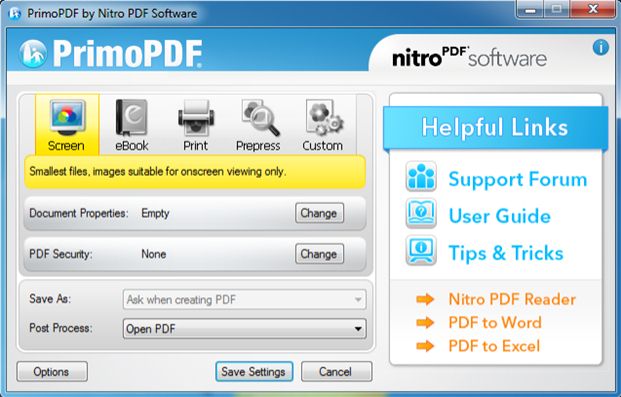
primopdf
PrimoPDF PDF creation settings.

Right away the thing which stands out about PrimoPDF is that it's a one-purpose tool. You won't be able to edit a PDF or combine multiple documents – all you can do is create new PDFs. This also prevents users from converting PDFs to other formats too.

2. Pros & Cons

+ POSITIVES

  • Creates PDFs from a wide range of formats
  • Processes PDF conversions very quickly
  • Newly created PDFs can have encryption added to them
  • Simple design makes the tool easy to use

– NEGATIVES

  • Although easy to use, the design is outdated and unappealing
  • Check that the application works reliably with the document types and layouts you use.
  • Display ads are shown on PrimoPDF
  • The guide that accompanies PrimoPDF includes outdated links, making it useless

3. How to Create PDF with PrimoPDF

One way of seeing how well a program performs is by actually using it. Thus, this next section will explain how to create a PDF from an existing file.

Step 1 – Install PrimoPDF and open it on your computer. Doing this will install the PDF printer.

Step 2 – Open the file in your regular program (e.g. open a Word document in Microsoft Word). Go to the "File" tab of the program and click "Print".

Step 3 – From the Print menu, select "PrimoPDF" as the printer, and click "OK". PrimoPDF's tool will open and you now must choose a PDF Creation profile.

Step 4 – Finally, select a save location by clicking "Save As" and then click "Create PDF".

Now, most Windows computers have a similar feature available known as "Microsoft Print to PDF", so this process can appear redundant. On the other hand, it offers users a little more flexibility over the process.

4. Performance

Let's take a look at the performance aspect of PrimoPDF. The PDF creation process is straightforward – all you have to do is drag the original file onto PriomPDF's program icon and the file will begin processing. Your end result will vary for each project and one thing you can change is the file quality. Higher quality results in a crisp and clear document but also a large file size, whereas lower quality produces a smaller PDF.

File protection is also an option when converting a document to PDF. Either a simple password can be added to the PDF or an editing restriction password which limits the tasks a user can do to the document.

Part 2. Top 2 Alternatives to PrimoPDF

PrimoPDF isn't for everyone, we understand that. Therefore, we've gone ahead and found some alternatives you should look into.

1. LeoPDFree for local PDF tasks

LeoPDFree is the free Windows edition. Its supported conversions, merging, splitting, page organization and compression run locally on your computer without uploading files for processing. PDF-to-Word and PDF-to-Excel conversion do not include OCR.

LeoPDF app store editions provide paid cloud Word and Excel conversion with OCR for PDFs, images and scans. Conversion files are deleted when processing completes. Other supported conversion and file-processing tasks run locally on your device.

Choose the edition and platform that fits your document. For creating a PDF from an editable Word or Excel document, use that document application’s PDF export or a PDF printer. LeoPDF does not provide Word/Excel-to-PDF, signing, form filling, direct PDF editing, page or embedded-image extraction, or encryption/decryption.

2. PDF Suite

PDF Suite can also be used in place of PrimoPDF. With the help of this program, you can convert a PDF in many different ways, edit your PDFs without the original, and access a few helpful document review features too.

  • Add forms to PDF that can be digitally filled out by others
  • Mobile-responsiveness allows mobile-friendly PDFs to be created
  • Convert files to PDF format and create PDFs from scratch
  • Securely handle PDFs by adding password protection
  • Easily convert online files to PDF by copying the file URL

You can use the free trial of PDF Suite to see for yourself, but for no restrictions, the paid version needs to be bought. Setting aside the pricing side of things, that's not the only con.

Cons

  • Moving or editing text isn't smooth and is a little buggy
  • Users can't redact elements without completely removing them

Publisher’s product information · Plans and licensing

ABBYY FineReader PDF Overview: OCR, Editions and What to Check

Assess FineReader’s OCR and PDF workflows while separating an older version 15 installation from current editions.

FineReader 15 and the FineReader PDF editions currently advertised by ABBYY should not be treated as the same purchase or feature set. If you already have version 15, check its own license, platform and support information. This overview draws on current official documentation rather than claiming a new hands-on test of that older version.

What the current product describes

The FineReader PDF for Windows page describes PDF editing and conversion, OCR, forms and document comparison, with features and workflow options varying by edition. Confirm the edition that includes the particular task you need.

Check the current system requirements and trial or purchase terms. An old installation or a previous offer does not establish access to every current feature.

Decide what you want OCR to produce

A searchable PDF and an editable document serve different purposes. Choose an output that fits the way the information will be used, then test whether the result actually provides selectable text, useful reading order or an editable table.

Use a source with representative features: small writing, columns, tables or imperfect scans. If language and recognition settings are available in your edition, review them before processing a large collection.

Review recognized text and layout

  • Compare names, dates, figures and punctuation against the source.
  • Check column order and text around illustrations.
  • Inspect table boundaries, empty cells and headings.
  • Check the saved document in the application that will use it.

A clear preview is not enough to establish that all recognized characters are correct. Keep the scans and the exported files separately, so uncertain passages can be traced back to the source.

Check the complete document workflow

If you also need editing, comparison or recurring processing, verify those requirements against the selected edition. Evaluate the steps from opening a source through saving a usable result rather than assuming that every capability belongs to the same license.

Review processing location and any connected services for your chosen operation. A desktop product name does not by itself describe every account or integration feature.

A narrower conversion alternative

LeoPDFree on Windows offers free local PDF-to-Word and PDF-to-Excel conversion without OCR, with no upload for processing. It should not be presented as a scanned-text recognition tool.

LeoPDF store editions provide paid cloud conversion to Word or Excel with OCR support for scanned text and handwriting. Cloud files are deleted when conversion completes. See the edition comparison to choose by input type and processing needs.

LeoPDFree does not provide direct PDF editing, form filling or signing. A converter and a document-management suite can meet different needs; compare the exact operation and verified output rather than relying on a universal ranking.

Questions about LeoPDF?

Contact xuehui@leopdf.com with your platform, app version and a description of your question.

Power PDF Overview: Current Editions and Older Nuance Versions

Check current Power PDF editions and workflows instead of applying Nuance-era product details to a new purchase.

If you found Power PDF through an older Nuance-branded review, check the current product and the version installed on your computer separately. The current product information is available from Tungsten Automation. This overview uses official documentation and evaluation criteria, not a hands-on benchmark of a historical release.

Identify the product and edition

The current Power PDF page describes PDF creation, editing, conversion and document workflows. It also discusses desktop and connected business features. Confirm the edition, platform and purchase terms relevant to your task.

Do not transfer a price, license description or interface screenshot from an old release to a current product. Equally, a current feature page does not establish that your older installation includes the same controls.

Check the required operation

For editing, try the exact change you need in a representative document. For conversion, inspect the output format in the application where you intend to use it. Creating a PDF, changing existing page text and exporting a spreadsheet are different tasks.

  • Compare page order, headings and paragraph flow.
  • Inspect tables, images and small text.
  • Check any fields, comments or links that matter.
  • Open the saved result outside the editing interface.

Keep the original while evaluating the workflow. A successful save is not a guarantee that every interactive or layout property has been retained.

Desktop and online collaboration differ

The vendor describes browser and Microsoft Teams collaboration for Power PDF Business alongside desktop workflows. Check whether your selected feature uses an online service and whether your edition includes it. A desktop product name should not be used to describe all document handling as entirely offline.

Review account access, sharing and the current processing terms for any connected operation. Choose the workflow appropriate for the document rather than assuming that every feature has the same requirements.

When a narrower converter fits

LeoPDFree for Windows provides supported conversions locally without uploading files for processing. Its PDF-to-Word and PDF-to-Excel conversion is free and has no OCR. Store editions provide paid cloud Word or Excel conversion with OCR support for scanned text and handwriting, deleting cloud files when conversion completes.

See the LeoPDF edition comparison. LeoPDFree does not provide direct PDF editing, signing, form filling or password removal. Choose it for a supported conversion instead of treating it as a substitute for every PDF editor feature.

Make a version-specific decision

Compare the current edition’s documented features, processing requirements and a reviewed sample result. If you already own an older version, check its own support and upgrade options before deciding whether a different product is needed.

Questions about LeoPDF?

Contact xuehui@leopdf.com with your platform, app version and a description of your question.