
Tips & guides
Bullzip PDF Printer Review: Uses, Licensing and Limitations
Published
PDF tools aren't scarce these days and whatever you want to do with a PDF document, there's most likely a tool out there that you can use. One tool that has caught our attention recently was Bullzip PDF Printer and with it, you are given the capability to print documents from various formats as PDF documents.
This might seem like an obscure concept, but it means people can take their files and create presentable documents out of them. After all, PDF is the best format for presenting documents in a readable way.
Back to Bullzip PDF Printer, we've had users questioning how good of a tool it is and thus, we're going to review it.
Part 1. Bullzip PDF Printer Review
Right off the bat, what is Bullzip PDF Printer? In basic terms, it's a virtual printer that you install on your computer. After you open a document, which could be almost any type of document (for example, Microsoft Word or a Notepad file), you'll be able to "print" it.
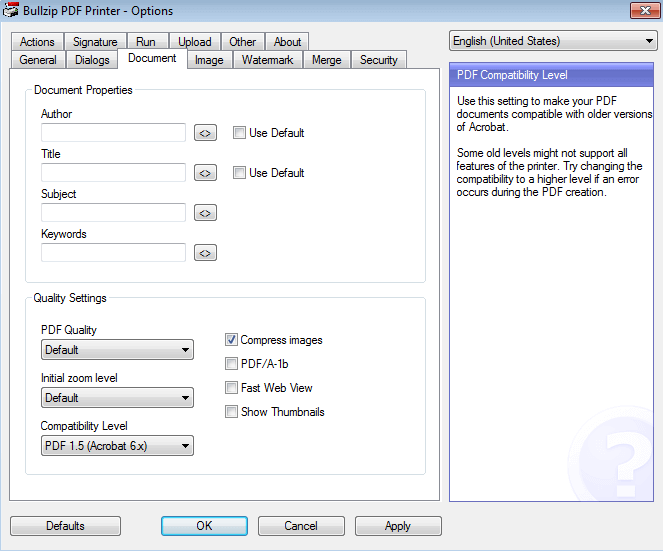
But by printing a document with Bullzip PDF Printer, you're not actually printing a physical copy – you're creating it as a PDF file instead. There are pros and cons of this tool and first, we're going to list the main features it offers:
- Can be used to convert virtually any document to PDF
- PDF files can have password protection added to them upon printing
- Includes various quality settings (lower quality means lower file size, and vice versa)
- You can add a watermark to the PDF when printing
Most of these features are pretty standard for a basic PDF tool, but that shouldn't take away from Bullzip PDF Printer being handy. The next thing we want to look at is the cons that come with it.
Cons of Bullzip PDF Printer
- Check whether text in the printed PDF remains selectable and searchable. Image-only source pages need OCR if you require recognized text.
- When printing a PDF, the suggested filename uses the original filename twice instead of only once (renaming this takes unnecessary time)
Performance
For this last part of the Bullzip PDF Printer review, our focus will be on how well it performs. To quickly summarise the most important points, here's what we got out of the performance review.
- Bullzip PDF Printer does not have a lot of functionality and is only suitable for printing documents as PDF
- With the quality options, it's possible to print PDFs that are suited for a specific device (e.g. you can print a PDF specifically to be printed or as an eBook)
- Security features were made a priority and are a nice bonus
- Uninstalling this tool after it is no longer required is very straightforward (not stubborn to remove)
Part 2. Top 2 Alternatives to Bullzip PDF Printer
Moving away from Bullzip PDF Printer, it might not be what you're looking for. Perhaps it's missing some key features or it doesn't have an interface you like the look of. Whatever the reason is, try using an alternative like one of the ones we've listed below.
1. LeoPDFree for local PDF tasks
LeoPDFree is the free Windows edition. Its supported conversions, merging, splitting, page organization and compression run locally on your computer without uploading files for processing. PDF-to-Word and PDF-to-Excel conversion do not include OCR.
LeoPDF app store editions provide paid cloud Word and Excel conversion with OCR for PDFs, images and scans. Conversion files are deleted when processing completes. Other supported conversion and file-processing tasks run locally on your device.
Choose the edition and platform that fits your document. For creating a PDF from an editable Word or Excel document, use that document application’s PDF export or a PDF printer. LeoPDF does not provide Word/Excel-to-PDF, signing, form filling, direct PDF editing, page or embedded-image extraction, or encryption/decryption.
2. PDFCreator
PDFCreator is another option for creating PDF files, with free and paid editions.
- Users can create PDF files from popular document formats and several image formats
- For documents that require signatures, PDFCreator can be used to add digital signatures to your PDF files
- Add different levels of PDF protection, including password protection that can either restrict all access or just editing
- PDF files can be merged and the pages can be moved so that they're not jumbled up
Some of these features make PDFCreator an interesting piece of software, and there are a few similarities between this and . However, we can't dismiss that it's limited due to there being a Pro version. This reason, among others, add to the list of cons.
Cons of PDFCreator
- Compare the free and paid editions, licensing terms and features on the publisher’s website before choosing a plan.
- On the free version of PDFCreator there are ads displayed
- Because there's a Pro version, the free version has a lot of restrictions