
Tips & guides
PrimoPDF and Nitro: Current Status and PDF Creation Options
Published
PrimoPDF is a PDF-creation tool from Nitro. Its main purpose is creating PDFs through a virtual printer. This review covers its workflow, output settings, advantages and alternatives.
Part 1. PrimoPDF Review: Is It Worth Trying?
1. What is PrimoPDF?
To add to our previous section, PrimoPDF is as simple as it gets. The main purpose of this software is to create PDF documents. It can do this by simply taking an existing document, which can be one of hundreds of formats, and converting it into a regular PDF.
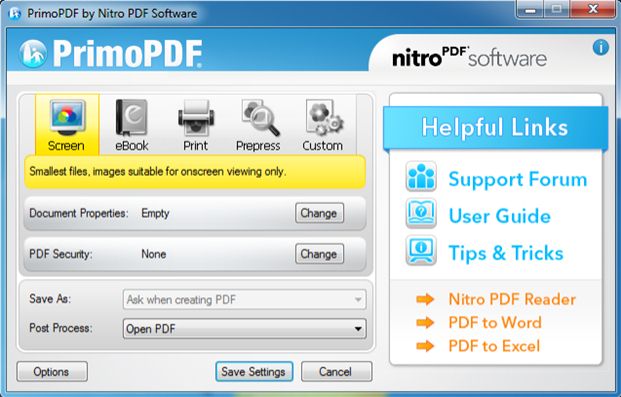
Right away the thing which stands out about PrimoPDF is that it's a one-purpose tool. You won't be able to edit a PDF or combine multiple documents – all you can do is create new PDFs. This also prevents users from converting PDFs to other formats too.
2. Pros & Cons
+ POSITIVES
- Creates PDFs from a wide range of formats
- Processes PDF conversions very quickly
- Newly created PDFs can have encryption added to them
- Simple design makes the tool easy to use
– NEGATIVES
- Although easy to use, the design is outdated and unappealing
- Check that the application works reliably with the document types and layouts you use.
- Display ads are shown on PrimoPDF
- The guide that accompanies PrimoPDF includes outdated links, making it useless
3. How to Create PDF with PrimoPDF
One way of seeing how well a program performs is by actually using it. Thus, this next section will explain how to create a PDF from an existing file.
Step 1 – Install PrimoPDF and open it on your computer. Doing this will install the PDF printer.
Step 2 – Open the file in your regular program (e.g. open a Word document in Microsoft Word). Go to the "File" tab of the program and click "Print".
Step 3 – From the Print menu, select "PrimoPDF" as the printer, and click "OK". PrimoPDF's tool will open and you now must choose a PDF Creation profile.
Step 4 – Finally, select a save location by clicking "Save As" and then click "Create PDF".
Now, most Windows computers have a similar feature available known as "Microsoft Print to PDF", so this process can appear redundant. On the other hand, it offers users a little more flexibility over the process.
4. Performance
Let's take a look at the performance aspect of PrimoPDF. The PDF creation process is straightforward – all you have to do is drag the original file onto PriomPDF's program icon and the file will begin processing. Your end result will vary for each project and one thing you can change is the file quality. Higher quality results in a crisp and clear document but also a large file size, whereas lower quality produces a smaller PDF.
File protection is also an option when converting a document to PDF. Either a simple password can be added to the PDF or an editing restriction password which limits the tasks a user can do to the document.
Part 2. Top 2 Alternatives to PrimoPDF
PrimoPDF isn't for everyone, we understand that. Therefore, we've gone ahead and found some alternatives you should look into.
1. LeoPDFree for local PDF tasks
LeoPDFree is the free Windows edition. Its supported conversions, merging, splitting, page organization and compression run locally on your computer without uploading files for processing. PDF-to-Word and PDF-to-Excel conversion do not include OCR.
LeoPDF app store editions provide paid cloud Word and Excel conversion with OCR for PDFs, images and scans. Conversion files are deleted when processing completes. Other supported conversion and file-processing tasks run locally on your device.
Choose the edition and platform that fits your document. For creating a PDF from an editable Word or Excel document, use that document application’s PDF export or a PDF printer. LeoPDF does not provide Word/Excel-to-PDF, signing, form filling, direct PDF editing, page or embedded-image extraction, or encryption/decryption.
2. PDF Suite
PDF Suite can also be used in place of PrimoPDF. With the help of this program, you can convert a PDF in many different ways, edit your PDFs without the original, and access a few helpful document review features too.
- Add forms to PDF that can be digitally filled out by others
- Mobile-responsiveness allows mobile-friendly PDFs to be created
- Convert files to PDF format and create PDFs from scratch
- Securely handle PDFs by adding password protection
- Easily convert online files to PDF by copying the file URL
You can use the free trial of PDF Suite to see for yourself, but for no restrictions, the paid version needs to be bought. Setting aside the pricing side of things, that's not the only con.
Cons
- Moving or editing text isn't smooth and is a little buggy
- Users can't redact elements without completely removing them