
Tips & guides
Smallpdf Review: Features, Free Limits and File Privacy
Published
For sensitive documents, decide whether an upload-based workflow fits your requirements. Use the publisher’s download and file-handling information when choosing a tool.
Part 1. Smallpdf Review: Safety, Features, Performance & Pricing
In short, Smallpdf is a collection of PDF tools. Users can compress PDF files, convert them to various formats, convert other documents to PDF, and plenty more.
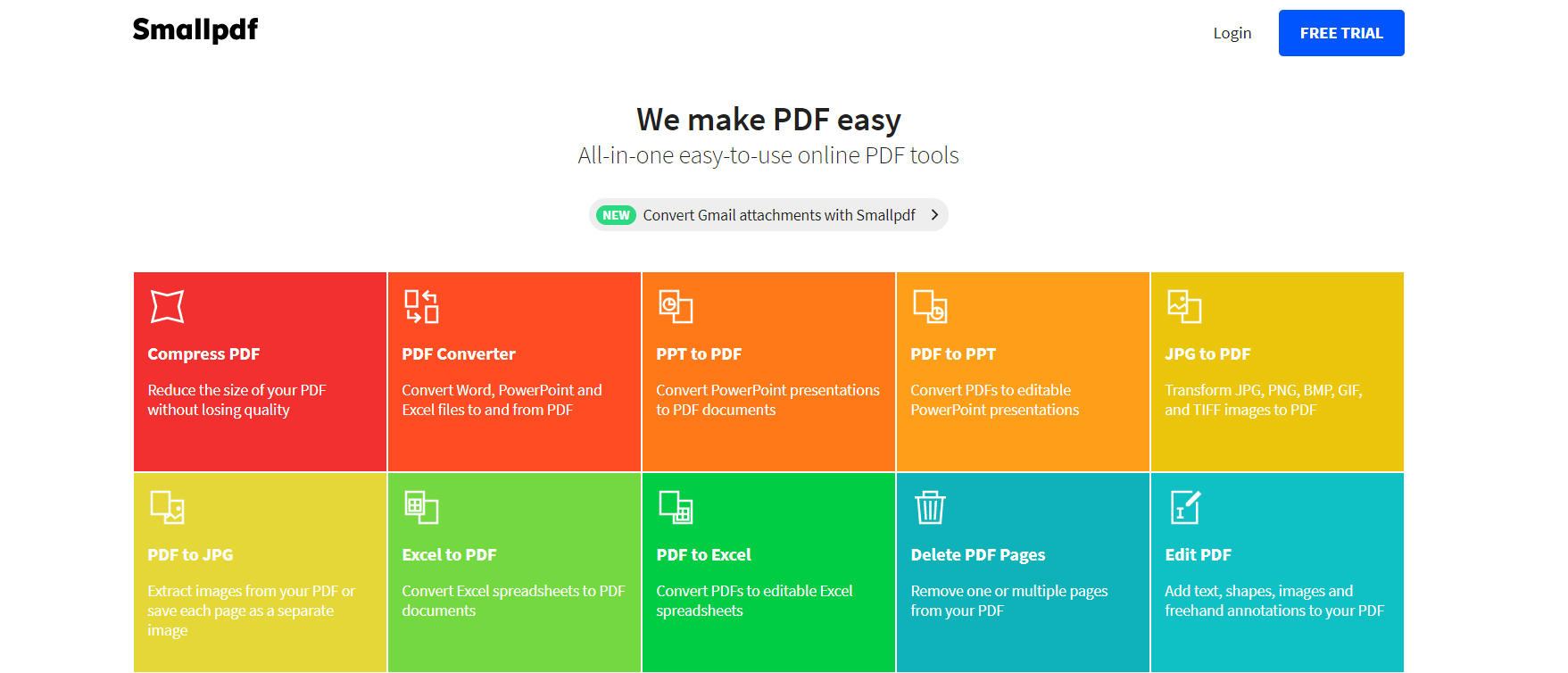
It is online and free to use, but there are perks that come with paying for a Pro subscription. The limits of not paying aren't too restrictive, fortunately, but nonetheless are still there.
1.1 Is it Safe to Use?
1.2 Features of Smallpdf
In this next section of our Smallpdf review, we are going to discuss some features. When it comes to managing a PDF file, here are the things that you can do with Smallpdf:
- Convert between PDF and supported Office or image formats.
- Compress PDF files to reduce the file size
- Delete pages from a PDF
- Edit an existing PDF using the available editing tools.
- Merge multiple PDFs or split a PDF into multiple files
- Rotate pages in a PDF file
- Add eSignature boxes to pages
- Remove, add, and manage any PDF protection
Free access and paid plans have different processing allowances. Compare the available features, file limits and billing terms on the publisher’s pricing page before choosing a plan.
1.3 Pros and cons
Try the operation with a representative document and check the output. For conversion, compare text and table structure; for compression, compare readability and file size.
- User-friendly design with minimal ads (no ads for Pro users)
- Has a variety of useful PDF tools
- Cheaper than a lot of competitors
- Effective for heavily compressing files
- Compare readability and image detail after compression.
– Negatives
- Can't be used as an offline tool without the top Pro subscription
- To use Smallpdf for a long time, a subscription is needed
- File names are changed after using the site
1.4 Price of Smallpdf
- 2. Process multiple PDFs at the same time
- 3. Ads are removed from the site
- 4. Access to all the PDF tools without limits
- 5. PDFs can be signed with the online eSignature
- Use the HTTPS connection provided by the service for uploads and downloads.
Publisher’s product information · Plans and licensing
LeoPDF for local PDF tasks
LeoPDFree is the free Windows edition. Its supported conversions, merging, splitting, page organization and compression run locally on your computer without uploading files for processing. PDF-to-Word and PDF-to-Excel conversion do not include OCR.
LeoPDF app store editions provide paid cloud Word and Excel conversion with OCR for PDFs, images and scans. Conversion files are deleted when processing completes. Other supported conversion and file-processing tasks run locally on your device.
Choose the edition and platform that fits your document. For creating a PDF from an editable Word or Excel document, use that document application’s PDF export or a PDF printer. LeoPDF does not provide Word/Excel-to-PDF, signing, form filling, direct PDF editing, page or embedded-image extraction, or encryption/decryption.
Compress a PDF with LeoPDFree
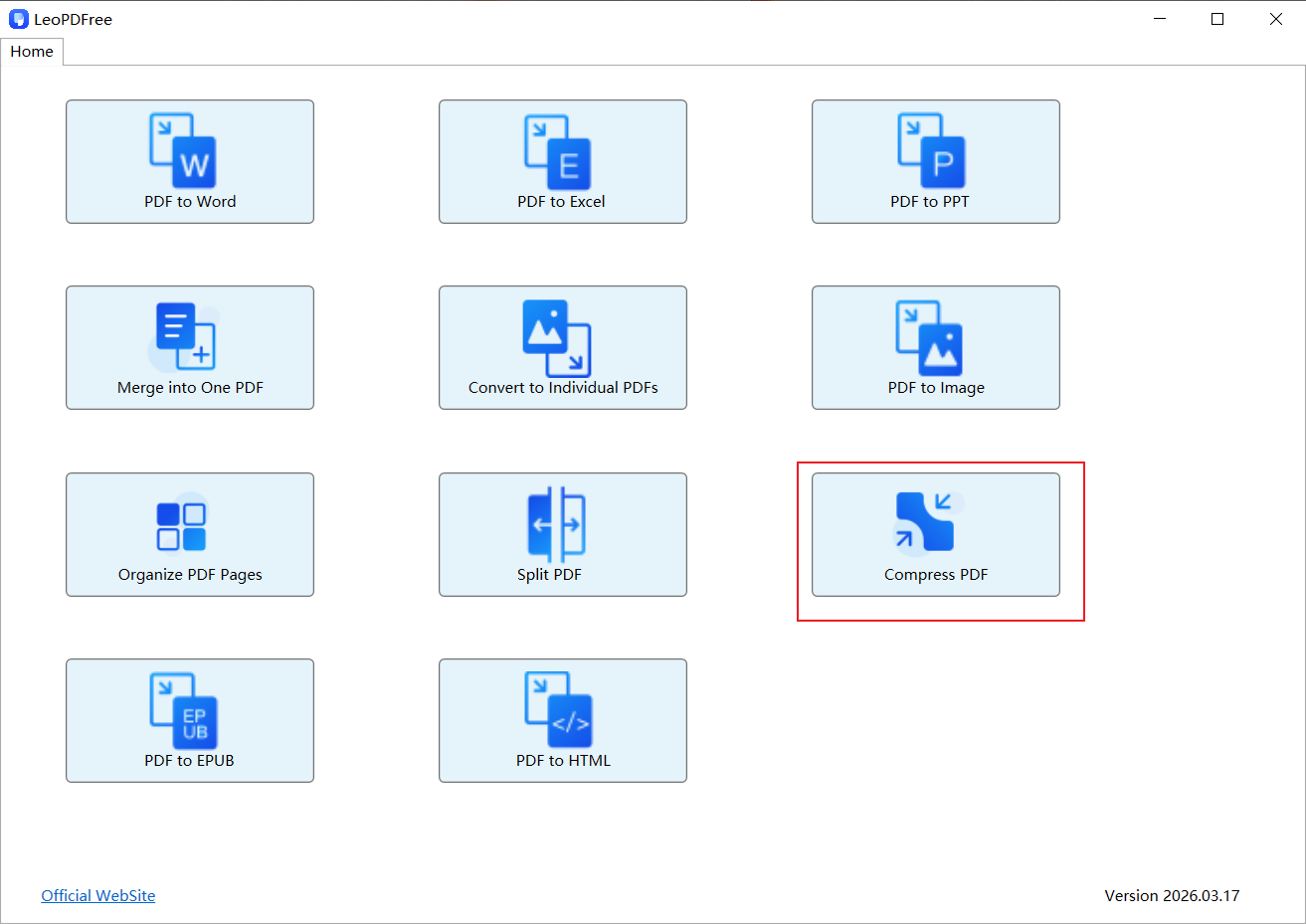
Launch LeoPDFree and select Compress PDF.
Click Add Files… or Add Folder… to import the PDFs. Choose the compression settings and use Browse… to select an output folder. Compare quality and file size using a representative document.
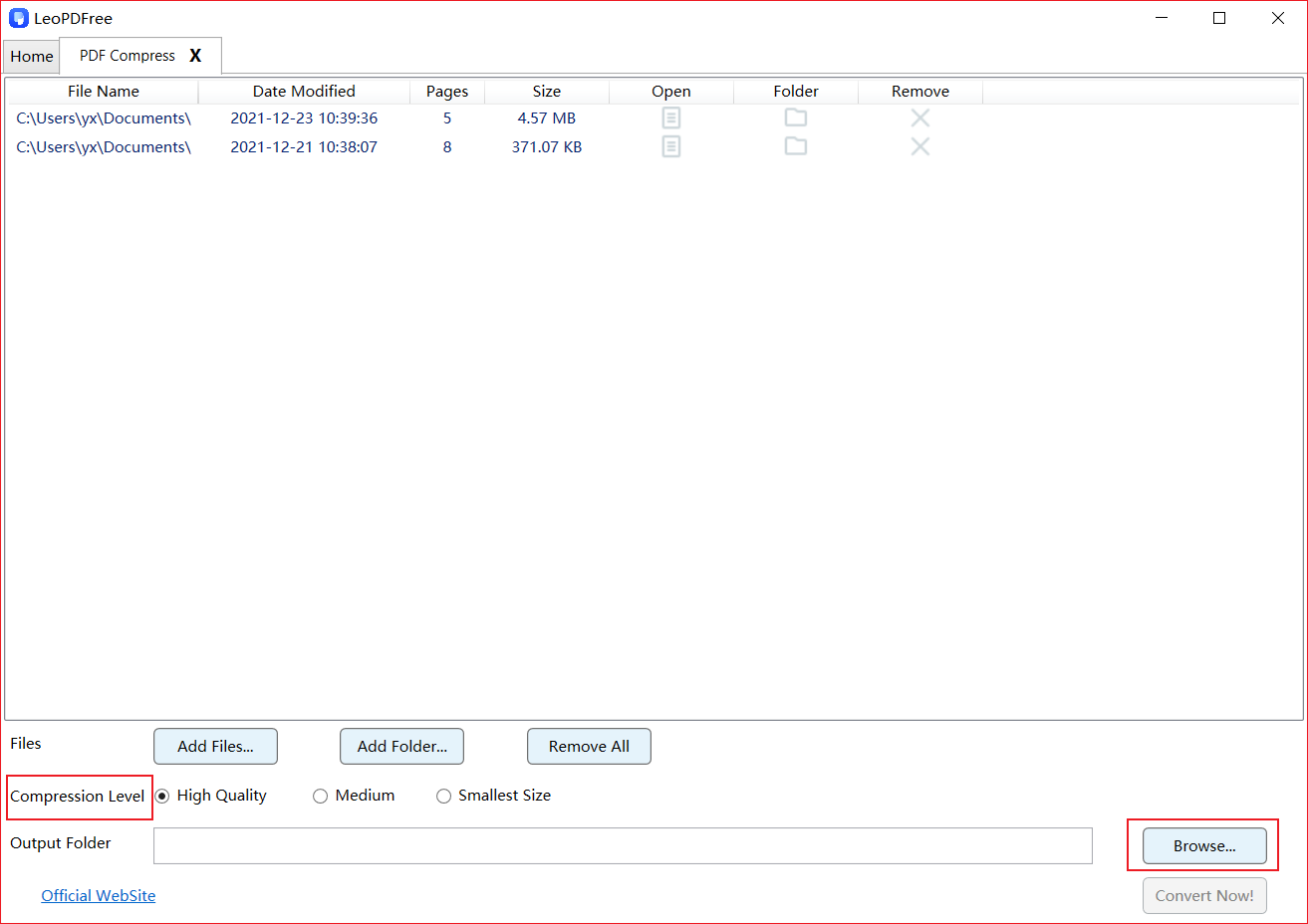
Click Compress Now!. Open the resulting PDFs and check text, images and page order before replacing your source files.