
Tips & guides
PDF vs JPEG: Differences in Quality, File Size and Uses
Published
Choose JPEG for an individual photograph that needs to remain an image. Choose PDF when you need a document with ordered pages or a consistent page layout. Neither format is always smaller or clearer: the source, resolution and export settings determine the result.

PDF and JPEG: the practical difference
PDF stands for Portable Document Format. A PDF can contain text, vector graphics and raster images, including JPEG-compressed images. JPEG is associated with the Joint Photographic Experts Group; everyday .jpg and .jpeg photographs usually use lossy compression. The official JPEG overview also describes other coding modes, so “every JPEG operation is lossy” would be too broad.
| Your goal | Useful starting point | What to check |
|---|---|---|
| Share or upload one photograph | JPEG | Accepted format, pixel dimensions and visible compression artifacts. |
| Send several photographed pages as one document | Page order, rotation, margins and readable text. | |
| Share a laid-out report with text and diagrams | PDF exported from its source | Fonts, page breaks, links and recipient requirements. |
| Turn a scan into editable Word or Excel | OCR conversion | Recognized words, table structure and numbers—not only the extension. |
What is useful about PDF?
Tidy Storage. When it comes to images, using a PDF is particularly great for organising the photos. Consider this: you get home from vacation and have hundreds of photos. Instead of having a folder full of them, put them in a PDF and create a photo album.

A PDF can keep multiple pages in a defined order and combine text with images. That makes it convenient for a report, receipt bundle or photo-based document. Keep original photographs separately when you may need to crop or re-export them later. A PDF containing photos is not a substitute for a photo archive.
Which preserves image quality?
Putting a JPEG inside a PDF does not restore detail already lost during capture or compression. A converter may embed the image unchanged or resample and recompress it. A PDF exported from editable text and vector artwork may stay sharp when enlarged, while a photographed page remains limited by its pixel resolution.

Keep the original image or source document. Avoid repeatedly saving a photograph with lossy JPEG settings. For small text, diagrams or screenshots, inspect edges and letters at the intended reading size rather than assuming a format name guarantees clarity. See Adobe’s JPEG/PDF comparison for an overview of the formats’ different roles.
Is PDF smaller than JPEG?
There is no fixed size advantage. A PDF can add document structure around the same image, contain several high-resolution pages or use stronger image compression. Compare exports made from the same source at settings that keep the text readable. Renaming .jpg to .pdf does not convert it, and conversion alone is not a guaranteed way to meet an upload limit.
For a form upload, first check which formats and maximum sizes the recipient accepts. If a PDF is required, create a PDF and then inspect its size and readability. If JPEG is accepted, sending the original photograph may avoid an unnecessary conversion.
Does image-to-PDF conversion make text searchable?
Not by itself. A PDF made from photographed pages can contain only images. OCR is a separate recognition step that can produce text or editable output, and its results need checking. Test whether you can select a known word; visual appearance alone does not show whether a text layer exists.
LeoPDFree on Windows performs supported conversion and file processing locally, without uploading files, but its Word/Excel conversion has no OCR. The LeoPDF app store editions provide paid cloud Word/Excel conversion with OCR for PDFs, images and scans; conversion files are deleted when processing completes. Other supported operations, including image-to-PDF conversion, run locally. Compare the editions before choosing an OCR workflow.
Convert JPEG images to PDF with LeoPDFree
Use the edition/download page or the stable Windows 64-bit download. LeoPDF supports JPG, PNG and BMP input for image-to-PDF conversion. Keep originals and check the output page order, orientation, cropping and readability.
Use LeoPDFree to turn your JPEG images into a PDF. Select the images, arrange them in the intended order and choose an output folder, then convert and review the result.
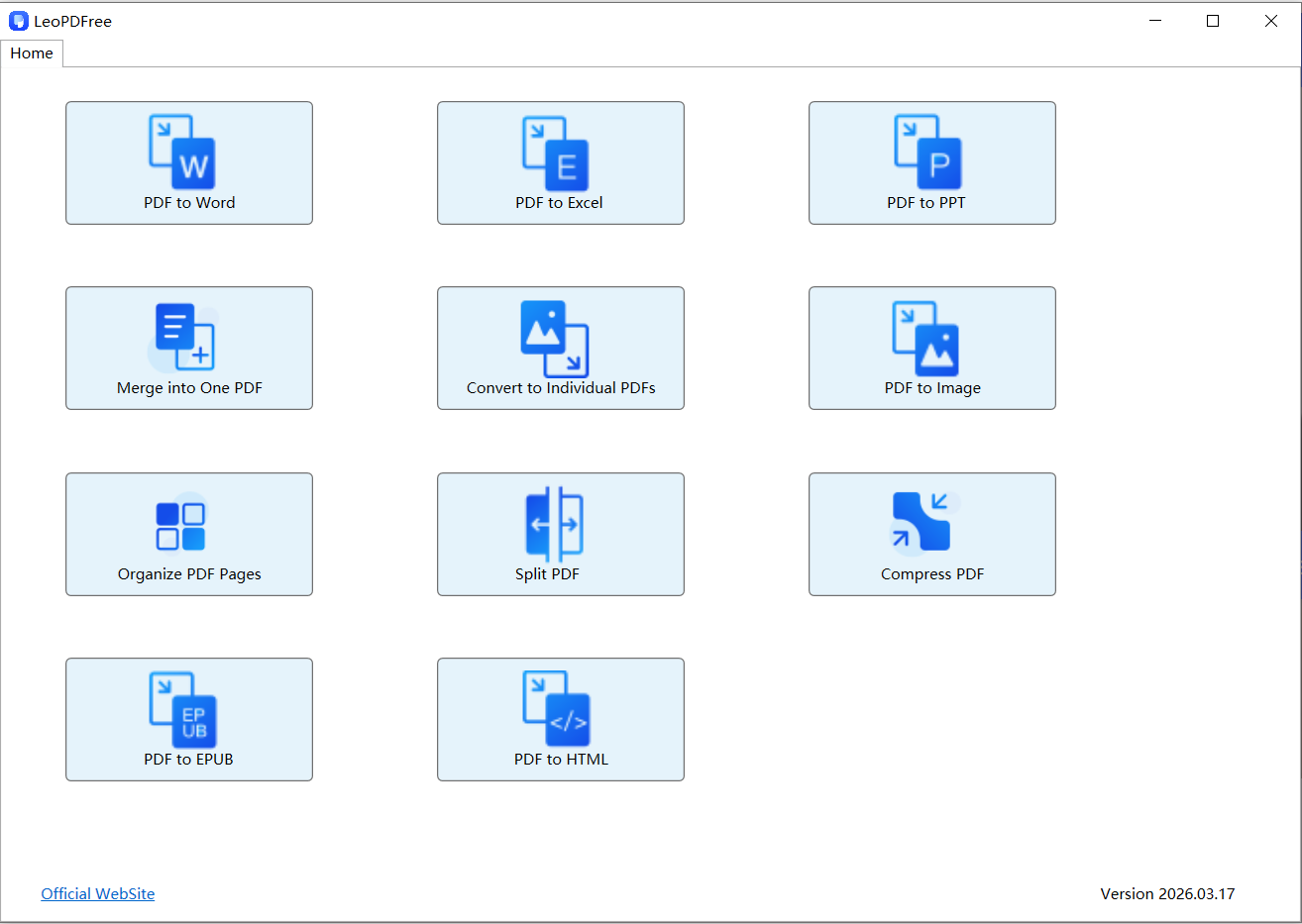
Step 2. Once you launch it, click on the “Merge into One PDF ” feature.In the window that opens, click ‘Add Files…’ or ‘Add Folder…’ to select one or more images for conversion, as shown in the figure below.

Step 3. Choose the output location and start the conversion. Reopen the PDF and check every page. Processing time depends on the files and computer; no conversion-time guarantee is made here.
For a fuller walkthrough, see convert images to PDF. To turn recognized table content into cells instead, use the OCR-to-Excel guide. Converting images to a PDF does not itself make a spreadsheet.