
Tips & guides
What’s the Easiest Way to Import PDF Tables into Excel? (2026 Beginner-Friendly Guide)
Published
Copying tables from a PDF into Excel sounds simple…
until the columns break, numbers shift, and everything turns into a mess.
If you’ve ever seen:
⏺ broken rows
⏺ merged cells
⏺ missing data
⏺ or random formatting chaos
you’re definitely not alone.
The truth is:
👉 PDFs were never designed for spreadsheet editing.
But in 2026, there are now smarter and much easier ways to extract PDF tables into Excel without spending hours fixing formatting manually.
This guide covers:
✔ why PDF tables break
✔ the easiest conversion methods
✔ which tools actually work
✔ and how to preserve formatting as much as possible
🧠 Why PDF Tables Are So Hard to Import into Excel
Most people think PDFs store “real tables.”
They usually don’t.
A PDF mainly stores:
⏺ text positions
⏺ visual coordinates
⏺ layout appearance
Excel, on the other hand, expects:
⏺ rows
⏺ columns
⏺ structured data
👉 That mismatch is exactly why PDF-to-Excel conversions often fail.
🔍 First: Identify Your PDF Type
Before converting anything, figure out what kind of PDF you have.
| PDF Type | Typical Problem | Difficulty |
|---|---|---|
| Text-based PDF | Columns shift | Medium |
| Scanned PDF | No data detected | High |
| Complex layouts | Broken tables | Very High |
| Multi-page tables | Split rows | High |
👉 Choosing the wrong method is the #1 reason formatting gets destroyed.
🥇 Method 1: Use an Offline PDF-to-Excel Tool Like LeoPDF (The Easiest Option for Most People)
Best For:
⏺ beginners
⏺ business reports
⏺ invoices
⏺ financial tables
⏺ regular office files
This is usually the fastest and simplest option.
Especially when using lightweight offline tools like LeoPDF.
Why Offline Tools Work Better
| Offline Tools | Online Tools |
|---|---|
| Better privacy | Requires upload |
| More stable | Browser limitations |
| Better formatting retention | Formatting often breaks |
| No internet required | Upload/download delays |
👉 If your PDF contains sensitive information, offline tools are usually the smarter choice.
Recommended Workflow
Step 1
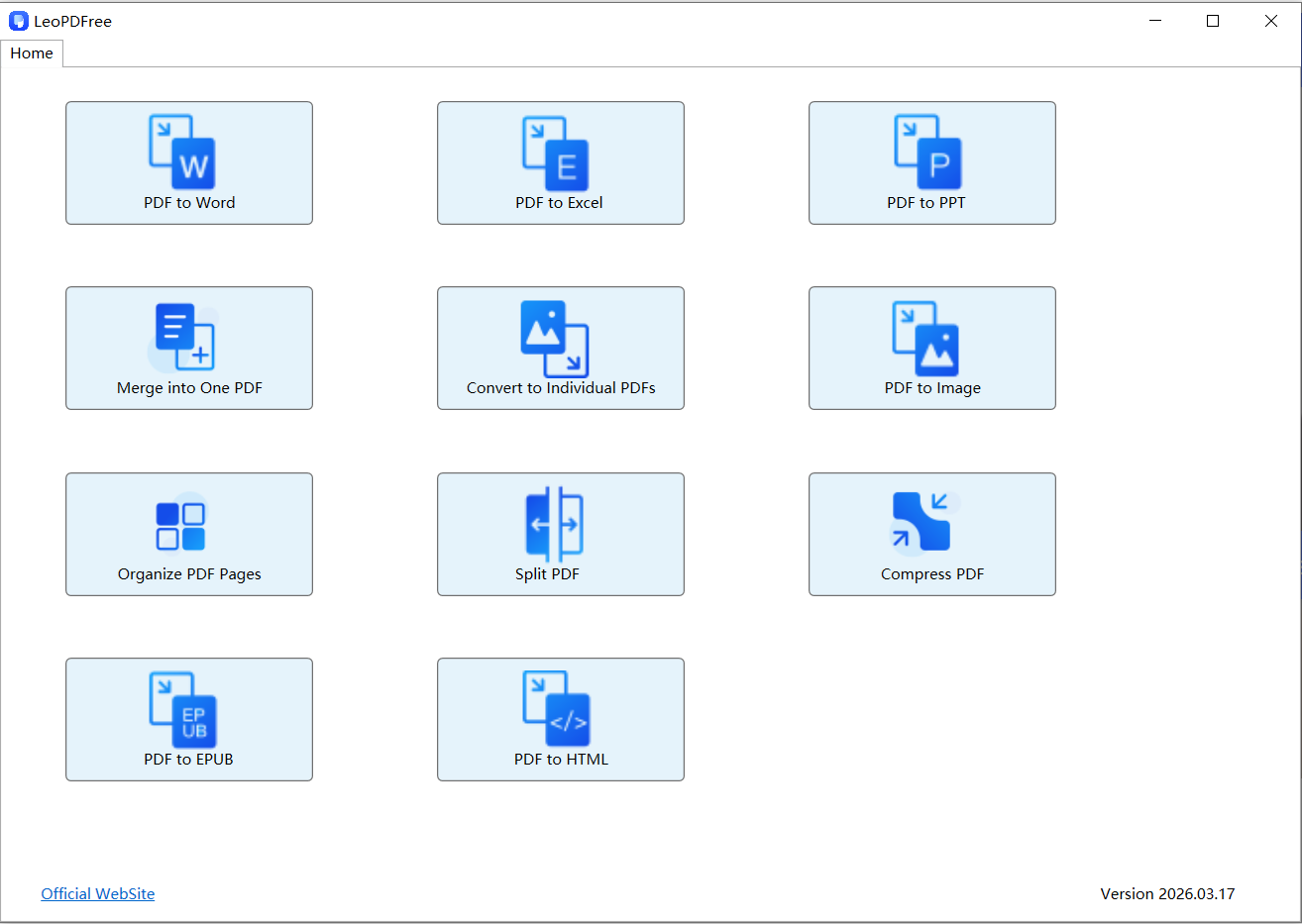
Download LeoPDF for free and install it on your computer. Once installed, open the app as shown below.
Step 2
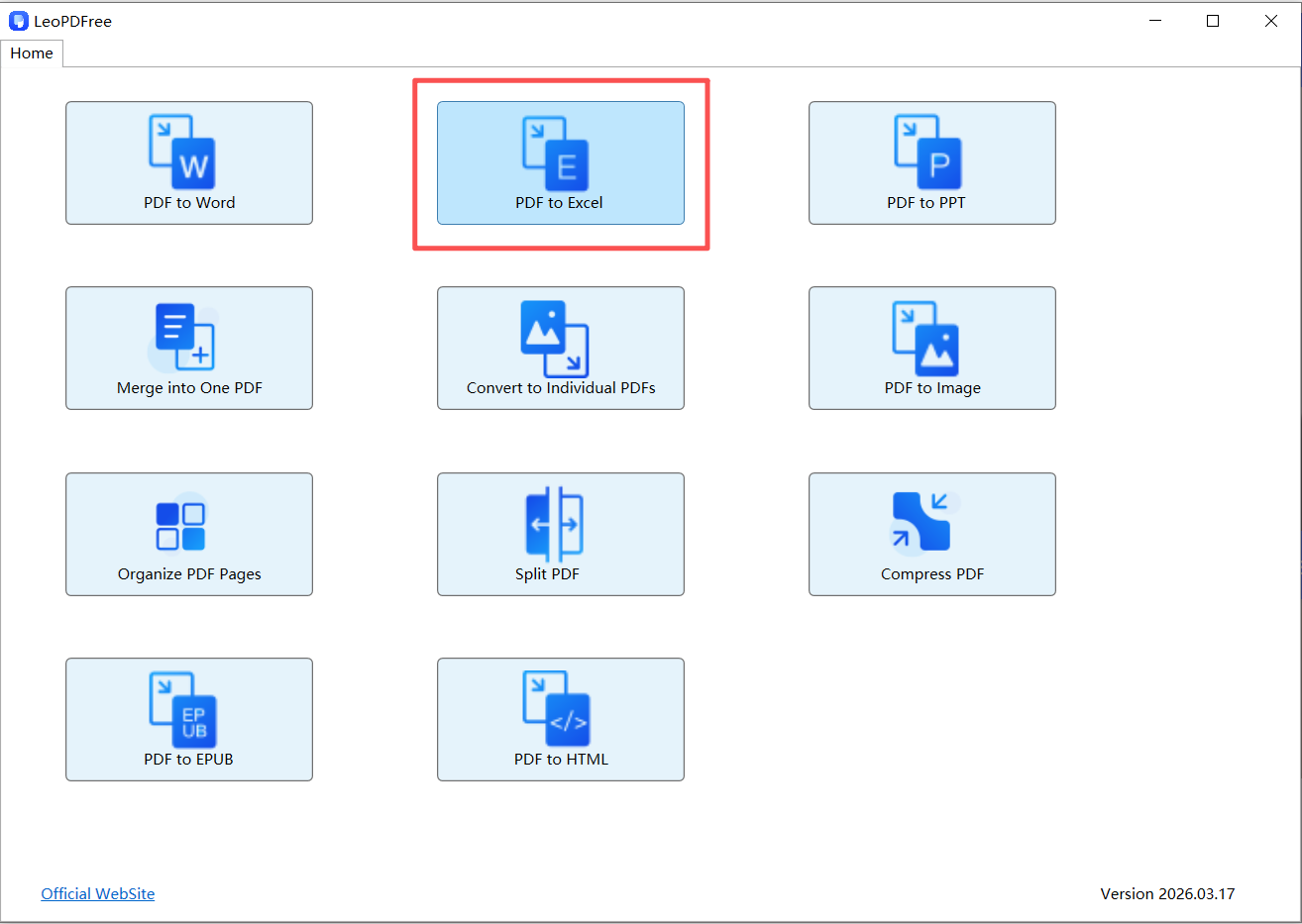
Click the “PDF to Excel” button on the software interface. Then, drag the PDF you want to extract tables from into the window. You can also copy and paste it or click “Add Files…” to add your documents, as shown below.
Step 3
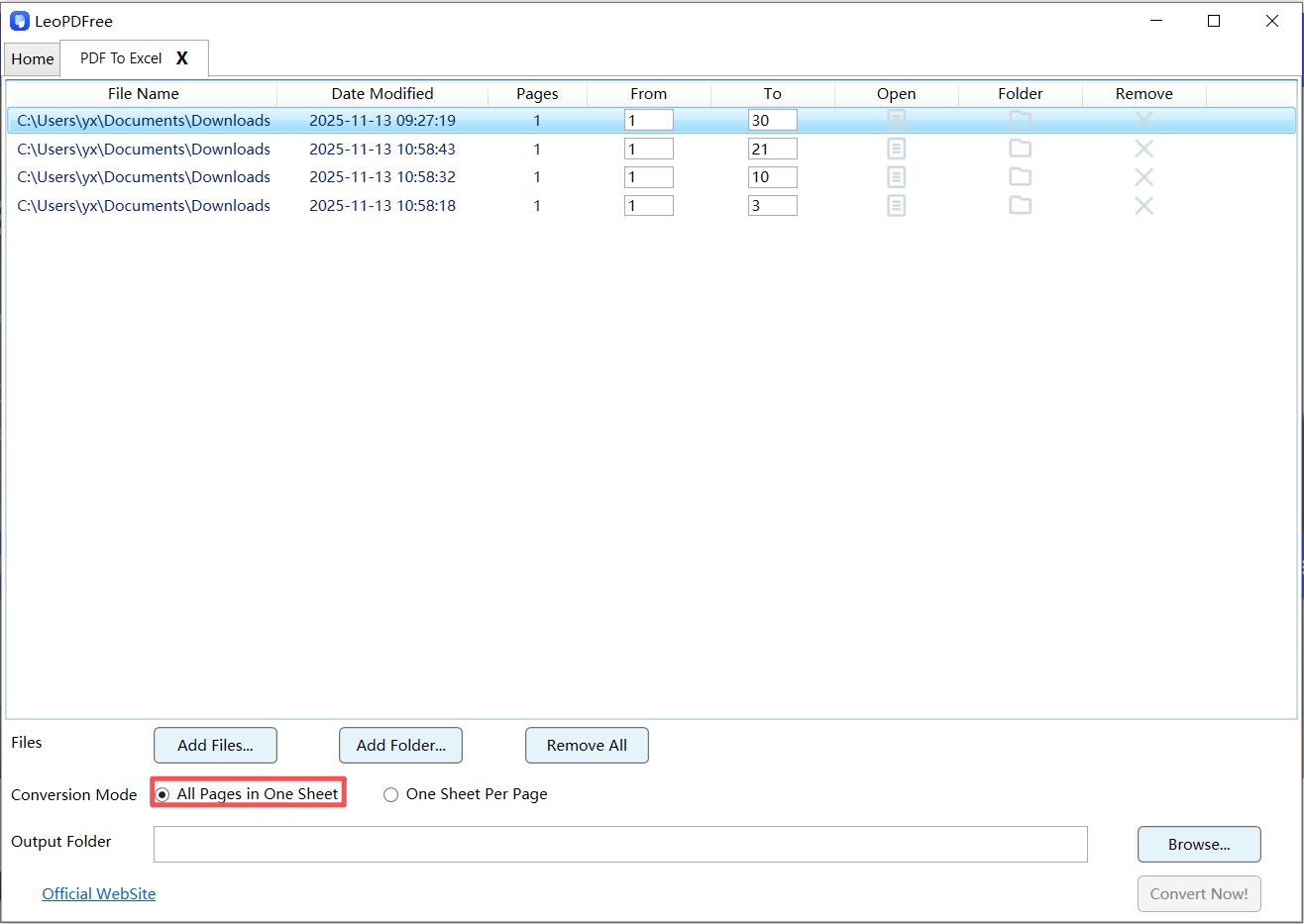
Next, select an option under “Conversion Mode.” For this guide, we’ll use “All Pages in One Sheet” as an example, as shown below.
Step 4
Next, click the “Browse…” button to set the save path for your newly converted file. Once everything is ready, simply click the “Convert Now!” button. The software will quickly complete the process based on the file size, as shown below.
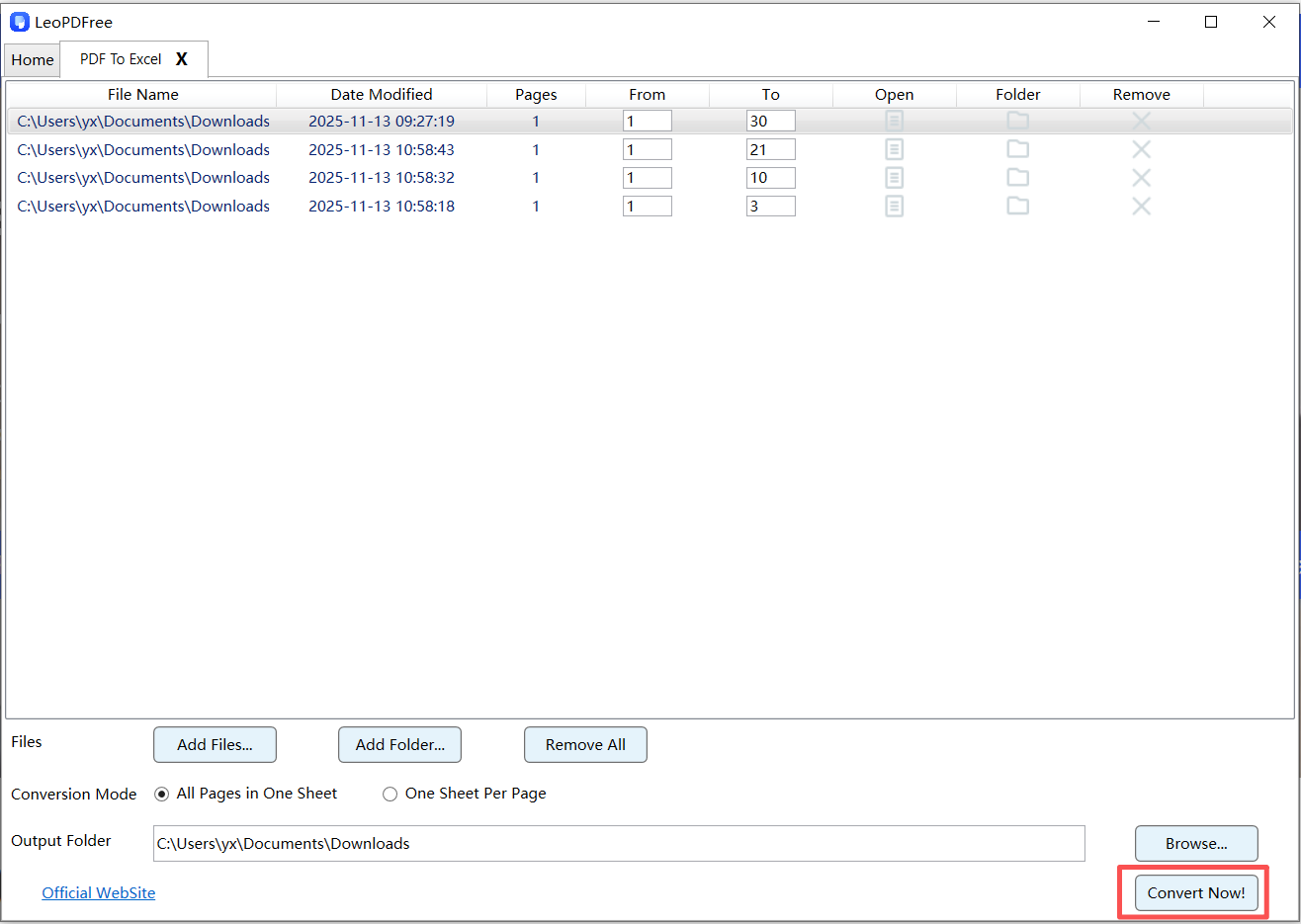
👉 It’s just that quick, convenient, and best of all—completely free!
Why This Method Is So Popular
Because modern offline converters can now:
⏺ detect table boundaries
⏺ preserve rows/columns better
⏺ reduce formatting cleanup
⏺ handle larger files more reliably
👉 For everyday users, this is usually the easiest solution.
🥈 Method 2 — Use OCR for Scanned PDFs
If your PDF is actually a scanned image:
👉 normal conversion won’t work.
You’ll need:
OCR (Optical Character Recognition)
OCR allows software to recognize:
⏺ text
⏺ numbers
⏺ table structures
inside scanned documents.
Signs You Need OCR
| What You See | Real Problem |
|---|---|
| Blank Excel output | PDF is scanned |
| Cannot select text | No text layer |
| Missing data | Image-based document |
Important Reality
OCR is powerful — but not perfect.
Scanned PDFs with:
⏺ blurry text
⏺ handwriting
⏺ shadows
⏺ skewed scans
can still create formatting issues.
🥉 Method 3 — The “HTML Bridge” Trick (Underrated)
This method is surprisingly effective for complex tables.
How It Works
PDF → HTML → Excel
Instead of converting directly:
⏺ the table structure is first rebuilt in HTML
⏺ then imported into Excel
Why It Sometimes Works Better
Because HTML naturally understands:
⏺ rows
⏺ columns
⏺ table hierarchy
while PDFs mainly store visual positioning.
Best For
⏺ multi-column tables
⏺ complex layouts
⏺ structured reports
⏺ data-heavy PDFs
⚠️ Biggest Mistakes That Ruin PDF Table Conversions
❌ Copy/Paste Directly into Excel
This often destroys:
⏺ alignment
⏺ spacing
⏺ cell structure
❌ Using Random Online Converters
Some tools:
⏺ compress data
⏺ limit file size
⏺ break formatting badly
❌ Ignoring PDF Type
Text PDFs and scanned PDFs require completely different workflows.
📊 Which Method Is Best?
| Method | Best For | Difficulty | Formatting Retention |
|---|---|---|---|
| Offline LeoPDF Tool | Everyday use | Easy | High |
| OCR Conversion | Scanned PDFs | Medium | Medium |
| HTML Workflow | Complex tables | Advanced | Very High |
🏁 Final Takeaway
If you want the easiest way to import PDF tables into Excel:
✔ Start by identifying the PDF type
✔ Use offline tools LeoPDF whenever possible
✔ Use OCR only for scanned files
✔ Avoid unnecessary conversions
👉 The biggest secret is this:
PDF conversion is not about “extracting text” —
it’s about rebuilding structure correctly.
🔥 One Important Insight
The best PDF-to-Excel workflow is the one that requires the least manual fixing afterward.