
Tips & guides
How to Reorder PDF Pages for Free Based on Your Specific Needs (2026 Guide)
Published
Rearranging PDF pages sounds simple — until you’re dealing with a 200-page report, scanned documents, invoices out of order, or presentation files that suddenly make no sense.
In 2026, reordering PDF pages is no longer just a drag-and-drop task.
The smarter approach is:
👉 reorganizing PDFs based on purpose, workflow, and document type
This guide will show you how to do it efficiently, for free, and without damaging your file formatting.
🧠 Why People Reorder PDF Pages in the First Place
Most users aren’t reorganizing PDFs for fun.
They usually need to:
▪ fix pages scanned in the wrong order
▪ rearrange invoices or contracts
▪ organize study materials
▪ reorder presentation slides
▪ merge documents logically
▪ remove unnecessary pages
👉 The real goal isn’t moving pages.
It’s improving readability and workflow.
🔍 Step 1 — Identify Your PDF Type First
Different PDFs require different approaches.
| PDF Type | Best Reordering Method |
|---|---|
| Small documents | Manual drag-and-drop |
| Large reports | Thumbnail view + batch move |
| Scanned PDFs | OCR-aware tools |
| Mixed PDFs | Split + reorder workflow |
👉 Most problems happen because people use the wrong workflow.
🥇 Best Free Method: Offline PDF Reordering Tools
Why Offline Tools Usually Work Better
Compared to online tools:
| Offline Tools | Online Tools |
|---|---|
| Better privacy | Requires upload |
| Faster for large files | Browser limitations |
| More stable | File size restrictions |
| No internet required | Upload/download delays |
👉 If you work with sensitive or large PDFs, offline tools make more sense.
⭐ Recommended Workflow Using LeoPDF
For most users, a lightweight offline tool is the easiest option.
Typical workflow:
Step 1
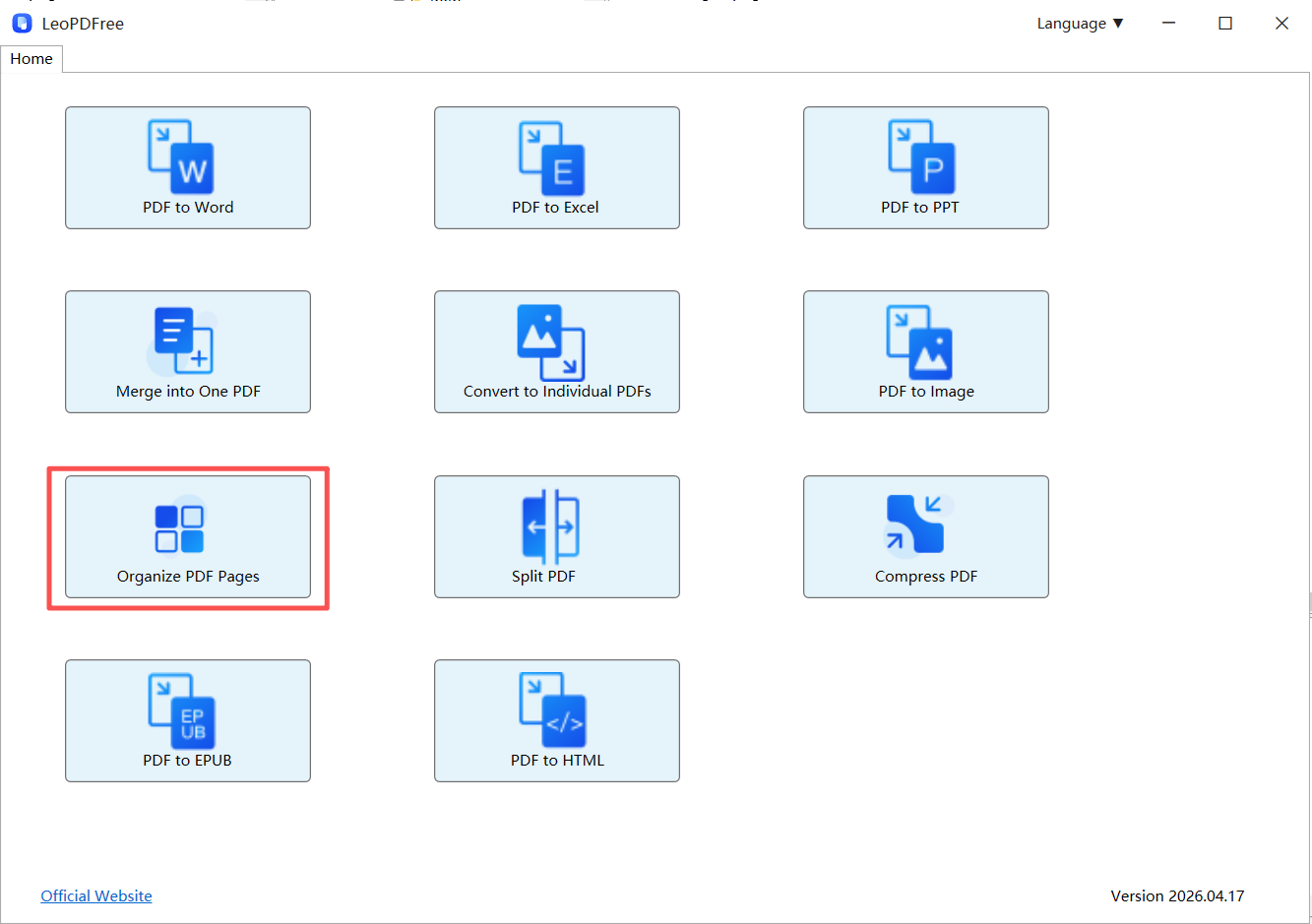
Download and successfully install LeoPDF, then launch the software. Click the ‘Organize PDF Pages’ button, as shown in the image below.
Step 2
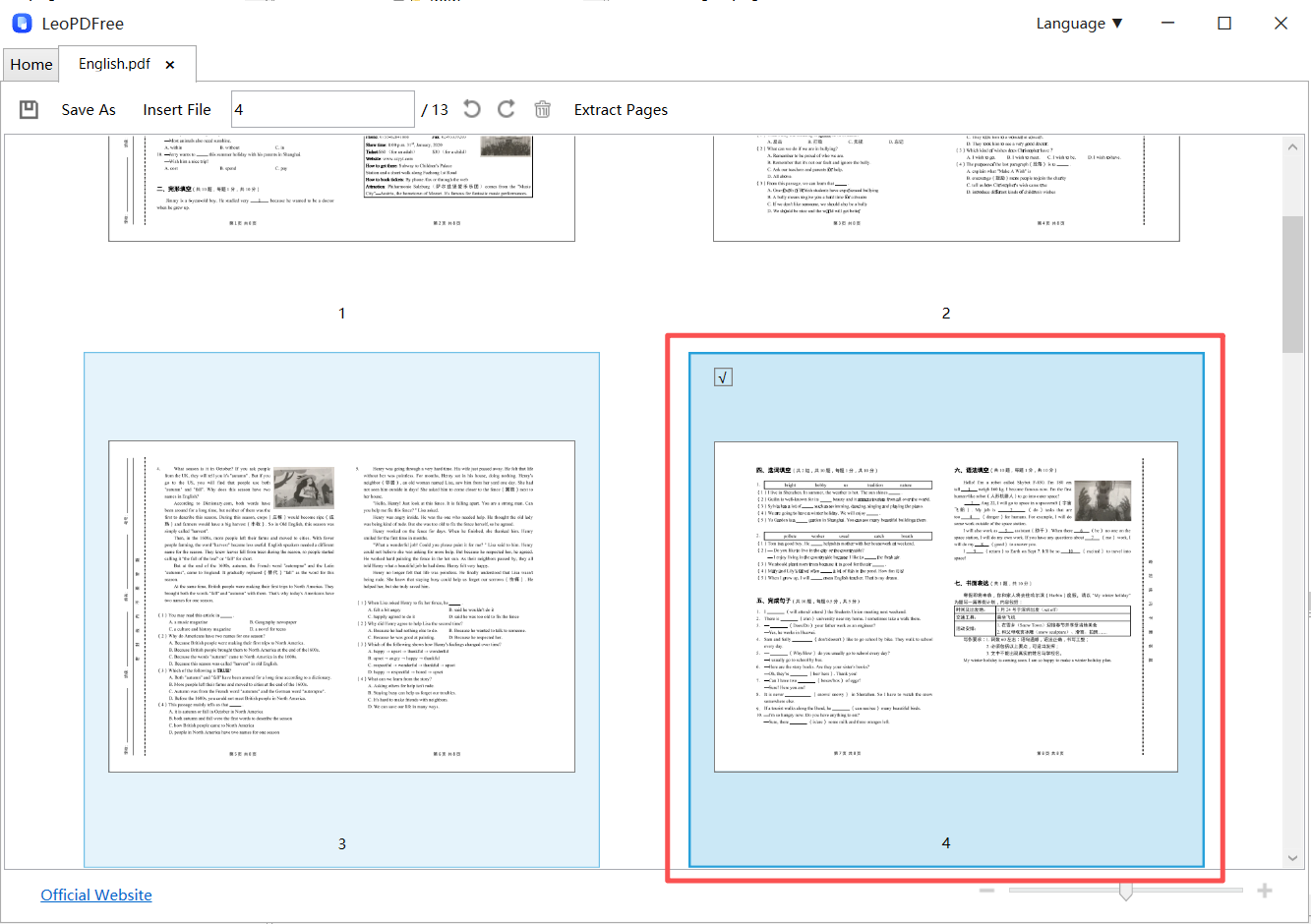
Add the PDF files you wish to reorder within the thumbnail view interface. Depending on your needs, you can use your mouse to click and select a single page, or click and drag to select multiple pages, as shown in the image below.
Step 3
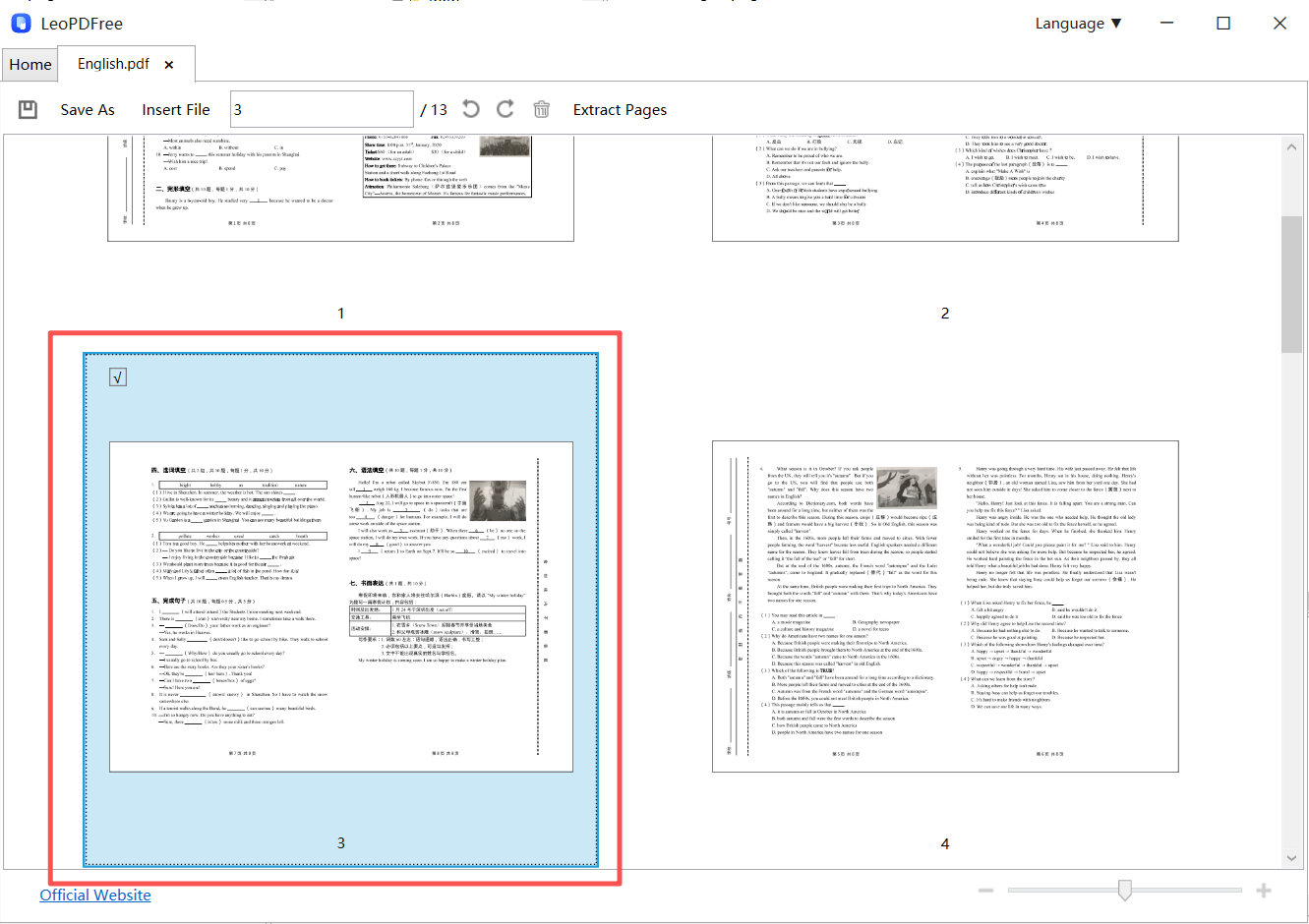
Then, simply drag the selected pages to your desired position with your mouse. It’s that easy, as shown in the image below.
Step 4
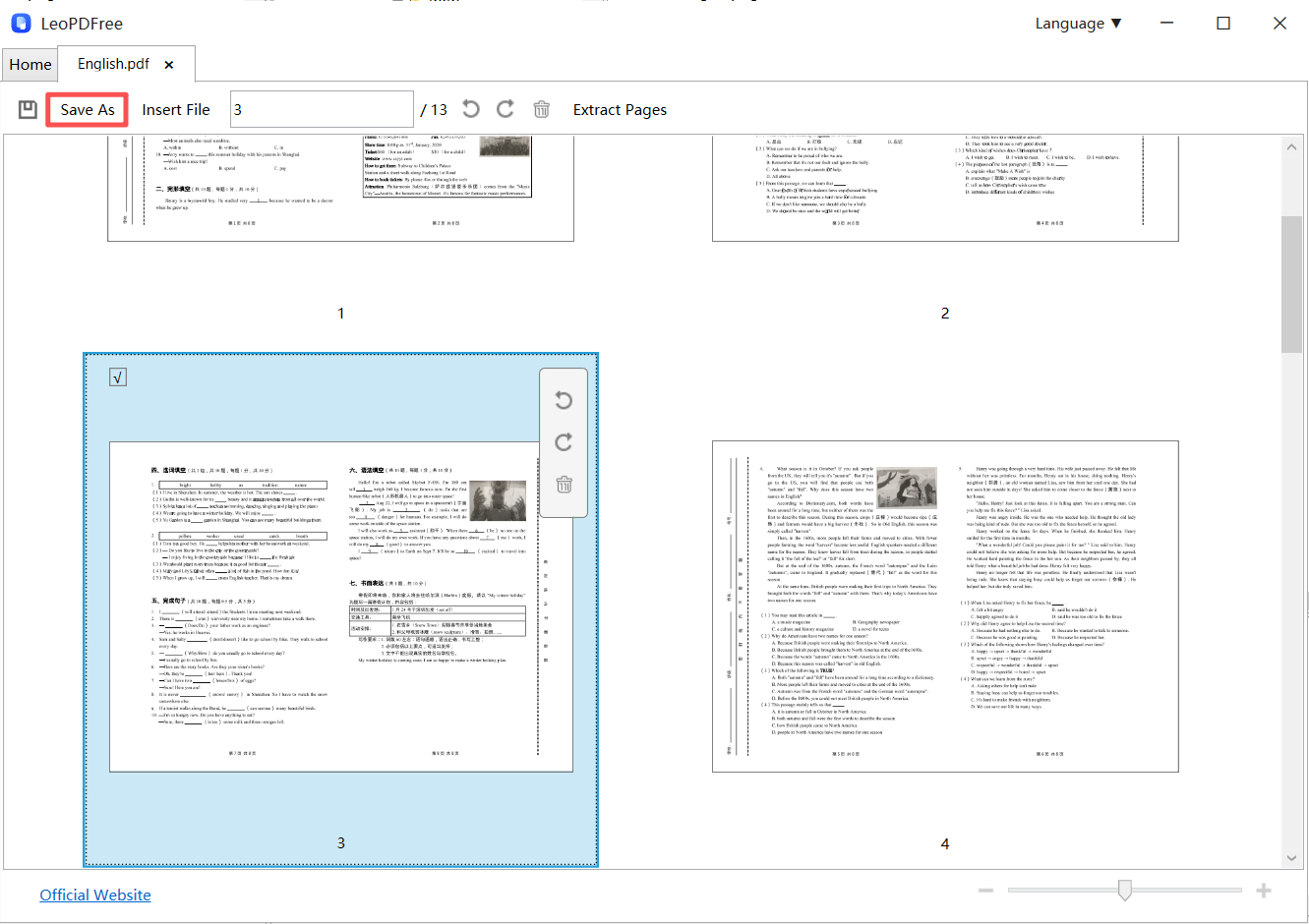
Once all pages are in the correct order, you can also click the ‘Delete’ button to remove any unwanted pages or use the ‘Rotate’ button to fix any upside-down pages. When you are finished, be sure to click the ‘Save As’ button to finalize your new PDF layout. It’s that simple—as shown in the image below, give it a try now!
Why This Workflow Works Well
It keeps:
▪ formatting intact
▪ page quality unchanged
▪ layout consistency preserved
👉 Most importantly:
you avoid re-exporting or rebuilding the document.
📊 Offline vs Online PDF Reordering
| Type | Best For | Main Weakness |
|---|---|---|
| Offline Tools | Privacy & stability | Installation required |
| Online Tools | Quick edits | Upload limitations |
| OCR Tools | Scanned documents | Slower processing |
🏁 Final Takeaway
If you want to reorder PDF pages efficiently:
✔ Identify your PDF type first
✔ Use offline tools whenever possible
✔ Reorganize based on workflow, not randomly
✔ Split large PDFs before editing
👉 The best PDF workflow isn’t about moving pages —
it’s about improving how information is consumed.