
Tips & guides
Extract PDF Tables to Excel: Free Workflows and Paid Alternatives
Published
A PDF table can become a useful spreadsheet, but free conversion and paid alternatives must be distinguished. Check the source type before choosing a tool and keep a copy of the PDF for verification.
Choose the processing method before converting
LeoPDFree for Windows converts supported text-based PDFs to Word or Excel locally for free, without OCR. It does not upload files for these operations. LeoPDF store editions provide paid Word/Excel conversion with cloud OCR, including scanned text and handwriting; files processed in the cloud are deleted when conversion completes. Other supported tasks are free and local. Do not use the free Windows workflow as a substitute for OCR.
Convert a text-based PDF with LeoPDFree
- Keep an unchanged copy of the PDF and check whether its table text can be selected.
- Open the PDF-to-Excel function in LeoPDFree and add the PDF.
- Select the required pages and an output folder. Choose a worksheet arrangement only if the installed version offers it.
- Run the conversion and open the resulting workbook.
- Compare headings, row counts, dates, decimal places, leading zeros and totals against the original PDF before using the data.
Interface labels vary by version. A successful export does not establish that every cell is correct.
Excel PDF import
Check availability and import instructions before loading detected tables.
Illustrated Windows workflow
Follow these steps to convert a PDF containing usable text to Excel locally with LeoPDFree. For images and scans that need recognition, use the store-edition OCR workflow.
Steps
1️⃣. Install the LeoPDF software for free, then open the software as shown in the figure below.
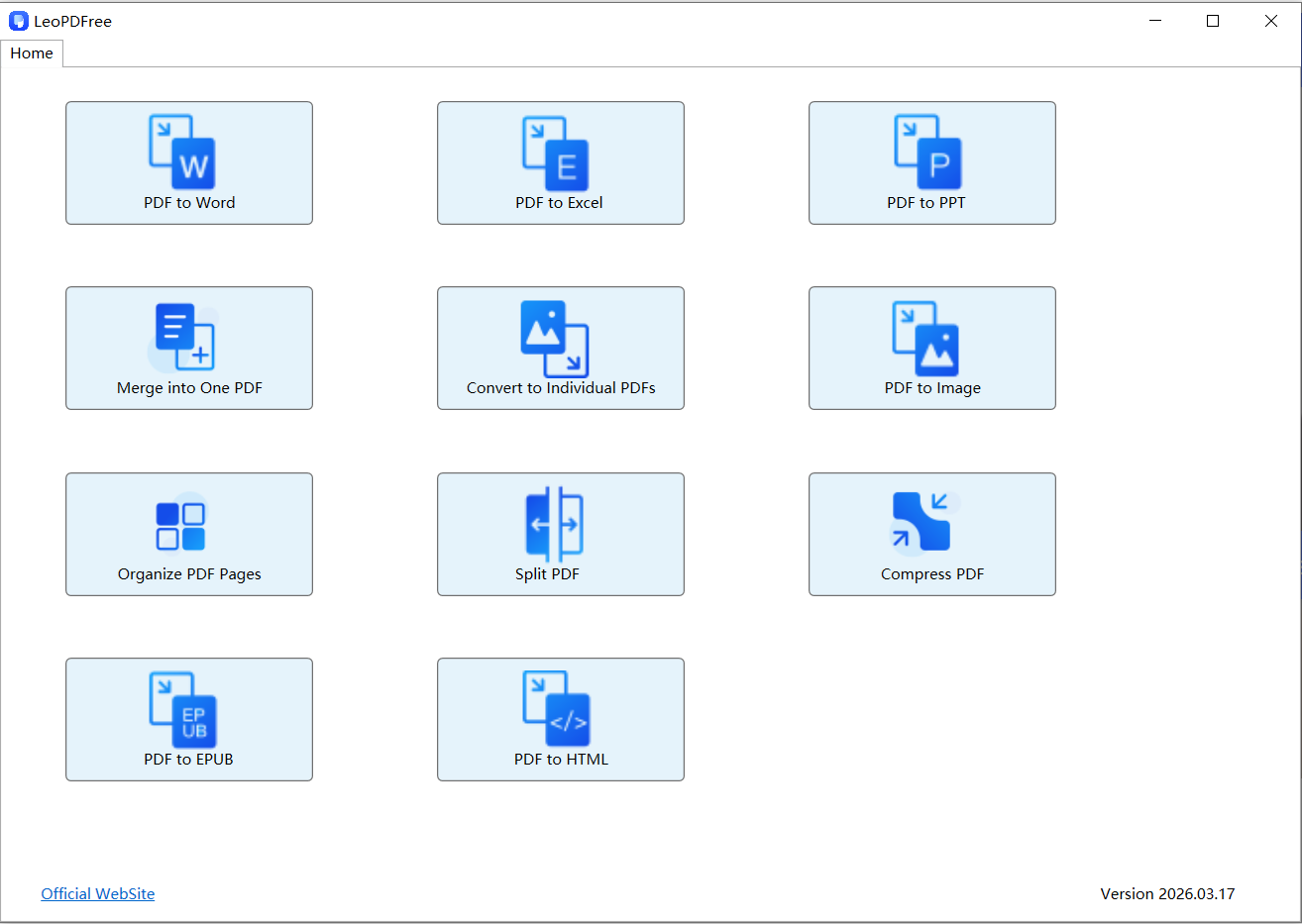
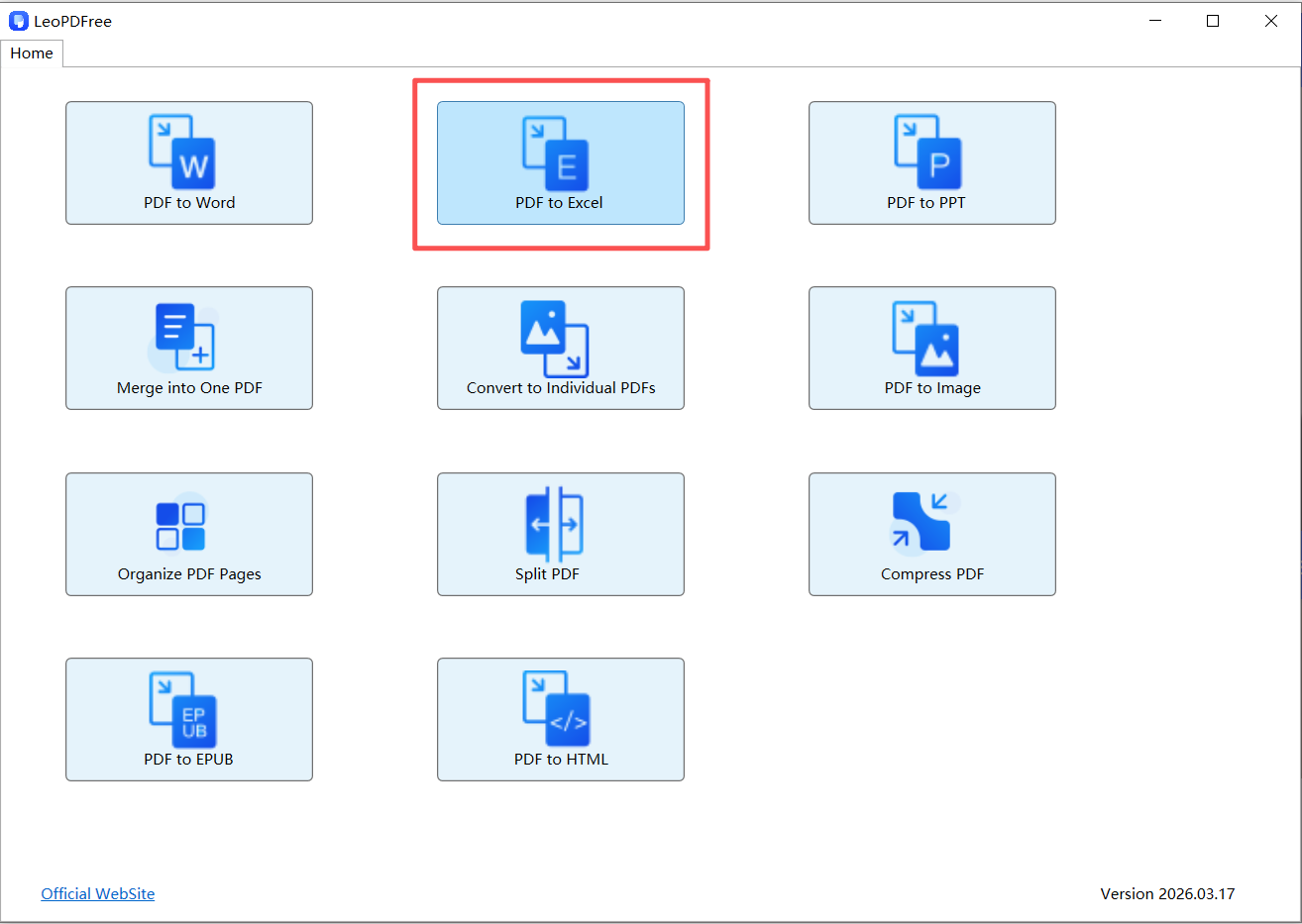
2️⃣. On the software interface, click “PDF to Excel”, as shown in the figure below.
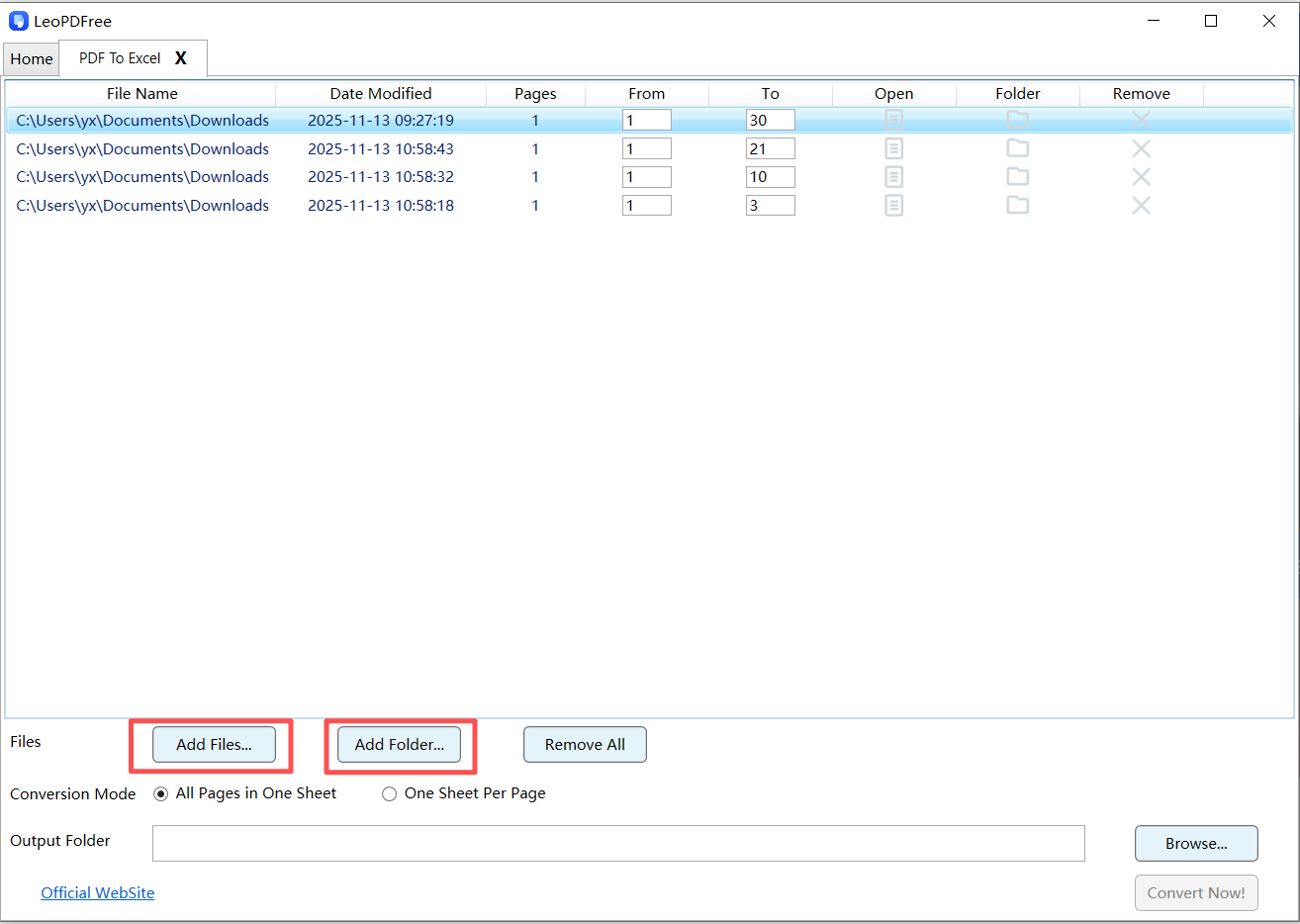
3️⃣. Then, on the interface, click the “Add Files…” or “Add Folder…” button to add one or more PDF files to be converted, as shown in the figure below.
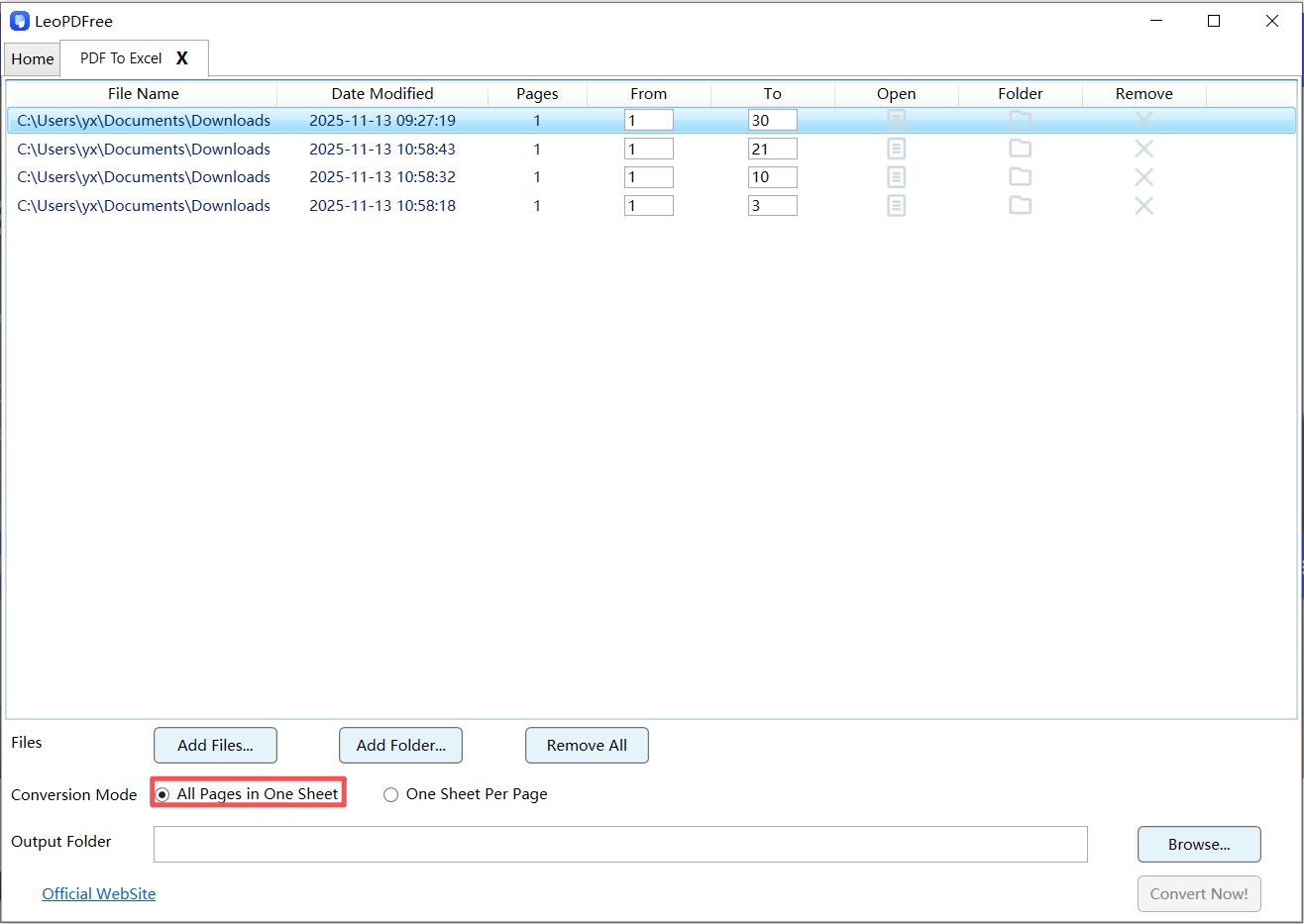
4️⃣. Then select the desired option in the “Conversion Mode” according to your needs. In this example, we choose “All Pages in One Sheet”, as shown in the figure below.
5️⃣. Next, click the “Browse…” button to set the save path for the converted file, as shown in the figure below.
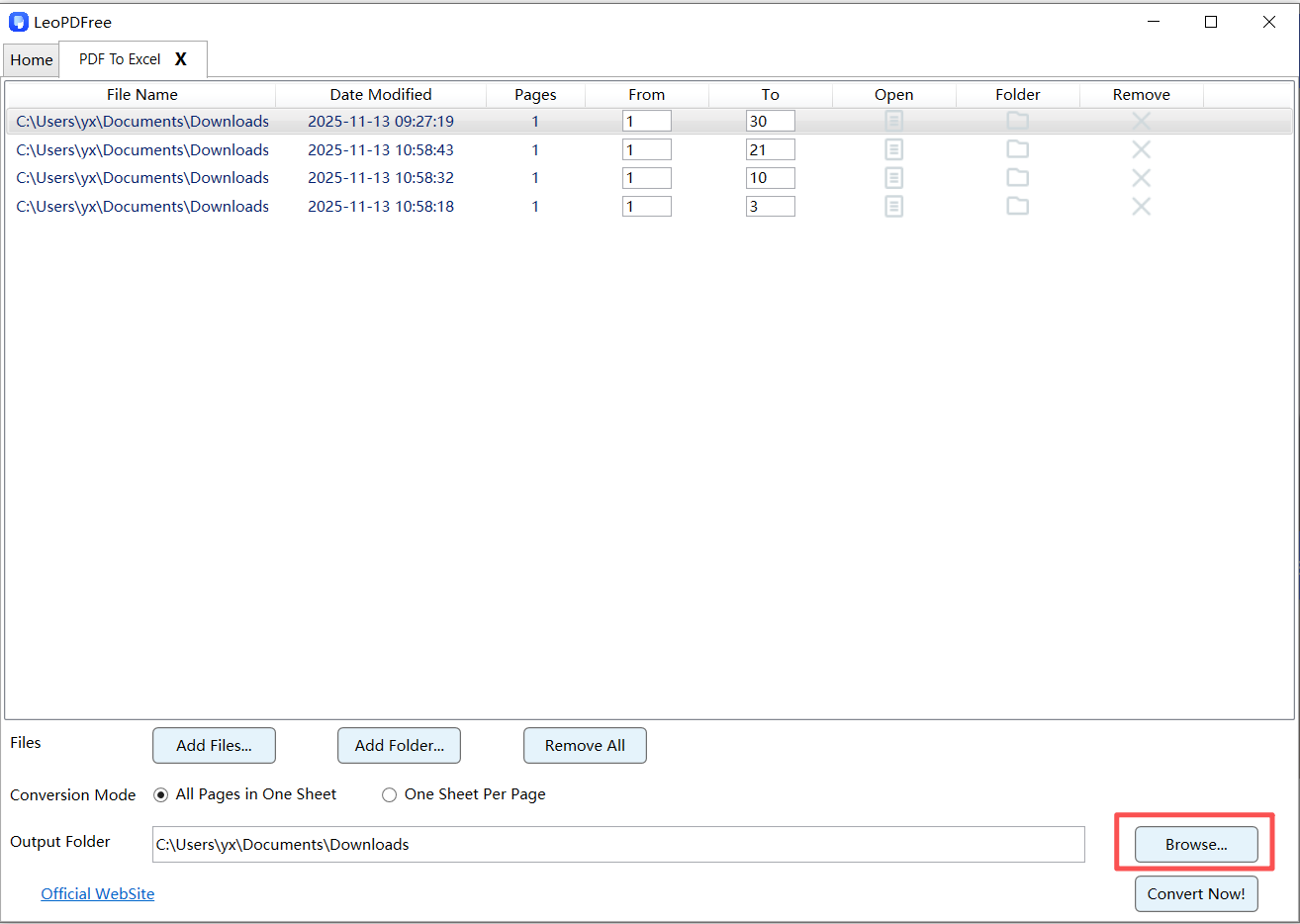
6️⃣. Once all preparations are complete, simply click “Convert Now!” on the interface. The software will quickly complete the conversion based on the file size, as shown in the figure below.
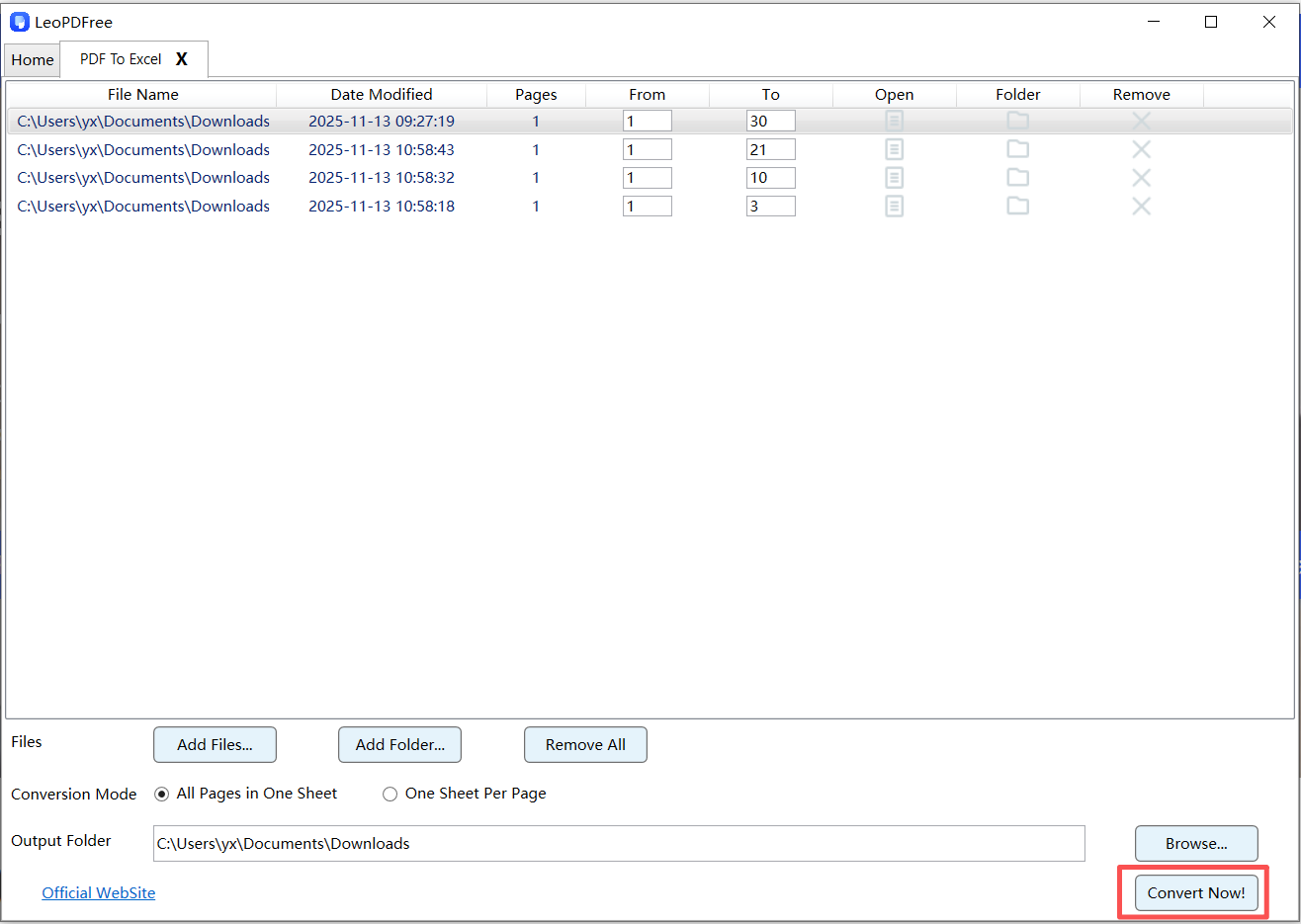
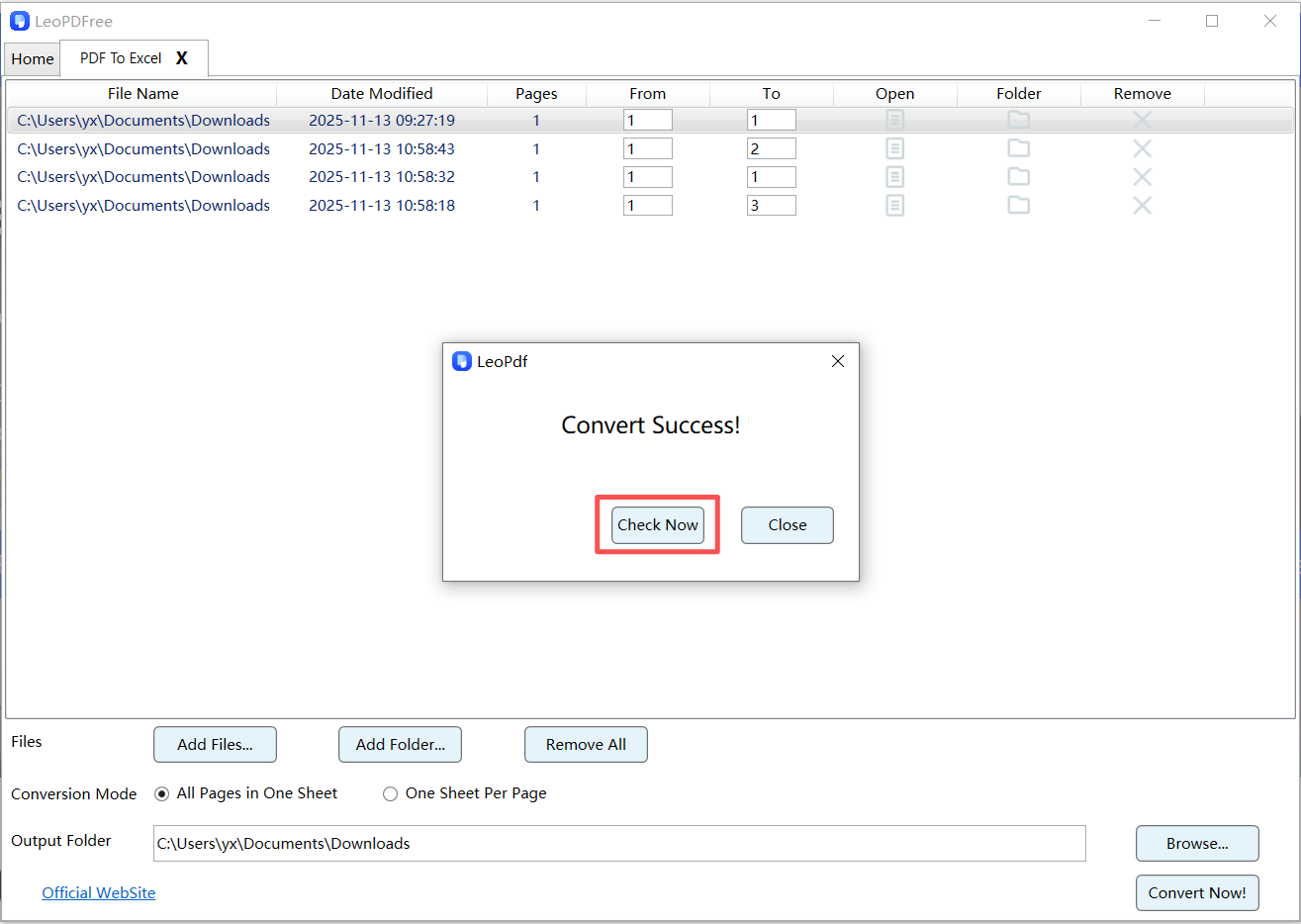
7️⃣. After the conversion is completed, a small pop-up window will appear. Click the “Check Now” button on the pop-up window to quickly view the converted result. Isn’t it very fast and convenient? Go ahead and try it out!
🔧 The Missing Step: Table Refinement
Here’s where most guides stop—but you shouldn’t.
After extraction, spend a few minutes to:
✔ Fix Structure
🔵 Merge or split cells correctly
🔵 Align columns
✔ Clean Data
🔵 Remove empty rows
🔵 Delete repeated headers
✔ Standardize Format
🔵 Convert text to numbers
🔵 Apply consistent date formats
👉 This step turns “raw extraction” into usable data.
If the PDF is a scan
Ordinary text extraction cannot recognize an image of a table. Select an OCR-capable workflow, check its processing location and price, and inspect recognized characters against the source. The LeoPDF store Word/Excel workflow is paid cloud conversion; the free Windows edition does not provide OCR.
Check and repair the saved table
Before conversion, inspect column boundaries and page orientation. After saving, compare headings, row counts, decimals, dates, totals and leading zeros with the source. A visible border or consistent font does not guarantee a correct export.
- Use Excel’s Text to Columns only when the delimiter or fixed-width boundaries actually match the data.
=TRIM(A1)removes ordinary extra spaces; nonbreaking spaces may need separate cleanup. Test on a copied column.=VALUE(A1)can convert a supported text representation to a number. Check regional decimal/date conventions and keep identifiers with leading zeros as text.- For a table continued over several pages, remove repeated headings and verify the joining row. Do not assume that missing rows are always an OCR problem.
Questions about your LeoPDF edition?
Contact xuehui@leopdf.com with your platform, app version and the task you need.