
Not all PDF to Excel converters are built the same.
Some extract data. The best ones reconstruct your tables perfectly.
In 2026, the difference between a “good” and a “great” converter comes down to one thing:
👉 How well it preserves formatting.
This guide cuts through the noise and helps you choose the right tool — based on your actual needs.
🧠 First, Know What You’re Converting
Before picking a tool, identify your PDF type:
| PDF Type | What You Need |
|---|---|
| Simple tables | Fast extraction |
| Scanned PDF | OCR + structure detection |
| Complex reports | AI layout recognition |
| Financial data | High precision |
👉 Choosing the wrong tool = wasted time fixing Excel later
🏆 Top PDF to Excel Converters in 2026
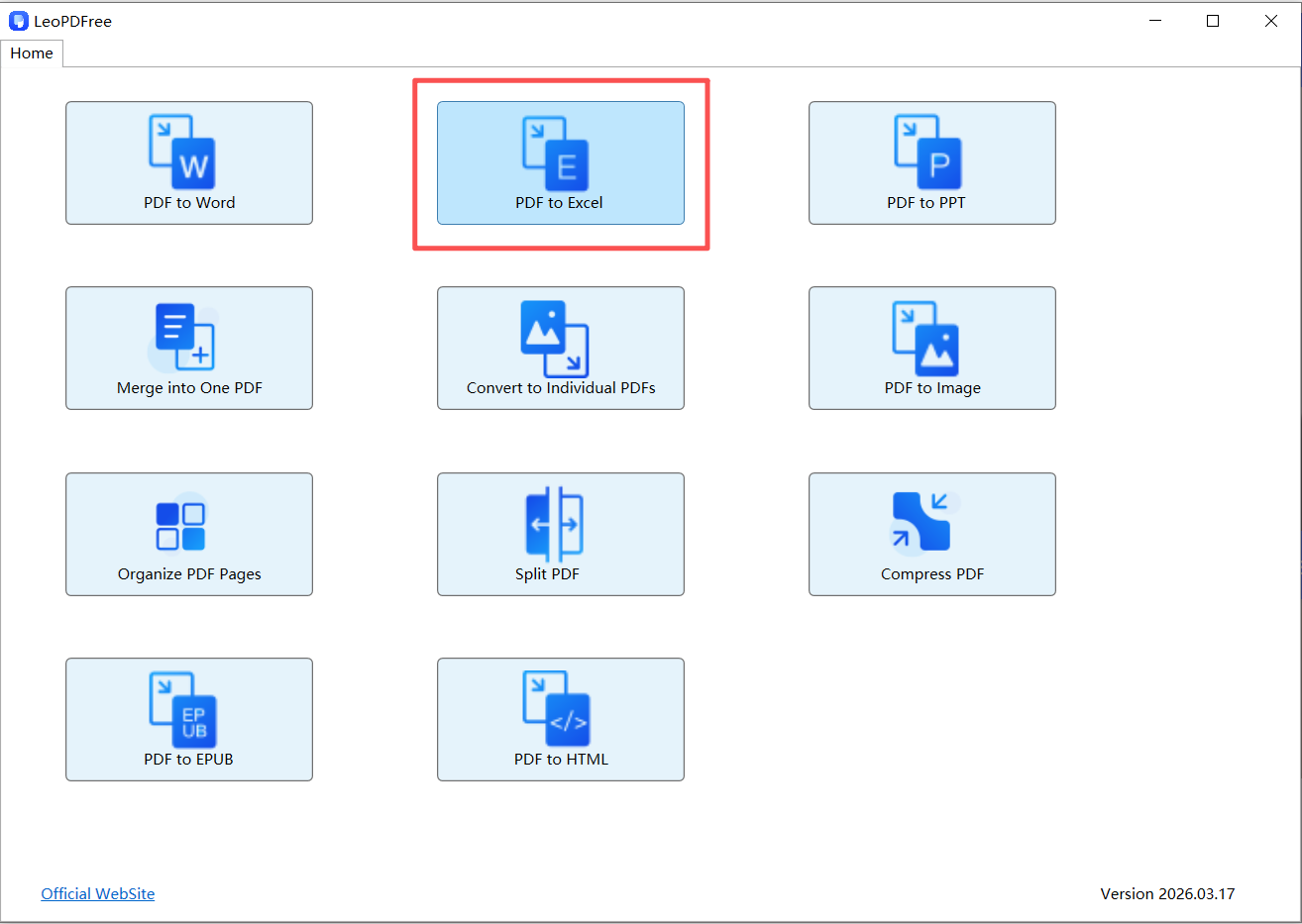
1. LeoPDF (Best for Accuracy & Simplicity)
Why it stands out:
▪ AI-powered table recognition
▪ Preserves merged cells and alignment
▪ Works for both simple and complex PDFs
▪ Beginner-friendly interface
▪ 100% Free. Fully compatible with Windows, iOS, and more
Free DownloadSecure Download
2. Adobe Acrobat (Best for Reliability)
Strengths:
▪ Trusted industry standard
▪ Stable performance
▪ Good for text-based PDFs
Limitations:
▪ Expensive
▪ Not ideal for complex tables
3. Smallpdf (Best for Quick Online Use)
Strengths:
▪ Fast and easy
▪ No installation required
Limitations:
▪ Formatting often breaks
▪ Limited free usage
4. Able2Extract (Best for Custom Control)
Strengths:
▪ Manual table selection
▪ Detailed conversion options
Limitations:
▪ Slower workflow
▪ Requires experience
5. Microsoft Excel (Built-in Tool)
Strengths:
▪ Free
▪ Convenient
Limitations:
▪ Weak structure recognition
▪ Not suitable for complex files
🔍 Feature Comparison (What Actually Matters)
| Feature | Basic Tools | Advanced Tools |
|---|---|---|
| Text extraction | ✅ | ✅ |
| Table structure | ❌ | ✅ |
| OCR support | ❌ | ✅ |
| Multi-page tables | ❌ | ✅ |
| Formatting retention | Low | High |
👉 The real upgrade in 2026: AI structure recognition
⚡ How to Choose the Right Converter (Smart Method)
Instead of guessing, follow this logic:
▪ Simple file → Excel built-in
▪ Scanned file → OCR tool
▪ Complex tables → AI tool (recommended)
▪ High accuracy required → LeoPDF
🛠️ Pro Workflow (Used by Power Users)
Want near-perfect results?
1️⃣. Try LeoPDF converter first
2️⃣. If needed → use HTML method
3️⃣. Clean up minor issues in Excel
👉 This reduces manual work by 90%
🔮 What’s New in 2026
▪ LeoPDF AI understands table relationships
▪ Automatic column alignment
▪ Multi-page table merging
▪ Faster batch processing
👉 Manual formatting is becoming obsolete
💡 Hidden Insight: Why Most Tools Fail
Most tools still:
▪ Extract text only
▪ Ignore layout
▪ Break tables
The best tools:
▪ Analyze spacing
▪ Detect structure
▪ Rebuild tables
👉 That’s the real difference.
🏁 Final Verdict
If you want:
▪ ✔ Speed → Use online tools
▪ ✔ Reliability → Use Adobe
▪ ✔ Precision → Use AI tools
▪ ✔ Best overall → LeoPDF
Free DownloadSecure Download
