
Tips & guides
PDF to Excel Not Working? Fix Guide
Published
If your PDF won’t convert to Excel properly, the problem is not random — it’s predictable.
And once you understand the pattern, fixing it becomes easy.
🧠 First: Identify Why It’s Not Working
Before trying random tools, diagnose the real issue:
Your PDF falls into one of these 4 types:
| PDF Type | Typical Problem | Difficulty |
|---|---|---|
| Text-based PDF | Columns shift | Medium |
| Scanned PDF | No data extracted | High |
| Complex layout | Broken tables | Very High |
| Secured PDF | Cannot open/convert | Medium |
👉 Fixing starts with correct classification, not trial and error.
🔍 Symptom → Cause → Fix (Quick Navigation Table)
| What You See | Root Cause | Fast Fix |
|---|---|---|
| Blank output | Scanned PDF | Use OCR |
| Misaligned columns | Position-based layout | Use LeoPDF tool |
| Numbers as text | Encoding issue | Convert format |
| Missing rows | Multi-column confusion | Try HTML method |
| Conversion fails | File protection | Unlock PDF |
🚨 Problem #1: PDF Converts to Blank Excel
Why it happens:
▪ Your PDF is actually an image (scanned document)
Fix:
👉 Use OCR (Optical Character Recognition)
Pro tip (2026):
Modern OCR can:
▪ Detect tables without borders
▪ Rebuild structured data
⚠️ Problem #2: Columns Are Completely Messed Up
Why it happens:
PDF stores text by position, not by table logic.
Fix options:
▪ Use LeoPDF-based converter (structure recognition)
▪ Or apply Text to Columns in Excel
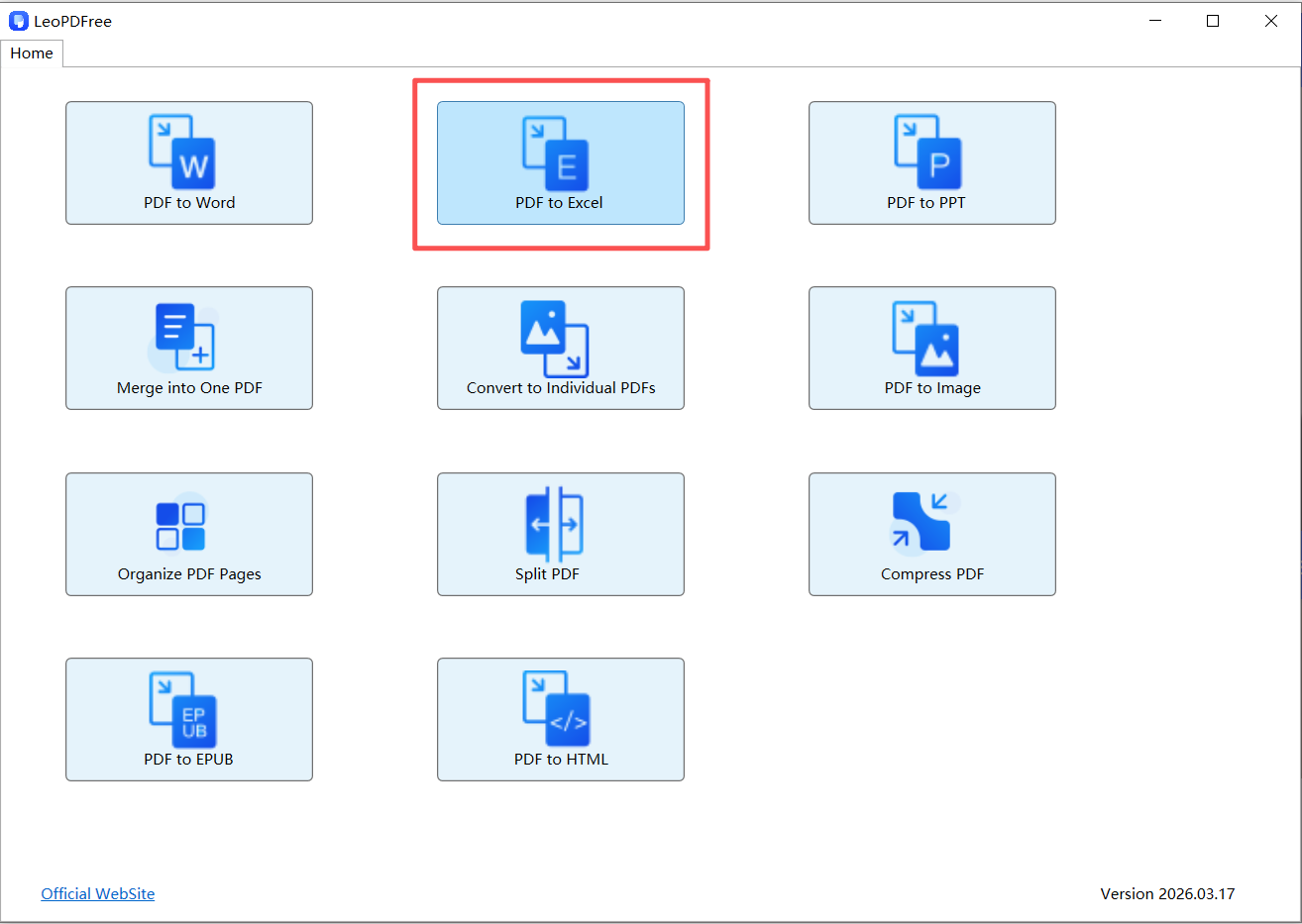
▪ The free LeoPDF software has been successfully downloaded and installed. Even beginners can get started quickly, as it is very simple and easy to use. As shown in the figure below.
👉 Avoid basic converters — they only copy text, not structure.
🔢 Problem #3: Numbers Turn into Text
Why it happens:
▪ Encoding mismatch
▪ Currency symbols or spacing issues
Fix:
1️⃣. Select column
2️⃣. Change format to “Number”
3️⃣. Remove extra spaces if needed
💡 Bonus:
Use Excel formula:
=VALUE(A1)
🧩 Problem #4: Tables Split into Multiple Parts
Why it happens:
▪ Page breaks
▪ Multi-column layouts
Fix:
▪ Merge using Excel Power Query
▪ Or convert PDF → HTML first
👉 HTML preserves structure better than direct conversion.
🔒 Problem #5: Conversion Tool Doesn’t Work at All
Why it happens:
▪ File is encrypted or restricted
Fix:
▪ Unlock PDF before converting
▪ Use tools that support secured PDFs
🚀 The Smart Fix Workflow (2026 Method)
Instead of guessing, follow this:
Step 1 — Identify PDF Type
Step 2 — Choose Method
Step 3 — Apply Minimal Fix
🧠 Decision Map:
▪ If scanned → OCR
▪ If messy layout → LeoPDF tool
▪ If critical formatting → HTML method
▪ If simple → Excel built-in
🛠️ Advanced Fix: The “HTML Trick”
This is what power users do:
1️⃣. Convert PDF → HTML
2️⃣. Clean the table (optional)
3️⃣. Open in Excel
👉 Why it works:
▪ HTML = real table structure
▪ Excel reads it perfectly
🔮 What’s New in 2026 (Why Fixing Is Easier Now)
▪ LeoPDF understands table relationships
▪ Automatic column alignment
▪ Multi-page table merging
▪ Faster batch conversions
👉 Most errors can now be fixed in seconds
💡 Hidden Mistake Most People Make
They keep switching tools.
👉 The real issue is not the tool —
it’s using the wrong method for the PDF type.
🏁 Final Takeaway
If your PDF to Excel conversion is not working:
✔ Don’t panic
✔ Don’t retry randomly
✔ Diagnose → Then fix
✔ Smart LeoPDF helps you solve it easily.
👉 Once you match the method to the PDF type,
the problem usually disappears.