
Tips & guides
How to Change the Order of Pages in a PDF Without Losing Formatting
Published
Need to move a few PDF pages but worried about breaking the layout?
You usually don’t need to edit the content at all.
Change the page sequence, not the page itself.
What Actually Changes?
Suppose your PDF contains:
1 → 2 → 3 → 4 → 5
You want:
1 → 3 → 2 → 4 → 5
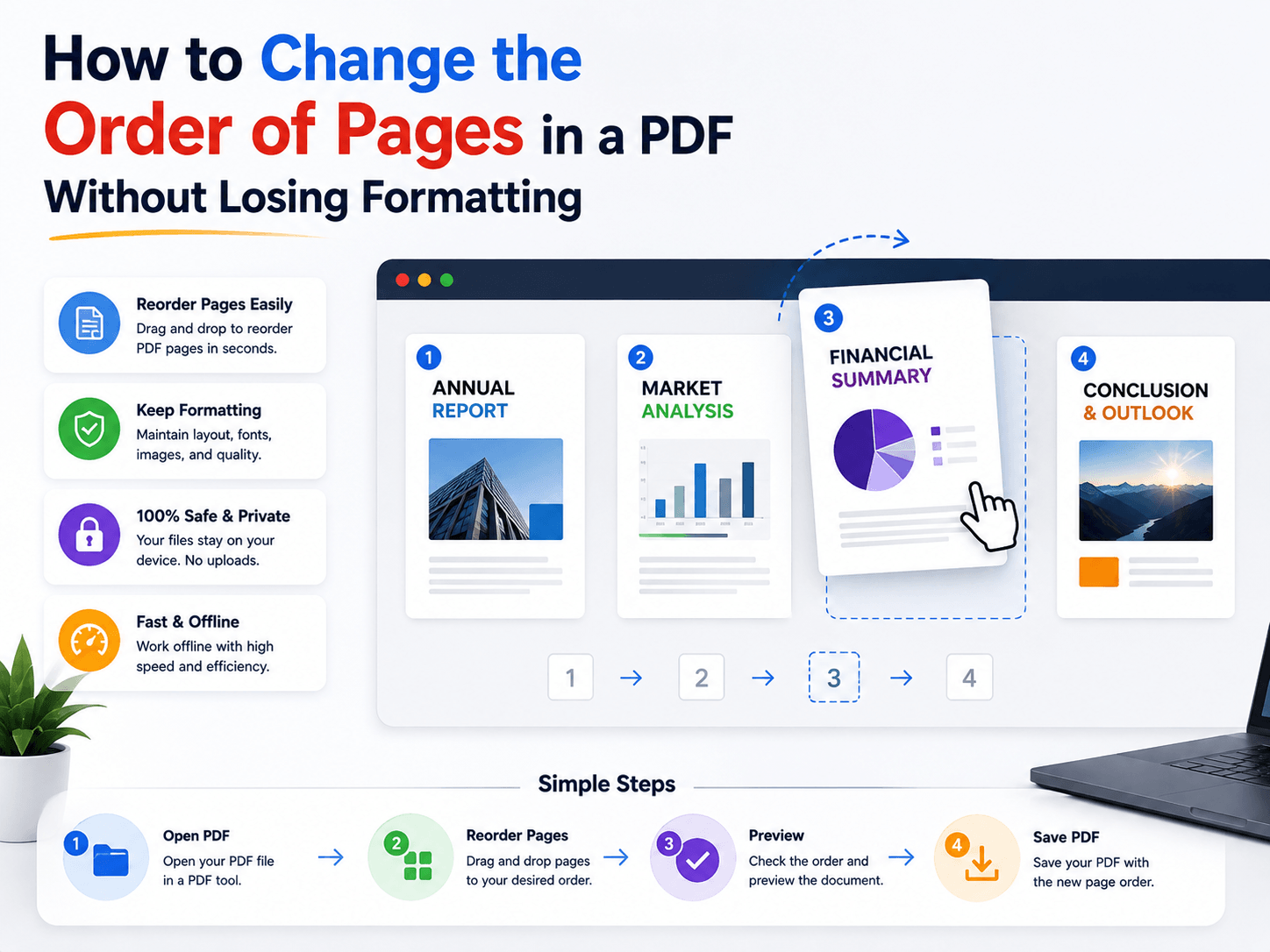
The pages move, but their text, images, fonts, and layout stay on the pages.
That’s the key difference between reordering and editing.
Why Formatting Usually Stays Intact
PDF page content and page order are separate aspects of a document.
When a PDF organizer moves a page, it can change the page’s position in the document without modifying the content on that page. Adobe’s current PDF tools use thumbnail-based drag-and-drop for this workflow and state that rearranging pages preserves the document’s styling and formatting.
So you generally don’t need to:
❌ Copy and paste text
❌ Recreate the document
❌ Re-export every page
The Safe Way to Reorder Pages
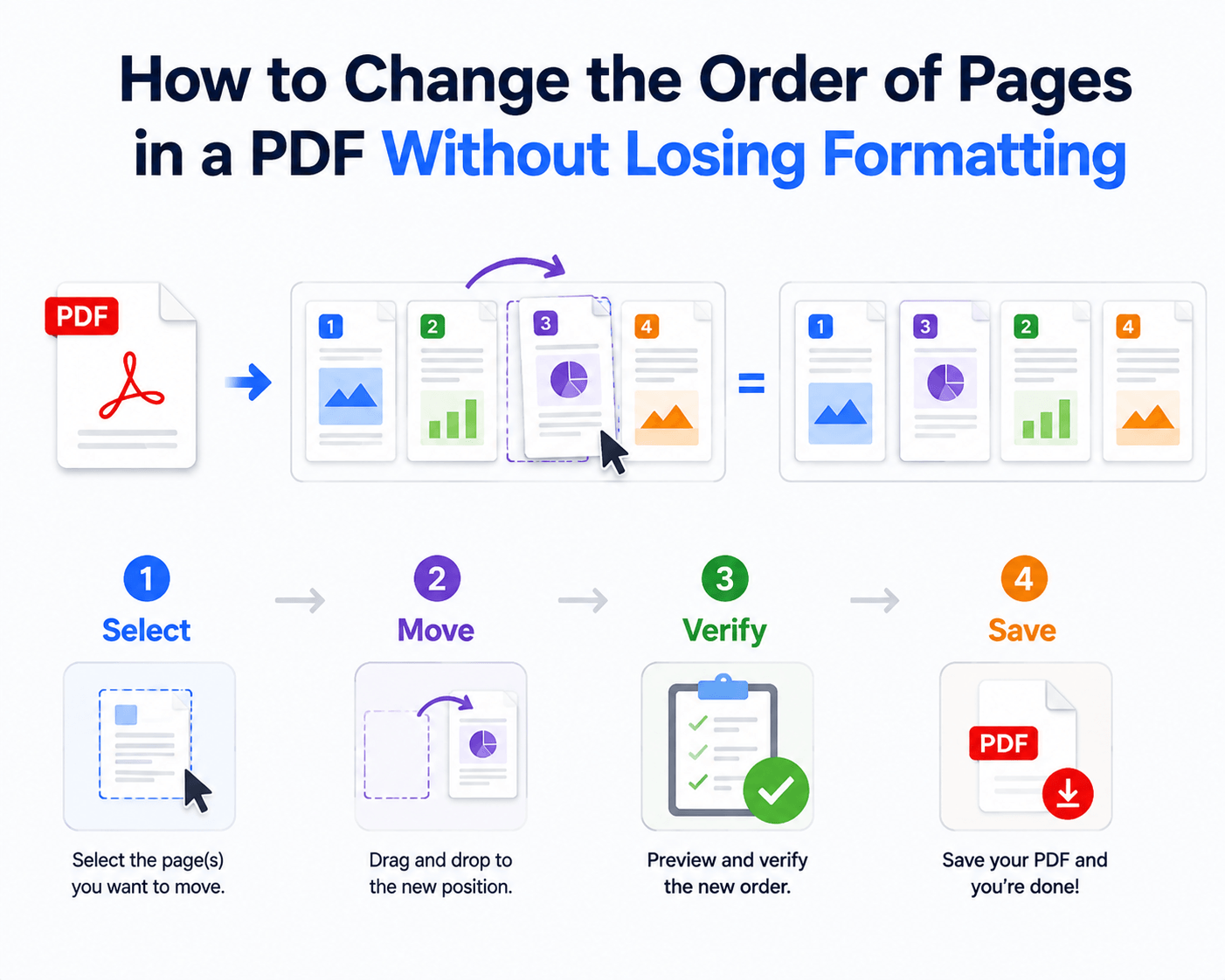
Use a simple four-step workflow:
Select → Move → Verify → Save
1. Select
Open the page thumbnail view and select the page or page range.
2. Move
Drag it to the required position. Multiple pages can also be moved together in supported PDF organizers.
3. Verify
Check page numbers, chapter transitions, headers, footers, and bookmarks.
4. Save
Save the reordered document as a new file.
Reorder vs. Rebuild
| Approach | Formatting Risk | Work Required | Best Use |
|---|---|---|---|
| Reorder Pages | Low | Low | Change page sequence |
| Copy & Paste Content | Higher | High | Edit page content |
| Rebuild PDF | Higher | Very High | Major document changes |
The rule is simple:
If the content is already correct, don’t rebuild it.
When Formatting Problems Can Still Appear
Reordering itself is usually straightforward, but problems can come from other operations.
Watch for:
⚠ Converting the PDF to another format
⚠ Re-exporting pages repeatedly
⚠ Replacing pages
⚠ Editing fonts or text
⚠ Using incompatible PDF software
If you only need to change page order, keep the operation as simple as possible.
Online vs. Offline
| Feature | Online Tools | Offline Tools |
|---|---|---|
| Installation | None | Required |
| File Upload | Usually required | Not required |
| Internet | Required | Not required |
| Local Processing | No | Yes |
| Sensitive Files | More consideration | Better suited |
Online tools are convenient for quick, non-sensitive documents. For confidential PDFs, local processing gives you more control over the file.
A Simple PDF Workflow with LeoPDF
LeoPDF is a free Windows PDF tool for everyday document management.
You can use it to:
✅ Reorder PDF pages
✅ Delete unwanted pages
✅ Split PDFs
✅ Merge PDFs
✅ Compress PDFs
✅ Convert PDFs
For example:
Reorder → Delete → Compress → Share
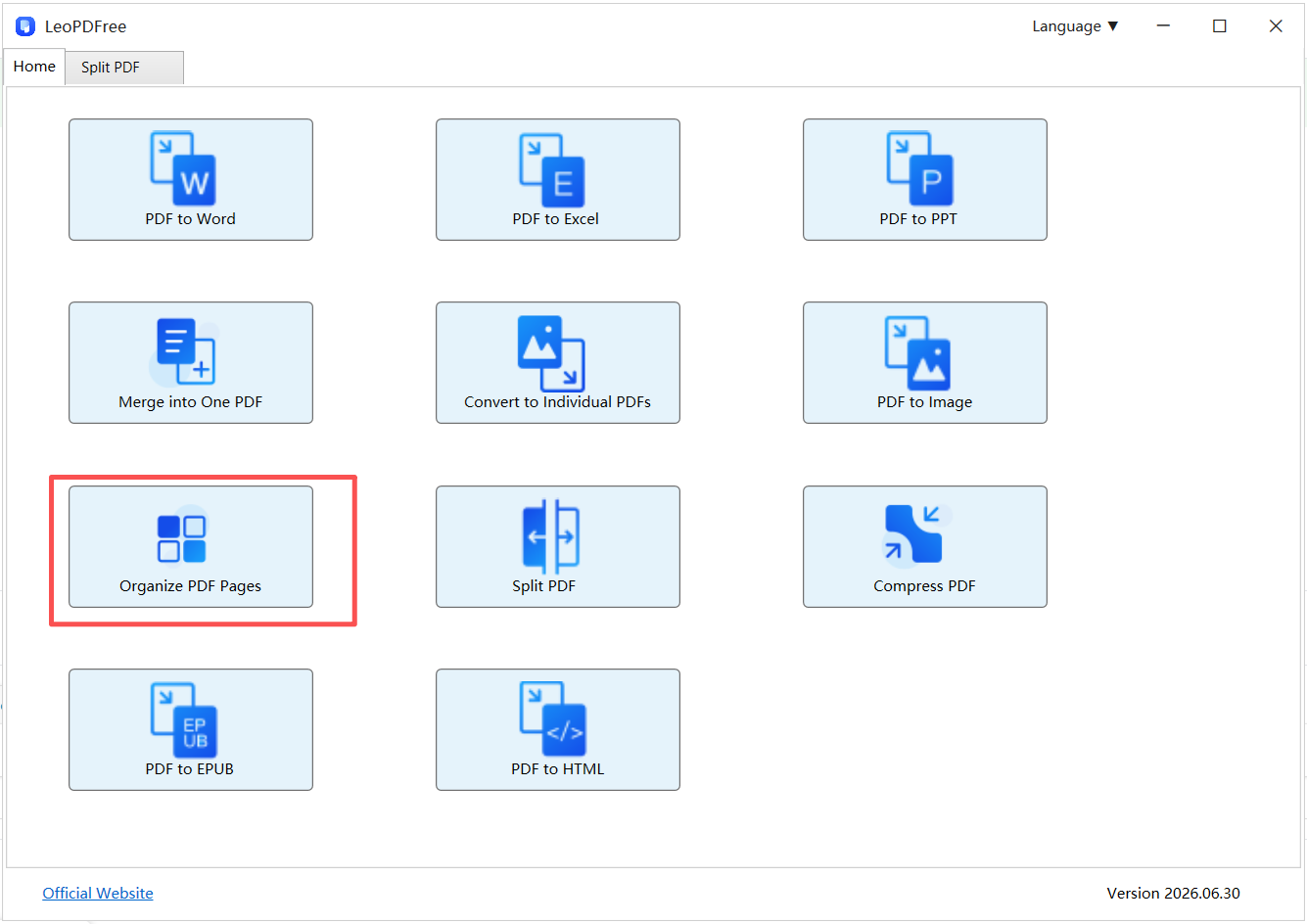
Instead of rebuilding the document, you can organize the existing pages and keep the workflow focused.
Final Takeaway
Changing PDF page order shouldn’t mean changing the PDF’s content.
Move the pages. Keep the formatting. Verify the result.
For simple page-order changes, structural editing is usually the cleanest approach.
Review a large document efficiently
- Use thumbnails to locate misplaced chapters, blank pages and duplicate pages.
- Check the cover, chapter transitions, appendix, references and attachments after moving pages.
- Check bookmarks and links you rely on; rearranging pages does not guarantee that every manually written page reference updates.
- Keep
Document-Original.pdfand save the result separately asDocument-Reordered.pdf.
For a concrete illustrated workflow, see the PDF page-order tutorial. Use the page organizer supplied by your chosen application; you do not need to rebuild correctly rendered page contents.