
Adobe Acrobat is powerful—but not everyone wants to pay for a subscription just to rearrange a few pages or split a PDF.
The good news?
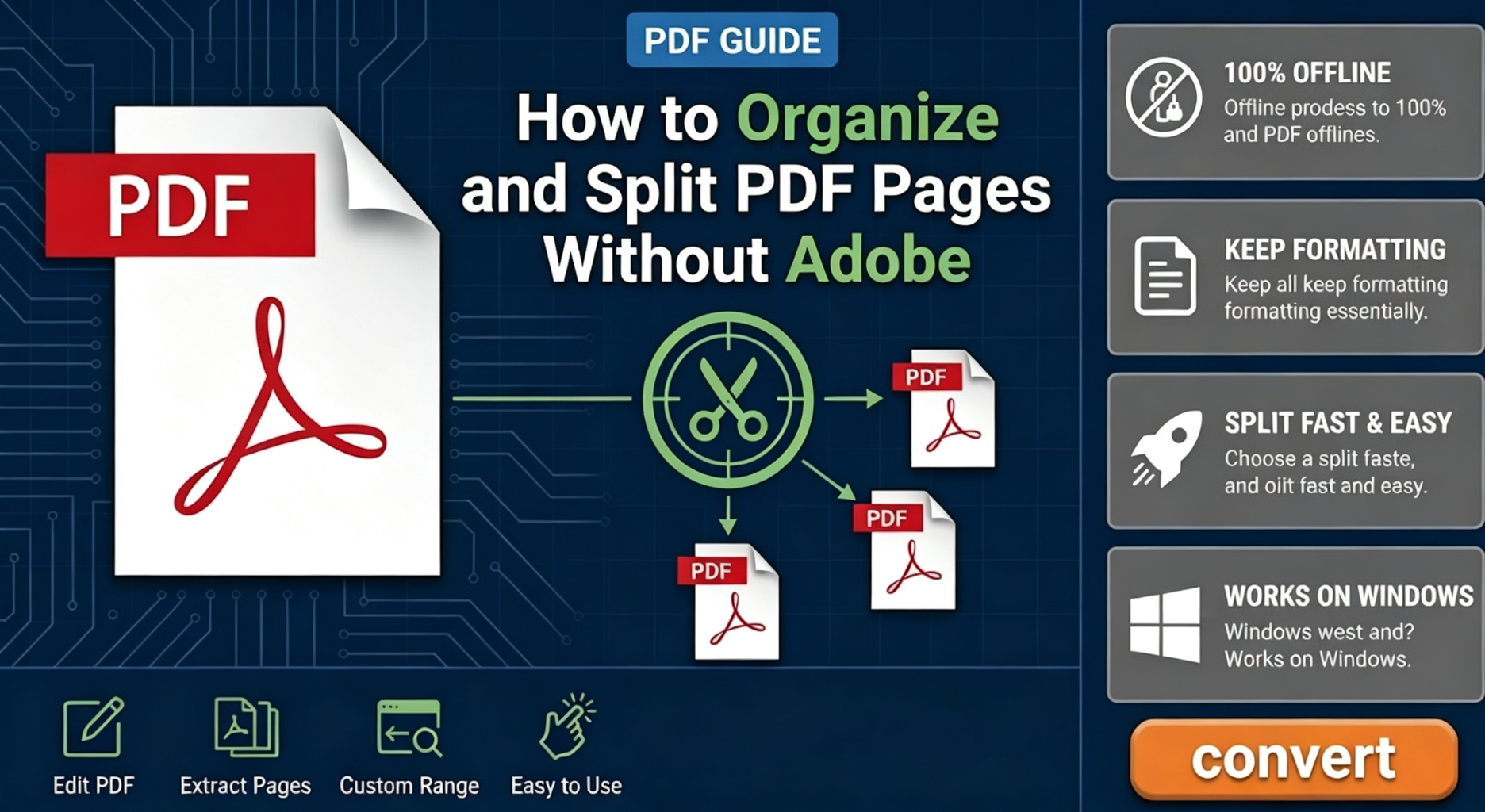
In 2026, organizing and splitting PDF pages without Adobe is easier than ever. With the right workflow, you can reorder pages, extract sections, and create new PDFs in minutes while preserving the original formatting.
Why Organize PDF Pages First?
Many users immediately split a PDF and then realize the pages are out of order.
A smarter approach is:
1️⃣. Review the document
2️⃣. Reorder pages if needed
3️⃣. Remove unnecessary pages
4️⃣. Split the PDF into separate files
This creates cleaner, more professional results.
The Best Method: Use an Offline PDF Tool
For most users, an offline PDF tool provides the easiest solution.
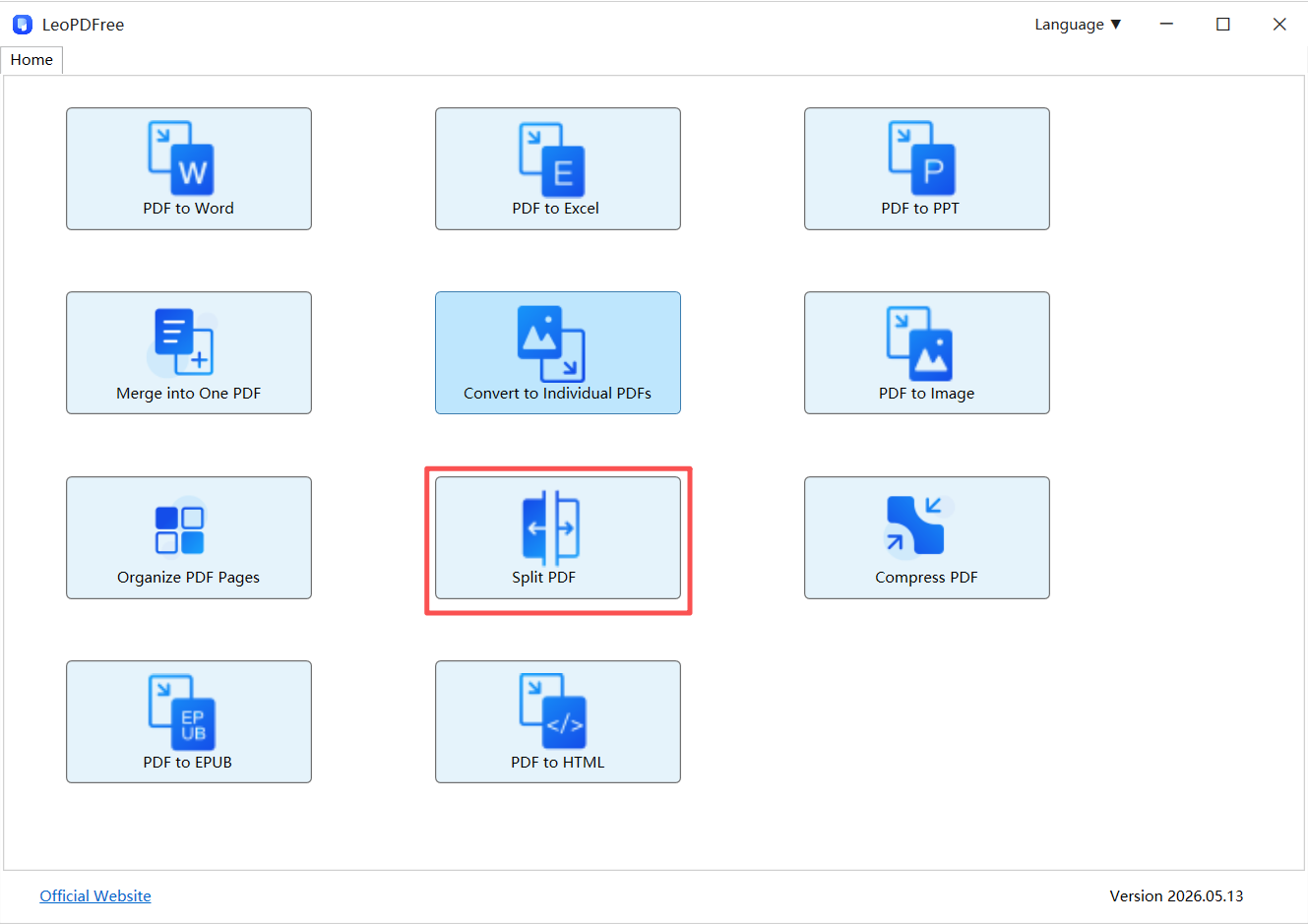
Tools like LeoPDF allow you to:
✔ Reorder PDF pages with drag-and-drop simplicity
✔ Split PDFs by page range
✔ Extract selected pages
✔ Create multiple PDF files at once
✔ Preserve the original formatting
✔ Use all features completely free
Free DownloadSecure Download
📢Since everything is processed locally, there’s no need to upload sensitive documents.
Common PDF Organization Tasks
Most PDF page management projects fall into one of four categories:
| Task | Example |
|---|---|
| Reorder Pages | Move Chapter 3 before Chapter 2 |
| Extract Pages | Save pages 10–20 as a new PDF |
| Delete Pages | Remove blank or duplicate pages |
| Split Documents | Create separate PDFs from one file |
👉Mastering these basic tasks can dramatically improve document organization.
Why Offline Tools Often Work Better
Many online PDF services require file uploads.
That creates several potential issues:
▪ Privacy concerns
▪ Upload limits
▪ Slow processing for large files
▪ Browser-related restrictions
👉Offline tools eliminate these problems entirely.
Offline vs Online PDF Management
| Offline Tools | Online Tools |
|---|---|
| No upload required | Upload required |
| Better privacy | Files leave your device |
| Faster for large PDFs | Internet-dependent |
| More stable | Browser limitations |
👉For business documents, local processing is usually the safer option.
Avoid These Common Mistakes
❌ Splitting before organizing
Always verify page order first.
❌ Using screenshots
Screenshots convert documents into images and destroy PDF structure.
❌ Rebuilding PDFs repeatedly
Multiple exports can increase the risk of formatting inconsistencies.
Pro Tip: Extract Instead of Recreate
Whenever possible:
👉 Extract pages directly from the original PDF.
This helps preserve:
🔵 Layout
🔵 Fonts
🔵 Images
🔵 Bookmarks
🔵 Overall document quality
The fewer changes you make, the better the final result.
Final Takeaway
If you need to organize and split PDF pages without Adobe:
✔ Reorder pages before splitting
✔ Use an offline tool like LeoPDF
✔ Keep sensitive files on your computer
✔ Extract pages instead of rebuilding documents
✔ Preserve the original formatting whenever possible
👉 The smartest PDF workflow isn’t the most complicated one.
It’s the one that keeps your documents organized while making the fewest possible changes to the original file.
Free DownloadSecure Download
