How to Reorder PDF Pages for Free Based on Your Specific Needs (2026 Guide)

Rearranging PDF pages sounds simple — until you’re dealing with a 200-page report, scanned documents, invoices out of order, or presentation files that suddenly make no sense.

In 2026, reordering PDF pages is no longer just a drag-and-drop task.
The smarter approach is:
👉 reorganizing PDFs based on purpose, workflow, and document type
This guide will show you how to do it efficiently, for free, and without damaging your file formatting.
‌

pdf to Reorder at freepdfconvert.com

🧠 Why People Reorder PDF Pages in the First Place

Most users aren’t reorganizing PDFs for fun.

They usually need to:

▪ fix pages scanned in the wrong order
▪ rearrange invoices or contracts
▪ organize study materials
▪ reorder presentation slides
▪ merge documents logically
▪ remove unnecessary pages

👉 The real goal isn’t moving pages.
It’s improving readability and workflow.

🔍 Step 1 — Identify Your PDF Type First

Different PDFs require different approaches.

PDF Type Best Reordering Method
Small documents Manual drag-and-drop
Large reports Thumbnail view + batch move
Scanned PDFs OCR-aware tools
Mixed PDFs Split + reorder workflow

👉 Most problems happen because people use the wrong workflow.

🥇 Best Free Method: Offline PDF Reordering Tools
Why Offline Tools Usually Work Better

Compared to online tools:

Offline Tools Online Tools
Better privacy Requires upload
Faster for large files Browser limitations
More stable File size restrictions
No internet required Upload/download delays

👉 If you work with sensitive or large PDFs, offline tools make more sense.

⭐ Recommended Workflow Using LeoPDF

For most users, a lightweight offline tool is the easiest option.

Typical workflow:

Step 1

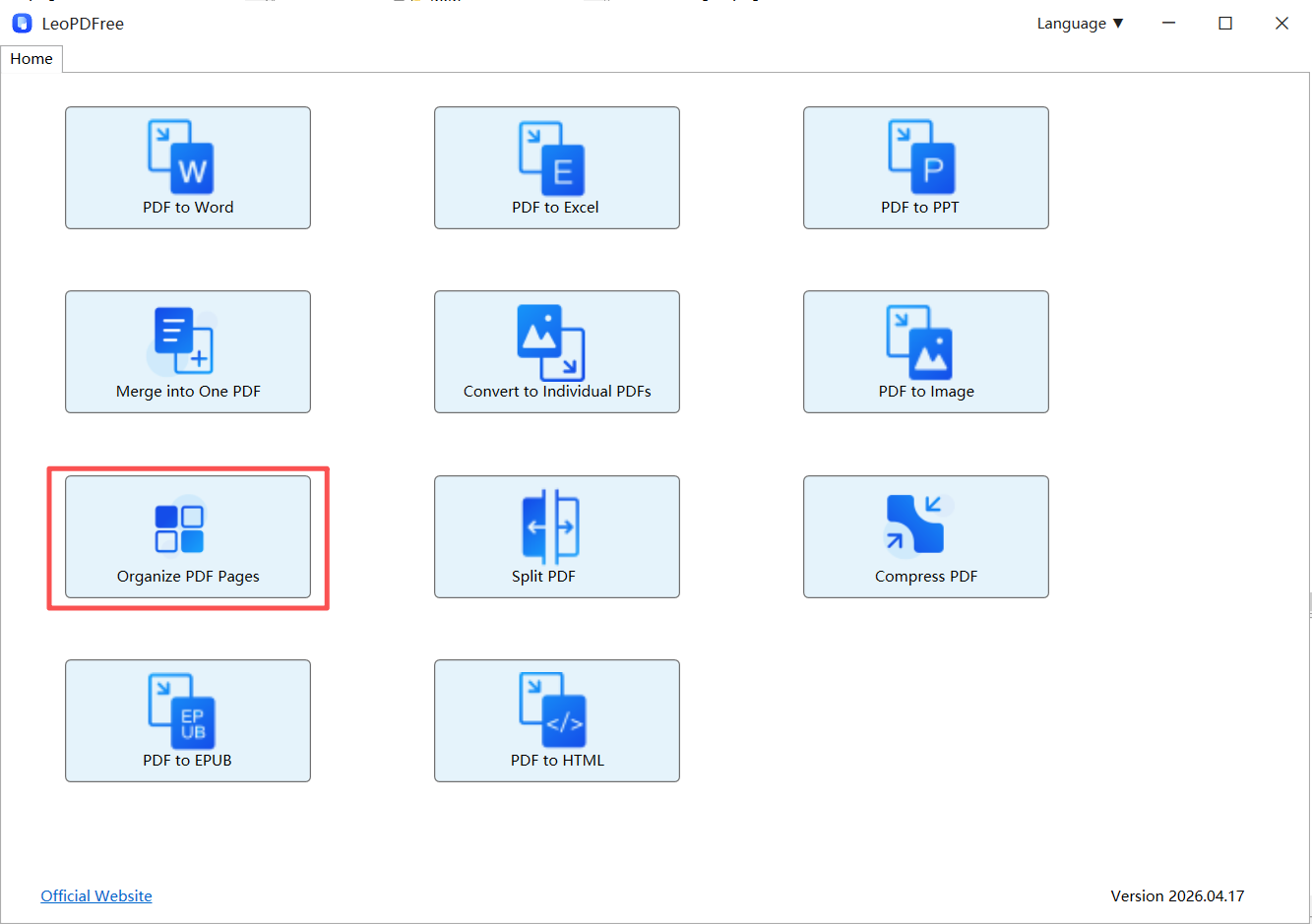
Download and successfully install LeoPDF, then launch the software. Click the ‘Organize PDF Pages’ button, as shown in the image below.
pdf to Reorder at freepdfconvert.com

Free DownloadSecure Download

Step 2

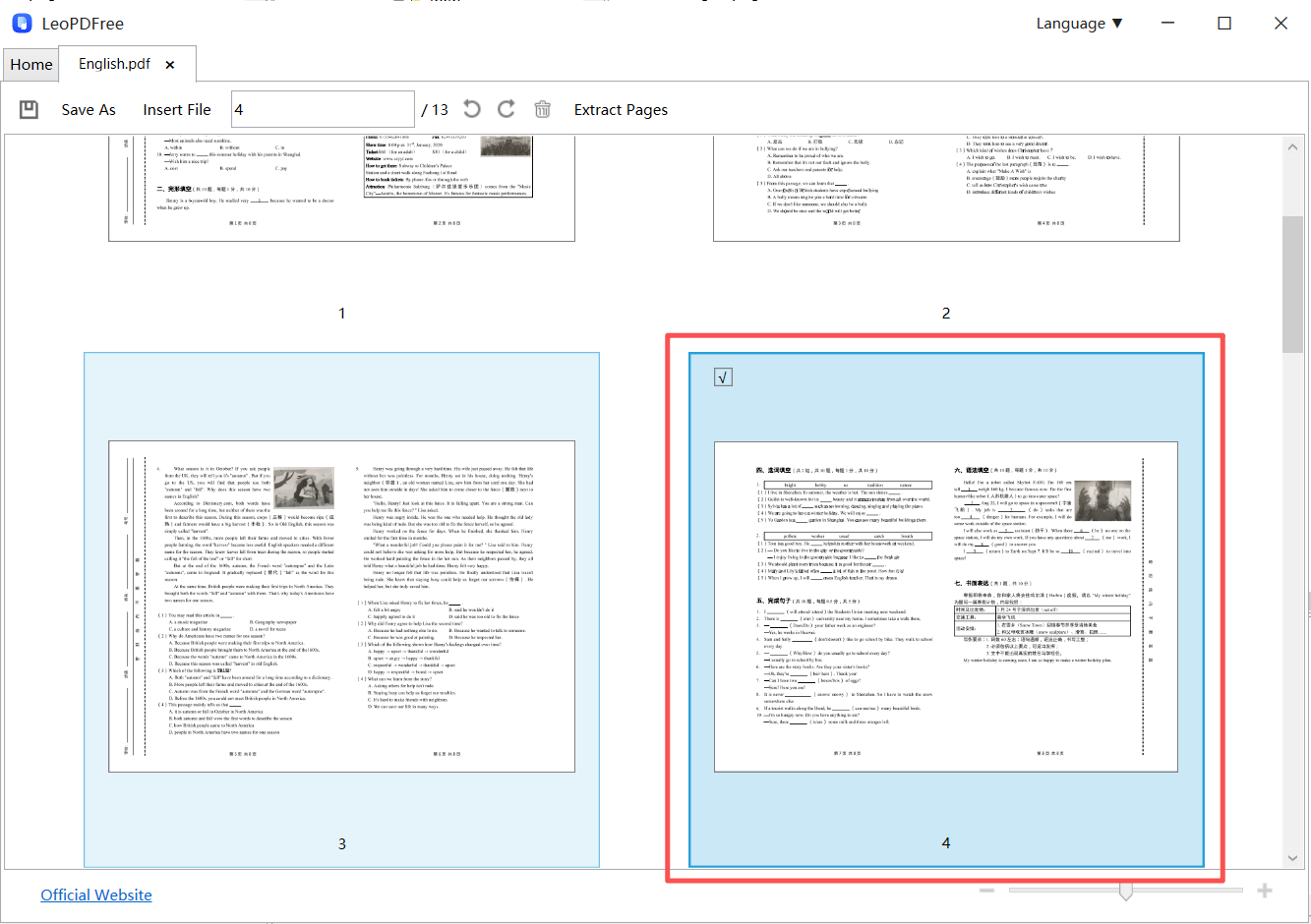
Add the PDF files you wish to reorder within the thumbnail view interface. Depending on your needs, you can use your mouse to click and select a single page, or click and drag to select multiple pages, as shown in the image below.
pdf to Reorder at freepdfconvert.com

Step 3

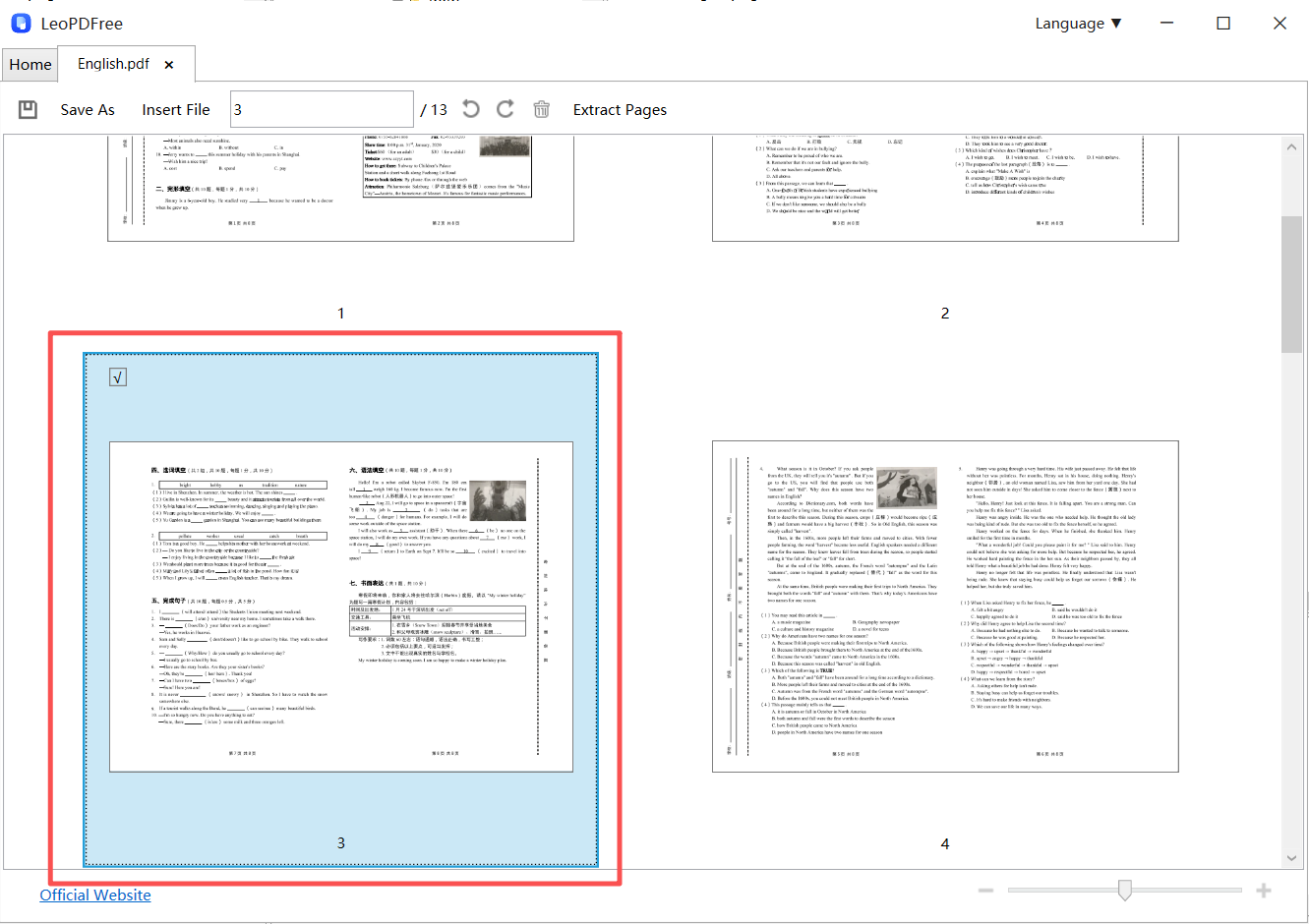
Then, simply drag the selected pages to your desired position with your mouse. It’s that easy, as shown in the image below.
pdf to Reorder at freepdfconvert.com

Step 4

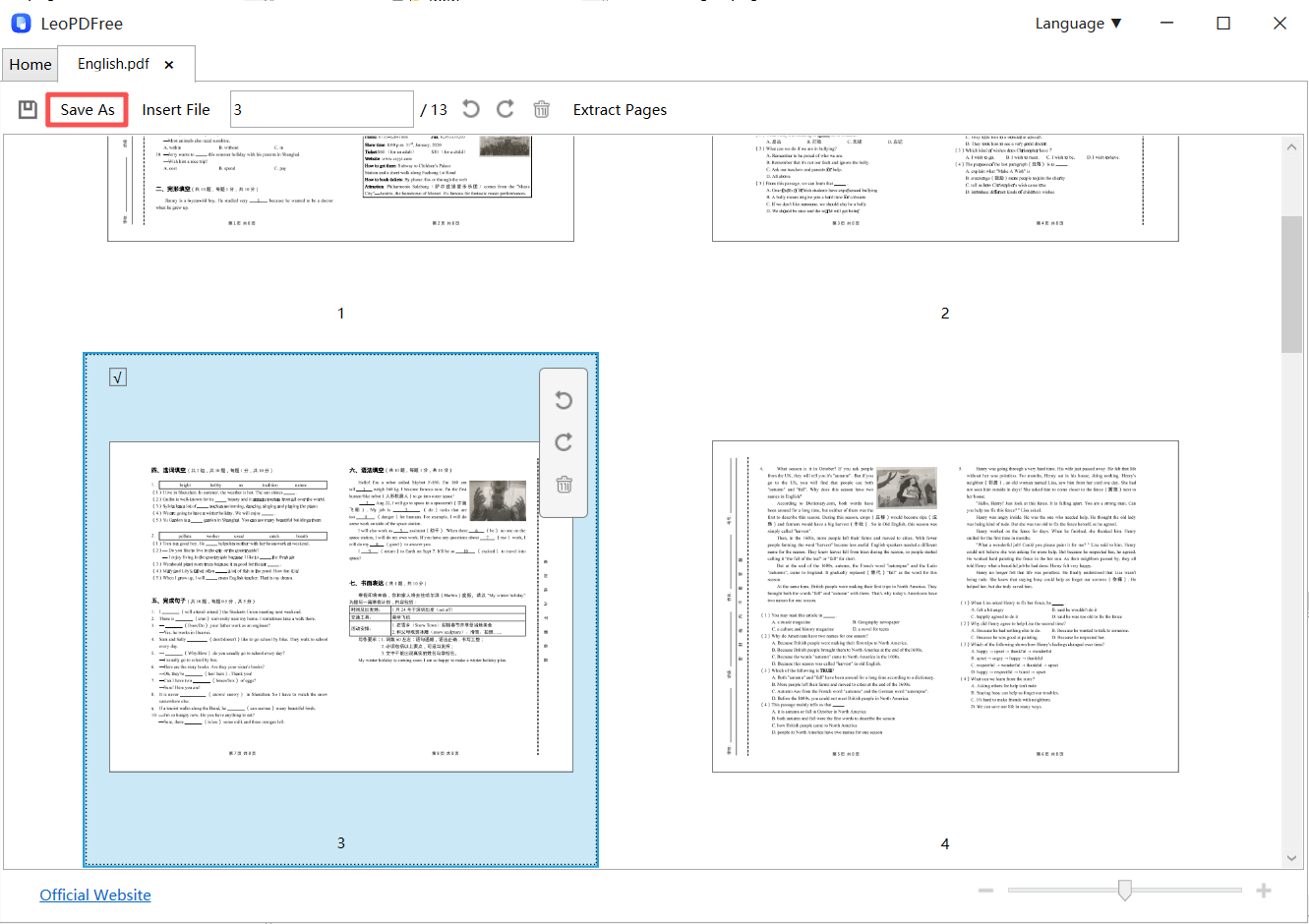
Once all pages are in the correct order, you can also click the ‘Delete’ button to remove any unwanted pages or use the ‘Rotate’ button to fix any upside-down pages. When you are finished, be sure to click the ‘Save As’ button to finalize your new PDF layout. It’s that simple—as shown in the image below, give it a try now!
pdf to Reorder at freepdfconvert.com

Why This Workflow Works Well

It keeps:

▪ formatting intact
▪ page quality unchanged
▪ layout consistency preserved

👉 Most importantly:
you avoid re-exporting or rebuilding the document.

📊 Offline vs Online PDF Reordering

Type Best For Main Weakness
Offline Tools Privacy & stability Installation required
Online Tools Quick edits Upload limitations
OCR Tools Scanned documents Slower processing

🏁 Final Takeaway

If you want to reorder PDF pages efficiently:

✔ Identify your PDF type first
✔ Use offline tools whenever possible
✔ Reorganize based on workflow, not randomly
✔ Split large PDFs before editing

👉 The best PDF workflow isn’t about moving pages —
it’s about improving how information is consumed.

Free DownloadSecure Download
PDF to Excel vs OCR Conversion: Which One Is More Accurate? (2026 Guide)

If your table looks clean in a PDF but turns into a mess in Excel,
you’re probably using the wrong conversion method — not the wrong tool.

In 2026, the real question isn’t which tool is better,
👉 it’s which method fits your PDF type.

Let’s break it down.

PDF to Excel vs OCR Conversion: Comparing Accuracy and Results

🧠 First, Understand the Core Difference

📄 PDF to Excel Conversion

🔵 Extracts text directly from the PDF
🔵 Reconstructs rows and columns
🔵 Best for digital (text-based) PDFs

👉 Think of it as: copying structured data

🔍 OCR Conversion (Optical Character Recognition)

🔵 Reads text from images
🔵 Converts visual content into editable data
🔵 Rebuilds table structure using AI

👉 Think of it as: reading and rebuilding from scratch

⚖️ Accuracy Comparison (Real-World Perspective)

Scenario PDF to Excel OCR
Text-based PDF ⭐⭐⭐⭐⭐ ⭐⭐⭐
Scanned PDF ❌ Fails ⭐⭐⭐⭐
Complex tables ⭐⭐⭐⭐ ⭐⭐⭐
Multi-page tables ⭐⭐⭐⭐ ⭐⭐⭐⭐
Speed Fast Slower

👉 Key takeaway:
Accuracy depends entirely on the input file

🔍 When PDF to Excel Is More Accurate

Use it when your file is:

🔵 Created digitally (not scanned)
🔵 Has clear table structure
🔵 No image-based text

✅ Why it works:

🔵 Direct text extraction = fewer errors
🔵 Faster processing
🔵 Better number accuracy

👉 Ideal for:

🔵 Financial reports
🔵 Data exports
🔵 Structured documents

🤖 When OCR Is More Accurate

Use OCR when your file is:

🔵 Scanned or image-based
🔵 Screenshot PDFs
🔵 Poor-quality documents

✅ Why it works:

🔵 Can “see” text where no data exists
🔵 Rebuilds structure from layout

👉 Ideal for:

🔵 Paper scans
🔵 Old documents
🔵 Photos of tables

⚠️ Where Both Methods Struggle

Even in 2026, neither method is perfect.

Both may fail when:

🔵 Tables have no clear alignment
🔵 Columns overlap
🔵 Layout is highly irregular

👉 That’s where AI-enhanced tools-LeoPDF make the difference

Free DownloadSecure Download

🚀 The Smart Workflow (What Professionals Do)

Instead of choosing one method blindly:

Step 1 — Identify your PDF type
Step 2 — Choose method accordingly
Step 3 — Apply minimal cleanup

🧭 Quick Decision Guide:

🔵 Clean digital PDF → PDF to Excel
🔵 Scanned/image PDF → OCR
🔵 Complex layout → OCR + AI tool

👉 Speaking from pure experience, I highly recommend using LeoPDF for clean digital PDFs and complex table structures. It’s a total game-changer.

🔮 What Changed in 2026

🔵 OCR is now AI-enhanced (much more accurate)
🔵 Table detection works without borders
🔵 Multi-page tables are automatically merged

👉 The gap between methods is shrinking —
but choosing the right one still matters

💡 Hidden Insight Most People Miss

People often ask:

“Which method is more accurate?”

That’s the wrong question.

👉 The right question is:

“Which method matches my file?”

🏁 Final Verdict

If you want the best results:

✔ Use PDF to Excel for clean files
✔ Use OCR for scanned files
✔ Combine both for complex cases

👉 Accuracy isn’t about the tool —
it’s about choosing the right method

PDF to Excel Table Misaligned? Step-by-Step Fix Guide

Diagnose shifted columns and split rows after PDF-to-Excel conversion. Use conditional Excel fixes, choose OCR when needed and verify values against the source.

When PDF-to-Excel output has shifted columns or split rows, first identify what went wrong. Some problems can be repaired in Excel; others require better recognition or another conversion attempt. No method guarantees correct structure for every PDF.

Why the table may not transfer cleanly

PDF describes a page rather than an Excel workbook. Even when a PDF has tags or logical structure, it need not contain reusable spreadsheet cells, formulas and data types. The converter may have to infer columns and rows from layout. Scans add a recognition problem, and malformed source text can also affect the result.

How to Fix Misaligned Tables After Converting PDF to Excel
PDF-to-Excel conversion settings.

🔍 Identify Your Misalignment Type (Before Fixing)

Different problems need different fixes.

Type 1 — Shifted Columns

⏺ Data moves into wrong columns
⏺ Numbers appear under wrong headers

Type 2 — Broken Rows

⏺ One row splits into multiple lines

Type 3 — Merged Cell Loss

⏺ Headers or grouped cells disappear

Type 4 — Multi-Column Confusion

⏺ Data from different sections mixes together

🚀 Step-by-Step Fix Guide (Practical Workflow)

Choose the appropriate recovery method

Work on a copy and keep the source beside it. If the PDF contains selectable text, try the free local Excel workflow. If it contains scanned tables, use paid cloud OCR in the LeoPDF store editions. Files for that cloud conversion are deleted when processing completes. LeoPDFree does not include OCR.

Do not assume every broken table is only a formatting problem. Check whether characters are already wrong before moving cells; rearranging columns will not repair a misrecognized amount.

🛠️ Step 2 — Use Excel “Text to Columns”

Best for column shifts:

1️⃣. Select the problematic column
2️⃣. Go to Data → Text to Columns
3️⃣. Choose “Delimited”
4️⃣. Adjust separators

Use Text to Columns when values are joined in one column and a reliable separator or fixed-width boundary exists. Preview the split and select an empty destination so adjacent data is not overwritten. It will not automatically repair broken rows, missing entries or OCR errors. Consult Microsoft’s Text to Columns instructions.

Clean values without damaging identifiers

Use a copy when removing extra spaces or converting text to numbers. Excel’s =TRIM(A1) can help with ordinary extra spaces, but it does not remove every kind of whitespace. =VALUE(A1) converts numeric text; check separators and dates before applying it to an entire column. Do not convert identifiers or account numbers if that would remove leading zeros.

Review tables split across pages

Check repeated headers, continuation rows and totals before combining sections. Where available in your Excel installation, Power Query’s PDF connector can import detected tables for inspection and transformation. Capabilities depend on the host. Review Microsoft’s PDF connector documentation and compare its detected tables against the source.

Converting PDF to HTML is not a guaranteed repair: an export may preserve positioned text rather than real table cells. Check whether a particular output contains useful table structure before trying another import. A claim that AI automatically fixes every irregular layout is not a substitute for checking the result.

Validate before using the spreadsheet

  • Compare row counts and the first and last entries on every source page.
  • Check headers, merged groups, negative signs, decimal separators and units.
  • Reconcile totals with the source while checking individual values.
  • Look for omitted lines or duplicated continuation rows.
  • Keep the PDF and a record of manual corrections.

For financial data, use the bank-statement conversion checklist. A matching grand total alone does not prove each row is correct.

PDF-to-Excel Conversion Options: Formatting, OCR and Cleanup

Compare PDF-to-Excel workflows by source type, OCR, cost and processing location, then assess a representative file yourself.

Choose a PDF-to-Excel workflow by the document you have and the spreadsheet you need. Compare supported tasks, processing locations and current access conditions, then evaluate a representative file using the checks below.

Choose by source type and processing location

Workflow When to consider it Condition to check
LeoPDFree for Windows Free local conversion of text-based PDFs No OCR; inspect every important value
LeoPDF store Word/Excel conversion Scans or handwriting needing OCR Paid cloud processing; files deleted when conversion completes
Excel PDF import Tables detected by an eligible Excel installation Connector availability and a valid Excel license; not handwriting OCR
Acrobat or another commercial converter An installed edition with the required export/OCR feature Feature access, processing location and saving conditions
Online conversion services Files appropriate to upload Current account, file and free-use limits

Choose the processing method before converting

LeoPDFree for Windows converts supported text-based PDFs to Word or Excel locally for free, without OCR. It does not upload files for these operations. LeoPDF store editions provide paid Word/Excel conversion with cloud OCR, including scanned text and handwriting; files processed in the cloud are deleted when conversion completes. Other supported tasks are free and local. Do not use the free Windows workflow as a substitute for OCR.

Convert a text-based PDF with LeoPDFree

  1. Keep an unchanged copy of the PDF and check whether its table text can be selected.
  2. Open the PDF-to-Excel function in LeoPDFree and add the PDF.
  3. Select the required pages and an output folder. Choose a worksheet arrangement only if the installed version offers it.
  4. Run the conversion and open the resulting workbook.
  5. Compare headings, row counts, dates, decimal places, leading zeros and totals against the original PDF before using the data.

Interface labels vary by version. A successful export does not establish that every cell is correct.

Excel PDF import

Check availability and import instructions before loading detected tables.

Use your own representative sample

  1. Select a short document with the same layout as your real work: ordinary text tables, merged cells, page breaks or scans.
  2. Record the application version, settings and processing location.
  3. Compare row counts, numbers, headings and totals with the PDF.
  4. Check how much cleanup is required and whether you can save a usable output under the selected access terms.

A star rating or a generic “best” label cannot substitute for these checks. No converter can be assumed to preserve every table perfectly. Keep the source and review uncertain results.

Questions about your LeoPDF edition?

Contact xuehui@leopdf.com with your platform, app version and the task you need.

PDF to Excel Not Working? Fix Guide

If your PDF won’t convert to Excel properly, the problem is not random — it’s predictable.
And once you understand the pattern, fixing it becomes easy.

PDF to Excel Not Working? Common Problems and How to Fix Them

🧠 First: Identify Why It’s Not Working

Before trying random tools, diagnose the real issue:

Your PDF falls into one of these 4 types:

PDF Type Typical Problem Difficulty
Text-based PDF Columns shift Medium
Scanned PDF No data extracted High
Complex layout Broken tables Very High
Secured PDF Cannot open/convert Medium

👉 Fixing starts with correct classification, not trial and error.

🔍 Symptom → Cause → Fix (Quick Navigation Table)

What You See Root Cause Fast Fix
Blank output Scanned PDF Use OCR
Misaligned columns Position-based layout Use LeoPDF tool
Numbers as text Encoding issue Convert format
Missing rows Multi-column confusion Try HTML method
Conversion fails File protection Unlock PDF

🚨 Problem #1: PDF Converts to Blank Excel

Why it happens:

▪ Your PDF is actually an image (scanned document)

Fix:

👉 Use OCR (Optical Character Recognition)

Pro tip (2026):

Modern OCR can:

▪ Detect tables without borders
▪ Rebuild structured data

⚠️ Problem #2: Columns Are Completely Messed Up

Why it happens:

PDF stores text by position, not by table logic.

Fix options:

▪ Use LeoPDF-based converter (structure recognition)

▪ Or apply Text to Columns in Excel

▪ The free LeoPDF software has been successfully downloaded and installed. Even beginners can get started quickly, as it is very simple and easy to use. As shown in the figure below.

LeoPDFree PDF to Excel Converter Interface

Free DownloadSecure Download

👉 Avoid basic converters — they only copy text, not structure.

🔢 Problem #3: Numbers Turn into Text

Why it happens:

▪ Encoding mismatch
▪ Currency symbols or spacing issues

Fix:

1️⃣. Select column
2️⃣. Change format to “Number”
3️⃣. Remove extra spaces if needed

💡 Bonus:
Use Excel formula:

=VALUE(A1)

🧩 Problem #4: Tables Split into Multiple Parts

Why it happens:

▪ Page breaks
▪ Multi-column layouts

Fix:

▪ Merge using Excel Power Query
▪ Or convert PDF → HTML first

👉 HTML preserves structure better than direct conversion.

🔒 Problem #5: Conversion Tool Doesn’t Work at All

Why it happens:

▪ File is encrypted or restricted

Fix:

▪ Unlock PDF before converting
▪ Use tools that support secured PDFs

🚀 The Smart Fix Workflow (2026 Method)

Instead of guessing, follow this:

Step 1 — Identify PDF Type
Step 2 — Choose Method
Step 3 — Apply Minimal Fix

🧠 Decision Map:

▪ If scanned → OCR
▪ If messy layout → LeoPDF tool
▪ If critical formatting → HTML method
▪ If simple → Excel built-in

🛠️ Advanced Fix: The “HTML Trick”

This is what power users do:

1️⃣. Convert PDF → HTML
2️⃣. Clean the table (optional)
3️⃣. Open in Excel

👉 Why it works:

▪ HTML = real table structure
▪ Excel reads it perfectly

🔮 What’s New in 2026 (Why Fixing Is Easier Now)

▪ LeoPDF understands table relationships
▪ Automatic column alignment
▪ Multi-page table merging
▪ Faster batch conversions

👉 Most errors can now be fixed in seconds

💡 Hidden Mistake Most People Make

They keep switching tools.

👉 The real issue is not the tool —
it’s using the wrong method for the PDF type.

🏁 Final Takeaway

If your PDF to Excel conversion is not working:

✔ Don’t panic
✔ Don’t retry randomly
✔ Diagnose → Then fix
✔ Smart LeoPDF helps you solve it easily.

👉 Once you match the method to the PDF type,
the problem usually disappears.

Free DownloadSecure Download
Extract PDF Tables to Excel: Free Workflows and Paid Alternatives

A PDF table can become a useful spreadsheet, but free conversion and paid alternatives must be distinguished. Check the source type before choosing a tool and keep a copy of

A PDF table can become a useful spreadsheet, but free conversion and paid alternatives must be distinguished. Check the source type before choosing a tool and keep a copy of the PDF for verification.

Choose the processing method before converting

LeoPDFree for Windows converts supported text-based PDFs to Word or Excel locally for free, without OCR. It does not upload files for these operations. LeoPDF store editions provide paid Word/Excel conversion with cloud OCR, including scanned text and handwriting; files processed in the cloud are deleted when conversion completes. Other supported tasks are free and local. Do not use the free Windows workflow as a substitute for OCR.

Convert a text-based PDF with LeoPDFree

  1. Keep an unchanged copy of the PDF and check whether its table text can be selected.
  2. Open the PDF-to-Excel function in LeoPDFree and add the PDF.
  3. Select the required pages and an output folder. Choose a worksheet arrangement only if the installed version offers it.
  4. Run the conversion and open the resulting workbook.
  5. Compare headings, row counts, dates, decimal places, leading zeros and totals against the original PDF before using the data.

Interface labels vary by version. A successful export does not establish that every cell is correct.

Excel PDF import

Check availability and import instructions before loading detected tables.

Illustrated Windows workflow

Follow these steps to convert a PDF containing usable text to Excel locally with LeoPDFree. For images and scans that need recognition, use the store-edition OCR workflow.

Steps

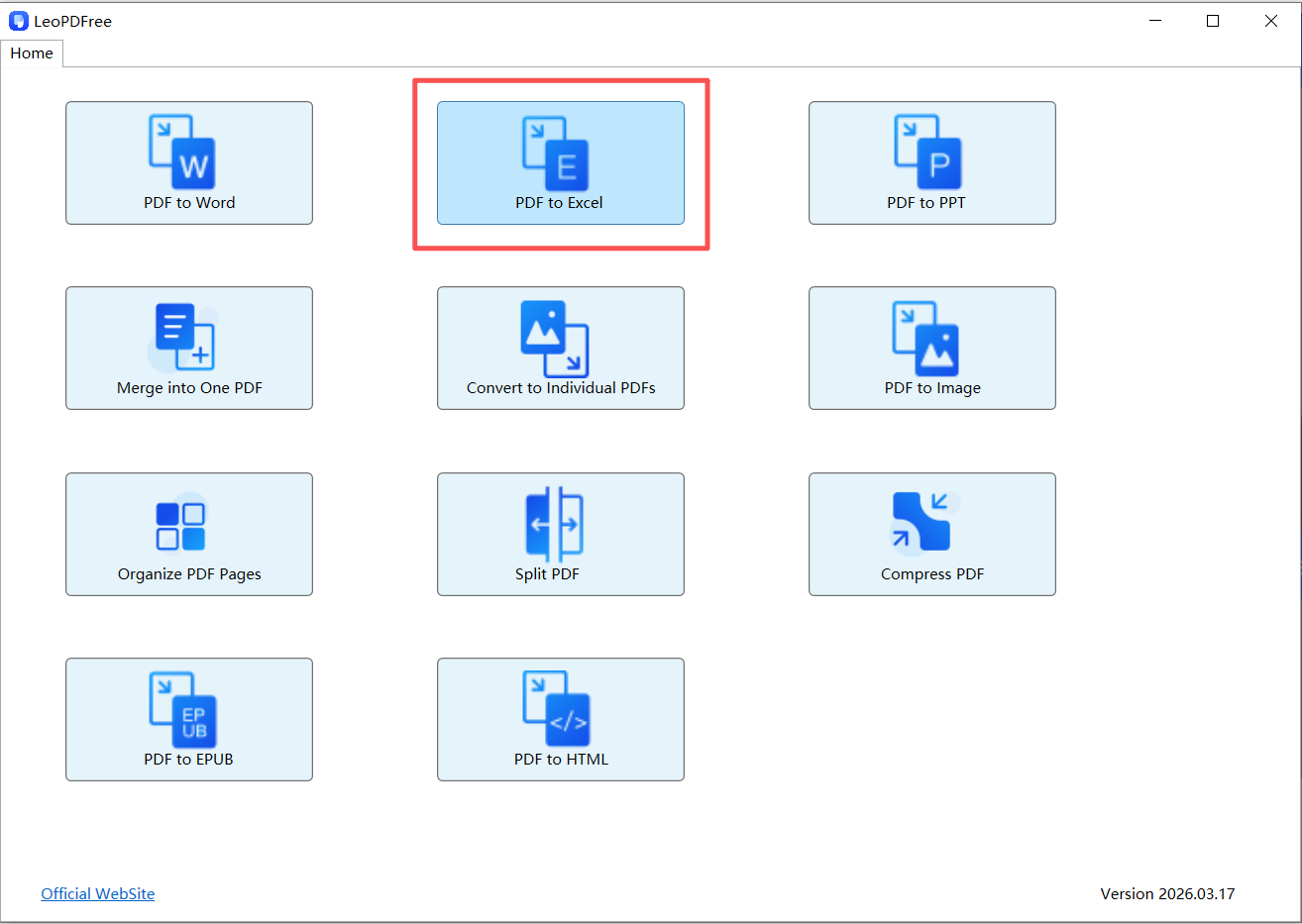
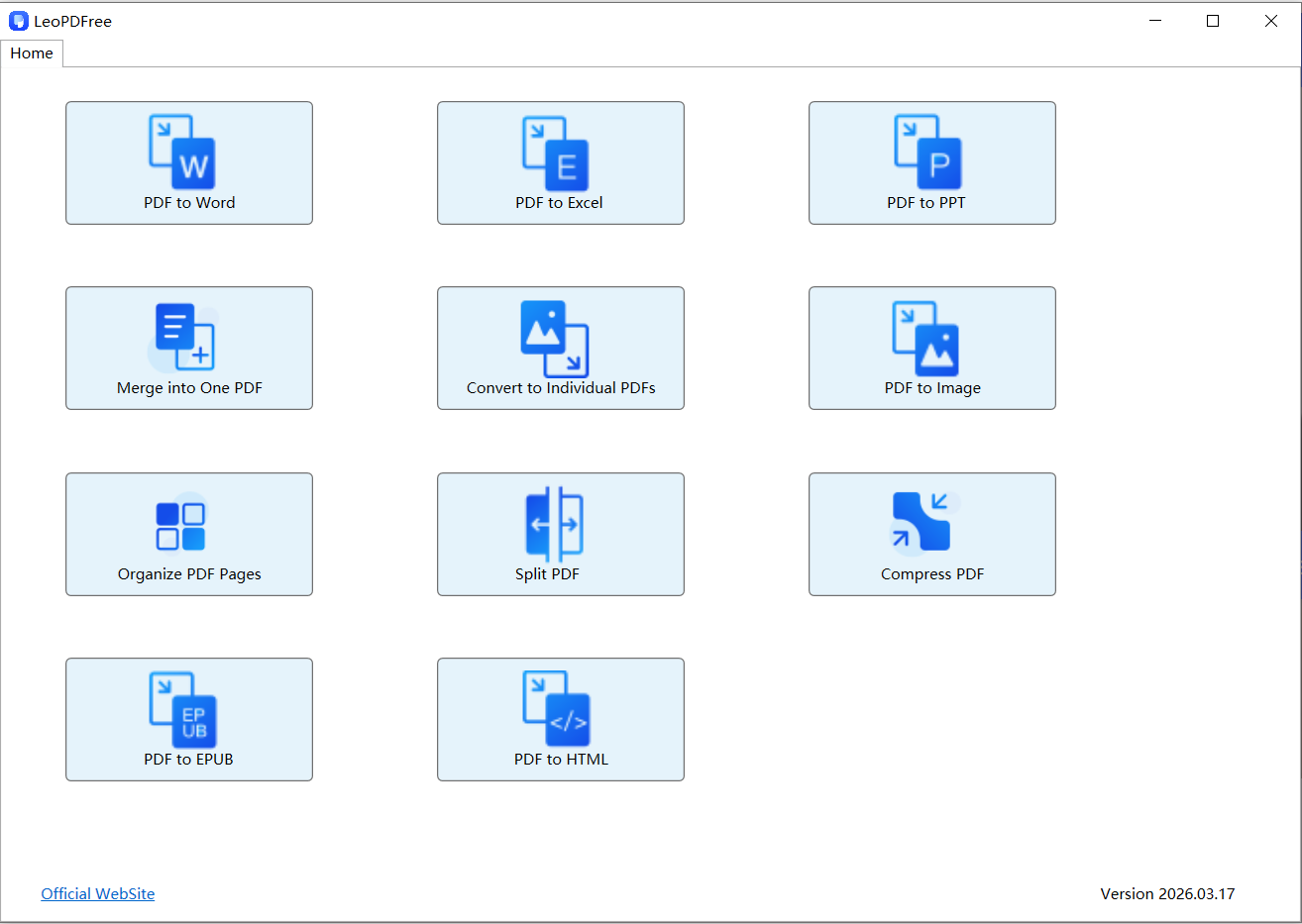
1️⃣. Install the LeoPDF software for free, then open the software as shown in the figure below.

LeoPDFree PDF to Excel Converter Interface

2️⃣. On the software interface, click “PDF to Excel”, as shown in the figure below.

Select a PDF File Containing Tables for Excel Conversion

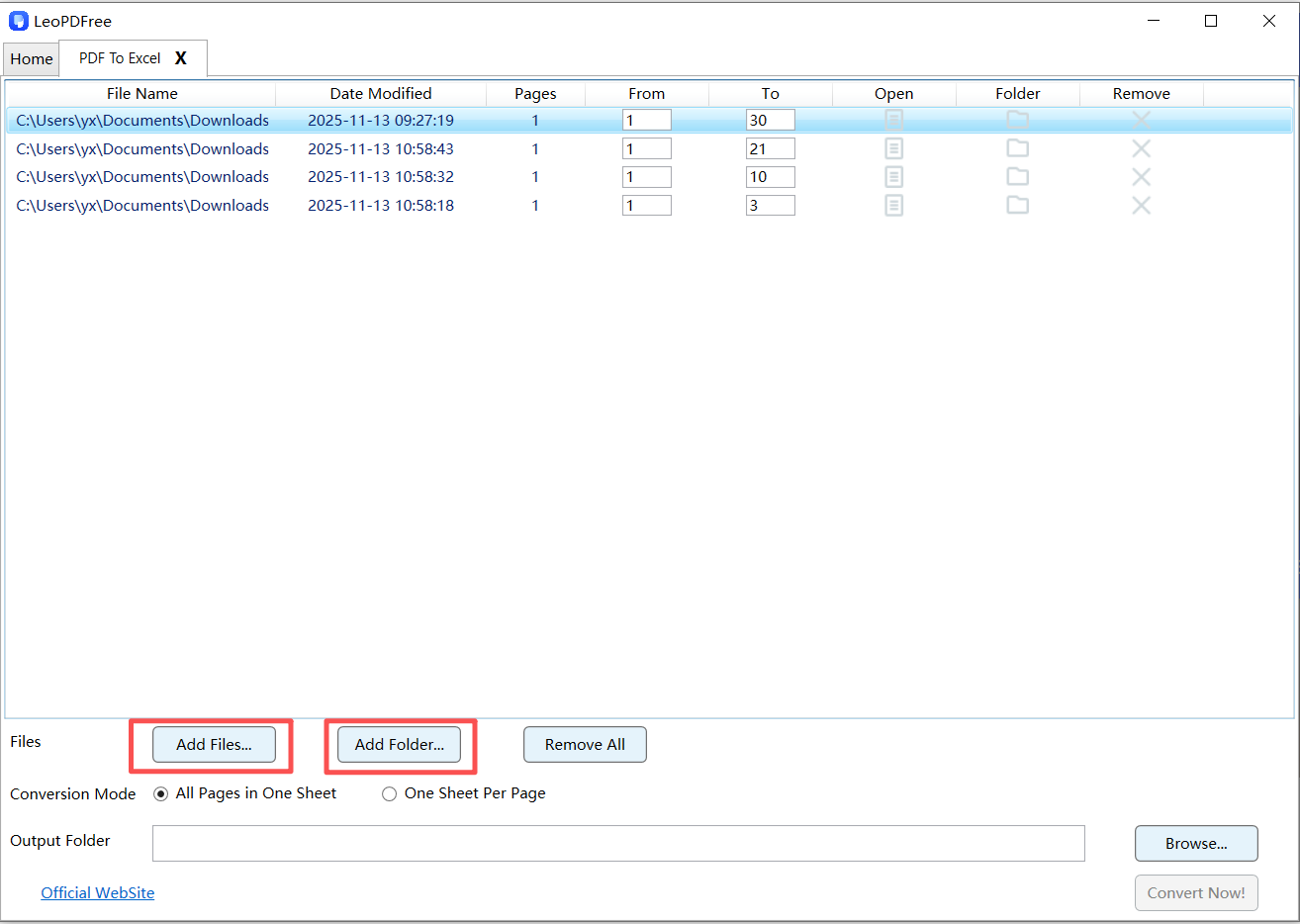
3️⃣. Then, on the interface, click the “Add Files…” or “Add Folder…” button to add one or more PDF files to be converted, as shown in the figure below.

Convert PDF Tables into Excel Worksheets with LeoPDFree

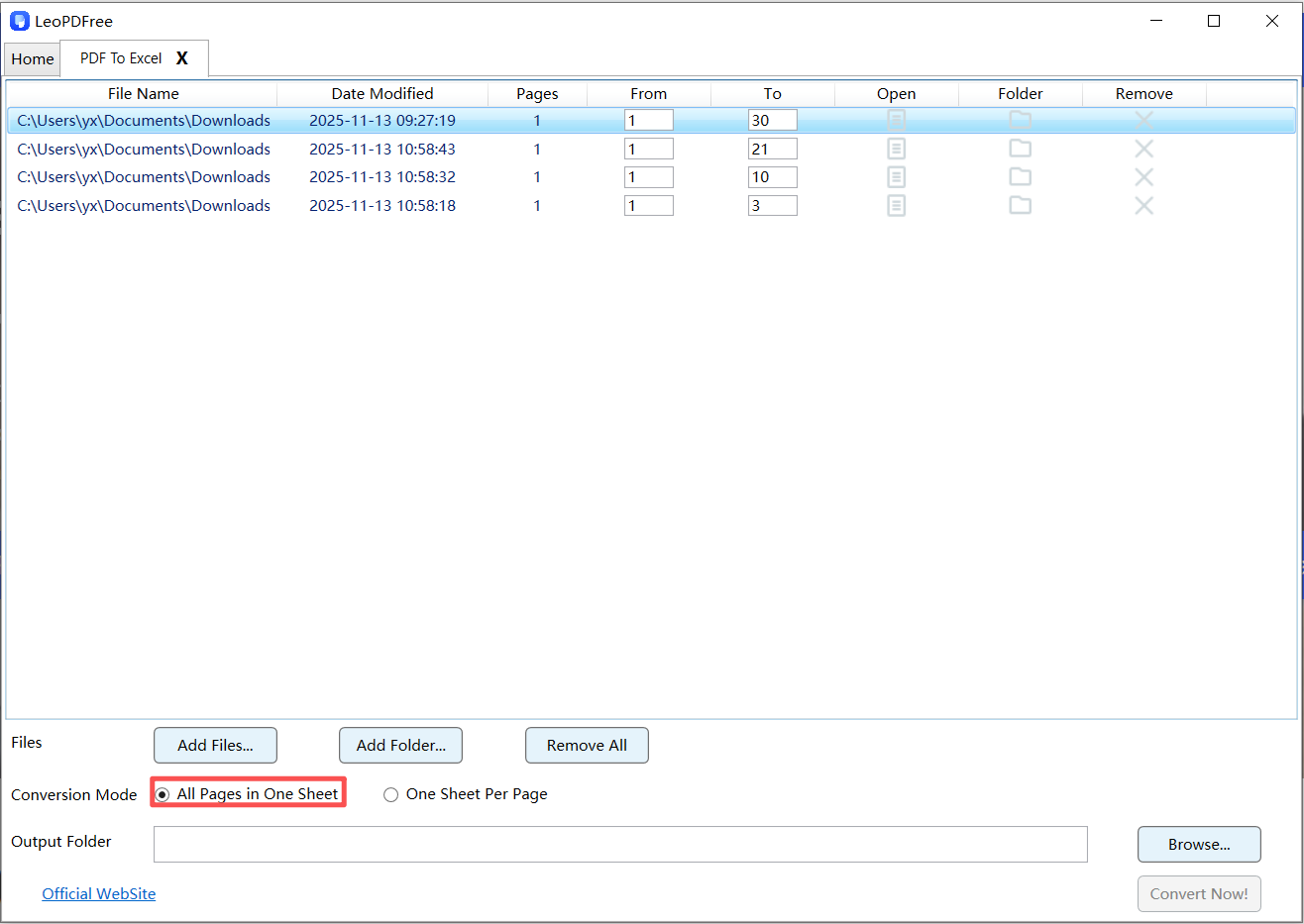
4️⃣. Then select the desired option in the “Conversion Mode” according to your needs. In this example, we choose “All Pages in One Sheet”, as shown in the figure below.

View Extracted PDF Table Data in Microsoft Excel

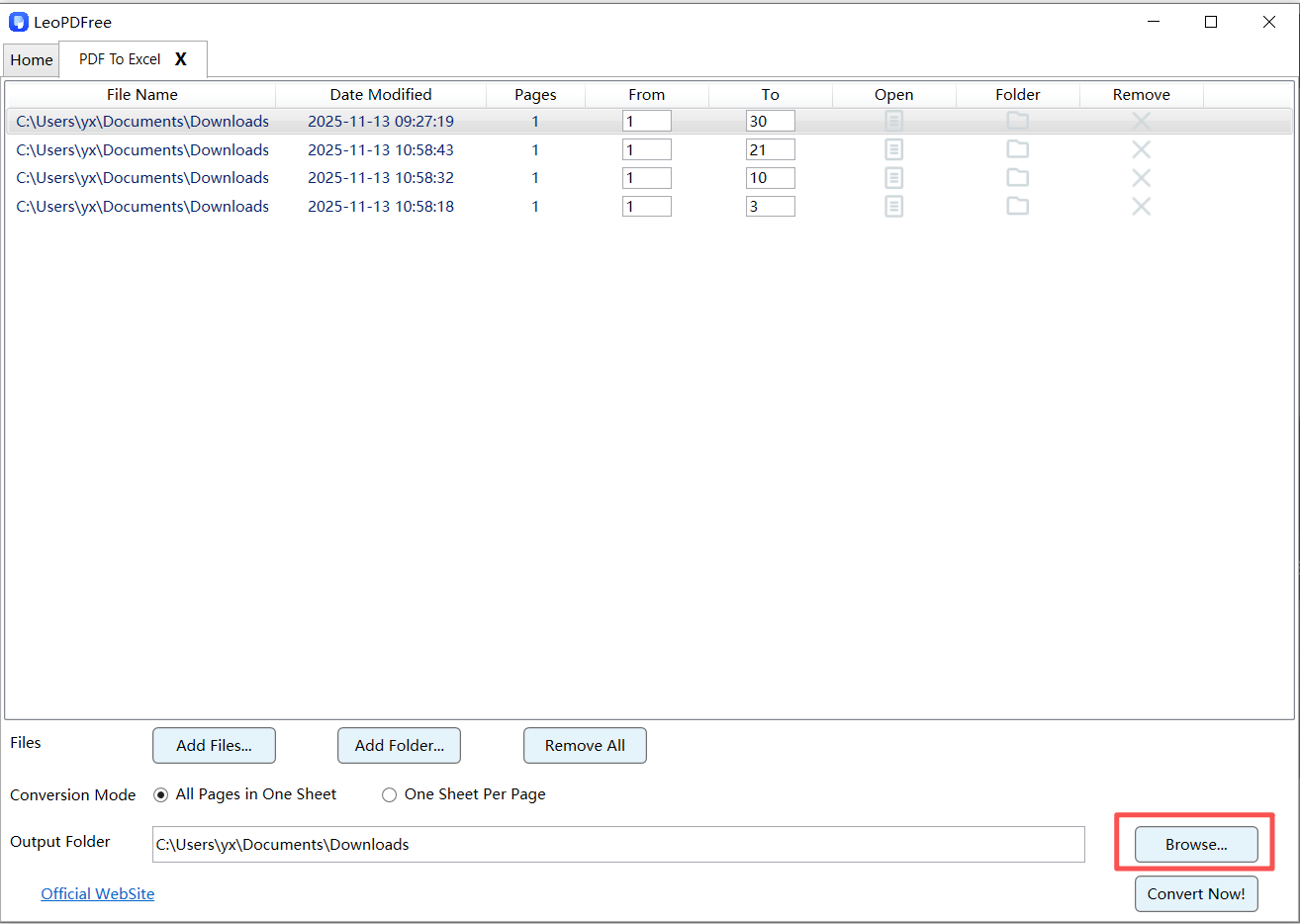
5️⃣. Next, click the “Browse…” button to set the save path for the converted file, as shown in the figure below.

Review Rows and Columns After PDF Table Extraction

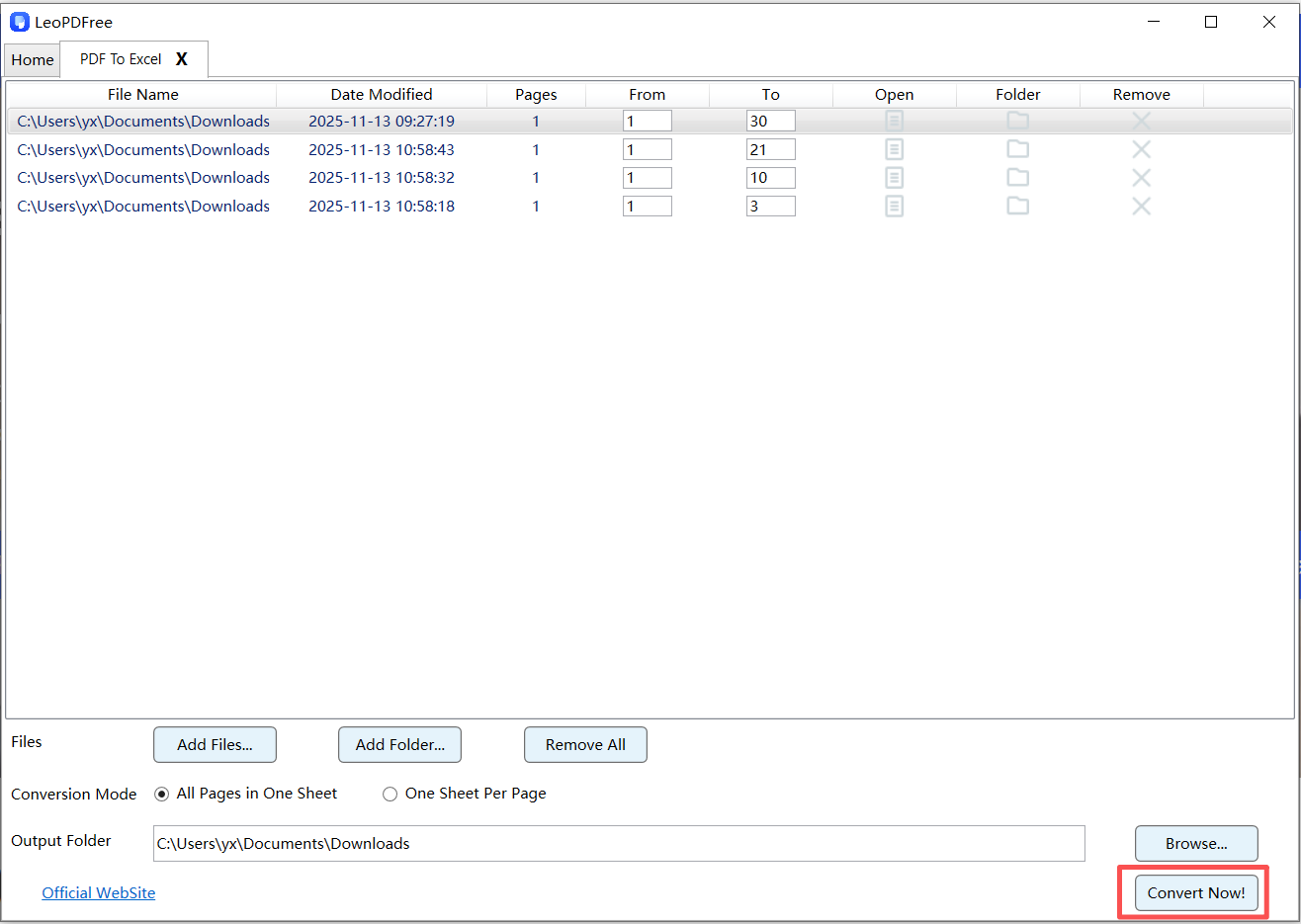
6️⃣. Once all preparations are complete, simply click “Convert Now!” on the interface. The software will quickly complete the conversion based on the file size, as shown in the figure below.

Compare Free and Paid PDF Table Extraction Tools

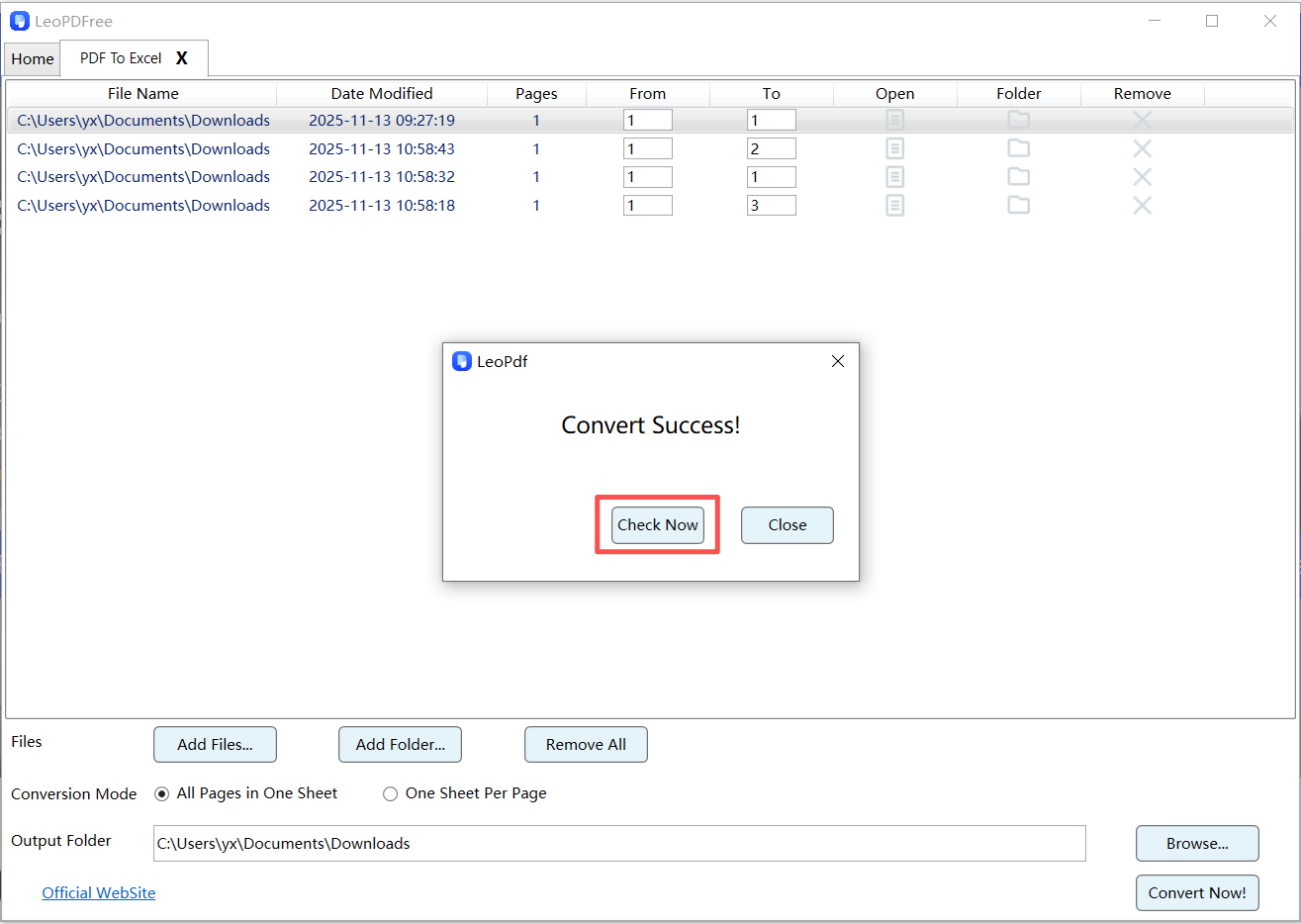
7️⃣. After the conversion is completed, a small pop-up window will appear. Click the “Check Now” button on the pop-up window to quickly view the converted result. Isn’t it very fast and convenient? Go ahead and try it out!

Free PDF to Excel Conversion Software Interface

🔧 The Missing Step: Table Refinement

Here’s where most guides stop—but you shouldn’t.

After extraction, spend a few minutes to:

✔ Fix Structure
🔵 Merge or split cells correctly
🔵 Align columns
✔ Clean Data
🔵 Remove empty rows
🔵 Delete repeated headers
✔ Standardize Format
🔵 Convert text to numbers
🔵 Apply consistent date formats

👉 This step turns “raw extraction” into usable data.

If the PDF is a scan

Ordinary text extraction cannot recognize an image of a table. Select an OCR-capable workflow, check its processing location and price, and inspect recognized characters against the source. The LeoPDF store Word/Excel workflow is paid cloud conversion; the free Windows edition does not provide OCR.

Check and repair the saved table

Before conversion, inspect column boundaries and page orientation. After saving, compare headings, row counts, decimals, dates, totals and leading zeros with the source. A visible border or consistent font does not guarantee a correct export.

  • Use Excel’s Text to Columns only when the delimiter or fixed-width boundaries actually match the data.
  • =TRIM(A1) removes ordinary extra spaces; nonbreaking spaces may need separate cleanup. Test on a copied column.
  • =VALUE(A1) can convert a supported text representation to a number. Check regional decimal/date conventions and keep identifiers with leading zeros as text.
  • For a table continued over several pages, remove repeated headings and verify the joining row. Do not assume that missing rows are always an OCR problem.

Questions about your LeoPDF edition?

Contact xuehui@leopdf.com with your platform, app version and the task you need.

Bank Statement PDF to Excel: Free Text-PDF Methods and OCR Options

Convert text-based bank statements locally for free, distinguish paid OCR for scans and reconcile the spreadsheet before using it.

Bank statements need more than a successful export. Choose a workflow for selectable text or a scan, then reconcile the saved spreadsheet with the statement. Use only documents you are permitted to process.

Choose the processing method before converting

LeoPDFree for Windows converts supported text-based PDFs to Word or Excel locally for free, without OCR. It does not upload files for these operations. LeoPDF store editions provide paid Word/Excel conversion with cloud OCR, including scanned text and handwriting; files processed in the cloud are deleted when conversion completes. Other supported tasks are free and local. Do not use the free Windows workflow as a substitute for OCR.

Convert a text-based PDF with LeoPDFree

  1. Keep an unchanged copy of the PDF and check whether its table text can be selected.
  2. Open the PDF-to-Excel function in LeoPDFree and add the PDF.
  3. Select the required pages and an output folder. Choose a worksheet arrangement only if the installed version offers it.
  4. Run the conversion and open the resulting workbook.
  5. Compare headings, row counts, dates, decimal places, leading zeros and totals against the original PDF before using the data.

Interface labels vary by version. A successful export does not establish that every cell is correct.

Excel PDF import

Check availability and import instructions before loading detected tables.

Illustrated Windows workflow

The retained illustrations show an earlier LeoPDFree interface. Labels can differ in your installed version; they illustrate the free text-PDF workflow, not the store editions’ paid OCR.

Steps

1️⃣. Download for free and successfully install the LeoPDF software. Open the software as shown in the figure below.

convert pdf to Excel at freepdfconvert.com

2️⃣. On the opened interface, click “PDF to Excel”, as shown in the figure below.

convert pdf to Excel at freepdfconvert.com

3️⃣. Next, on the opened interface, click the “Add Files…” or “Add Folder…” button to add one or more PDF files to be converted, as shown in the figure below.

convert pdf to Excel at freepdfconvert.com

4️⃣. Then select either “All Pages in One Sheet” or “One Sheet Per Page” in the “Conversion Mode” option according to your needs. In this example, we use “All Pages in One Sheet”, as shown in the figure below.

convert pdf to Excel at freepdfconvert.com

5️⃣. Next, click the “Browse…” button to set the save path for the converted file, as shown in the figure below.

convert pdf to Excel at freepdfconvert.com

6️⃣. Once all preparations are complete, simply click “Convert Now!” on the interface. The software will quickly complete the conversion based on the file size, as shown in the figure below.

convert pdf to Excel at freepdfconvert.com

7️⃣. After the conversion is completed, a small pop-up window will appear. Click the “Check Now” button on the pop-up window to quickly view the converted result. Isn’t it very fast and convenient? Go ahead and try it out!

convert pdf to Excel at freepdfconvert.com

🔧 Make Your Data Analysis-Ready (Key Step Most People Skip)

This is where real value happens.

After conversion:

1. Standardize Columns

🔵 Ensure consistent date format
🔵 Separate debit/credit columns

2. Remove Noise

🔵 Delete headers, footers, repeated rows

3. Normalize Data

🔵 Convert text numbers into numeric format
🔵 Fix currency symbols

4. Add Filters

🔵 Enable sorting and filtering for quick insights

If the PDF is a scan

Ordinary text extraction cannot recognize an image of a table. Select an OCR-capable workflow, check its processing location and price, and inspect recognized characters against the source. The LeoPDF store Word/Excel workflow is paid cloud conversion; the free Windows edition does not provide OCR.

Reconcile financial values

Check opening and closing balances, transaction counts, negative values, decimal separators and totals. Do not upload a sensitive statement merely to try a free offer; follow the account holder’s and your organization’s data-handling requirements.

Questions about your LeoPDF edition?

Contact xuehui@leopdf.com with your platform, app version and the task you need.

How to Convert PDF to Excel Offline

A Practical, No-Internet Workflow for Accurate Data Extraction

In a world full of online tools, many people overlook one powerful option: converting PDF to Excel offline.
Whether you’re dealing with sensitive financial data, large files, or unstable internet, offline conversion gives you full control, better security, and consistent performance.
In this guide, you’ll learn how to convert PDF to Excel offline step by step, along with smart techniques to improve accuracy and avoid common errors.

convert pdf to ppt at freepdfconvert.com

🔍 Why Choose Offline PDF to Excel Conversion?

Before jumping into methods, let’s answer a simple question:

👉 Why not just use online tools?

Key Advantages of Offline Conversion

    ▪ 🔒 Data Security – No need to upload confidential files

    ▪ ⚡ Stable Performance – No internet dependency

    ▪ 📁 Handle Large Files Easily – No size limits

    ▪ 🔁 Batch Processing – Convert multiple PDFs at once

👉 If you work with invoices, reports, or business data, offline tools are often the better choice.

⚡ Method 1: Use the LeoPDF Desktop Software (Fast & Accurate)

The easiest and most reliable way to convert PDF to Excel offline is by using dedicated desktop software.

Steps

1️⃣. Download and successfully install the LeoPDF software, then open the program, as shown in the image below.

convert pdf to ppt at freepdfconvert.com

2️⃣. Click the “PDF to Excel” button on the opened interface, as shown in the image below.

convert pdf to ppt at freepdfconvert.com

3️⃣. On the opened interface, click “Add Files…” or “Add Folder…” to add one or more files to be converted, as shown in the image below.

convert pdf to ppt at freepdfconvert.com

4️⃣. Next, in the opened interface, choose either “All Pages in One Sheet” or “One Sheet Per Page” under “Conversion Mode” according to your needs, as shown in the image below.

convert pdf to ppt at freepdfconvert.com

5️⃣. Then click the “Browse…” button on the interface to set the save path for the converted file, as shown in the figure below.

convert pdf to ppt at freepdfconvert.com

6️⃣. Once all preparations are complete, simply click the “Convert Now!” button on the interface. The software will quickly complete the conversion based on the size of the file, as shown in the figure below.

convert pdf to ppt at freepdfconvert.com

7️⃣. After the software completes the conversion task, a small pop-up window will appear. You can click the “Check Now” button to quickly view the converted file. As shown in the figure below.

convert pdf to ppt at freepdfconvert.com

Why This Method Works Best

  • ▪ Automatically detects tables
    ▪ Preserves rows and columns
    ▪ Supports batch conversion

👉 Best for: business users, accountants, and frequent PDF processing

🧩 Method 2: Use Microsoft Excel (Built-in Feature)

Few people know that Excel itself can import PDF data.

Steps

1️⃣. Open Microsoft Excel
2️⃣. Go to Data → Get Data → From File → From PDF
3️⃣. Select your PDF file
4️⃣. Choose the table you want to import
5️⃣. Load it into Excel

Advantages

🔵 No additional software required
🔵 Direct table extraction
🔵 Good for structured PDFs

Limitations

🔵 Works best with clean, text-based PDFs
🔵 May struggle with complex layouts

🧠 Method 3: OCR for Scanned PDFs (Advanced Case)

If your PDF is scanned (image-based), you’ll need OCR (Optical Character Recognition).

Steps

1️⃣. Open a desktop PDF tool with OCR support
2️⃣. Import the scanned PDF
3️⃣. Enable OCR text recognition
4️⃣. Convert to Excel
5️⃣. Review and correct extracted data

When to Use

🔵 Scanned invoices
🔵 Printed reports
🔵 Image-based documents
👉 Without OCR, scanned PDFs cannot be converted properly.

📊 Accuracy Tips: Get Clean Excel Data Every Time

Even with the best tools, accuracy depends on the input.

Follow These Tips:

🔵 Use high-quality PDFs (avoid blurry scans)
🔵 Ensure tables are clearly structured
🔵 Avoid multi-column layouts
🔵 Manually review important data
🔵 Clean up merged cells after conversion

👉 Small adjustments can greatly improve results.

❌ Common Problems and Fixes

Problem Solution
Tables are broken Use software with better table detection
Numbers misaligned Adjust column formatting in Excel
Scanned PDF not working Enable OCR before conversion
Extra spaces or symbols Clean data using Excel functions

🧾 Offline vs Online: Which Is Better?

Feature Offline Online
Security ⭐⭐⭐⭐⭐ ⭐⭐
Speed ⭐⭐⭐⭐ ⭐⭐⭐⭐⭐
File Size Limit No limit Limited
Accuracy ⭐⭐⭐⭐ ⭐⭐⭐

👉 Offline conversion is more reliable for professional use.

📌 FAQ

Can I convert PDF to Excel offline for free?

Yes, the LeoPDF desktop software’s Excel feature is available for free, and other features are also free to use.

What is the best offline method?

👉 Using desktop PDF software offers the best balance of speed and accuracy.

Does offline conversion support batch files?

Yes. Most professional tools support batch processing.

🚀 Conclusion

Learning how to convert PDF to Excel offline gives you more than convenience—it gives you control, privacy, and efficiency.

1️⃣. Use desktop software LeoPDF for the best results
2️⃣. Use Excel for quick table extraction
3️⃣. Use OCR for scanned files

By choosing the right method, you can turn PDF data into accurate, editable Excel spreadsheets—without ever going online.

How to Convert PDF to HTML: A Complete Step-by-Step Guide

PDF files are everywhere – reports, manuals, guides, and eBooks. But sometimes, you want to make your PDF content accessible on the web. Converting PDF to HTML is the perfect

PDF files are everywhere – reports, manuals, guides, and eBooks. But sometimes, you want to make your PDF content accessible on the web. Converting PDF to HTML is the perfect solution: it creates searchable, web-friendly content while preserving the original structure.
In this guide, we’ll show three practical methods to convert PDF to HTML and provide tips to make the output clean, readable, and fully web-compatible.
‌

	How to Convert PDF to HTML: A Step-by-Step Guide

Why Convert PDF to HTML?

▪ Accessibility: HTML content can be read by screen readers and mobile devices.

HTML can make content easier to reuse in a website editor. Both HTML pages and suitable PDF files can be indexed; changing the format does not guarantee search visibility.

▪ Better User Experience: HTML is responsive and easy to navigate.

▪ Content Reuse: Extract tables, images, and text for web pages or applications.

Method 1: Online PDF to HTML Converters (Quick and Simple)

Online tools are great for occasional use or small files.

Steps:

1️⃣. Open a reliable online converter like PDFtoHTML.net or IlovePDF.com.

2️⃣. Upload your PDF file.

3️⃣. Select “Convert to HTML.”

4️⃣. Download the generated HTML file.

Advantages:

▪ Fast and requires no installation.

▪ Good for basic PDF documents.

Limitations:

▪ Output may include messy inline CSS.

▪ Complex PDFs with tables and images might lose formatting.

Method 2:Use the completely free desktop software LeoPDF(Best for Larger Files)

For professional or repeated use, a desktop PDF tool like LeoPDF is ideal.

Steps:

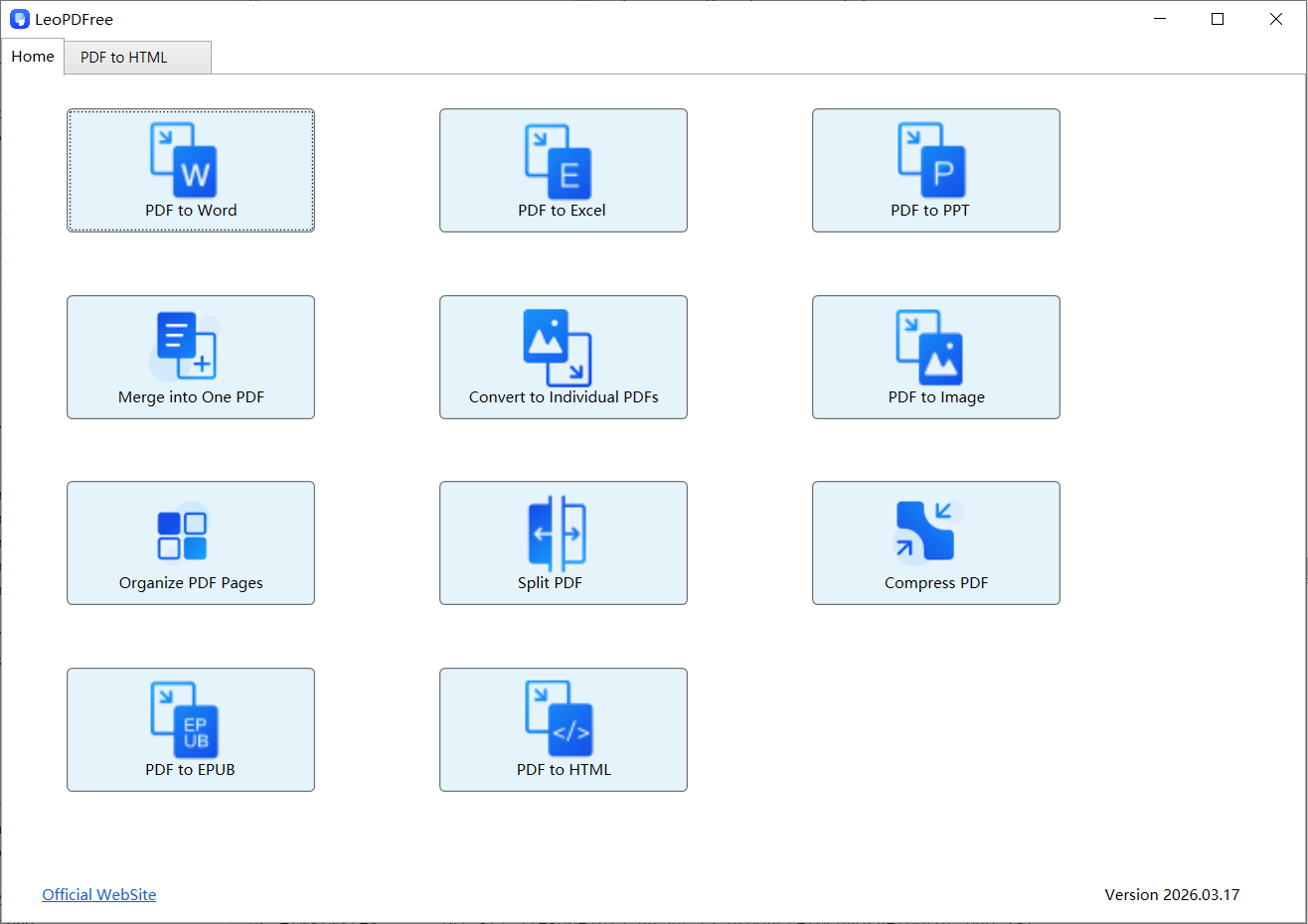
1️⃣. Download and successfully install LeoPDF, then open the software, as shown in the image below.

LeoPDFree PDF to HTML Converter Interface

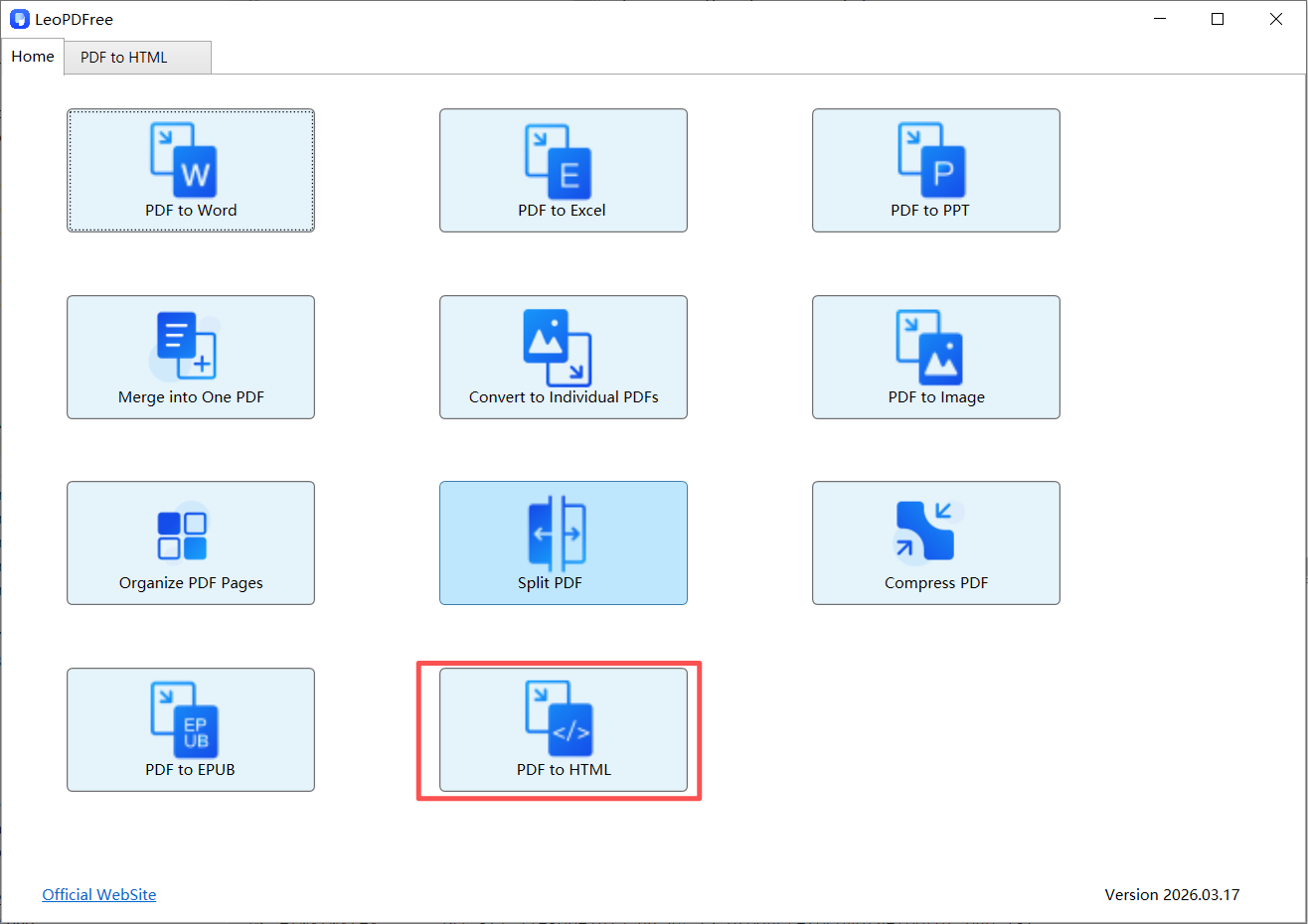
2️⃣. On the opened software interface, click “PDF to HTML”, as shown in the image below.

Select a PDF File for HTML Conversion in LeoPDFree

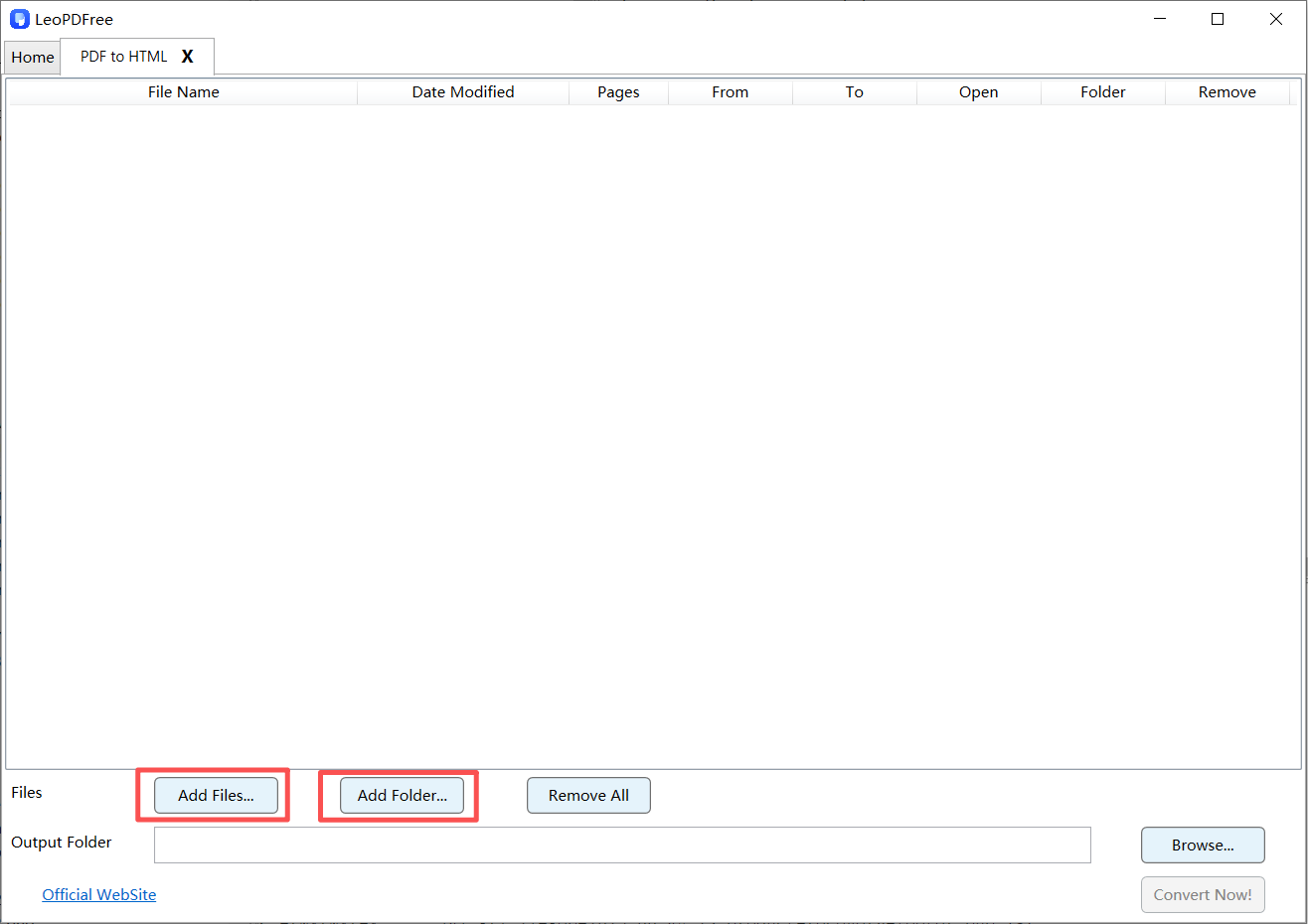
3️⃣. On the opened interface window, click “Add Files…” or “Add Folder…” to add one or more PDF files you want to convert, as shown in the image below.

Choose PDF to HTML Conversion Options in LeoPDFree

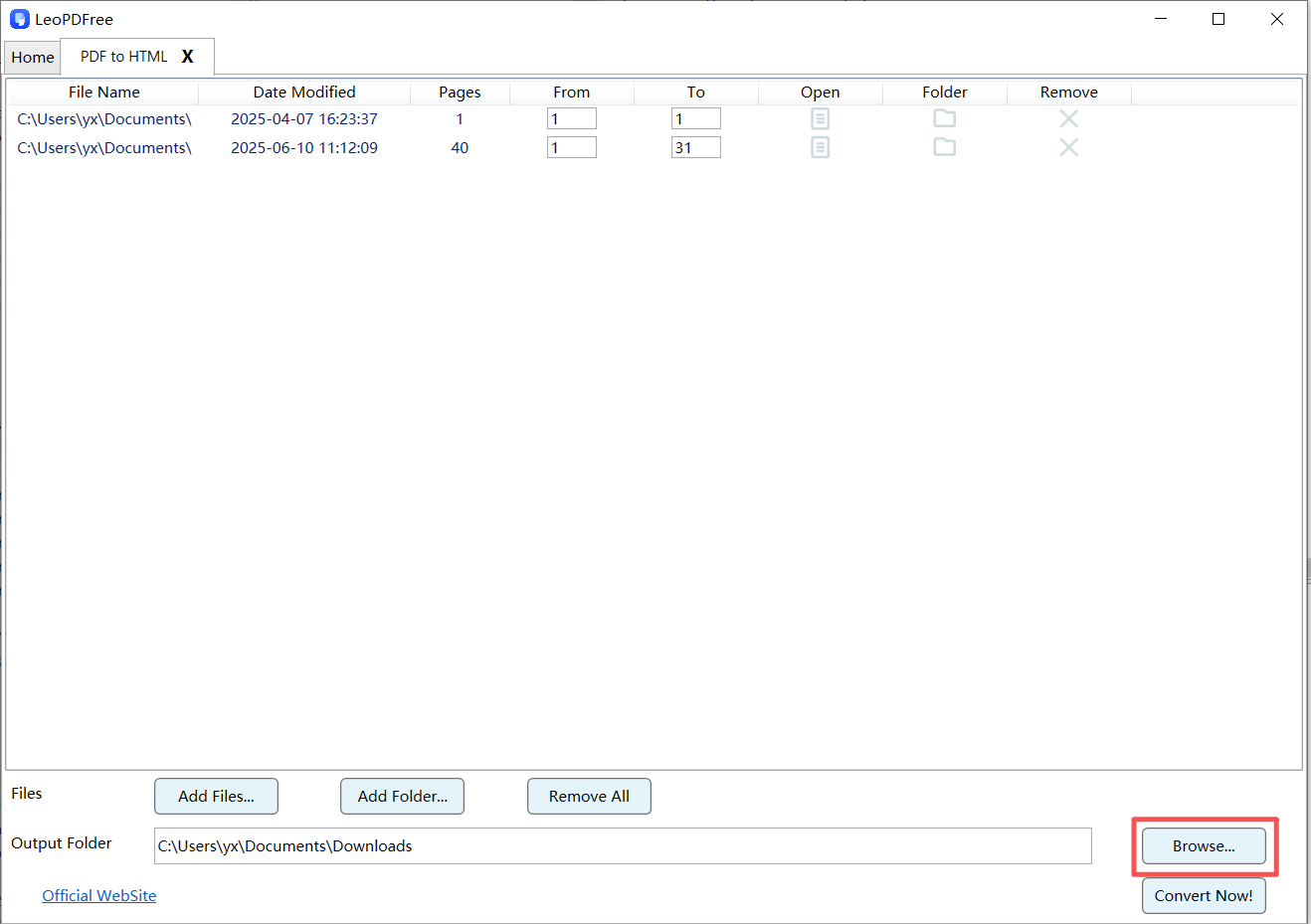
4️⃣. Next, click the “Browse…” button on the interface to set the save location for the converted files, as shown in the image below.

Convert a PDF Document into an HTML File with LeoPDFree

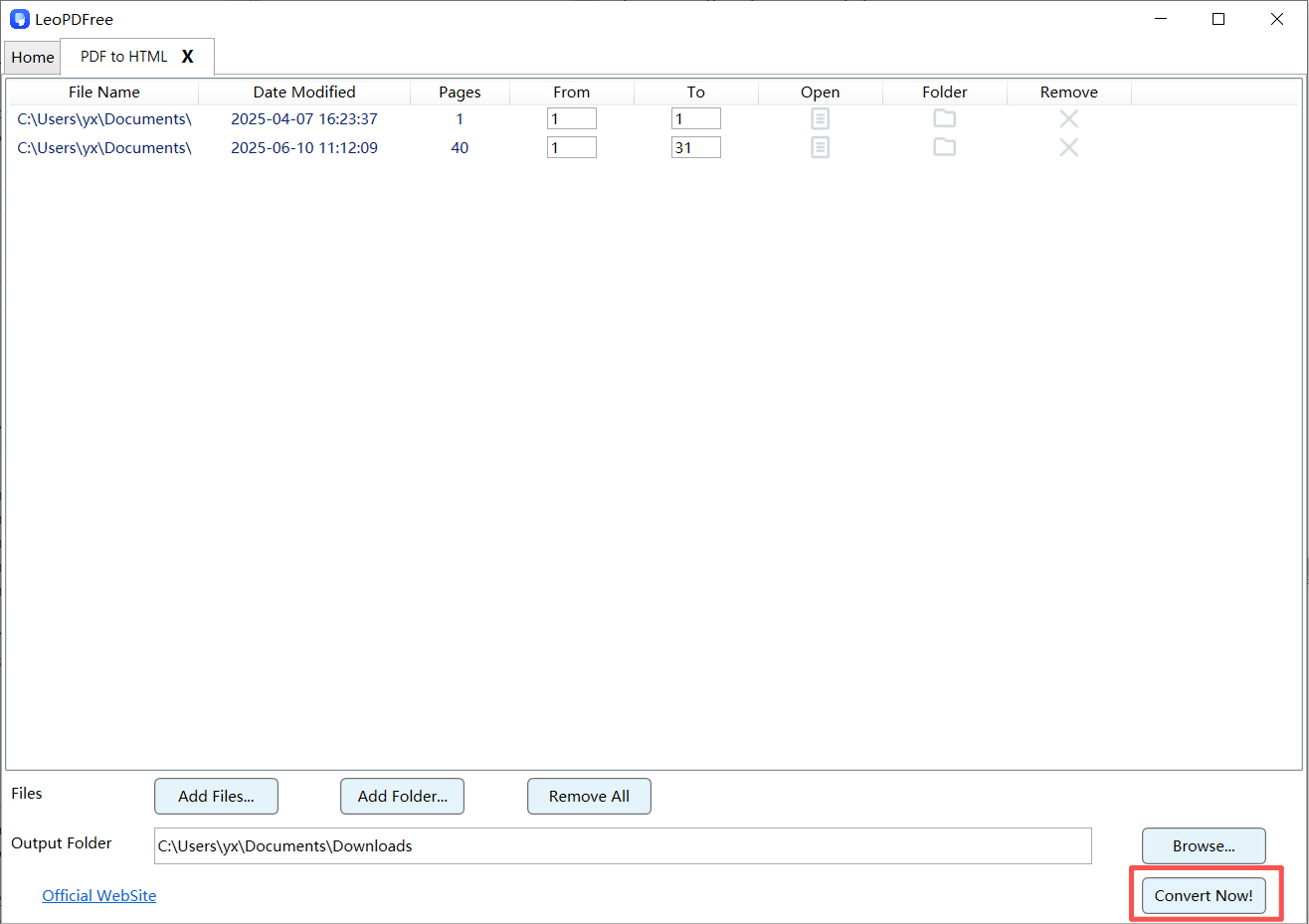
5️⃣. Once all the preparation for conversion is complete, simply click the “Convert Now!” button on the interface. The software will quickly complete the conversion based on the file size, as shown in the image below.

Open the Converted HTML File in a Web Browser

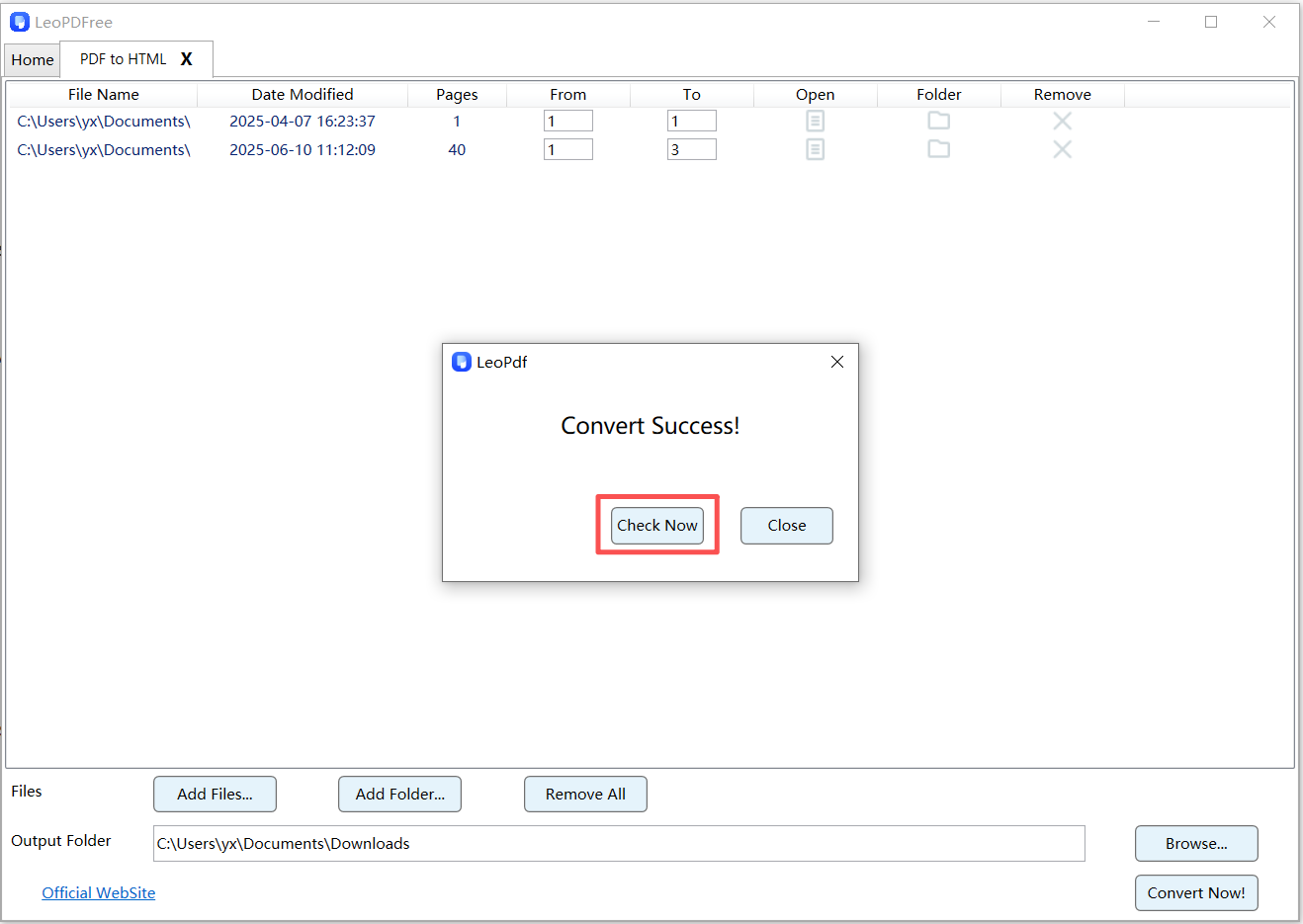
6️⃣. When the software pops up a small window indicating that all conversions are complete, you can click the “Check Now” button on the interface to quickly preview the converted files, as shown in the image below.

View PDF Content Displayed as an HTML Web Page

Advantages:

🔵 Handles large files smoothly.
🔵 Supports batch processing.
🔵 More control over formatting and structure.

Method 3: Manual Conversion via Word (Full Control)

This method works best if your PDF contains complex layouts, tables, or multi-column text.

Steps:

1️⃣. Convert PDF to Word using tools like LeoPDF PDF to Word Converter.
2️⃣. Open the Word document and check formatting.
3️⃣. Use Word’s “Save as HTML” feature to export the content.
4️⃣. Optimize HTML manually

Advantages:

🔵 Full control over structure and content.
🔵 Produces clean, editable HTML suitable for SEO.

Tips for Better PDF to HTML Conversion

1️⃣. Check for Scanned PDFs: Use OCR tools to extract text.
2️⃣. Simplify Complex Layouts: Avoid multi-column PDFs for conversion.
3️⃣. Optimize Images: Compress images and add alt text for SEO.
4️⃣. Test Responsiveness: Ensure HTML works on desktop and mobile.
5️⃣. Clean Up Code: Remove redundant tags and inline styles for faster loading.

Common Problems and Solutions

Problem Solution
PDF content appears as images Use OCR to extract text before conversion
Tables misaligned Manually format in Word or HTML editor
Large file size Compress images and simplify layout
Broken links or references Check and fix URLs manually in HTML

Conclusion

Converting a PDF to HTML is no longer just a simple file export. By using the right tools and workflow, you can turn PDF content into searchable, responsive, and SEO-friendly web pages.

Whether you choose online tools, the LeoPDF desktop software, or a manual Word-to-HTML method, always remember to review, optimize, and clean up the HTML content to ensure the best readability and performance.

Start converting your PDFs to HTML today, and make your content more accessible, more searchable, and truly ready for the web.

When rebuilding HTML is the better choice

For a maintained article or website, consider rebuilding the content with meaningful headings, lists and tables in the site editor instead of preserving every PDF coordinate. Keep related image files with exported HTML and test links, reading order and a narrow viewport.

A conversion does not automatically produce accessible or responsive HTML. PDFs can also be indexed by search engines; switching formats is not a guarantee of search visibility. Compare the published page with the source and fix the structure before using it.

How to Merge PDF Files in Specific Page Order

The “Perfect Sequence” Method Most Guides Never Teach

Merging PDFs sounds simple—until the page order goes wrong.
You combine multiple files, open the result… and suddenly pages are out of order, chapters are mixed, and your document becomes confusing. This is especially frustrating when dealing with reports, contracts, ebooks, or scanned files.
If you’re searching for how to merge PDF files in specific page order, this guide will show you a smarter, more structured approach—one that ensures your pages are always in the exact order you want.
‌

convert pdf to ppt at freepdfconvert.com

Think Before You Merge: The 3 Types of PDF Order Problems

Most articles jump straight into tools. But here’s the truth:

👉 The problem is not merging—it’s ordering.

Before choosing a method, identify your situation:

1. File-Level Order Issues

🔵 Multiple PDFs need to be arranged (File A → File B → File C)

2. Page-Level Order Issues

🔵 Specific pages need reordering (Page 3 → Page 1 → Page 2)

3. Mixed Chaos (Most Common)

🔵 Multiple files + incorrect internal page order

Knowing your scenario helps you choose the right method, not just any method.

Method 1:Free Drag-and-Drop PDF Merge Tool LeoPDF (Most Recommended)

This is the easiest and most intuitive way to merge PDFs in a specific page order.

How It Works

Modern LeoPDF tools allow you to visually arrange files and pages before merging.

Steps

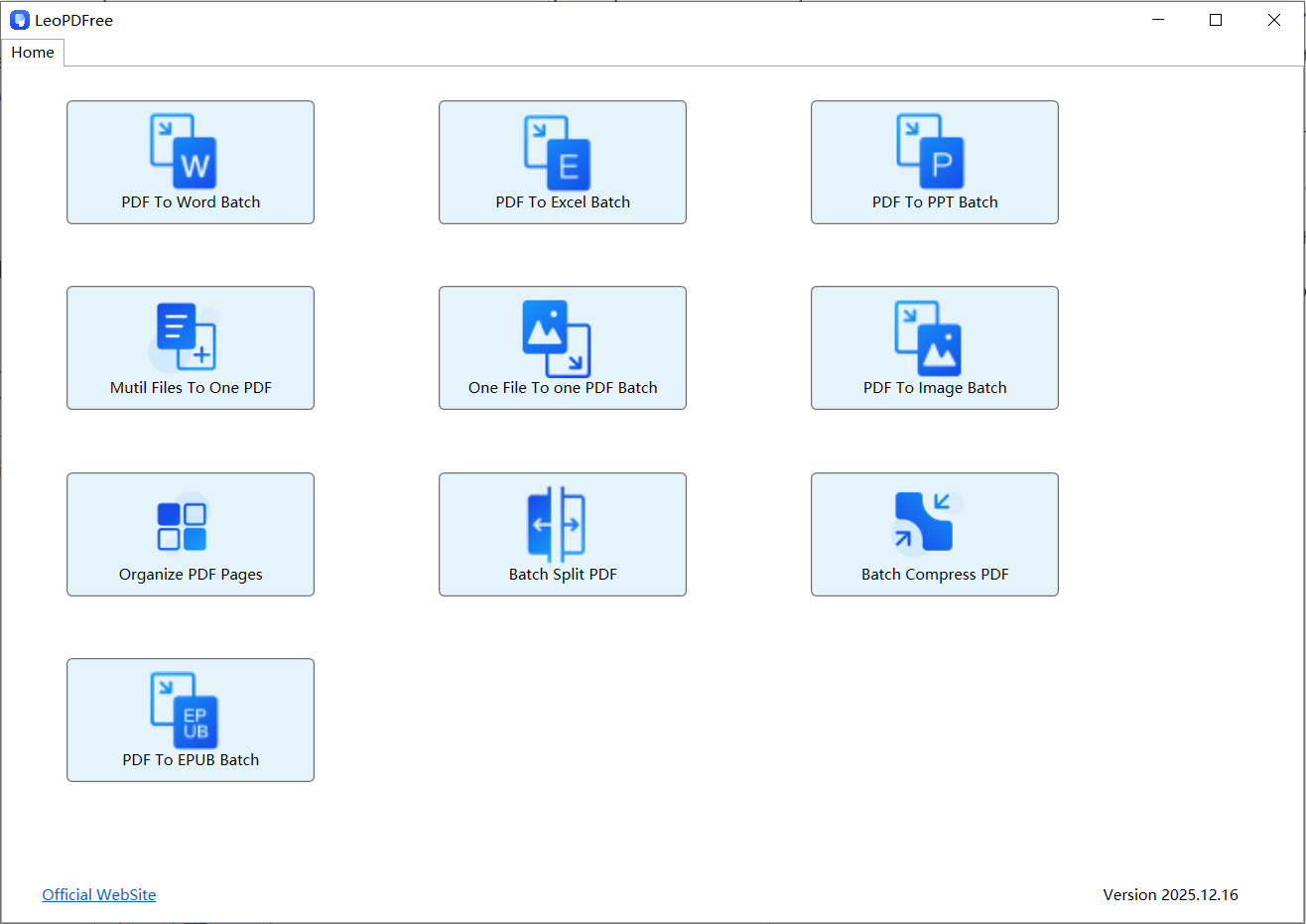
1️⃣. Download and install LeoPDF for free, then double-click the icon to open the software, as shown in the image below.

convert pdf to ppt at freepdfconvert.com

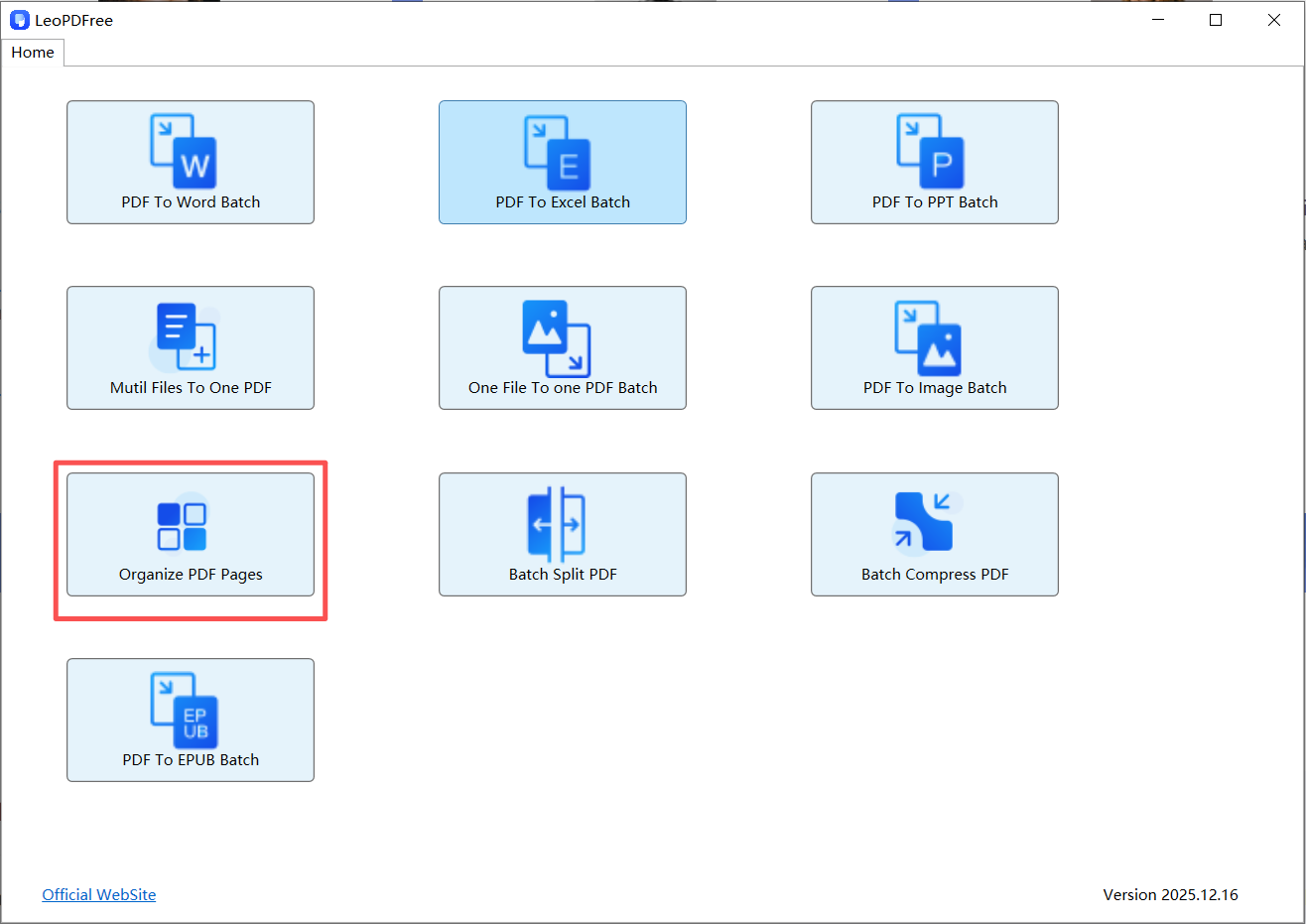
2️⃣. On the opened software interface, click the “Organize PDF Page” button to start merging and rearranging the page order, as shown in the image below.

convert pdf to ppt at freepdfconvert.com

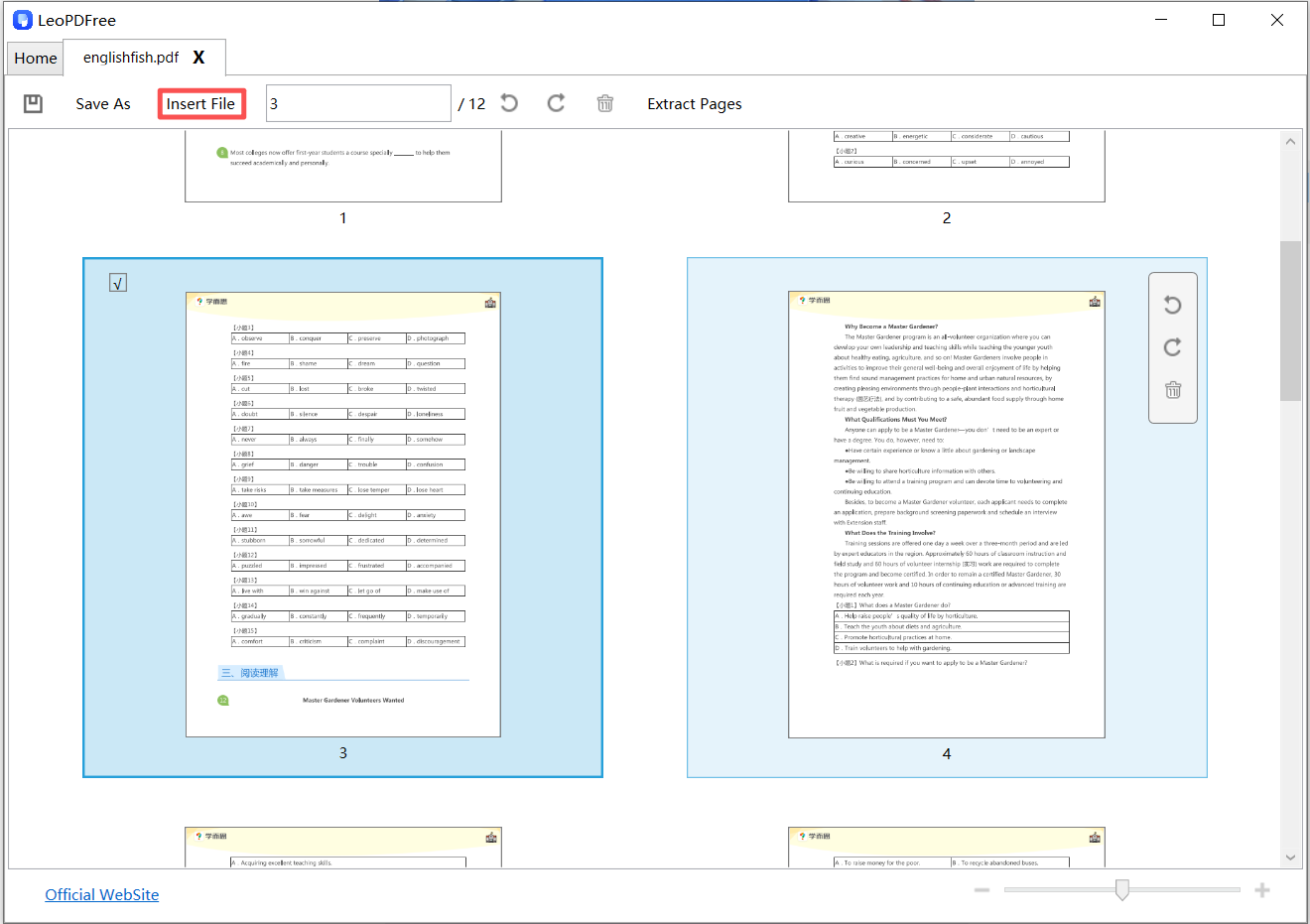
3️⃣. On the opened interface, click the “Insert File” button at the top to add the PDF files whose page order you want to adjust. After adding the files, you can select the pages to rearrange directly with your mouse (you can also hold the “CTRL” key and click with the left mouse button to select multiple pages, or enter the page numbers in the editing box above). Then, simply drag the selected pages to the desired position, as shown in the image below.

convert pdf to ppt at freepdfconvert.com

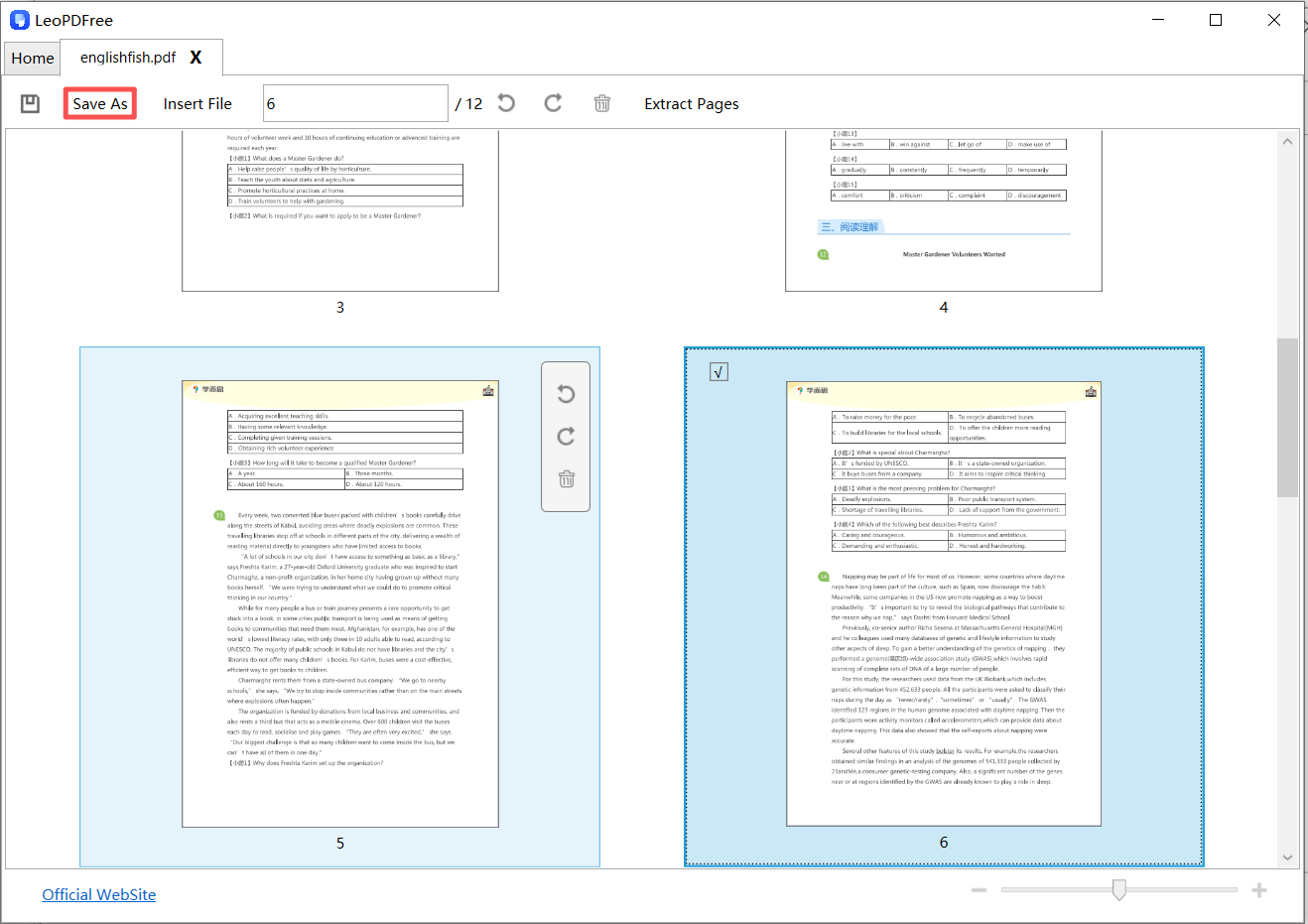
4️⃣. Once you have finished adjusting the page order of a PDF file, be sure to click the Save button or the “Save As” button to set the save location for the reordered file, as shown in the image below.

convert pdf to ppt at freepdfconvert.com

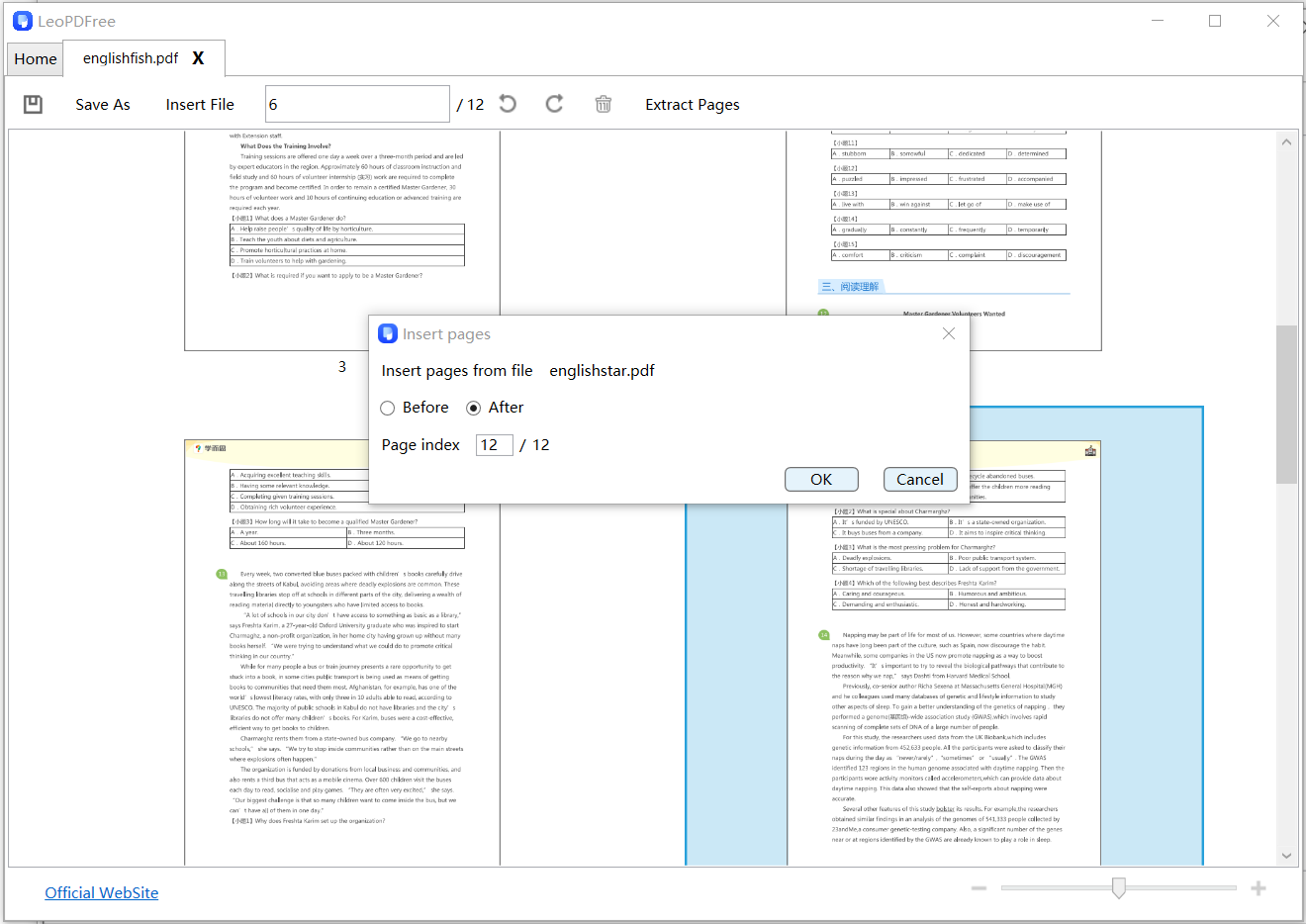
5️⃣. If you want to extract individual pages from multiple PDF files, arrange them in your desired order, and finally merge them into a new PDF file, you need to click the “Insert File” button in the software to add one file, then click “Insert File” again to continue adding files. At this point, the software will display a prompt where you can enter in the “Page index” box whether you want to insert the newly added file before or after a specific page of the original file, as shown in the image below.

convert pdf to ppt at freepdfconvert.com

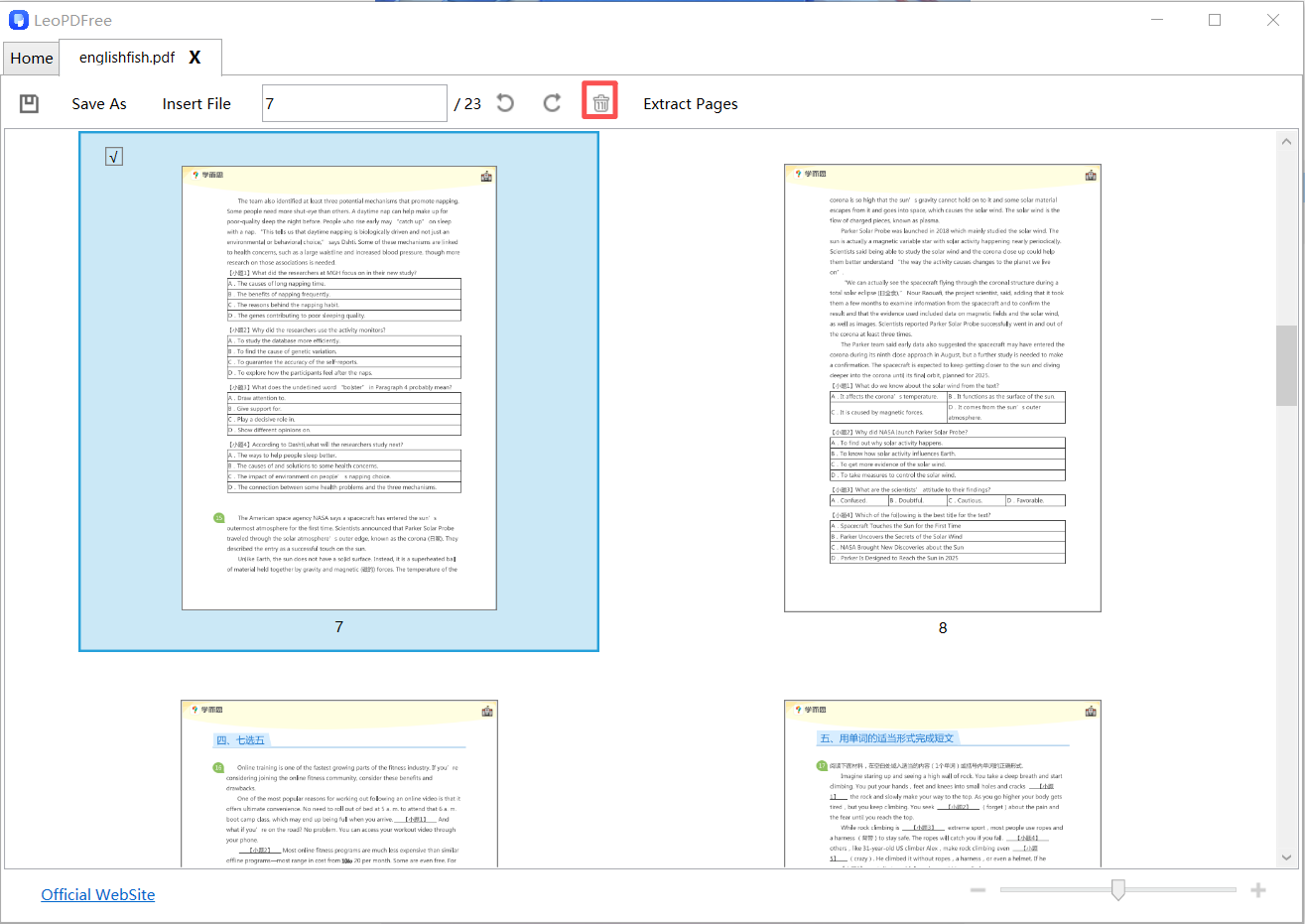
6️⃣. Once all the files have been added, you can adjust the page order using the same method as before, delete any unnecessary pages using the “Delete” button, and finally merge them into a new PDF file arranged according to your own desired order, as shown in the image below.

convert pdf to ppt at freepdfconvert.com

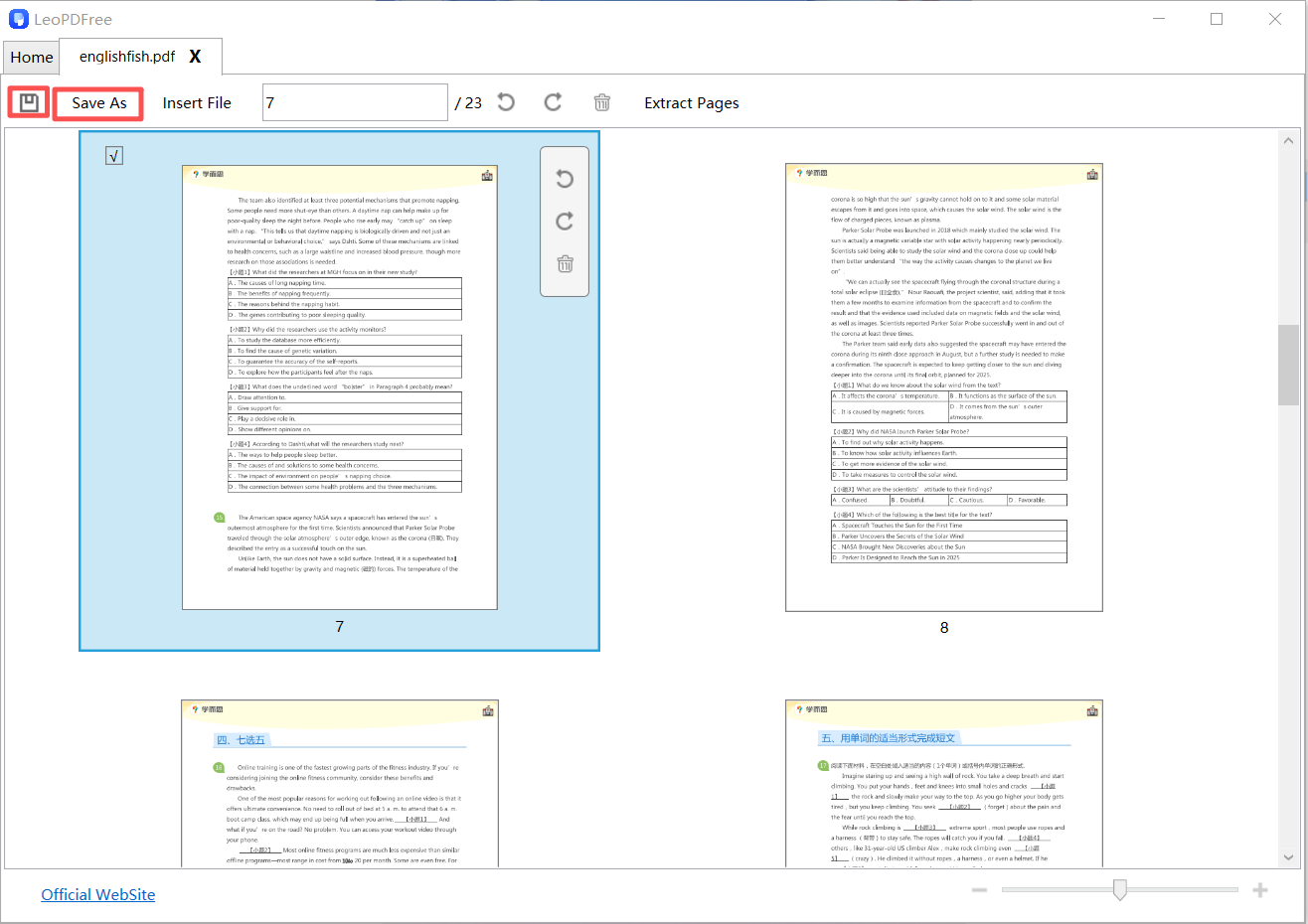
7️⃣. Finally, after the new file is generated, be sure to click the “Save As” button to save the new file. Isn’t it very convenient and quick? As shown in the image below.

convert pdf to ppt at freepdfconvert.com

Why This Method Stands Out

🔵 Visual control over page order
🔵 No technical skills required
🔵 Fast and beginner-friendly

👉 Best for: general users, students, office tasks

Method 2: Merge by Custom Page Selection (Advanced Control)

Sometimes you don’t want entire files—you only need specific pages.

Example
🔵 Take pages 1–3 from File A
🔵 Then page 2 from File B
🔵 Then pages 5–7 from File C

Steps

1️⃣. Open a PDF editor or advanced merge tool
2️⃣. Choose Custom Merge / Page Range
3️⃣. Enter page ranges (e.g., A:1-3, B:2, C:5-7)
4️⃣. Arrange the sequence
5️⃣. Merge and export

Why It’s Powerful

🔵 Precise page-level control
🔵 Ideal for creating reports or presentations
🔵 Eliminates unnecessary pages
👉 Best for: professionals, analysts, content creators

Method 3: Pre-Sort + Merge (The “Zero Error” Workflow)

This is the pro method most people overlook.

Instead of fixing order during merging, you:

👉 Fix everything BEFORE merging

Step-by-Step Strategy

1️⃣. Open each PDF file
2️⃣. Reorder pages inside each file
3️⃣. Save corrected versions
4️⃣. Rename files with numbers:

      ⏺ 01_Intro.pdf
      ⏺ 02_Content.pdf
      ⏺ 03_Appendix.pdf

5️⃣. Merge in order

Why This Works So Well

🔵 Eliminates confusion during merging
🔵 Prevents mistakes in large projects
🔵 Creates a repeatable workflow

👉 Best for: large documents, team collaboration, business workflows

Pro Tips: How to Always Get the Page Order Right

Want flawless results every time? Follow these expert tips:

🔵 ✅ Always preview pages before merging

🔵 ✅ Use file naming (01, 02, 03) for clarity

🔵 ✅ Avoid merging blindly without checking order

🔵 ✅ Use tools that support page thumbnails

🔵 ✅ Double-check the final PDF before sending

These small habits can save hours of rework.

Common Mistakes to Avoid

Even experienced users make these errors:

❌ Merging files without checking internal page order
❌ Ignoring page previews
❌ Using tools with limited sorting features
❌ Forgetting to remove duplicate pages

Avoid these, and your workflow becomes much smoother.

FAQ: Merging PDFs in Specific Page Order

Can I rearrange pages after merging?

Yes. LeoPDF editors allow you to reorder pages even after merging.

What is the easiest way for beginners?

Using a drag-and-drop LeoPDF merge tool is the simplest method.

Can I merge only selected pages?

Absolutely. Many tools support custom page ranges.

Conclusion: Order First, Merge Second

Mastering how to merge PDF files in a specific page order requires choosing the right tool, but the method and workflow are even more important.

🔵 Use drag-and-drop LeoPDF tools for quick tasks

🔵 Use custom page selection for precision

🔵 Use pre-sorting workflows for complex projects

When you control the order, you control the clarity of your document.

And that’s what turns a messy PDF into a professional, structured file.