
Tips & guides
Bank Statement PDF to Excel: Free Text-PDF Methods and OCR Options
Published
Bank statements need more than a successful export. Choose a workflow for selectable text or a scan, then reconcile the saved spreadsheet with the statement. Use only documents you are permitted to process.
Choose the processing method before converting
LeoPDFree for Windows converts supported text-based PDFs to Word or Excel locally for free, without OCR. It does not upload files for these operations. LeoPDF store editions provide paid Word/Excel conversion with cloud OCR, including scanned text and handwriting; files processed in the cloud are deleted when conversion completes. Other supported tasks are free and local. Do not use the free Windows workflow as a substitute for OCR.
Convert a text-based PDF with LeoPDFree
- Keep an unchanged copy of the PDF and check whether its table text can be selected.
- Open the PDF-to-Excel function in LeoPDFree and add the PDF.
- Select the required pages and an output folder. Choose a worksheet arrangement only if the installed version offers it.
- Run the conversion and open the resulting workbook.
- Compare headings, row counts, dates, decimal places, leading zeros and totals against the original PDF before using the data.
Interface labels vary by version. A successful export does not establish that every cell is correct.
Excel PDF import
Check availability and import instructions before loading detected tables.
Illustrated Windows workflow
The retained illustrations show an earlier LeoPDFree interface. Labels can differ in your installed version; they illustrate the free text-PDF workflow, not the store editions’ paid OCR.
Steps
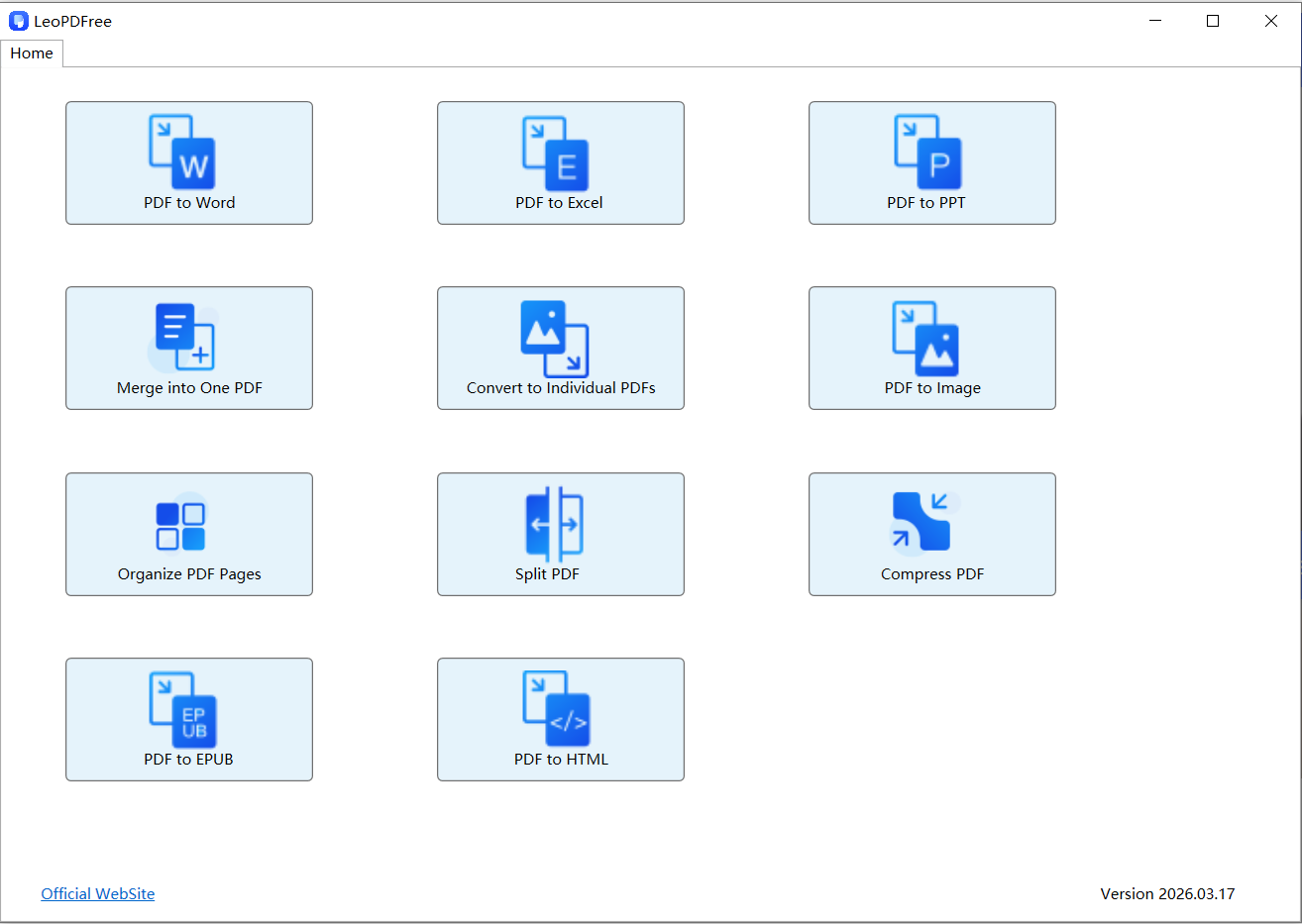
1️⃣. Download for free and successfully install the LeoPDF software. Open the software as shown in the figure below.
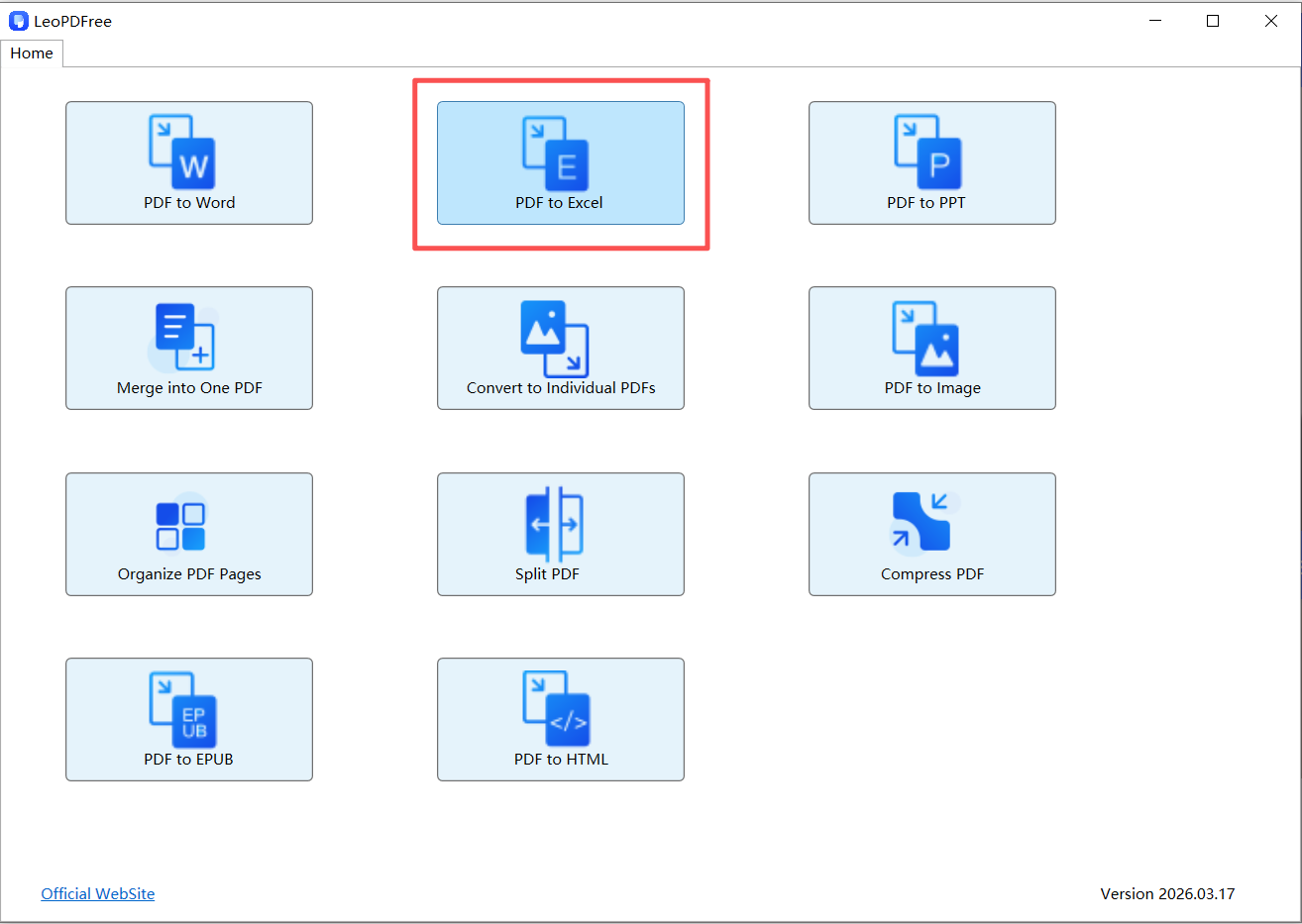
2️⃣. On the opened interface, click “PDF to Excel”, as shown in the figure below.
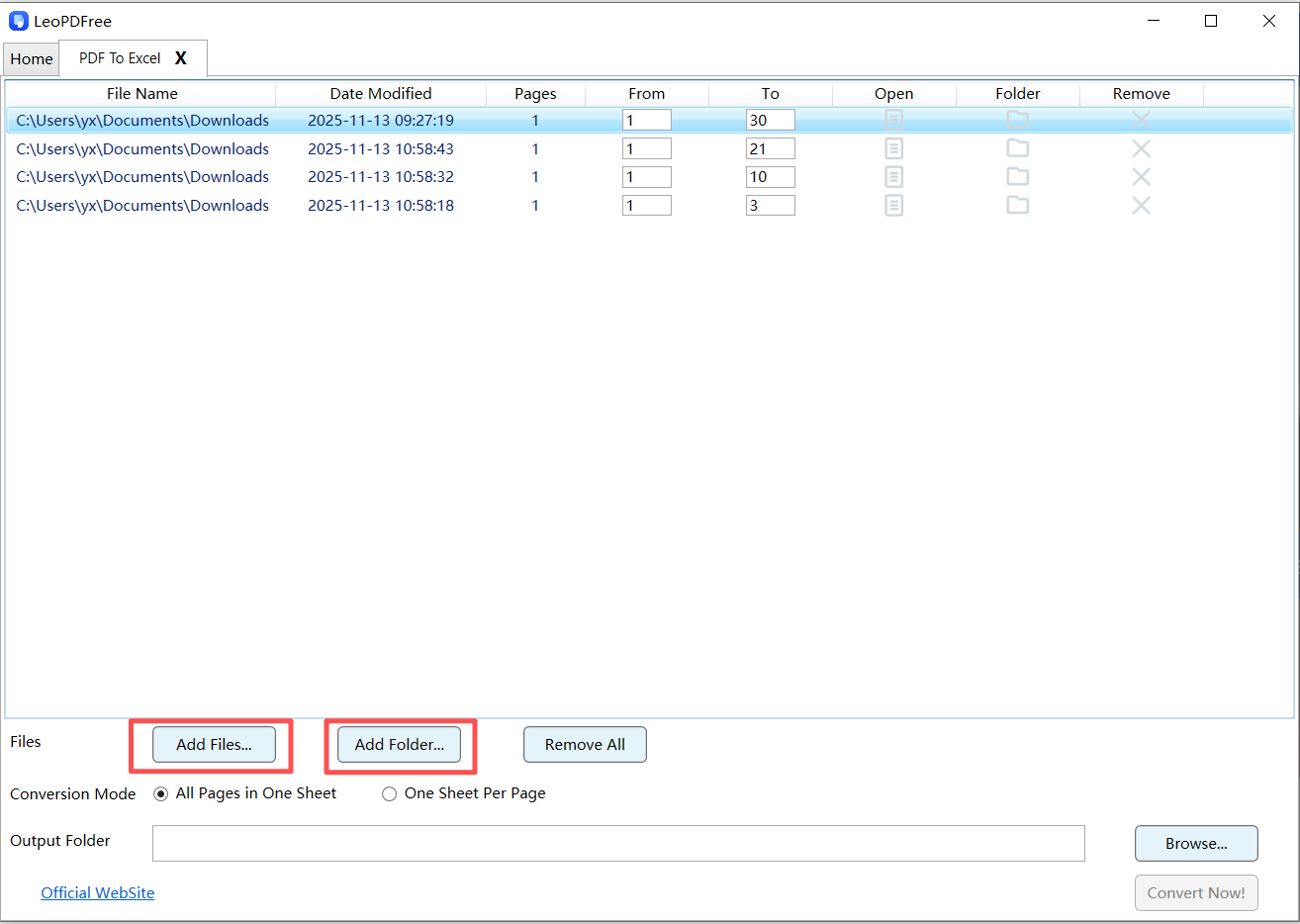
3️⃣. Next, on the opened interface, click the “Add Files…” or “Add Folder…” button to add one or more PDF files to be converted, as shown in the figure below.
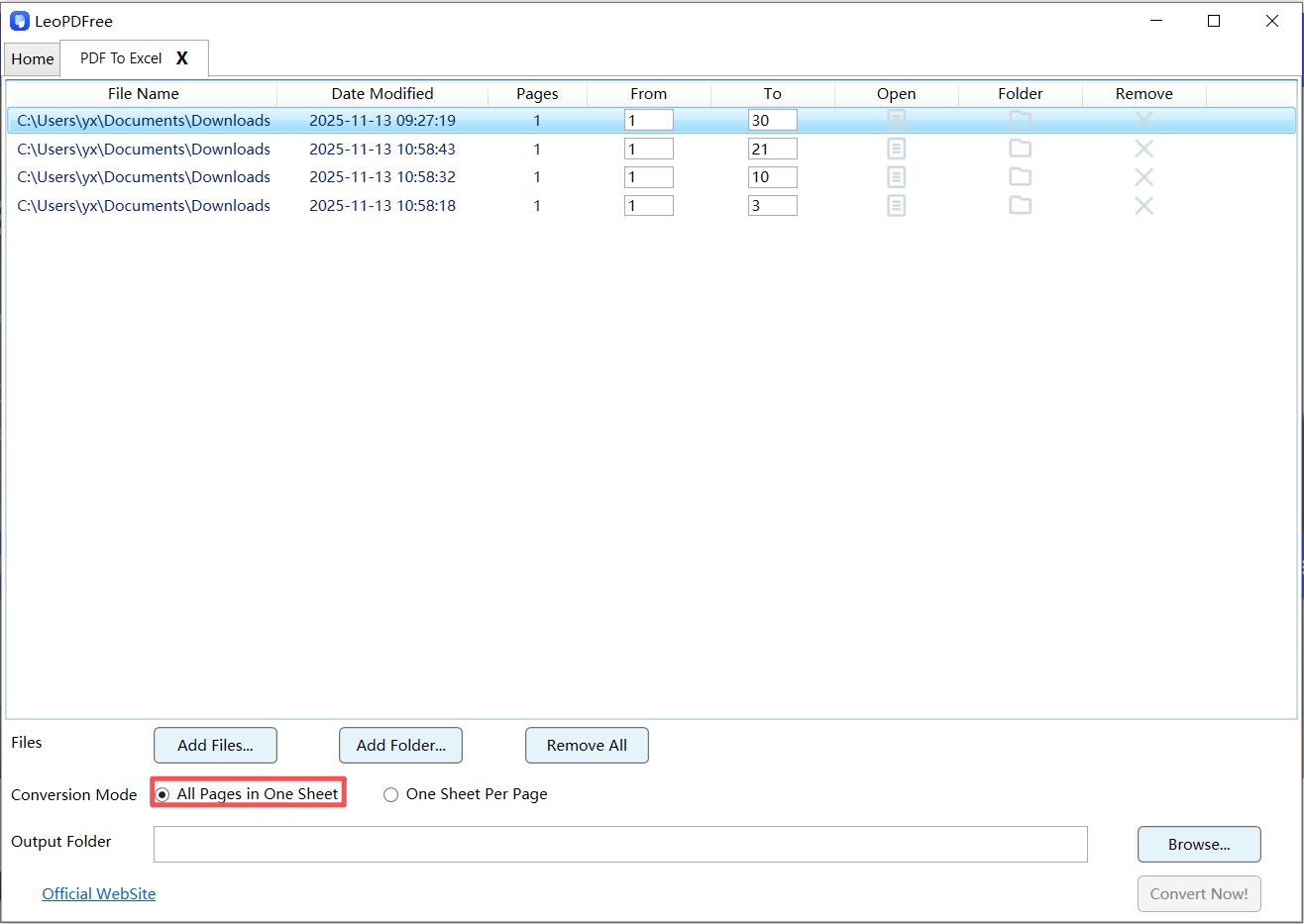
4️⃣. Then select either “All Pages in One Sheet” or “One Sheet Per Page” in the “Conversion Mode” option according to your needs. In this example, we use “All Pages in One Sheet”, as shown in the figure below.
5️⃣. Next, click the “Browse…” button to set the save path for the converted file, as shown in the figure below.
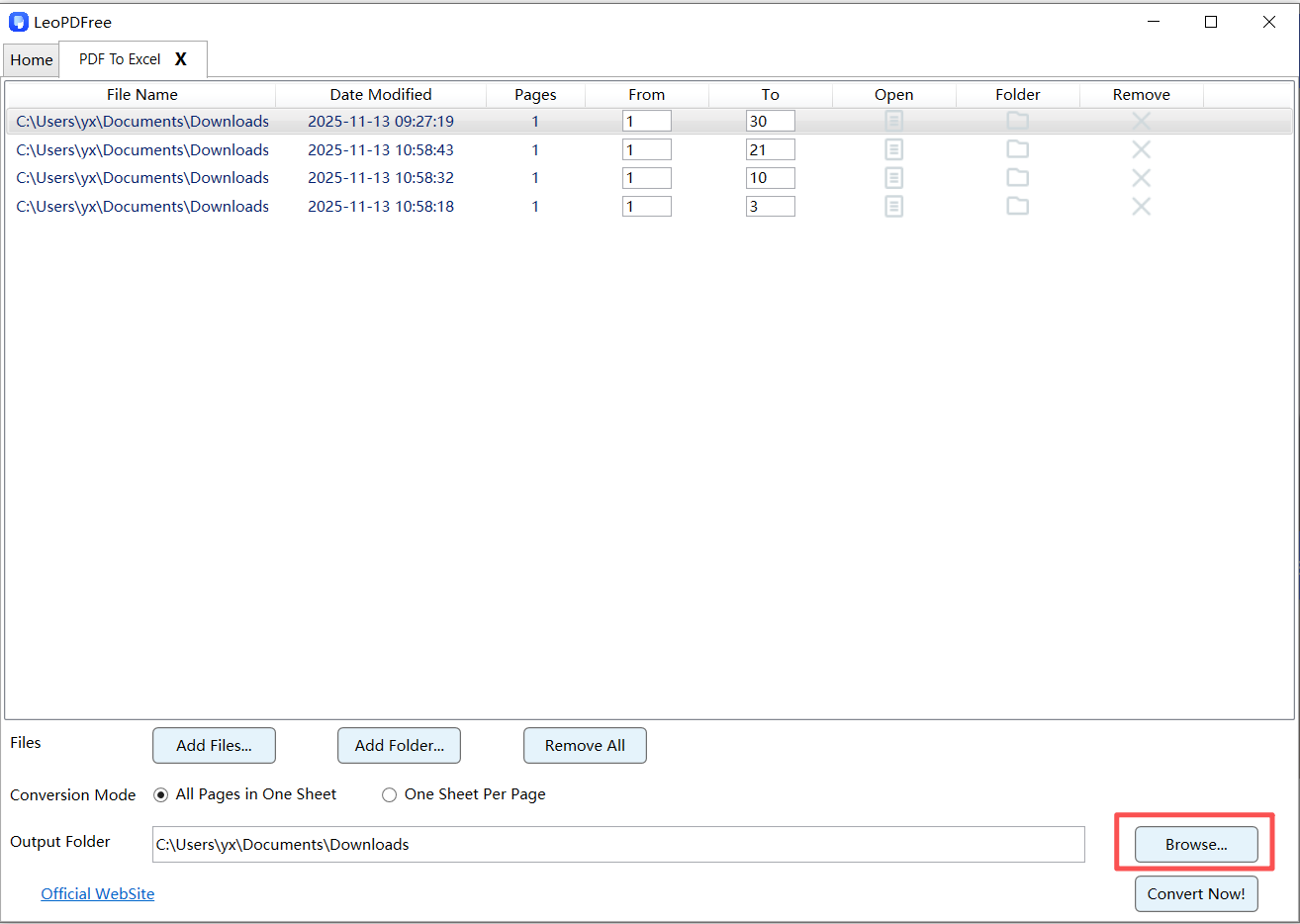
6️⃣. Once all preparations are complete, simply click “Convert Now!” on the interface. The software will quickly complete the conversion based on the file size, as shown in the figure below.
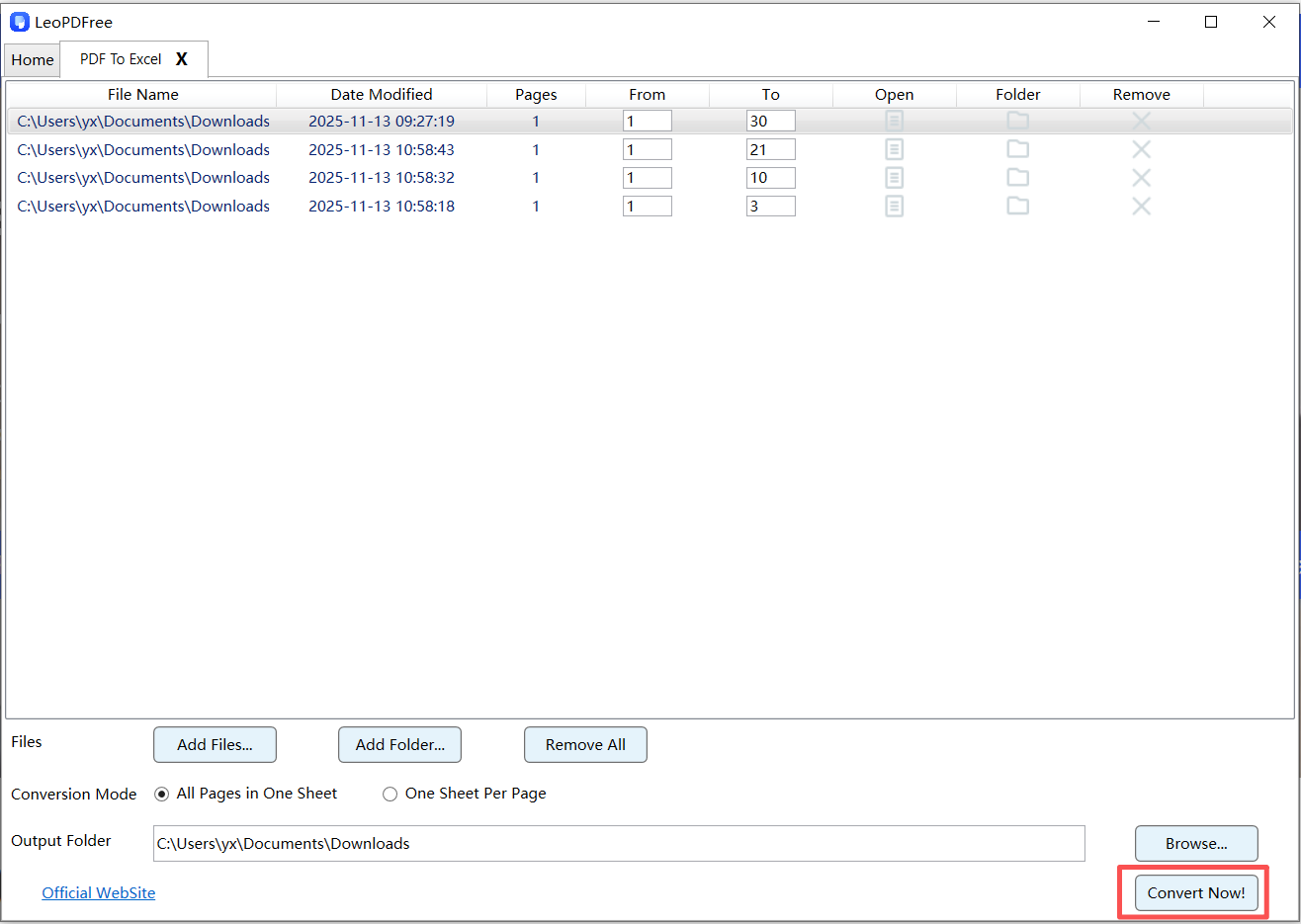
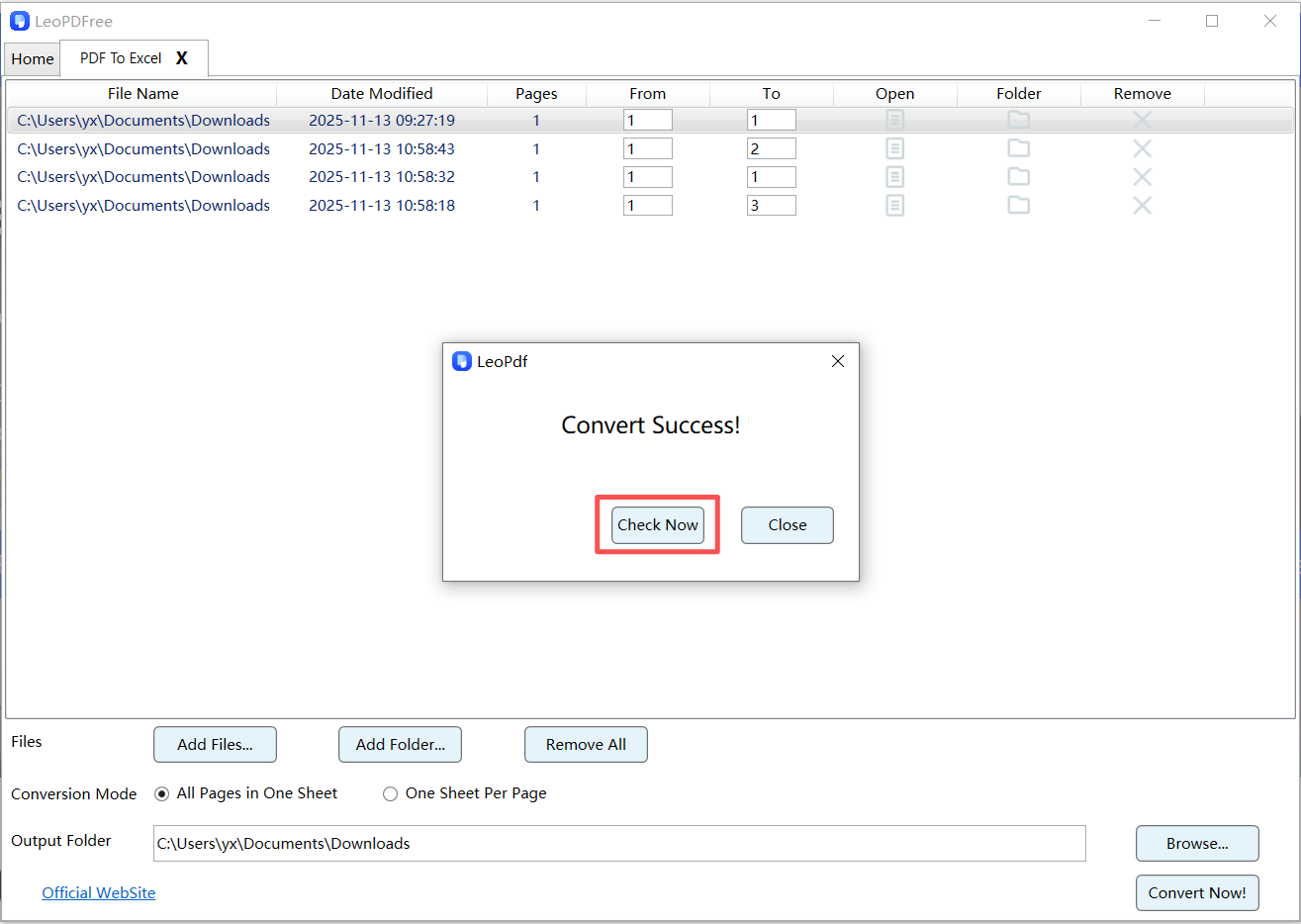
7️⃣. After the conversion is completed, a small pop-up window will appear. Click the “Check Now” button on the pop-up window to quickly view the converted result. Isn’t it very fast and convenient? Go ahead and try it out!
🔧 Make Your Data Analysis-Ready (Key Step Most People Skip)
This is where real value happens.
After conversion:
1. Standardize Columns
🔵 Ensure consistent date format
🔵 Separate debit/credit columns
2. Remove Noise
🔵 Delete headers, footers, repeated rows
3. Normalize Data
🔵 Convert text numbers into numeric format
🔵 Fix currency symbols
4. Add Filters
🔵 Enable sorting and filtering for quick insights
If the PDF is a scan
Ordinary text extraction cannot recognize an image of a table. Select an OCR-capable workflow, check its processing location and price, and inspect recognized characters against the source. The LeoPDF store Word/Excel workflow is paid cloud conversion; the free Windows edition does not provide OCR.
Reconcile financial values
Check opening and closing balances, transaction counts, negative values, decimal separators and totals. Do not upload a sensitive statement merely to try a free offer; follow the account holder’s and your organization’s data-handling requirements.
Questions about your LeoPDF edition?
Contact xuehui@leopdf.com with your platform, app version and the task you need.