How to Convert PDF Tables to Editable Word

A Smarter Guide to Turning Static PDF Tables into Editable Documents
Have you ever opened a PDF report and needed to copy a table into Word, only to find that the formatting breaks completely? Columns disappear, rows merge incorrectly, and the entire table becomes a mess.
If you’re searching for how to convert PDF tables to editable Word, you’re not alone. From financial reports to research papers and invoices, tables inside PDFs often contain valuable data that needs to be edited or reused.
This guide takes a different approach. Instead of just listing methods, we’ll walk through three smart strategies, explain when each method works best, and show you how to preserve table formatting during conversion.
‌

How to Convert PDF Tables into Editable Word Documents

The Hidden Challenge: Why PDF Tables Are Hard to Convert

Before jumping into solutions, it helps to understand the problem.

A PDF file is designed for viewing, not editing. Tables inside a PDF are often stored as:

🔵 Static text blocks
🔵 Vector layouts
🔵 Images (especially in scanned documents)

Because of this, converting them into an editable Word table requires software to recognize the table structure, including rows, columns, borders, and spacing.

That’s why some conversion tools fail while others perform surprisingly well.

Method 1:Use the Free PDF to Word Tool LeoPDF (Most Recommended Method)

For most users, the easiest way to convert PDF tables into editable Word documents is using a PDF-to-Word converter tool.

How It Works

These tools analyze the PDF layout and rebuild the document structure inside Word, including tables.

Steps

1️⃣. After downloading the software for free and successfully installing it on your computer, double-click the icon to open the software, as shown in the image below.
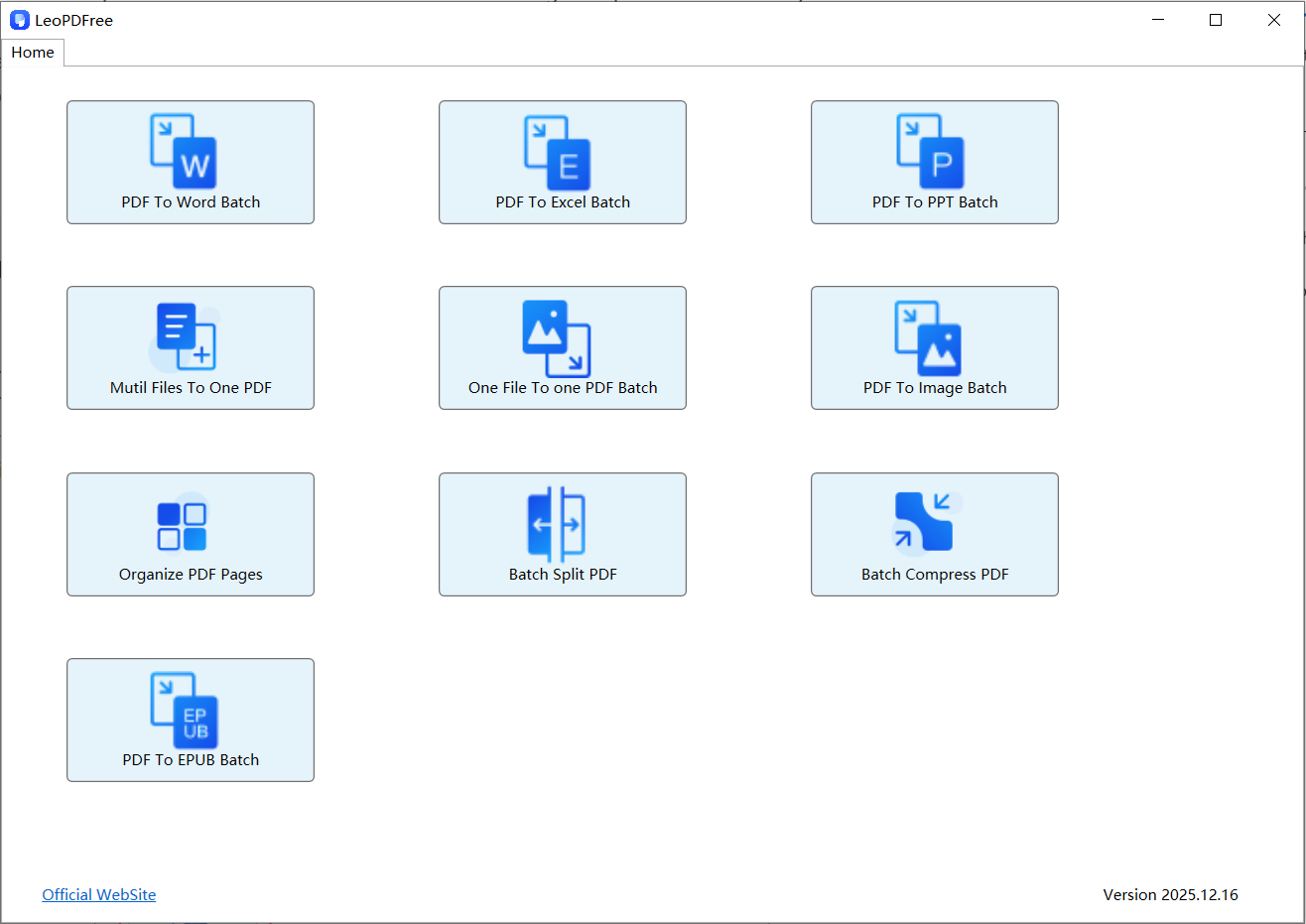
LeoPDFree PDF to Word Converter Interface

2️⃣. On the opened software interface, click the “PDF To Word Batch” button to start the conversion process, as shown in the image below.
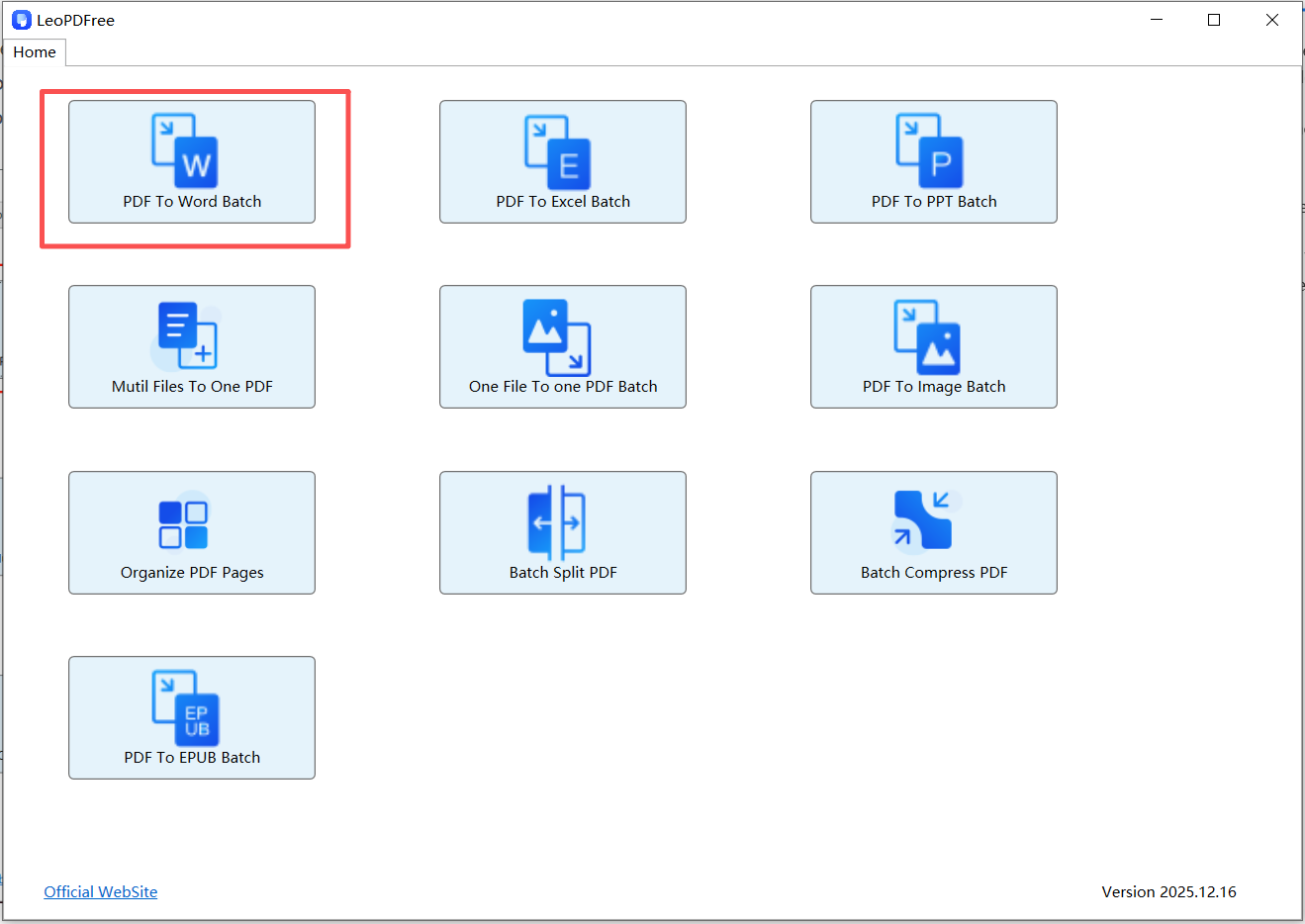
Select a PDF File Containing Tables for Word Conversion

3️⃣. On the opened interface, click “Add Files” or “Add Folder” to add one or more PDF files you want to convert. Then, choose the conversion mode according to your needs: “Editability First” or “Format First”, as shown in the image below.
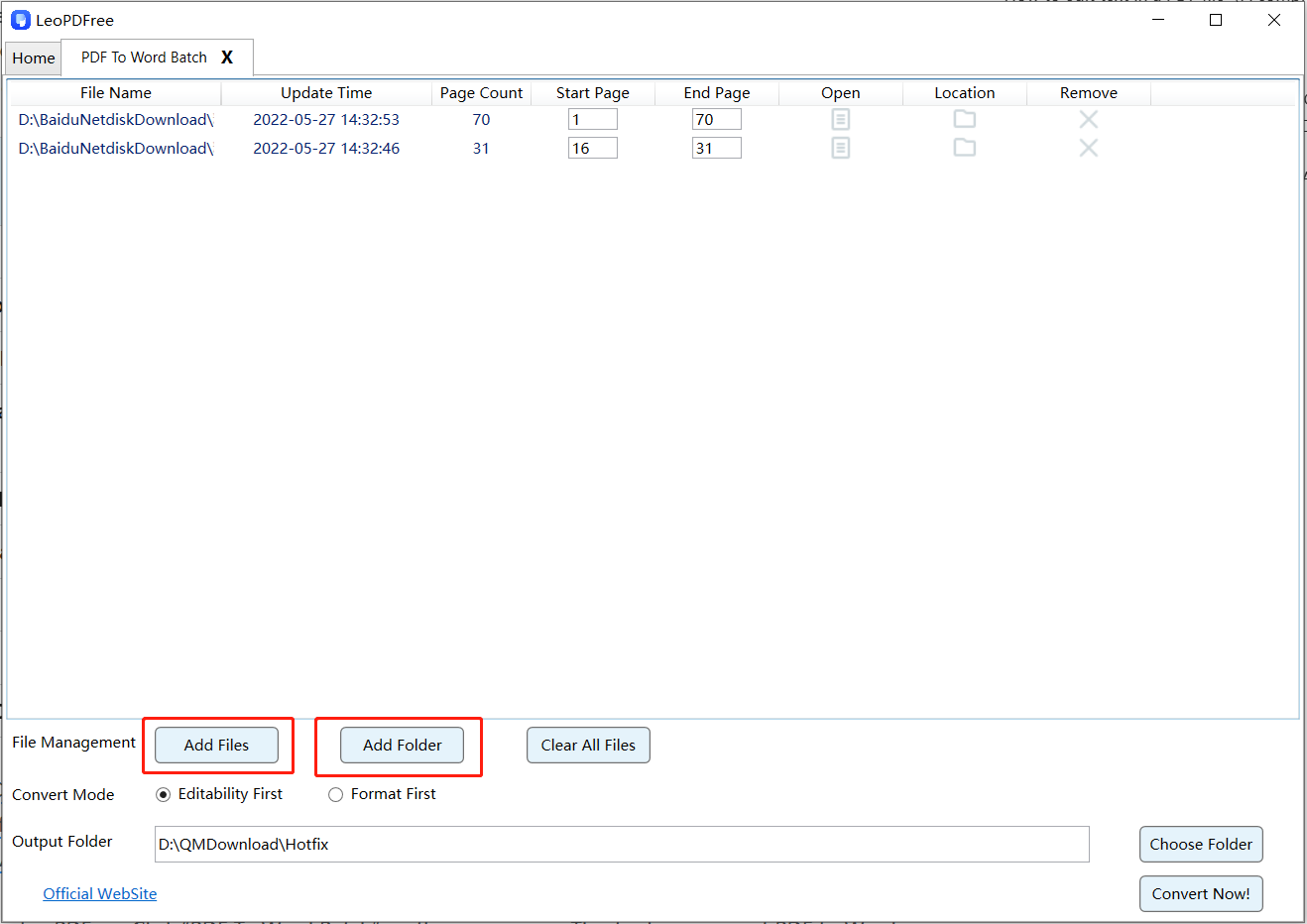
Choose PDF to Word Conversion Options in LeoPDFree

4️⃣. On the interface, click “Choose Folder” to set the save location for the converted files, as shown in the image below.
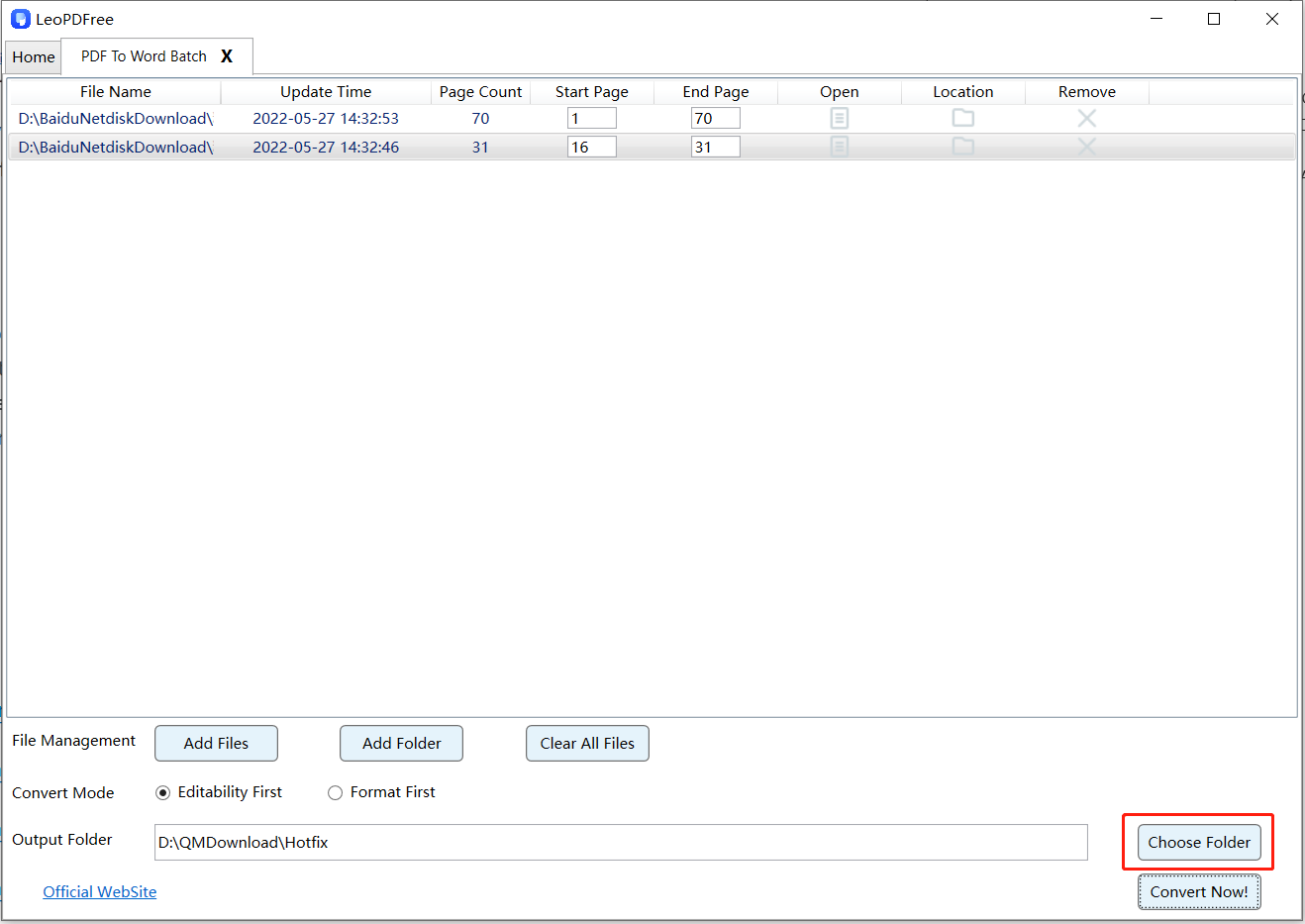
Convert PDF Tables into an Editable Word Document with LeoPDFree

5️⃣. Once all the files are ready for conversion, simply click the “Convert Now!” button, and the software will quickly complete the conversion task for you, as shown in the image below.
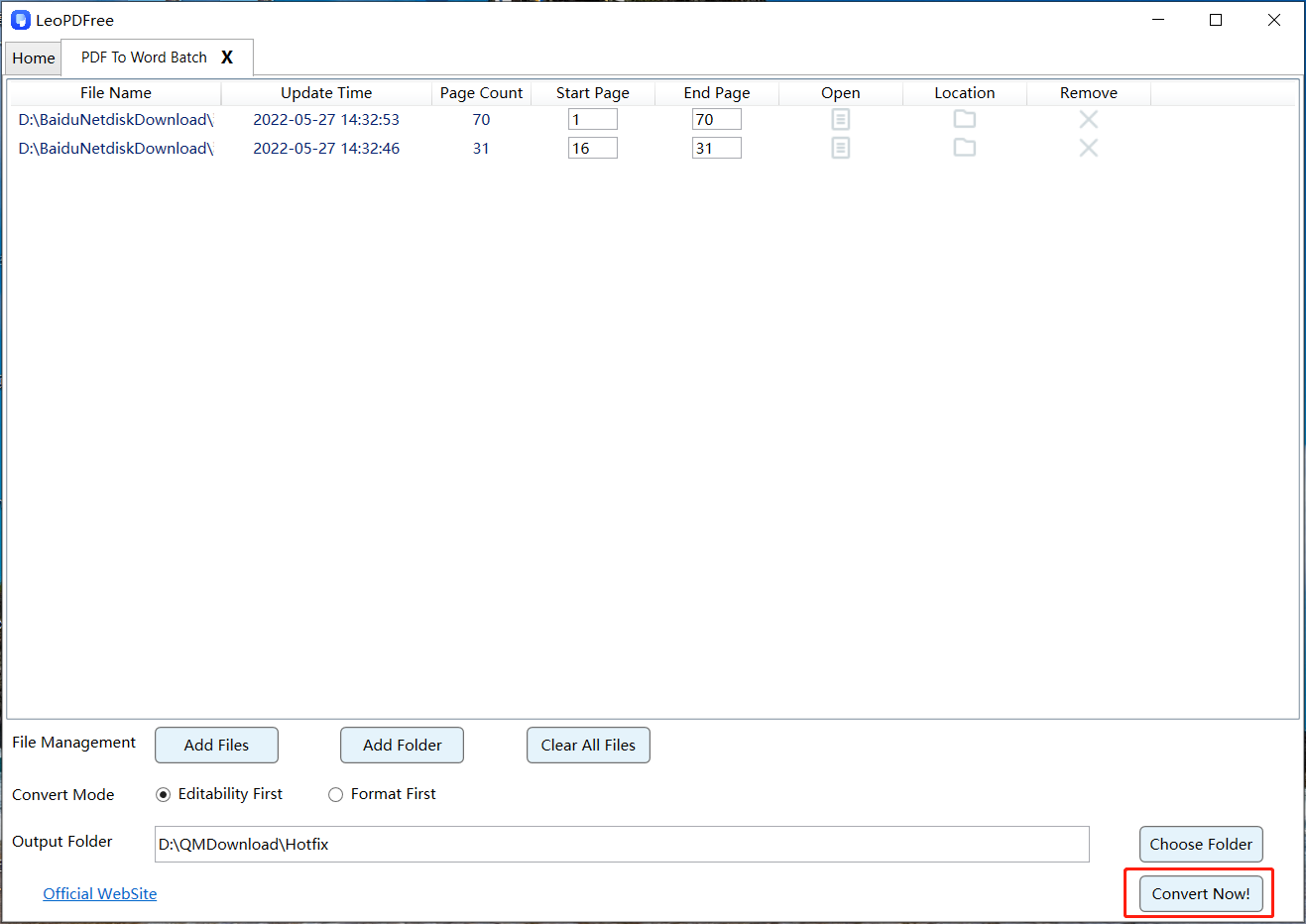
View Converted PDF Table Content in Microsoft Word

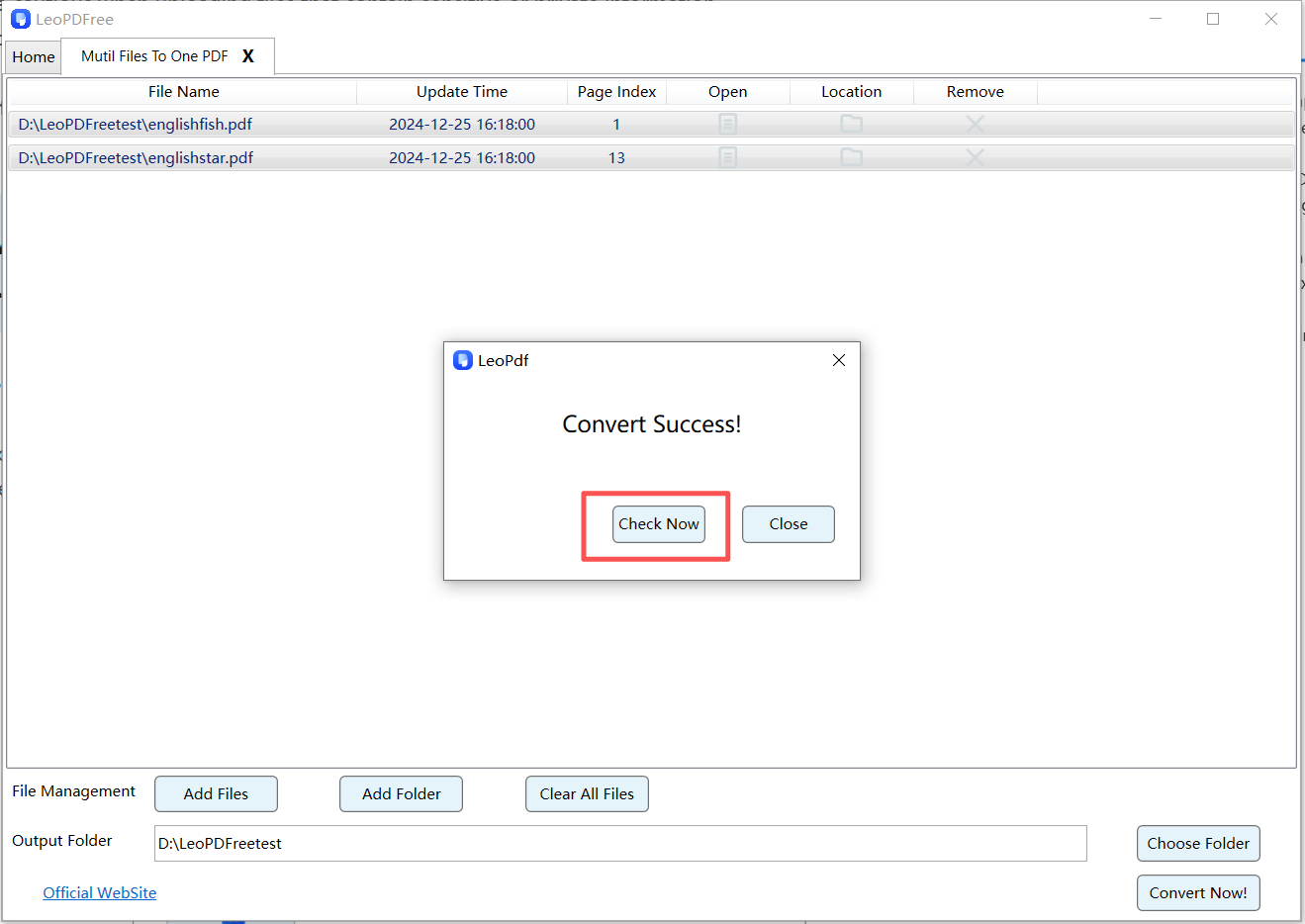
6️⃣. The system will quickly complete the conversion based on the file size. When the pop-up window appears, it indicates that the conversion is complete. Simply click the “Check Now” button to quickly preview the quality of the converted files, as shown in the image below.
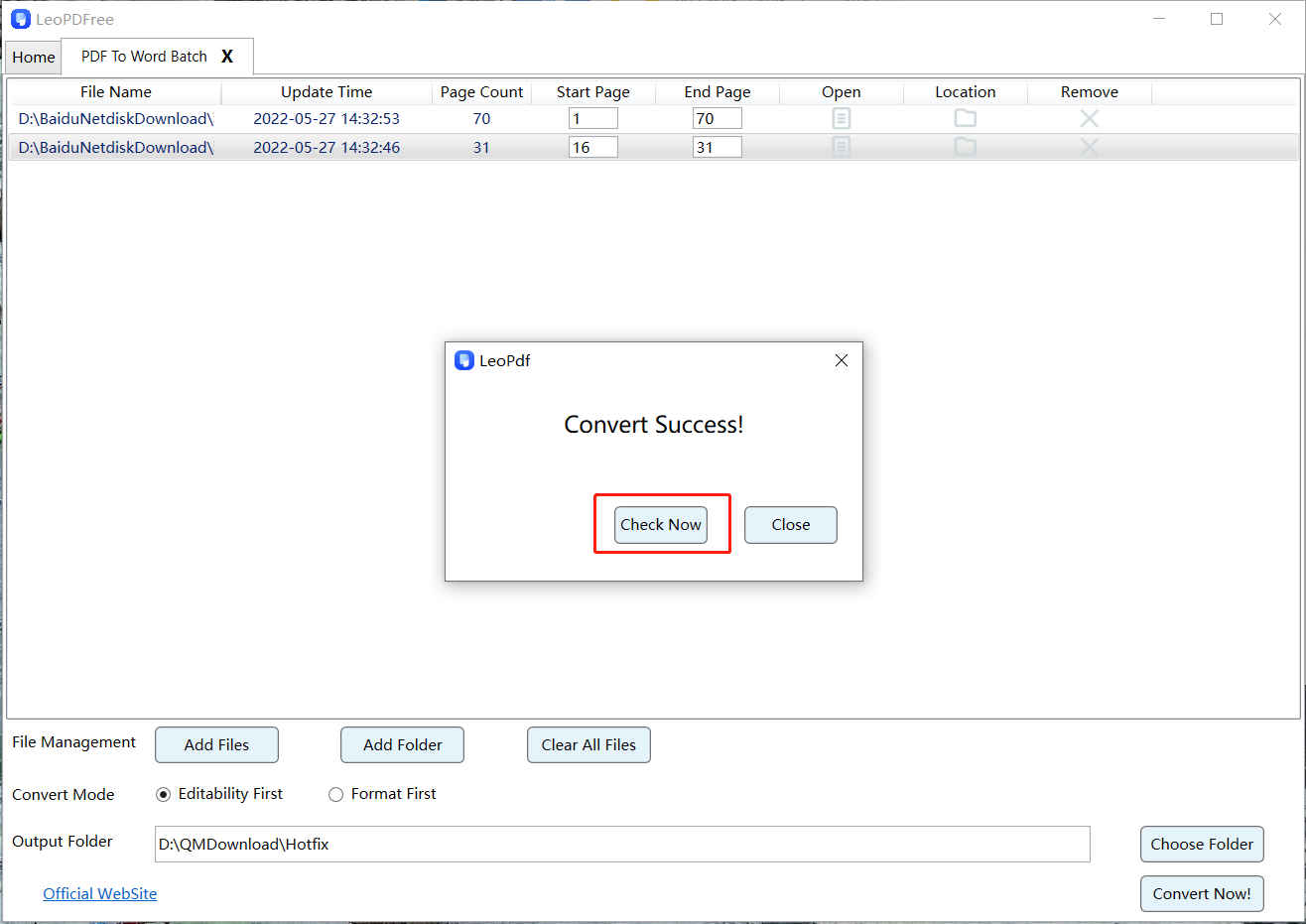
Check Table Rows and Columns in the Converted Word Document

Why This Method Works Well

🔵 Automatically detects table structures
🔵 Keeps rows and columns intact
🔵 Converts the entire document in seconds

This is the most efficient method for reports, spreadsheets, and structured documents.

Method 2: Copy Tables from PDF into Word (Quick Manual Trick)

If you only need one or two tables, copying them directly may be faster.

Steps

1️⃣. Open the PDF file
2️⃣. Select the table using the cursor
3️⃣. Copy the content
4️⃣. Paste it into Microsoft Word
5️⃣. Use Convert Text to Table in Word if needed

When This Method Works

🔵 Small tables
🔵 Simple layouts
🔵 Text-based PDFs

However, formatting may require manual adjustments.

Method 3: Use OCR for Scanned PDF Tables

Sometimes tables inside PDFs are actually images, especially in scanned documents.

In this case, you need OCR (Optical Character Recognition) technology.

Steps

1️⃣. Upload the scanned PDF to an OCR-enabled converter
2️⃣. Select PDF to Word
3️⃣. Enable OCR recognition
4️⃣. Download the editable Word file

Advantages

🔵 Extracts tables from images
🔵 Recognizes text inside scanned documents
🔵 Converts data into editable format

OCR is essential for digitizing printed reports or scanned forms.

Pro Tips to Keep Table Formatting Perfect

Even with the best tools, table formatting can sometimes shift. Here are some expert tips:

🔵 Use high-quality PDF files when possible
🔵 Avoid heavily scanned or low-resolution documents
🔵 Choose converters that support table detection
🔵 Check the Word document after conversion and adjust column widths if needed

These small steps can save significant editing time.

FAQ: Converting PDF Tables to Word

Can all PDF tables be converted perfectly?

Not always. Complex layouts, merged cells, or scanned tables may require minor adjustments after conversion.

Will the table remain editable in Word?

Yes. Once converted to DOCX format, the table becomes fully editable.

What is the best format for editing tables?

Microsoft Word (.docx) is ideal because it allows full editing of rows, columns, and formatting.

Conclusion

Mastering how to convert PDF tables to editable Word can greatly improve your work efficiency, especially when handling reports, research materials, or business documents.

Whether you choose to:

🔵 Use the free LeoPDF conversion tool for automatic conversion

🔵 Manually copy the tables

🔵 Use OCR to recognize scanned documents

Each method has its suitable scenario. By choosing the right approach, you can easily turn static PDF tables into fully editable Word tables, making document processing much more efficient.
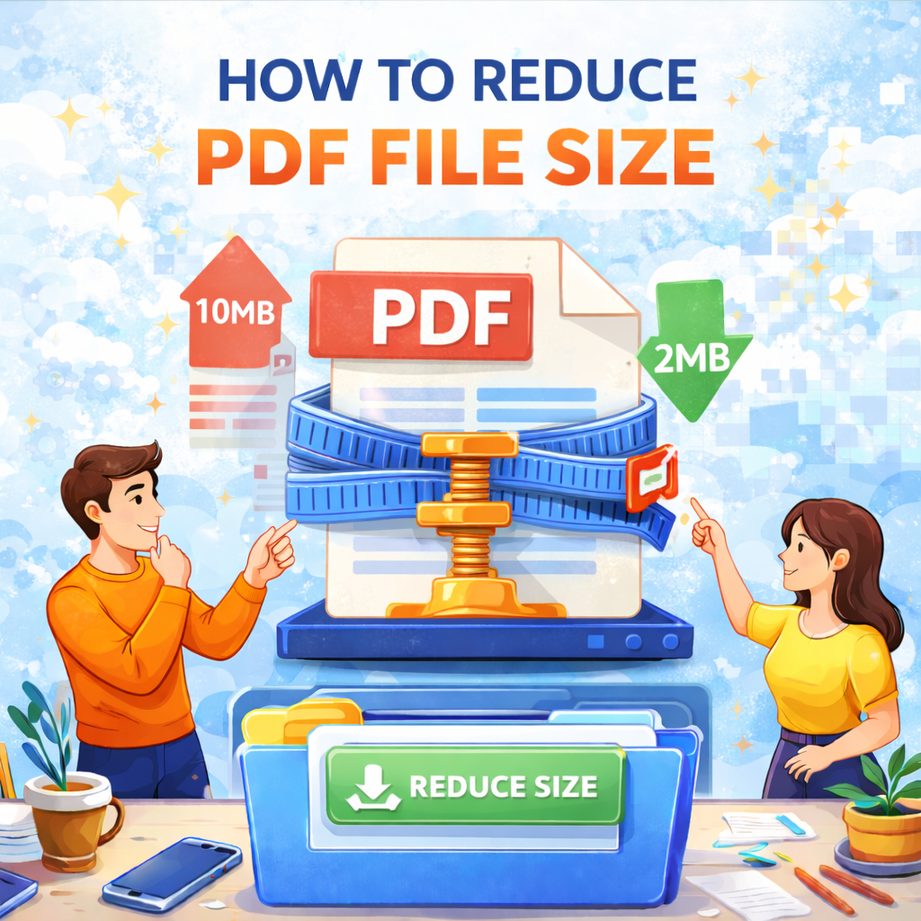
How to Reduce PDF File Size on Windows (Easy Methods for 2026)

Large PDF files can be difficult to send, upload, or store. Many email services limit attachments to 20–25MB, and large documents can also take longer to open or download. That’s why many users search for how to reduce PDF file size on Windows.
In this guide, you’ll learn several simple and effective methods to compress PDF files on Windows, including using online tools, desktop software, and built-in features. These methods work on Windows 10 and Windows 11 and are suitable for beginners and office users alike.
‌

How to Reduce PDF File Size on Windows Using Easy Methods

Why You May Need to Reduce PDF File Size

Before learning the methods, it’s helpful to understand the common situations where PDF compression is needed.

🔵 Sending PDFs as email attachments
🔵 Uploading documents to websites or forms
🔵 Saving disk space on your computer
🔵 Improving loading speed when sharing files
🔵 Managing large scanned PDF documents

Reducing PDF file size helps improve efficiency and makes file sharing much easier.

Method 1: Use an Online PDF Compression Tool (Fastest Way)

Using an online PDF compressor is one of the easiest ways to reduce PDF file size on Windows.

Steps

1️⃣. Open your web browser (Chrome, Edge, etc.)
2️⃣. Visit an online PDF compression tool
3️⃣. Upload the PDF file you want to compress
4️⃣. Click the Compress PDF button
5️⃣. Download the smaller PDF file

Advantages

🔵 No software installation required
🔵 Works on Windows, Mac, and mobile devices
🔵 Simple and beginner-friendly

Things to Note

🔵 Avoid uploading confidential documents
🔵 Some free tools may limit file size

This method is ideal for quick compression tasks.

Method 2: Compress PDF Using Desktop Software LeoPDF

If you frequently work with PDF files, using the completely free LeoPDF desktop software will be a better long-term solution.

Steps

1️⃣. Download and install LeoPDF on your computer for free, then open the software as shown in the image below.

LeoPDFree Free PDF Compression Tool for Windows

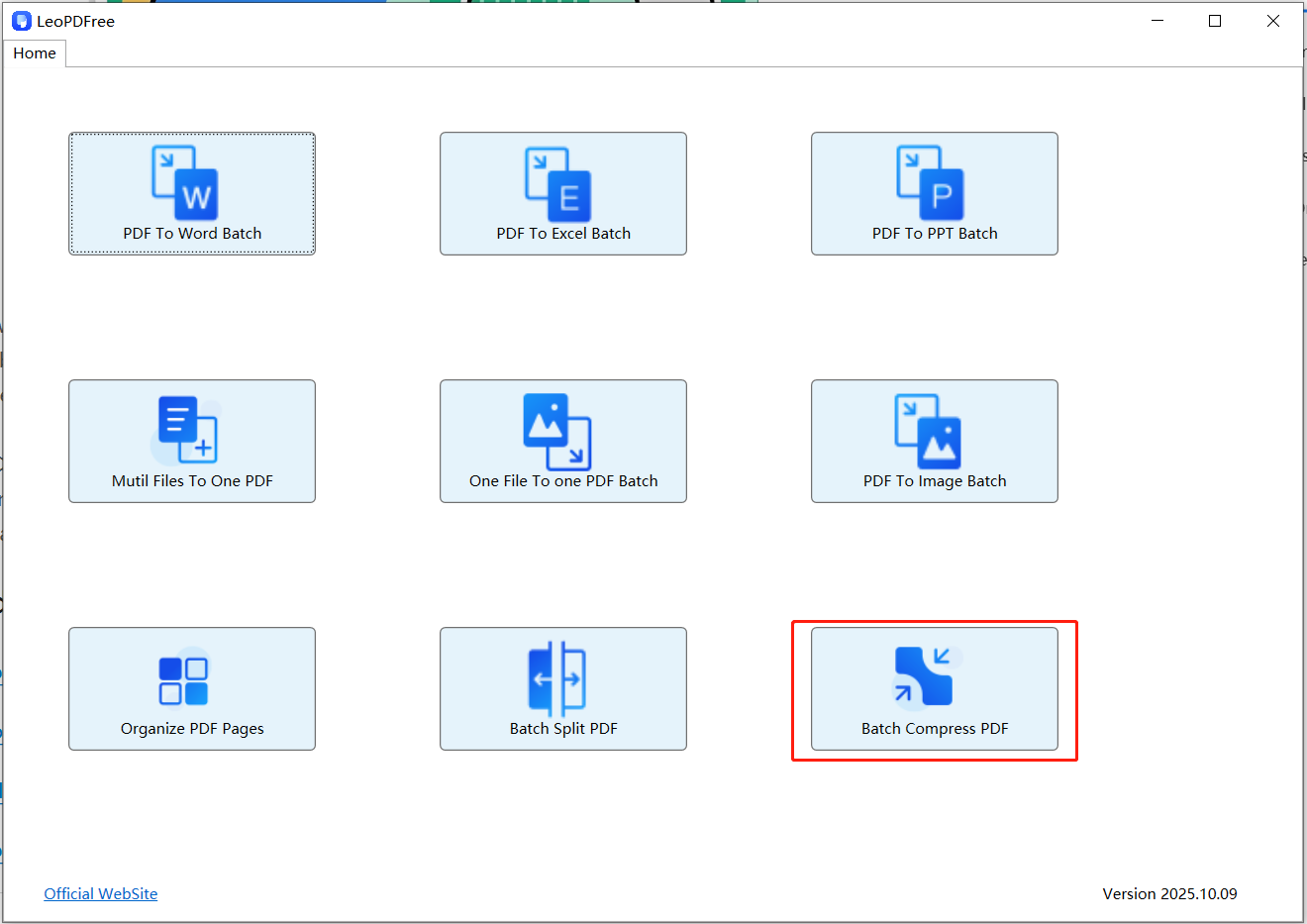
2️⃣. On the opened software interface, click “Batch Compress PDF” to start adding files for compression, as shown in the image below.

Select a PDF File to Compress in LeoPDFree

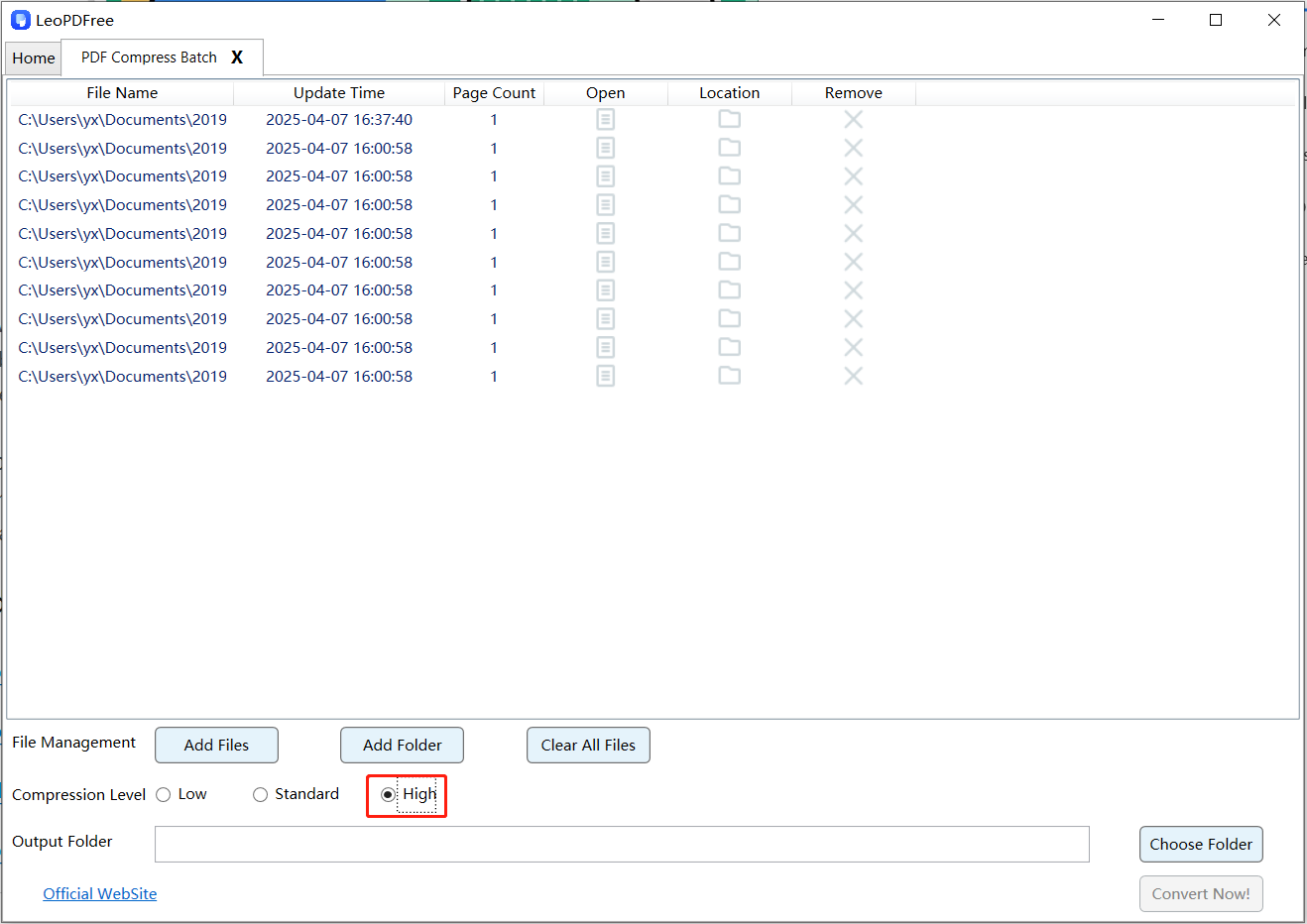
3️⃣. On the opened interface, click “Add Files” or “Add Folder” to add one or more files you want to compress, then choose the compression quality “Low,” “Standard,” or “High” according to your needs, as shown in the image below.

Compress PDF Documents Offline on Windows with LeoPDFree

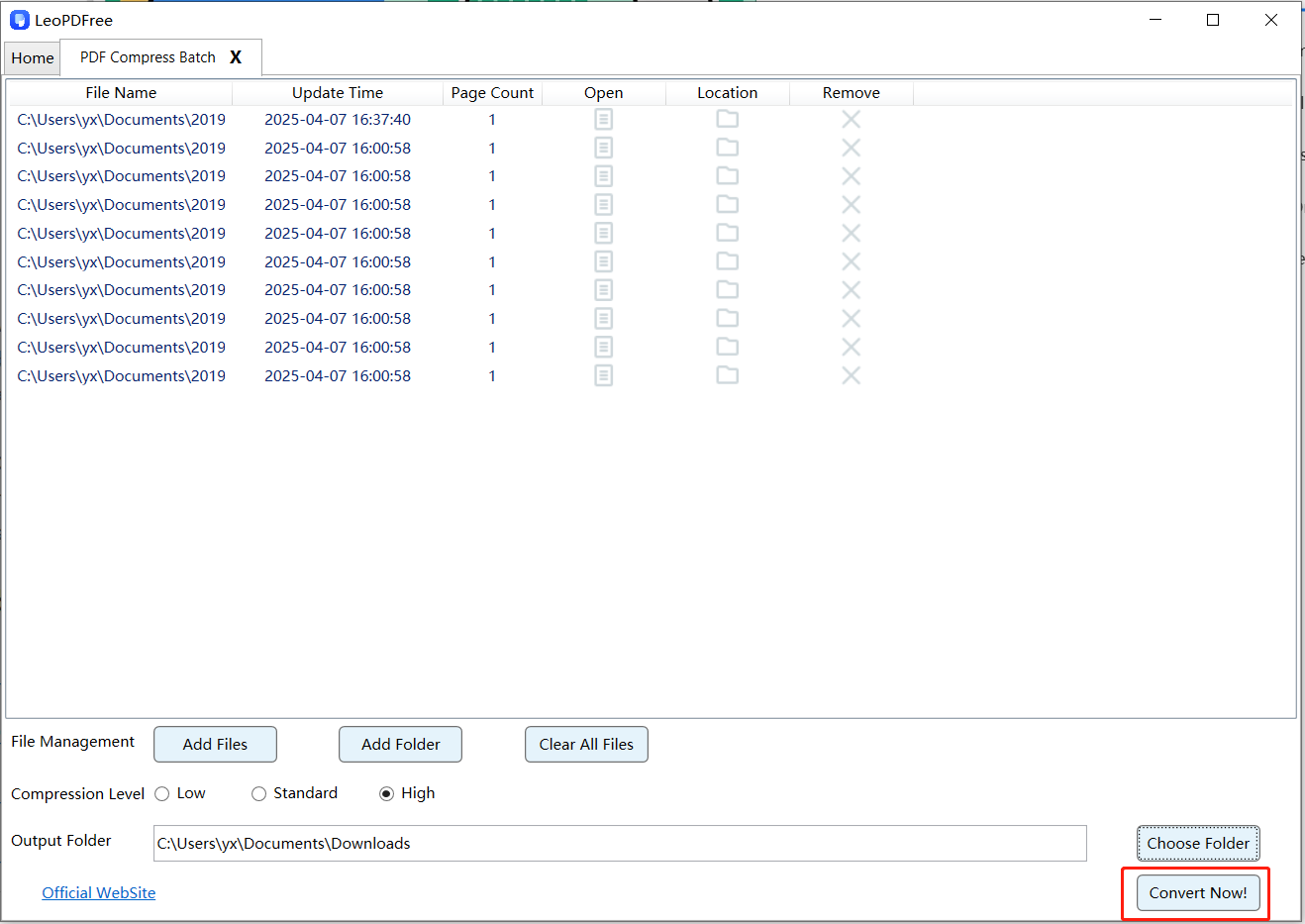
4️⃣. Next, click the “Choose Folder” button to set the save path for the compressed files. Once all preparations are complete, simply click the “Convert Now!” button, and the software will quickly complete the compression based on the file size, as shown in the image below.

Adjust PDF Compression Settings in LeoPDFree

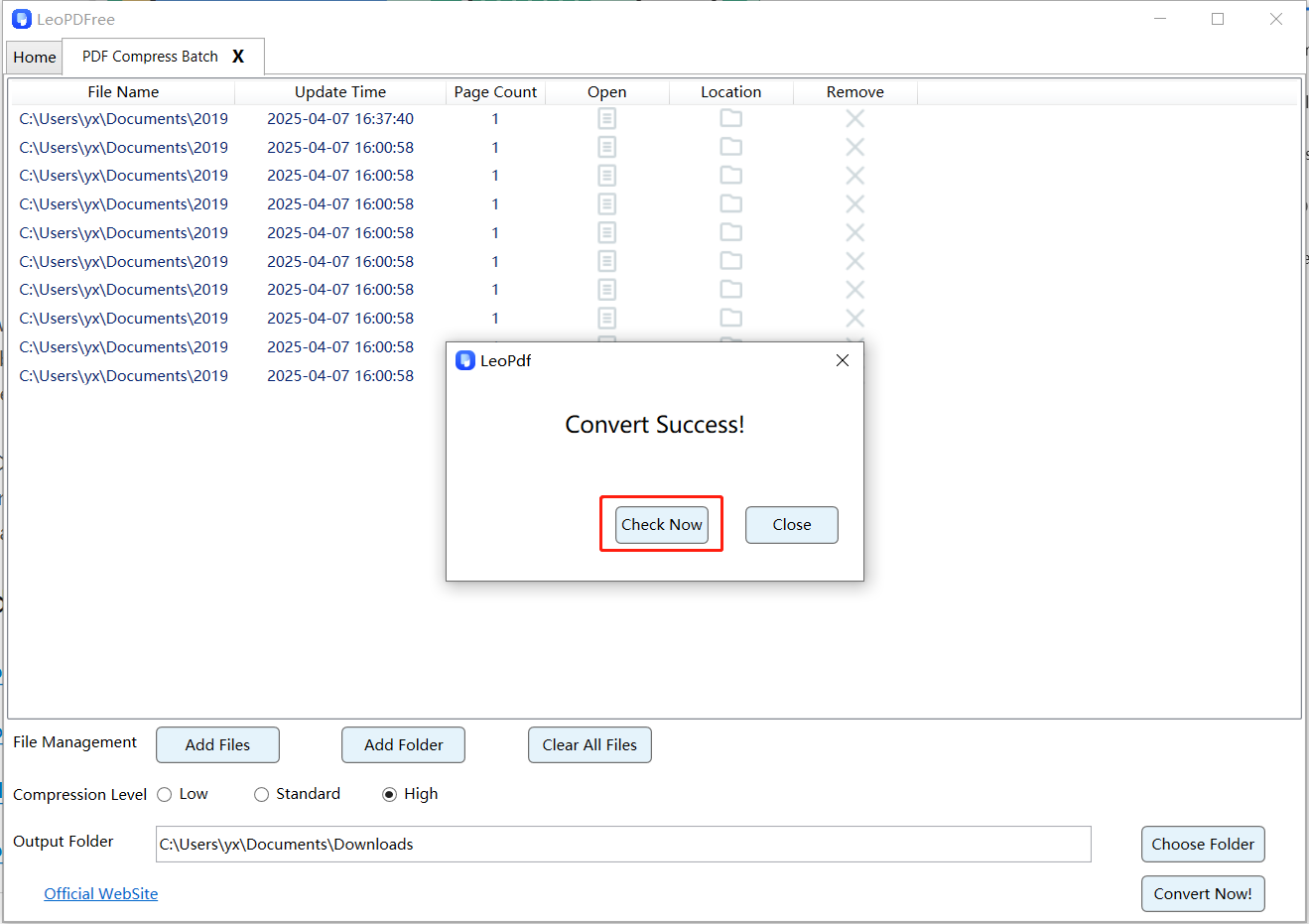
5️⃣. After the tool quickly completes the compression, a small pop-up window will appear. Then, click the “Check Now” button on the window to instantly preview the compression results. Alternatively, you can go directly to the save location to view the compressed files. This process is very convenient and efficient—go ahead and check the results!

Compare PDF File Sizes Before and After Compression

Advantages

🔵 More control over compression quality
🔵 Works offline without internet access
🔵 Supports large PDF files
🔵 Better privacy protection

This method is recommended for business documents, reports, and contracts.

Method 3: Reduce PDF Size by Optimizing Images

Many large PDF files contain high-resolution images. Reducing image resolution can significantly decrease file size.

How It Works

🔵 Lower image resolution
🔵 Compress embedded images
🔵 Remove unnecessary metadata

This approach is especially useful for scanned PDFs and image-heavy documents.

Tips to Make a PDF File Smaller on Windows

Here are some practical tips that can help reduce PDF file size further:

🔵 Remove unnecessary pages
🔵 Delete embedded fonts if possible
🔵 Compress images inside the PDF
🔵 Convert scanned documents using OCR tools
🔵 Use optimized export settings

These small adjustments can dramatically reduce document size.

Frequently Asked Questions (FAQ)

Does compressing a PDF reduce quality?

It depends on the compression level. Moderate compression usually keeps the document readable while reducing file size.

What is the best PDF size for email attachments?

Most email providers recommend keeping attachments under 20MB.

Can I compress a scanned PDF?

Yes. Scanned PDFs often benefit the most from compression because they contain large image files.

Conclusion

Mastering how to reduce PDF file size on Windows can make file sharing more efficient and convenient. Whether you use an online compression tool for quick tasks or the completely free LeoPDF desktop software for professional documents, compressing PDFs is a highly practical skill.

Compressing PDF files before sending or uploading them can help you avoid file size limits, improve transfer speed, and make your file management more organized and efficient.

How to Merge PDF for Email Attachment (Step-by-Step Guide for 2026)

Sending multiple PDF files in one email can look messy and unprofessional. Many email services also limit the number of attachments or total file size. That’s why learning how to merge PDF for email attachment is an essential skill for both work and study.
In this guide, you’ll learn why merging PDFs before emailing is important, how to do it step by step, and how to reduce file size to meet email attachment limits.

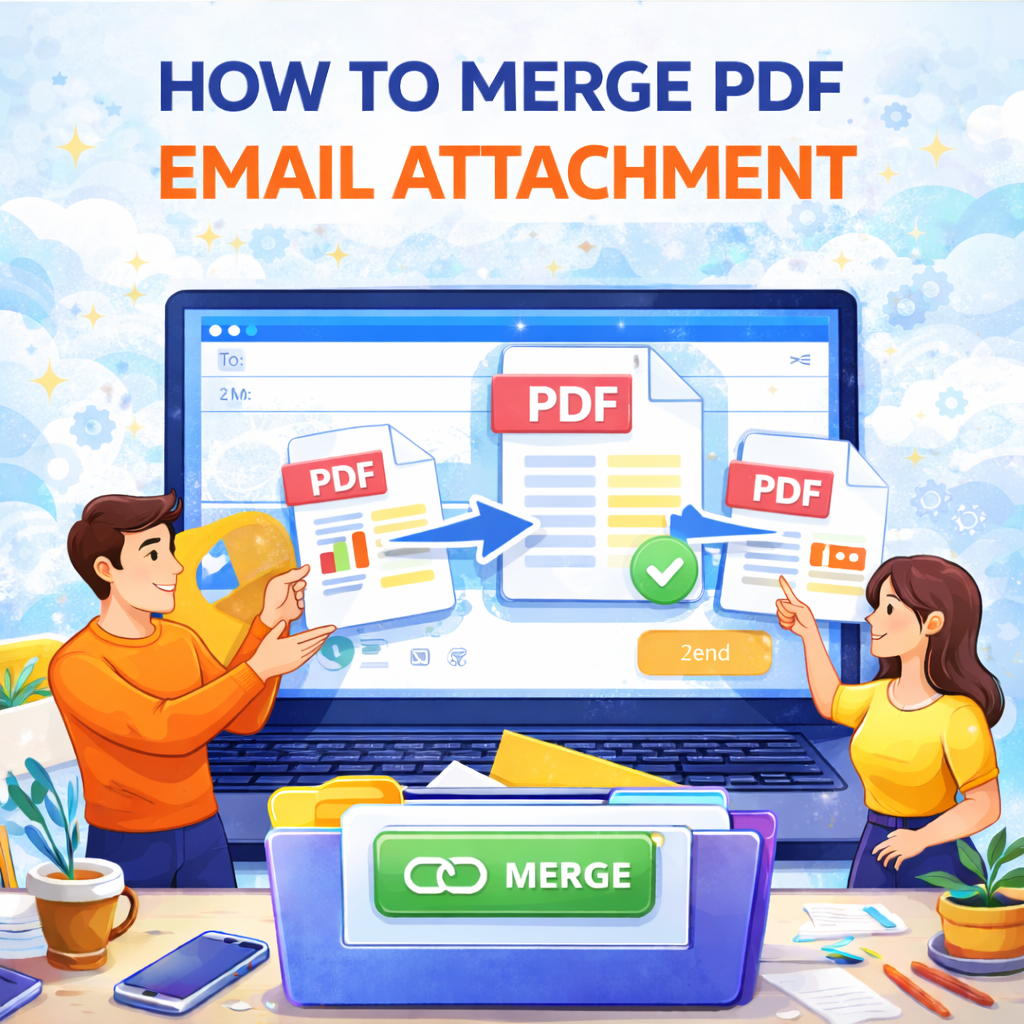
How to Merge PDF Files into One Email Attachment

Why Merge PDF Files Before Sending Email?

Before jumping into the steps, let’s understand the benefits:

✅ Send one clean and organized attachment instead of multiple files

✅ Avoid missing important documents

✅ Reduce confusion for recipients

✅ Stay within email attachment limits

✅ Present documents more professionally

Most email providers (such as Gmail or Outlook) have attachment size limits, usually around 20–25MB. Merging and compressing PDFs helps you stay within that range.

Method 1: Merge PDF Files Using an Online Tool (Fastest Way)

Best for: quick tasks without installing software.

Steps to Merge PDF for Email Attachment

1️⃣.Open an online PDF merge tool in your browser

2️⃣.Upload the PDF files you want to combine

3️⃣.Arrange them in the correct order

4️⃣.Click the “Merge” button

5️⃣.Download the merged PDF file

6️⃣.Attach the new single PDF file to your email

Advantages

⏺ No software installation required

⏺ Works on Windows, Mac, or mobile devices

⏺ Beginner-friendly interface

Things to Consider

⏺ Avoid uploading confidential documents

⏺ Some free tools limit file size

Method 2: Merge PDFs Using Desktop LeoPDF Software (More Secure)

Best for: business documents or frequent office use.

Steps

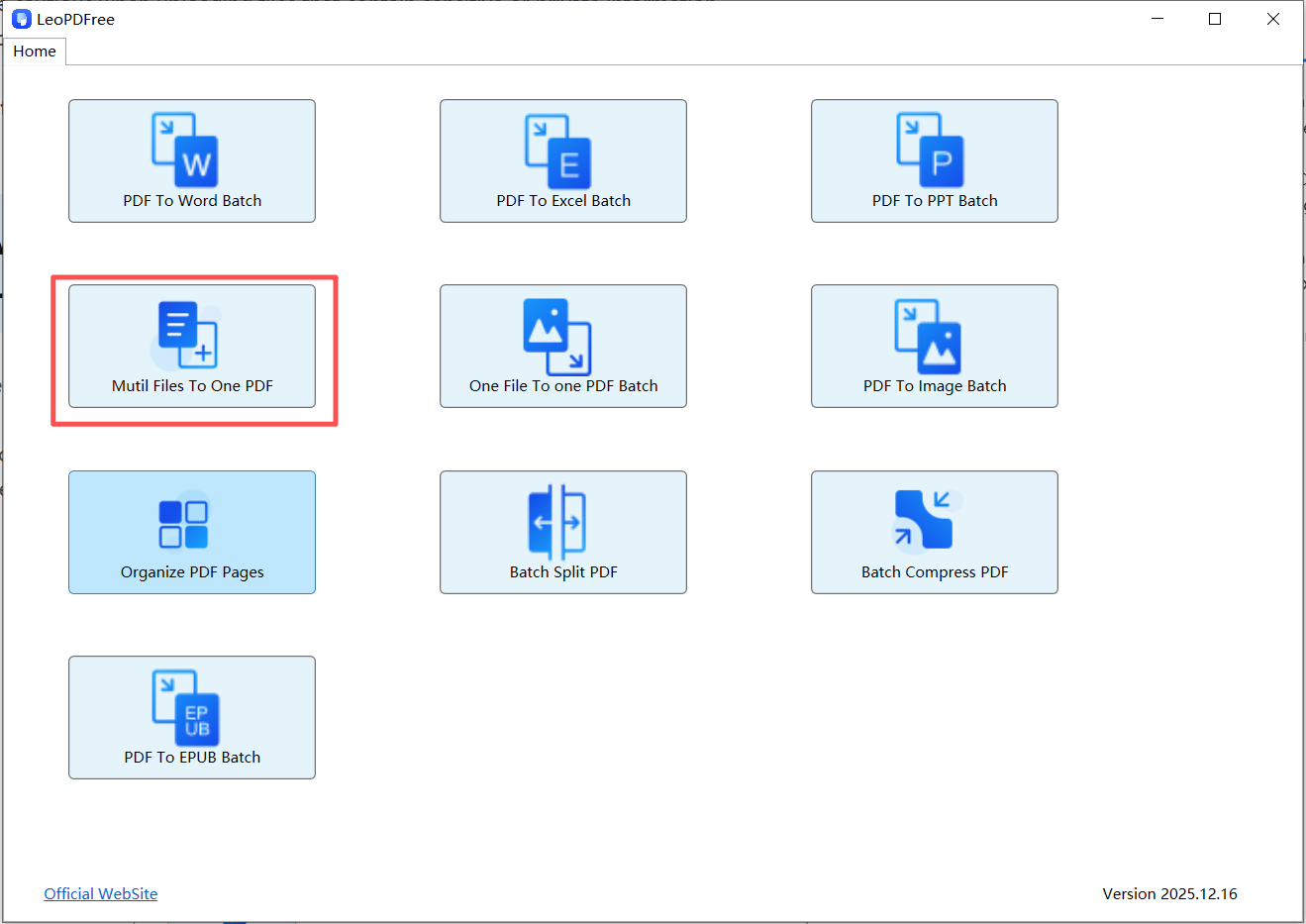
1️⃣.Download and successfully install LeoPDF on your computer, then open the software, as shown in the image below.

LeoPDFree PDF Merger Interface for Windows

2️⃣.On the opened software interface, click the “Multi Files To One PDF” button, as shown in the image below.

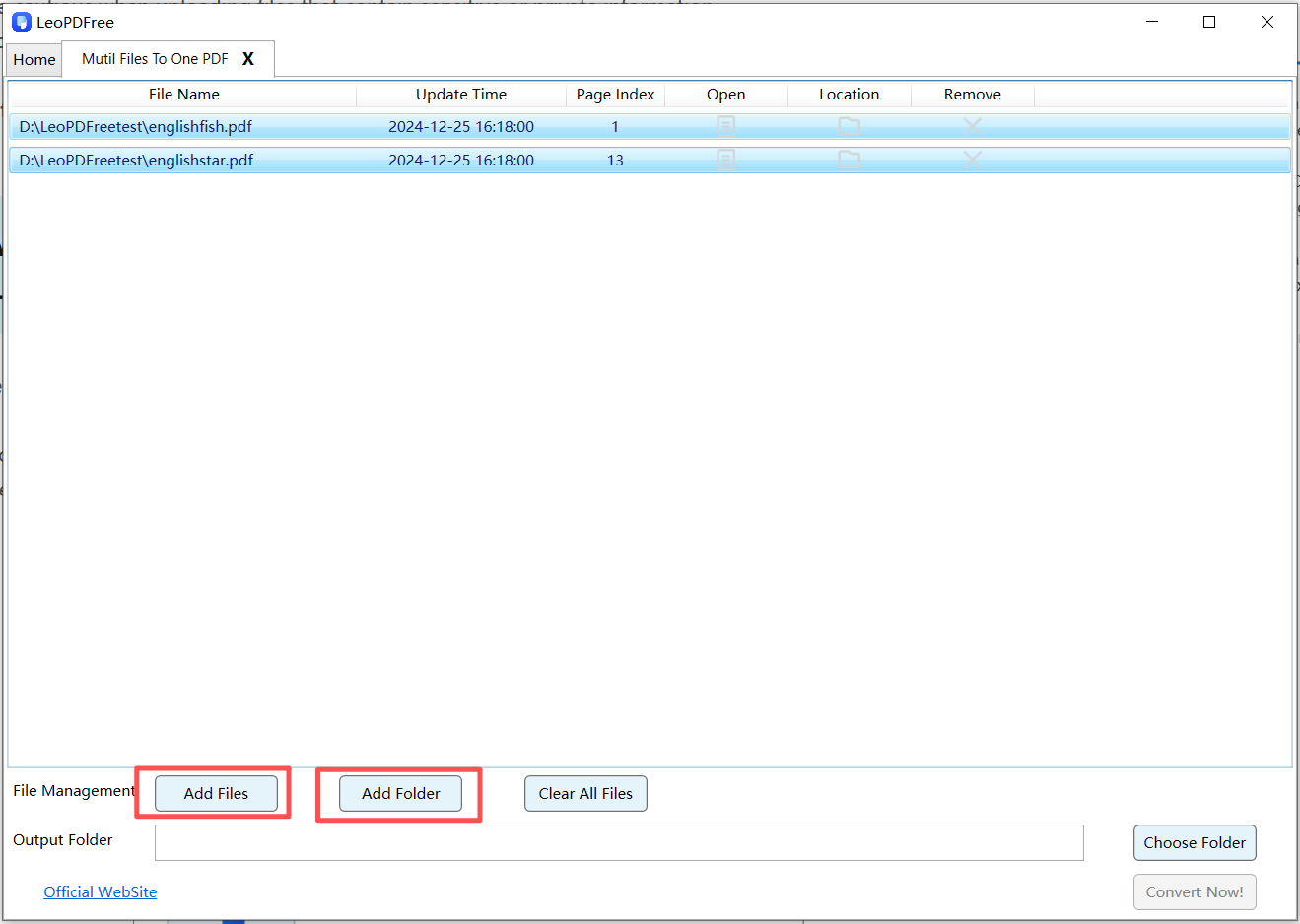
Add Multiple PDF Files to Merge in LeoPDFree

3️⃣.On the interface, click “Add Files” or “Add Folder” to add one or more files you want to merge, as shown in the image below.

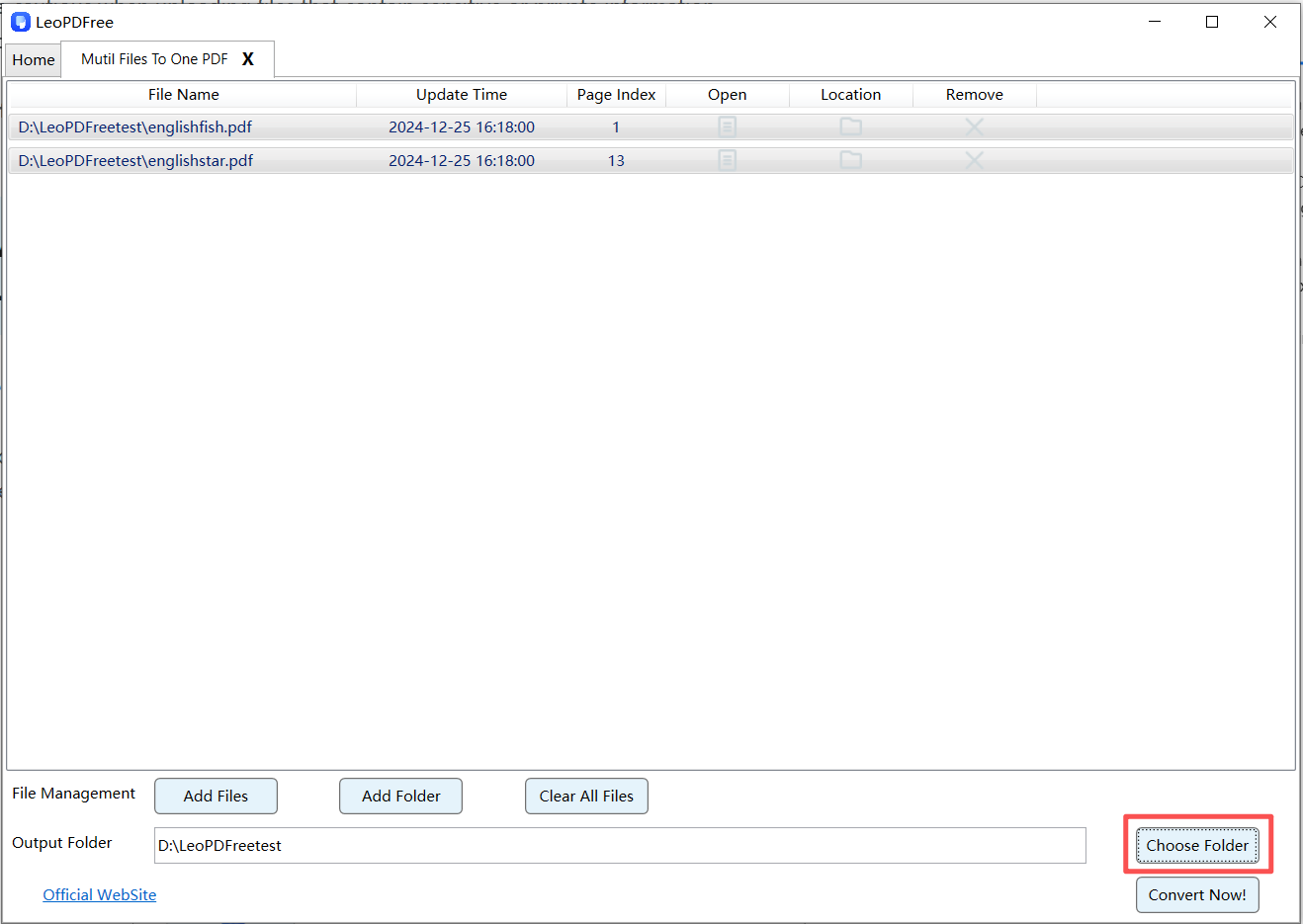
Arrange PDF Files Before Combining Them in LeoPDFree

4️⃣.On the interface, click “Choose Folder” to set the save location for the merged PDF file, as shown in the image below.

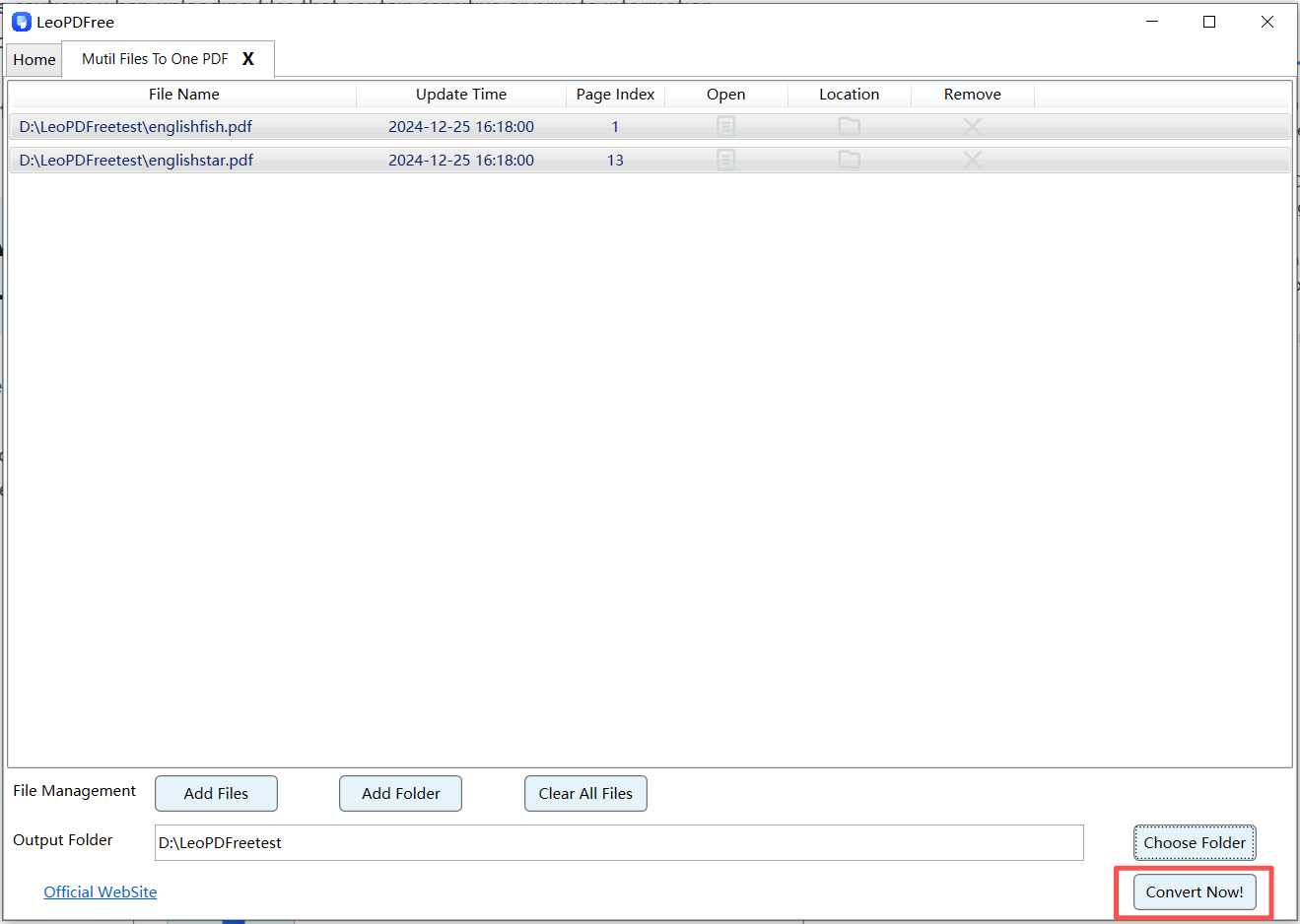
Merge Multiple PDF Documents into One File with LeoPDFree

5️⃣.After all the preparation for merging is complete, simply click “Convert Now!” to merge the files, as shown in the image below.

Save the Merged PDF as a Single Document

6️⃣.The software will quickly complete the merging task based on the file size. When a new panel pops up, it indicates that the merging process has been completed. At this time, click “Check Now” to quickly view the merged file result, as shown in the image below.

Check the Combined PDF Before Attaching It to an Email

7️⃣.Attach it to your email

Why Choose Desktop LeoPDF Software?

🔵 The key point is that the software is completely free to use with no time limitations.

🔵 Files stay on your computer (better privacy)

🔵 Supports large documents

🔵 Often includes compression features

🔵 Allows page editing before sending

This method is recommended for contracts, reports, and sensitive materials.

How to Reduce PDF Size for Email Attachment

Even after merging, your PDF file may still be too large for email.

Option 1: Compress the PDF

Use a PDF compression tool to reduce file size before attaching it.

Option 2: Remove Unnecessary Pages

Delete duplicate or unnecessary pages before merging.

Option 3: Lower Image Quality (If Applicable)

If your PDF contains many images, reducing image resolution can significantly decrease file size.

Frequently Asked Questions (FAQ)

Will merging PDF files reduce quality?

No. Merging PDFs simply combines pages into one file and does not affect quality unless compression is applied.

What is the best PDF size for email attachments?

Ideally, keep the file under 20MB to ensure smooth email delivery.

Can I merge specific pages instead of entire files?

Yes. Most PDF tools allow you to select specific pages before merging.

Conclusion

Knowing how to merge PDF for email attachment helps you send documents more efficiently and professionally. Whether you use an online tool for quick tasks or desktop software for secure business documents, merging your PDFs before sending them via email is always a smart choice.
If your merged file is too large, remember to compress it before attaching it to your email. A well-organized single PDF attachment improves communication and leaves a better impression on recipients.

How to Merge PDF Files on Windows 11? A Complete Step-by-Step Guide (Simple and Efficient)

Handling PDF files on a Windows 11 computer has become a part of daily office work. Whether you are organizing contracts, merging scanned documents, or submitting assignments, you will likely encounter one common question: How do you merge PDF files on Windows 11?
This guide follows the structure of “Use Case → Solution → Steps → Suitable Users” to systematically explain several practical methods, helping you choose the most suitable approach based on your needs.

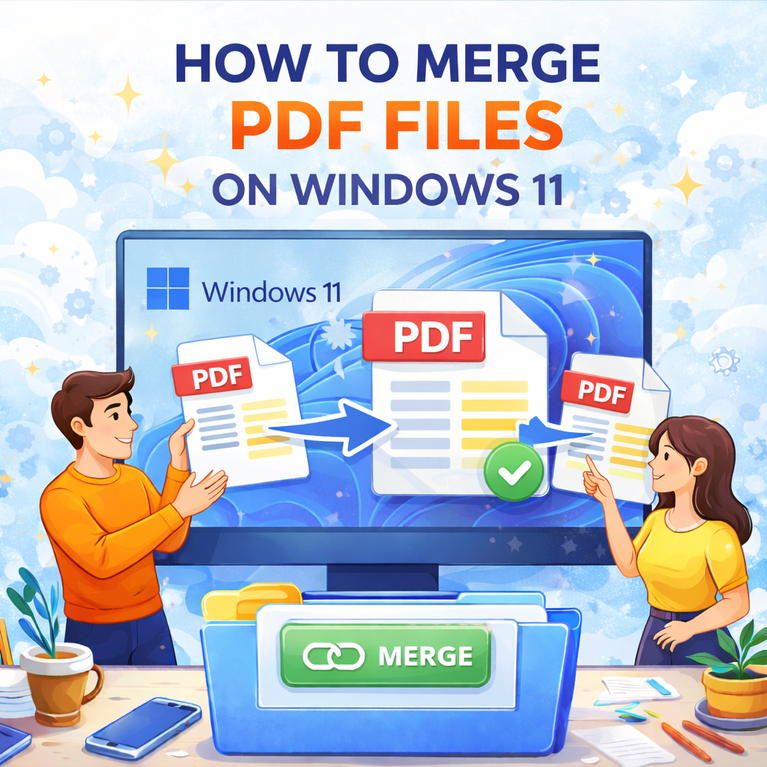
How to Merge PDF Files on Windows 11 – Step-by-Step Guide

1. Recommended Merge Solutions for Different Scenarios

Before starting the detailed operations, quickly determine which situation applies to you:

✅ Do not want to install software → Use online tools
✅ Need long-term office use → Use professional PDF software
✅ Temporary emergency use → Use Windows built-in print function
✅ Need to process multiple files in batches → Use tools that support batch merging

After clarifying your needs, choosing the corresponding solution will be more efficient.
2. Method One: Merge PDFs Online (Fastest Way)

Suitable for: occasional users who prefer simple operations.

Steps

1️⃣.Open a web browser (Edge, Chrome, etc.)

2️⃣.Visit an online PDF merge tool website

3️⃣.Upload multiple PDF files

4️⃣.Adjust file order

5️⃣.Click “Merge” and download the result

Advantages

⏺ No software installation required

⏺ Works directly in Windows 11 browsers

⏺ Beginner-friendly interface

Limitations

⏺ File size restrictions may exist

⏺ Not suitable for sensitive documents

3. Method Two: Use professional LeoPDF software (stable and efficient)

Suitable for: long-term office users or people who require high-quality document processing.

Operation Process

1️⃣.Download and successfully install LeoPDF, then open the software, as shown in the image below.

LeoPDFree PDF Merger Interface on Windows 11

2️⃣.On the opened software interface, click the “Multi Files To One PDF” button, as shown in the image below.

Add Multiple PDF Files to Combine in LeoPDFree

3️⃣.On the opened interface, click “Add Files” or “Add Folder” to add one or more PDF files you want to merge, as shown in the image below.

Arrange PDF Files in the Desired Order Before Merging

4️⃣.Click the “Choose Folder” button to select the save location for the merged PDF file, as shown in the image below.

Combine Multiple PDF Documents into One File with LeoPDFree

5️⃣.After all the files to be merged have been added and everything is ready, simply click the “Convert Now!” button. The software will quickly complete the merging process, as shown in the image below.

Save the Merged PDF Document on Windows 11

6️⃣.After the software completes the merging process, a small window will pop up. Simply click “Check Now” to quickly view the merged file result, as shown in the image below.

Open and Review the Combined PDF File After Merging

Advantages

⏺ No internet dependency

⏺ Supports large file merging

⏺ Allows editing, compressing, or rearranging pages

⏺ Supports batch processing

This is the most recommended method for enterprise and high-frequency office users.

4. Method Three: Use Windows 11 Built-in Printing Feature

Windows 11 provides a virtual printer called Microsoft Print to PDF, which allows merging files through printing.

Operation Idea

1️⃣.Open the first PDF file
2️⃣.Select “Print”
3️⃣.Choose “Microsoft Print to PDF”
4️⃣.Output multiple files in sequence into one document

Suitable Situations

⏺Temporary file processing
⏺ Users who do not want to install software

The downside is that the process involves more steps and is not suitable for frequent use.

5. Batch Merge Multiple PDF Files Efficiently

If you need to merge many PDF files at once, follow these tips:

⏺ Rename files in numerical order (such as 01, 02, 03)
⏺ Use tools that support batch file addition
⏺ Make sure output formats are consistent

Proper file organization helps avoid repeated adjustments.

6. Frequently Asked Questions

Will merging PDFs reduce file quality?

No. Normal PDF merging will not compress or reduce file quality.

Does Windows 11 have a built-in PDF merge button?

Windows 11 does not provide a standalone merge PDF feature. You need to use online tools or third-party software.

Can I merge only selected pages?

Yes. Most professional PDF tools allow you to select specific pages before merging.

Conclusion

Usage Scenario Recommended Method Advantages
Occasional Use Online PDF Merge Tool No installation required, simple to use
Daily Office Work Professional LeoPDF Software Stable, secure, free to use, supports large files and batch processing
Temporary Emergency Windows Built-in Print Function System built-in, no additional tools required
Batch Processing Tools supporting batch operations Process multiple files at once, greatly improve efficiency

By mastering these methods, you can efficiently merge PDF files on Windows 11 and improve your document management workflow.

How to Rearrange PDF Pages? 3 Easy Ways to Change Page Order in a PDF (Beginner-Friendly Guide)

In daily work and study, we often encounter issues with incorrect PDF page order, such as:
⏺ The pages are mixed up after merging multiple PDF files
⏺ Scanned documents have pages in the wrong sequence
⏺ Course materials or reports need to be reorganized
⏺ Contract attachments are arranged incorrectly
In these situations, you need to rearrange the PDF page order. So, how do you rearrange PDF pages?
In this article, we will introduce three simple and practical methods to help you quickly change the page order in a PDF file — whether you’re a beginner or a professional office user.
‌

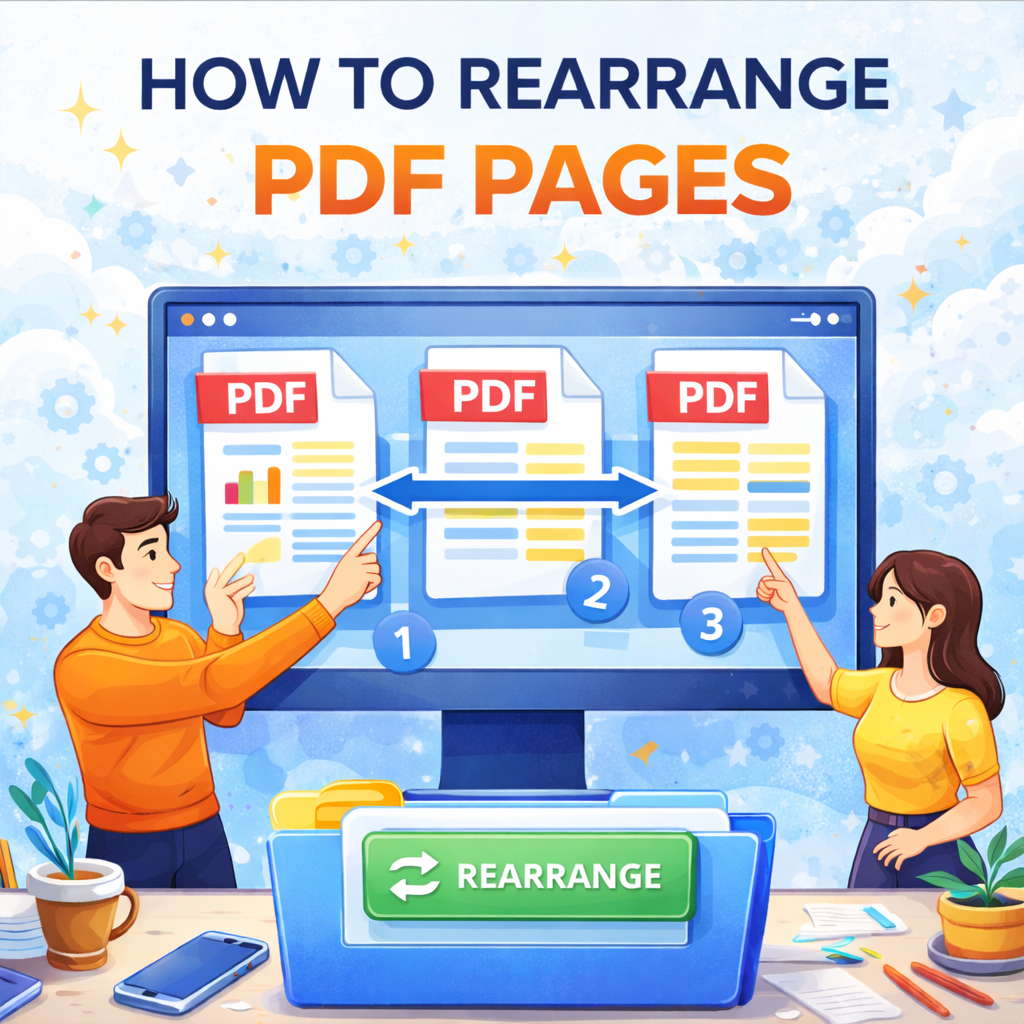
How to Rearrange PDF Pages: 3 Easy Ways to Change Page Order

Method 1:Use professional and completely free LeoPDF editing software to adjust page order (Recommended)

The most reliable way to reorder PDF pages is by using professional PDF editing software.

Steps:

1️⃣.Download and install LeoPDF for free, then open the software, as shown in the image below.

LeoPDFree PDF Page Organizer Interface

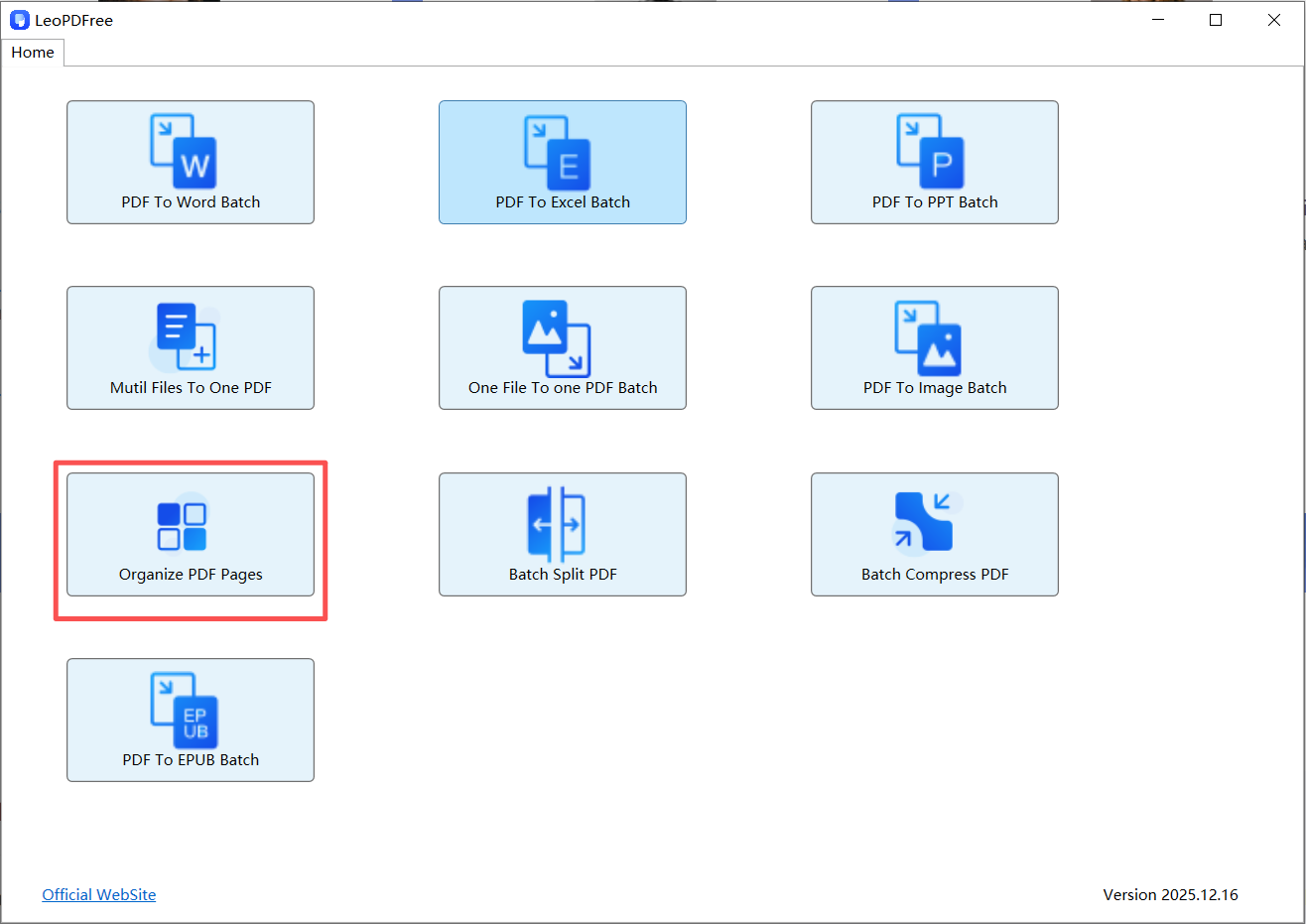
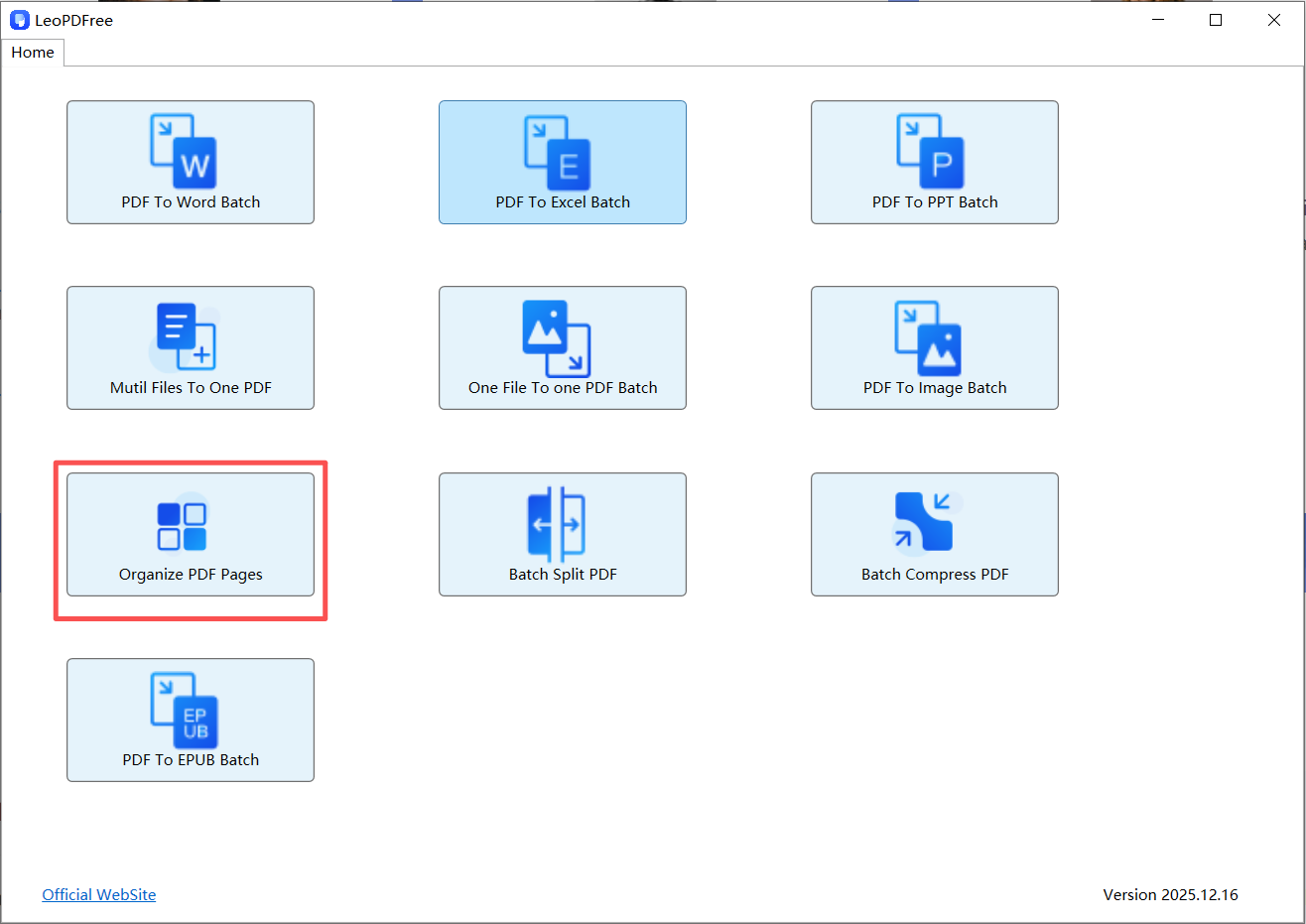
2️⃣.On the opened software interface, click “Organize PDF Pages” and add the PDF file whose page order you want to adjust, as shown in the image below.

Rearrange PDF Pages by Dragging and Dropping in LeoPDFree

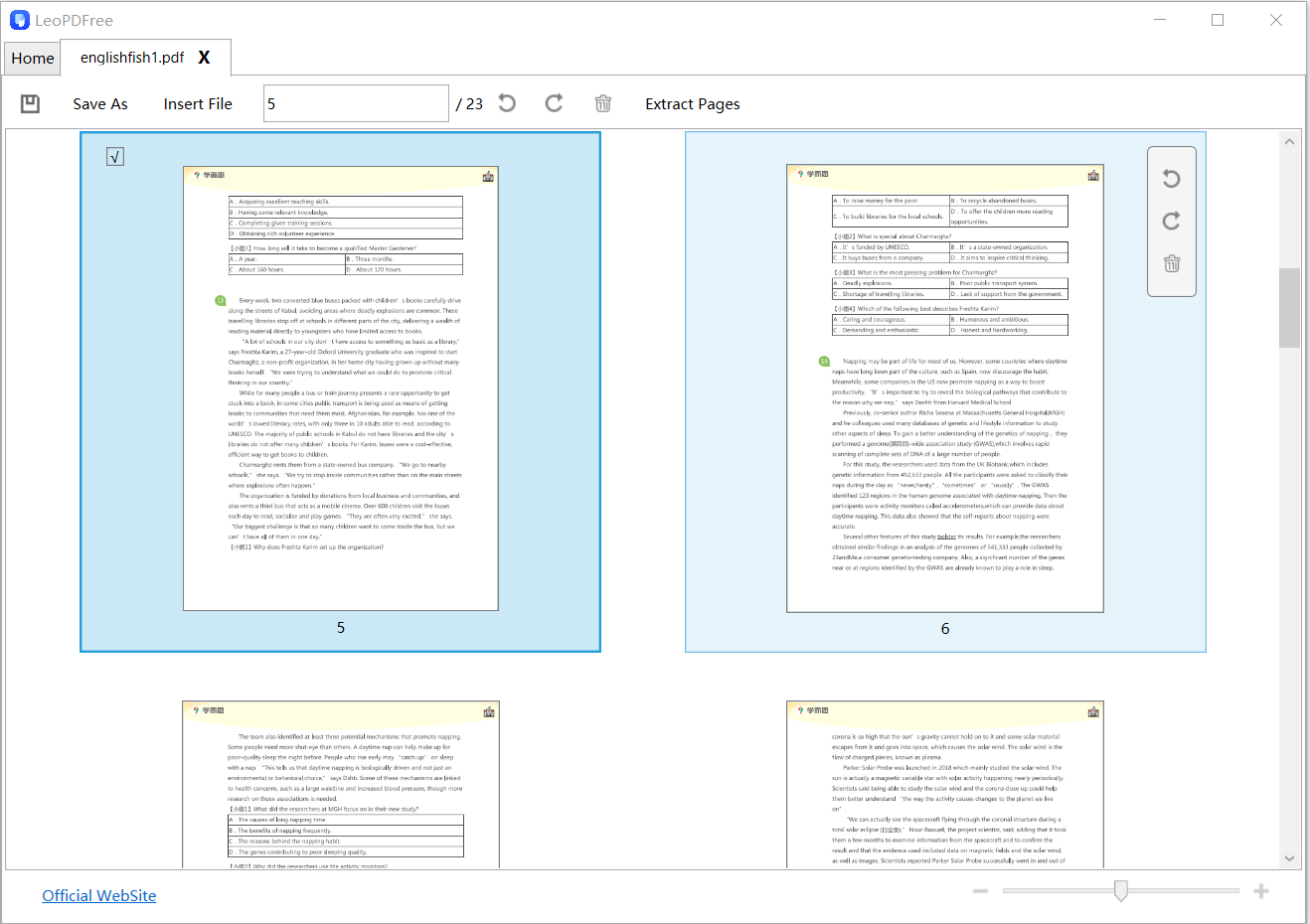
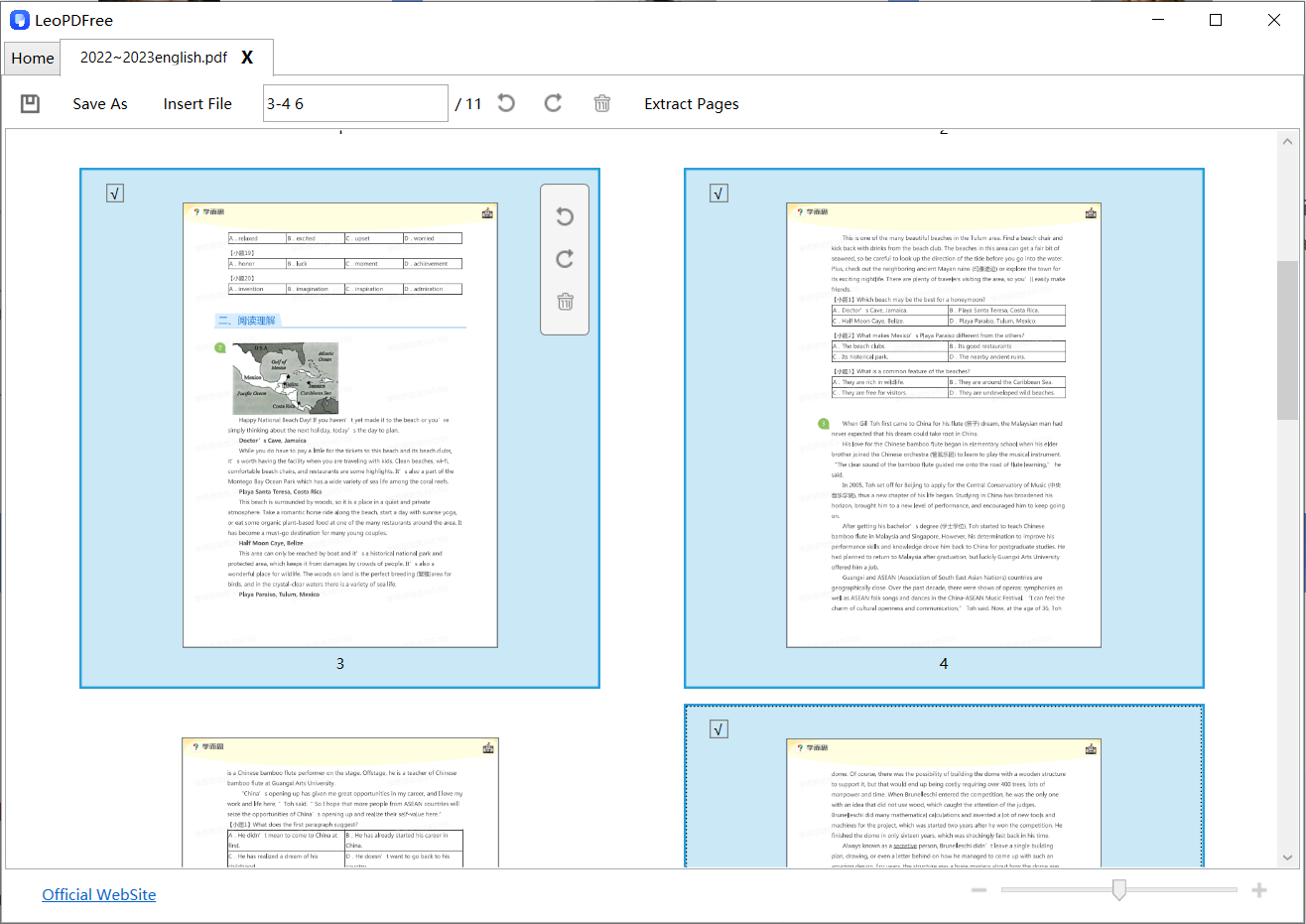
3️⃣.In the window where the PDF file for page order adjustment has been added, select the pages you want to adjust either by clicking the pages with your mouse or by entering the page numbers in the edit box above, as shown in the image below.

Move Selected PDF Pages into a New Order

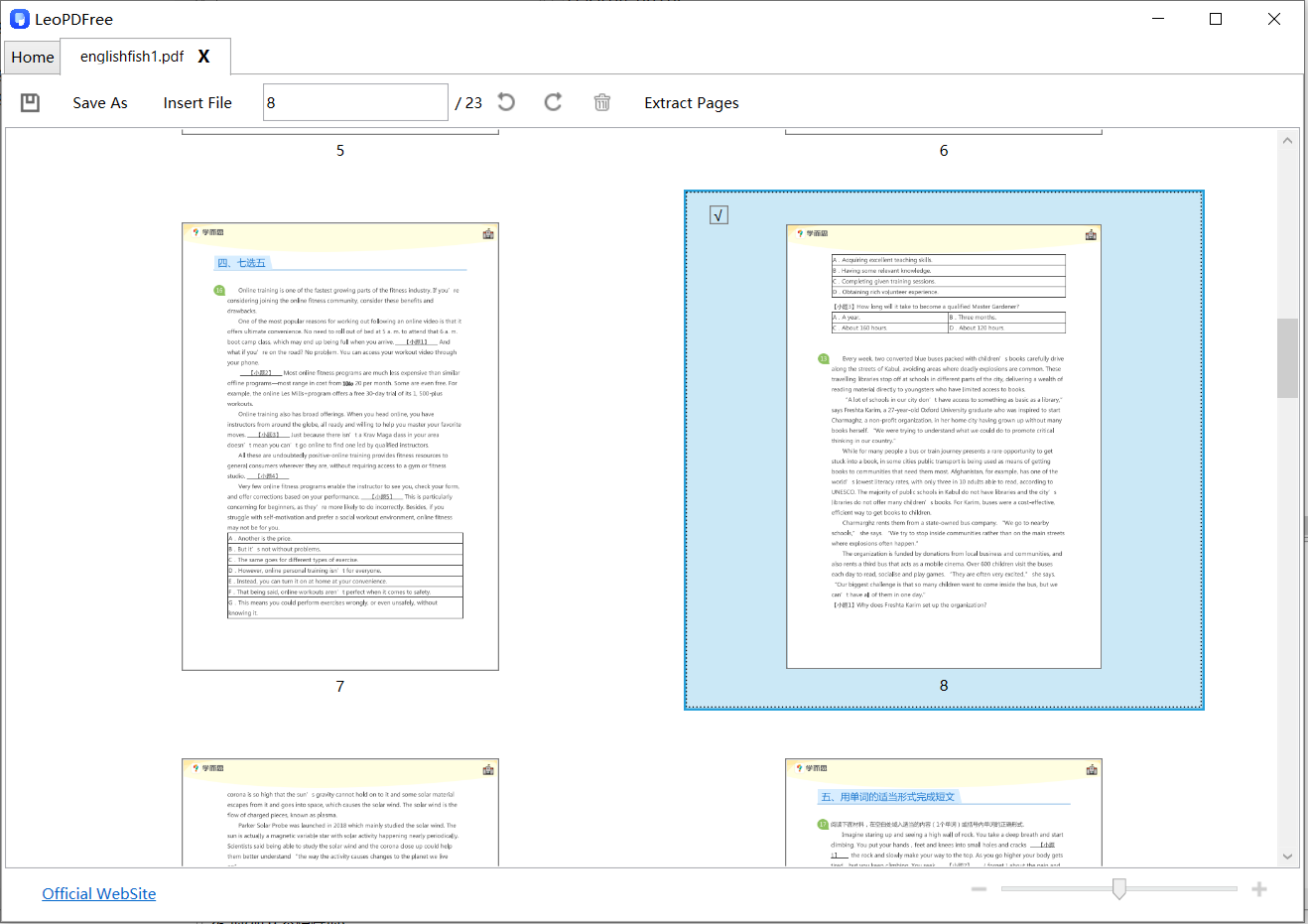
4️⃣.Use the mouse drag-and-drop method to move the selected pages to the desired position, as shown in the image below.

Preview the New PDF Page Order Before Saving

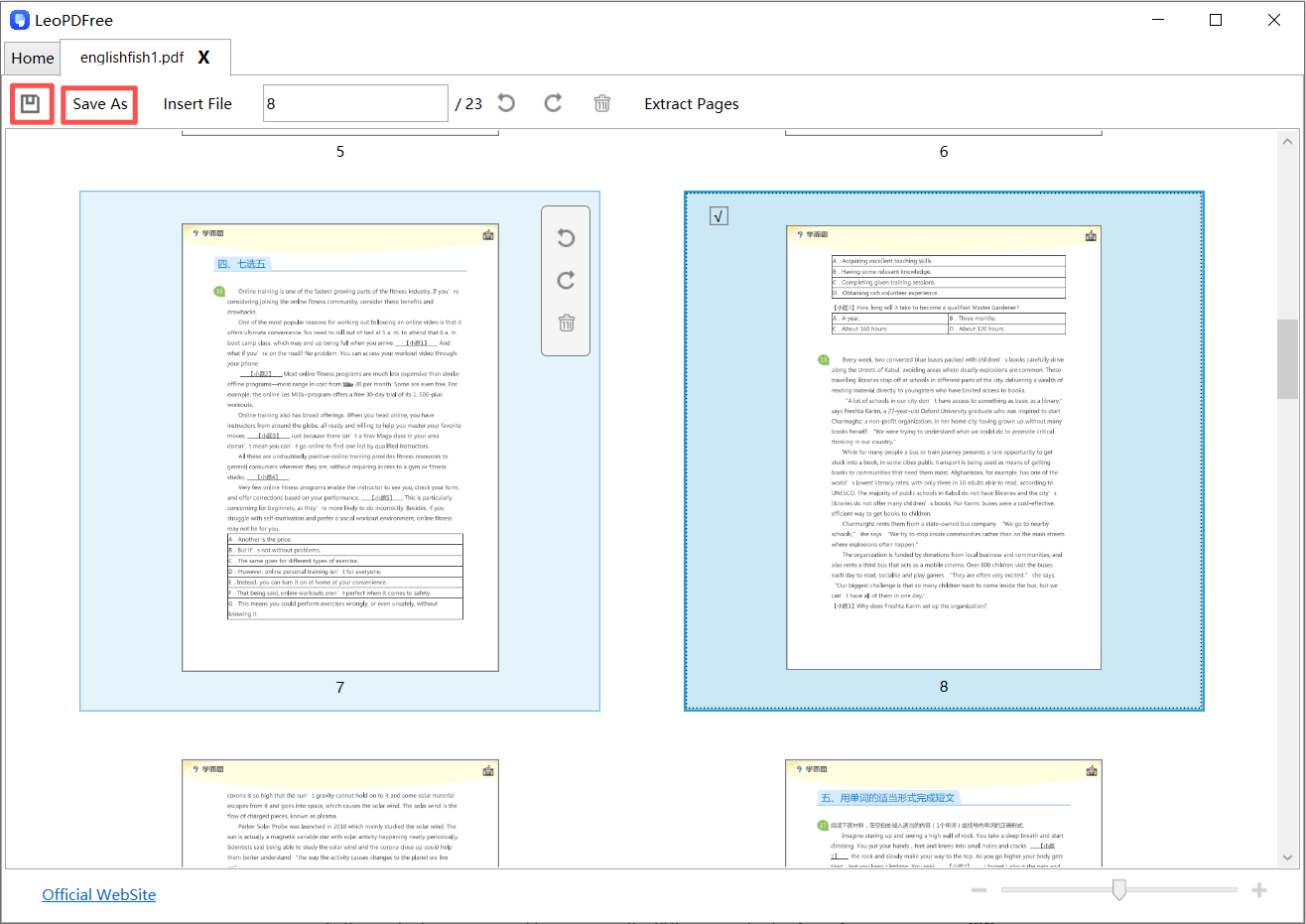
5️⃣.After adjusting the page order, be sure to click “Save As” or the save button to save the file with the updated page arrangement, as shown in the image below.

Save a PDF Document with Rearranged Pages in LeoPDFree

Advantages:

✅ Intuitive operation, simply drag and drop to complete the task
✅ Supports moving multiple pages in batches
✅ Does not affect the original file quality
✅ Allows simultaneous operations such as deleting, inserting, and rotating pages

Suitable for:

Office users who frequently work with PDF files and require high formatting quality.

Method 2: Change PDF Page Order Online (No installation required and limited free usage)

If you prefer not to install software, an online PDF page rearranger is a quick solution.

Steps:

1️⃣.Open an online PDF editing tool

2️⃣.Upload your PDF file

3️⃣.Enter the page management interface

4️⃣.Drag pages to reorder them

5️⃣.Download the updated PDF

Advantages:

⏺Works on Windows, Mac, and mobile devices

⏺No installation required

⏺Beginner-friendly interface

Things to Note:

⏺Avoid uploading confidential documents

⏺Free versions may limit file size or daily usage

Ideal for occasional PDF editing tasks.

Method 3: Split and Merge to Rearrange PDF Pages

If your tool does not support direct drag-and-drop reordering, you can use the split-and-merge method.

How It Works:

1️⃣.Split the PDF into individual pages or smaller sections

2️⃣.Rename or organize the files in the correct order

3️⃣.Merge the pages back together in your preferred sequence

While this method involves more steps, it works with almost any PDF tool.

Frequently Asked Questions (FAQ)

Will rearranging PDF pages reduce quality?

No. Changing the page order only reorganizes the structure of the document and does not affect image or text quality.

Can I move multiple pages at once?

Yes. Most PDF editors allow multi-page selection and batch movement.
Conclusion: What’s the Best Way to Rearrange PDF Pages?

Scenario Recommended Method
Frequent office work Desktop LeoPDF software
Occasional editing Online PDF tool
Limited tool features Split and merge method

No matter which method you choose, mastering how to adjust PDF page order can effectively improve work efficiency and make your documents more professional and standardized.

If you also need to perform operations such as PDF merging, PDF splitting, inserting PDF pages, PDF compression, or converting PDF to Word, you can choose a fully featured LeoPDF tool to complete all editing tasks in one place.

How to Split a PDF: Free Methods and a Paid Alternative

This guide includes a free local LeoPDFree workflow and separately identified alternatives that can require payment. Check the selected feature and saving conditions before starting. Splitting a PDF into multiple
This guide includes a free local LeoPDFree workflow and separately identified alternatives that can require payment. Check the selected feature and saving conditions before starting.
Splitting a PDF into multiple files is a common need in both work and study. Whether you want to extract specific pages, split a large PDF into smaller files, or separate each page into an individual document, there are simple and reliable solutions available.
In this guide, we’ll walk you through free and easy methods to split a PDF into multiple files, suitable for beginners and advanced users alike.

How to Split a PDF: Free Methods and a Paid Alternative

Why Do You Need to Split a PDF into Multiple Files?

There are many practical reasons to split PDF files, such as:

▪Sending only selected pages to others

▪Reducing file size for easier sharing

▪Separating chapters or sections

▪Uploading PDFs with page limits

▪Organizing scanned documents

No matter your purpose, PDF splitting can save time and improve efficiency.

Things to Know Before Splitting a PDF

Before you split a PDF file, keep the following points in mind:

▪Page order:Make sure the pages are arranged correctly

▪File security:Some PDFs may be password-protected

▪File quality:Splitting should not reduce clarity or resolution

▪Split mode:Decide whether to split by page range or individual pages

Choosing the right method ensures a smooth experience.

Method 1: Split a PDF Using an Online PDF Tool

Online PDF splitters are ideal for quick tasks and occasional use.

Pros:

▪No installation required

▪Easy to use

▪Works on any device

Cons:

▪File size limits

▪Internet required

▪Privacy concerns for sensitive files

This method is best for small PDFs and non-confidential documents.

Method 2: Use a Free PDF Splitter Software (Recommended)

If you frequently work with PDF files, using dedicated software is the most reliable option.

With a free PDF tool like LeoPDF, you can:

▪Split PDF by page range

▪Split a specified page range

▪Split each page into a separate file

▪Compare the output quality with the original

▪Work offline for better security

Steps to Split a PDF into Multiple Files:

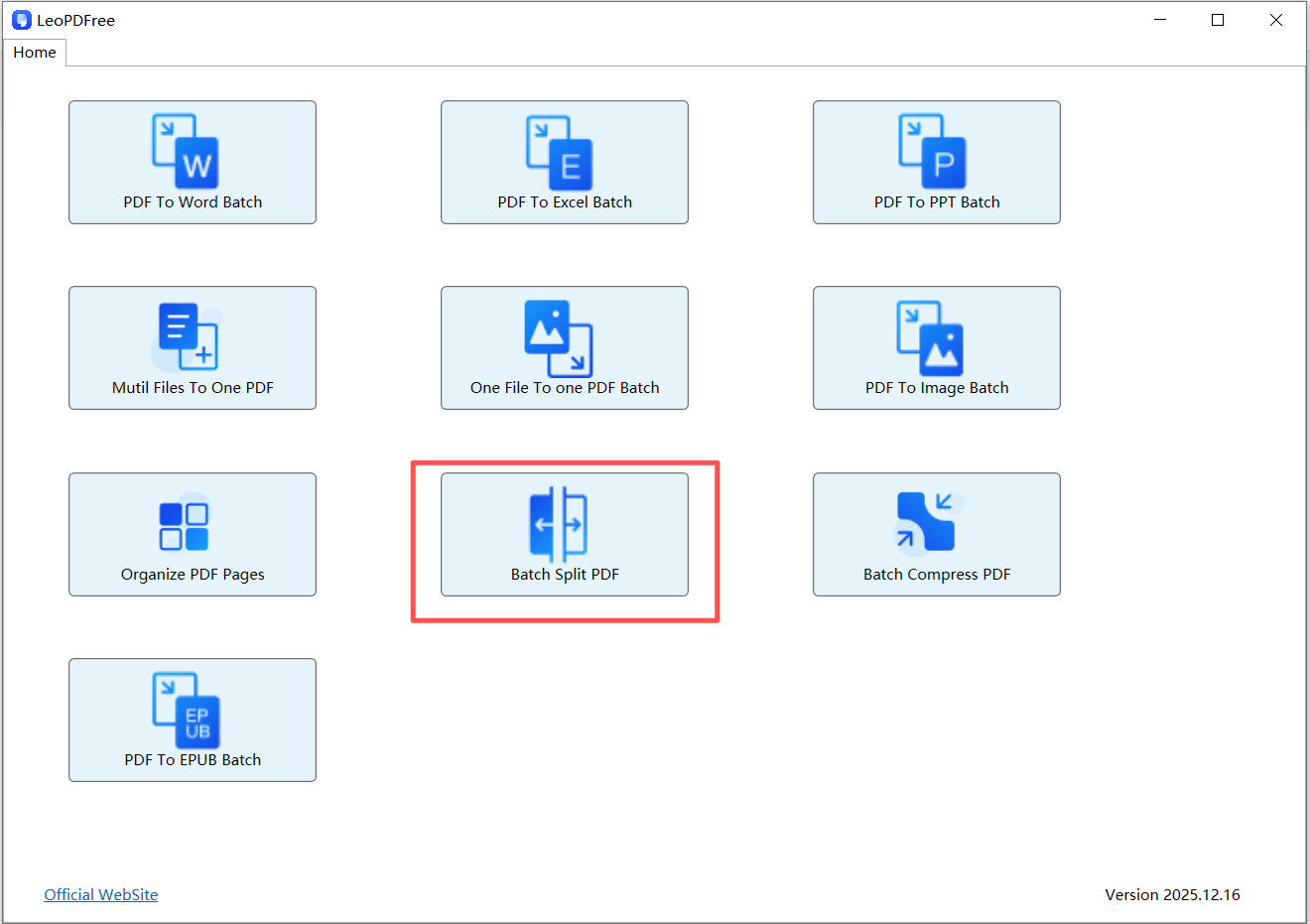
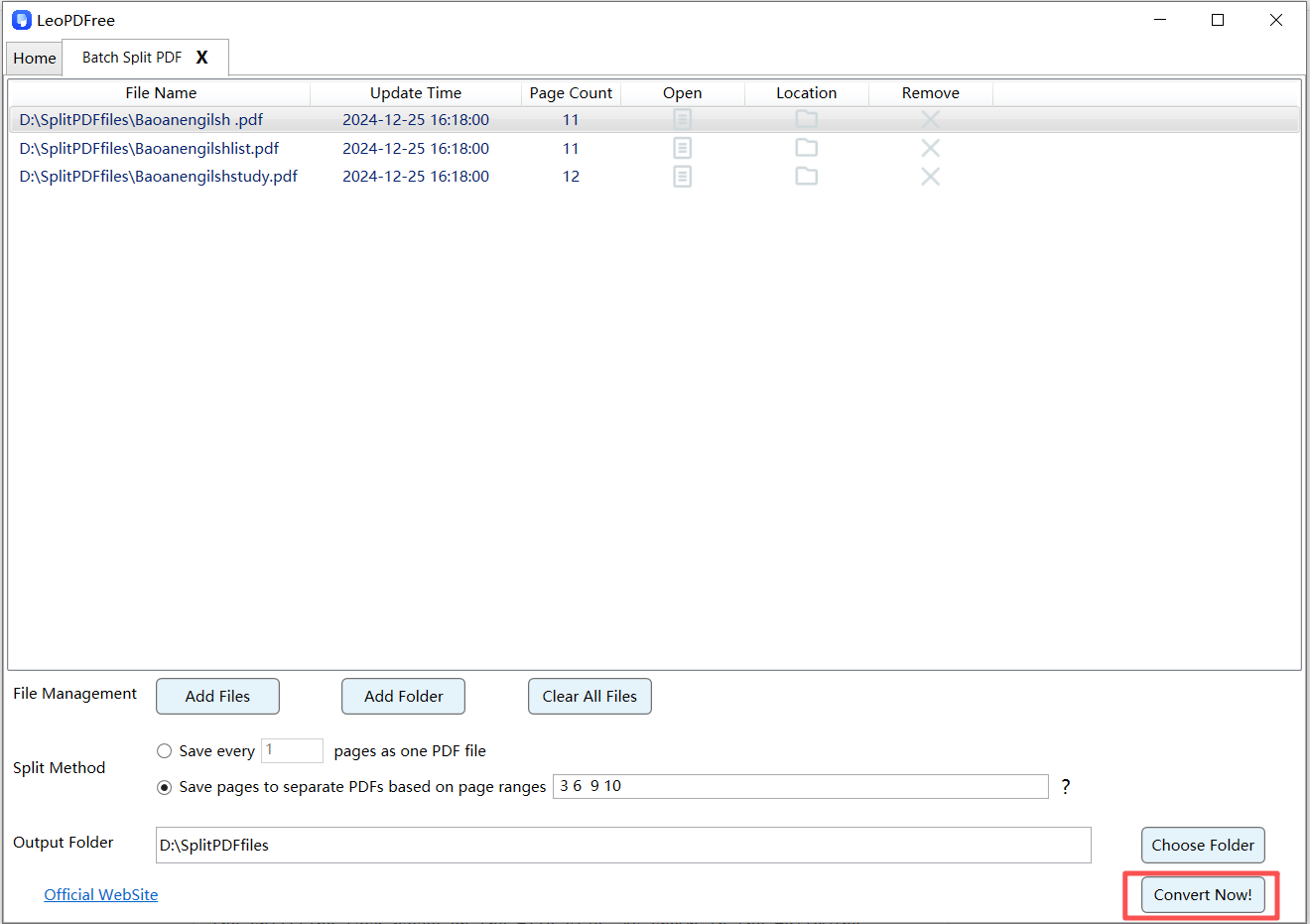
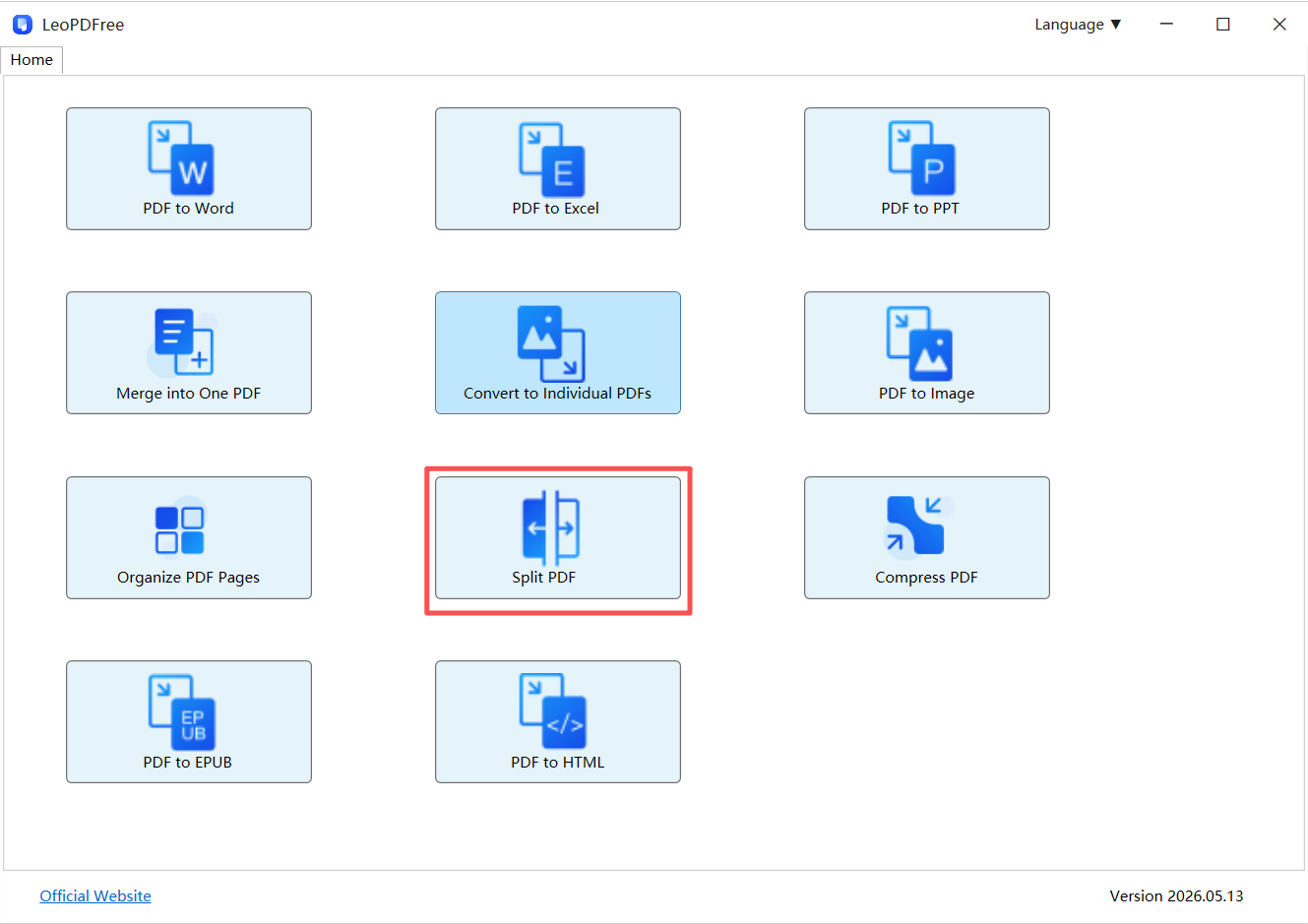
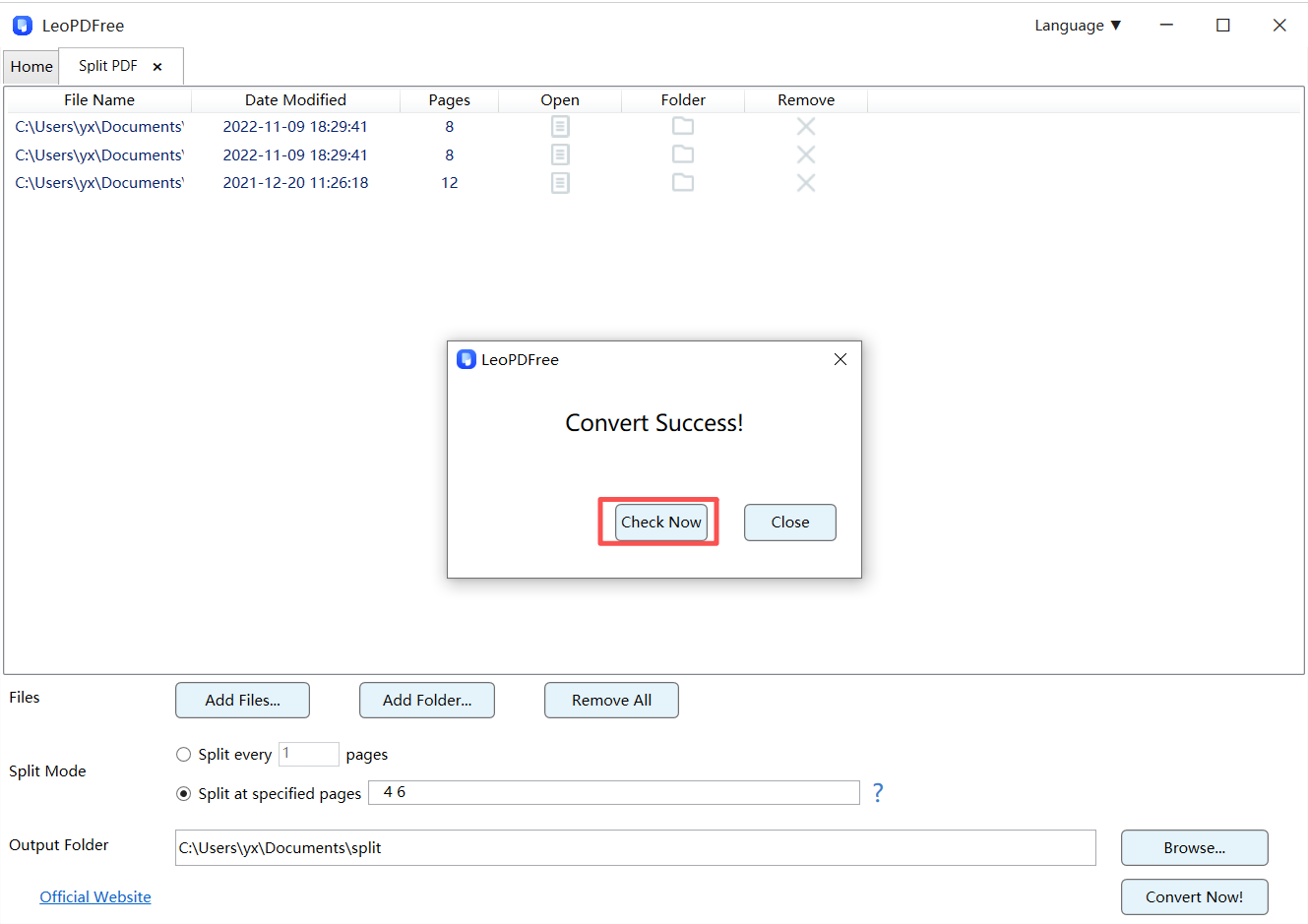
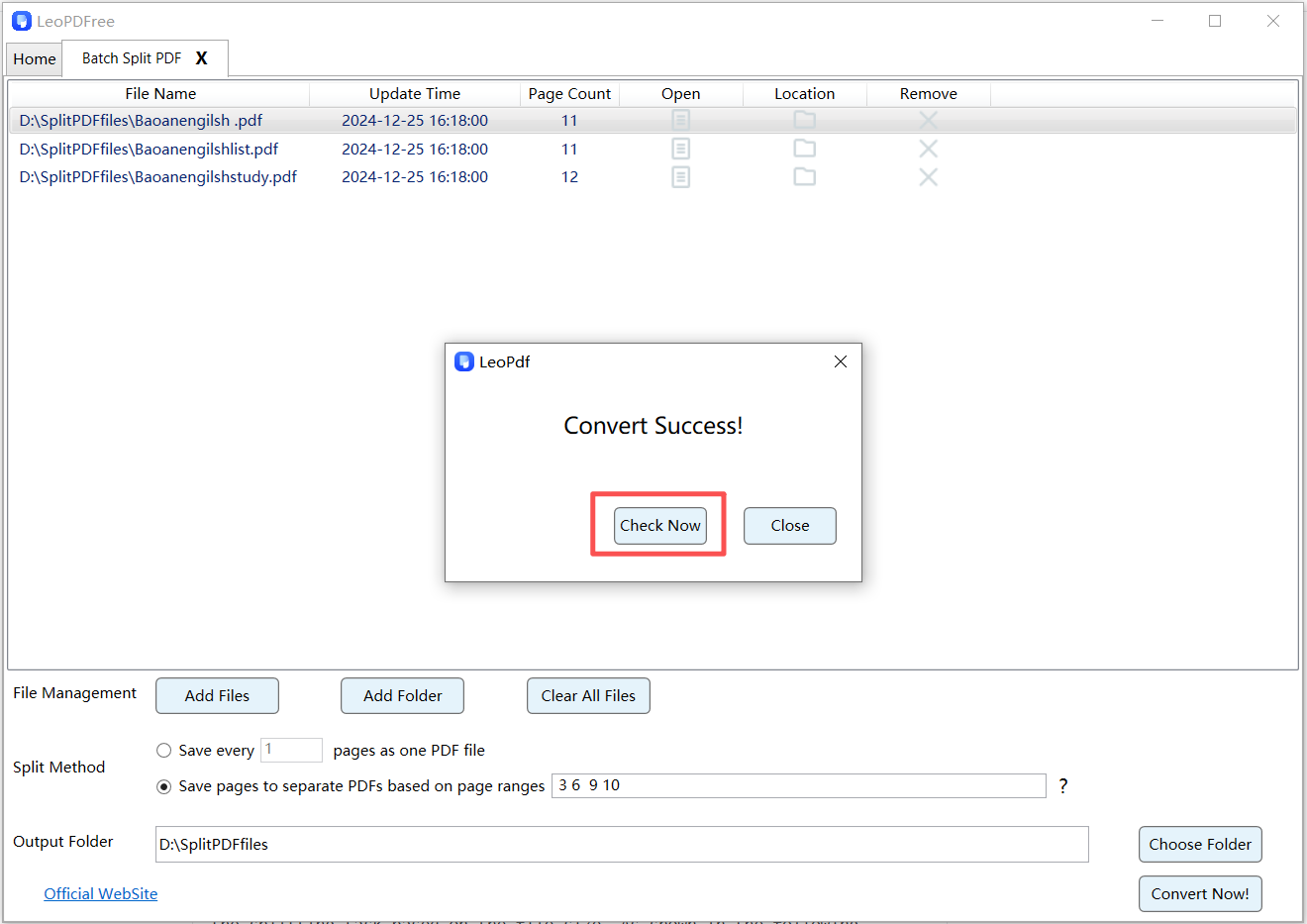
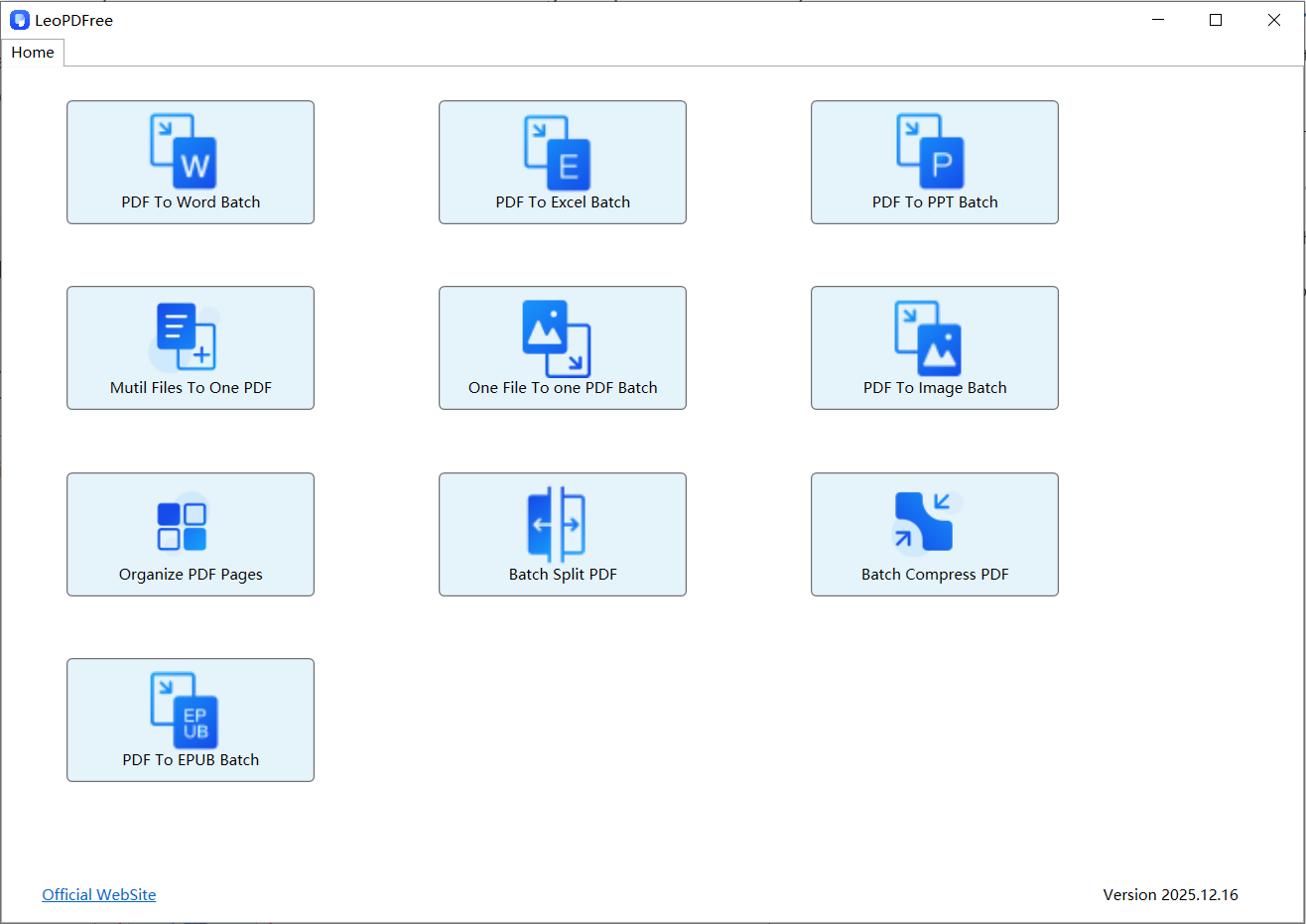
1️⃣.After successfully downloading and installing LeoPDF, open the software and click the “Batch Split PDF” button, as shown in the image below.

LeoPDFree Free PDF Splitter Interface for Windows

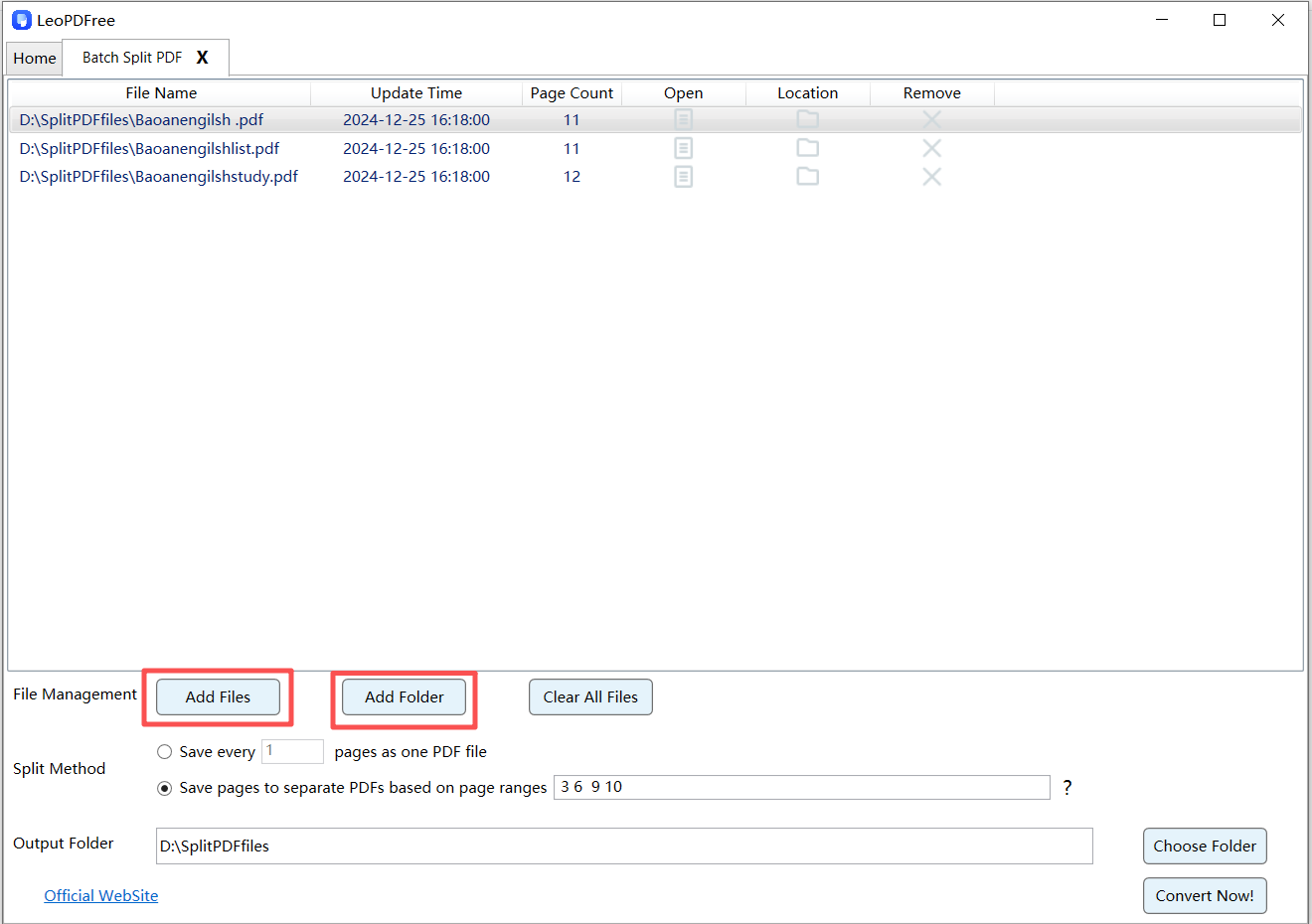
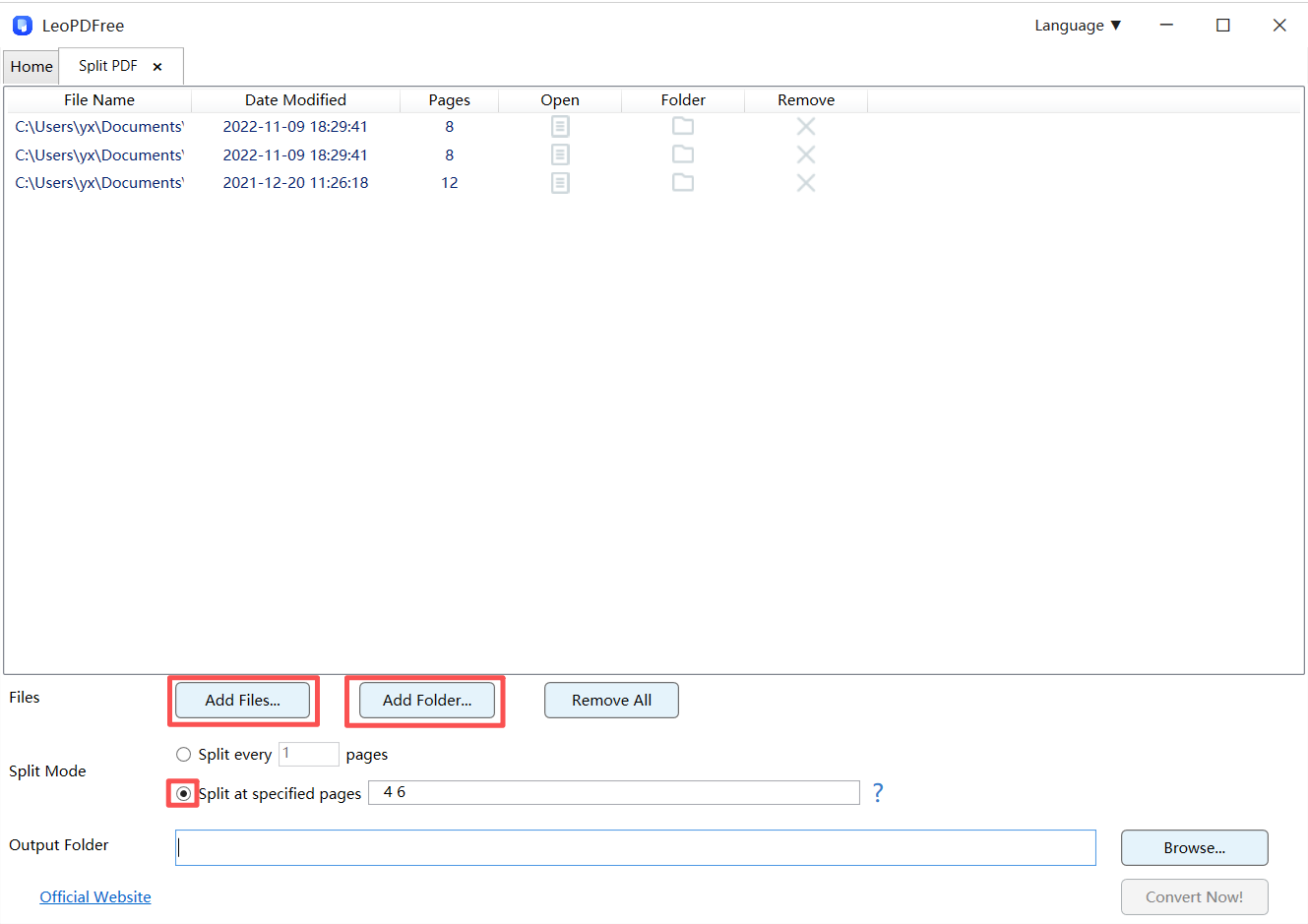
2️⃣.On the opened interface, click “Add Files” or “Add Folder” to add one or more PDF files you want to split, as shown in the image below.

Select PDF Pages to Split in LeoPDFree

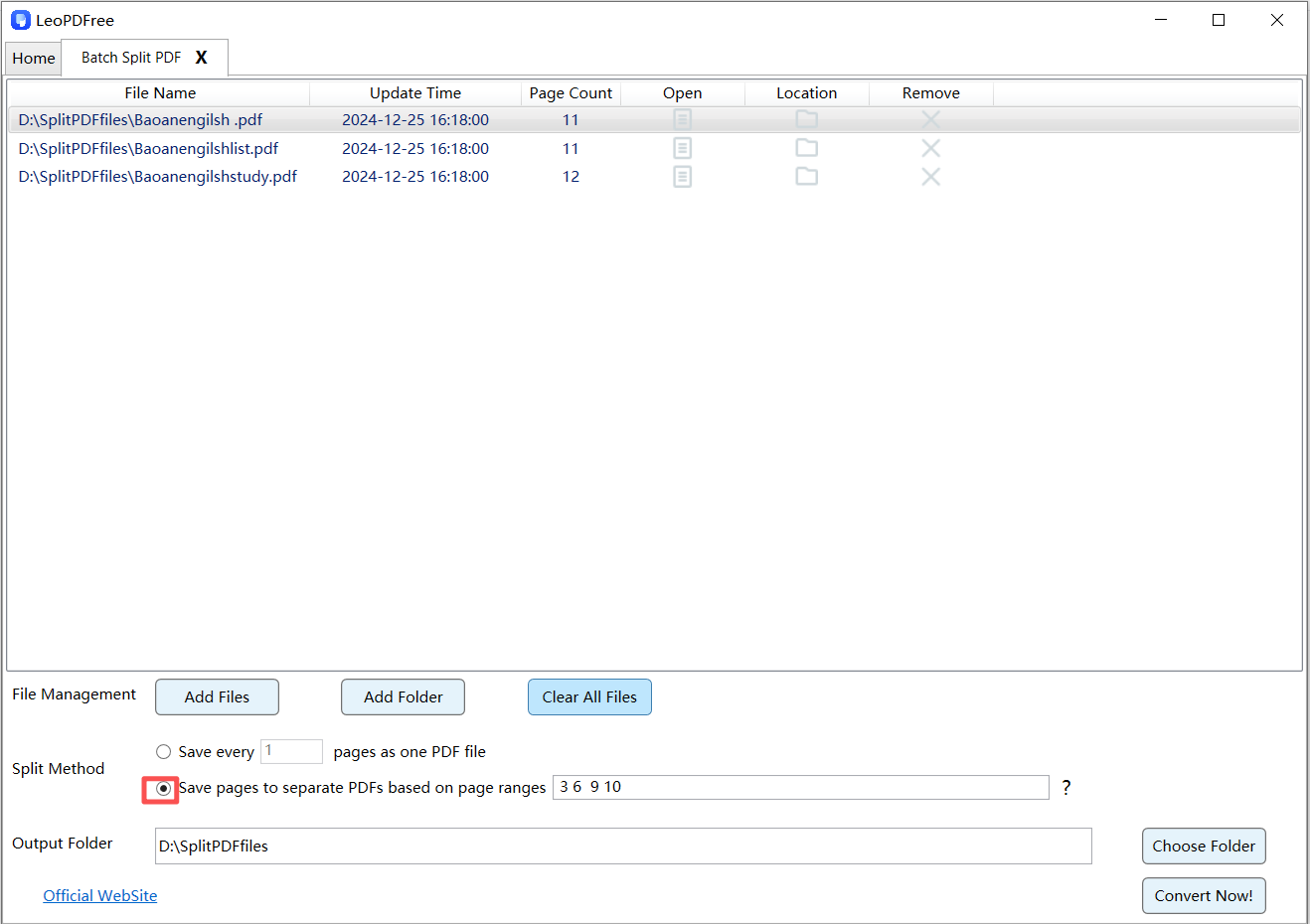
3️⃣.On the interface, select “Split Method” and choose one of the two splitting options according to your needs, as shown in the image below.

Set Page Ranges for Splitting a PDF Document

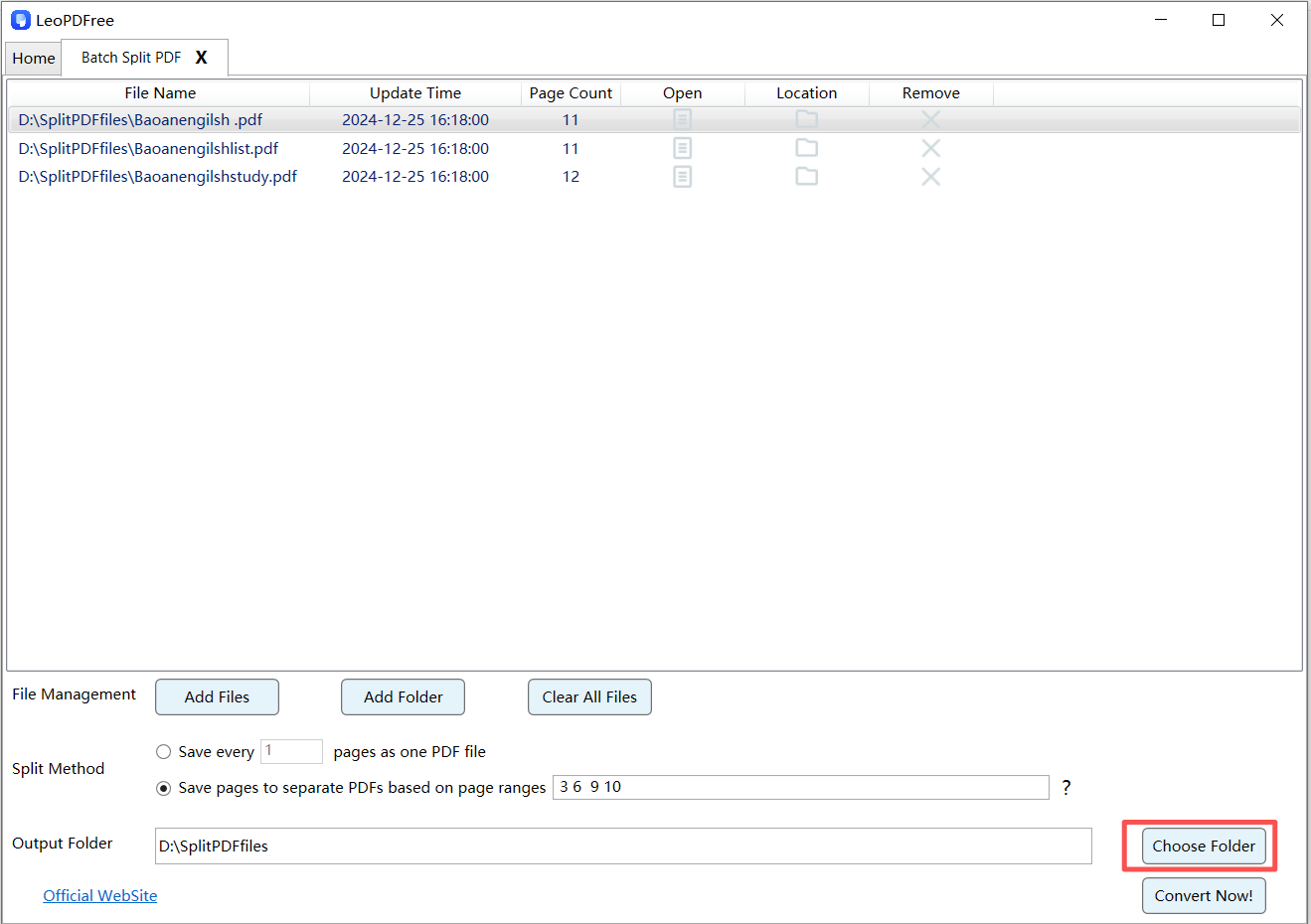
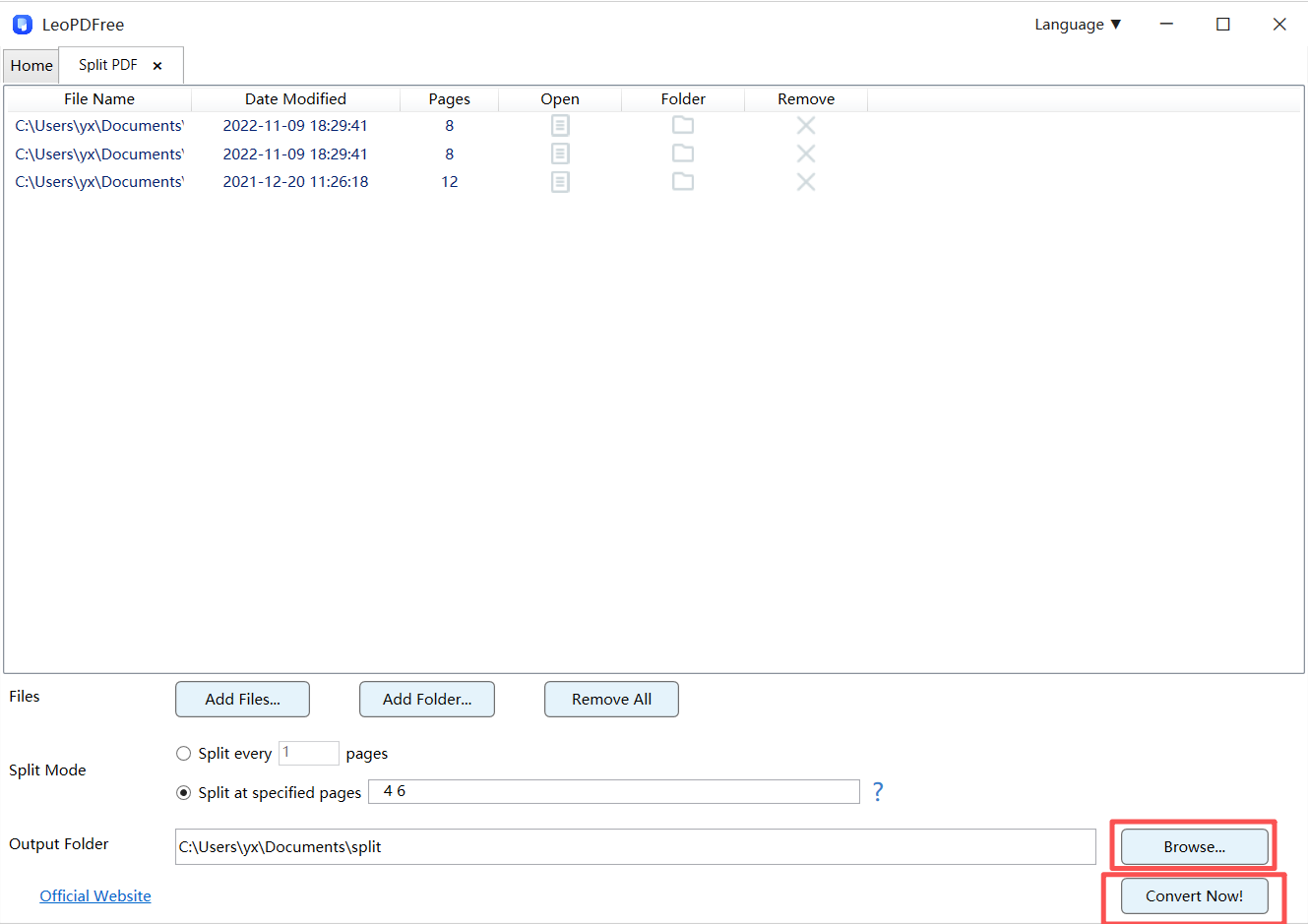
4️⃣.Click “Choose Folder” to set the save location for the split PDF files, as shown in the image below.

Split a PDF into Separate Files with LeoPDFree

5️⃣.After all the preparations are complete, simply click “Convert Now!” on the interface. The tool will quickly complete the splitting process based on the file size, as shown in the image below.

PDFsam Basic PDF Splitting Interface

6️⃣.When the software pops up a new window, click “Check Now” in the window to quickly view the results of the split. It is very convenient and fast, as shown in the image below.

Configure PDF Splitting Options in PDFsam

Method 3: Split a PDF Using Adobe Acrobat

Adobe Acrobat offers advanced PDF editing features, including PDF splitting.

Pros:

▪Professional-level control

▪Supports encrypted PDFs

Cons:

▪Paid software

▪Overkill for simple tasks

How to Split a PDF by Page Range or Individual Pages

Most PDF splitters support flexible splitting modes, including:

▪Split by page range (e.g., pages 1–5, 6–10)

▪Split each page into a separate PDF

▪Split supported page ranges into separate output files only

Simply choose the option that fits your needs before confirming the split.

PDF Splitting Tool Comparison

Tool Type Installation Required Free Best For
Online Tools No Limited Free Casual users
Adobe Acrobat Yes No Professionals
LeoPDF Software Yes Yes Frequent users

Frequently Asked Questions

Will splitting a PDF reduce quality?

No. A proper PDF splitter keeps the original resolution intact.

Can I split scanned PDFs?

Yes, scanned PDFs can be split just like regular PDFs.

Can I merge PDFs again after splitting?

Absolutely. Most PDF tools also support PDF merging.

Conclusion: What Is the Best Way to Split a PDF?

Splitting a PDF into multiple files is not complicated when you use the right tool.
For occasional tasks, online tools work well. For frequent or professional use, a free PDF splitter software like LeoPDF offers better control, security, and efficiency.
Whether you want to split a PDF by pages, extract specific sections, or manage large documents, there’s a solution that fits your needs. Choose the method that works best for you and get started today.

Plan boundaries and filenames before splitting

  • Keep the source PDF and use its physical page positions, which can differ from printed page labels.
  • Choose page ranges or one-file-per-page only when the installed tool offers that mode. Do not infer automatic chapter or bookmark splitting from a range splitter.
  • Choose output filenames that identify the source and sequence. Check the last page of one section and first page of the next for gaps or overlap.
  • For a large document, test a short representative range and confirm disk space before processing the complete source.

LeoPDF supports page-range splitting, not a separate page-extraction tool. Keep claims about other applications separate from the features shown by your installed LeoPDF edition.

Illustrated range-splitting workflow

Follow the illustrated LeoPDFree Windows workflow below, then open the output and compare it with the source document.

Illustrated range-splitting workflow — earlier Windows interface
LeoPDFree Windows conversion workflow.
Illustrated range-splitting workflow — earlier Windows interface
LeoPDFree Windows conversion workflow.
Illustrated range-splitting workflow — earlier Windows interface
LeoPDFree Windows conversion workflow.
Illustrated range-splitting workflow — earlier Windows interface
LeoPDFree Windows conversion workflow.

How to Insert a Page into a PDF File? 3 Simple and Practical Methods (Beginner-Friendly Guide)

In daily study and office work, we often encounter situations like these: a contract needs an additional explanatory page, a PDF report requires inserting a new chart, or a scanned document is missing a page. In such cases, inserting a page into a PDF file becomes a very practical and necessary operation.
This article focuses on how to insert a page into a PDF file and will introduce three common, easy-to-use, and efficient methods. Even beginners can follow these steps and complete the task with ease.

How to Insert a Page into a PDF File: 3 Simple Methods

Why Do You Need to Insert Pages into a PDF?

Before explaining the specific methods, let’s look at some common use cases:

📄 Adding supplementary clauses or pages to contracts or agreements
📊 Inserting new charts or data pages into reports
📚 Appending explanations or reference materials to study documents
🖨️ Inserting missing pages into scanned PDF files

As you can see, mastering how to insert pages into a PDF is extremely important for both students and professionals in the workplace.

Method 1: Insert Pages Using Professional LeoPDF Software (Highly Recommended)

Using a professional PDF editing tool is the most stable and feature-complete option among free solutions.

Steps:

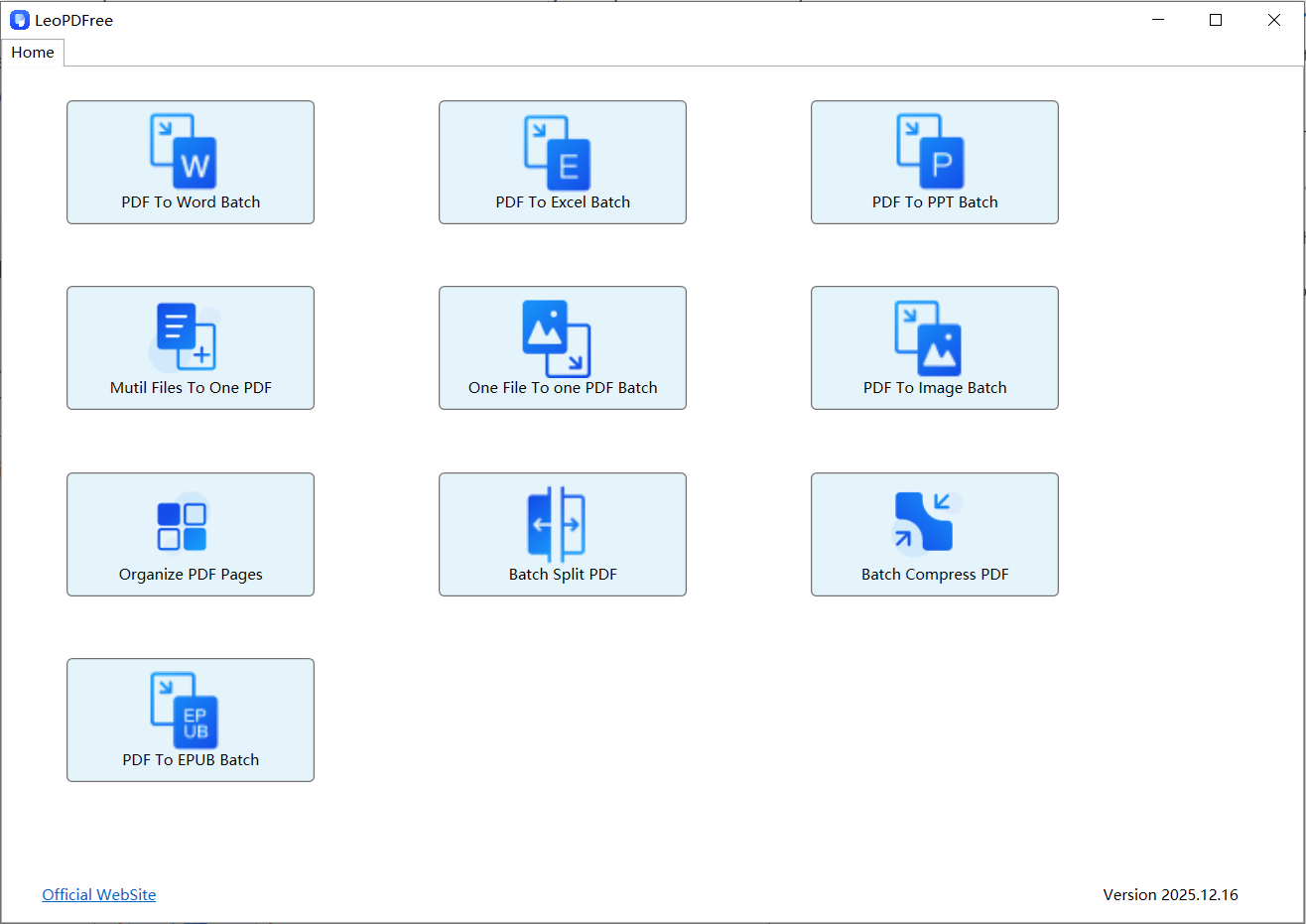
1️⃣.Download LeoPDF for free from the official website and install it successfully. Then double-click the desktop icon to open the program, as shown in the image below.

LeoPDFree PDF Page Organizer Interface for Windows

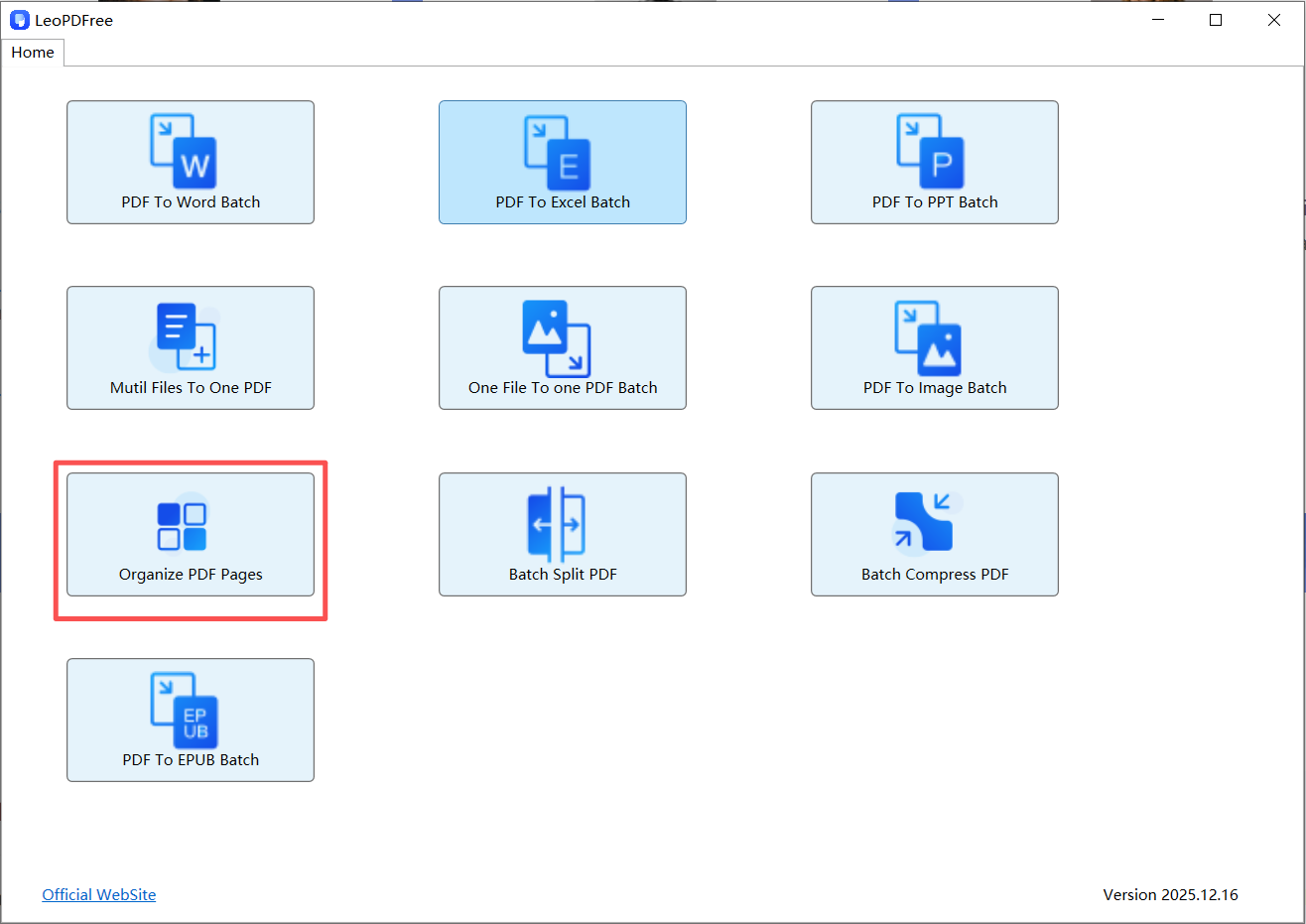
2️⃣.In the opened software interface, click “Organize PDF Pages” and open the PDF file into which you want to insert pages, as shown in the image below.

Select a PDF File to Add Pages in LeoPDFree

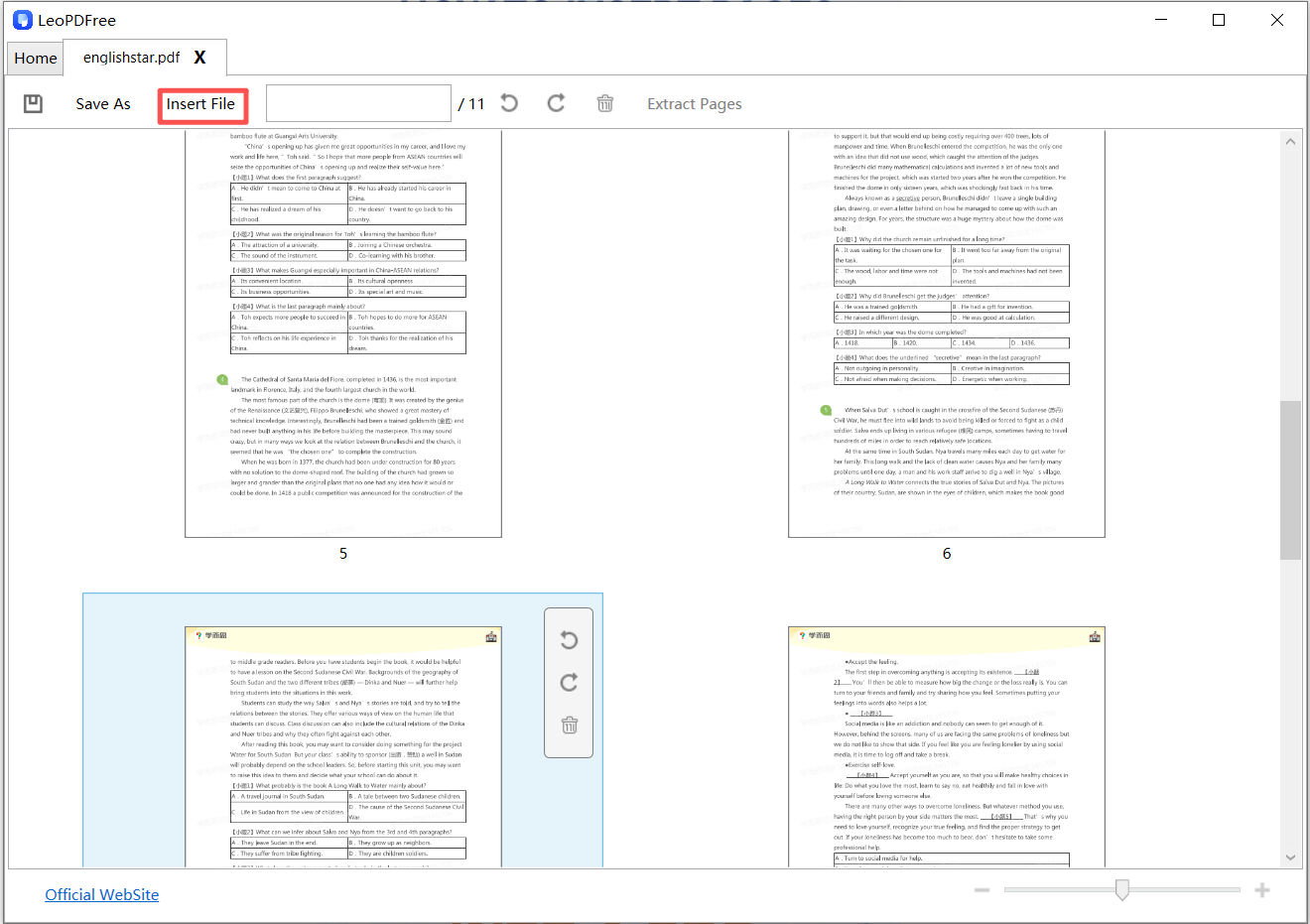
3️⃣.On the opened interface, click the “Insert File” button to add the pages you want to insert, as shown in the image below.

Insert Pages from Another PDF Document

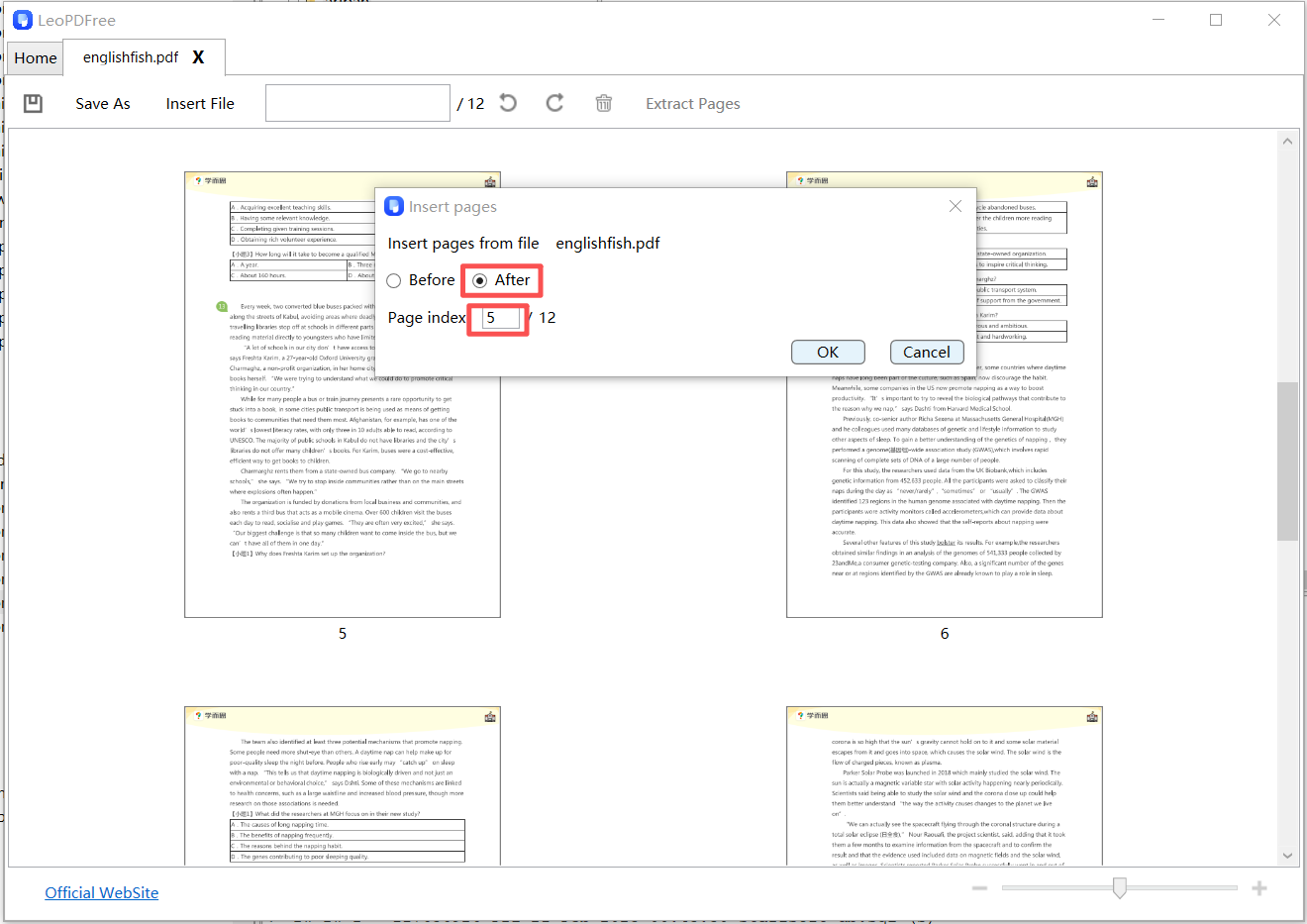
4️⃣.In the pop-up interface, first enter the page number where you want to insert the new page in the Page Index field. Then choose whether to insert it “Before” or “After” that page. After making your selection, click the “Ok” button, as shown in the image below.

Add New Pages to an Existing PDF File with LeoPDFree

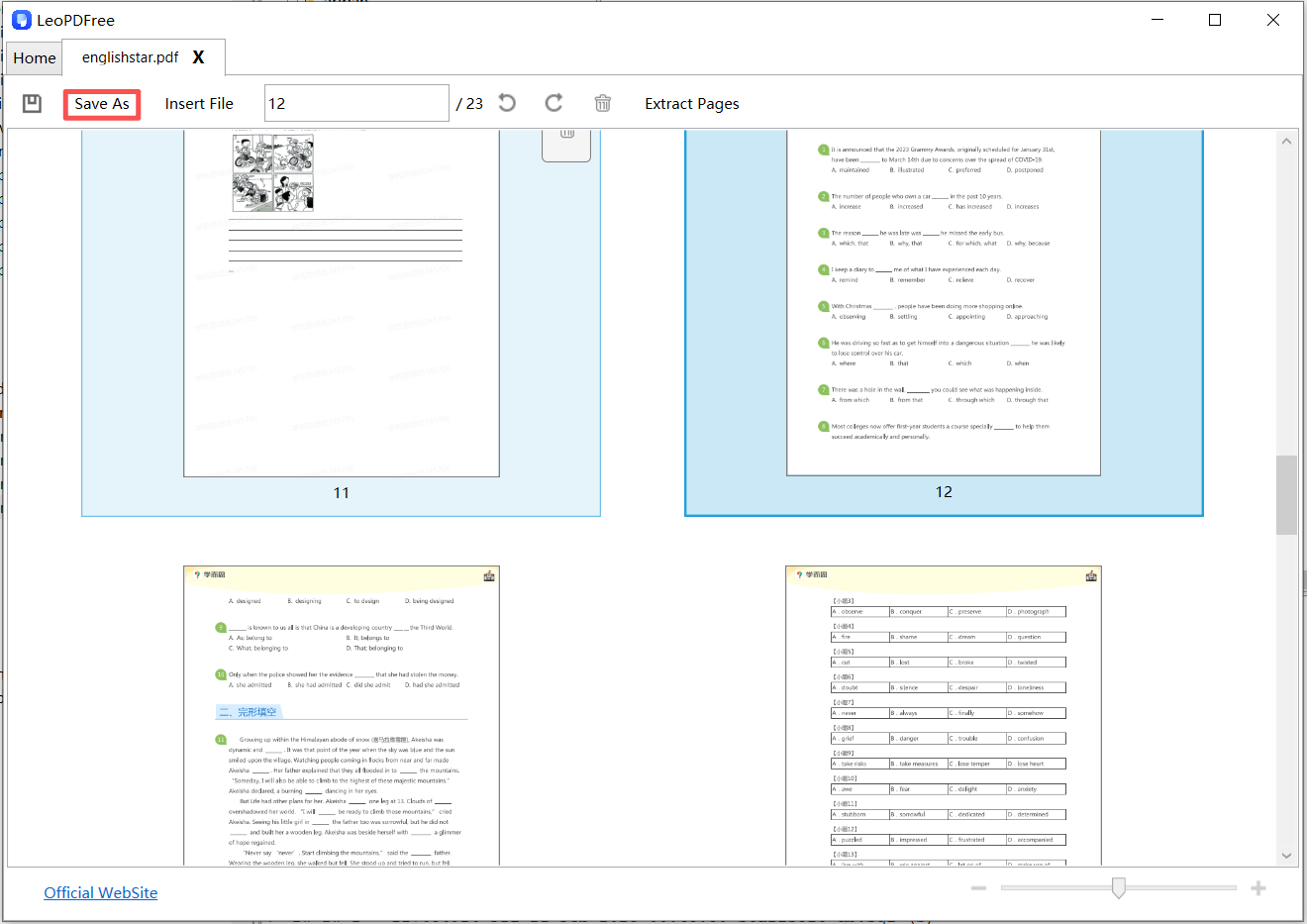
5️⃣.After the insertion is successful, if you are not satisfied, you can still use your mouse to select and drag the page to any position you want. Once you are happy with all the insertions, be sure to click “Save As” to save the updated PDF file, as shown in the image below.

Rearrange PDF Pages After Inserting New Content

Advantages:

✅ Supports inserting PDF pages, images, or blank pages
✅ Allows precise control over the insertion position, and you can freely adjust the page order afterward
✅ Completely free, and the processed PDF maintains the original page format and clarity

Suitable for:
Office users who frequently work with PDF files.

Method 2: Use an Online PDF Page Insertion Tool (No Installation Required, Most Features May Be Paid)

If you don’t want to install software, you can choose an online PDF page insertion tool.

Steps:

1.Open the online PDF tool website

2.Upload the original PDF file

3.Select the “Insert Page” feature

4.Upload the PDF or image you want to insert

5.Adjust the insertion order and export the file

Advantages:
✅ Simple and easy to use
✅ No need to download or install software
✅ Accessible on multiple devices

Notes:
⚠️ Be cautious when handling private or confidential files
⚠️ The free version may have file size limitations

Suitable for: Users who occasionally need to work with PDF files.

Method 3: Indirectly Insert Pages by Splitting and Merging PDFs

If your tool does not support directly “inserting pages”, you can achieve the same result by merging PDFs.

Steps:

1.Split the original PDF into two parts

2.Prepare the pages you want to insert as a separate PDF

3.Merge the three PDF files in the desired order

Features:

✅ Highly versatile, supported by almost all PDF tools
❌ More steps involved, less beginner-friendly, and if the insertion position is wrong, re-inserting can be costly

Suitable for: Users whose tools have limited features but still need to complete the task.

PDF Page Insertion Frequently Asked Questions (FAQ)

1. Will inserting pages affect the original PDF format?
Under normal circumstances, no. As long as no compression or reconversion is applied, inserting pages will not affect the clarity of the original PDF.

2. Can I insert an image as a new page?
Yes. Most PDF tools support inserting images such as JPG or PNG as individual pages.

3. Can I insert pages at a specific position?
Yes. Professional PDF software usually allows you to insert pages before or after any page.

Which PDF Page Insertion Method Is Best for You?

Use Case Recommended Method
Frequent office work Completely free and professional LeoPDF software
Occasional use Most paid online PDF tools
Limited tool features Split and merge PDFs to insert pages

Summary

No matter which method you choose, mastering how to insert a page into a PDF file can greatly improve your study and work efficiency. If you also need features such as PDF splitting, page extraction, rotation, compression, or converting PDF to Word, it is recommended to use LeoPDF, which allows you to complete all these tasks in one place and is completely free to use.

How to Merge PDF Files? 3 Simple and Efficient PDF Merging Methods (Beginner-Friendly Guide)

In daily study and work, we often encounter situations like these: lecture notes sent by teachers are split into multiple PDF files, contract attachments are divided into several parts, or scanned materials are saved as separate pages. In such cases, merging multiple PDF files into one complete document becomes especially important.

This article will systematically explain how to merge PDF files and introduce three common, practical, and beginner-friendly PDF merging methods. No professional background is required—anyone can get started easily.
‌

How to Merge PDF Files: 3 Simple and Efficient Methods

Why Do We Need to Merge PDF Files?

Before introducing specific methods, let’s first look at some common use cases for PDF merging:

📚 Study Material Integration:Combine multiple lecture slides or research papers into a single PDF

📄 Office Document Organization:Merge a contract’s main text with its attachments for submission

🖨️ Easier Printing:Avoid selecting and printing multiple files repeatedly

📤 More Professional Sharing:One complete file is better than multiple attachments

Therefore, mastering PDF merging is an essential skill for almost every student and working professional.

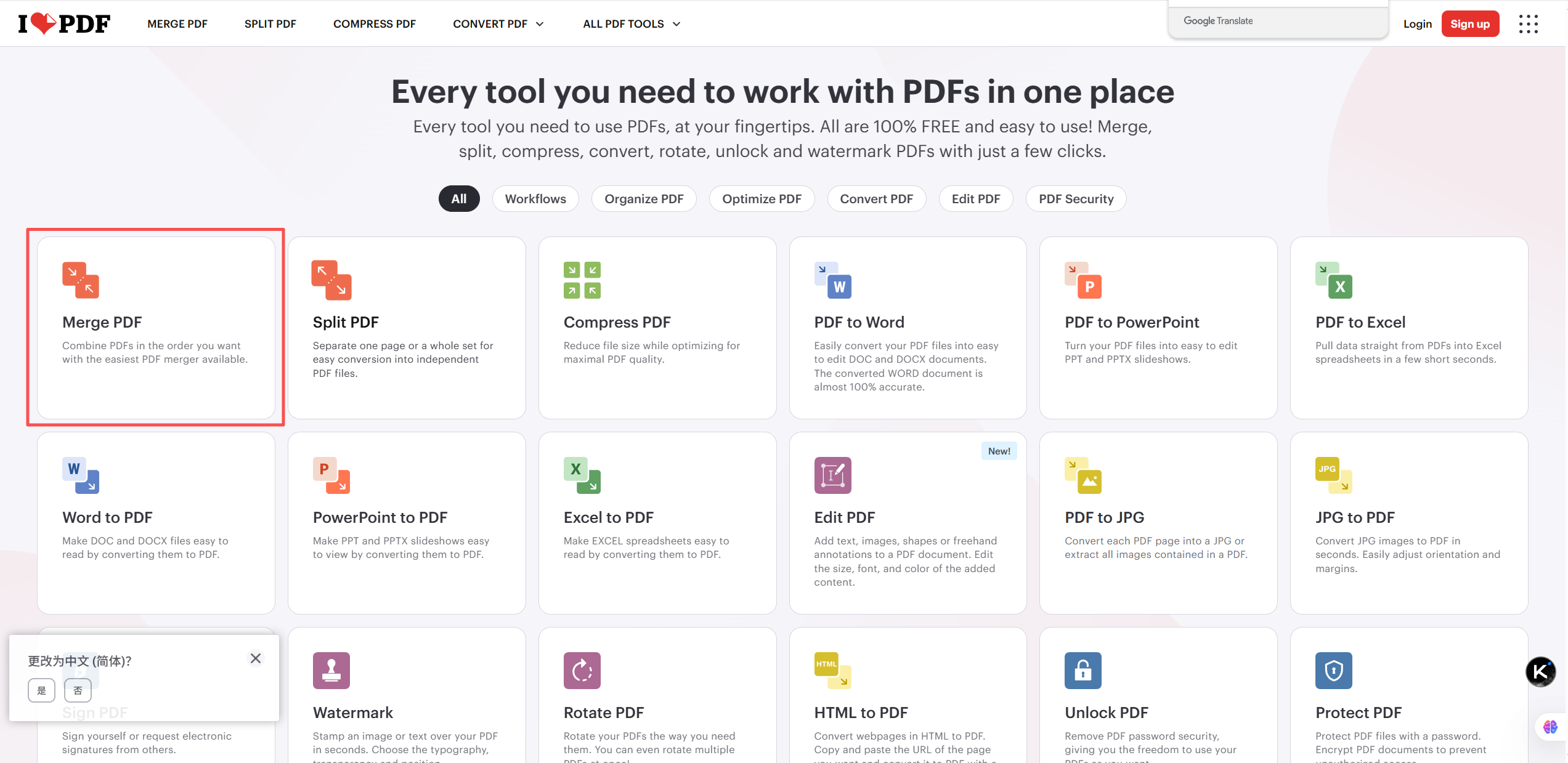
Method 1: Use Online iLovePDF Merging Tools

If you don’t want to install any software, online PDF merging tools are the most convenient option.

iLovePDF PDF Merger Interface for Windows

Steps:

1️⃣.Open the iLovePDF website

2️⃣.Click “Merge PDF” and select the PDF files you want to merge.

3️⃣.Adjust the order of the PDFs

4️⃣.Click “Merge PDF”

5️⃣.Download the merged file

Advantages:

✅ No software installation required
✅ Simple operation with an intuitive interface
✅ Supports multiple platforms (Windows / Mac / Mobile)

Things to Note:

⚠️ Be cautious when uploading files that contain sensitive or private information
⚠️ Some websites limit file size or the number of merges

Best for: Users who only occasionally need to merge PDFs and want a fast, hassle-free solution.

Method 2: Merge PDFs Using the Desktop PDF Software LeoPDF (Stable and Efficient)

General Workflow:

1️⃣.Download and install the LeoPDF tool for free on your computer, then open the software, as shown in the image below:

LeoPDFree PDF Merger Interface for Windows

2️⃣.On the interface, click “Multi Files To One PDF”, as shown in the image below:

Add Multiple PDF Files to Merge in LeoPDFree

3️⃣.On the opened interface, click “Add Files” or “Add Folder” to add one or more PDF files, as shown in the figure below.

Arrange PDF Files in the Desired Order Before Merging

4️⃣.On the interface, click the “Choose Folder” button to set the save path for the merged PDF file, as shown in the figure below.

Combine Multiple PDF Documents into One File with LeoPDFree

5️⃣.After all the pre-merging steps are completed, simply click the “Convert Now!” button on the interface. The software will quickly complete the merging process based on the size of the files to be merged, as shown in the figure below.

Save Multiple PDF Files as a Single Document

6️⃣.When the software pops up a new window, it indicates that the merging process has been completed. Simply click “Check Now” on the interface to quickly view the result of the merged file, as shown in the figure below.

Review the Merged PDF Document After Combining Files

Advantages:

✅ File security, no need to upload files to the internet, completely free
✅ Supports large files and high-quality merging
✅ Allows simultaneous operations such as compression, rotation, page deletion, and format conversion

Disadvantages:

❌ Requires downloading and installing the software

Suitable for:Office workers, students, and users who frequently work with PDF files.

Method 3: Merge PDFs Using Built-in System Features

In fact, on some operating systems, you can merge PDF files without using any third-party tools.

Examples:

macOS:Drag and merge files directly using the Preview app

Windows:Combine files by using the Print to PDF feature

Features:

✅ No additional tools required
❌ Relatively basic functionality, with slightly more complicated steps

Suitable for:Users who need to merge PDFs temporarily and do not have strict formatting requirements.

PDF Merge Frequently Asked Questions (FAQ)

1️⃣.Will merging PDFs affect image or document quality?

Under normal circumstances, no. As long as no compression is applied, merging PDFs will not reduce the quality of the original files.

2️⃣.Can I merge only specific pages?

Yes. Most PDF software and online tools support selecting specific pages to merge.

3️⃣.Can a merged PDF be split again?

Of course. PDF files can be split and pages can be extracted at any time.

Summary: Which PDF Merge Method Is Best for You?

Use Case Recommended Method
Occasional use Online PDF merge tools
Frequent office work Desktop LeoPDF software
Emergency or temporary use Built-in system features

No matter which method you choose, mastering how to merge PDF files can significantly improve your study and work efficiency. If you also need features such as PDF splitting, PDF page extraction, PDF rotation, PDF compression, or converting PDF to Word for your work, I recommend using the LeoPDF tool, which can fully meet your needs—and best of all, it’s completely free to use!

How to Extract Pages from a PDF? 3 Simple Ways to Quickly Extract PDF Pages (Beginner-Friendly Guide)

In daily work and study, we often encounter situations like these:
👉 You only need a few specific pages from a PDF
👉 You want to split a PDF into multiple smaller files
👉 You need to extract selected pages for printing, sharing, or archiving

So, how can you extract pages from a PDF?
It’s actually not complicated. Below, I’ll explain all the common methods for extracting PDF pages in a clear and easy-to-understand way. Whether you’re a beginner or an advanced user, you’ll find a solution that works for you.
‌

How to Extract Pages from a PDF: 3 Simple Methods

What Is PDF Page Extraction?

PDF page extraction refers to taking pages from a complete PDF file, including:

▶Extracting a single page

▶Extracting consecutive pages (such as pages 3–10)

▶Extracting non-consecutive pages (such as pages 1, 5, and 8)

and saving these pages as a new PDF file without affecting the original document.

Common Use Cases

▶Extracting key pages from a contract PDF

▶Extracting specific chapters from a textbook PDF

▶Splitting scanned PDFs for easier printing

▶Keeping only the necessary pages when submitting documents

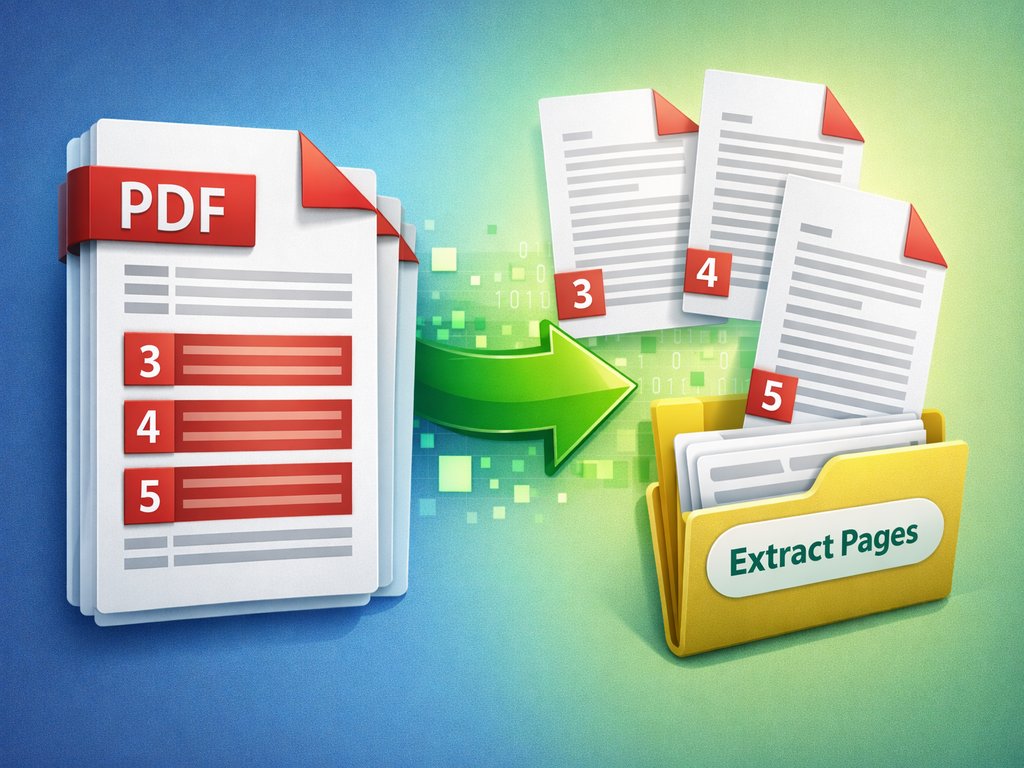
Method 1: Use an Online PDF Page Extraction Tool (Easiest Way)

This is the most recommended method for beginners and does not require installing any software. However, since the extraction is done online, you need to upload your original file to a server, which means the security level is relatively lower.

iLovePDF PDF Page Extraction Interface

1️⃣.Open an online PDF page extraction tool

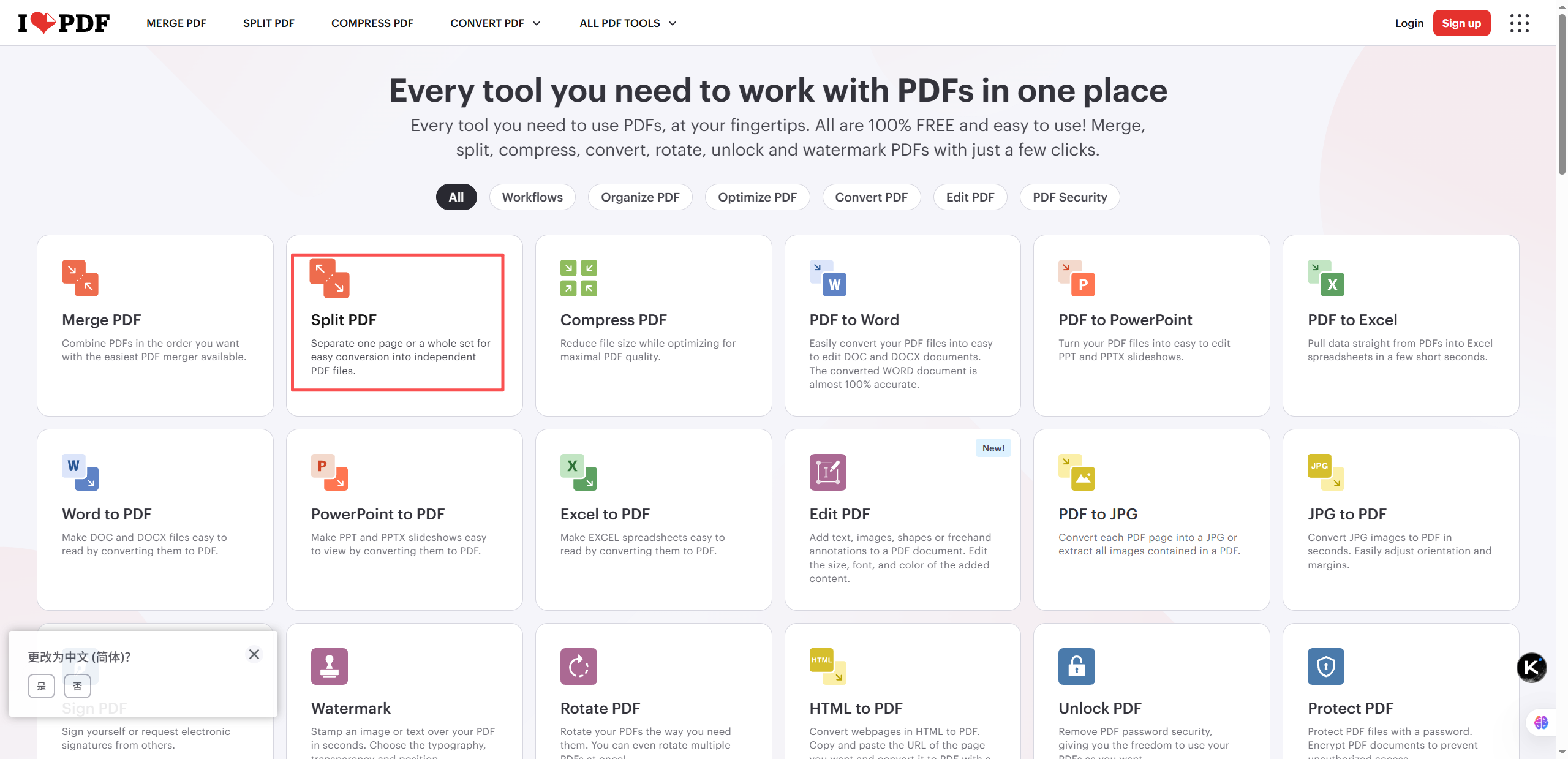
2️⃣.Click the “Split PDF” button

3️⃣.Enter the page numbers you want to extract

4️⃣.Single page: 3

5️⃣.Consecutive pages: 3–10

6️⃣.Non-consecutive pages: 1,5,8

7️⃣.Click “Split PDF” and download the newly generated PDF file.

Method 2: Extract PDF Pages Using Adobe Acrobat (Professional Method)

If you are using Adobe Acrobat Pro, you can complete the process directly within the software.

Adobe Acrobat PDF Page Extraction Interface

1️⃣.Open the PDF with Adobe Acrobat

2️⃣.Select “Organize Pages”

3️⃣.Choose the pages you want to extract

4️⃣.Click “Extract Pages”

5️⃣.Save the pages as a new PDF file

Method 3: Extract Pages Using the Free LeoPDF Software

LeoPDF is a free tool for extracting pages from PDF files. It offers high security, fast page extraction, and allows you to rotate pages during the extraction process. The tool is very simple and easy to use.

The steps are as follows:

1️⃣.First, download and install the LeoPDF tool. After installation, open the software as shown in the image below:

LeoPDF PDF Page Extraction Interface for Windows

2️⃣.Click the “Organize PDF Page” button on the interface, as shown in the image below:

Select Specific Pages to Extract from a PDF in LeoPDFree

3️⃣.Select the PDF file from which you want to extract pages, as shown in the image below:

Choose Individual PDF Pages for Extraction

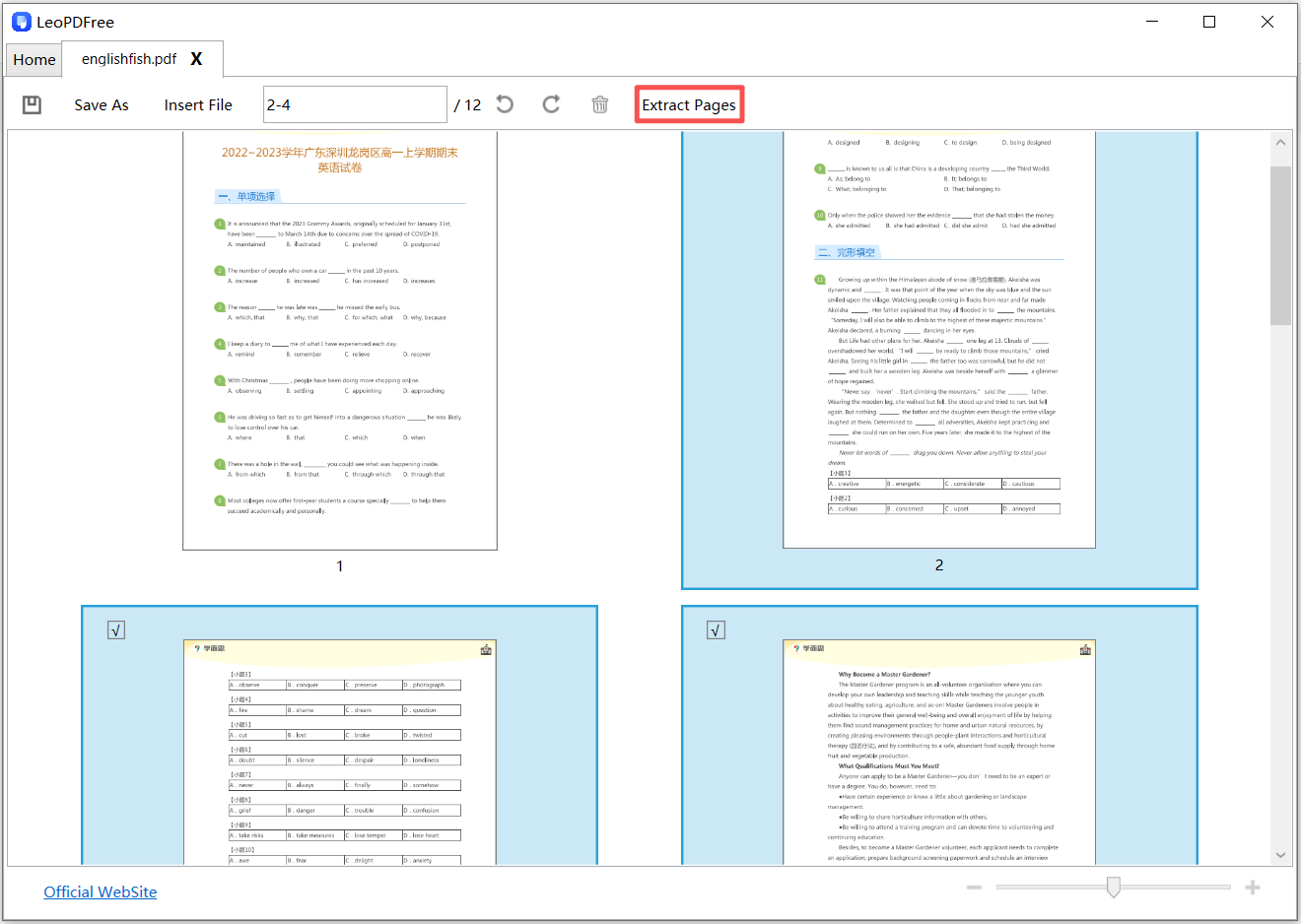
4️⃣.On the PDF loading screen, select the pages you want to extract. You can either select pages by dragging with the mouse or enter page numbers in the input box. After selecting the pages, click the “Extract Page” button, as shown in the image below.

Extract Selected Pages from a PDF with LeoPDFree

5️⃣.In the pop-up Windows dialog, set the file name and save location for the newly extracted pages. Once this is done, the entire page extraction process is complete. Isn’t it very simple?

Recommended PDF Page Extraction Tools Comparison

Tool Type Installation Required Free to Use Best For
Online Tools No Mostly not free General Users
Adobe Acrobat Yes Paid Professional Users
LeoPDF Yes Yes Frequent Users

Conclusion

Extracting pages from a PDF is not complicated. As long as you choose the right method, the task can be completed in just a few seconds. Whether you need to extract a single page, consecutive pages, or non-consecutive pages, there are mature and reliable solutions available.

If you frequently work with PDF files, it is recommended to choose the LeoPDF tool, which is simple to use and supports extracting pages by specific page numbers. It is not only free but also secure. In addition, LeoPDF offers other completely free features such as splitting PDFs, merging PDFs, compressing PDFs, and converting PDFs to other formats. Go ahead and choose the tool that best fits your needs.

How to Delete a Specific Page in a PDF Document‌

‌In the digital office era, PDF documents have become the preferred choice due to their cross-platform compatibility and format stability. However, when a file contains redundant pages or sensitive data that you don’t want to share, accurately deleting specific pages becomes a common challenge. This article will introduce a free method to remove pages, helping you easily optimize your document structure and meet your private customization needs.‌

How to Delete a Specific Page in a PDF Document

LeoPDF professional software: an efficient and precise choice.

LeoPDF excels in deleting PDF pages with precise positioning—it can delete a single page or batch-delete multiple pages. Moreover, it offers advantages such as simple operation, high efficiency, rapid processing, preservation of file integrity, and reliability. The core benefit is that it is completely free to use.Now, I will introduce the specific steps for deleting pages:

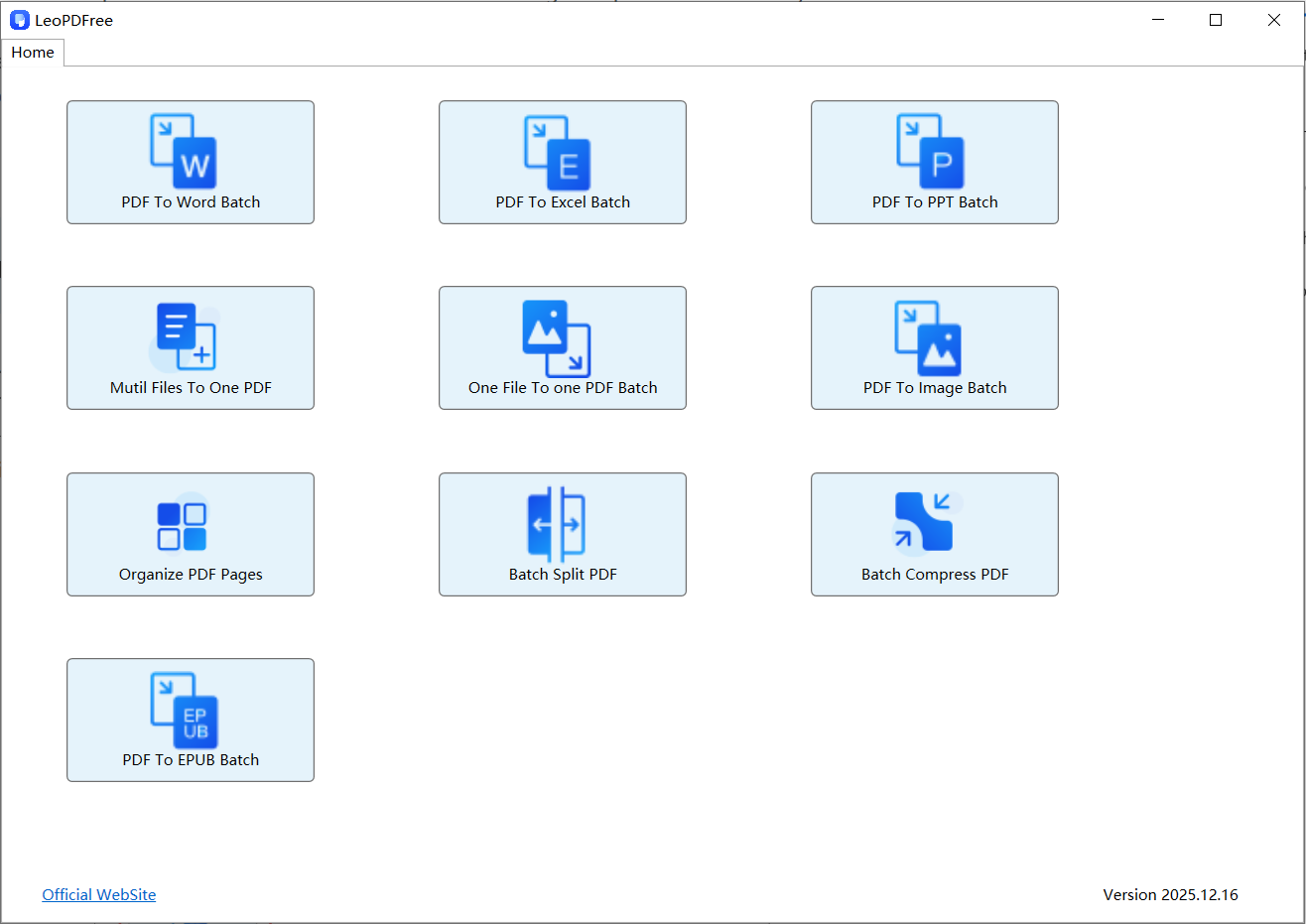
1️⃣First, download and install the LeoPDF software. Then, open the software, as shown in the following image:

LeoPDFree PDF Page Organizer Interface for Windows

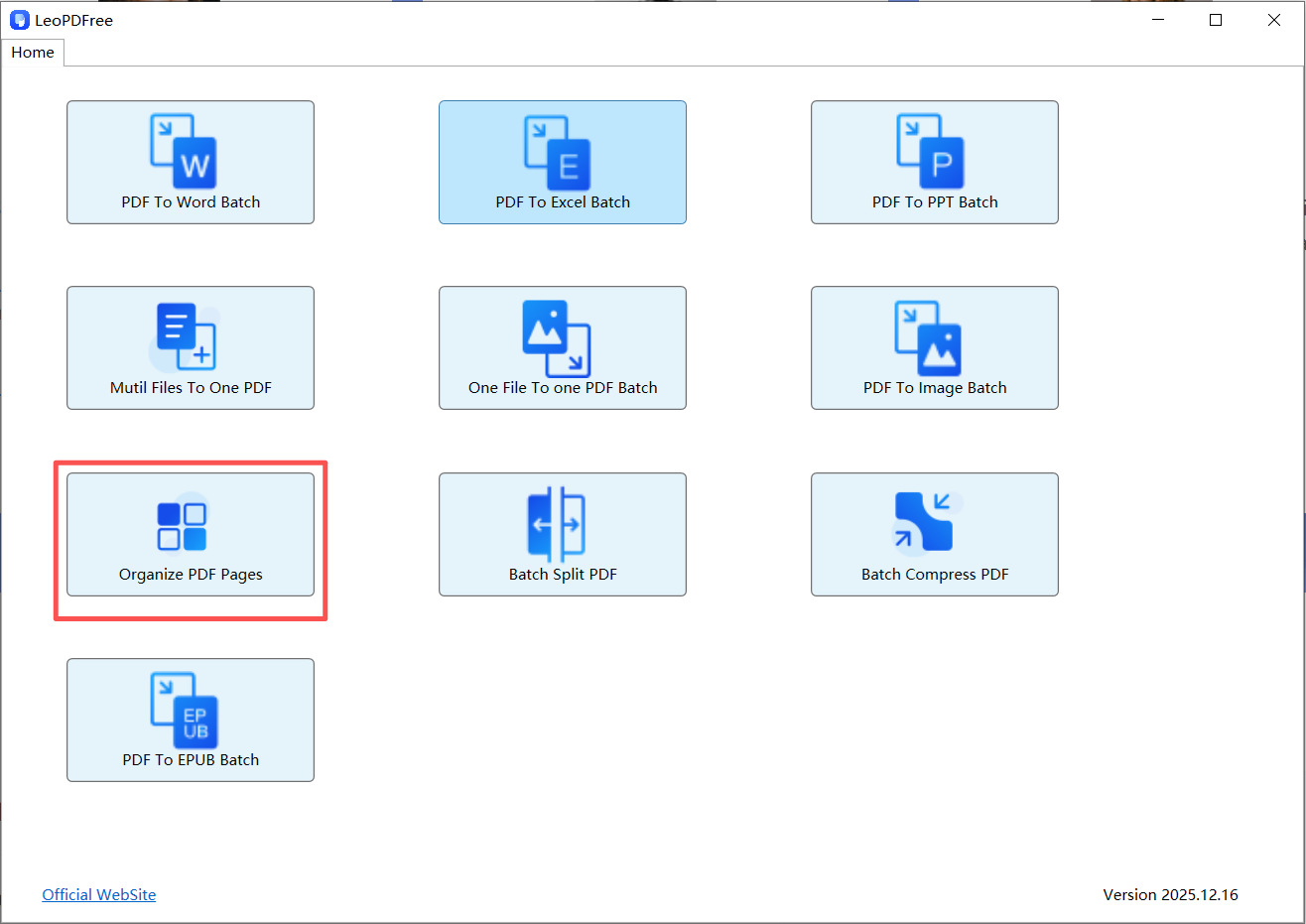
2️⃣On the opened interface, click “Organize PDF Pages” to add the PDF file from which you want to delete pages, as shown in the following image:

Open a PDF Document and View Its Page Thumbnails in LeoPDFree

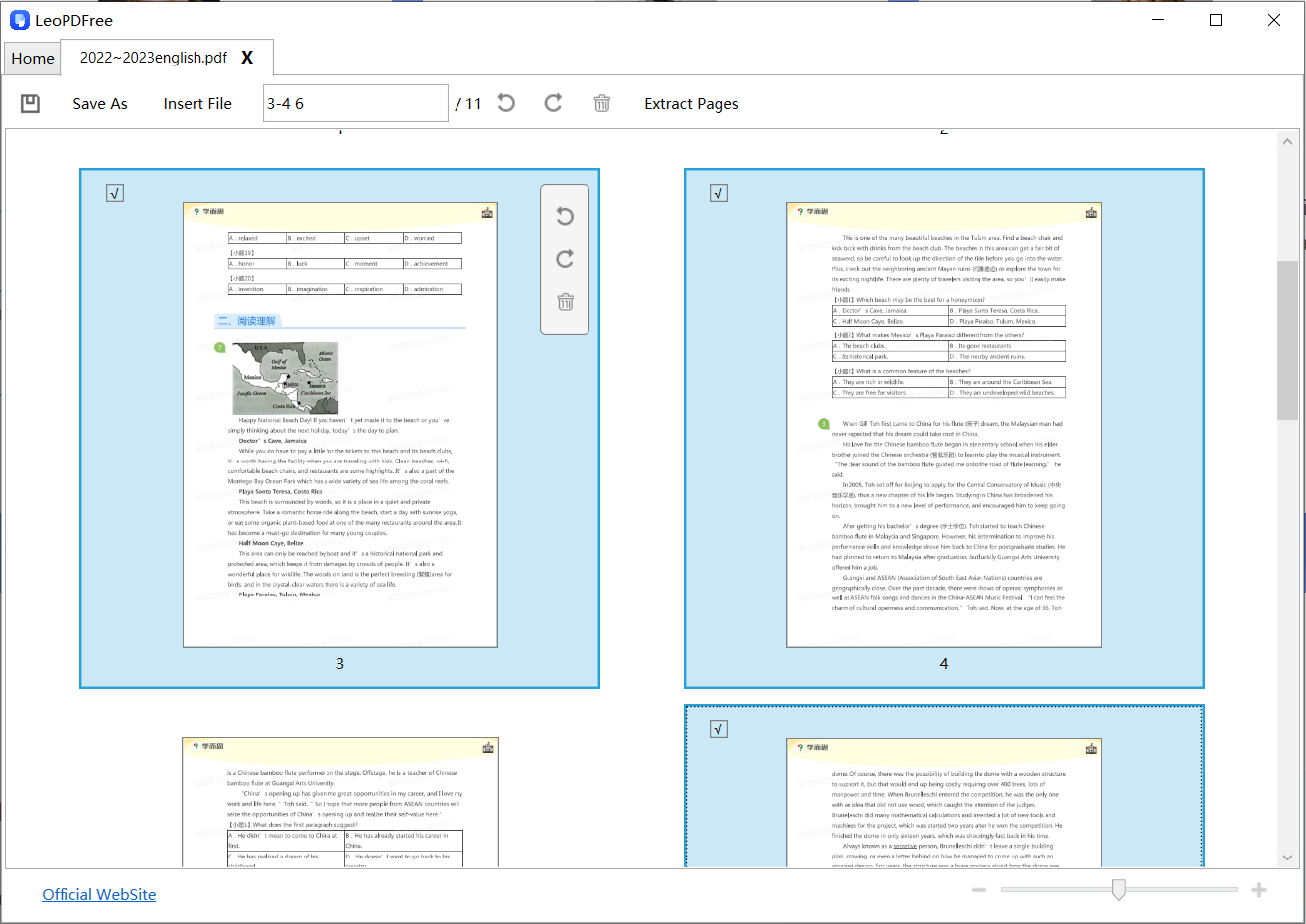
3️⃣On the interface for adding a PDF file, use Ctrl + mouse clicks to select one or more pages to be deleted, as shown in the following image:

Select a Specific Page to Remove from a PDF

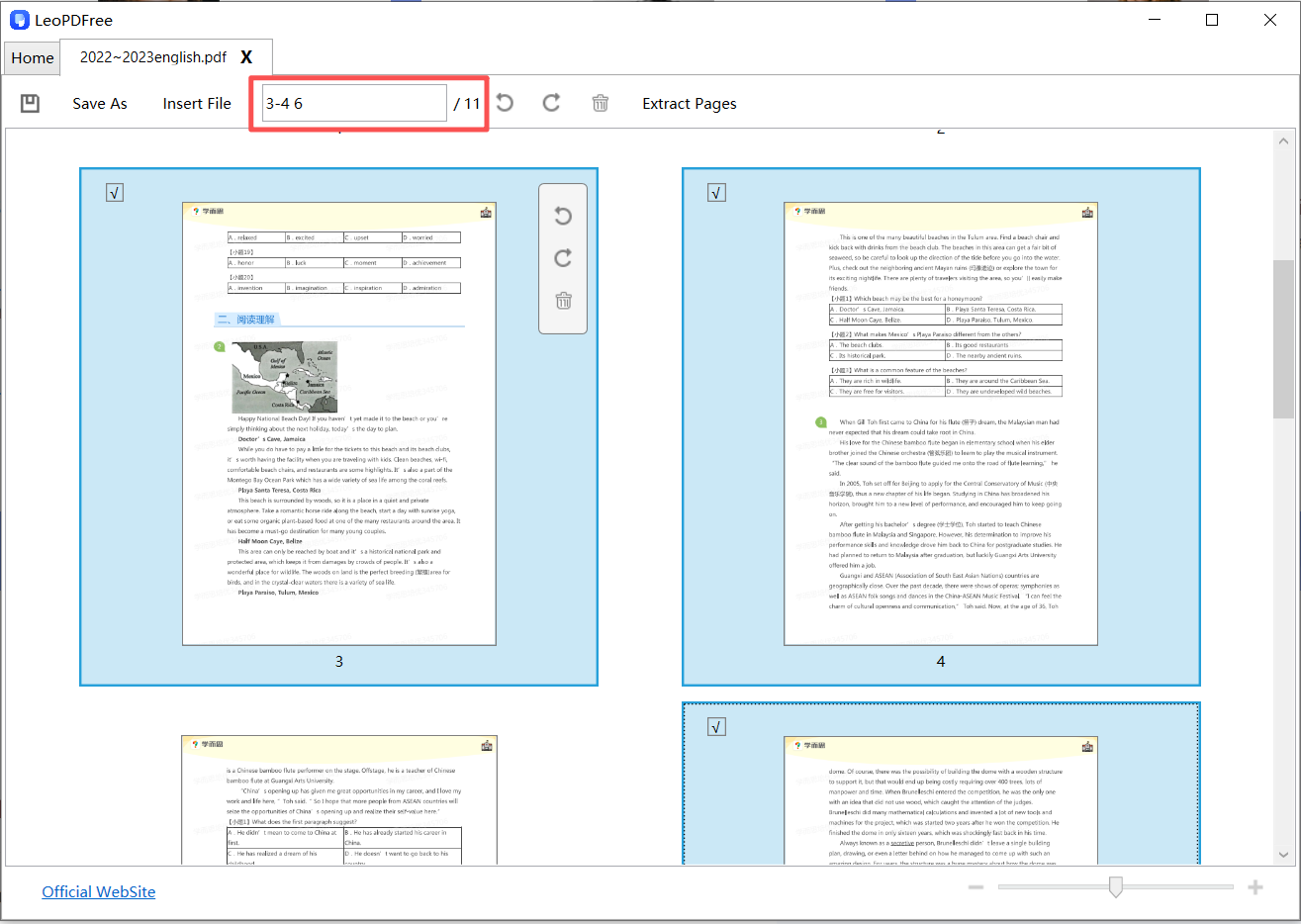
4️⃣You can also click in the “Insert File” edit box on the window to enter the page numbers to be deleted. As shown in the following image:

Delete Selected Pages from a PDF Document in LeoPDFree

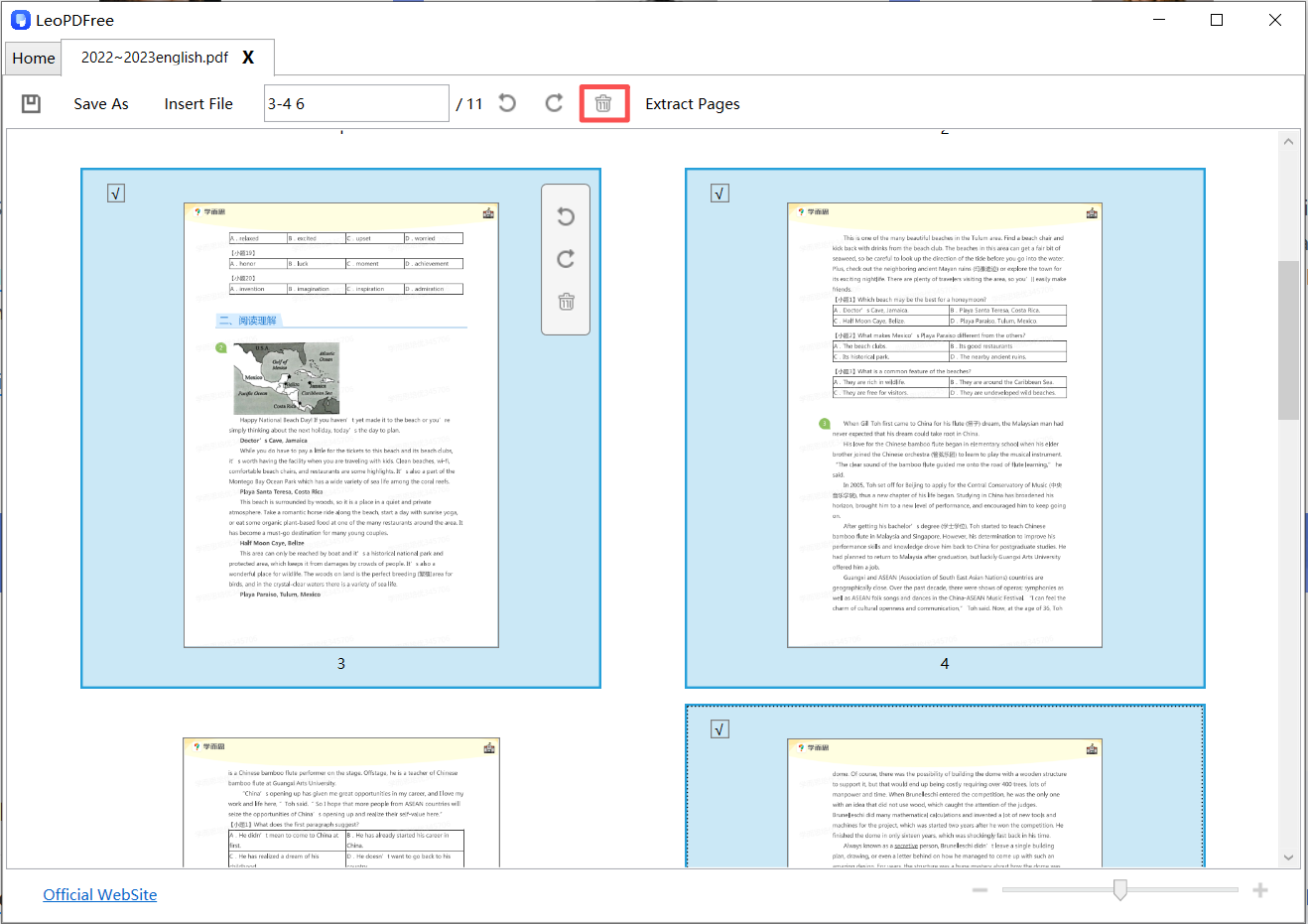
5️⃣After selecting all the pages to be deleted, simply click the delete button on the interface or right-click to delete. As shown in the following image:

convert pdf to ppt at freepdfconvert.com

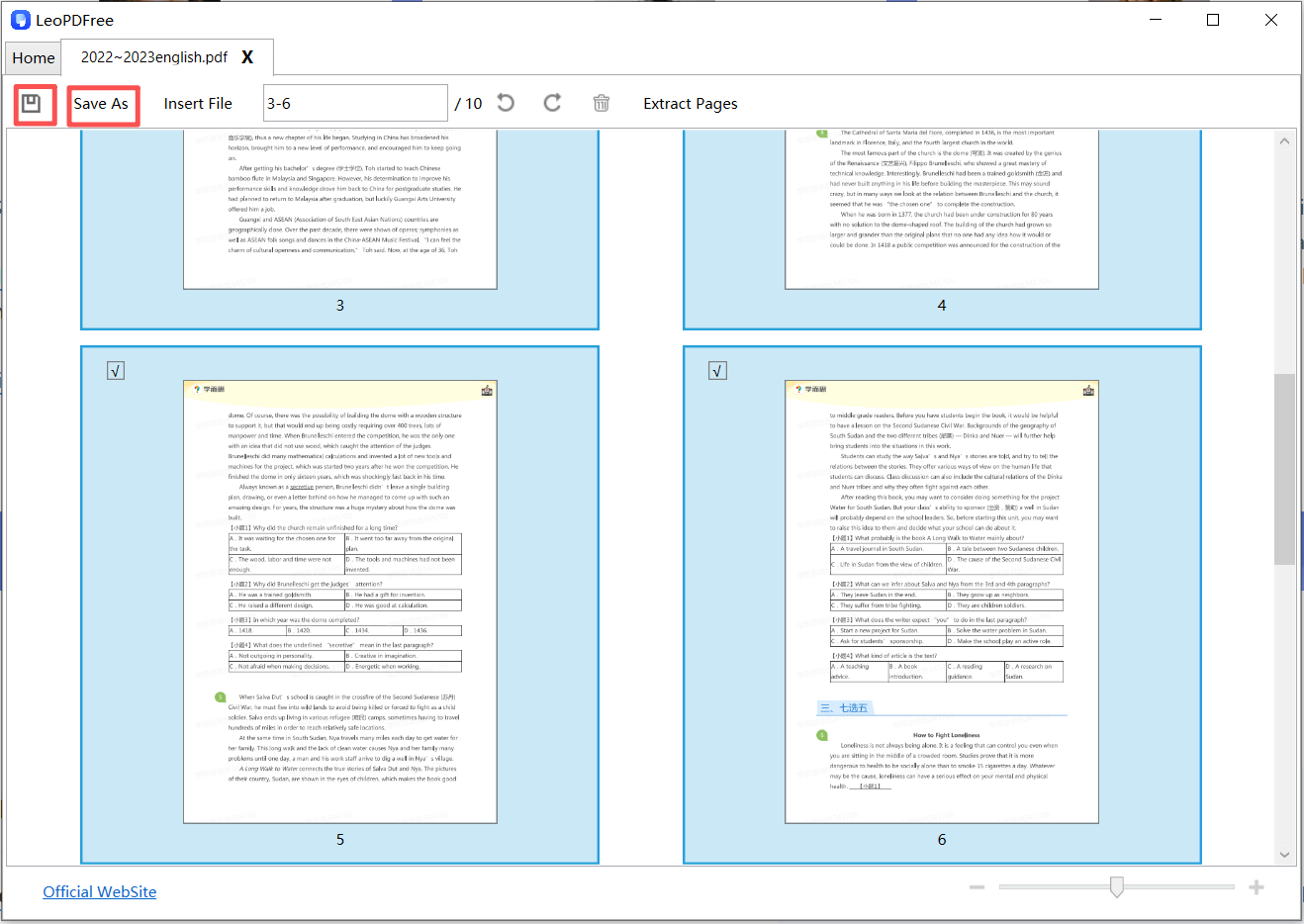
6️⃣Finally, after the deletion is complete, be sure to click the save button on the interface or click the “Save As” button. This concludes the process of deleting a single page or multiple pages, as shown in the following image:

Remove Unwanted Pages While Keeping the Remaining Content

Summary

LeoPDF stands out as a secure and efficient tool for deleting PDF pages. It excels with its free, efficient, and user-friendly features. Whether you are a financial professional or an investment banker, when it comes to deleting sensitive information on PDF pages, you can give LeoPDF a try. Since it operates offline, it can also ensure the security of your files.