‌Best Tool for Batch PDF to EPUB Conversion: LeoPDF& Free & Efficient Solutions‌

In the digital reading era, the EPUB format, with its adaptive characteristics, has become the preferred choice for e-books and mobile reading. However, PDF files often encounter formatting issues or inefficiencies during conversion due to their fixed layout. LeoPDF, as a tool specifically designed for batch processing, offers a free and efficient solution, enabling users to effortlessly handle large-scale file conversions and enhance their reading experience.

Best Tools for Batch PDF to EPUB Conversion: LeoPDF and Free Alternatives

Method 1: Why choose LeoPDF for batch conversion?

The demand for batch converting PDFs to EPUB is growing, especially when dealing with large volumes of documents such as academic materials or eBook libraries. Traditional methods rely on single-file processing, which is time-consuming and prone to errors. In contrast, LeoPDF significantly enhances efficiency through automated workflows. Its core advantages include:

🔵Free to use:No subscription or hidden fees, suitable for both individual and enterprise users.

🔵Efficient processing:Supports simultaneous conversion of multiple files, reducing wait time and optimizing workflow

🔵Format preservation:Intelligent algorithms ensure the converted EPUB files retain the original layout, minimizing formatting issues.

Method 2: Here’s the step-by-step guide to using LeoPDF

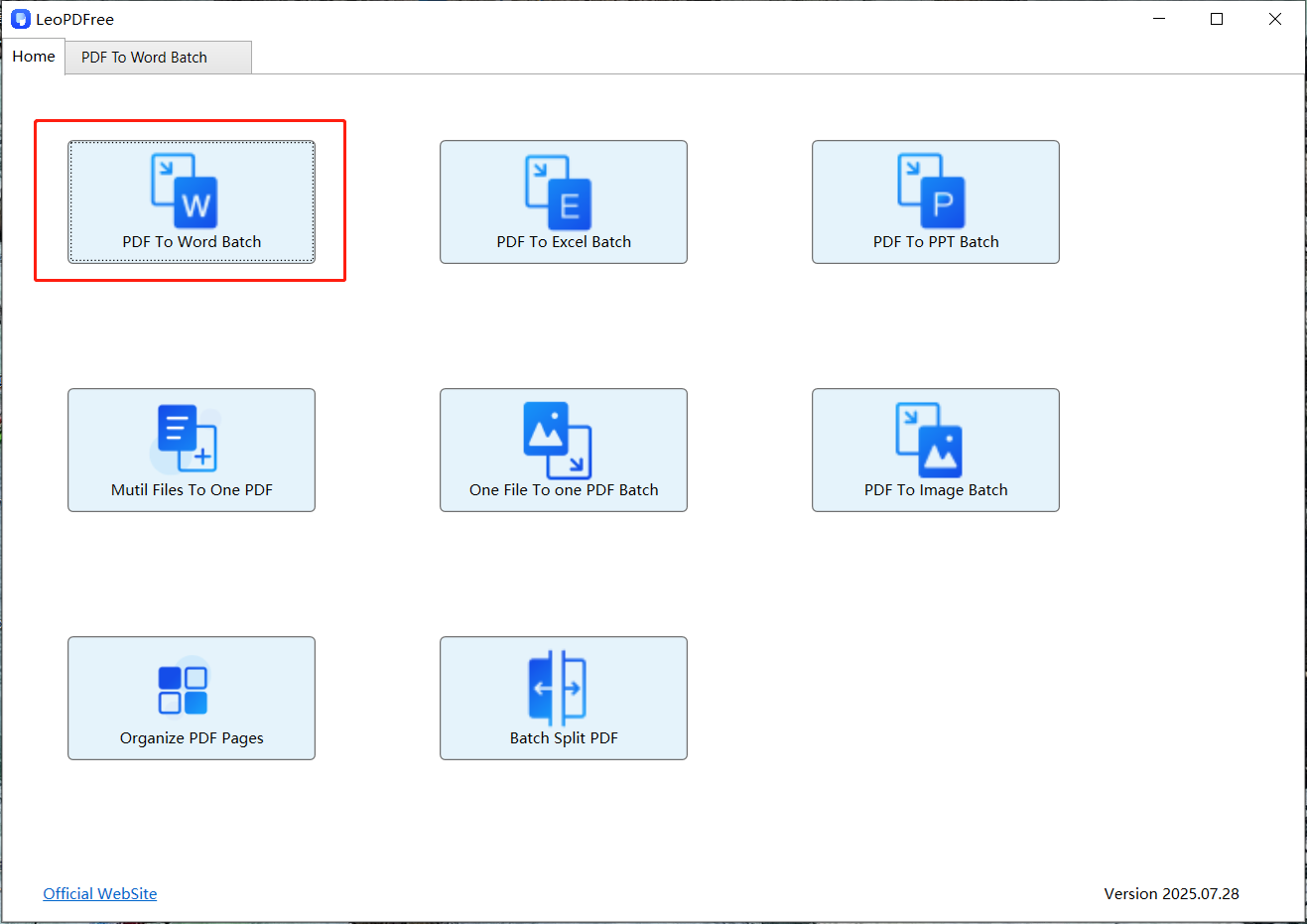
1️⃣.First, download and install LeoPDF on your computer. After opening the software, click on the “PDF To EPUB Batch” button on the interface, as shown in the following image:

LeoPDF PDF to EPUB Converter Interface for Windows

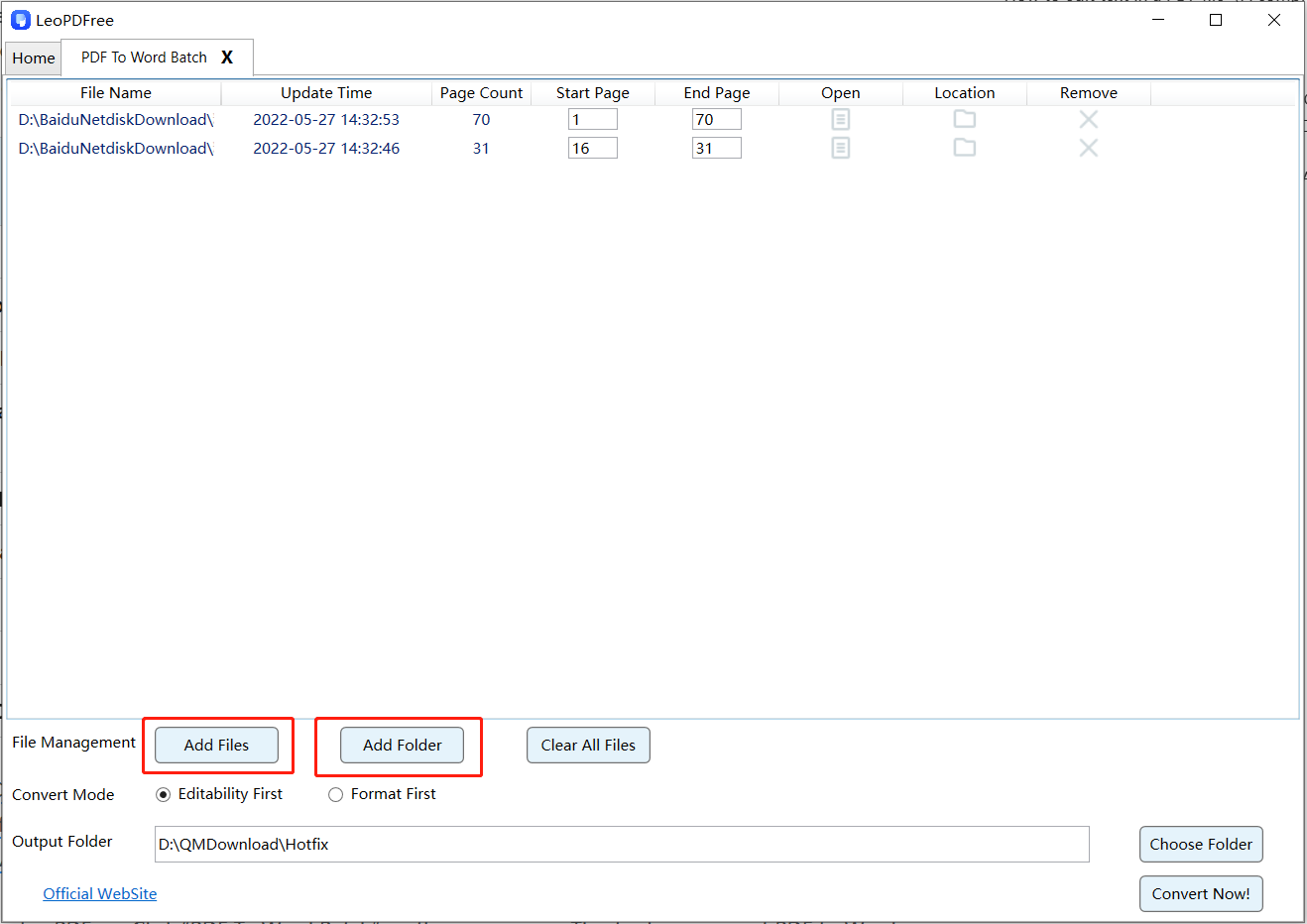
2️⃣.On the opened interface, click “Add Files” or “Add Folder” to add one or multiple PDF files for conversion. After adding, you can set the “Start Page” and “End Page” in the editing box as needed, as shown in the following image:

Add Multiple PDF Files for Batch EPUB Conversion in LeoPDFree

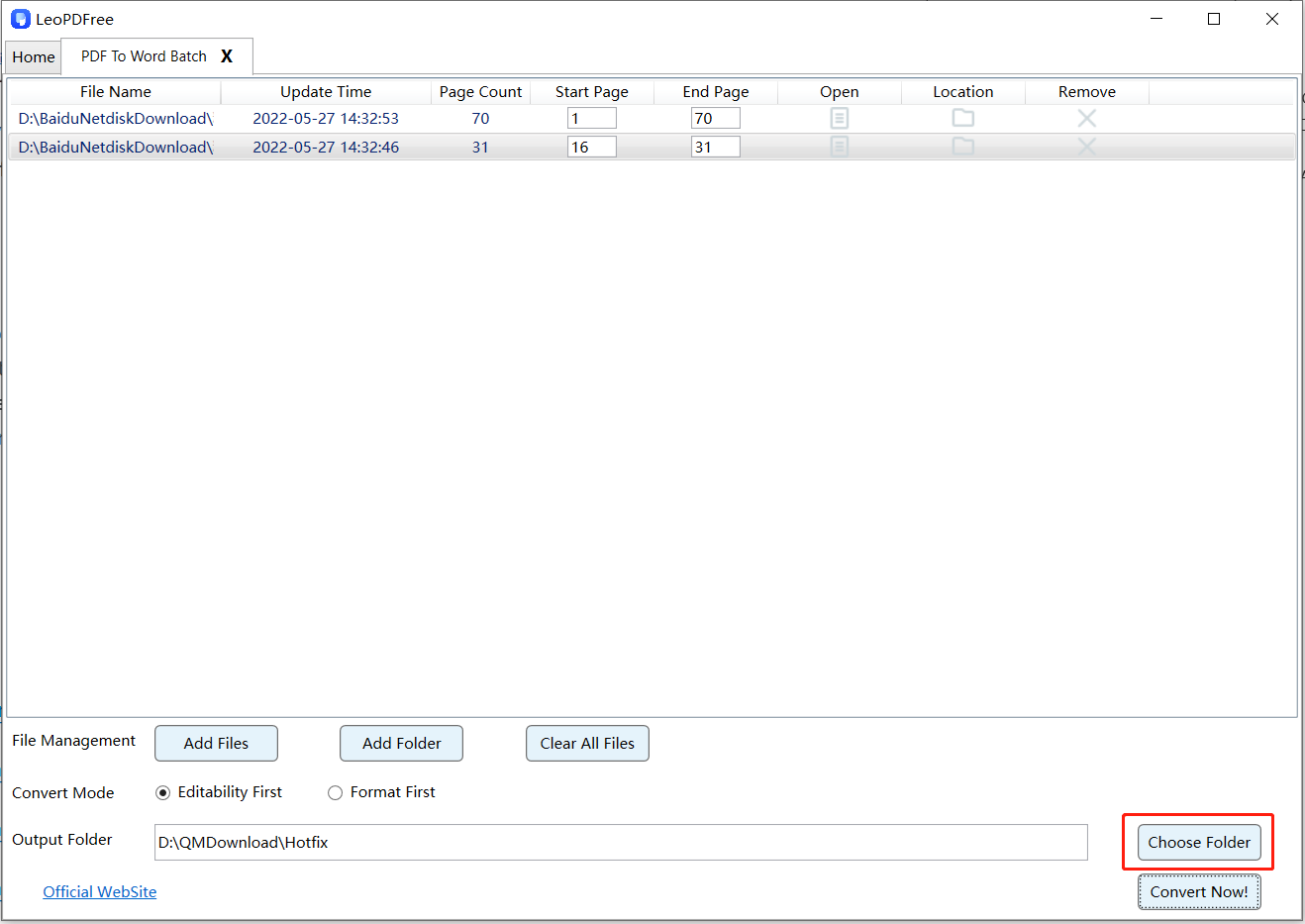
3️⃣.Then click “Choose Folder” to set the save path for the converted new files, as shown in the following image:

Select PDF Documents for EPUB Conversion

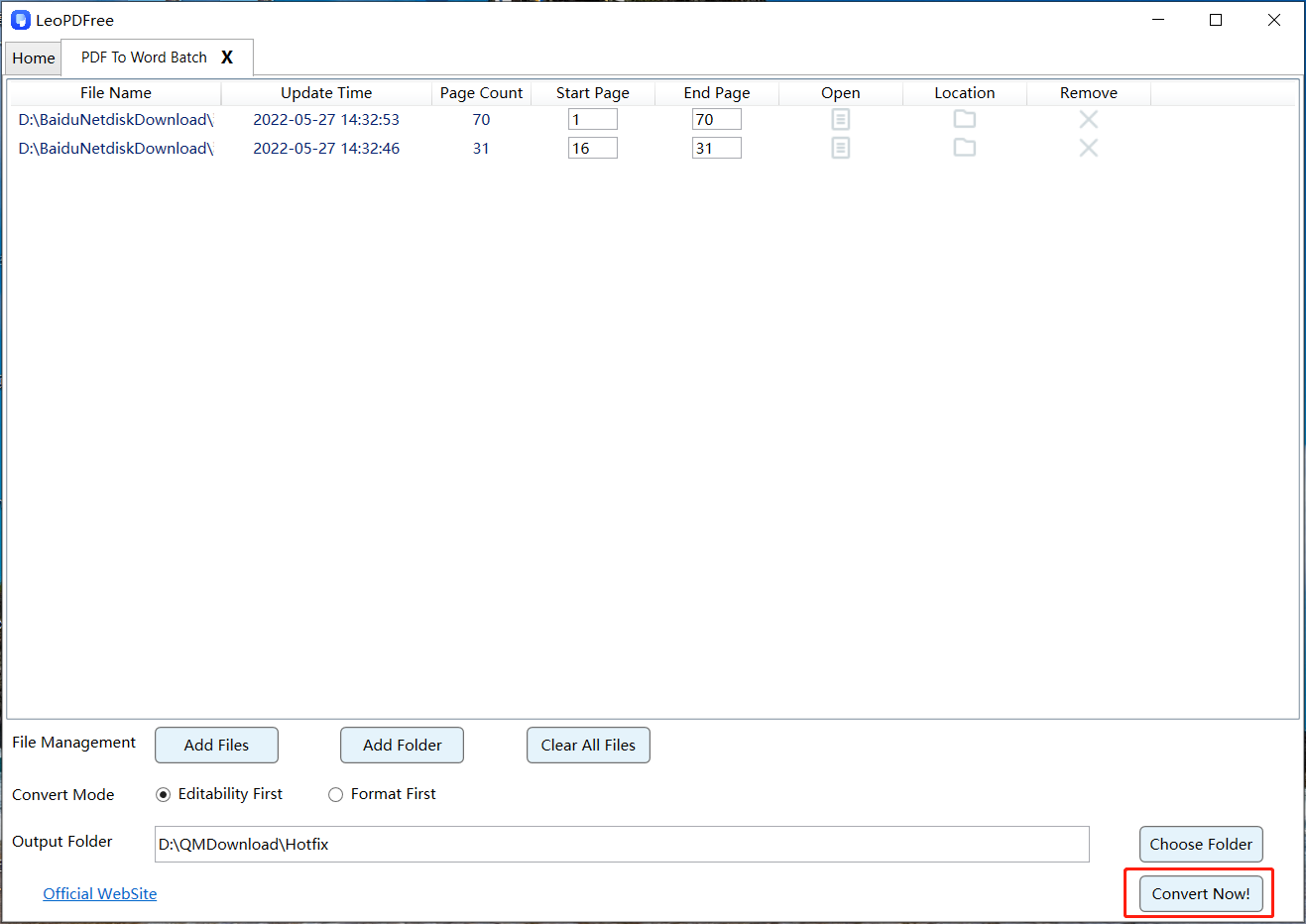
4️⃣.After all preparations are complete, click “Convert Now!” on the interface, and the system will quickly complete the conversion for you based on the file size, as shown in the following image:

Convert Multiple PDF Files to EPUB Format with LeoPDFree

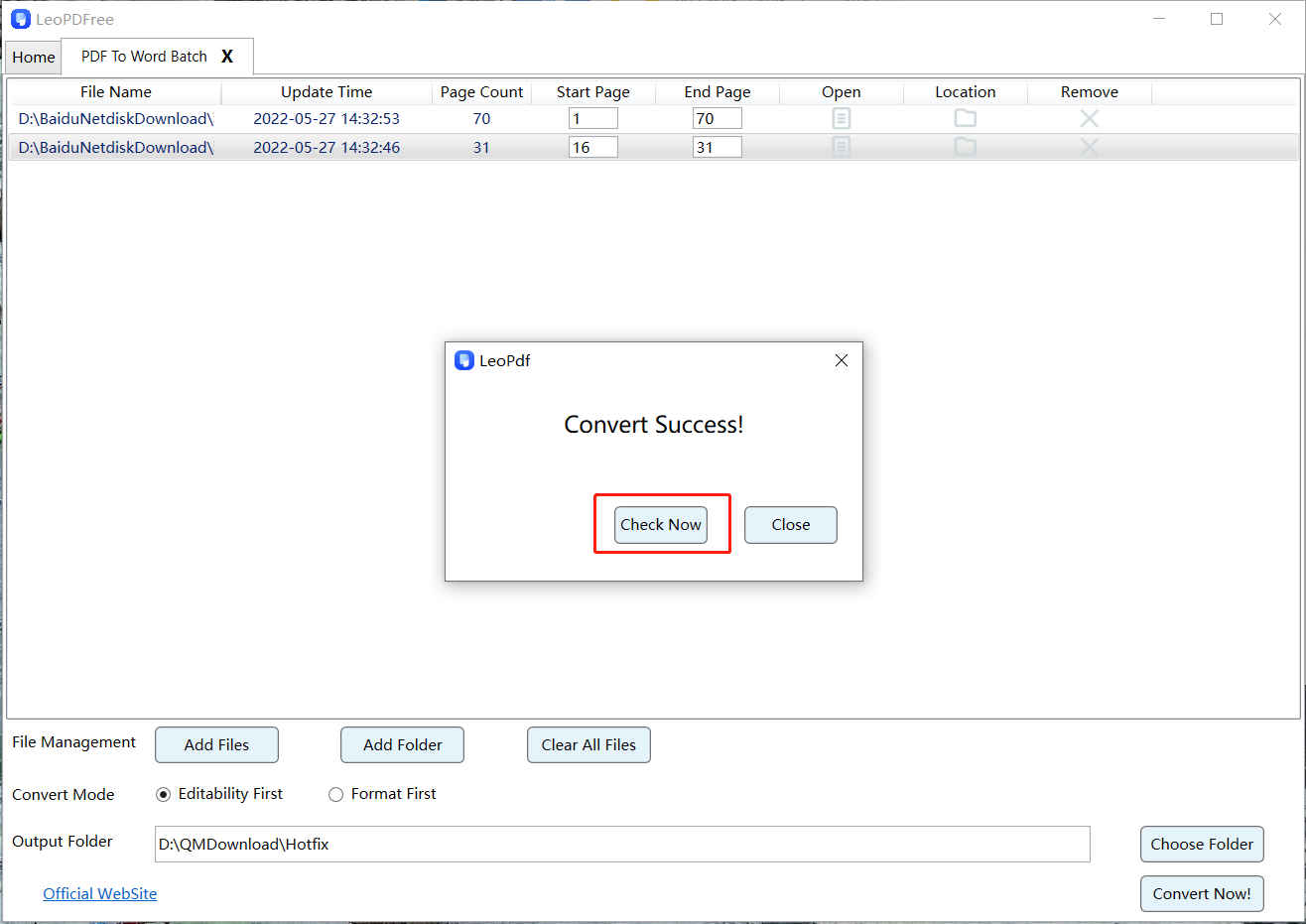
5️⃣.When the software pops up “Convert Success!”, it means the conversion is complete. You can then click “Check Now” to review the converted files, as shown in the following image:

Check the EPUB Conversion Results After Processing

Method 3: Frequently Asked Questions

Q1: Will the converted EPUB file have formatting issues?
LeoPDF employs advanced technology to maximize the retention of original formatting, though complex layouts (such as multi-column or embedded charts) may require manual adjustments.

Q2: Does it support encrypted PDF files?
Yes, LeoPDF supports encrypted PDF files. It can handle password-protected documents during the conversion process, ensuring secure and reliable processing.

Q3: How fast is the conversion?
The batch processing speed depends on the file size and quantity, typically over 50% faster than single-file tools, significantly boosting productivity.

Method 4: Summary

LeoPDF stands out as a leading tool for batch PDF to EPUB conversion, offering free, efficient, and user-friendly features. Whether you are a student, teacher, author, or business user, you can simplify document management and enjoy seamless cross-device reading. Try LeoPDF today and unlock your digital reading potential!
‌How to compress a PDF file for free?‌ Effective Methods for File Compression

The devices we use now all have memory limitations, and storing too much or excessively large files can have an impact on them. Therefore, when we receive relatively large files,

The devices we use now all have memory limitations, and storing too much or excessively large files can have an impact on them. Therefore, when we receive relatively large files, we need to compress them. Next, I’ll share how to compress PDF files.

How to Compress a PDF File for Free: Effective Methods

How to compress a PDF file for free?‌

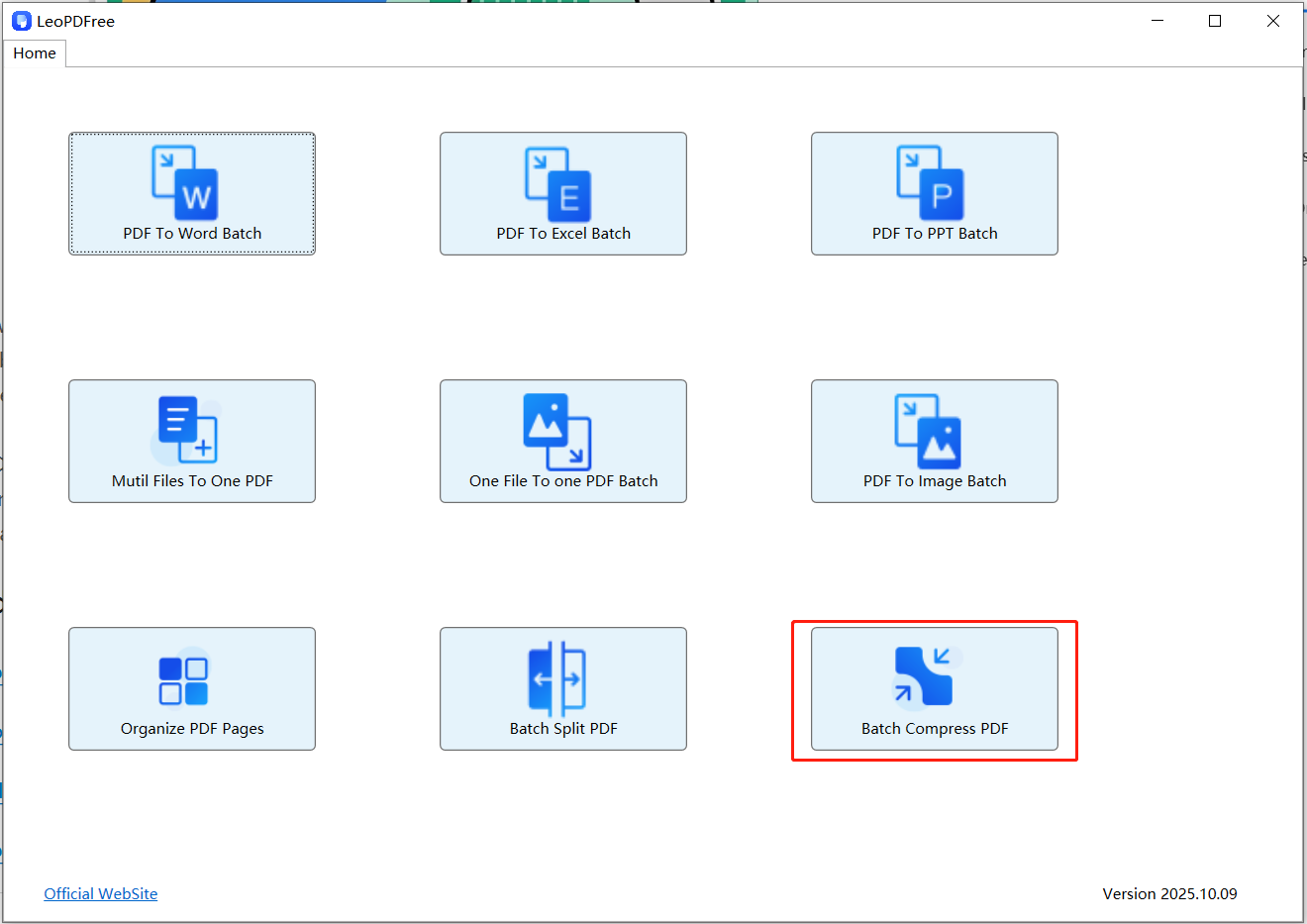
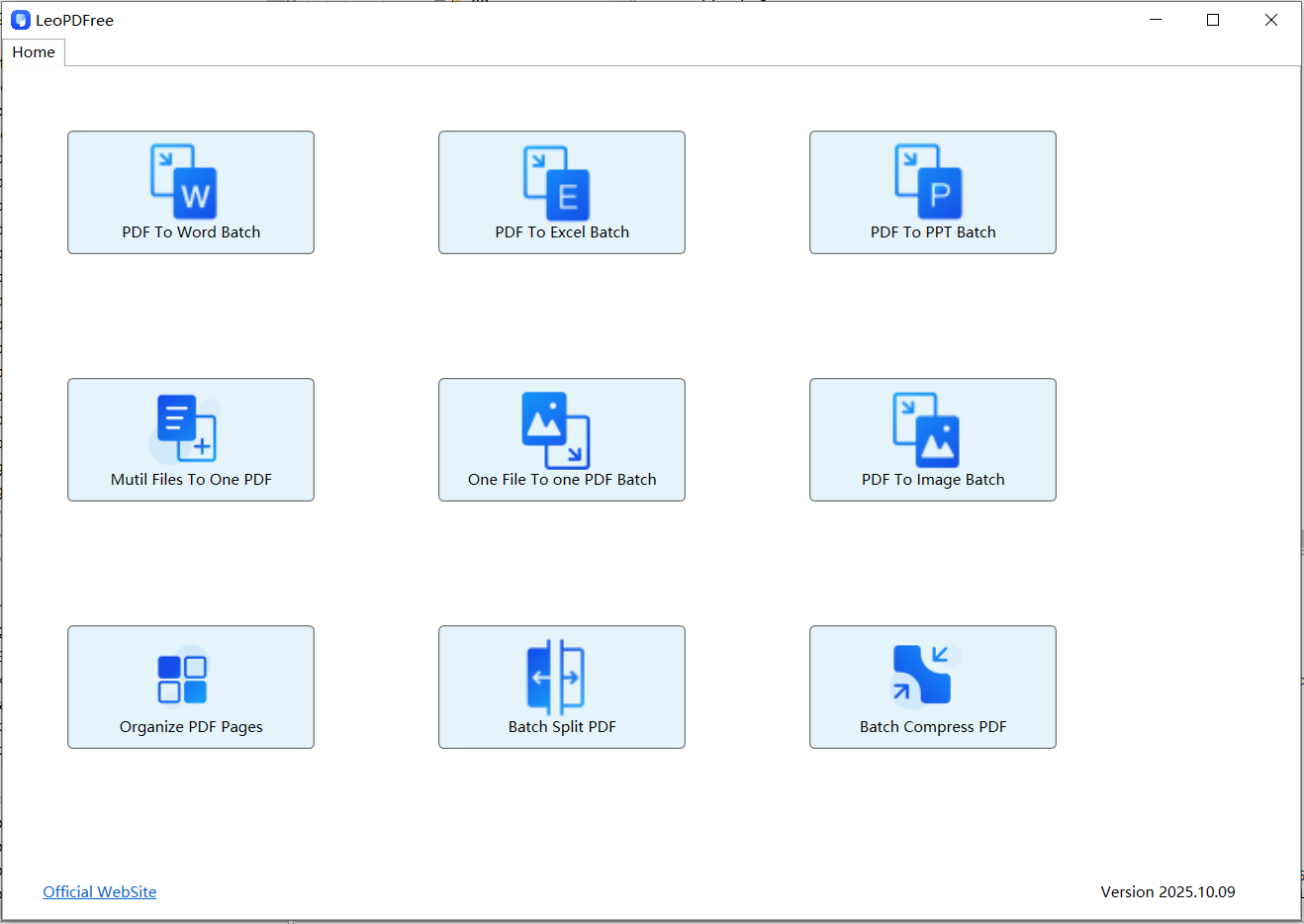
1.‌First, you can go to the official LeoPDF website to download the completely free LeoPDF tool. After the download is complete and successfully installed, open the software as shown in the figure below:

LeoPDFree Free PDF Compression Interface for Windows

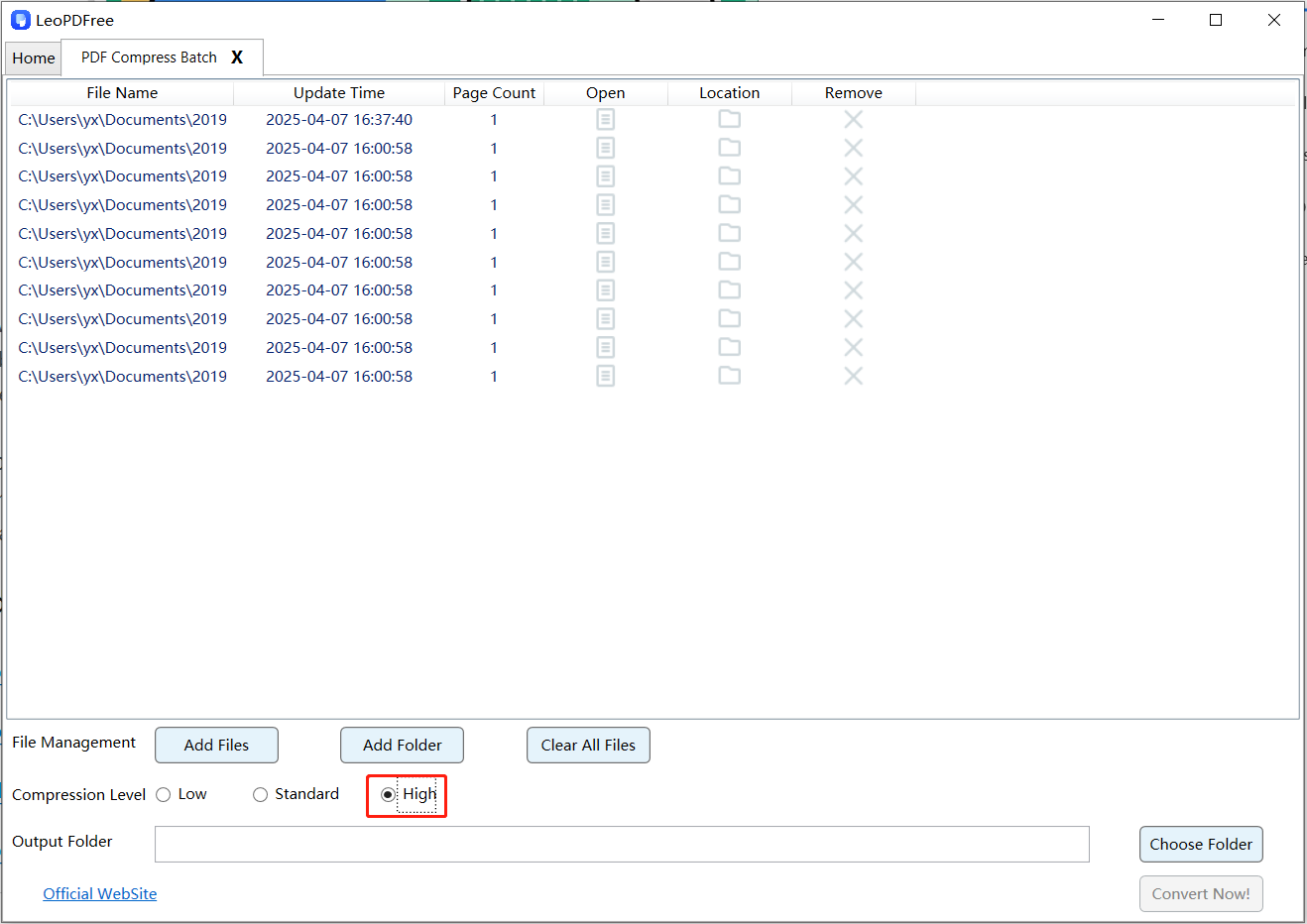
2.‌Once the software is open, click on “Batch Compress PDF” to access the file compression screen, which is shown in the image below:

Select a PDF File to Compress in LeoPDFree

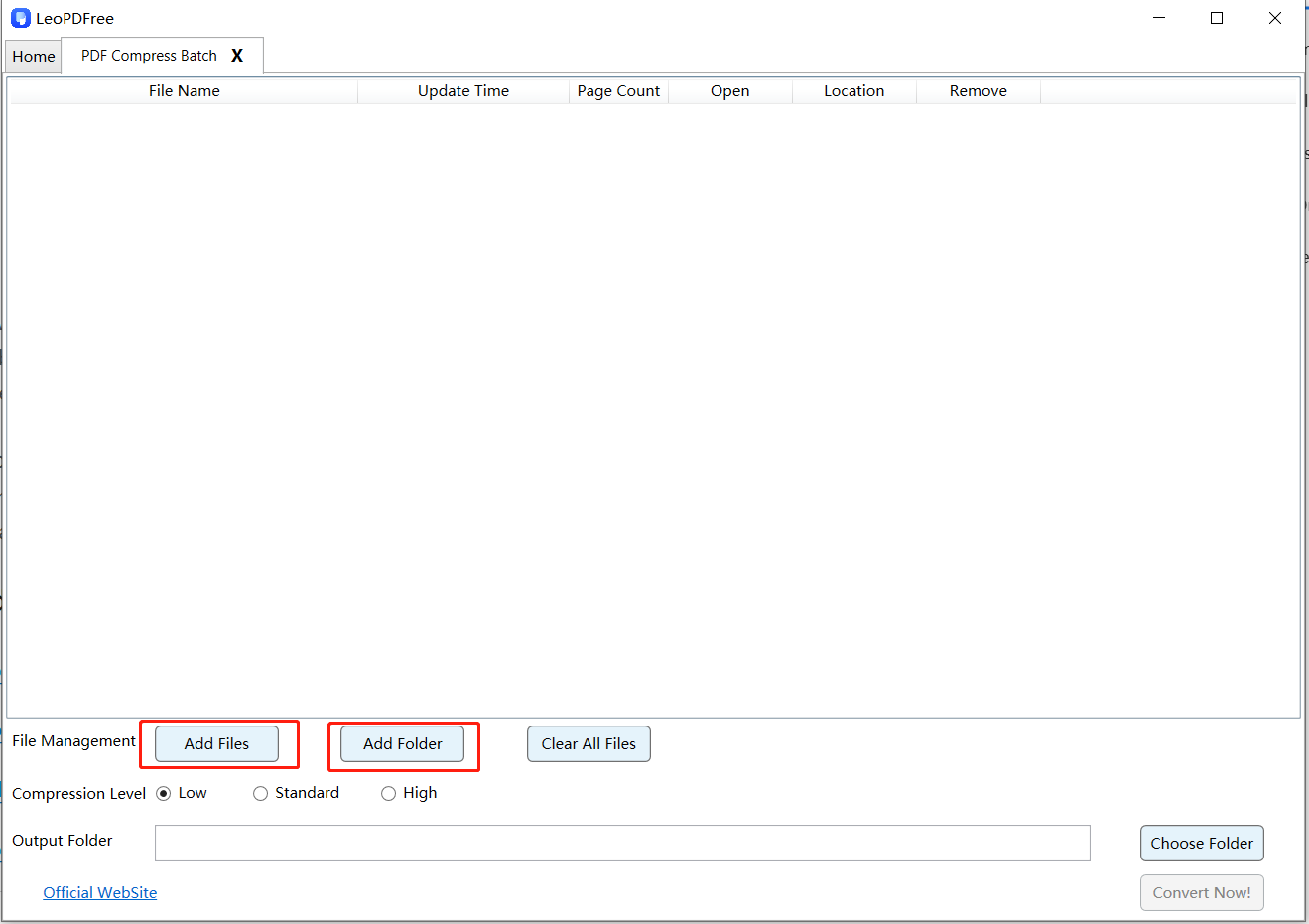
3.‌From this screen, click “Add Files” or “Add Folder” to add the PDF file(s) you wish to compress. Here, you can also choose your desired compression level (e.g., “Low”, “Standard”, or “High”) from the corresponding option, as shown in the image below:

Choose PDF Compression Settings in LeoPDFree

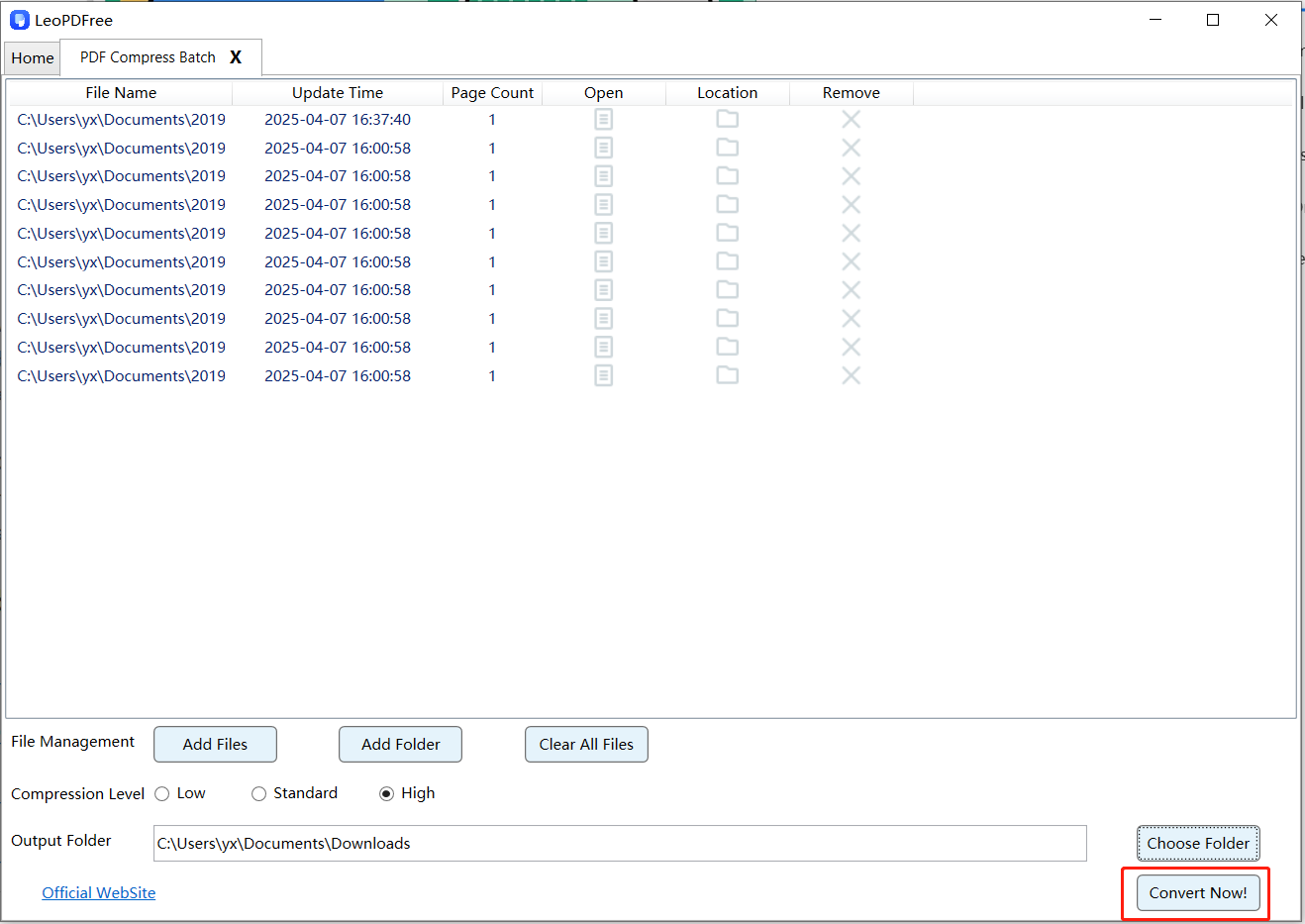
4.‌‌Next, click “Choose Folder” to set the save path for the compressed file(s). Once all compression preparations are complete, directly click the “Convert Now!” button on the interface. The tool will then quickly complete the compression for you, with the speed depending on the file size(s), as shown in the figure below.‌

Reduce PDF File Size Offline with LeoPDFree

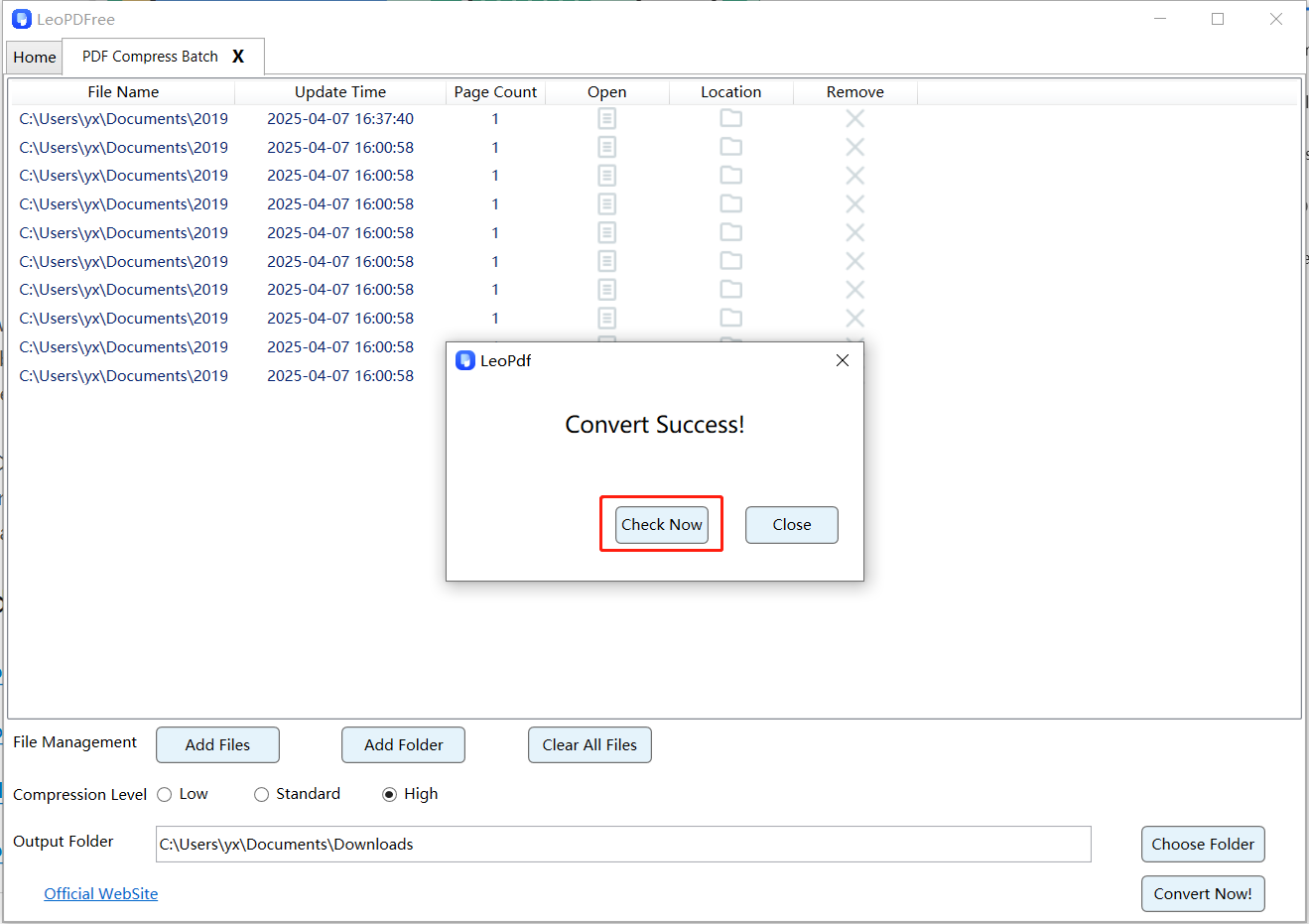
5.‌‌After the tool quickly completes the compression, simply click the “Check Now” button on the resulting pop-up interface to instantly preview the compression results. Alternatively, you can navigate to the save location to review the compressed file(s) separately. It’s a convenient and efficient process—go ahead and check the results now!

Save the Compressed PDF Document on Windows

Conclusion

PDF compression is a free local task in LeoPDFree and the store editions. Other supported tasks have their own conditions: store conversion to Word or Excel is paid cloud processing with OCR; LeoPDFree’s Word/Excel conversion is free and local without OCR.

Free Download
Free Windows edition

Choose a level and check readability

Start with a moderate setting if available, save a separate output and compare it with the original. Inspect small type, fine lines, images and any pages you need to print. Preset names describe choices, not a guarantee of a particular size reduction or unchanged quality.

An already optimized PDF may shrink little. Keep the original instead of repeatedly compressing the same output in pursuit of a smaller number.

‌How to Fix Large PDF Files: 2025 Ultimate Compression Guide

How to Reduce Large PDF File Sizes: Complete Compression Guide

In today’s world where ‌digital offices and learning are mainstream‌, PDF files remain ‌widely embraced‌ for their ‌format stability and strong compatibility‌. However, ‌oversized PDF files‌ frequently cause headaches – they ‌take up valuable storage space‌, ‌slow down email transfers‌, and can even ‌exceed upload size limits‌ on various platforms. Have you ever urgently searched for terms like ‌”how to compress PDF,” “PDF compressor,”‌ or ‌”reduce PDF file size”‌? This article delivers the ‌ultimate 2025 guide to PDF compression‌, providing a ‌comprehensive solution‌ covering ‌online tools, professional software, and built-in features‌ to help you ‌efficiently and securely‌ solve this problem.

Why Are PDF Files “Bulky”?

To effectively compress PDFs, first understand the root causes of their large size. Key reasons include:

1.High – Resolution Images‌: Embedded images (e.g., scans, screenshots) are the primary culprit. Uncompressed high – res images occupy massive space.

2.Embedded Fonts‌: To ensure consistent display across devices, PDFs sometimes embed entire font libraries.

3.‌Redundant Data & Revision History‌: After multiple edits, files may retain unnecessary historical data or version information.

4.‌Unnecessary Elements‌: Annotations, form fields, bookmarks, layers, etc., can all inflate file size.

‌3 Main PDF Compression Approaches Explained

Method 1: Online PDF Compression Tools‌

Online tools require no installation – simply open your browser. They are ideal for handling non-sensitive personal files.

How to Use:

1.Search for a reliable ‌”online PDF compression” tool‌ using a search engine.

2.Visit the website, then click ‌”Upload File”‌ or ‌drag and drop‌ your PDF into the designated area.

3.Select a ‌compression level‌ (common options: ‌”Quality Priority”‌ or ‌”Size Priority”‌).

4.Click the ‌”Compress”‌ button and wait for the server to process your file.

5.Once processed, preview the result and ‌download‌ the compressed PDF file.

Pros:

-Convenient &Fast:‌ No installation needed.

-Accessible: Use directly in your browser.

-‌Typically Free:Most basic services are free.

‌Cons:‌

Privacy Risk:‌Uploading files to a ‌third-party server‌ poses potential risks; ‌not suitable for confidential documents‌.

Internet Dependent:Requires a stable internet connection; speed affects upload/download times.

Limitations:‌May have ‌file size restrictions‌ or ‌usage limits‌.

Method 2: Professional PDF Convert&&Compress Software‌

For professionals or users with ‌high-volume compression needs‌, professional software offers the ‌most comprehensive solution with precise control‌. Examples include ‌LeoPDF and ‌Adobe Acrobat Pro‌.

Compression Steps Using LeoPDF as an Example:‌

1.‌Download‌ the freely available LeoPDF software and ‌install‌ it on your computer.Launch‌ the application and ‌click‌ the ‌”PDF Compress Batch”‌ button on the main interface, as shown below:
‌

LeoPDFree PDF Compression Interface for Windows

2.Within the software interface, click either “Add Files” or “Add Folder” to select one or multiple PDF files for compression, as shown below:

Select a Large PDF File for Compression in LeoPDFree

‌3. Select the desired compression quality level according to your needs, as shown below:‌

Adjust Compression Settings for Large PDF Files

‌4. Click the “Choose Folder” button to select the save path for the compressed files, as shown below:‌

Compress Large PDF Documents Offline with LeoPDFree

‌5. Perform a final check and adjustments for the PDF files to be compressed. Once everything is ready, directly click the “Convert Now!” button, as shown below:‌

Reduce the File Size of a Large PDF Document

6. The software will quickly complete the compression based on the file size. On the successful compression notification pop-up, click “Check Now” to preview the compressed file. Alternatively, access the result directly via your saved storage path.‌

Compare Large PDF File Sizes Before and After Compression

Pros:

✅High-Quality Compression

✅Precise Control‌ over settings

✅Batch Processing‌ support.

✅Secure & Reliable (local processing, no cloud uploads).

✅Core Advantage:‌ 100% Free with ‌no hidden costs.

‌Cons:‌

‌Requires installation‌:occupies a small amount of disk space.

Method 3: Leveraging OS Built-in Capabilities‌

The macOS system provides users with a very convenient “Print” compression method, while Windows users can also achieve preliminary optimization through a similar “Microsoft Print to PDF” feature.

‌macOS Operating Instructions:‌

‌1. Open the PDF file using the Preview application.‌

‌2. Click “File” > “Export…” in the menu bar.‌

‌3. In the Export dialog, locate the “Quartz Filter” dropdown menu.‌

‌4. Select the “Reduce File Size” option, then click “Save” to complete the process.‌

Pros:

-No Internet Required‌

-Extremely Simple Operation‌

-Secure & Private

‌Cons:‌

⚠️ ‌Moderate Compression Ratio‌ – lower file size reduction capability

⚠️ ‌Limited Control‌ – fewer customization options

⚠️ ‌Less Noticeable Results‌ – may underperform compared to Methods 1 & 2

Summary

Compressing PDFs is straightforward when you match the tool to your specific needs. Consider your ‌file content‌, ‌security requirements‌, and desired ‌compression level‌ to choose the optimal solution:

‌For instant convenience‌: Use Online Tools (Method 1)
‌For maximum control & quality‌: Leverage Professional Software (Method 2)
‌For zero-install security‌: Employ OS Built-in Features (Method 3)
Every method effectively “slims down” PDF files. This comprehensive guide equips you to streamline document management with confidence.

PDF-to-PPT Conversion: A Free LeoPDF Workflow and Paid Alternatives

Follow the free local workflow and distinguish clearly labelled paid alternatives and access conditions.

This guide includes a free local LeoPDFree workflow and separately identified alternatives that can require payment. Check the selected feature and saving conditions before starting.

‌Amid Accelerated Digital Transformation in 2025‌, free PDF to PowerPoint conversion tools are ‌redefining document handling approaches‌ for professionals. These solutions address not only ‌fundamental format transformation needs‌, but also drive ‌workflow innovation through intelligent technologies‌, thereby emerging as a ‌critical efficiency driver‌ for modern professionals.

PDF to PowerPoint Conversion: Free LeoPDF Workflow and Paid Alternatives

Method 1: Use Computer Programs to Convert PDF to PPT

Computer programs have made the entire process of converting PDF files to PPT, Excel, or Word files extremely convenient. However, the main drawback of using computer programs is that they are not completely free. Most programs offer free trial versions—either with numerous limitations or that expire after a specific period.

In general, computer programs are suitable for handling confidential documents. Since computer programs run on your own computer, you can avoid information leakage. In addition to ensuring information security, professional computer programs typically offer more extensive customization features than most online tools.

Next, the article will introduce some top – level computer programs that can be used to convert PDFs into PPTs:

LeoPDF
– 100% Free PDF to PPT Converter

If you are looking for a tool that’s worth trying for converting PDFs to PPTs, LeoPDF is the one you should give a shot. This tool can convert PDF files into PowerPoint presentation slides with simple steps and without charging. After you download it to your computer, you can use it for free for a lifetime. The standout features of LeoPDF are as follows:

  1. LeoPDFree provides its supported Windows features free. Store Word/Excel OCR conversion is a separate paid cloud workflow.
  2. No registration or activation is needed.
  3. Offline use on computers to avoid privacy risks.
  4. Easy to use. You just need a few clicks to get your PDF converted.

How to convert PDF to PPT using LeoPDF:

Step 1: Download LeoPDF, launch it on your Windows computer, and click the “PDF To PPT Batch” button on the main screen to proceed with the operation. As shown in the figure below.

LeoPDFree PDF to PPT Converter Interface for Windows

Step 2:Click “Add Files” or “Add Folder” to add one or more PDF files that you want to convert, as shown in the figure below.

Select a PDF File for PowerPoint Conversion in LeoPDFree

Step 3: Next, select the save path for the new file after conversion, as shown in the figure below.

Choose PDF to PPT Conversion Options in LeoPDFree

Step 4: Next, you can select the page range to convert on the software interface. When all preparations are complete, simply click “Convert Now!” as shown in the figure below:

Convert a PDF Document into a PowerPoint Presentation with LeoPDFree

Step 5: The software will complete the conversion process quickly. After the conversion is finished, click the “Check Now” button on the interface to view the effect of the converted file. Of course, you can also check the effect of the converted file in the storage path. Isn’t it very simple? As shown in the figure below.

Open the Converted PPT File in Microsoft PowerPoint

Adobe Acrobat Pro DC (Not Free)

dobe Acrobat PDF to PPT Converter Interface

Adobe Acrobat Pro DC, a powerful PDF processing software, also enjoys high praise for its PDF-to-PPT conversion feature. It offers a user-friendly conversion interface. Users simply need to open the PDF file, select the “Export PDF” function, and then choose PPT format as the export option to easily complete the conversion. The converted PPT files are of high quality and can well preserve the format and layout of the original PDF files. In addition, Adobe Acrobat Pro DC also supports various functions such as PDF creation, editing, and protection, making it one of the essential tools for processing PDF files. The core issue is that it is not free, which is not friendly to friends with tight budgets.

SodaPDF (Not Free)

Check the current plan and feature access; a trial or paid membership is not the same as an unrestricted free workflow.

Step 1: After downloading and installing the SodaPDF software, use it to open the PDF file you want to convert. Then, select the “PDF to PowerPoint” feature on the interface, as shown in the image below:
 

convert pdf to ppt using soda pdf

Step 2: Under the “Pages to convert” section, you can specify the page range for conversion. In the “Convert settings” section, you can choose OCR and opt to open the converted PPT document for easy verification of the conversion results.
 

Step 3: Click the “Save Converted Documents to” button to set the save path for the new converted files. Once all preparations are complete, simply click the “Convert” button to finalize the conversion.
 

Summary 

Converting PDF files to PPT files is a quick and easy process that can be automated using various tools. When choosing a conversion tool, it’s important to consider the sensitivity of the files and your personal budget. The above outlines the specific usage methods for these offline software options.
 

How to Convert PDF to Excel Offline for Free on Windows

Convert PDF to Excel offline for free on Windows with LeoPDFree. No uploads or login needed. Follow the screenshot guide to batch convert PDFs into editable Excel files.

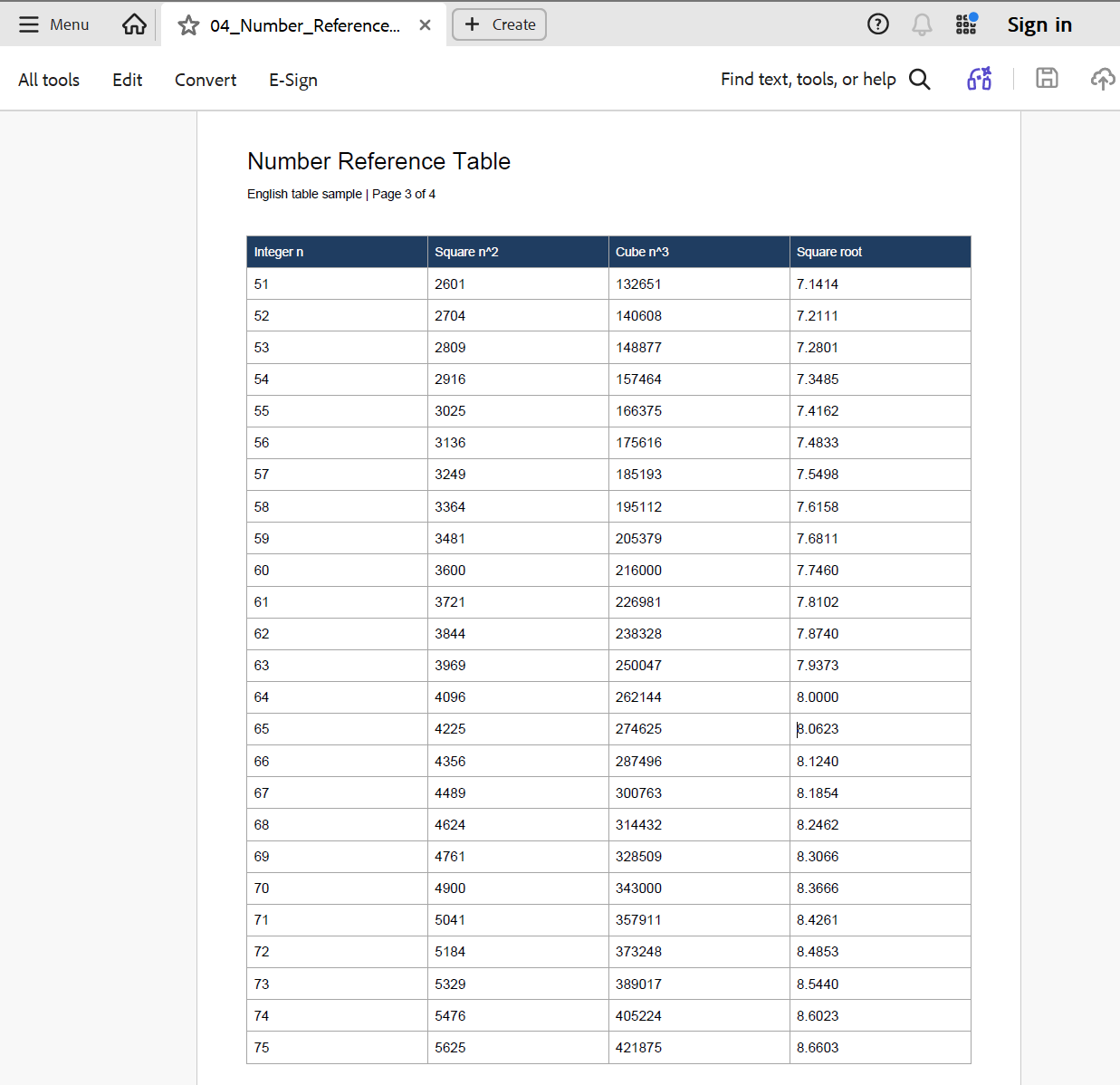
You have a table in a PDF and want to work with its data in Excel. But what if you do not want to upload the file to an online converter? Can you convert PDF to Excel locally on your Windows computer? Take the number reference table below as an example.

Number Reference Table in a PDF before offline conversion to Excel
Before conversion: page 3 of a four-page PDF contains a number reference table.

Yes. LeoPDFree is a free offline PDF to Excel converter for Windows. It converts supported PDFs on your computer without uploading them, and you can use it without creating an account or logging in. You can also batch convert multiple PDFs to Excel in one run, rather than adding and converting each file separately.

From a PDF table to an editable Excel file

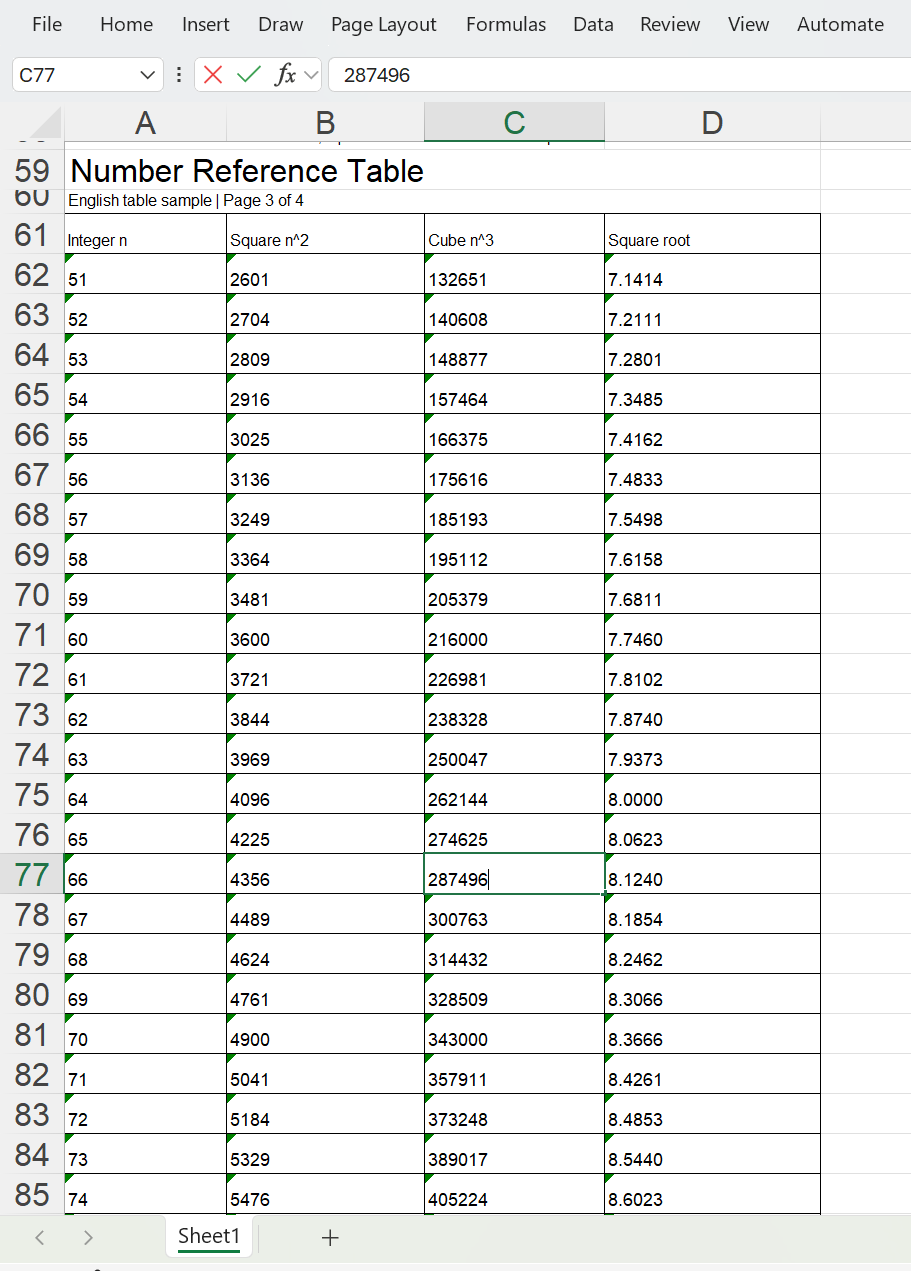
Here is the same number reference table after conversion. Instead of retyping the table, you can work with the exported data in an editable Excel file.

The PDF number reference table converted into editable cells in Microsoft Excel
After conversion: the same table in Excel, with cell C77 open for editing.
Download LeoPDFree for Windows — 64-bitFree · Offline · No login required · Batch conversion · No OCR32-bit download · Need OCR or another platform? Compare editions

How to convert PDF to Excel offline with LeoPDFree

Download and install LeoPDFree, then follow these steps.

1. Open PDF to Excel

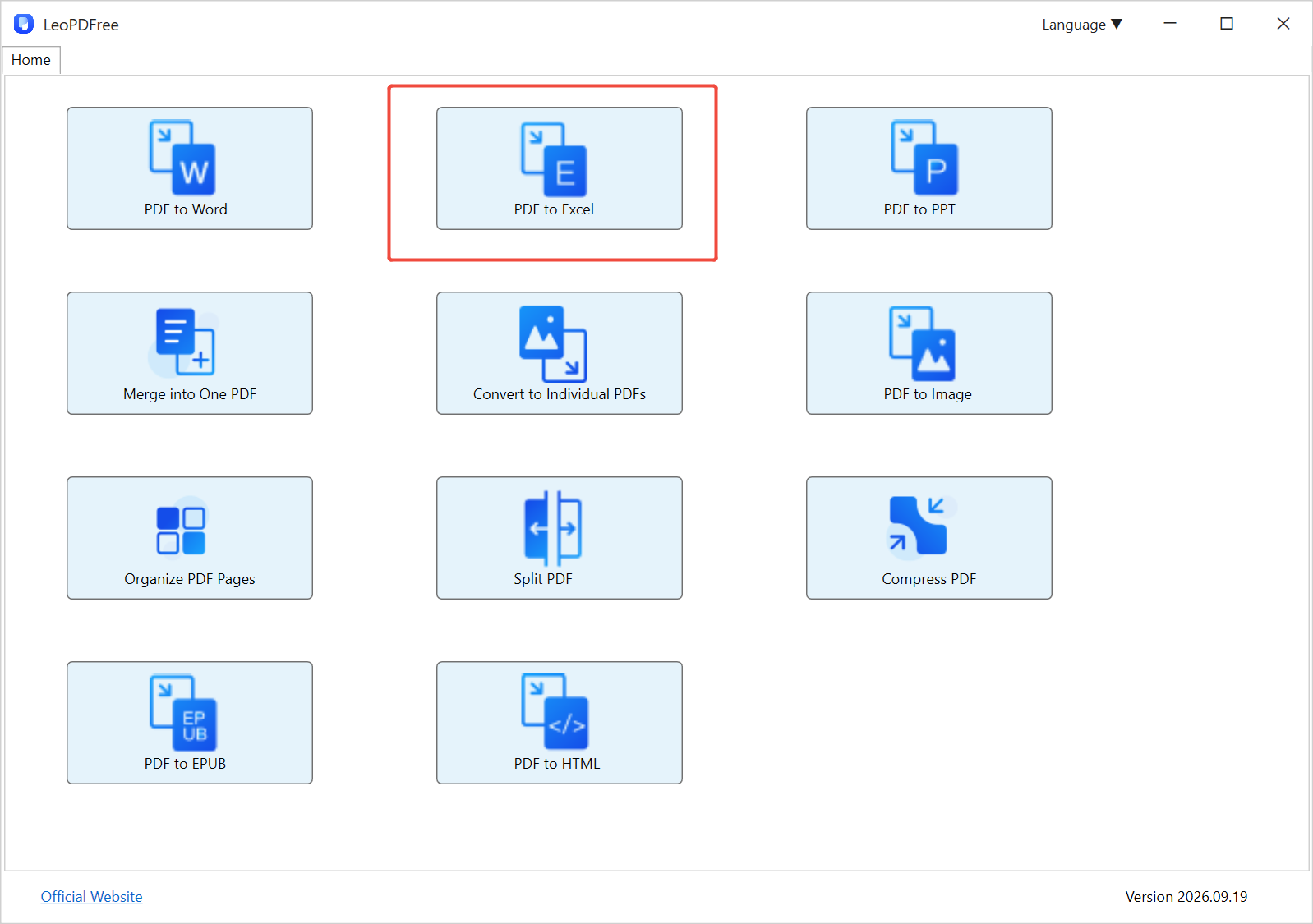
Launch LeoPDFree on Windows. On the Home screen, click PDF to Excel.

LeoPDFree Windows home screen with PDF to Excel highlighted
Open LeoPDFree and select PDF to Excel.

2. Add one PDF or select several files

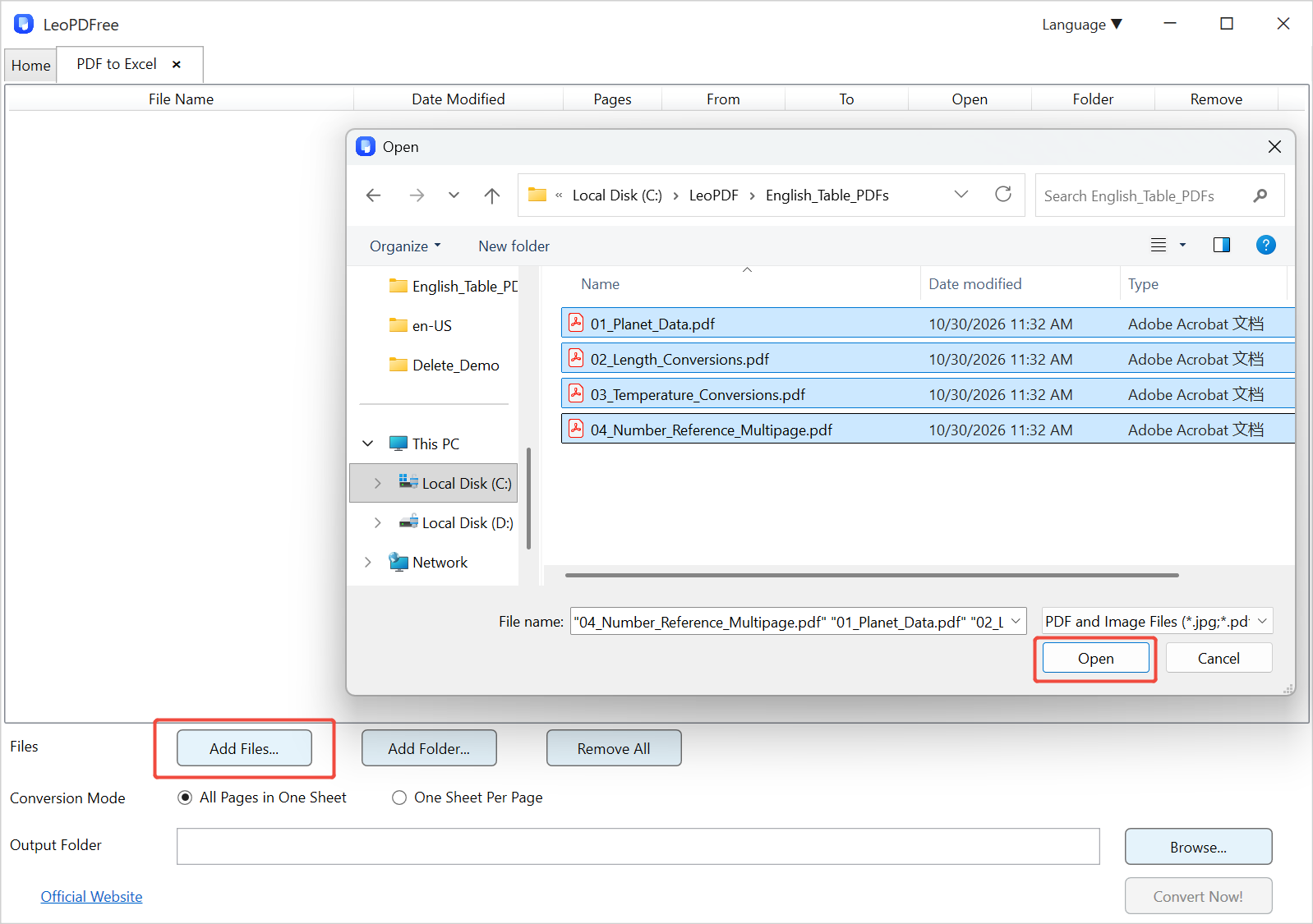
Click Add Files…, select one or more PDFs, then click Open. You can also use Add Folder… to add files from a folder.

Add Files dialog with four PDFs selected for batch conversion to Excel
Use Add Files… to select one PDF or a batch of PDFs, then click Open.

3. Choose the output folder and worksheet layout

Under Conversion Mode, choose the layout that suits your document:

  • All Pages in One Sheet: place the converted pages of each PDF in one worksheet.
  • One Sheet Per Page: give each PDF page its own worksheet.

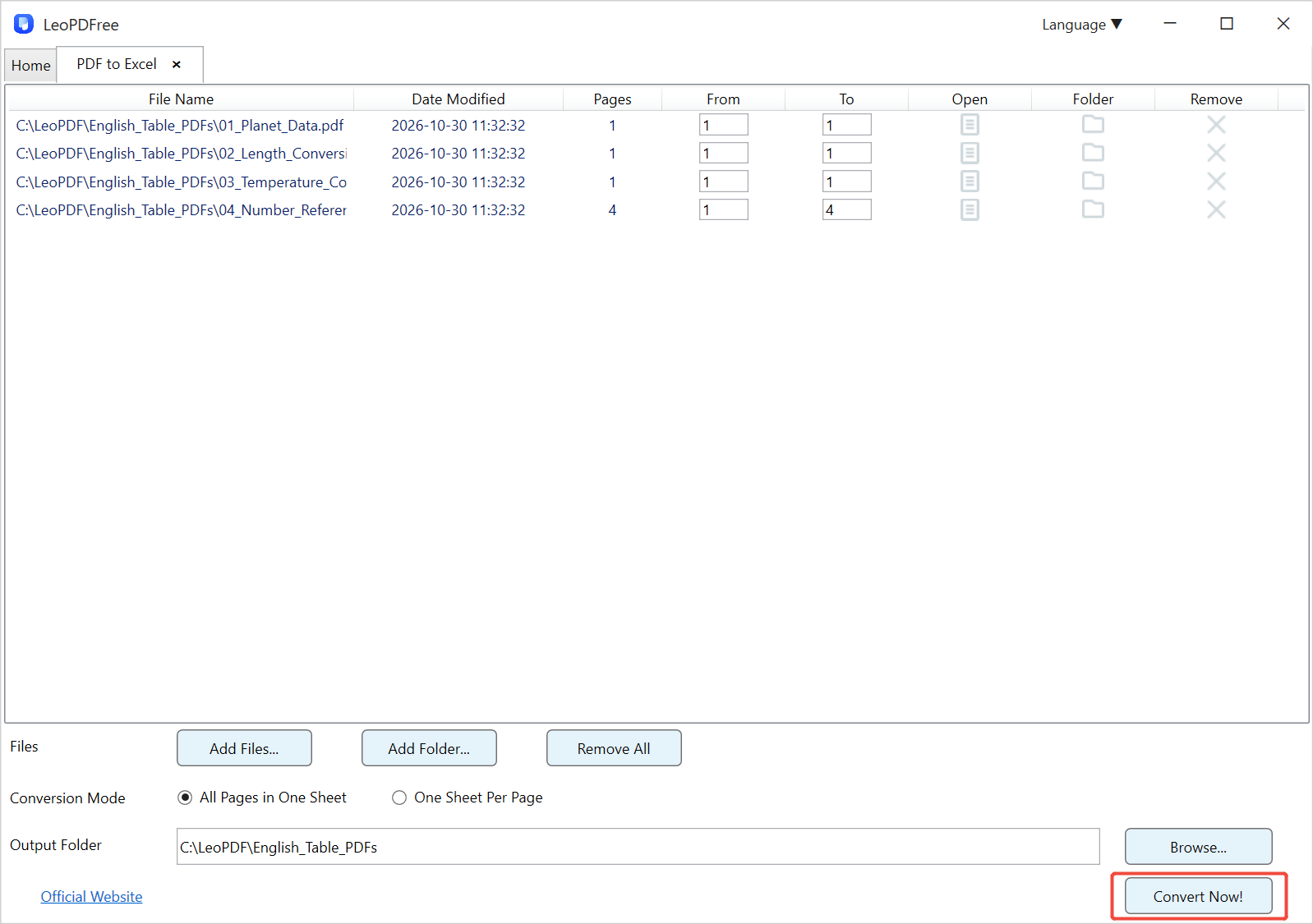
Click Browse… beside Output Folder and choose where to save the Excel files.

Four PDFs queued in LeoPDFree with an output folder and Convert Now button
The four PDFs are ready, with page ranges, conversion mode and output folder set.

Each PDF is converted into a separate Excel workbook.

4. Click Convert Now!

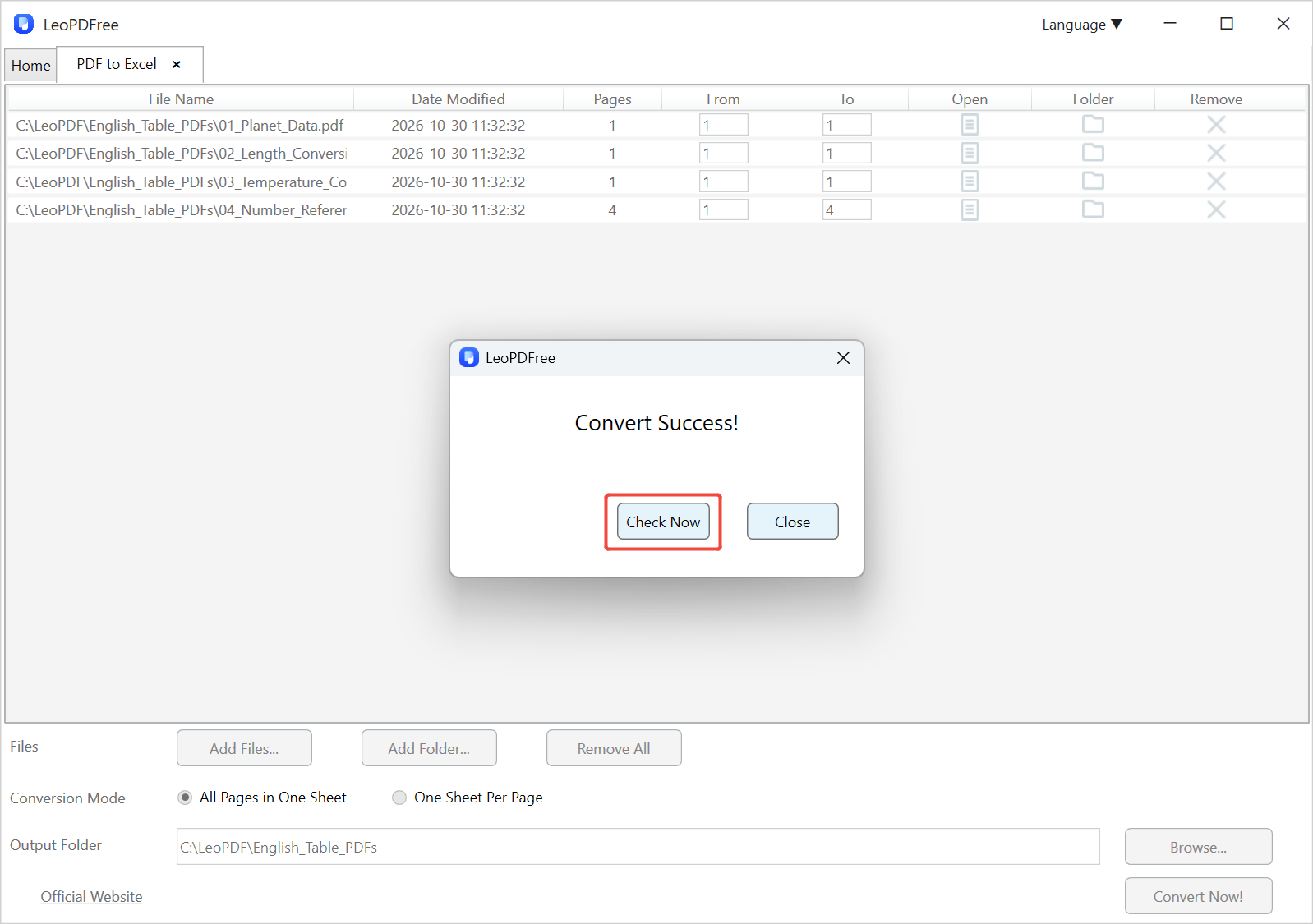
Click Convert Now! and wait for the Convert Success! message.

LeoPDFree Convert Success dialog with Check Now highlighted
When conversion finishes, click Check Now to find the exported files.

5. Click Check Now and open the Excel files

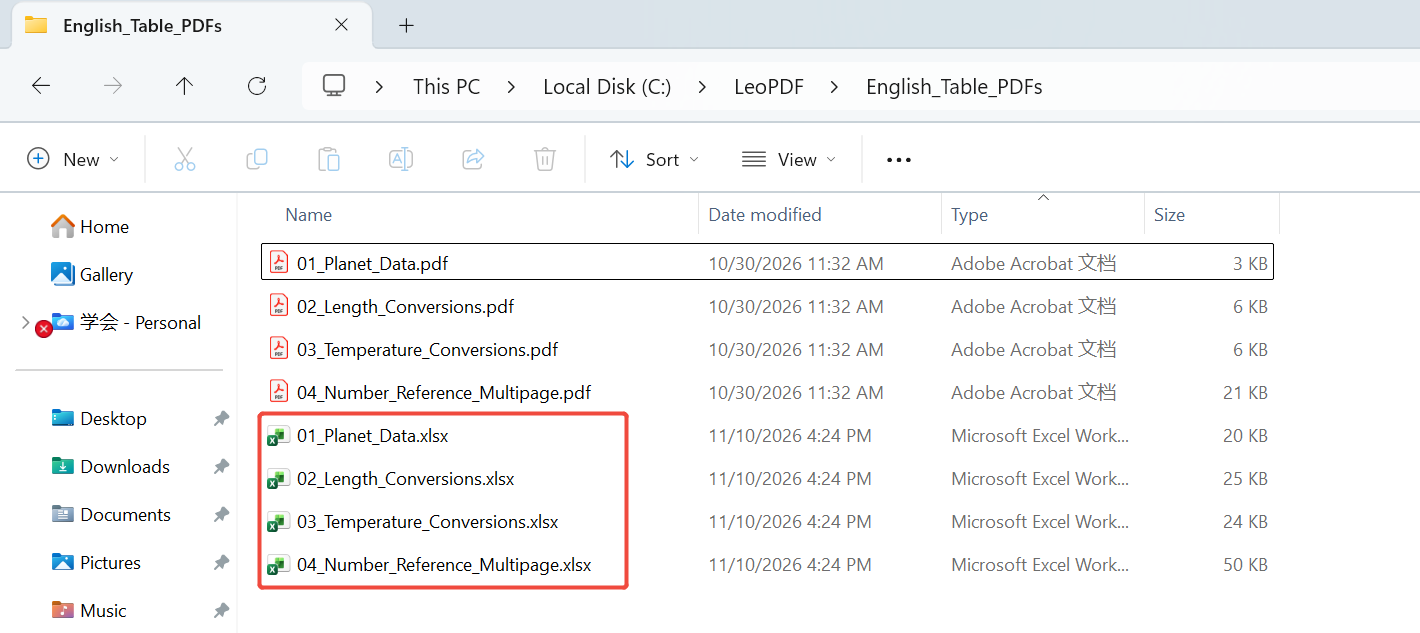
Click Check Now to open the output folder, then open the converted .xlsx files in Excel.

Windows output folder containing four Excel XLSX files beside the original PDFs
Batch result: each source PDF has its own .xlsx workbook in the chosen folder.

Before using the data, check the converted tables and numbers against the original PDF.

LeoPDFree limitations: when do you need LeoPDF?

LeoPDFree is a Windows app without OCR. It cannot recognize text from image-only scans, screenshots, photos or handwritten pages. A PDF that contains selectable text can still need manual corrections if its table layout or text encoding is complex.

For OCR or a Mac, iPhone, iPad or Android device, consider LeoPDF. The editions differ as follows:

LeoPDFree and LeoPDF: conversion, OCR and platform support
Feature LeoPDFree LeoPDF
PDF-to-Excel conversion Free, without OCR Pay by page: US$3 for a 20-page conversion pack. No subscription; purchase as needed.
File processing Local and offline for all supported features Word and Excel conversion are excluded from the offline promise; OCR uses the cloud
OCR for scans and handwriting Not included Available; requires internet
Windows Yes — website download Yes — Microsoft Store
Mac No Yes — App Store
iPhone and iPad No Yes — App Store
Android No Yes — Google Play
Other PDF tools Free Free and offline

Word and Excel conversion in LeoPDF is paid even when OCR is not needed. Cloud OCR uploads files for processing, so it does not meet a requirement to keep the entire conversion offline. See the official edition comparison for the current differences.

Get LeoPDF for your device

For free offline PDF-to-Excel conversion on Windows, download LeoPDFree and follow the steps above. Choose LeoPDF when you need OCR or another supported platform, and check the conversion options in your store edition.

Free Offline PDF to Word for Windows — LeoPDFree

Convert text-based PDFs to Word locally with LeoPDFree on Windows. Follow the retained illustrated workflow and learn when scanned pages need a separate OCR option.

LeoPDFree is the free Windows website edition for converting supported PDFs to Word locally. No file upload is needed for this workflow. It does not include OCR, so start with a PDF that contains usable text rather than photographed pages.

Check whether the PDF contains text

Try selecting and copying a sentence from several pages. A successful selection is a useful first check, but copied text may still have encoding or reading-order problems. If the pages are only images, use an OCR-to-Word workflow instead. Some PDFs mix text and scanned pages, so check more than the first page.

Convert PDF to Word with LeoPDFree

Follow these steps to convert a PDF containing usable text to Word locally with LeoPDFree. Download LeoPDFree for Windows or choose your edition.

Step 1. Open LeoPDFree. Click “PDF To Word Batch” on the main menu. This tool can convert PDF to Word.

convert pdf to word step 1

Step 2. In the second step of PDF conversion, there are two options available:

Click the ‌”Add Files”‌ button to select the PDF files you want to convert.
Click ‌”Add Folder”‌ to add all PDF files in the directory for conversion.
As shown in the figure below:

convert pdf to word step 2

Step 3. Click the ‌”Choose Folder”‌ button on the interface to select the destination path for the converted files, as shown in the figure below:

convert pdf to word step 3

Step 4.Once all the files to be converted have been added, click the ‌”Convert Now!”‌ button on the interface, and the files will be processed. As shown in the figure below:

convert pdf to word step 4

Step 5
Wait for the conversion to complete; processing time depends on the files and computer. A ‌”Convert Success!”‌ prompt will appear, and you can click the ‌”Check Now”‌ button on the interface to view the converted files.

convert pdf to word step 5

Check the Word file before using it

Compare headings, paragraph order, tables, page breaks, footnotes and unusual symbols with the source. Keep both the original PDF and an untouched conversion result before making changes. A completion message confirms processing finished; it does not certify that every layout element was recovered.

If text is selectable but the output is poor, test a representative page, check copying from the source and compare the reading order. Decorative layouts and multiple columns may need manual correction. A bigger file or higher resolution does not by itself improve conversion of text already embedded in the PDF.

When you need OCR instead

LeoPDF app store editions provide paid cloud Word/Excel conversion with OCR for PDFs, images and scans. Conversion files are deleted when processing completes. Other supported operations are local. LeoPDFree’s Word/Excel conversion is free and local but has no OCR; these are distinct workflows rather than a free OCR entitlement.

See the handwriting guide for that input, and review recognition carefully. Neither local nor cloud conversion guarantees perfect layout or recognition. For supported features and platforms, use the edition guide.

How to Merge Multiple File Formats into One PDF: 2025 Ultimate Guide

merge pdf files windows and mac

Why Merging Files to PDF is Crucial in 2025‌ With professionals now handling an average of 14 distinct file formats weekly, consolidating them into standardized PDFs – particularly merging image formats (JPG/PNG) and PDFs – dominates 80% of document workflows, as verified by industry analytics reports.

‌Why Merge Multiple File Formats into a Single PDF?‌

‌For regular PDF users unfamiliar with merging, here’s why consolidating multiple formats (JPG, DOCX, PPT) into standardized PDFs is essential—enhancing efficiency, security, and compliance across professional workflows.‌

‌Achieve EU Digital Identity Compliance with PDF Standardization‌

Converting multi-format files into unified PDFs directly addresses 2025 EU eIDAS 2.0 regulations by ensuring secure document handling in identity verification, e-signing, and archival processes – meeting critical requirements for cryptographic integrity and non-repudiation.

‌Unlock AI-Driven Document Intelligence with PDF Consolidation‌  

Merging multi-format files into standardized PDFs enables seamless integration with modern AI document processing tools—accelerating workflow automation, extracting critical insights, and revolutionizing enterprise data-driven decision making.  

Blockchain-Powered Document Certification

‌The 2025 PDF Integrity Standard Merging multi-format files into blockchain-anchored PDFs delivers tamper-proof certification—leveraging decentralization and cryptographic immutability to meet stringent compliance requirements for financial, legal, and governmental workflows.‌ 

‌Unlock One-Click Job Applications  

Modern recruitment platforms eliminate paper submissions but enforce single-file upload limits—forcing candidates to consolidate cover letters, resumes, and certificates into unified PDFs for seamless application processing and 68% faster HR review cycles.  

‌PDF Scan Interrupted: Do I Need to Rescan the Entire Document?  

‌Stop rescanning entire documents! Our PDF merging technology picks up interrupted scans precisely at the break point—solving crashes or manual stops permanently. 100% success rate guaranteed.  

Method 1: ‌How to Combine Images and PDF Files on Windows

The first tool you should give a try is this one: LEOPDF‌100% free desktop solution for merging images (JPG/PNG) and PDFs into PDF files. Convert between formats offline, split/extract pages securely with zero internet required. No watermarks, no ads.‌

‌How to Merge PDF Documents for Free Using LEOPDF‌:

Step 1. Download LEOPDF on your Windows 10 computer. Launch it on your computer, and click on the “Mutil File To One PDF” section to go to the next screen.

Free DownloadSecure Download

how to merge pdf step 1

Step 2. ‌On the open interface, click “Add Files” or “Add Folder” to select the image and PDF files you need to merge. As shown in the figure below:‌

how to merge pdf step 2

Step 3. ‌‌After adding all images and PDF files to be merged, click “Choose Folder” to set the save path for the new merged file, as shown below:‌

how to merge pdf step 2

Step 4. ‌‌‌When all preparations are complete, click “Convert Now!” to quickly finish merging files of different formats, as demonstrated in the figure below:‌

how to merge pdf step 2

Step 5. ‌‌‌‌In the final step after file merging completes into a single PDF, you may verify if the merged result meets your expectations. Locate the merged file in your save path, or click “Check Now” in the interface to review it directly. As depicted in the diagram below:‌

how to merge pdf step 2

‌Like other online tools, LEOPDF enables you to merge PDF files. What sets it apart is that LEOPDF is a PC application allowing complete offline operation, eliminating data leak risks. When merging PDFs containing sensitive information, this offline capability provides enhanced security assurance.‌

Method 2: ‌Professional Desktop Solutions Adobe Acrobat Pro

Step 1. ‌‌Download and install Adobe Acrobat DC on your computer.

Step 2. ‌‌In the ‌File‌ menu, select ‌Create PDF‌ > ‌Combine Files‌, then choose the multi-format files you wish to merge.

Step 3. ‌‌Click the ‌”Merge” button‌. During the merging process, a Quantum Acceleration prompt will appear. The merged file is automatically saved to the default location but can also be saved as a new file.

Summary 

Merging multi-format files into a single PDF on ‌Windows 10 and later systems‌ is straightforward. While both methods presented are efficient, note that ‌Adobe requires a paid subscription‌, whereas ‌LeoPDF is completely free‌. Although online tools also offer free merging, ‌avoid them if documents contain sensitive/proprietary information‌. For Windows users prioritizing ‌data security‌ and ‌cost efficiency‌, we recommend the offline solution: ‌LeoPDF‌.  

The Top Tool for Rotating PDF Pages and Saving Changes: LEOPDFree

For frequent PDF users, it’s highly likely you’ve considered rotating and saving documents at some point. While PDF rotation should theoretically be straightforward, the process can seem complicated without practice

how to rotate a pdf and save

For frequent PDF users, it’s highly likely you’ve considered rotating and saving documents at some point. While PDF rotation should theoretically be straightforward, the process can seem complicated without practice or proper tools. Our research team has identified the optimal approach for permanently rotating PDF files. By the end of this article, you’ll master how to rotate pages and save changes with lasting results.

What’s the purpose of rotating and saving PDF files?

Incorrect document orientation is a frequent issue among PDF users, making page rotation skills a critical need.
 

If your document or embedded images appear upside down, mobile viewing allows easier correction compared to desktop computers. However, knowing how to rotate PDF pages transforms this into a straightforward fix.

Save your rotation-adjusted PDF as a separate file. This can help with permanent correction, freeing you from re-rotating the document during future access.

Next, we’ll walk you through the exact process for rotating PDF documents and preserving orientation changes in LEOPDF and Adobe Acrobat.

1.    How to rotate and save PDF files in LEOPDF software?

LEOPDF is a permanently free desktop tool offering core functionalities including PDF merging/splitting, page-range splitting, and bidirectional image-PDF conversion. It operates without internet connection or file size restrictions, delivering fast and secure processing. Next, we’ll walk you through rotating PDF pages and saving corrected files in LEOPDF.

Step1: First, download and install the software. Then launch the application. The interface should appear as shown below:

rotate pdf save LEOPDF

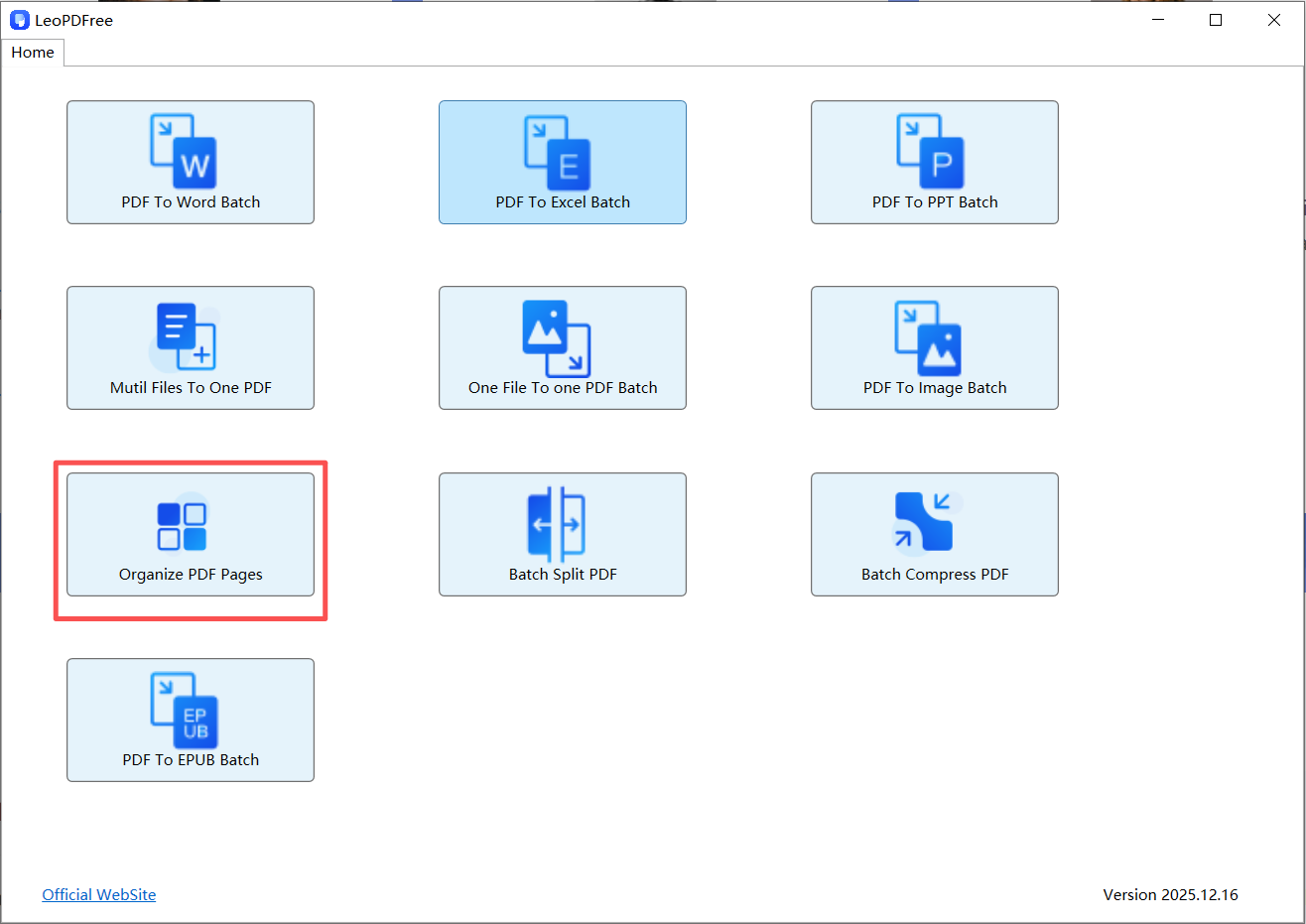
Step2: On the opened software interface, click the ‌”Organize PDF pages”‌ button to launch the dedicated interface for adding PDF files or images. The workflow is illustrated below:

rotate pdf save LEOPDF

Step3: On the opened interface, click the ‌”Insert File”‌ button in the top bar to add target PDF files or images for rotation. The workflow is illustrated below:

rotate pdf save LEOPDF

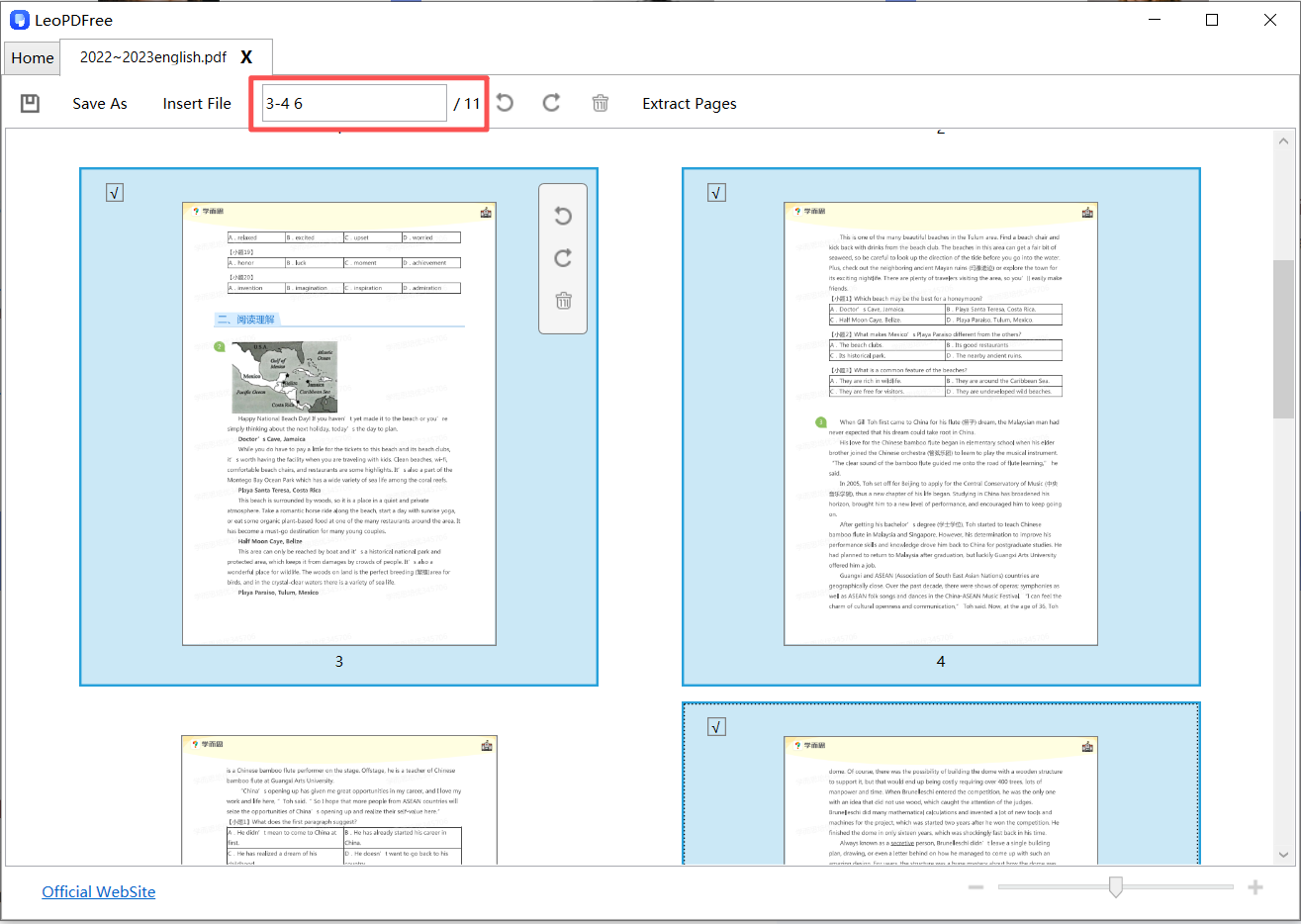
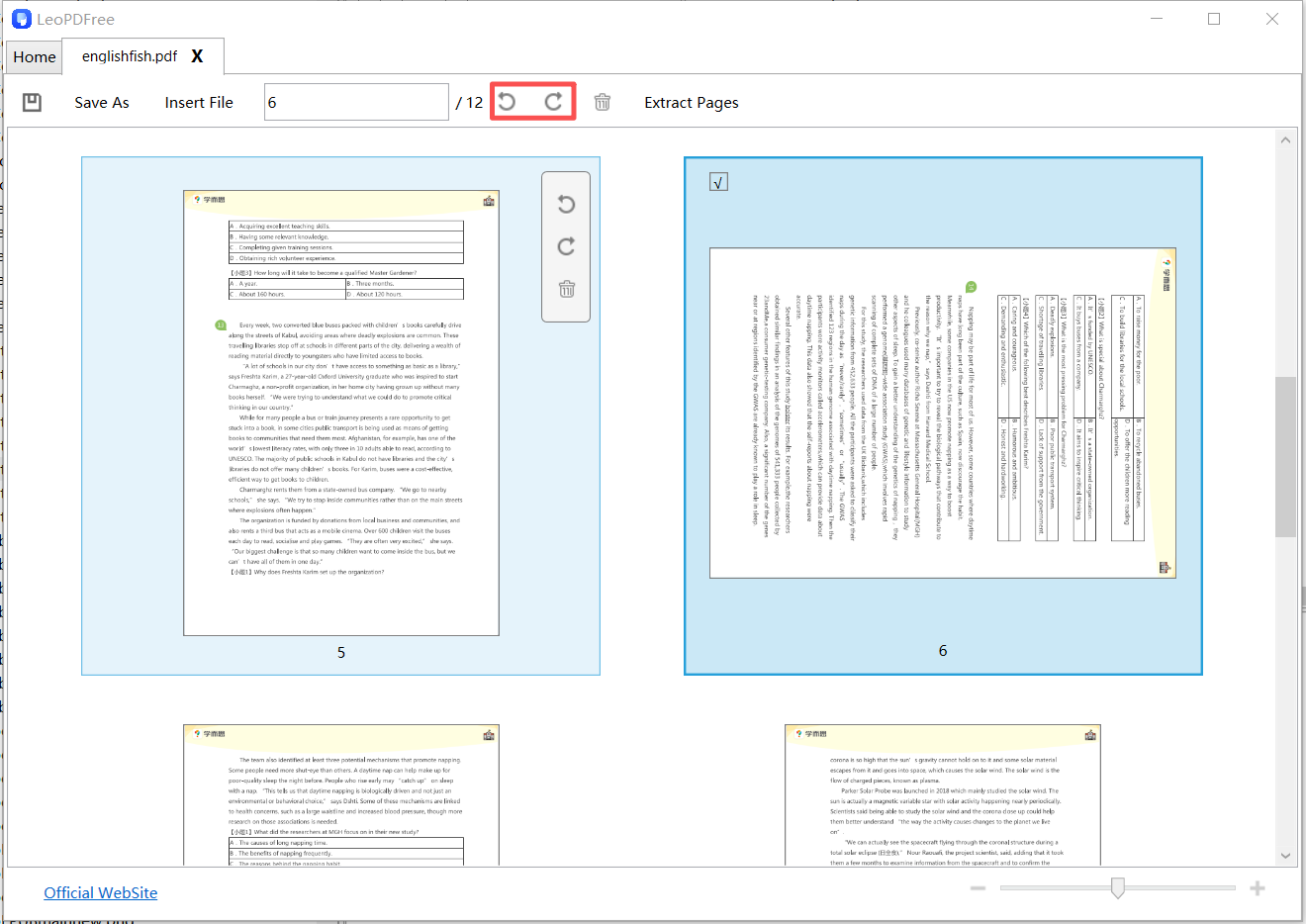
Step4: Within the interface, select the PDF pages requiring rotation (select single/multiple pages via ‌CTRL+click‌, mouse drag-selection, or by entering page numbers in the ‌top toolbar’s input field‌). Then initiate rotation by clicking the rotation icon. The procedure is illustrated below:

rotate pdf save LEOPDF

Step5: Both batch rotation and single-page rotation are supported, with the rotation results displayed as illustrated below:

rotate pdf save LEOPDF

Step6: The next and most critical step is to click the ‌”Save As”‌ button on the interface after rotation to preserve the newly generated file. The workflow is illustrated below:

rotate pdf save LEOPDF

Step7: At this stage, all PDF rotation and saving operations are complete. To verify the results, you may either:
Open the rotated PDF from its saved directory, or Use the ‌”Insert File”‌ option within the software interface to load the saved file.
Both verification methods are illustrated below:

rotate pdf save LEOPDF

Isn’t rotating and saving files with LEOPDF incredibly straightforward and efficient? Best of all – it’s ‌completely free to use‌! Get your copy now and experience premium PDF tools at zero cost!

2.    How to permanently rotate and save PDF files using Adobe software?

Adobe Acrobat (DC and later versions) is compatible with both Windows PCs and Mac computers. This software is commercially licensed, though users may download a 7-dayfree trial version, Pursuant to Section 3.2 of the Trial License Agreement, document rotation functionality remains unrestricted during the trial period. 

Step1: Download and install Adobe Acrobat software, then use Adobe Acrobat to open the PDF file you intend to rotate.
 

Step2: Click the “Document” menu and select “Rotate Pages,” as shown below:

Rotate Pages

Step3: Select the pages you wish to rotate and determine the desired rotation direction.

Step4: When performing PDF page rotation, you may rotate all pages in the entire document or specific page ranges within the document. After selecting the pages to rotate, click the ‌”Apply”‌ button to confirm the page range and rotation direction. At this point, the PDF rotation operation is complete. ‌Critically important: Always remember to click “Save”‌ to permanently overwrite the file with the rotated version.

Summary 

Rotate the selected pages, save a separate copy and reopen it to check orientation. These illustrated workflows are instructions, not a claim that every app version has been tested or that every PDF can be modified. Keep the original file.

Rotate just one page or a selected group

In a page-organizing view, select only the page thumbnails that need rotation. Apply the available rotation control, review the affected pages and save a new PDF. Close and reopen the saved file to confirm the orientation was stored; rotating only the viewer can leave the file unchanged.

Single-page selection and rotation in Windows

Follow the illustrated LeoPDFree Windows workflow below, then open the output and compare it with the source document.

Single-page selection and rotation in Windows — earlier Windows interface
LeoPDFree Windows conversion workflow.
Single-page selection and rotation in Windows — earlier Windows interface
LeoPDFree Windows conversion workflow.
Single-page selection and rotation in Windows — earlier Windows interface
LeoPDFree Windows conversion workflow.
Single-page selection and rotation in Windows — earlier Windows interface
LeoPDFree Windows conversion workflow.

How to Delete Blank, Duplicate, or Unwanted PDF Pages for Free on Windows

Delete PDF pages for free on Windows with LeoPDFree. Remove blank, duplicate, or unwanted pages, follow the video guide, and see iPhone and Android tutorials.

Need to delete pages from a PDF for free on Windows? With LeoPDFree, you can open your PDF, select the pages you no longer need, click the trash icon, and save the remaining pages as a new file. The page-deletion process runs locally on your computer, without uploading the PDF for processing.

This guide shows how to remove blank pages, duplicate pages, and other redundant pages from a PDF without Adobe Acrobat. The screenshots use a 10-page sample document: deleting pages 4–5 leaves an 8-page PDF.

Quick Steps: Delete Pages from a PDF on Windows

  1. Launch LeoPDFree and choose Organize PDF Pages.
  2. Open the PDF and review its page thumbnails.
  3. Select the unwanted pages, then click the trash icon.
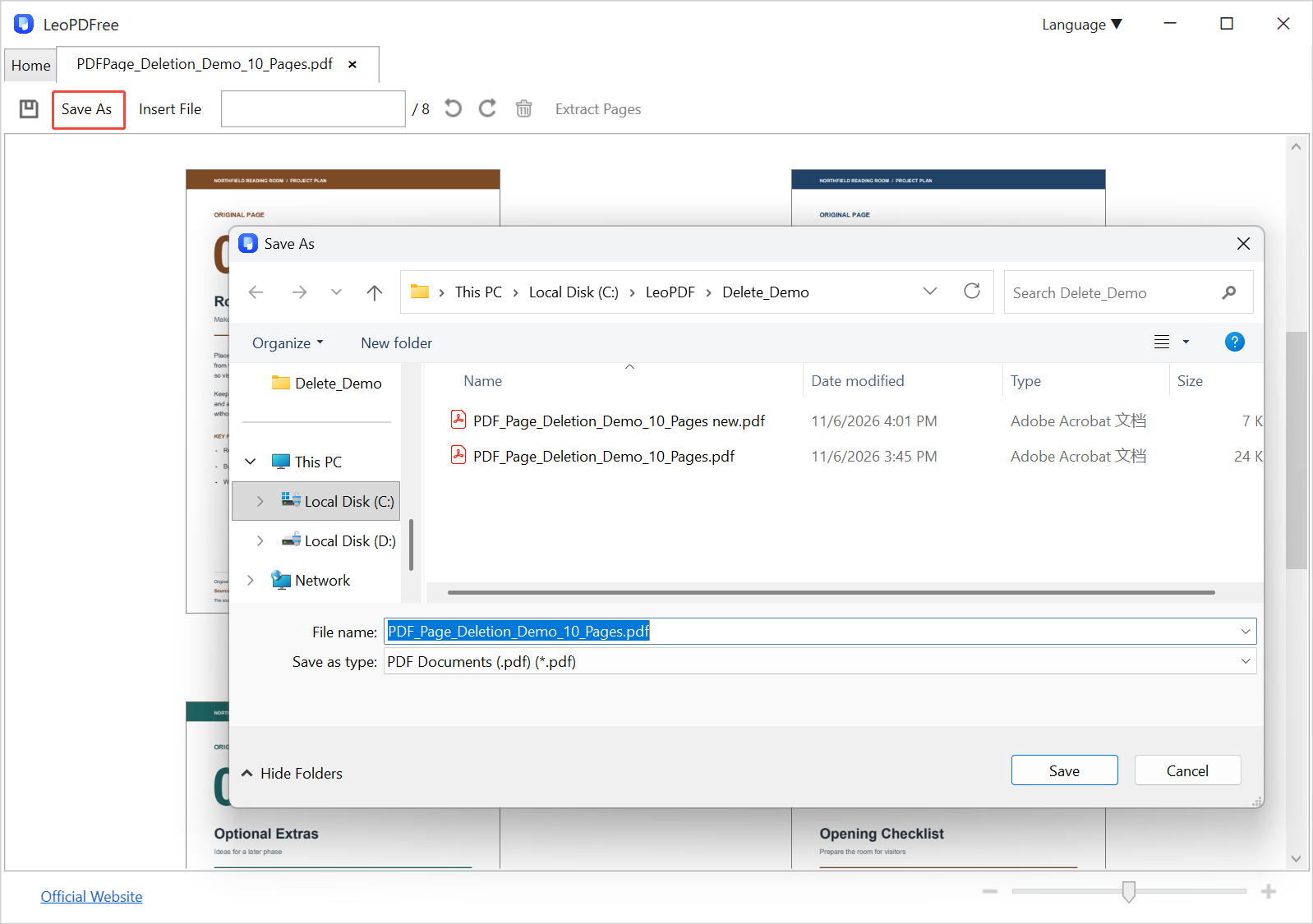
  4. Check the remaining pages and choose Save As to save a new PDF.

Download LeoPDFree for Windows (64-bit) from the official LeoPDF website, install it, and follow the illustrated steps below. If you need a different Windows package, see the Windows download options.

How to Delete Blank or Redundant Pages from PDF for Free

LeoPDFree is a free offline PDF toolkit for Windows. Alongside removing PDF pages, it can merge files into one PDF, convert images to and from PDF, extract selected pages, and split PDF files. For this tutorial, use its page organizer to remove only the pages you no longer need.

Step 1: Open Organize PDF Pages

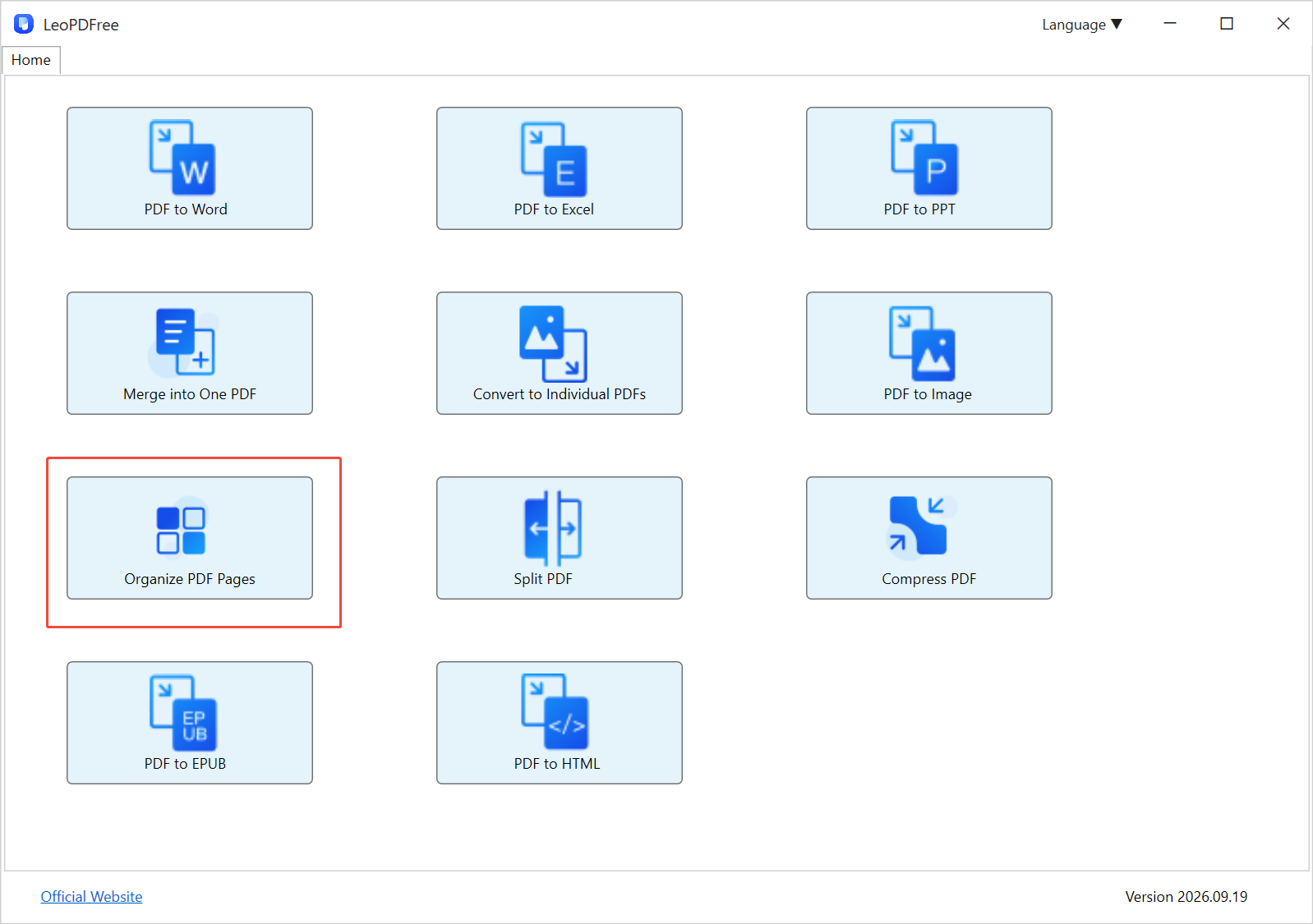
Start LeoPDFree on your Windows PC. On the Home screen, select Organize PDF Pages, highlighted in the screenshot below, to begin the page-deletion workflow.

Open Organize PDF Pages in LeoPDFree to delete PDF pages for free on Windows
Step 1. Choose Organize PDF Pages on the LeoPDFree Home screen.

Step 2: Open Your PDF and Review the Page Thumbnails

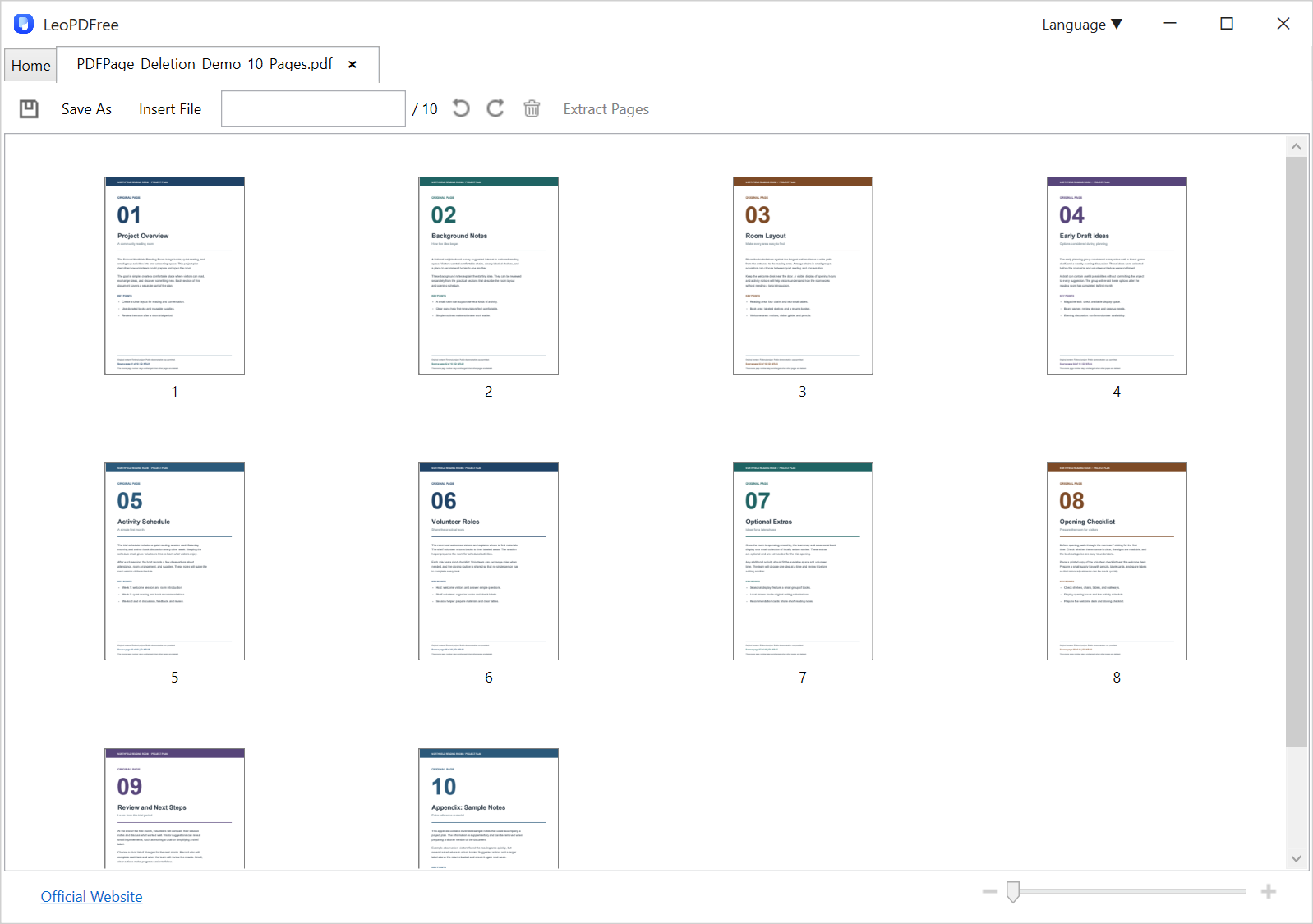
Choose the PDF you want to edit. Once it opens, LeoPDFree displays its pages as thumbnails, with a page-position number beneath each one. In the screenshot below, the document tab shows the filename, and /10 beside the page-selection field indicates that the PDF contains 10 pages.

PDF open in LeoPDFree with page thumbnails and a total of 10 pages before deletion
Step 2. Review the opened PDF and identify the pages to remove before making a selection.

Scroll through the thumbnails to find blank pages, duplicate pages, outdated drafts, or unrelated attachments. Use the zoom slider at the bottom right to enlarge the previews when you need to inspect a page more closely. Compare similar pages before deciding which copy to remove.

Use the page-position numbers beneath the thumbnails when making your selection. A page labeled “4” inside the document may have a different position in the PDF if a cover or introductory section comes first. In this demonstration, we will remove pages 4 and 5; these are ordinary sample pages used to illustrate the deletion process.

Step 3: Select and Delete the Unwanted Pages

Select the pages you want to remove. You can select an individual page, hold Ctrl and left-click to select multiple pages, drag the mouse to select a group, or enter page numbers in the selection field.

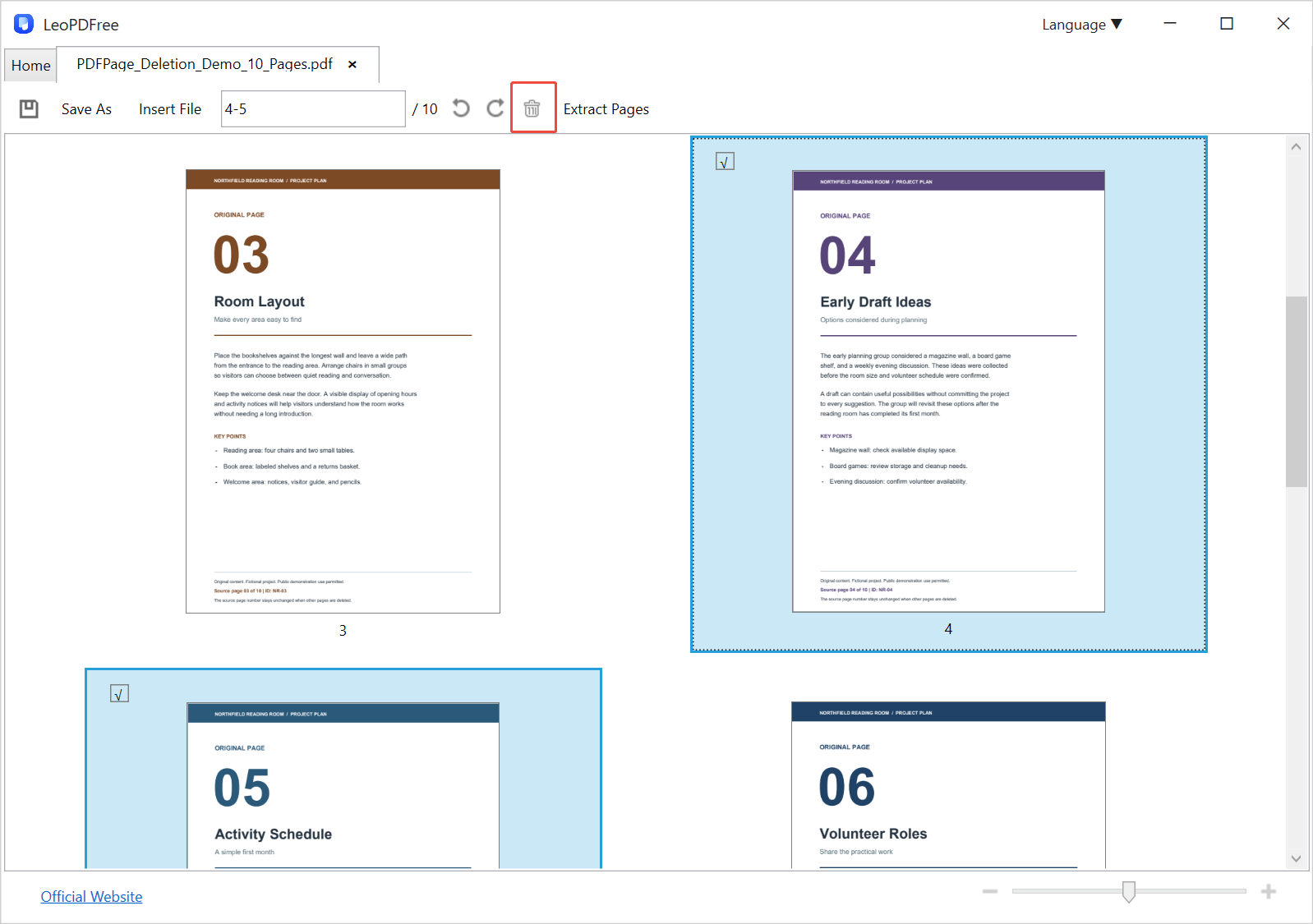
For the example below, enter 4-5 to select pages 4 and 5. The selected thumbnails have blue highlighting and check marks. Confirm the selection, then click the trash icon in the top toolbar to delete those pages.

Select PDF pages 4–5 and click the trash icon to remove unwanted pages in LeoPDFree
Step 3. Confirm the selected pages, then click the highlighted trash icon.

To delete blank pages from a PDF, select the empty pages identified in Step 2. To remove duplicate pages from a PDF, select only the extra copies you have checked. After each deletion, review the updated page positions before selecting another group.

Step 4: Save the Edited PDF as a New File

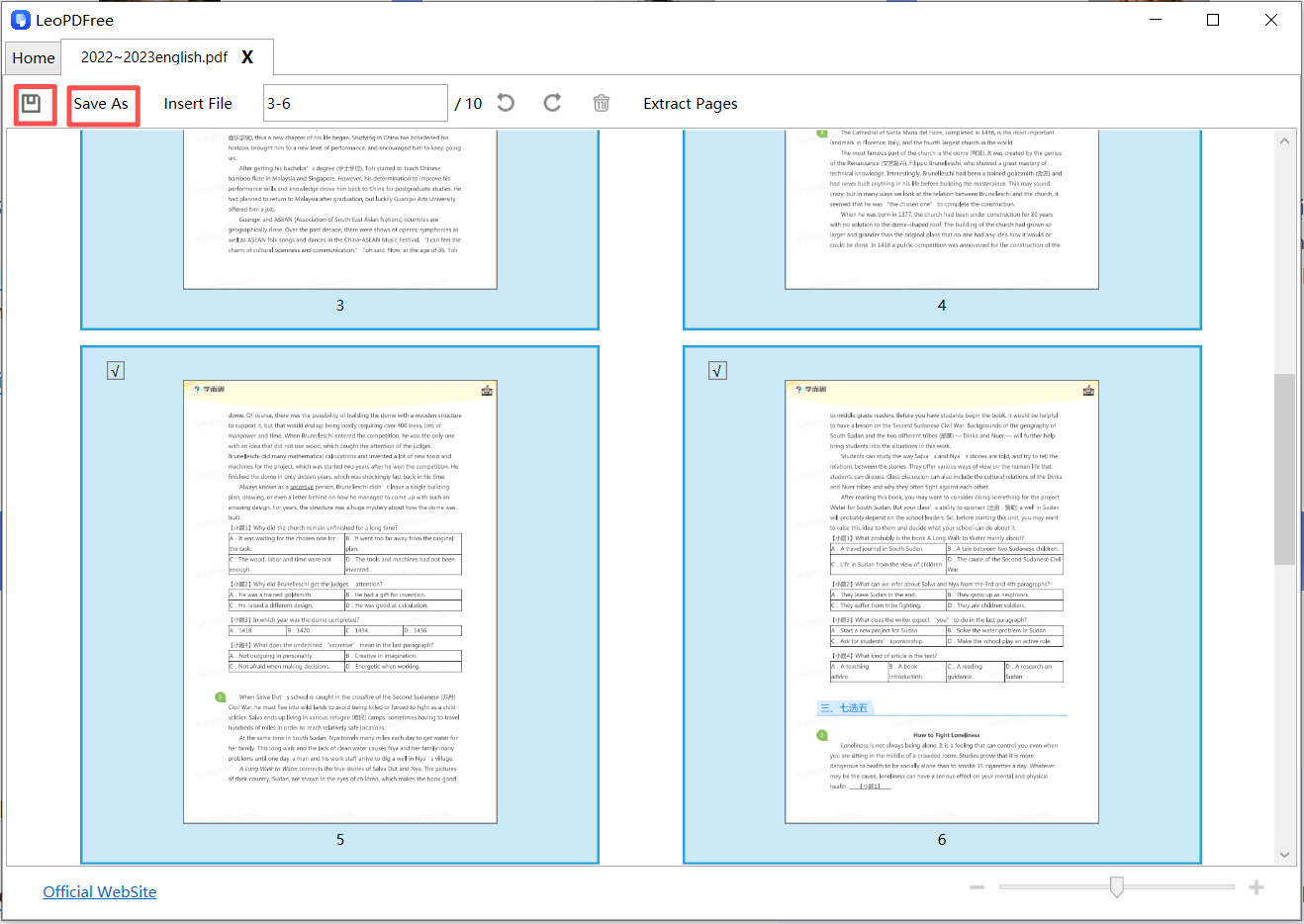
After deleting the selected pages, review what remains. The sample document now contains 8 pages instead of 10. Click Save As, choose a folder, and enter a different filename, such as Document-Cleaned.pdf. Click Save to keep the edited copy alongside your original.

Use Save As to save the PDF after deleting pages on Windows
Step 4. Use Save As and a new filename to keep the original PDF.

Reopen the saved PDF and check the page count, page order, and the content around each deletion. Removing pages changes their positions in the file; it does not necessarily update printed page numbers, a table of contents, or references within the document.

Video: How to Delete Unwanted PDF Pages on Windows

Prefer to follow a video? Use this Windows tutorial alongside the screenshots to work through the page-deletion process.

Watch: delete unwanted PDF pages on Windows on YouTube

Tips for Removing Blank and Duplicate PDF Pages

  • Inspect apparently blank pages. A nearly empty page may still contain a footer, a signature, or faint scanned content.
  • Compare duplicates closely. Two similar pages may contain different dates, annotations, or revisions.
  • Check the selection before deleting. Blue highlighting and check marks help you confirm which pages will be removed.
  • Keep a separate original. A new filename makes it easier to recover a page you later decide to retain.

Frequently Asked Questions

Can I delete pages from a PDF for free without Adobe Acrobat?

Yes. LeoPDFree provides free PDF page deletion on Windows. Use Organize PDF Pages to select and remove the unwanted pages, then save the result as a new PDF.

Can I remove more than one PDF page at a time?

Yes. Hold Ctrl and left-click to select multiple pages, drag to select a group, or enter a page range such as 4-5 in the selection field. Review every selected page before clicking the trash icon.

Do I need to upload my PDF to delete pages?

No. LeoPDFree processes this page-deletion task offline on your Windows computer. You do not need to upload the document to an online PDF editor.

Does this method automatically find blank or duplicate pages?

This tutorial shows you how to identify and select pages yourself. Review the thumbnails and page contents to decide which blank, duplicate, or redundant pages to delete.

Delete PDF Pages for Free on iPhone and Android

You can also delete unwanted PDF pages for free with the LeoPDF app on iPhone and Android. If your document is already on your phone, follow the tutorial for your platform to remove unnecessary pages and save the edited PDF. The mobile interface differs from the Windows screenshots above.

iPhone: Free PDF Page Deletion Video

Watch: delete PDF pages for free on iPhone on YouTube

Android: Free PDF Page Deletion Video

Watch: delete PDF pages for free on Android on YouTube

Choose the guide for your device, keep your original file, and check the saved copy before sharing it.

Soda PDF Full Review: Is It Safe To Use?

Assess Soda PDF’s desktop and online workflows, account conditions and document handling without treating a feature list as a security guarantee.

Whether Soda PDF is suitable for a document depends on the edition, the operation and where the file is processed. A product description alone cannot establish that every workflow is appropriate for every sensitive file. This overview uses current official information and a selection checklist, not an independent security audit or a new hands-on benchmark.

Distinguish desktop and online access

The official Soda PDF product page describes a Windows desktop application and a browser-based service. It also distinguishes their available features. Confirm that the particular edit, export or form operation you need exists in the interface and plan you will use.

The vendor describes offline capability for desktop work, while the online service and cloud-storage integrations involve connected workflows. Do not assume that opening the same brand on a different device gives identical features or identical document handling.

Review document access before uploading

Decide whether the document may be uploaded to an online editor or a linked storage account. Review the selected service’s privacy terms, sharing options and account access. For an installed application, check which specific operations use local files and which invoke a connected feature.

Use the official download or service entry point. Keep account credentials private, and avoid granting a storage integration access that you do not need. These are practical checks, not a promise that a particular product has no security risks.

Check the plan and the saved output

Confirm the current purchase or trial conditions before depending on editing, OCR, export or signing access. An advertised download or a successful preview does not establish that your account can save every type of result without restrictions.

  • For text changes, inspect the edited page and surrounding layout.
  • For OCR, compare recognized text and numbers with the source.
  • For forms, check the completed file in the recipient’s viewer.
  • For conversion, review tables, page breaks and image detail.

Keep an unchanged original and save a separate output. Test the actual operation with a suitable sample before adopting it for a large collection of documents.

When a simpler converter is sufficient

LeoPDFree provides supported conversions locally on Windows without uploading files for processing. Its PDF-to-Word and PDF-to-Excel conversion is free and has no OCR. Store editions provide paid cloud Word or Excel conversion with OCR for scanned text and handwriting; cloud files are deleted when conversion completes.

See the edition comparison. LeoPDFree does not provide direct PDF editing, signing, form filling or password removal. Choose it for a supported conversion rather than assuming that it replaces the complete Soda PDF editor.

Questions about LeoPDF?

Contact xuehui@leopdf.com with your platform, app version and a description of your question.