Tips & guides
The Top Tool for Rotating PDF Pages and Saving Changes: LEOPDFree
Published

For frequent PDF users, it’s highly likely you’ve considered rotating and saving documents at some point. While PDF rotation should theoretically be straightforward, the process can seem complicated without practice or proper tools. Our research team has identified the optimal approach for permanently rotating PDF files. By the end of this article, you’ll master how to rotate pages and save changes with lasting results.
What’s the purpose of rotating and saving PDF files?
Incorrect document orientation is a frequent issue among PDF users, making page rotation skills a critical need.
If your document or embedded images appear upside down, mobile viewing allows easier correction compared to desktop computers. However, knowing how to rotate PDF pages transforms this into a straightforward fix.
Save your rotation-adjusted PDF as a separate file. This can help with permanent correction, freeing you from re-rotating the document during future access.
Next, we’ll walk you through the exact process for rotating PDF documents and preserving orientation changes in LEOPDF and Adobe Acrobat.
1. How to rotate and save PDF files in LEOPDF software?
LEOPDF is a permanently free desktop tool offering core functionalities including PDF merging/splitting, page-range splitting, and bidirectional image-PDF conversion. It operates without internet connection or file size restrictions, delivering fast and secure processing. Next, we’ll walk you through rotating PDF pages and saving corrected files in LEOPDF.
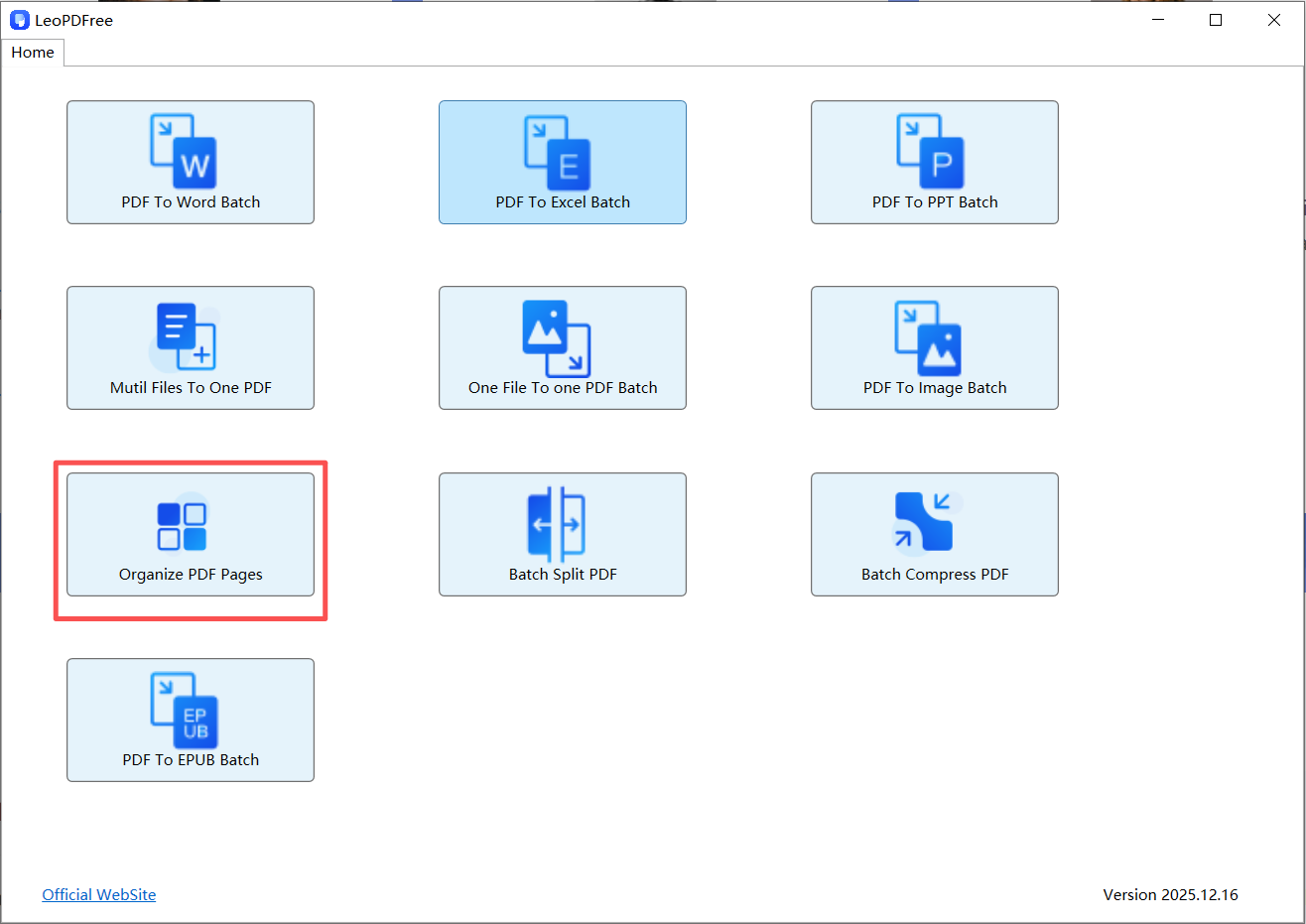
Step1: First, download and install the software. Then launch the application. The interface should appear as shown below:

Step2: On the opened software interface, click the ”Organize PDF pages” button to launch the dedicated interface for adding PDF files or images. The workflow is illustrated below:

Step3: On the opened interface, click the ”Insert File” button in the top bar to add target PDF files or images for rotation. The workflow is illustrated below:

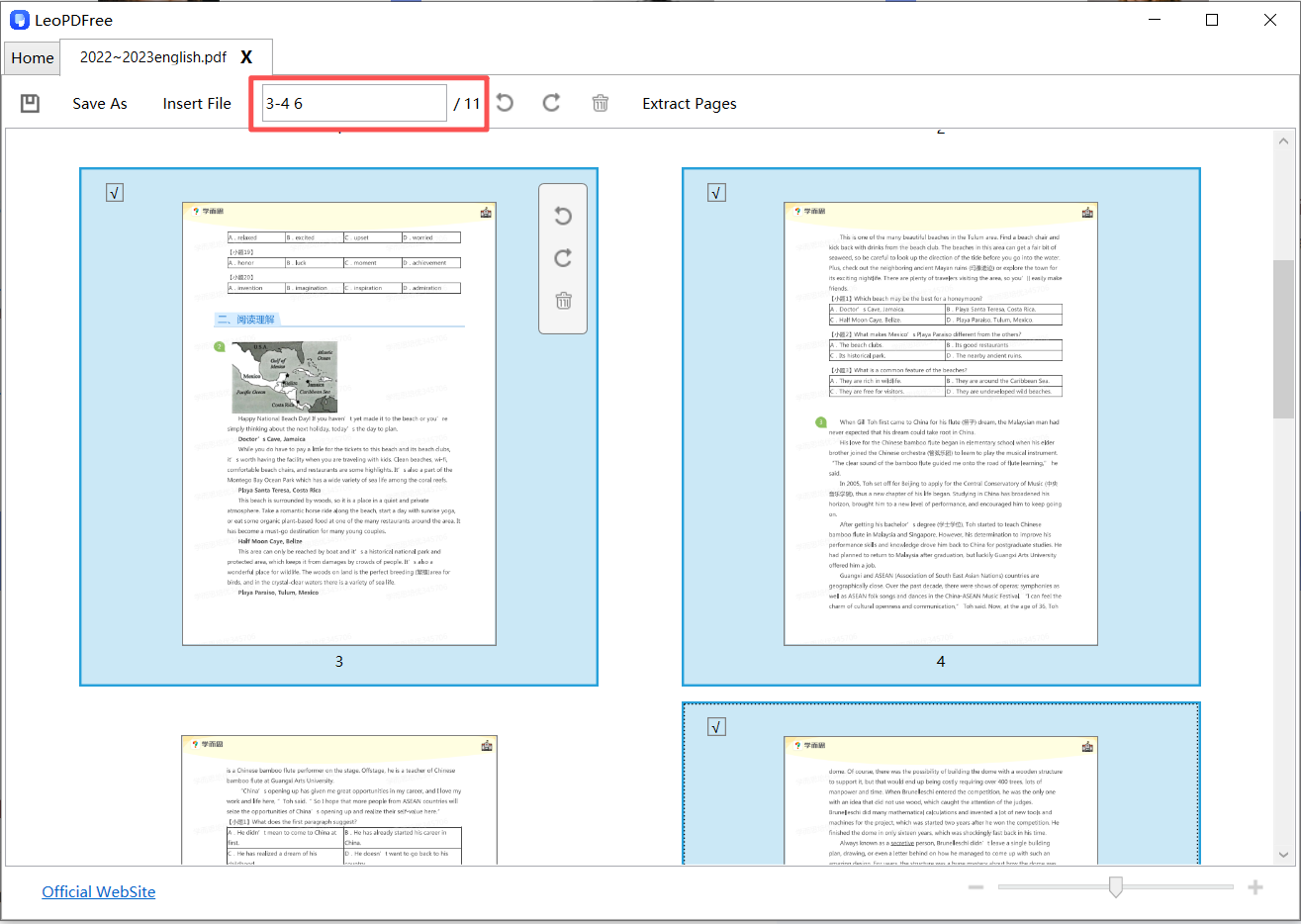
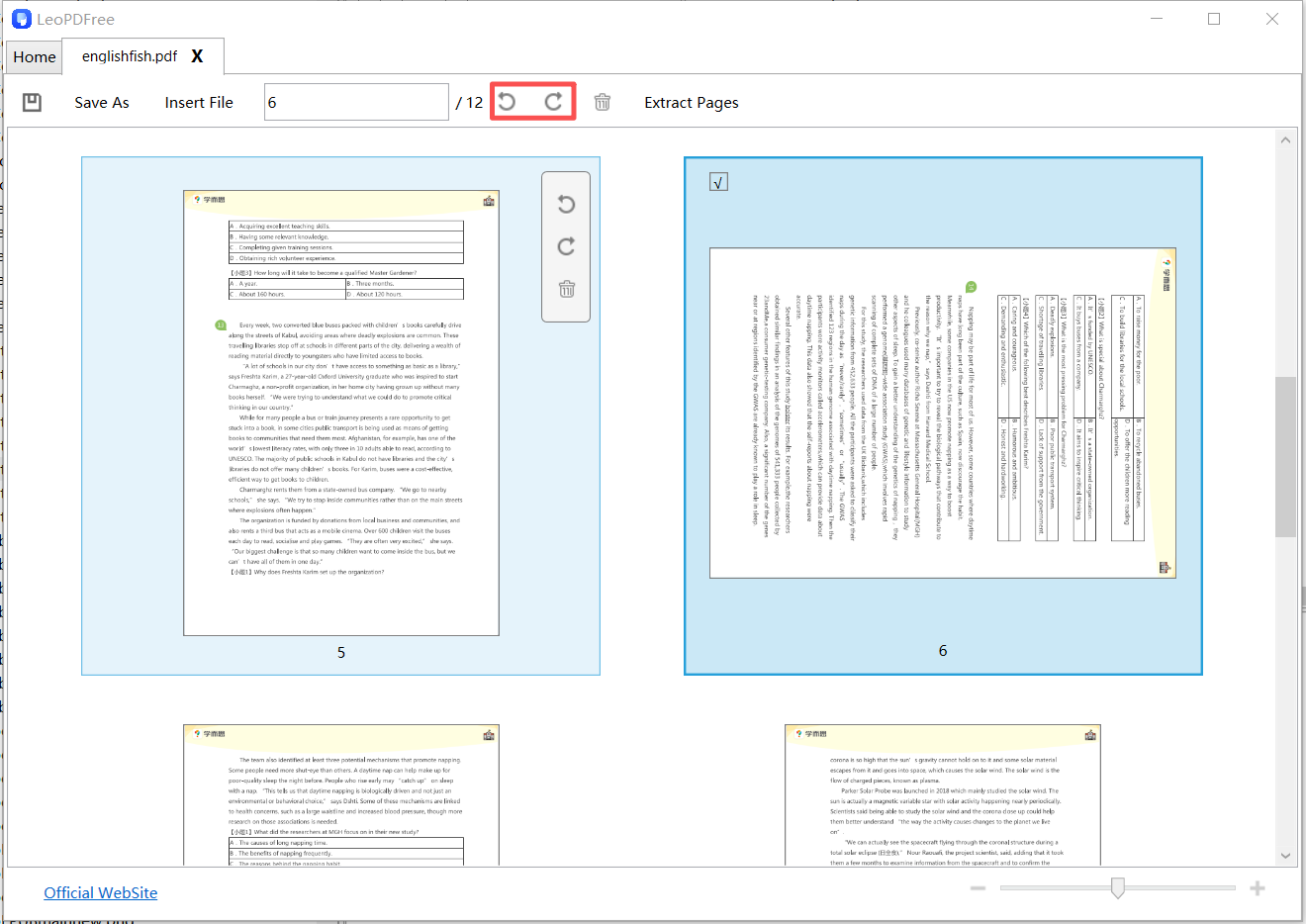
Step4: Within the interface, select the PDF pages requiring rotation (select single/multiple pages via CTRL+click, mouse drag-selection, or by entering page numbers in the top toolbar’s input field). Then initiate rotation by clicking the rotation icon. The procedure is illustrated below:

Step5: Both batch rotation and single-page rotation are supported, with the rotation results displayed as illustrated below:

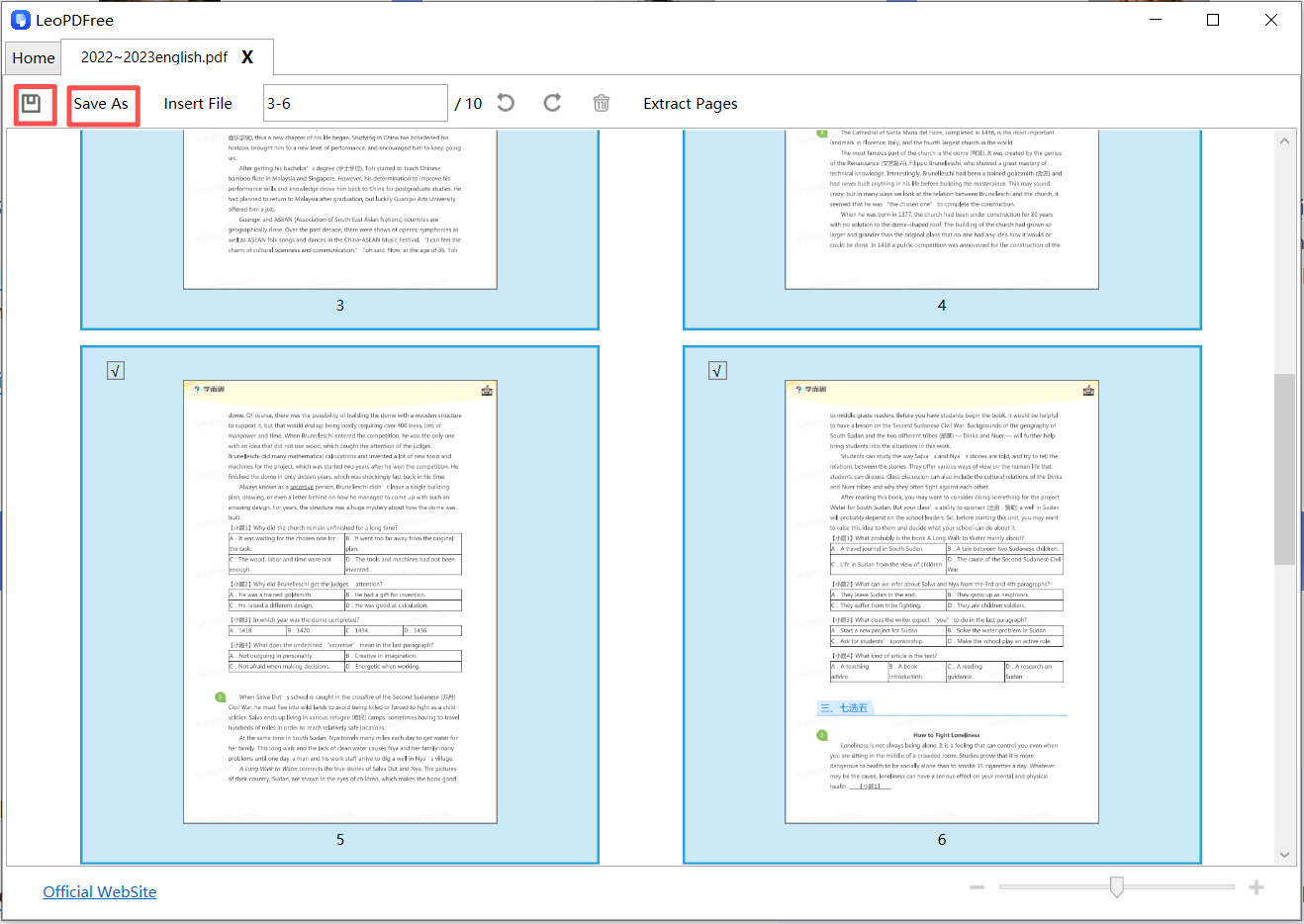
Step6: The next and most critical step is to click the ”Save As” button on the interface after rotation to preserve the newly generated file. The workflow is illustrated below:

Step7: At this stage, all PDF rotation and saving operations are complete. To verify the results, you may either:
Open the rotated PDF from its saved directory, or Use the ”Insert File” option within the software interface to load the saved file.
Both verification methods are illustrated below:

Isn’t rotating and saving files with LEOPDF incredibly straightforward and efficient? Best of all – it’s completely free to use! Get your copy now and experience premium PDF tools at zero cost!

2. How to permanently rotate and save PDF files using Adobe software?
Adobe Acrobat (DC and later versions) is compatible with both Windows PCs and Mac computers. This software is commercially licensed, though users may download a 7-dayfree trial version, Pursuant to Section 3.2 of the Trial License Agreement, document rotation functionality remains unrestricted during the trial period.
Step1: Download and install Adobe Acrobat software, then use Adobe Acrobat to open the PDF file you intend to rotate.
Step2: Click the “Document” menu and select “Rotate Pages,” as shown below:

Step3: Select the pages you wish to rotate and determine the desired rotation direction.
Step4: When performing PDF page rotation, you may rotate all pages in the entire document or specific page ranges within the document. After selecting the pages to rotate, click the ”Apply” button to confirm the page range and rotation direction. At this point, the PDF rotation operation is complete. Critically important: Always remember to click “Save” to permanently overwrite the file with the rotated version.
Summary
Rotate the selected pages, save a separate copy and reopen it to check orientation. These illustrated workflows are instructions, not a claim that every app version has been tested or that every PDF can be modified. Keep the original file.
Rotate just one page or a selected group
In a page-organizing view, select only the page thumbnails that need rotation. Apply the available rotation control, review the affected pages and save a new PDF. Close and reopen the saved file to confirm the orientation was stored; rotating only the viewer can leave the file unchanged.
Single-page selection and rotation in Windows
Follow the illustrated LeoPDFree Windows workflow below, then open the output and compare it with the source document.