
Tips & guides
How to Convert PDF to Excel Offline for Free on Windows
Published
You have a table in a PDF and want to work with its data in Excel. But what if you do not want to upload the file to an online converter? Can you convert PDF to Excel locally on your Windows computer? Take the number reference table below as an example.
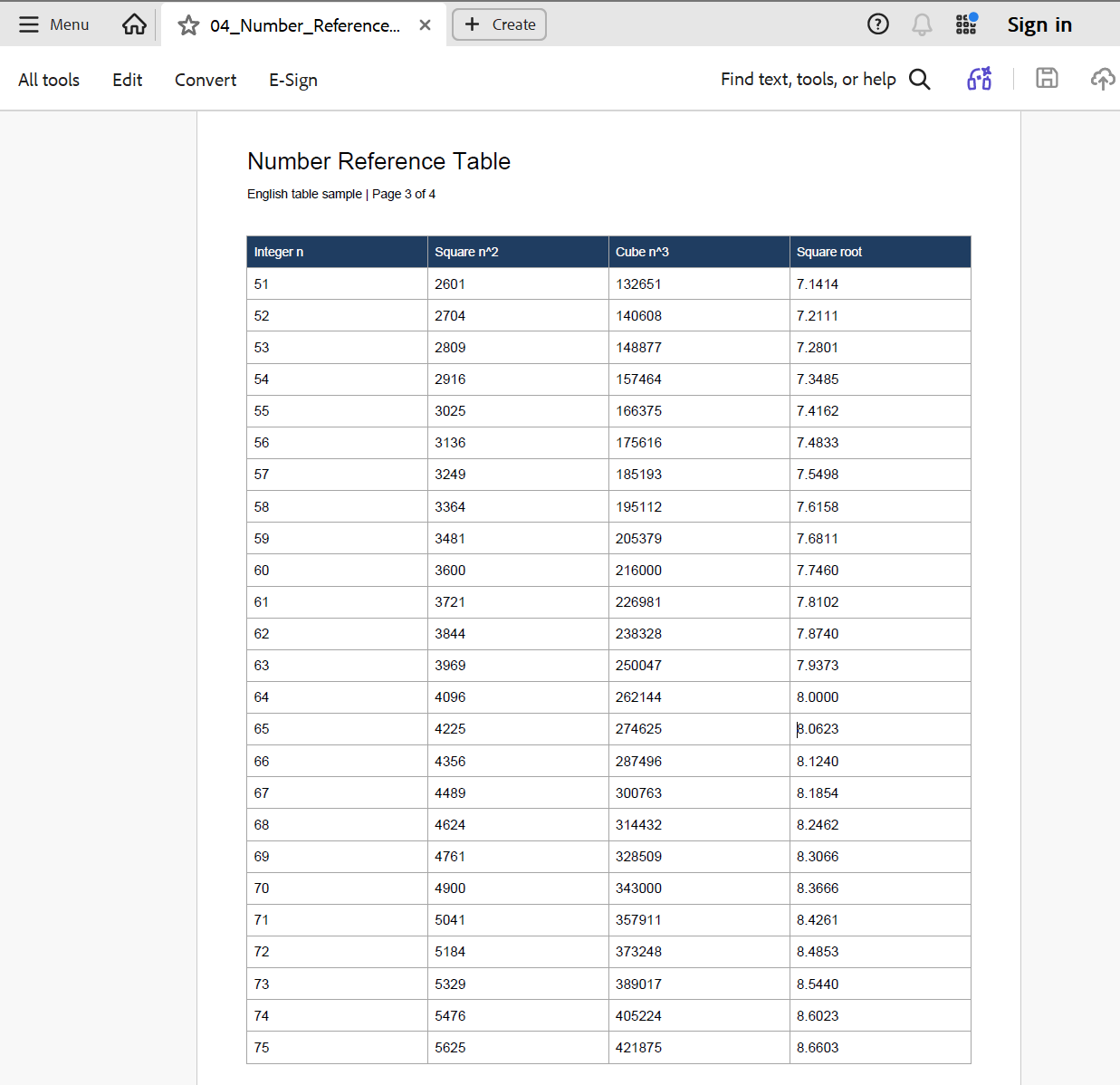
Yes. LeoPDFree is a free offline PDF to Excel converter for Windows. It converts supported PDFs on your computer without uploading them, and you can use it without creating an account or logging in. You can also batch convert multiple PDFs to Excel in one run, rather than adding and converting each file separately.
From a PDF table to an editable Excel file
Here is the same number reference table after conversion. Instead of retyping the table, you can work with the exported data in an editable Excel file.
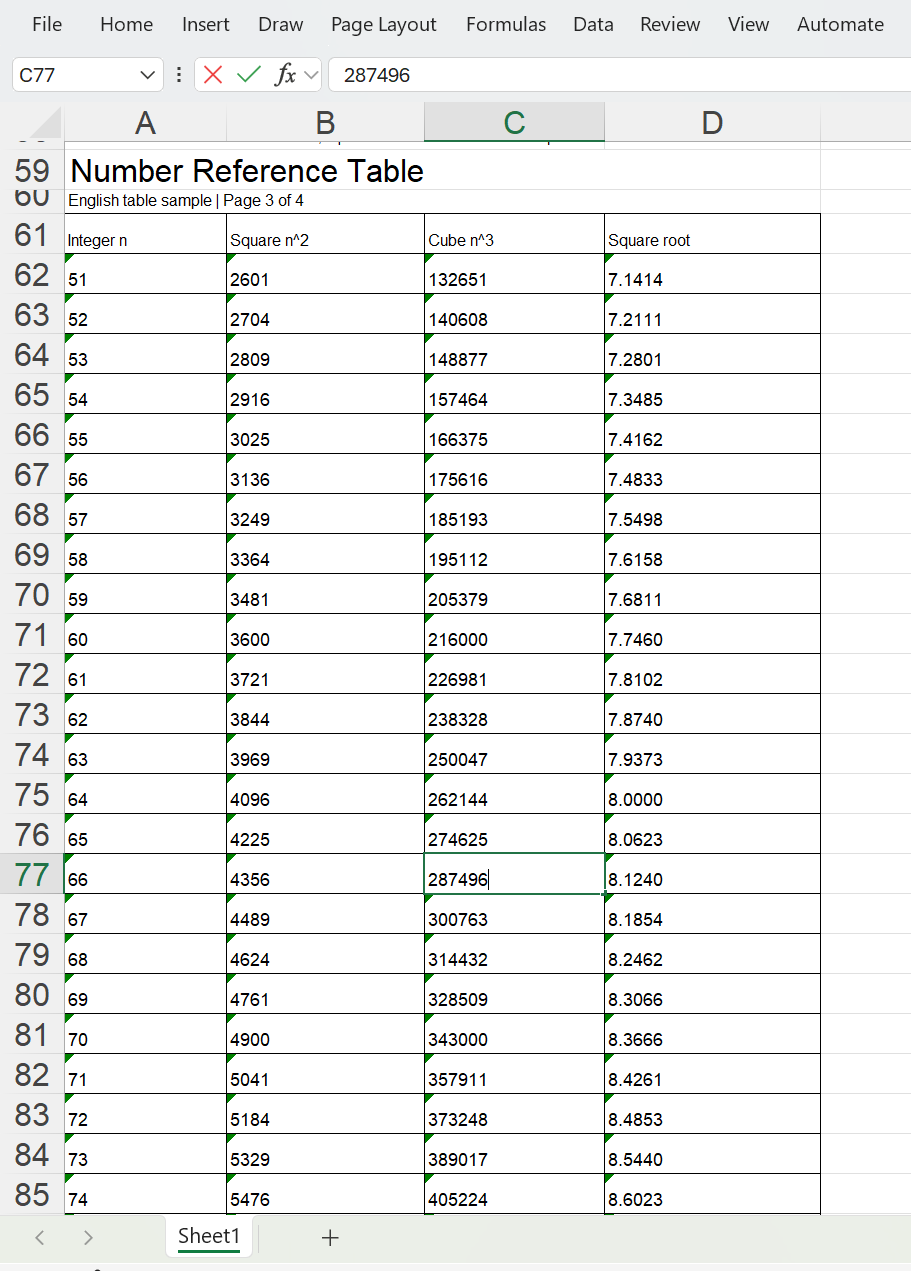
How to convert PDF to Excel offline with LeoPDFree
Download and install LeoPDFree, then follow these steps.
1. Open PDF to Excel
Launch LeoPDFree on Windows. On the Home screen, click PDF to Excel.
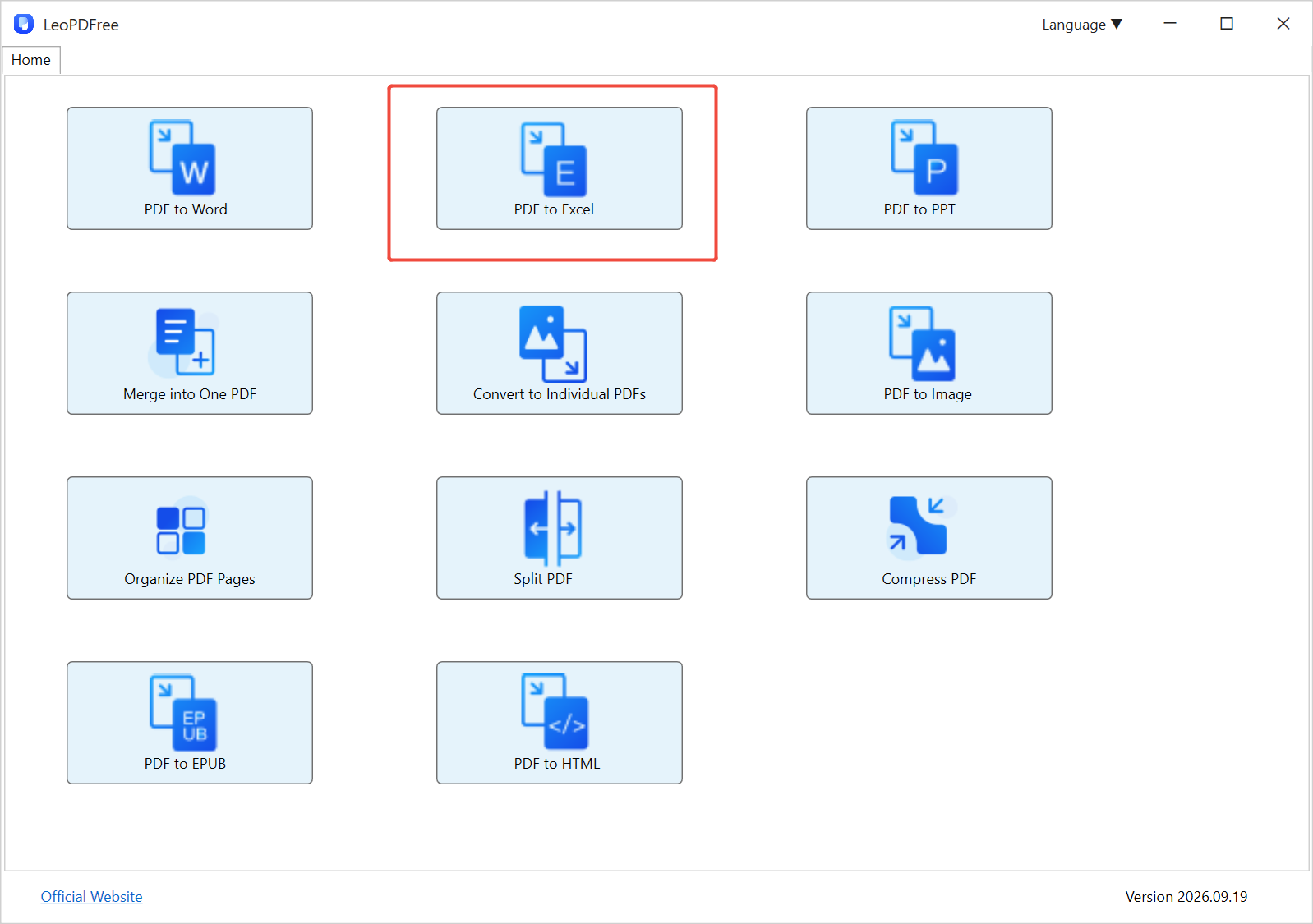
2. Add one PDF or select several files
Click Add Files…, select one or more PDFs, then click Open. You can also use Add Folder… to add files from a folder.
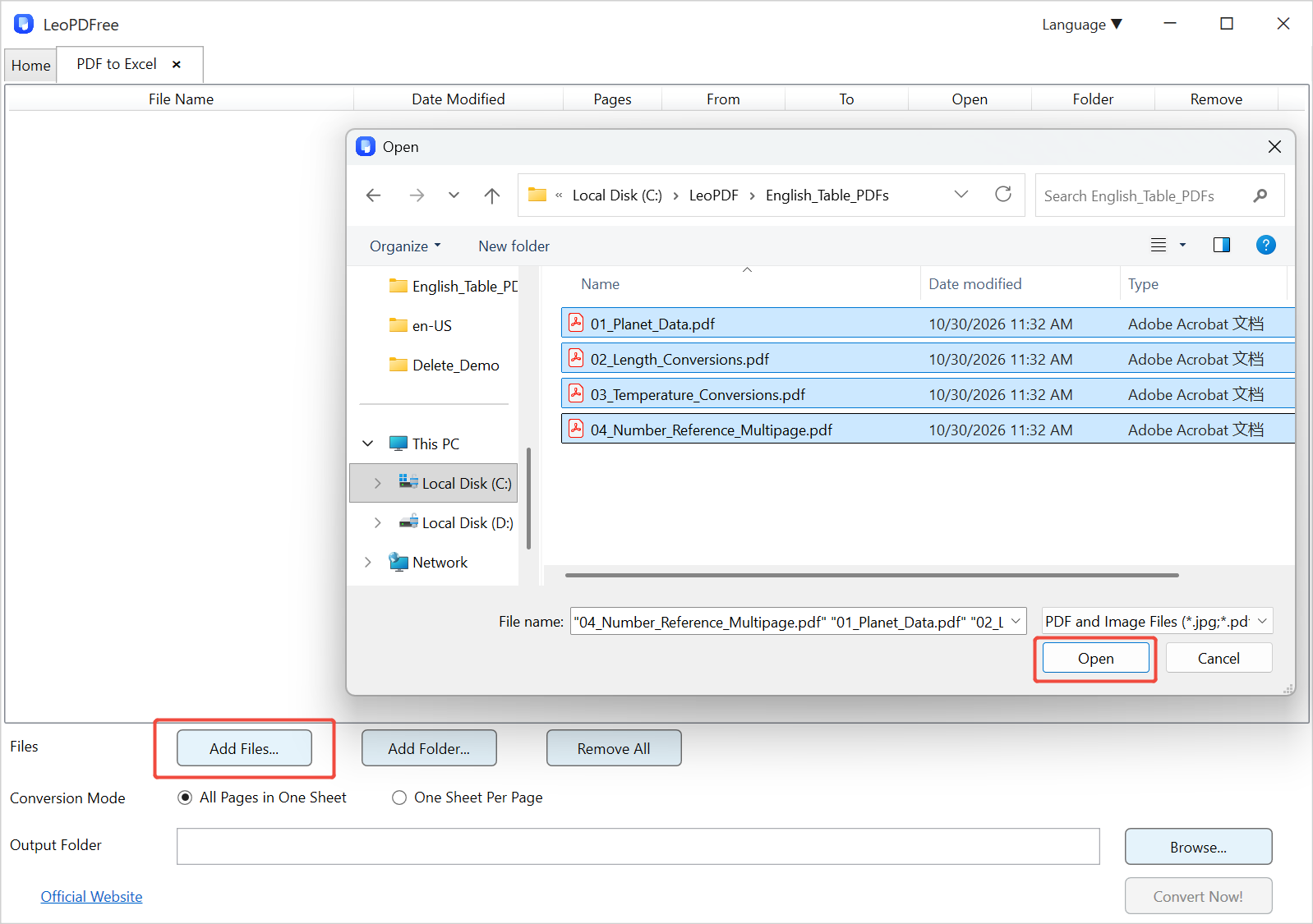
3. Choose the output folder and worksheet layout
Under Conversion Mode, choose the layout that suits your document:
- All Pages in One Sheet: place the converted pages of each PDF in one worksheet.
- One Sheet Per Page: give each PDF page its own worksheet.
Click Browse… beside Output Folder and choose where to save the Excel files.
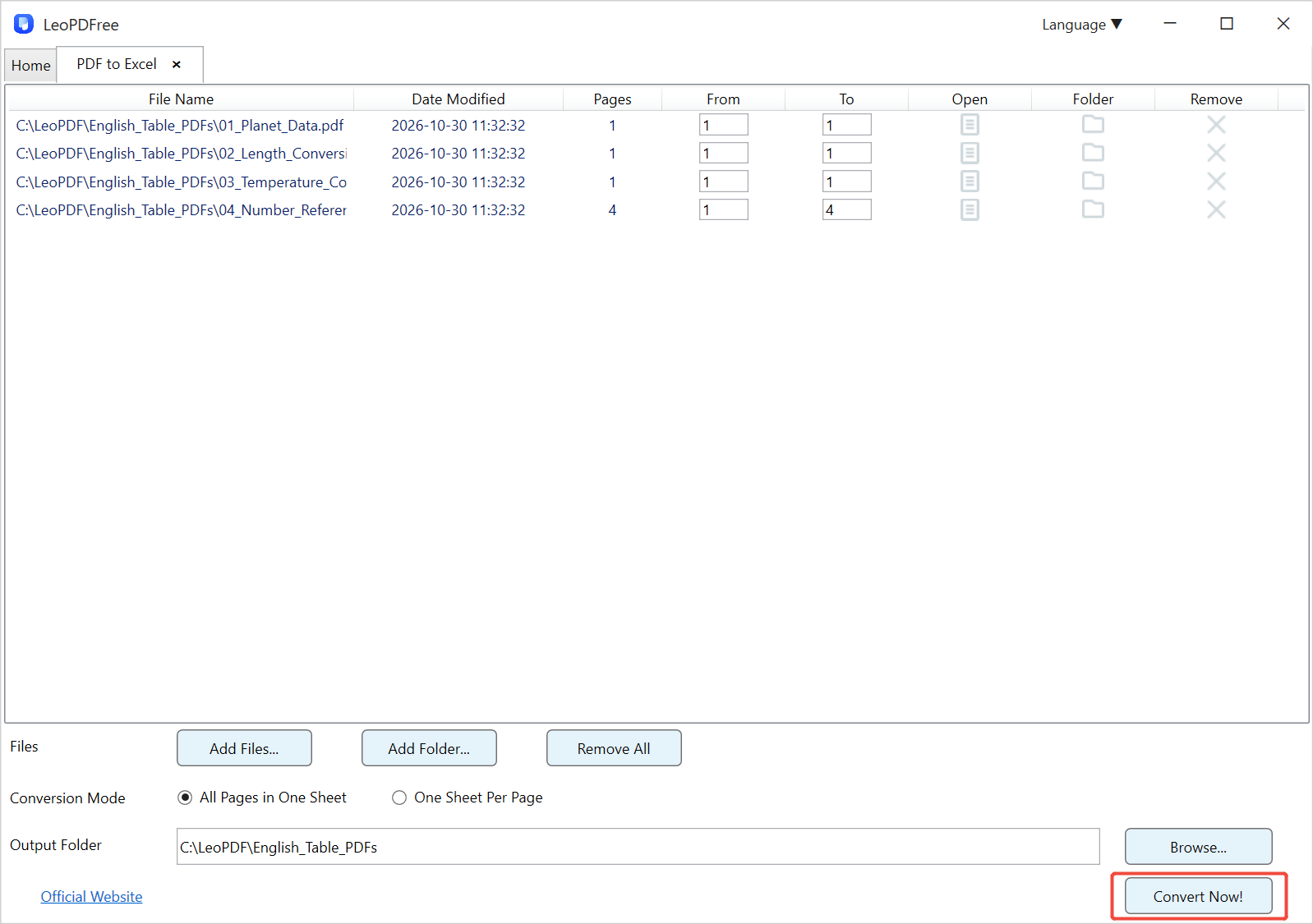
Each PDF is converted into a separate Excel workbook.
4. Click Convert Now!
Click Convert Now! and wait for the Convert Success! message.
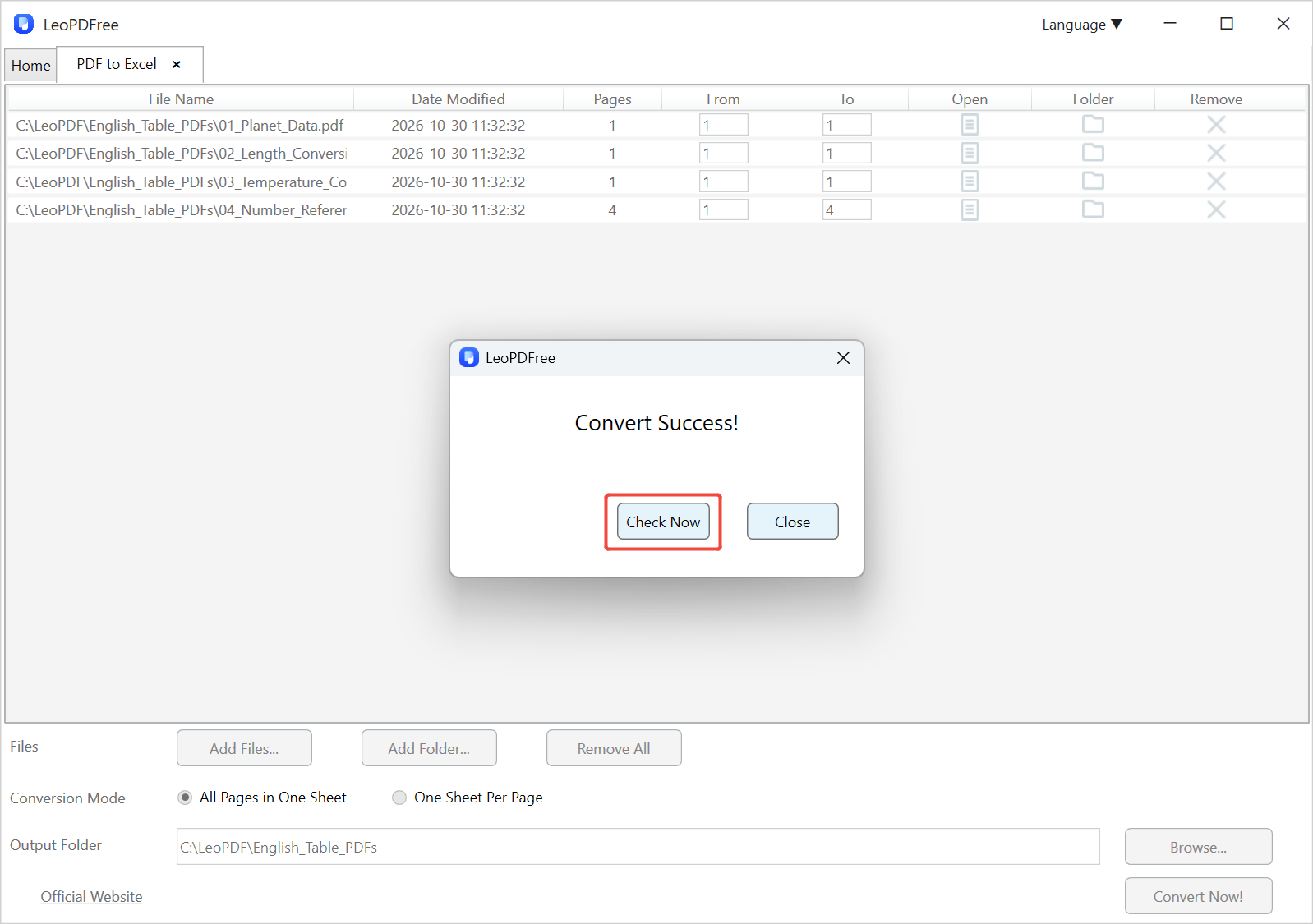
5. Click Check Now and open the Excel files
Click Check Now to open the output folder, then open the converted .xlsx files in Excel.
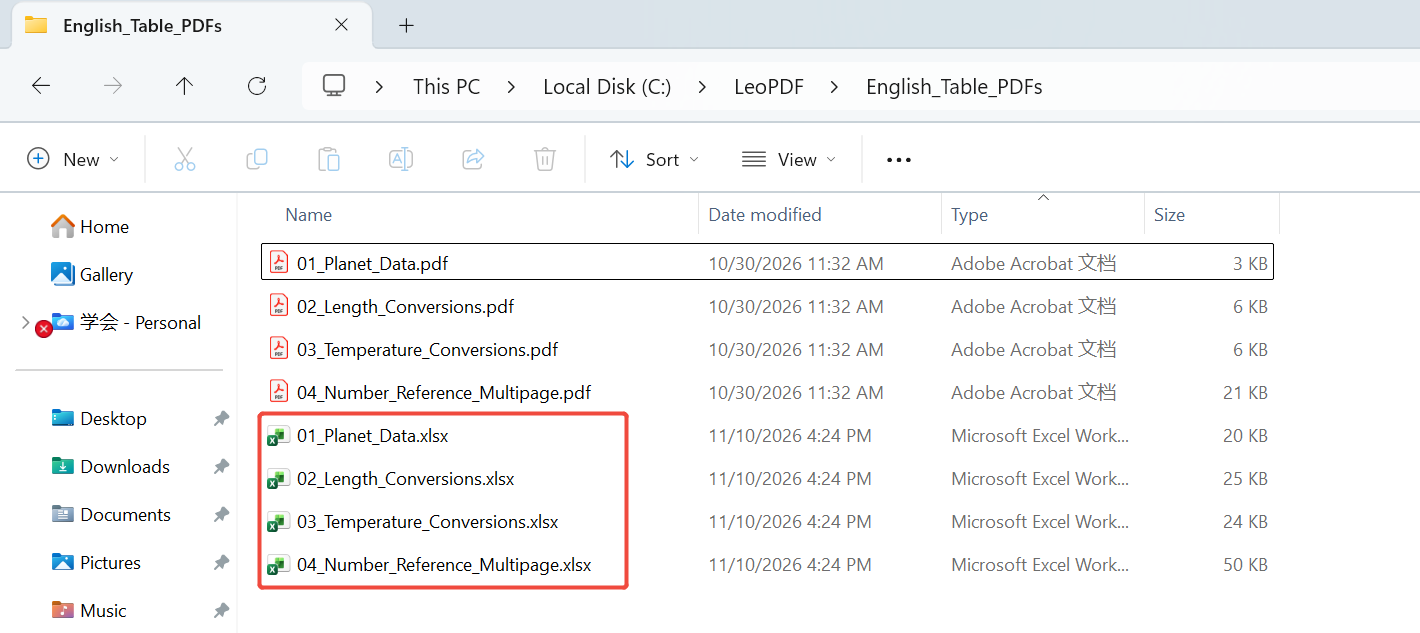
Before using the data, check the converted tables and numbers against the original PDF.
LeoPDFree limitations: when do you need LeoPDF?
LeoPDFree is a Windows app without OCR. It cannot recognize text from image-only scans, screenshots, photos or handwritten pages. A PDF that contains selectable text can still need manual corrections if its table layout or text encoding is complex.
For OCR or a Mac, iPhone, iPad or Android device, consider LeoPDF. The editions differ as follows:
| Feature | LeoPDFree | LeoPDF |
|---|---|---|
| PDF-to-Excel conversion | Free, without OCR | Pay by page: US$3 for a 20-page conversion pack. No subscription; purchase as needed. |
| File processing | Local and offline for all supported features | Word and Excel conversion are excluded from the offline promise; OCR uses the cloud |
| OCR for scans and handwriting | Not included | Available; requires internet |
| Windows | Yes — website download | Yes — Microsoft Store |
| Mac | No | Yes — App Store |
| iPhone and iPad | No | Yes — App Store |
| Android | No | Yes — Google Play |
| Other PDF tools | Free | Free and offline |
Word and Excel conversion in LeoPDF is paid even when OCR is not needed. Cloud OCR uploads files for processing, so it does not meet a requirement to keep the entire conversion offline. See the official edition comparison for the current differences.
Get LeoPDF for your device
- Windows: Get LeoPDF from Microsoft Store.
- Mac, iPhone and iPad: Get LeoPDF from the App Store.
- Android: Get LeoPDF from Google Play.
For free offline PDF-to-Excel conversion on Windows, download LeoPDFree and follow the steps above. Choose LeoPDF when you need OCR or another supported platform, and check the conversion options in your store edition.