
Tips & guides
How to compress a PDF file for free? Effective Methods for File Compression
Published
The devices we use now all have memory limitations, and storing too much or excessively large files can have an impact on them. Therefore, when we receive relatively large files, we need to compress them. Next, I’ll share how to compress PDF files.
How to compress a PDF file for free?
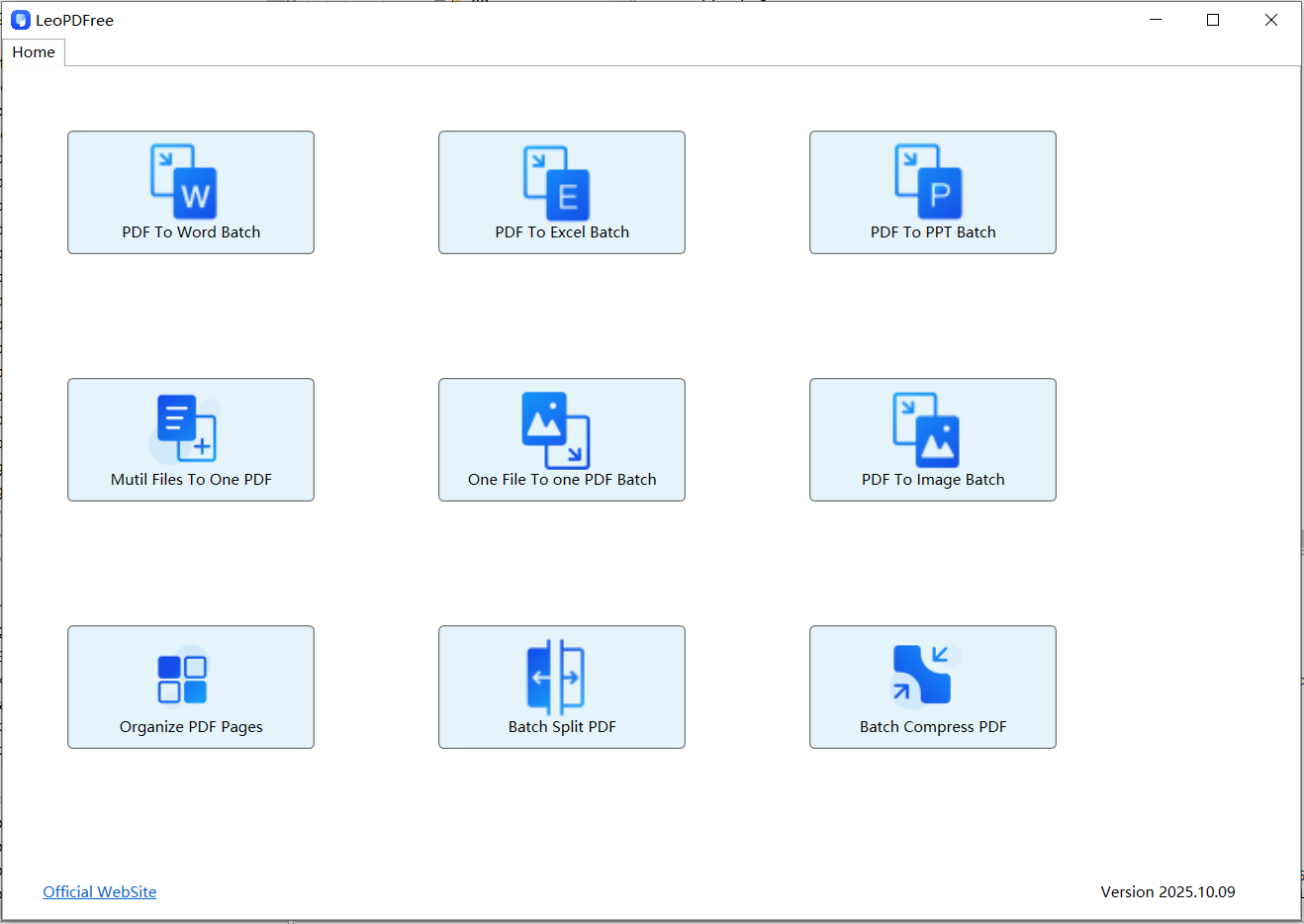
1.First, you can go to the official LeoPDF website to download the completely free LeoPDF tool. After the download is complete and successfully installed, open the software as shown in the figure below:
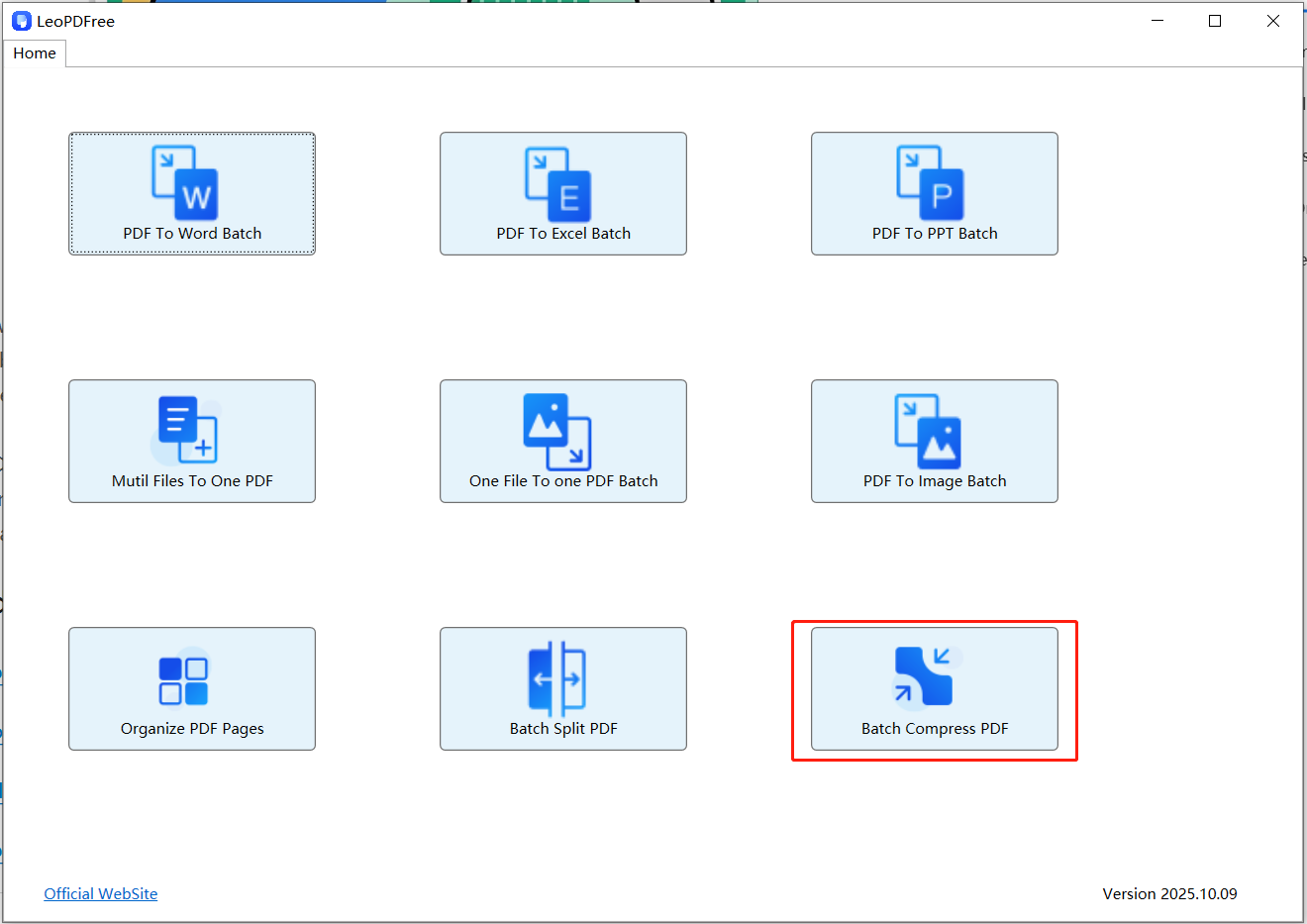
2.Once the software is open, click on “Batch Compress PDF” to access the file compression screen, which is shown in the image below:
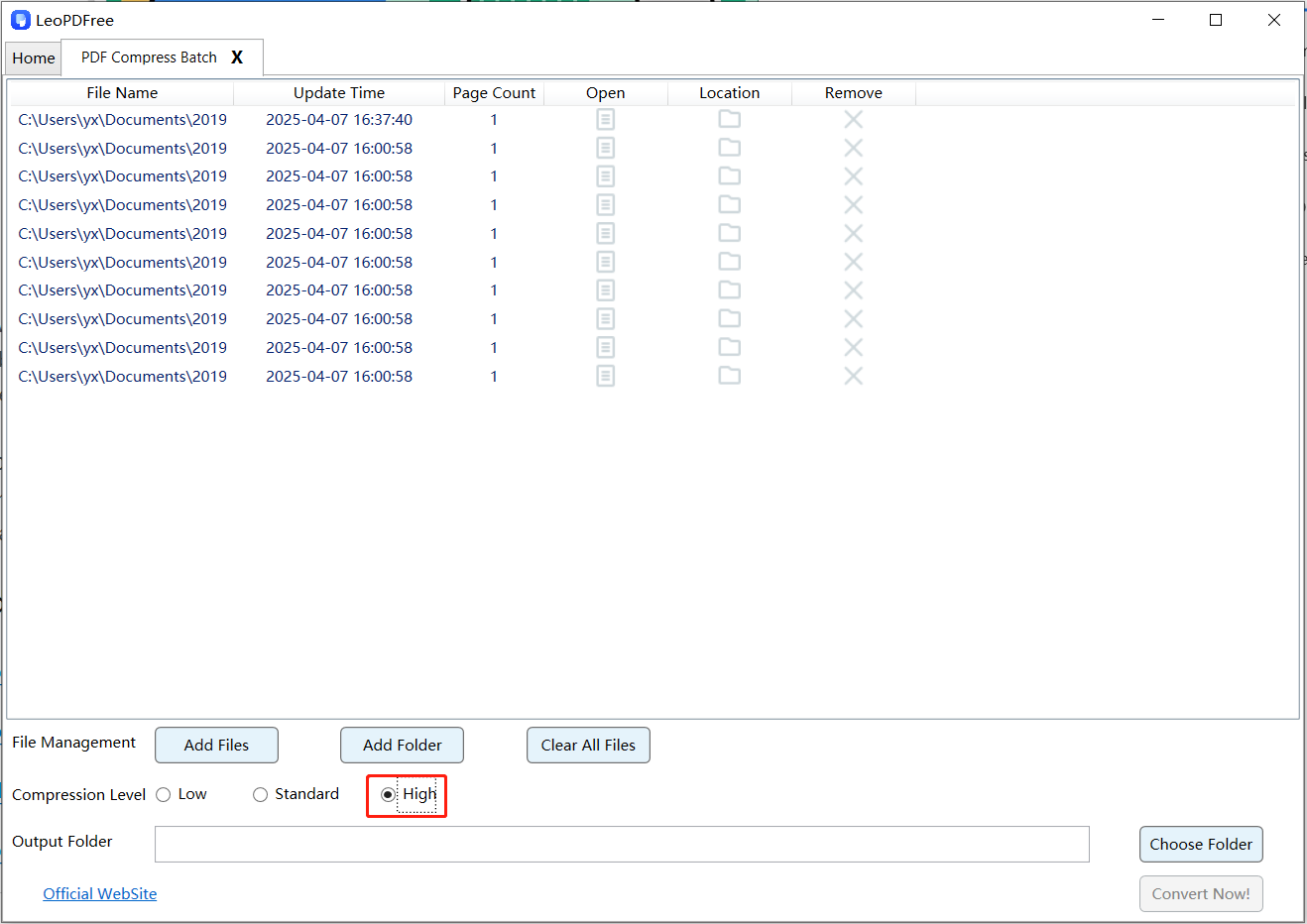
3.From this screen, click “Add Files” or “Add Folder” to add the PDF file(s) you wish to compress. Here, you can also choose your desired compression level (e.g., “Low”, “Standard”, or “High”) from the corresponding option, as shown in the image below:
4.Next, click “Choose Folder” to set the save path for the compressed file(s). Once all compression preparations are complete, directly click the “Convert Now!” button on the interface. The tool will then quickly complete the compression for you, with the speed depending on the file size(s), as shown in the figure below.
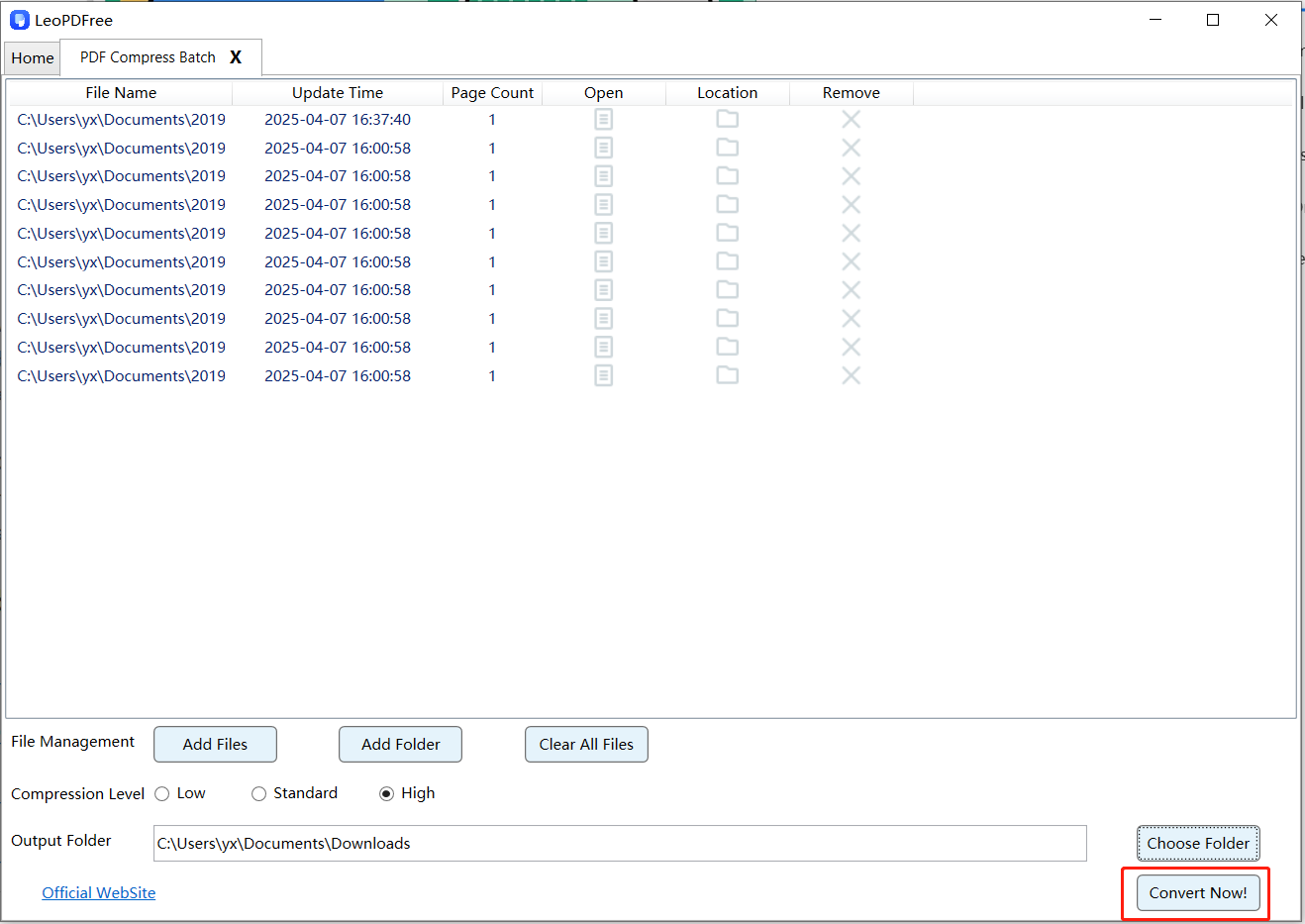
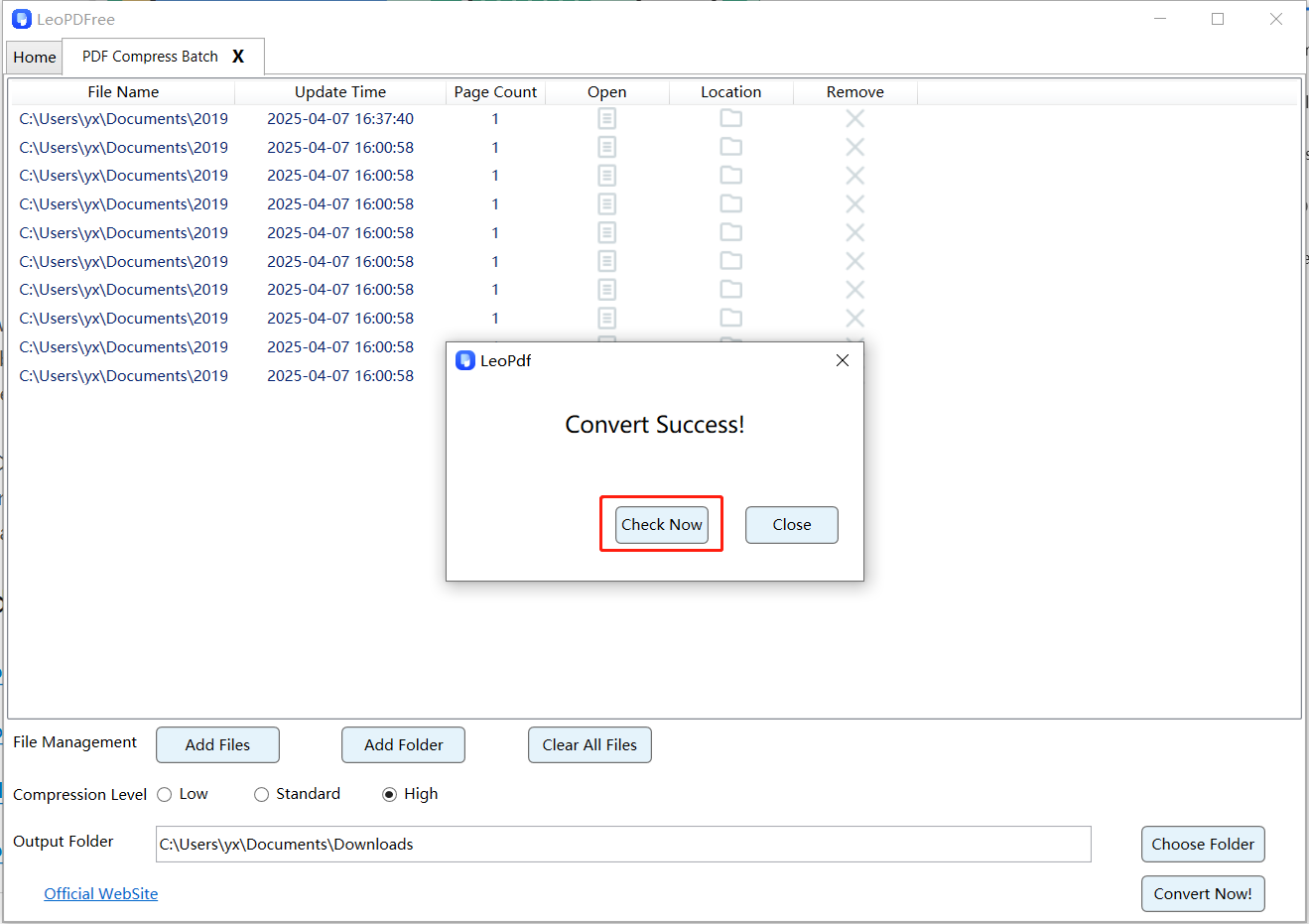
5.After the tool quickly completes the compression, simply click the “Check Now” button on the resulting pop-up interface to instantly preview the compression results. Alternatively, you can navigate to the save location to review the compressed file(s) separately. It’s a convenient and efficient process—go ahead and check the results now!
Conclusion
PDF compression is a free local task in LeoPDFree and the store editions. Other supported tasks have their own conditions: store conversion to Word or Excel is paid cloud processing with OCR; LeoPDFree’s Word/Excel conversion is free and local without OCR.
Choose a level and check readability
Start with a moderate setting if available, save a separate output and compare it with the original. Inspect small type, fine lines, images and any pages you need to print. Preset names describe choices, not a guarantee of a particular size reduction or unchanged quality.
An already optimized PDF may shrink little. Keep the original instead of repeatedly compressing the same output in pursuit of a smaller number.