
Tips & guides
How to Delete Blank, Duplicate, or Unwanted PDF Pages for Free on Windows
Published
Need to delete pages from a PDF for free on Windows? With LeoPDFree, you can open your PDF, select the pages you no longer need, click the trash icon, and save the remaining pages as a new file. The page-deletion process runs locally on your computer, without uploading the PDF for processing.
This guide shows how to remove blank pages, duplicate pages, and other redundant pages from a PDF without Adobe Acrobat. The screenshots use a 10-page sample document: deleting pages 4–5 leaves an 8-page PDF.
Quick Steps: Delete Pages from a PDF on Windows
- Launch LeoPDFree and choose Organize PDF Pages.
- Open the PDF and review its page thumbnails.
- Select the unwanted pages, then click the trash icon.
- Check the remaining pages and choose Save As to save a new PDF.
Download LeoPDFree for Windows (64-bit) from the official LeoPDF website, install it, and follow the illustrated steps below. If you need a different Windows package, see the Windows download options.
How to Delete Blank or Redundant Pages from PDF for Free
LeoPDFree is a free offline PDF toolkit for Windows. Alongside removing PDF pages, it can merge files into one PDF, convert images to and from PDF, extract selected pages, and split PDF files. For this tutorial, use its page organizer to remove only the pages you no longer need.
Step 1: Open Organize PDF Pages
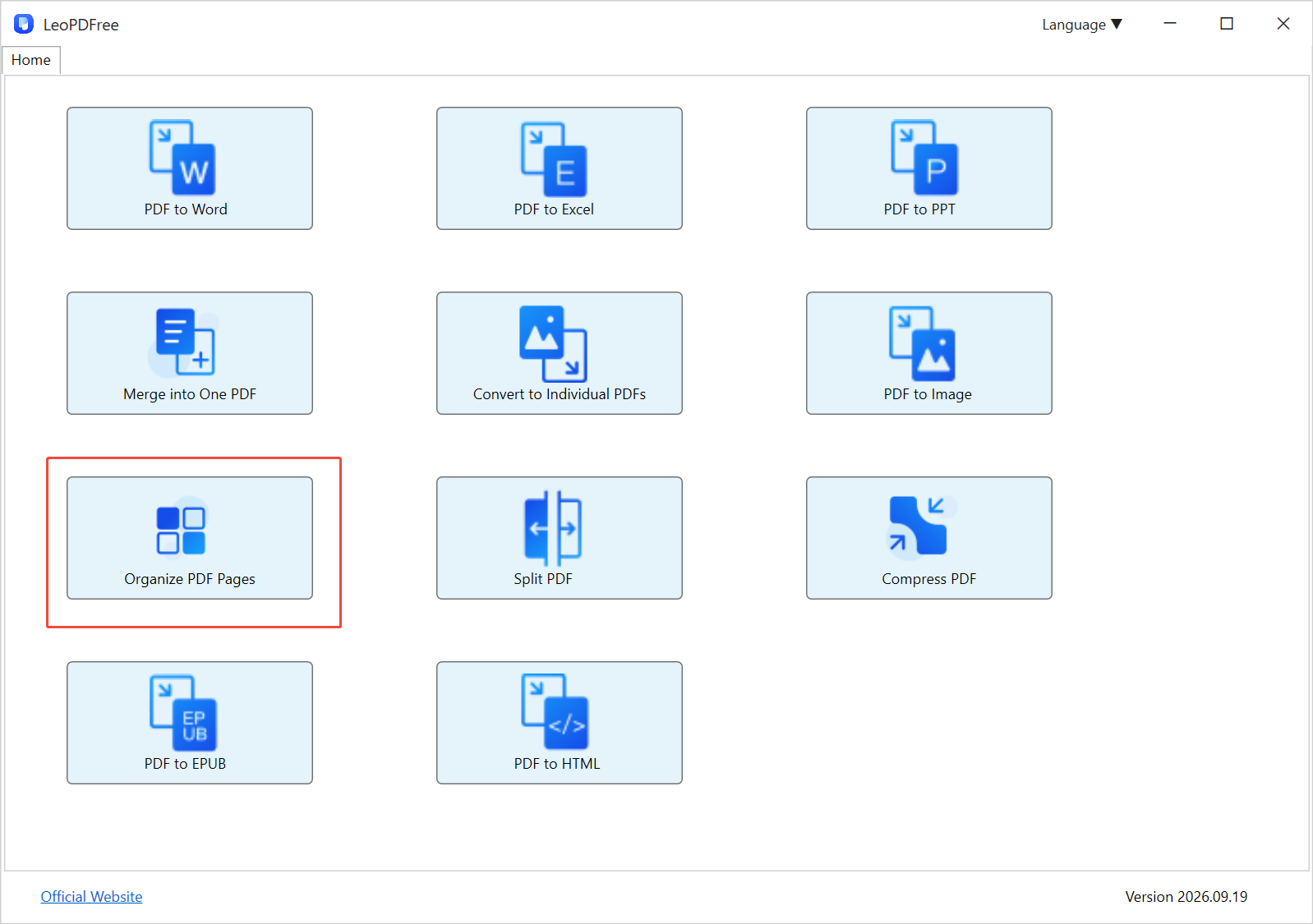
Start LeoPDFree on your Windows PC. On the Home screen, select Organize PDF Pages, highlighted in the screenshot below, to begin the page-deletion workflow.
Step 2: Open Your PDF and Review the Page Thumbnails
Choose the PDF you want to edit. Once it opens, LeoPDFree displays its pages as thumbnails, with a page-position number beneath each one. In the screenshot below, the document tab shows the filename, and /10 beside the page-selection field indicates that the PDF contains 10 pages.
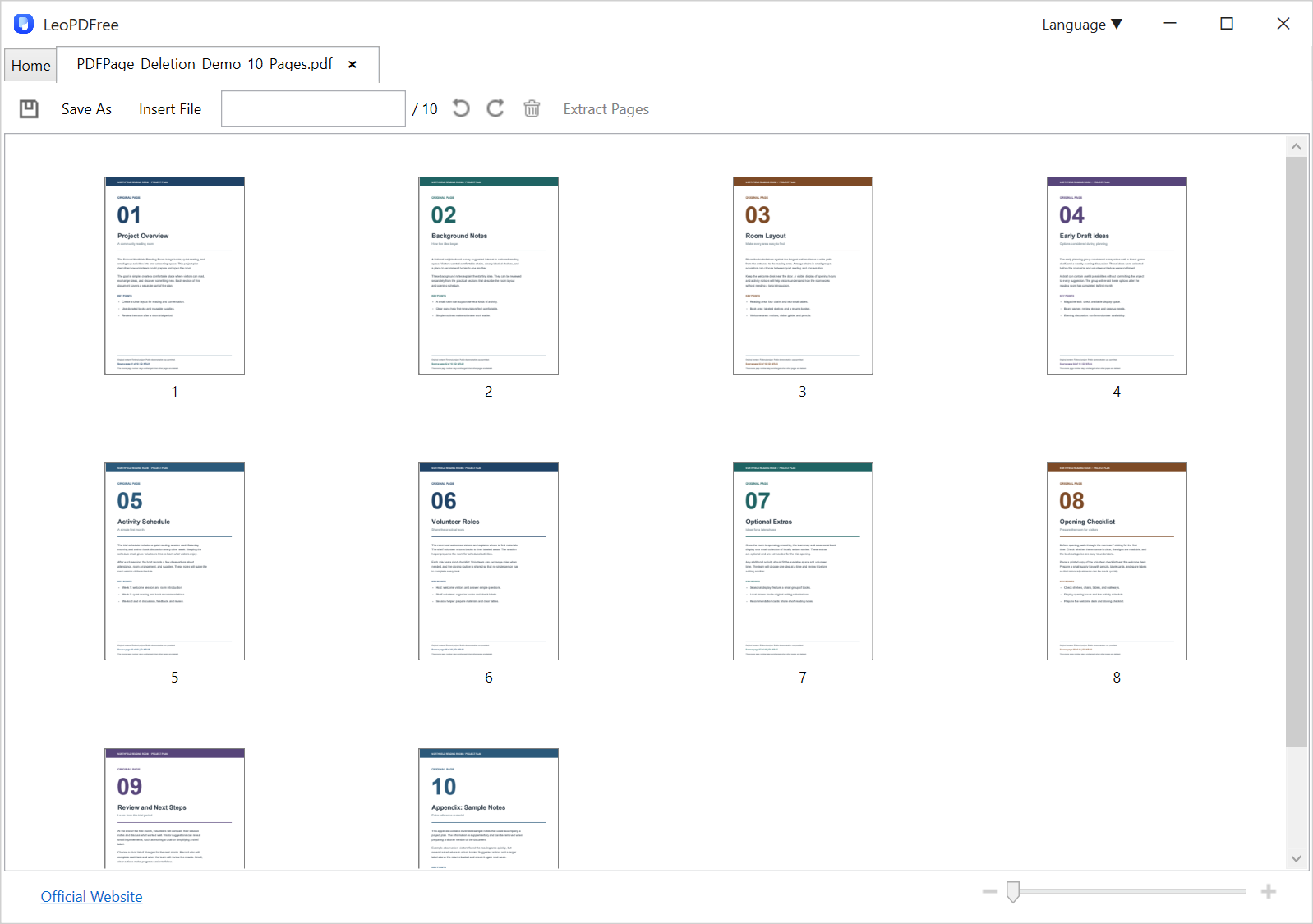
Scroll through the thumbnails to find blank pages, duplicate pages, outdated drafts, or unrelated attachments. Use the zoom slider at the bottom right to enlarge the previews when you need to inspect a page more closely. Compare similar pages before deciding which copy to remove.
Use the page-position numbers beneath the thumbnails when making your selection. A page labeled “4” inside the document may have a different position in the PDF if a cover or introductory section comes first. In this demonstration, we will remove pages 4 and 5; these are ordinary sample pages used to illustrate the deletion process.
Step 3: Select and Delete the Unwanted Pages
Select the pages you want to remove. You can select an individual page, hold Ctrl and left-click to select multiple pages, drag the mouse to select a group, or enter page numbers in the selection field.
For the example below, enter 4-5 to select pages 4 and 5. The selected thumbnails have blue highlighting and check marks. Confirm the selection, then click the trash icon in the top toolbar to delete those pages.
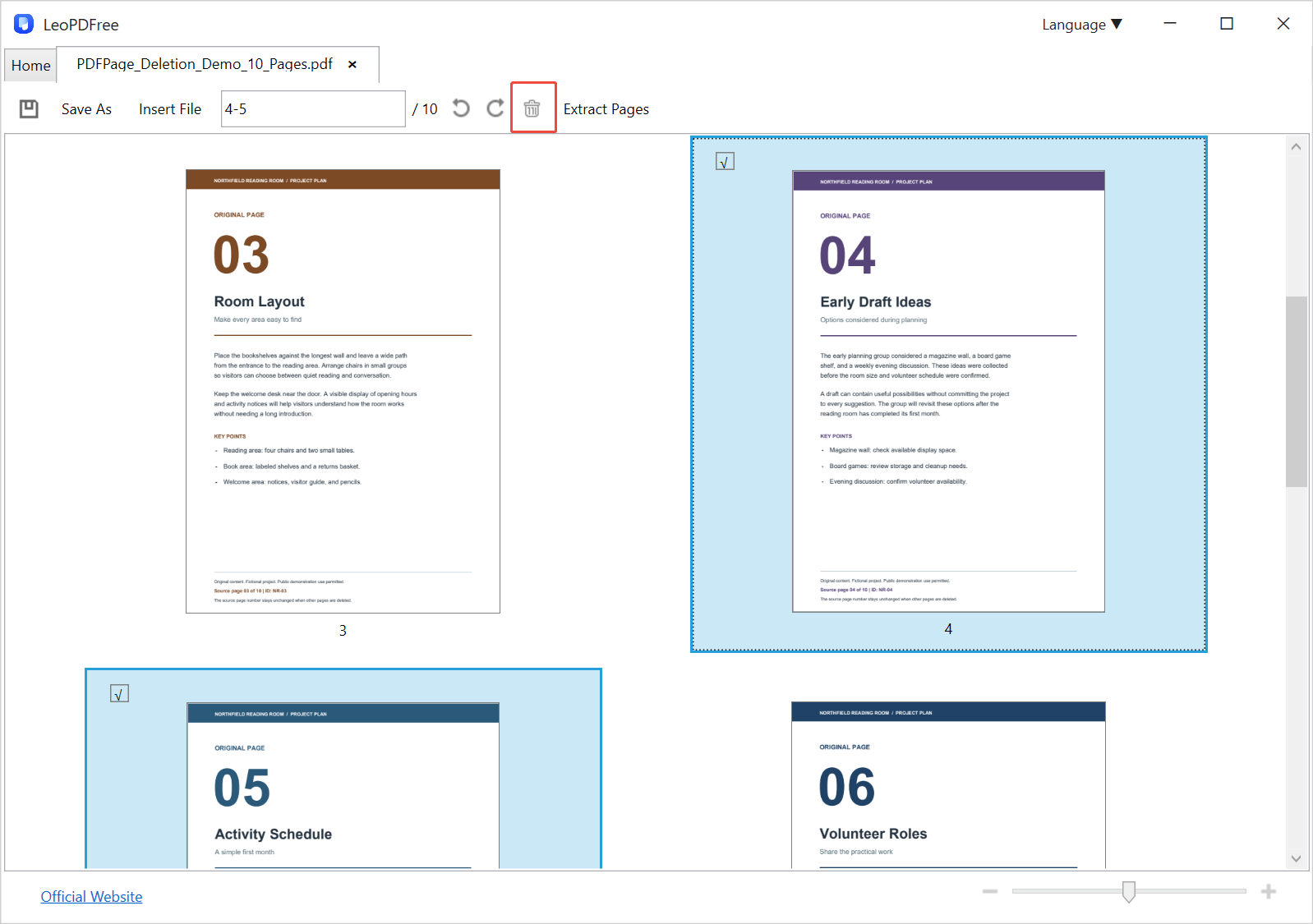
To delete blank pages from a PDF, select the empty pages identified in Step 2. To remove duplicate pages from a PDF, select only the extra copies you have checked. After each deletion, review the updated page positions before selecting another group.
Step 4: Save the Edited PDF as a New File
After deleting the selected pages, review what remains. The sample document now contains 8 pages instead of 10. Click Save As, choose a folder, and enter a different filename, such as Document-Cleaned.pdf. Click Save to keep the edited copy alongside your original.
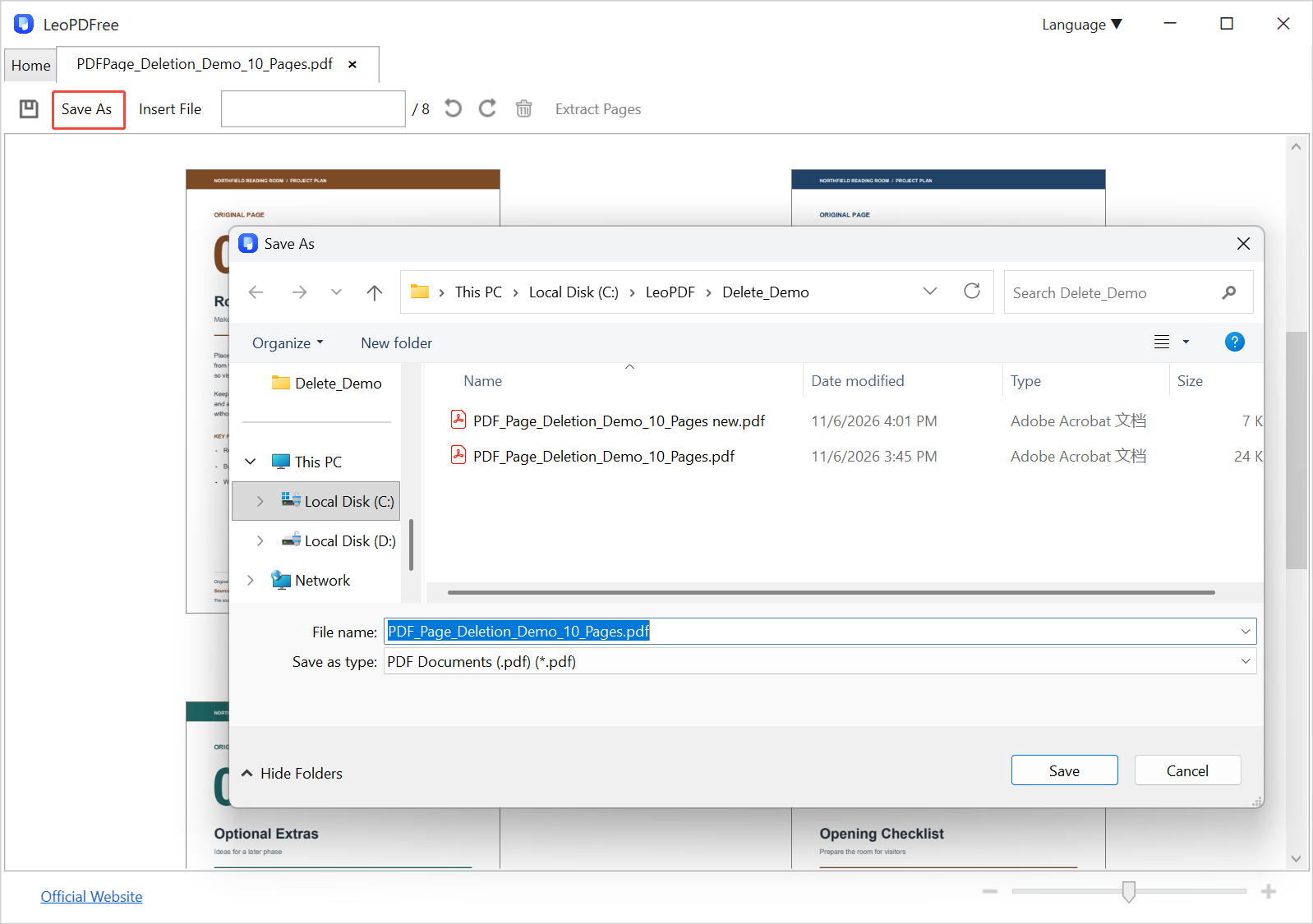
Reopen the saved PDF and check the page count, page order, and the content around each deletion. Removing pages changes their positions in the file; it does not necessarily update printed page numbers, a table of contents, or references within the document.
Video: How to Delete Unwanted PDF Pages on Windows
Prefer to follow a video? Use this Windows tutorial alongside the screenshots to work through the page-deletion process.
Watch: delete unwanted PDF pages on Windows on YouTube
Tips for Removing Blank and Duplicate PDF Pages
- Inspect apparently blank pages. A nearly empty page may still contain a footer, a signature, or faint scanned content.
- Compare duplicates closely. Two similar pages may contain different dates, annotations, or revisions.
- Check the selection before deleting. Blue highlighting and check marks help you confirm which pages will be removed.
- Keep a separate original. A new filename makes it easier to recover a page you later decide to retain.
Frequently Asked Questions
Can I delete pages from a PDF for free without Adobe Acrobat?
Yes. LeoPDFree provides free PDF page deletion on Windows. Use Organize PDF Pages to select and remove the unwanted pages, then save the result as a new PDF.
Can I remove more than one PDF page at a time?
Yes. Hold Ctrl and left-click to select multiple pages, drag to select a group, or enter a page range such as 4-5 in the selection field. Review every selected page before clicking the trash icon.
Do I need to upload my PDF to delete pages?
No. LeoPDFree processes this page-deletion task offline on your Windows computer. You do not need to upload the document to an online PDF editor.
Does this method automatically find blank or duplicate pages?
This tutorial shows you how to identify and select pages yourself. Review the thumbnails and page contents to decide which blank, duplicate, or redundant pages to delete.
Delete PDF Pages for Free on iPhone and Android
You can also delete unwanted PDF pages for free with the LeoPDF app on iPhone and Android. If your document is already on your phone, follow the tutorial for your platform to remove unnecessary pages and save the edited PDF. The mobile interface differs from the Windows screenshots above.
iPhone: Free PDF Page Deletion Video
Watch: delete PDF pages for free on iPhone on YouTube
Android: Free PDF Page Deletion Video
Watch: delete PDF pages for free on Android on YouTube
Choose the guide for your device, keep your original file, and check the saved copy before sharing it.