
The “Perfect Sequence” Method Most Guides Never Teach
Merging PDFs sounds simple—until the page order goes wrong.
You combine multiple files, open the result… and suddenly pages are out of order, chapters are mixed, and your document becomes confusing. This is especially frustrating when dealing with reports, contracts, ebooks, or scanned files.
If you’re searching for how to merge PDF files in specific page order, this guide will show you a smarter, more structured approach—one that ensures your pages are always in the exact order you want.
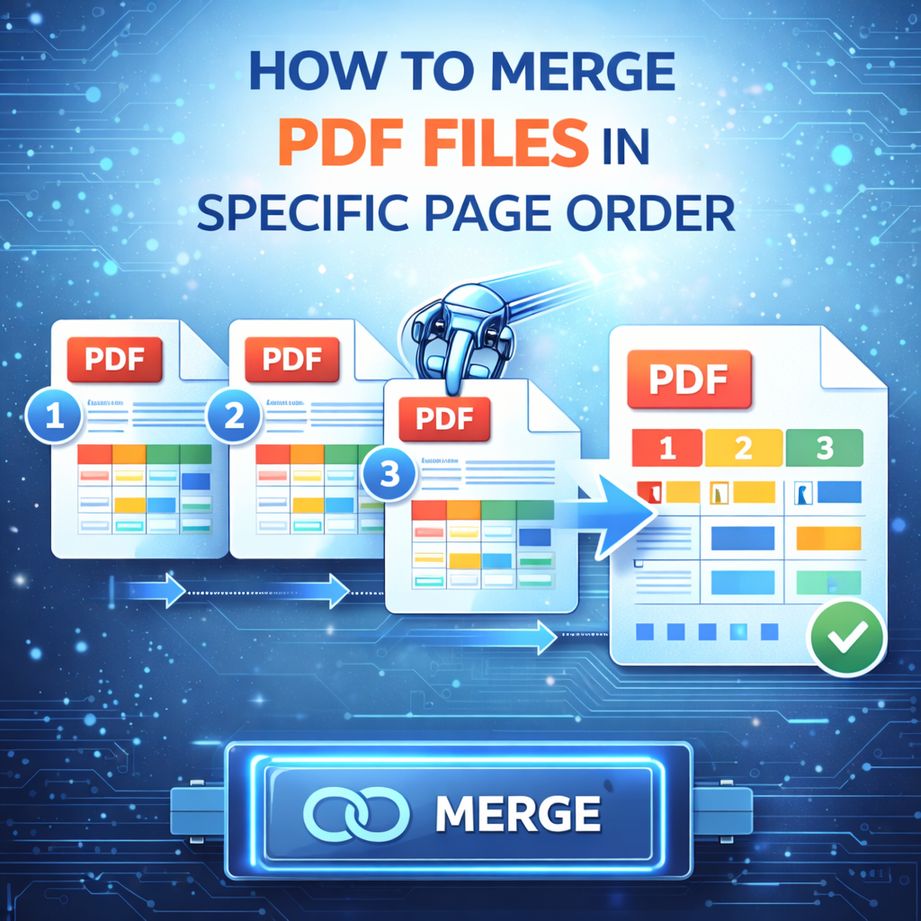
Think Before You Merge: The 3 Types of PDF Order Problems
Most articles jump straight into tools. But here’s the truth:
👉 The problem is not merging—it’s ordering.
Before choosing a method, identify your situation:
1. File-Level Order Issues
🔵 Multiple PDFs need to be arranged (File A → File B → File C)
2. Page-Level Order Issues
🔵 Specific pages need reordering (Page 3 → Page 1 → Page 2)
3. Mixed Chaos (Most Common)
🔵 Multiple files + incorrect internal page order
Knowing your scenario helps you choose the right method, not just any method.
Method 1:Free Drag-and-Drop PDF Merge Tool LeoPDF (Most Recommended)
This is the easiest and most intuitive way to merge PDFs in a specific page order.
How It Works
Modern LeoPDF tools allow you to visually arrange files and pages before merging.
Steps
1️⃣. Download and install LeoPDF for free, then double-click the icon to open the software, as shown in the image below.
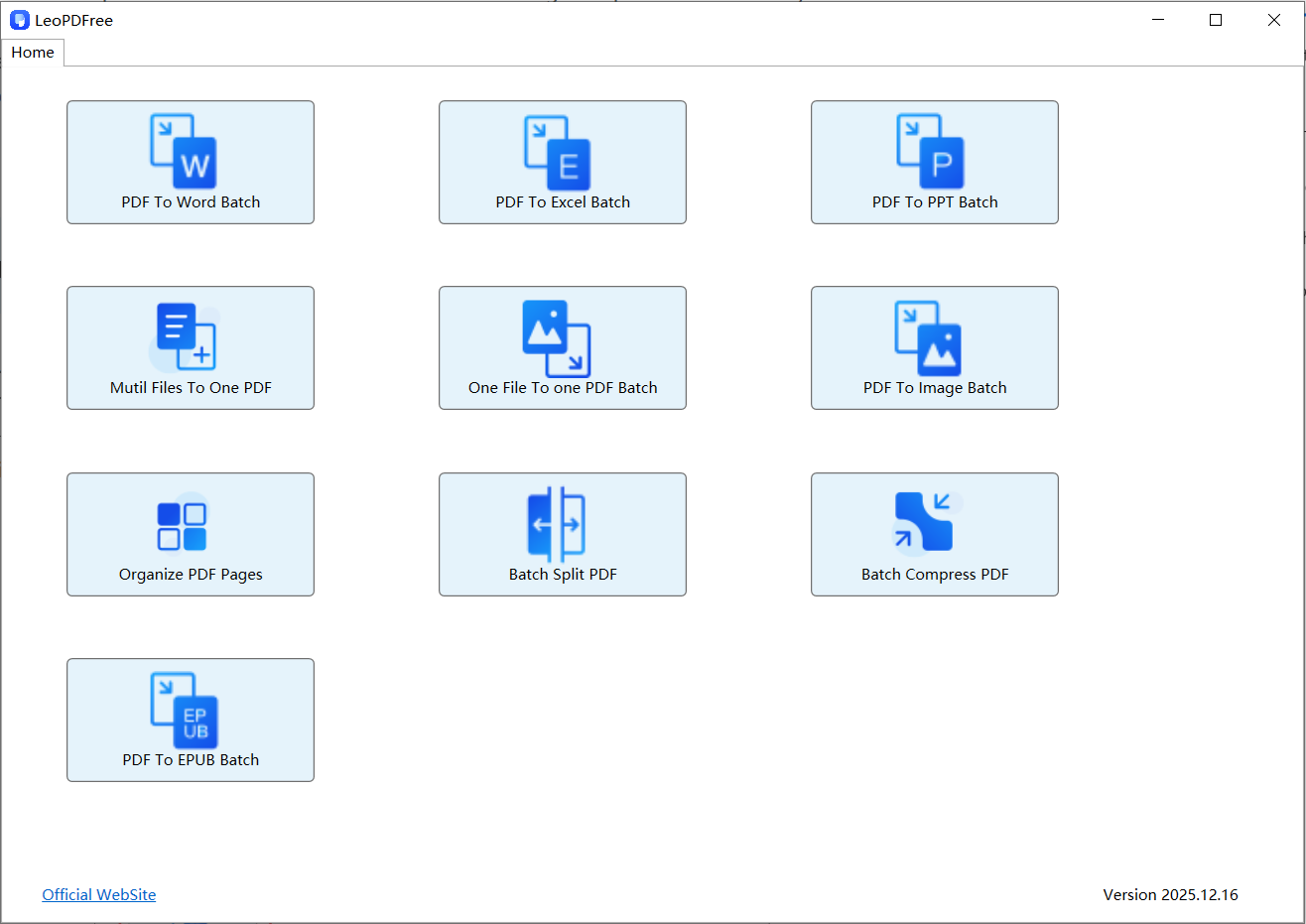
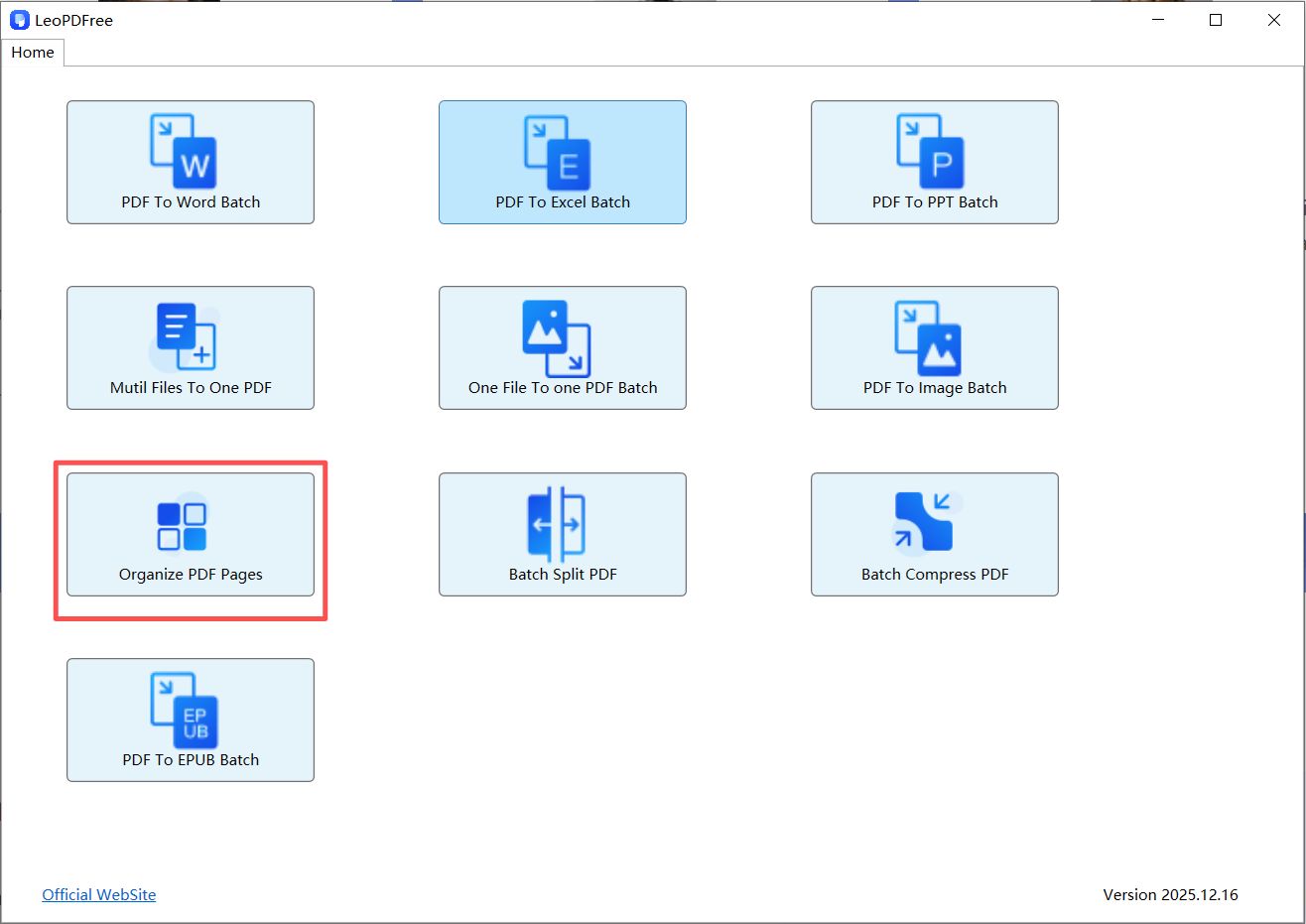
2️⃣. On the opened software interface, click the “Organize PDF Page” button to start merging and rearranging the page order, as shown in the image below.
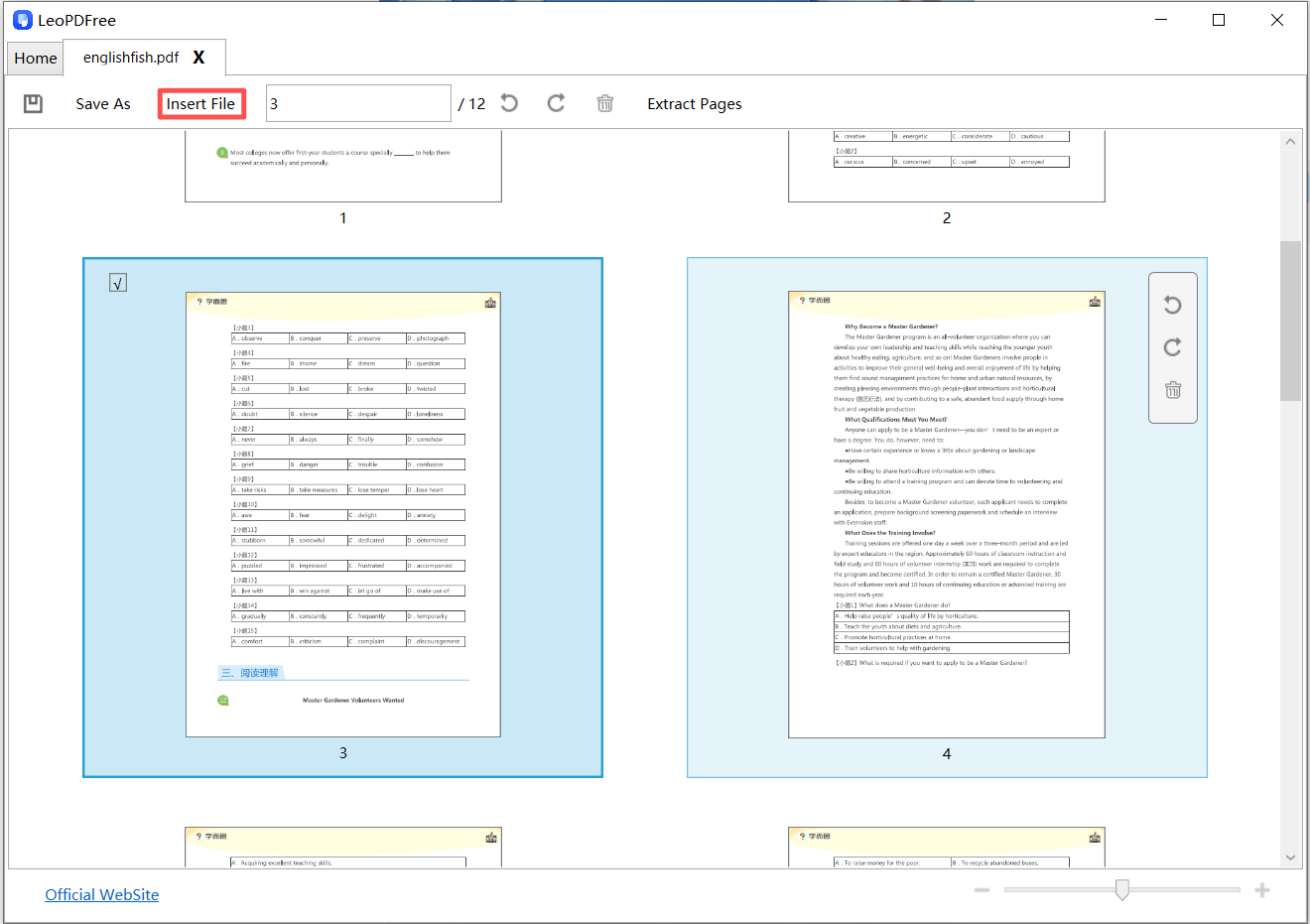
3️⃣. On the opened interface, click the “Insert File” button at the top to add the PDF files whose page order you want to adjust. After adding the files, you can select the pages to rearrange directly with your mouse (you can also hold the “CTRL” key and click with the left mouse button to select multiple pages, or enter the page numbers in the editing box above). Then, simply drag the selected pages to the desired position, as shown in the image below.
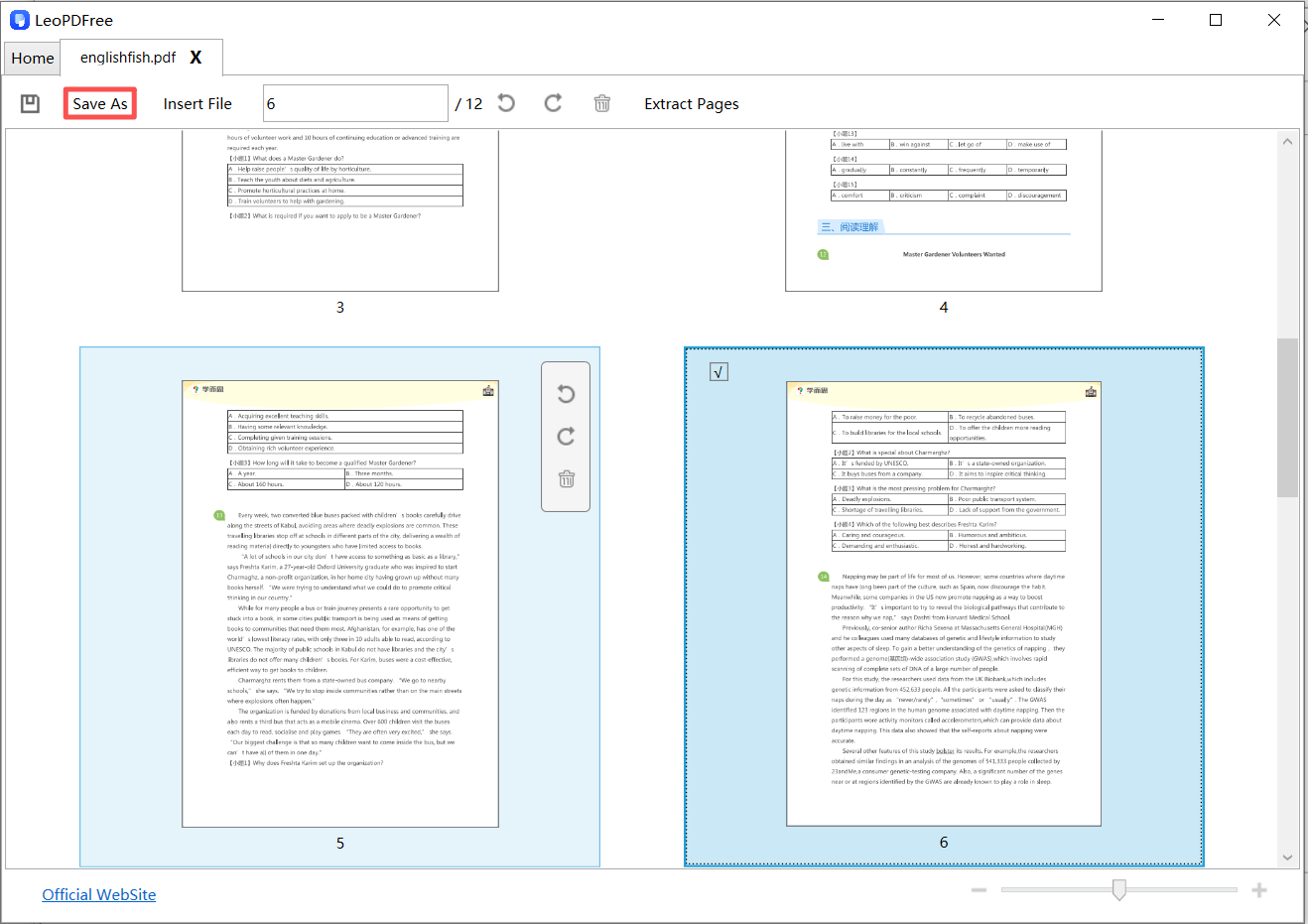
4️⃣. Once you have finished adjusting the page order of a PDF file, be sure to click the Save button or the “Save As” button to set the save location for the reordered file, as shown in the image below.
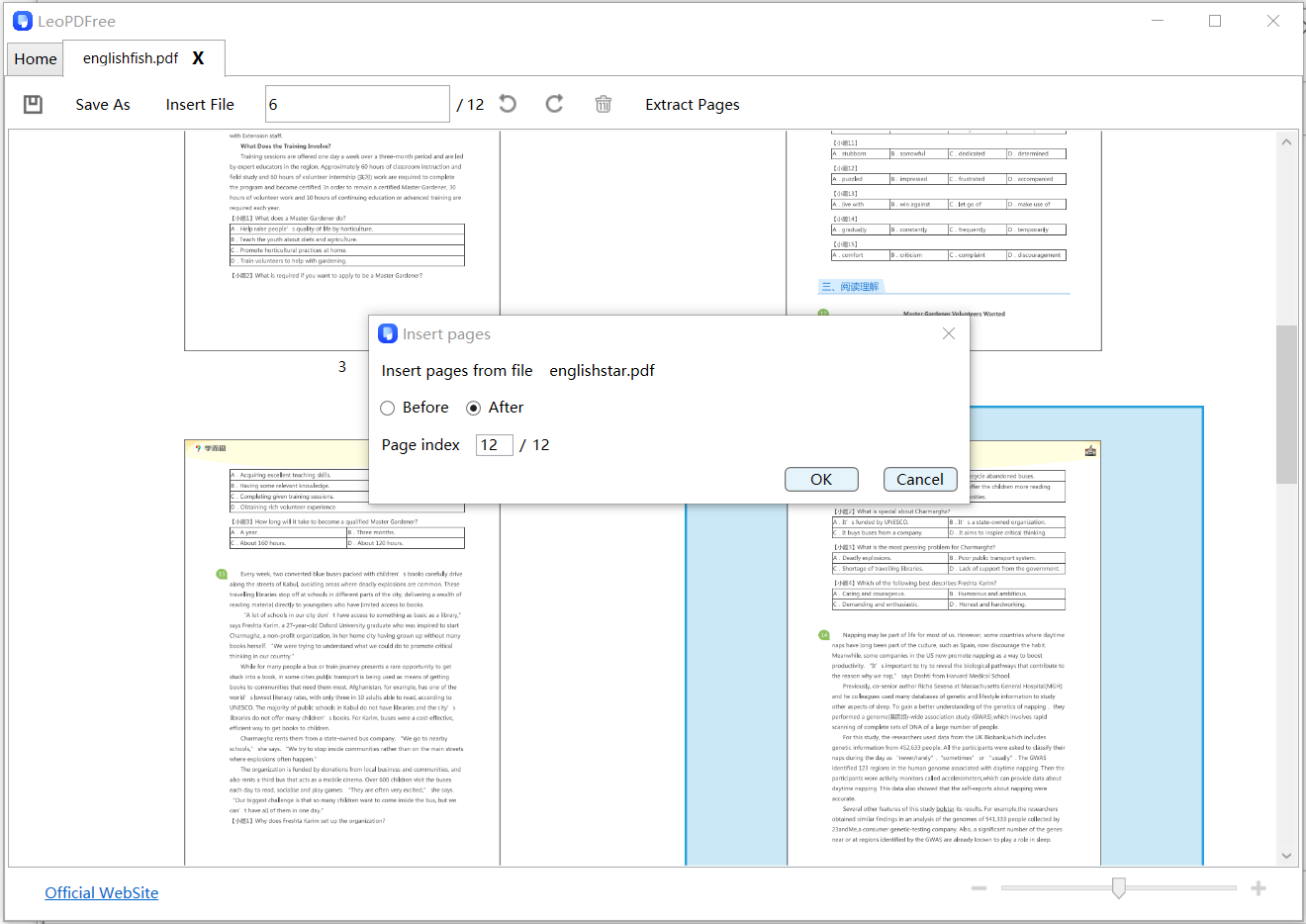
5️⃣. If you want to extract individual pages from multiple PDF files, arrange them in your desired order, and finally merge them into a new PDF file, you need to click the “Insert File” button in the software to add one file, then click “Insert File” again to continue adding files. At this point, the software will display a prompt where you can enter in the “Page index” box whether you want to insert the newly added file before or after a specific page of the original file, as shown in the image below.
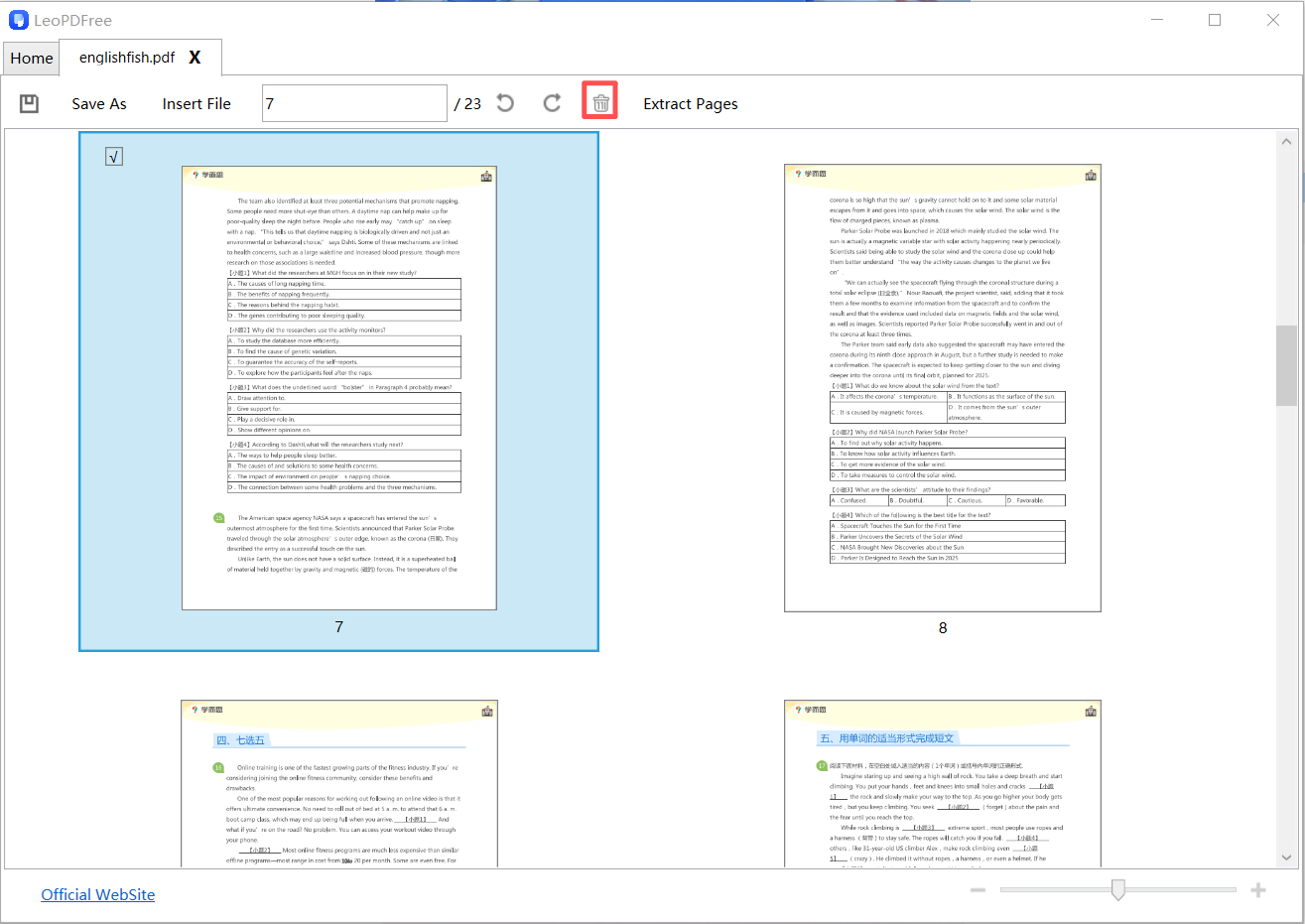
6️⃣. Once all the files have been added, you can adjust the page order using the same method as before, delete any unnecessary pages using the “Delete” button, and finally merge them into a new PDF file arranged according to your own desired order, as shown in the image below.
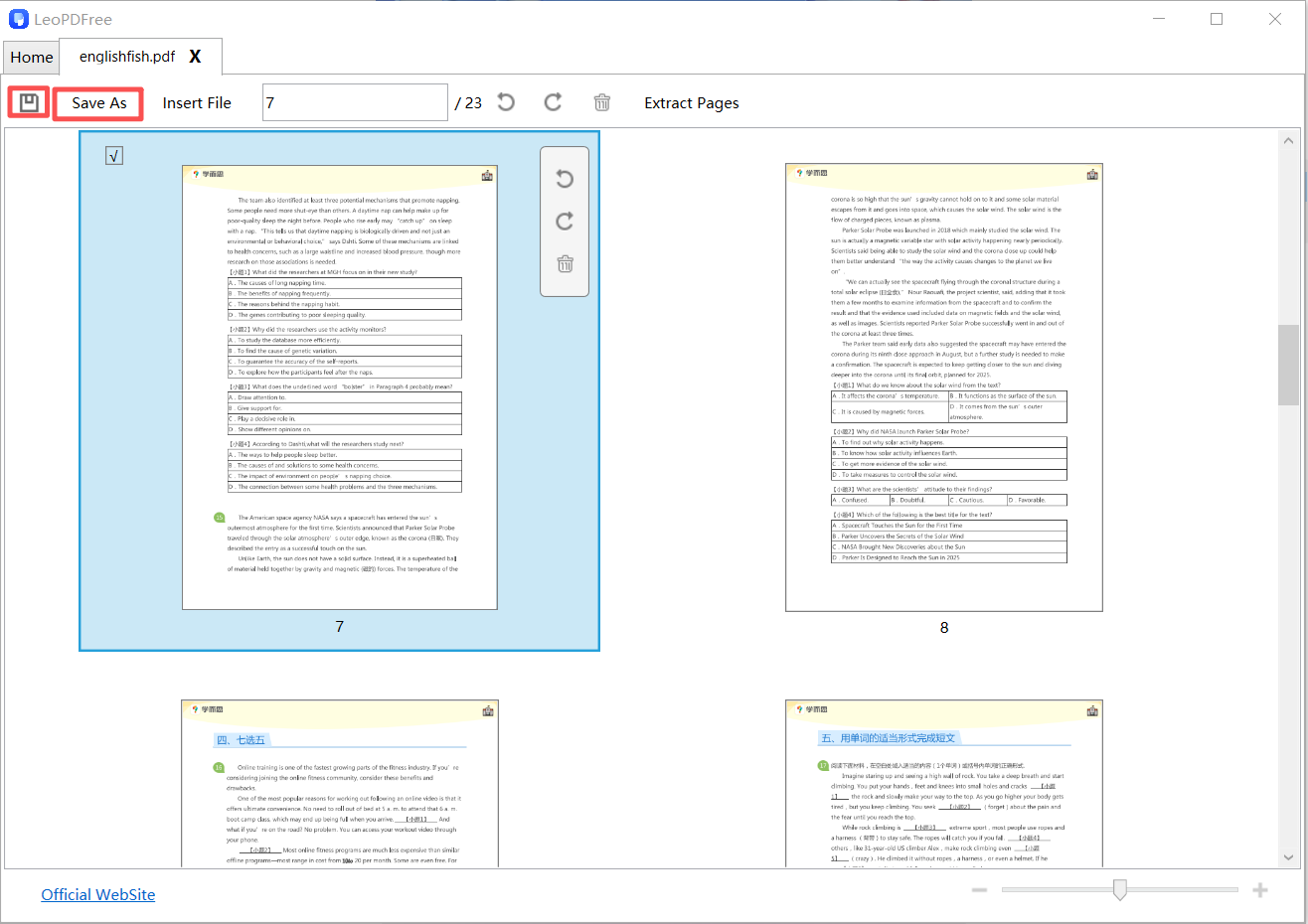
7️⃣. Finally, after the new file is generated, be sure to click the “Save As” button to save the new file. Isn’t it very convenient and quick? As shown in the image below.
Why This Method Stands Out
🔵 Visual control over page order
🔵 No technical skills required
🔵 Fast and beginner-friendly
👉 Best for: general users, students, office tasks
Method 2: Merge by Custom Page Selection (Advanced Control)
Sometimes you don’t want entire files—you only need specific pages.
Example
🔵 Take pages 1–3 from File A
🔵 Then page 2 from File B
🔵 Then pages 5–7 from File C
Steps
1️⃣. Open a PDF editor or advanced merge tool
2️⃣. Choose Custom Merge / Page Range
3️⃣. Enter page ranges (e.g., A:1-3, B:2, C:5-7)
4️⃣. Arrange the sequence
5️⃣. Merge and export
Why It’s Powerful
🔵 Precise page-level control
🔵 Ideal for creating reports or presentations
🔵 Eliminates unnecessary pages
👉 Best for: professionals, analysts, content creators
Method 3: Pre-Sort + Merge (The “Zero Error” Workflow)
This is the pro method most people overlook.
Instead of fixing order during merging, you:
👉 Fix everything BEFORE merging
Step-by-Step Strategy
1️⃣. Open each PDF file
2️⃣. Reorder pages inside each file
3️⃣. Save corrected versions
4️⃣. Rename files with numbers:
⏺ 01_Intro.pdf
⏺ 02_Content.pdf
⏺ 03_Appendix.pdf
5️⃣. Merge in order
Why This Works So Well
🔵 Eliminates confusion during merging
🔵 Prevents mistakes in large projects
🔵 Creates a repeatable workflow
👉 Best for: large documents, team collaboration, business workflows
Pro Tips: How to Always Get the Page Order Right
Want flawless results every time? Follow these expert tips:
🔵 ✅ Always preview pages before merging
🔵 ✅ Use file naming (01, 02, 03) for clarity
🔵 ✅ Avoid merging blindly without checking order
🔵 ✅ Use tools that support page thumbnails
🔵 ✅ Double-check the final PDF before sending
These small habits can save hours of rework.
Common Mistakes to Avoid
Even experienced users make these errors:
❌ Merging files without checking internal page order
❌ Ignoring page previews
❌ Using tools with limited sorting features
❌ Forgetting to remove duplicate pages
Avoid these, and your workflow becomes much smoother.
FAQ: Merging PDFs in Specific Page Order
Can I rearrange pages after merging?
Yes. LeoPDF editors allow you to reorder pages even after merging.
What is the easiest way for beginners?
Using a drag-and-drop LeoPDF merge tool is the simplest method.
Can I merge only selected pages?
Absolutely. Many tools support custom page ranges.
Conclusion: Order First, Merge Second
Mastering how to merge PDF files in a specific page order requires choosing the right tool, but the method and workflow are even more important.
🔵 Use drag-and-drop LeoPDF tools for quick tasks
🔵 Use custom page selection for precision
🔵 Use pre-sorting workflows for complex projects
When you control the order, you control the clarity of your document.
And that’s what turns a messy PDF into a professional, structured file.
