
Typing handwritten notes into Word is one of the most time-consuming ways to digitize information.
A 20-page handwritten PDF may take hours to retype manually, while OCR technology can help turn handwriting into editable text within minutes. Modern OCR tools analyze handwriting patterns and convert scanned pages into searchable, editable content.
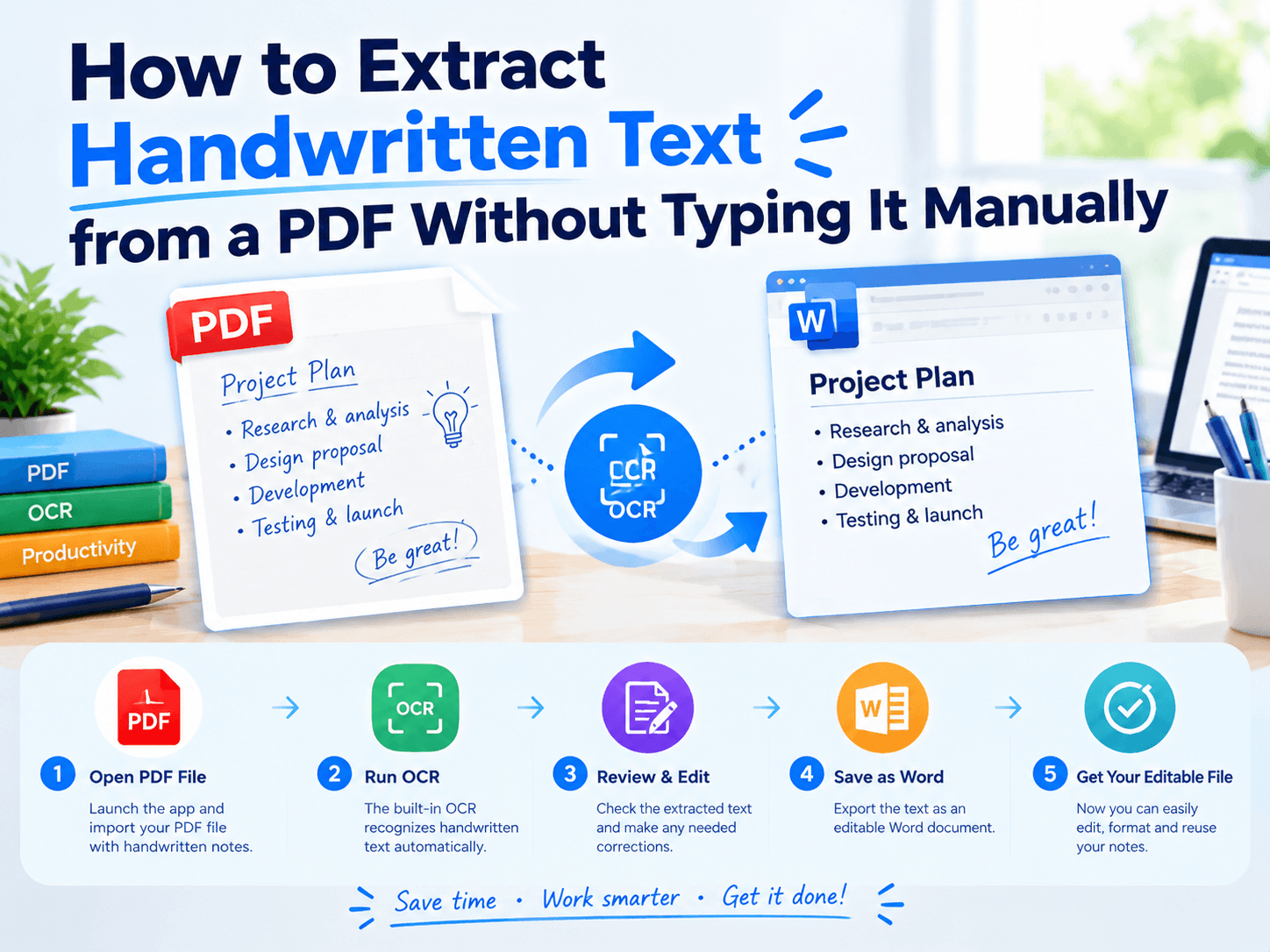
The Old Way vs The Smarter Way
| Method | Time Required | Result |
|---|---|---|
| Manual typing | Hours | Editable text |
| Copy from image | Impossible | Not practical |
| OCR extraction | Minutes | Editable digital text |
👉 Instead of recreating every sentence manually, OCR allows you to extract the information directly from your handwritten PDF.
First Check Your PDF Type
Not every PDF works the same way.
| PDF Type | Best Approach |
|---|---|
| Digital text PDF | Direct conversion |
| Scanned handwritten notes | OCR recognition |
| Notes with drawings | OCR + manual review |
👉 A scanned handwritten PDF is essentially an image file. The OCR process needs to recognize the shapes, spacing, and writing patterns before creating editable text.
What OCR Can Extract
A good OCR workflow can help convert:
✔ Class notes
✔ Meeting records
✔ Research notes
✔ Personal journals
✔ Handwritten drafts
However, handwriting quality matters.
| Handwriting Condition | Expected Result |
|---|---|
| Clear handwriting | High recognition quality |
| Dark ink on clean paper | Better results |
| Cursive writing | More corrections needed |
| Blurry scans | Lower accuracy |
👉 OCR is designed to save typing time, but important information such as names, numbers, and formulas should still be reviewed after extraction.
A Faster Mobile Workflow
Many handwritten notes are already stored on smartphones.
Instead of transferring files to a computer first:
Scan → Extract → Edit
can happen directly from your phone.
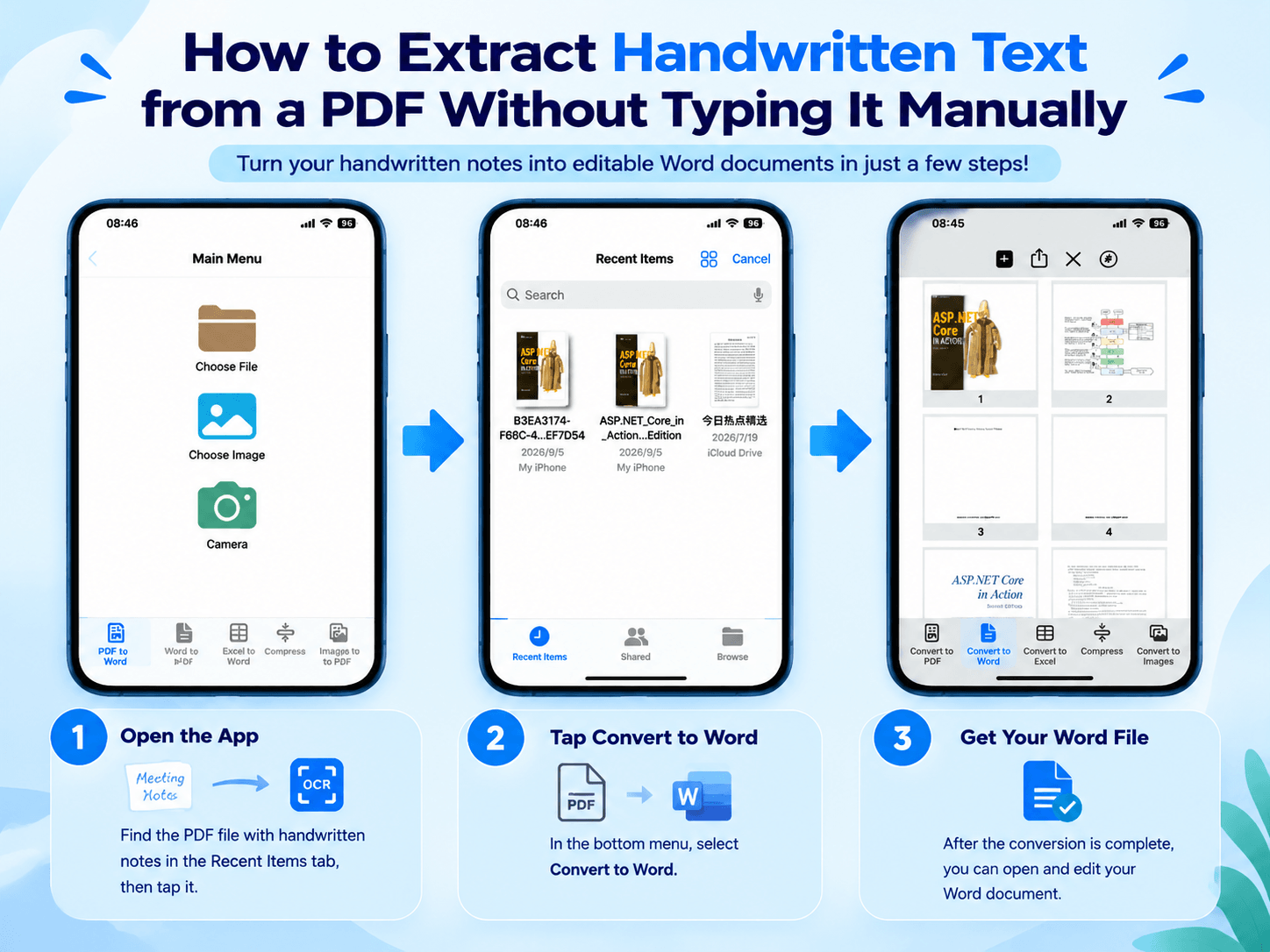
LeoPDF for iOS provides OCR tools that help extract text from PDFs, scanned documents, and images. This makes it easier to digitize handwritten notes directly from an iPhone or iPad and continue editing the content in Word.
A typical workflow:
1️⃣. Import the handwritten PDF into LeoPDF.
2️⃣. Use OCR to recognize the text.
3️⃣. Export the extracted content.
4️⃣. Edit and organize it in Word.
Before and After OCR
A handwritten PDF changes from:
Before
📄 Image-based pages
❌ Cannot search
❌ Cannot edit
❌ Requires manual typing
↓
After
📝 Editable text
🔍 Searchable content
✏️ Easy to modify
📂 Ready for Word documents
When OCR Works Best
OCR is especially useful when you need to quickly transform handwritten information into digital files.
Examples:
🔵 Students organizing lecture notes
🔵 Professionals digitizing meeting records
🔵 Researchers archiving handwritten materials
🔵 Users converting old notebooks into searchable documents
👉 For complex pages containing formulas, drawings, or unusual handwriting styles, a quick manual review is recommended.
Final Takeaway
The fastest way to digitize handwritten PDF notes is not to type everything again.
A better workflow is:
Recognize → Extract → Review → Edit
OCR reduces repetitive typing and helps turn handwritten pages into practical digital documents.
With LeoPDF on iOS, you can start the handwriting extraction process directly from your mobile device and move from handwritten notes to editable content much faster.
💥 n addition, if you need PDF conversion and PDF management tools on a Windows PC, LeoPDF also offers a desktop version. You can download it here:
Free DownloadSecure Download
