
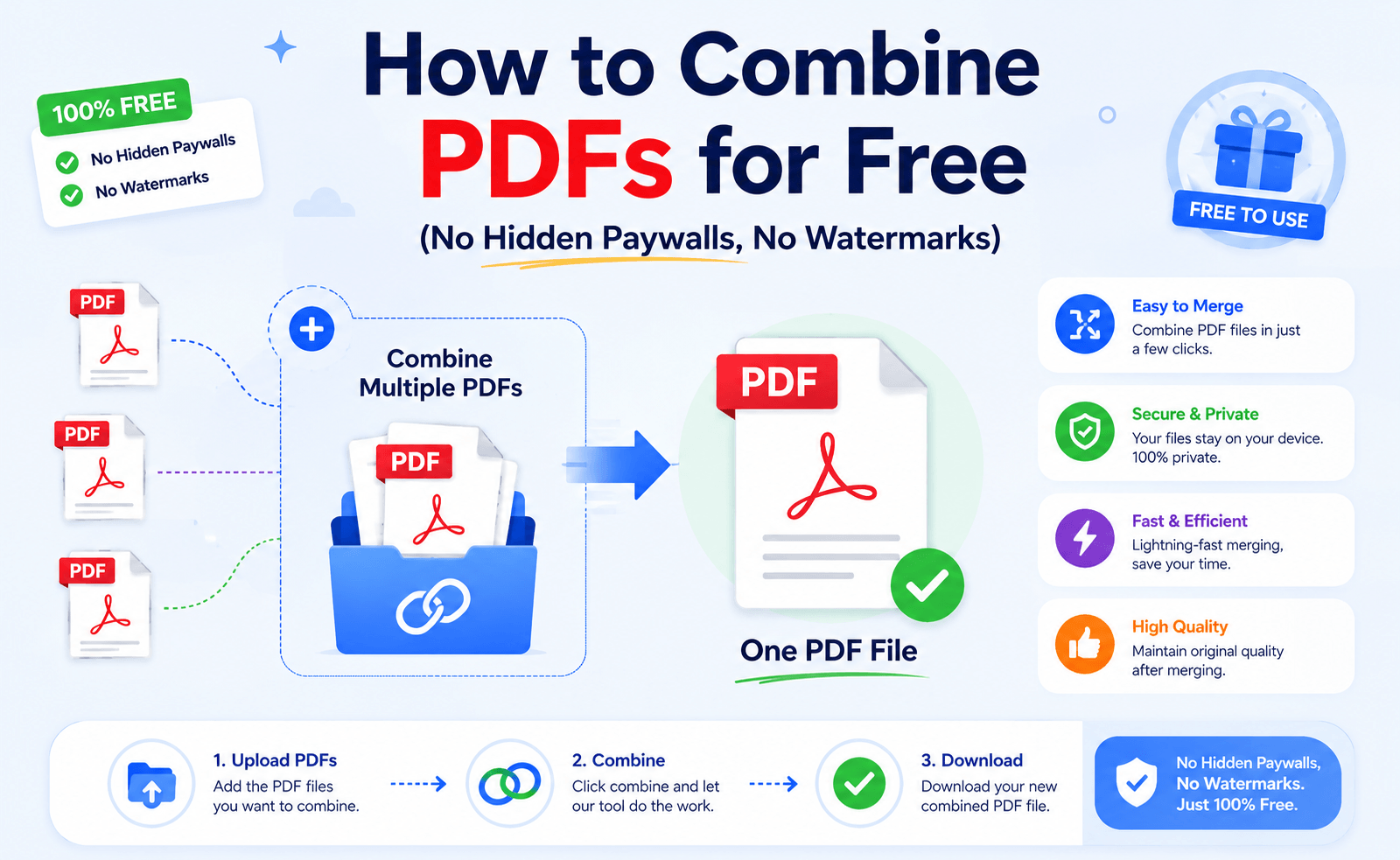
Free should actually mean free.
Yet that’s rarely what happens when you search for a PDF merger.
You combine two files…
Click Download…
Then suddenly:
💳 Upgrade to Premium.
Or even worse:
💧 Your PDF now has a watermark.
If you’ve ever experienced that, you’re not alone.
The good news?
You don’t need to pay a subscription—or accept watermarks—just to merge a few PDF files.
Here’s how to do it the smarter way.
Why “Free” PDF Tools Aren’t Always Free
Many online PDF services advertise free merging.
What they don’t always mention is what comes afterward.
You might run into:
🚫 File limits
🚫 Daily usage limits
🚫 Premium-only downloads
🚫 Watermarked output
🚫 Upload restrictions
Sometimes the merge itself is free—but getting your finished PDF isn’t.
That’s why it’s worth looking beyond the first search result.
The Two Ways to Merge PDFs
There are really only two options.
🌐 Option 1: Online PDF Mergers
Browser-based tools are great when you’re using a shared computer or only need to merge a couple of small files.
The process is simple:
Upload
↓
Arrange pages
↓
Merge
↓
Download
Quick and convenient.
But convenience comes with trade-offs.
Large files upload slowly.
Private documents leave your computer.
Some websites lock advanced features behind a paywall.
💻 Option 2: Offline PDF Tools
Desktop software works differently.
Everything happens on your own computer.
No uploads.
No waiting for servers.
No surprise download restrictions.
For Windows users who merge PDFs regularly, this often creates a smoother experience.
LeoPDF: Built for Simple PDF Merging
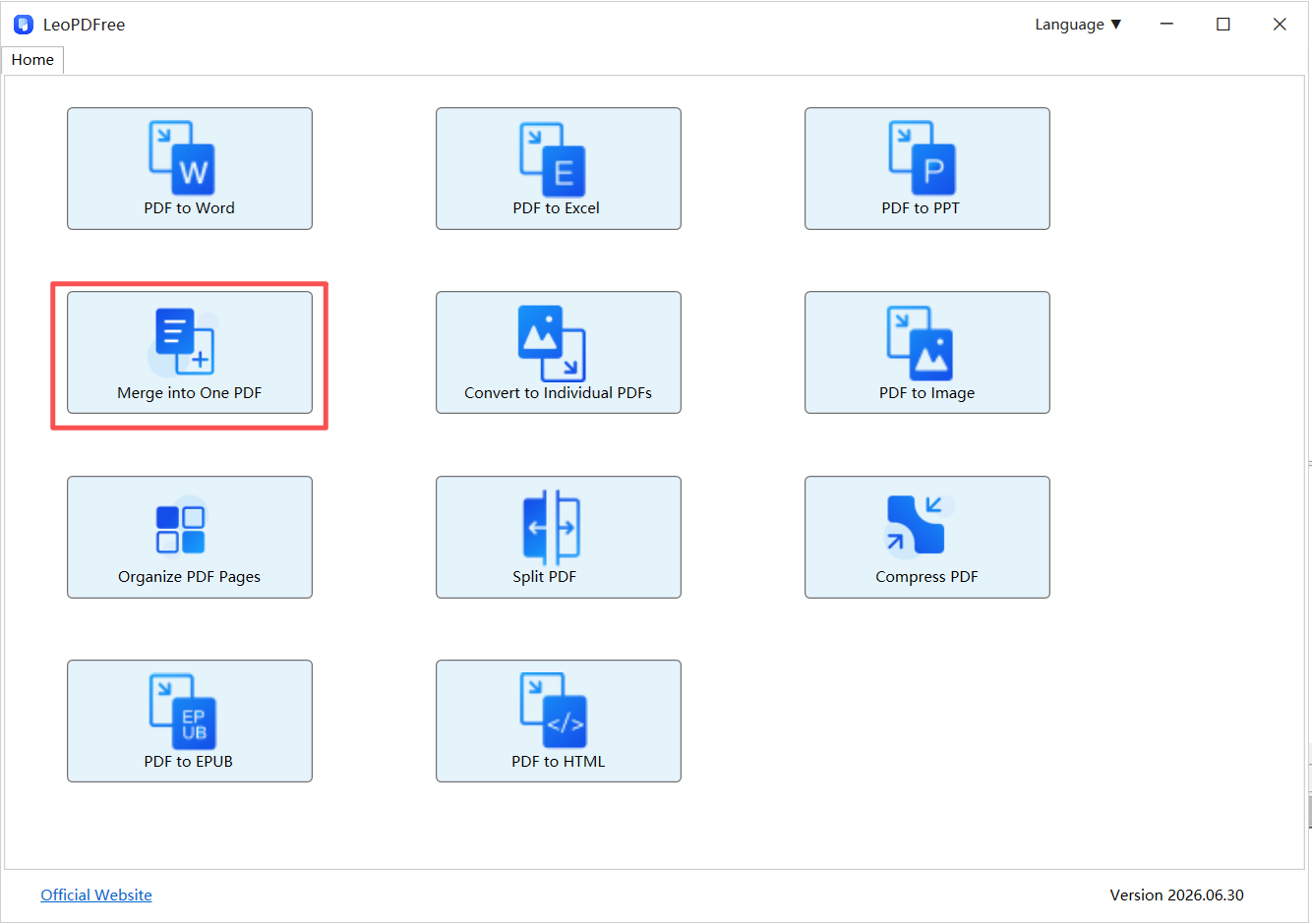
If your goal is simply to combine PDFs without paying for features you don’t need, LeoPDF keeps things straightforward.
Free DownloadSecure Download
Instead of adding subscriptions and unnecessary complexity, it focuses on the basics:
✅ Merge multiple PDFs into one
✅ Preserve the original layout
✅ No watermark added
✅ Process files locally
✅ Free for everyday use
For reports, invoices, study materials, or scanned documents, that’s often all you need.
Online vs Offline PDF Merging
| Feature | Online PDF Tools | Offline Tools (LeoPDF) |
|---|---|---|
| Installation | Not required | Required |
| File Upload | Yes | No |
| Watermark Risk | Possible | No |
| Privacy | Depends on the service | Files stay local |
| Large Files | Upload required | More reliable |
| Best For | Occasional use | Frequent Windows users |
Three Tips Before You Merge PDFs
📑 Organize First
Place files in the correct order before combining them.
A few seconds here can save editing later.
📦 Merge Once
Instead of merging files repeatedly, prepare everything first and create one final PDF.
It keeps your workflow cleaner.
🔒 Think About Privacy
If the document contains contracts, financial records, or internal files, local processing is usually the safer choice.
Who Should Use Online Tools?
Online PDF mergers make sense when:
✔ You’re using a public computer.
✔ The files aren’t confidential.
✔ You only need a quick, one-time merge.
Who Should Use Offline Tools?
Desktop tools are a better fit if you:
✔ Merge PDFs every week.
✔ Work with large documents.
✔ Handle sensitive files.
✔ Prefer software that works without internet access.
Final Thoughts
Merging PDFs shouldn’t feel like unlocking a paid feature in a mobile game.
If a tool says it’s free, downloading your own document shouldn’t require a subscription or leave a watermark behind.
Online PDF mergers are convenient for quick jobs.
But for regular Windows users, an offline tool like LeoPDF offers a simpler workflow:
⚡ No hidden paywalls
🔒 No file uploads
💧 No watermarks
📄 Just one clean PDF—ready to share.
Sometimes, the best PDF merger isn’t the one with the longest feature list.
It’s the one that quietly gets the job done.
Free DownloadSecure Download
