
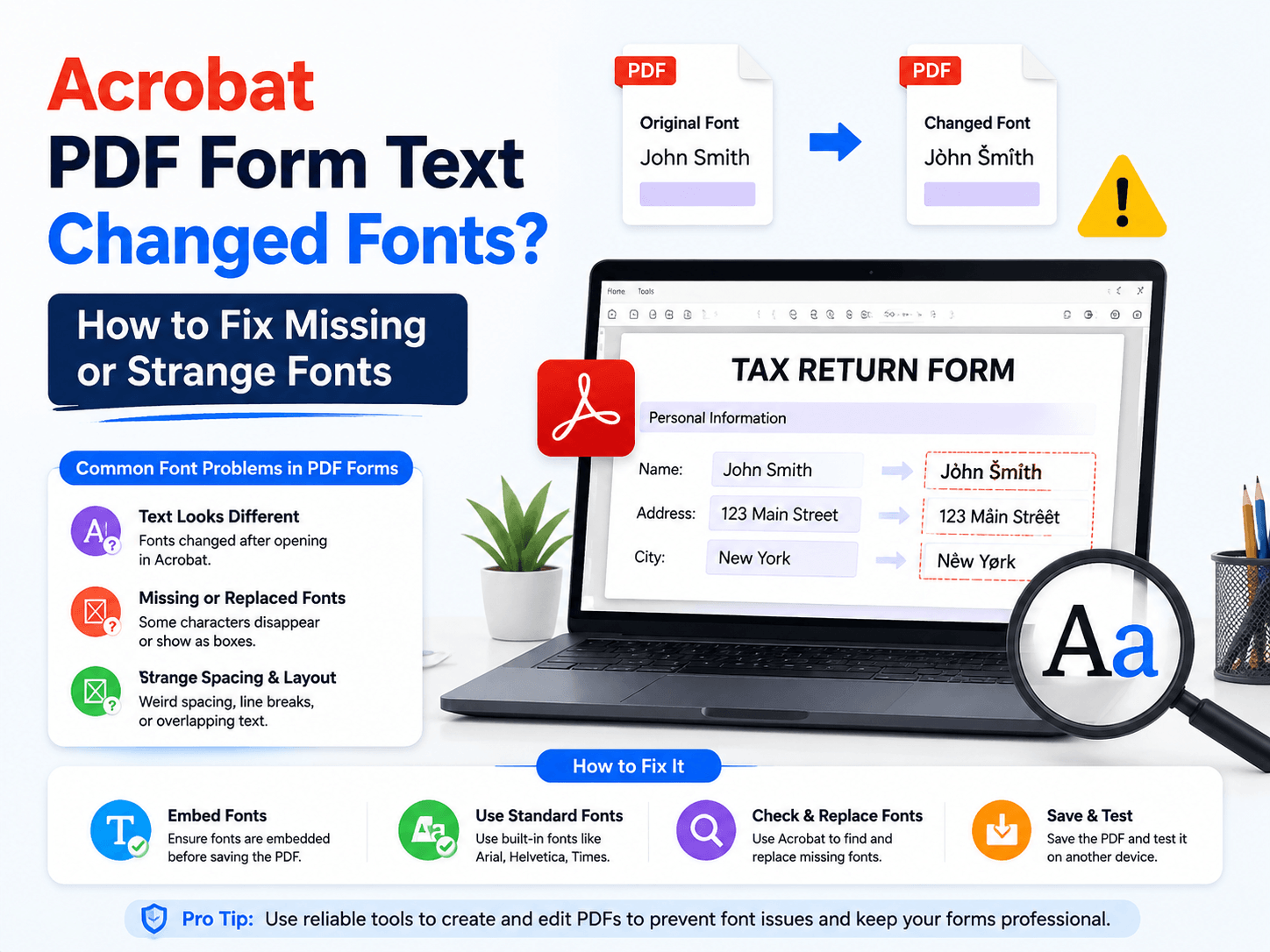
You open a PDF form in Adobe Acrobat, edit a field, and suddenly the text looks different.
The font changes.
The spacing breaks.
The characters appear smaller, larger, or completely wrong.
This is one of the most common PDF form problems — and the reason is usually not Acrobat itself.
The real issue is font handling inside the PDF structure.
Why Do PDF Form Fonts Change in Acrobat?
A PDF does not work like a Word document.
Instead of storing text as simple editable content, PDFs rely on:
🔵 Embedded fonts
🔵 Font encoding
🔵 Form field settings
🔵 Document compatibility rules
When a PDF form does not contain the required font information, Acrobat may automatically replace it with another available font.
This process is called font substitution.
The result:
❌ Wrong font style
❌ Different text size
❌ Misaligned form fields
❌ Missing special characters
Common Causes of Strange PDF Fonts
1. Missing Embedded Fonts
The original PDF creator may not have embedded the fonts correctly.
Without embedded fonts, Acrobat has to find a replacement font.
That replacement may not match the original design.
2. Form Field Font Settings Are Different
Interactive PDF forms have their own field properties.
A text field may use:
🔵 Default system fonts
🔵 Automatic font selection
🔵 Incorrect size settings
This can cause unexpected changes during editing.
3. PDF Created by Different Software
PDF files created by different applications may handle fonts differently.
For example:
🔵 Design software
🔵 Scanners
🔵 Online PDF generators
🔵 Older PDF editors
Each tool may create PDF structures in different ways.
How to Fix PDF Font Problems in Acrobat
Solution 1: Check Font Information
In Acrobat:
1️⃣. Open the PDF
2️⃣. Go to document properties
3️⃣. Check the Fonts section
4️⃣. Confirm whether fonts are embedded
If fonts are missing, the PDF may not display correctly on other devices.
Solution 2: Edit Form Field Properties
For PDF forms:
1️⃣. Open Prepare Form mode
2️⃣. Select the problematic field
3️⃣. Open field properties
4️⃣. Check font and size settings
Choose a standard font and test again.
Solution 3: Recreate the PDF with Embedded Fonts
If the original PDF has incorrect font settings, the best solution is often recreating the document.
When exporting:
✔ Embed fonts
✔ Use standard PDF settings
✔ Avoid unnecessary conversions
A properly created PDF is easier to edit later.
Why Online PDF Editors May Not Fix Font Issues
Many online PDF tools look convenient.
Upload PDF → Edit → Download
But they often have limitations:
🔵 Limited font control
🔵 Automatic conversions
🔵 Unknown rendering engines
🔵 Possible formatting changes
For simple edits, online tools are fine.
For complex PDF forms, font accuracy matters.
Prevent PDF Font Problems Before They Happen
A professional PDF workflow should follow these rules:
✅ Use embedded fonts
✅ Keep the original source file
✅ Avoid repeated PDF conversions
✅ Use reliable PDF software
Most PDF problems happen before editing even begins.
Good PDF creation prevents future formatting issues.
Need Other PDF Tasks? Try LeoPDF
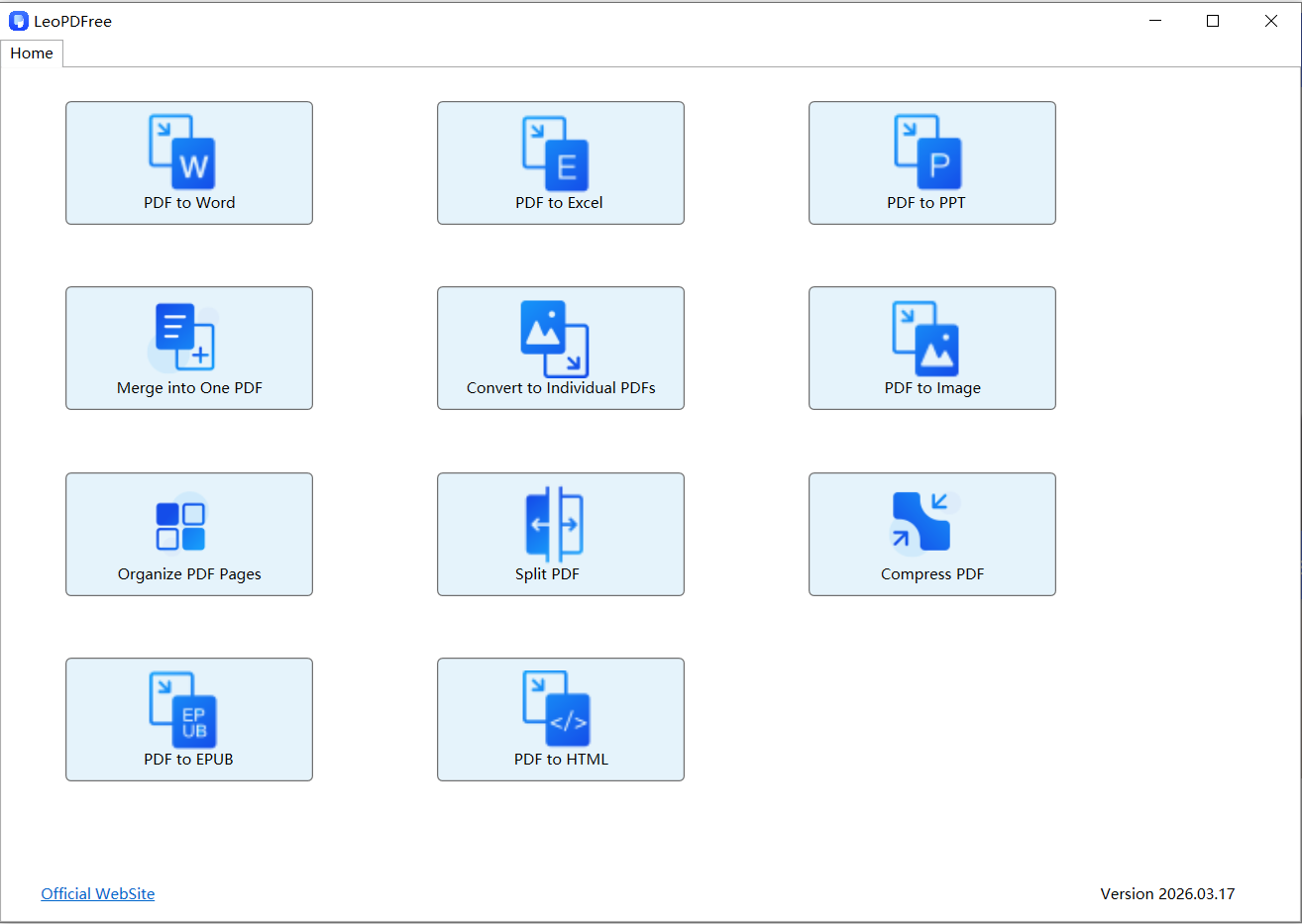
While LeoPDF currently does not support advanced PDF form editing or font correction, it focuses on essential PDF workflows that many users need every day.
Free DownloadSecure Download
With LeoPDF, you can:
✅ Convert PDF to Word, Excel, and other formats
✅ Compress large PDF files
✅ Split PDF documents
✅ Merge PDF files
✅ Organize PDF pages
It provides a simple, completely free solution for everyday PDF management.
For users who need reliable PDF conversion, compression, and document processing without complicated subscriptions, LeoPDF offers a lightweight alternative.
Final Thoughts
PDF font problems are usually caused by missing fonts, incorrect encoding, or incompatible document creation settings.
Acrobat can help diagnose these issues, but the best solution is creating PDFs correctly from the beginning.
Use embedded fonts.
Keep clean PDF structures.
Choose the right tool for each task.
A well-built PDF should look the same everywhere — no matter which device opens it.
