
Big PDFs are productivity killers. They clog inboxes, bounce off upload limits, slow down client approvals, and make sharing “final_v7_really_final.pdf” feel harder than it should be. The good news:
PDF compression is no longer a niche, technical chore. With the right approach, you can reduce file size dramatically while keeping text sharp, images clear, and layouts intact.
In this guide, you’ll learn what PDF compression actually does, when to use different compression levels, and how to get consistent results—ncluding a professional way to compress PDFs using LeoPDF, a free offline desktop client.
What Is PDF Compression (And Why Does It Work)?
A PDF is a container: it can hold text, fonts, images, vectors, forms, and metadata. File size grows for a few common reasons:
⏺ High-resolution images (scanned pages, screenshots, camera photos)
⏺ Embedded fonts (especially multiple font families or full font sets)
⏺ Redundant objects (repeated resources stored inefficiently)
⏺ Unoptimized structure (inefficient encoding, bloated metadata)
PDF compression reduces size by optimizing these components—most often by re-encoding images, removing unnecessary data, and reorganizing internal objects for efficiency.
The Two Main Types of PDF Compression
1) Lossless Compression (Best for Text-Heavy PDFs)
Lossless compression reduces size without changing visible quality.
It’s ideal for:
⏺ Contracts, invoices, reports
⏺ Forms and documentation
⏺ PDFs with mostly text and vector graphics
You won’t always get massive reductions, but you’ll keep fidelity intact.
2) Lossy Compression (Best for Image-Heavy PDFs)
Lossy compression reduces file size by downsampling and re-encoding images. It’s best for:
⏺ Scanned documents
⏺ Portfolios and brochures with photos
⏺ Large slide exports
The key is choosing a level that keeps images readable while hitting your target size.
What “Good” PDF Compression Looks Like (Practical Targets)
Different workflows need different results. Here are realistic goals:
⏺ Email-friendly: under 10–15 MB
⏺ Web upload / forms: under 5–10 MB
⏺ Fast sharing / messaging apps: under 2–5 MB
⏺ Archive-friendly: smaller, but prioritize legibility and searchability
If your PDF includes scans, consider OCR separately—compression and OCR solve different problems.
Common PDF Compression Mistakes to Avoid
1. Over-compressing scanned text
– Aggressive image compression can turn small fonts into blurry artifacts.
2. Flattening everything unnecessarily
– Flattening may break form fields, links, or selectable text.
3. Compressing repeatedly
– Multiple compression passes compound quality loss, especially for images.
4. Ignoring privacy
– Uploading sensitive PDFs to unknown web tools can create compliance risk.
If privacy matters, an offline compressor is often the smarter option.
Why Offline PDF Compression Is a Smart Choice (Privacy + Stability)
Online compressors are convenient—but they aren’t always appropriate. Offline compression helps when you need:
⏺ Data privacy: keep files on your device (no upload)
⏺ Predictable performance: compress large batches without browser limits
⏺ Reliable output: consistent settings, fewer web-tool quirks
⏺ Work anywhere: no internet required
That’s where a dedicated desktop client becomes valuable.
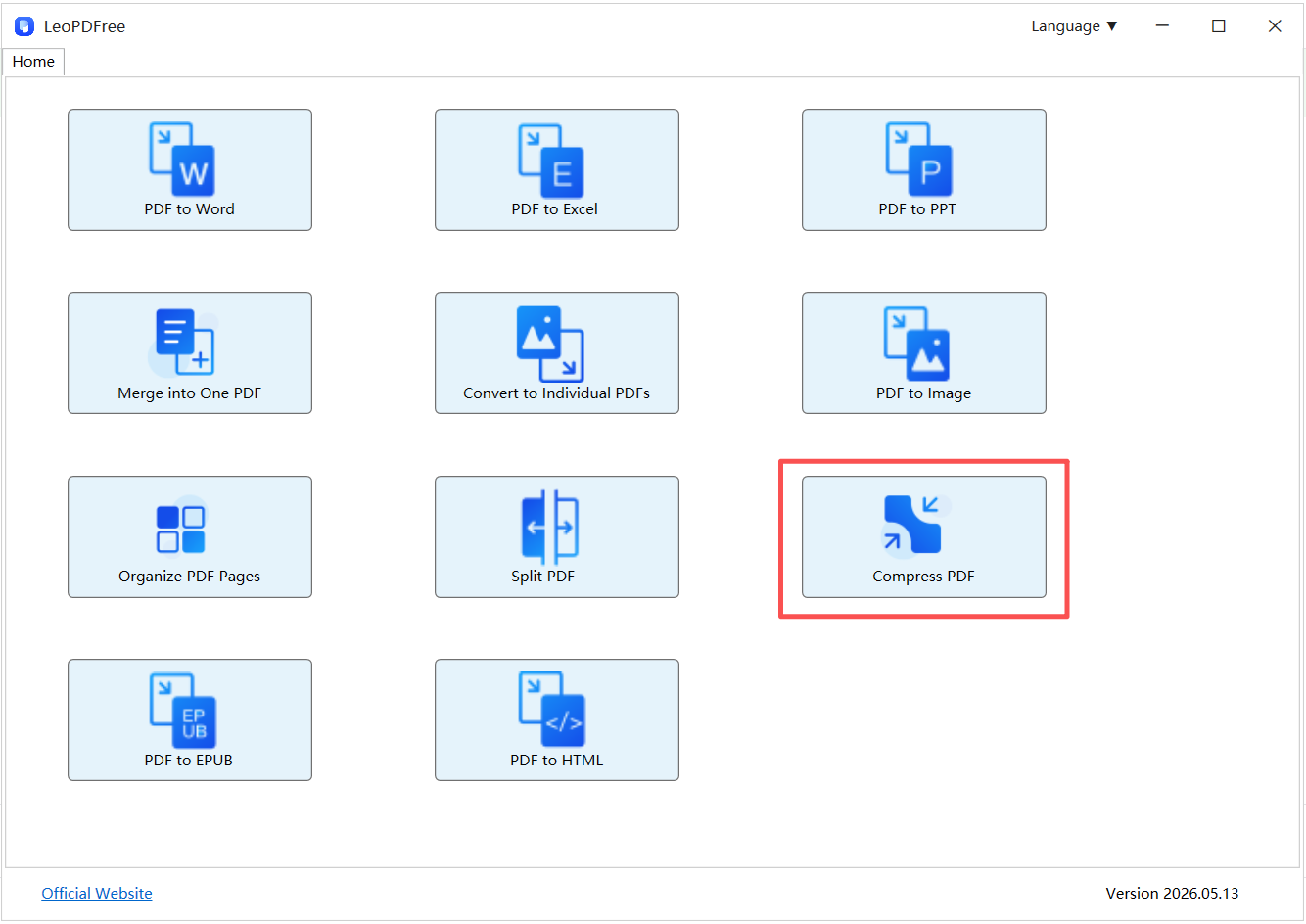
A Professional Way to Compress PDFs: LeoPDF Free Offline Desktop Client
If you want compression that feels “enterprise-grade” without paying for it, LeoPDF’s free offline client is a strong option—especially for users who regularly handle large PDFs and want to keep documents local.
What makes LeoPDF a practical choice?
⏺ Offline compression: your PDFs stay on your computer
⏺ Fast processing: ideal for large documents and repeat workflows
⏺ Quality control: choose compression strength based on your needs
⏺ Business-friendly workflow: compress files before emailing, uploading, or archiving—without relying on browser tools
Best use cases for LeoPDF compression
⏺ Compressing scanned PDFs before submission
⏺ Reducing marketing PDFs to meet upload limits
⏺ Sending multi-page documents by email without size errors
⏺ Handling sensitive materials where cloud uploads are not acceptable
Free DownloadSecure Download
If your goal is to compress PDFs efficiently while keeping control over privacy and output quality, LeoPDF provides a clean, offline path to smaller files—without the “upload and hope” model.
How to Choose the Right Compression Level (Quick Guide)
Use these rules of thumb:
⏺ Low compression (highest quality):
Contracts, manuals, technical docs, text-heavy files
⏺ Medium compression (balanced):
Most business PDFs, mixed text + images
⏺ High compression (smallest size):
Large scanned documents when size matters more than perfect clarity
For scanned documents, always open the compressed result and zoom in on small text (e.g., 200–300%) before sharing.
PDF Compression FAQ
Can PDF compression reduce quality?
Yes—lossy compression can reduce image clarity. Lossless compression generally preserves quality.
Why is my PDF still large after compressing?
Usually because it contains:
⏺ very high-res images,
⏺ multiple embedded fonts,
⏺ or already-optimized content where there’s little left to reduce.
Is it safe to compress PDFs online?
It depends on the tool and the sensitivity of your document. For confidential files, an offline tool like LeoPDF is a safer workflow.
What’s the best way to compress a scanned PDF?
Use compression optimized for images, avoid extreme settings, and consider OCR separately if you need searchable text.
Bottom Line: Smaller PDFs, Faster Work
PDF compression is one of the easiest ways to speed up collaboration—less waiting, fewer upload failures, and smoother sharing across email and web platforms.
If you want a privacy-first, professional workflow, using LeoPDF’s free offline desktop client is a clean solution: compress locally, control quality, and keep your files where they belong—on your machine.
