
Adobe Acrobat has been the name people think of when they hear “PDF.”
And for good reason.
It’s powerful, reliable, and packed with professional features.
But here’s the question many Windows users are starting to ask:
Do you really need an expensive PDF subscription just to reduce file size?
For many everyday tasks, the answer is no.
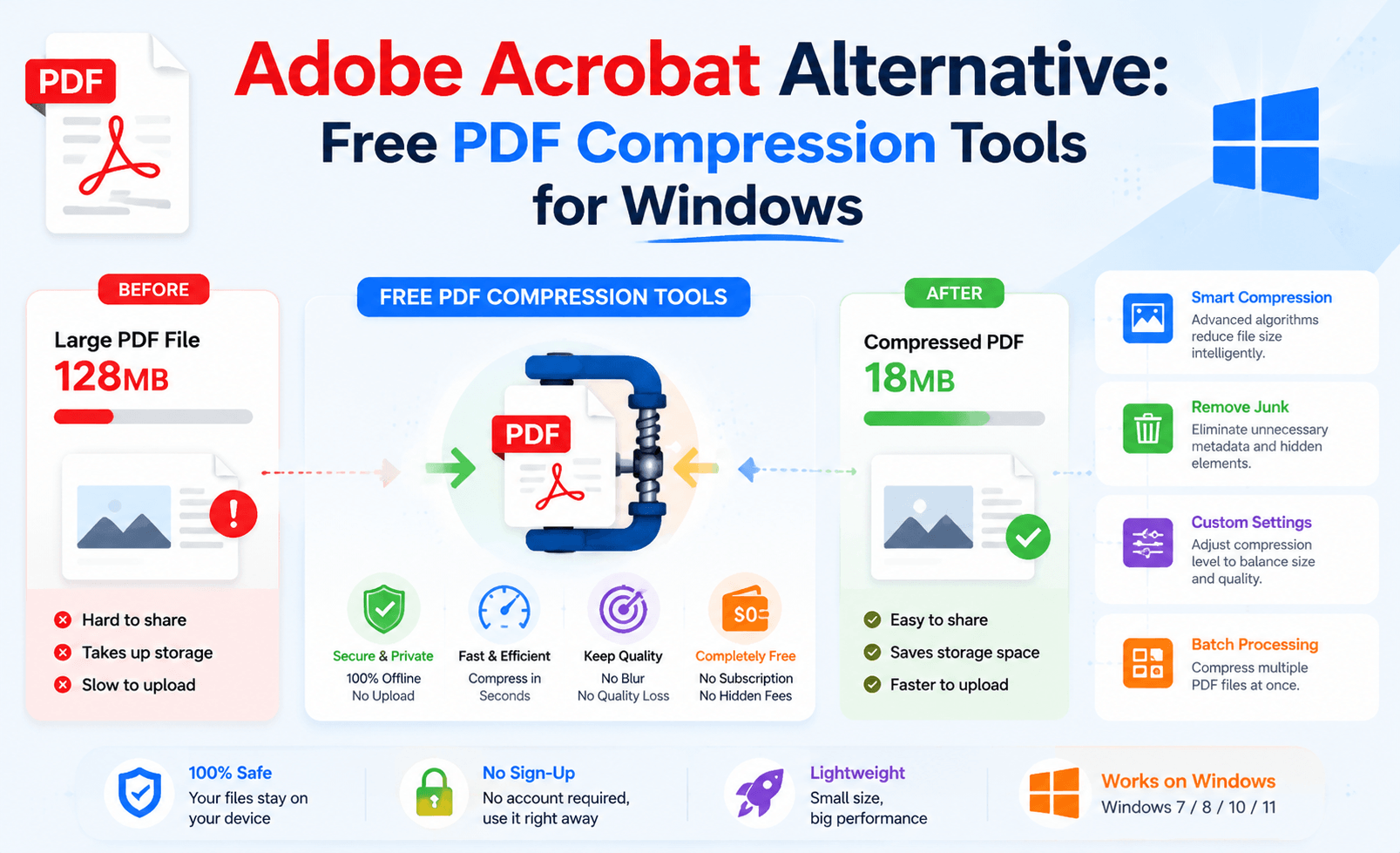
If your main goal is simply to:
📉 Reduce large PDF files
📧 Send documents through email
💾 Save storage space
🚀 Upload files faster
A lightweight PDF compression tool may be all you need.
This guide explores free Adobe Acrobat alternatives for Windows, compares desktop tools with online compressors, and explains which option makes the most sense for different workflows.
Why Look for an Adobe Acrobat Alternative?
Adobe Acrobat is designed as a complete PDF ecosystem.
It includes:
✔ Advanced editing
✔ OCR recognition
✔ Digital signatures
✔ Document collaboration
✔ Enterprise features
But many users never touch these functions.
Their actual needs are much simpler:
“I just need this 80MB PDF to become smaller.”
“I need to upload this document.”
“I want to send this report without hitting the attachment limit.”
Paying for a full PDF suite just for compression can feel unnecessary.
That’s where free PDF tools come in.
What Makes a Good PDF Compression Tool?
A good compressor is not just about creating the smallest file.
The best tools balance:
📦 File Size Reduction
Can it significantly reduce large PDFs?
👀 Visual Quality
Does text stay sharp?
Do images remain readable?
🔒 Privacy
Does your document stay on your computer?
⚡ Performance
Can it handle large files without waiting forever?
Free PDF Compression Options for Windows
🥇 Option 1: LeoPDF — Simple, Free, and Offline
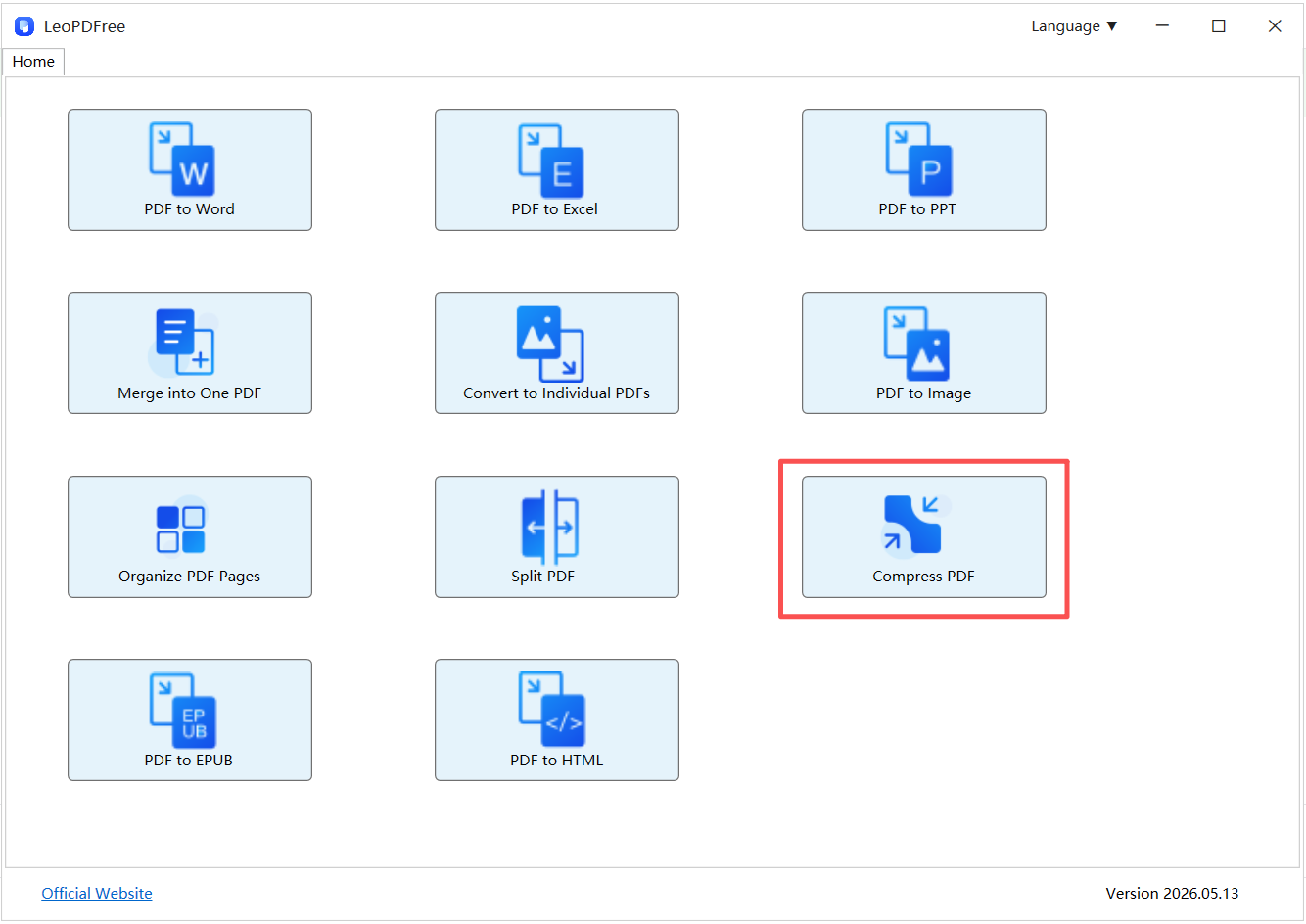
For users who want a lightweight Adobe Acrobat alternative, LeoPDF focuses on the features people actually use.
Instead of a complicated interface filled with advanced settings, it provides a straightforward workflow:
Open PDF → Compress → Save
Simple.
No subscription.
No account registration.
No file upload.
Because LeoPDF processes documents locally on Windows, files stay on your device during compression.
Free DownloadSecure Download
This makes it a practical option for:
📄 Business reports
📚 Large documents
🔐 Private files
📊 Presentations
Option 2: Online PDF Compressors — Convenient but Limited
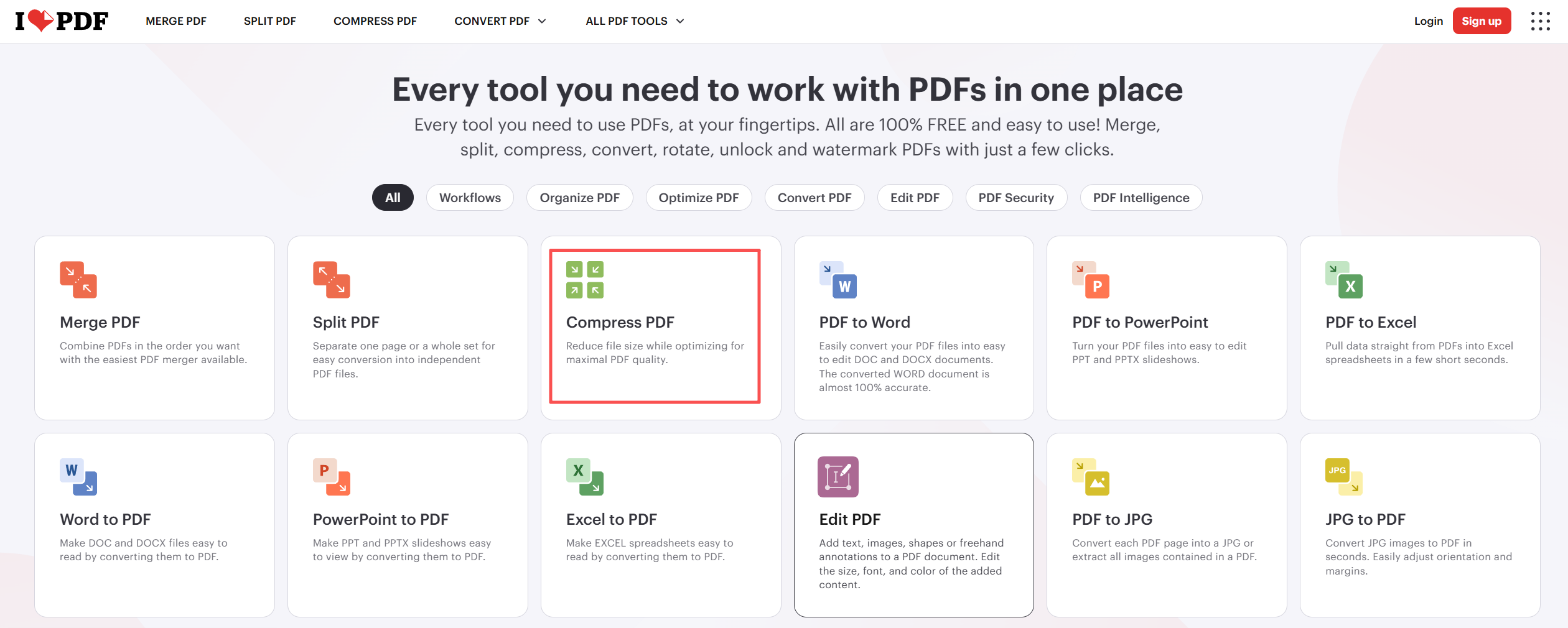
Online tools such as iLovePDF and similar browser-based services are popular because they require no installation.
The workflow is simple:
🌐 Open website
⬆ Upload PDF
⚙ Process file
⬇ Download result
For quick tasks, this is convenient.
However, online tools have limitations.
The Hidden Cost of Online Convenience
1. Upload Time
A small PDF?
No problem.
A 200MB scanned document?
The upload alone may take several minutes.
Your actual compression hasn’t even started yet.
2. Privacy Concerns
Ask yourself:
Would you upload this document to a third-party server?
For public brochures, probably fine.
For:
🔒 Contracts
🔒 Financial reports
🔒 Customer documents
Many users prefer keeping files local.
3. Less Control
Many online compressors provide only basic choices:
Low compression
Medium compression
High compression
But you often don’t know:
How image quality changes
What data is removed
How the final PDF is optimized
Desktop Tools vs Online Compressors
| Feature | Free Desktop Tools (LeoPDF) | Online Compressors |
|---|---|---|
| Installation | Required | Not required |
| File Upload | No | Yes |
| Privacy | Files stay local | Depends on service |
| Large PDF Handling | More stable | Limited by internet speed |
| Performance | Consistent | Depends on connection |
| Best For | Regular users | Quick one-time tasks |
When Should You Choose a Free Alternative Instead of Adobe Acrobat?
A free PDF compressor is usually enough if you:
✅ Only need basic compression
✅ Work mainly with PDF size reduction
✅ Don’t need advanced editing tools
✅ Prefer simple software
For example:
A student reducing lecture notes.
A business employee sending reports.
A freelancer sharing project files.
These users usually don’t need a full professional PDF suite.
When Does Adobe Acrobat Still Make Sense?
Adobe Acrobat remains a strong choice for professionals who need:
🏢 Enterprise document workflows
✍ Advanced editing
🔍 OCR scanning
📝 Digital signatures
📂 Document management
If PDF editing is your daily job, professional software may justify the cost.
But for basic compression?
A lighter tool is often enough.
The Smarter Way to Choose a PDF Compressor
Before choosing a tool, ask three simple questions:
Question 1:
Do my files contain sensitive information?
If yes:
➡ Prefer offline tools.
Question 2:
If yes:
➡ Desktop software will usually be faster.
Question 3:
Do I need advanced PDF editing features?
If no:
➡ A free PDF compressor may already cover your needs.
Final Thoughts
Adobe Acrobat is a powerful PDF solution, but powerful does not always mean necessary.
For users who simply need to reduce PDF file sizes on Windows, free alternatives can provide a faster and simpler experience.
Online compressors are useful for quick, non-sensitive tasks.
Professional suites are ideal for advanced workflows.
But for everyday PDF compression, tools like LeoPDF offer a practical middle ground:
✅ Free
✅ Offline
✅ Simple
✅ Privacy-focused
Free DownloadSecure Download
The best PDF tool is not always the one with the most features.
Sometimes, it’s the one that solves your problem without making the process more complicated.
