
You finally finish your report, presentation, or project document.
Then you see it:
“The file size is too large to upload.”
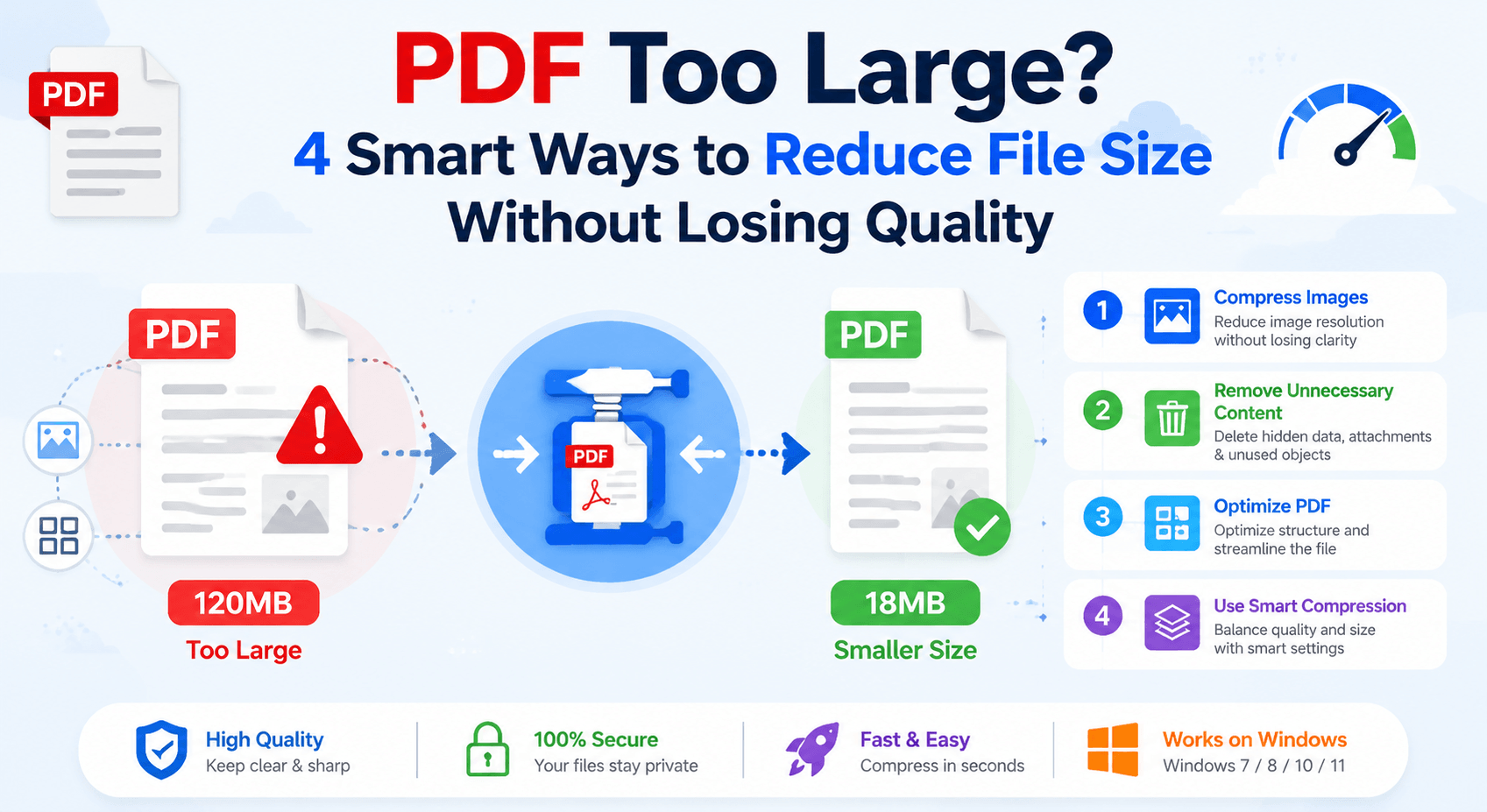
Sound familiar?
A PDF can become surprisingly huge because of hidden elements inside the file — high-resolution images, scanned pages, embedded fonts, and unnecessary data.
The quick solution many people try is uploading the PDF to an online compressor and hoping for the best.
But reducing PDF size isn’t just about making the number smaller.
A good compression method should keep:
✅ Clear text
✅ Sharp images
✅ Original formatting
✅ Professional appearance
So what actually works?
Here are 4 smart ways to reduce PDF file size without sacrificing quality.
1. Compress Images Inside the PDF
Best for: Image-heavy PDFs, presentations, brochures, scanned documents
Images are often the biggest reason a PDF becomes oversized.
A single high-resolution photo can add several megabytes to a document.
Instead of reducing the entire PDF blindly, smart compression focuses on optimizing large image resources.
Before compression:
📷 300 DPI images
📄 Large file size
🐢 Slow sharing and uploading
After smart optimization:
✨ Balanced image resolution
📉 Smaller file size
👀 Still clear and readable
The key is finding the right balance.
Over-compressing images creates:
❌ Blurry screenshots
❌ Pixelated graphics
❌ Poor reading experience
A quality PDF compressor should reduce unnecessary image data while keeping important details intact.
2. Remove Unnecessary PDF Data
Best for: Business documents, exported files, old PDFs
Many PDF files contain hidden information that users never notice.
Examples include:
🗂 Old metadata
🔤 Duplicate fonts
📎 Unused objects
🖼 Hidden resources
🔄 Previous editing information
This extra data increases file size without improving the document.
A smart PDF optimization process removes unnecessary elements while keeping the visible content unchanged.
Think of it like cleaning up a crowded workspace:
Before:
📦 Too many unused items
🐌 Slower performance
💾 Wasted storage
After:
✨ Only essential content remains
⚡ Faster loading
📁 Smaller file size
3. Convert Scanned PDFs the Smart Way
Best for: Scanned books, invoices, contracts, archived documents
Scanned PDFs are among the hardest files to reduce.
Why?
Because they are usually made up of images instead of real text.
A 100-page scanned document may contain hundreds of high-resolution images.
Simply compressing it aggressively can make the text difficult to read.
A better approach is:
✅ Optimize scan resolution
✅ Reduce unnecessary image quality
✅ Keep text readable
For scanned documents, the goal isn’t the smallest possible file.
The goal is:
The smallest file that still feels like the original document.
4. Use a Local PDF Compressor Instead of Uploading Files
Best for: Large PDFs, private documents, frequent users
Many people use online PDF compressors because they are convenient.
No installation.
Open a browser.
Upload a file.
Download the result.
For occasional small files, this works well.
However, large or sensitive PDFs create additional concerns.
Online Tools vs Offline Tools
| Feature | Online Compressors | Offline Tools (LeoPDF) |
|---|---|---|
| Installation | Not required | Required |
| Upload Files | Yes | No |
| Privacy | Depends on service | Files stay on your device |
| Large PDF Speed | Internet-dependent | More stable |
| Workflow | Quick tasks | Regular use |
With offline tools like LeoPDF, files are processed directly on your computer.
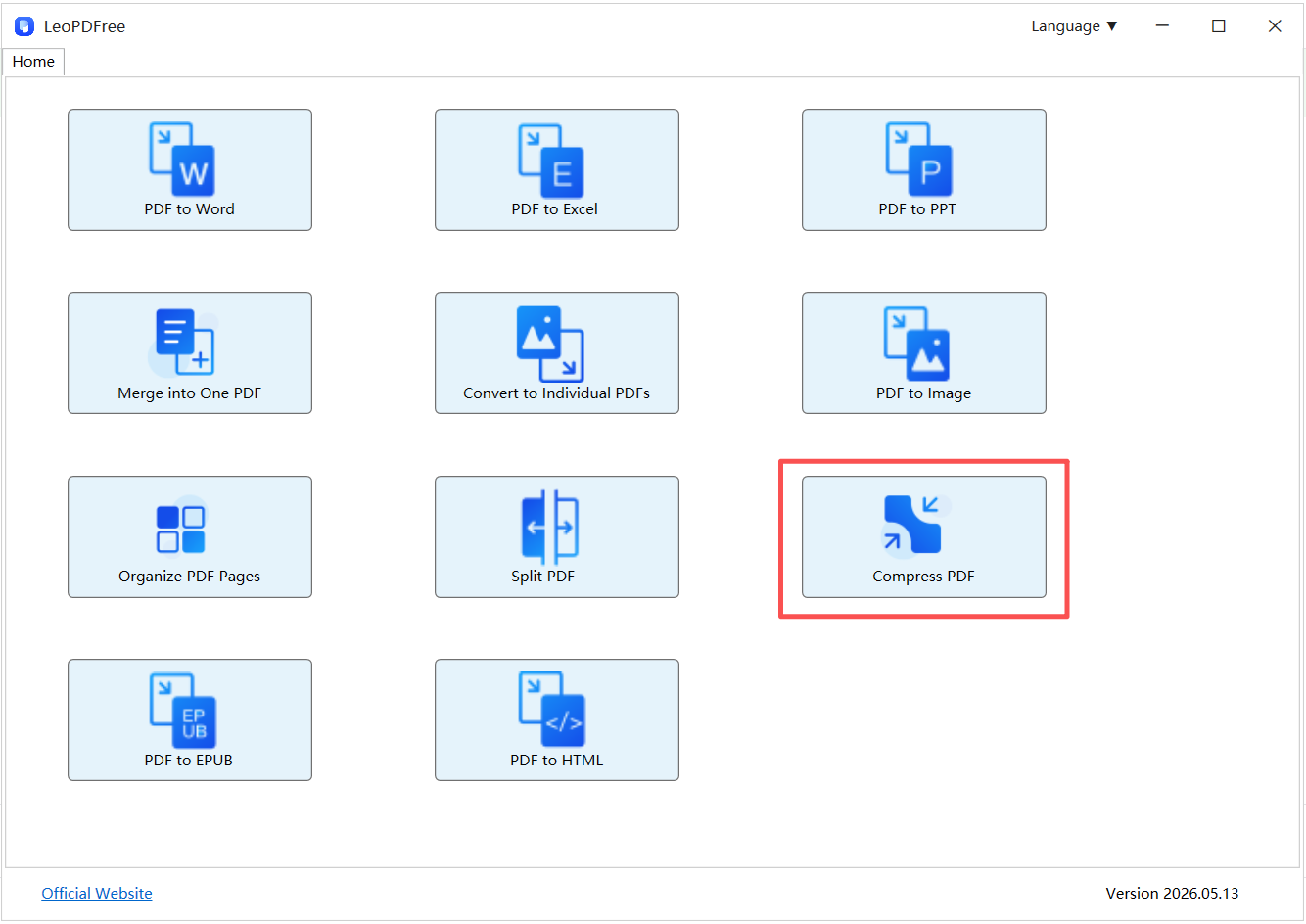
Free DownloadSecure Download
That means:
🔒 No file upload
⚡ Faster processing for large documents
🛡 Better privacy protection
📂 Full control over your files
For users who regularly handle reports, contracts, or business documents, local compression is often the smarter choice.
Quick Decision Guide: Which Method Should You Use?
📸 Your PDF contains many images?
Choose:
➡ Image optimization
Best for:
▪ Presentations
▪ Marketing materials
▪ Photo-heavy documents
🗃 Your PDF was created from multiple editors?
Choose:
➡ Remove unnecessary PDF data
Best for:
▪ Business files
▪ Exported documents
▪ Frequently edited PDFs
📚 Your PDF is a scanned document?
Choose:
➡ Smart scan optimization
Best for:
▪ Books
▪ Receipts
▪ Archives
🔐 Your PDF contains private information?
Choose:
➡ Offline compression with tools like LeoPDF
Best for:
▪ Contracts
▪ Financial documents
▪ Internal files
Common Mistakes That Make PDF Compression Worse
Many users accidentally damage document quality by doing these things:
❌ Compressing the same PDF multiple times
❌ Using extremely aggressive compression settings
❌ Converting PDF pages into images
❌ Uploading confidential documents without considering privacy
Remember:
Smaller doesn’t always mean better.
The goal is a PDF that is:
✅ Smaller
✅ Clear
✅ Secure
✅ Easy to share
Final Thoughts
A large PDF file doesn’t always mean something is wrong.
It usually means the document contains more data than necessary.
The smartest way to reduce PDF size is not to destroy quality — it’s to remove what the document doesn’t need.
Whether you optimize images, clean unnecessary data, improve scanned files, or use a local tool like LeoPDF, the right approach can significantly reduce file size while keeping your documents professional.
Because the best compressed PDF is not the smallest one.
It’s the one that stays sharp, readable, and ready to use.
