
Tips & guides
How to Save One Page of a PDF: Free Printing and Paid Extraction
Published
When you need one page rather than the whole PDF, save a separate copy and check that it contains only the intended page. Page extraction and printing a page to a new PDF can produce different results, especially for forms, links and signatures.
Save One Specific Page of a PDF File in Adobe Reader
A reader can print a selected page to a separate PDF when a suitable PDF printer is available. The following reader workflow is for Windows.
Step 1. Launch Adobe Reader and open the PDF you want to extract pages from.
Step 2. At the top-left of the window click “File” and then “Print”.
Step 3. Select the “Miscrosoft Print to PDF” format from the Printer list.
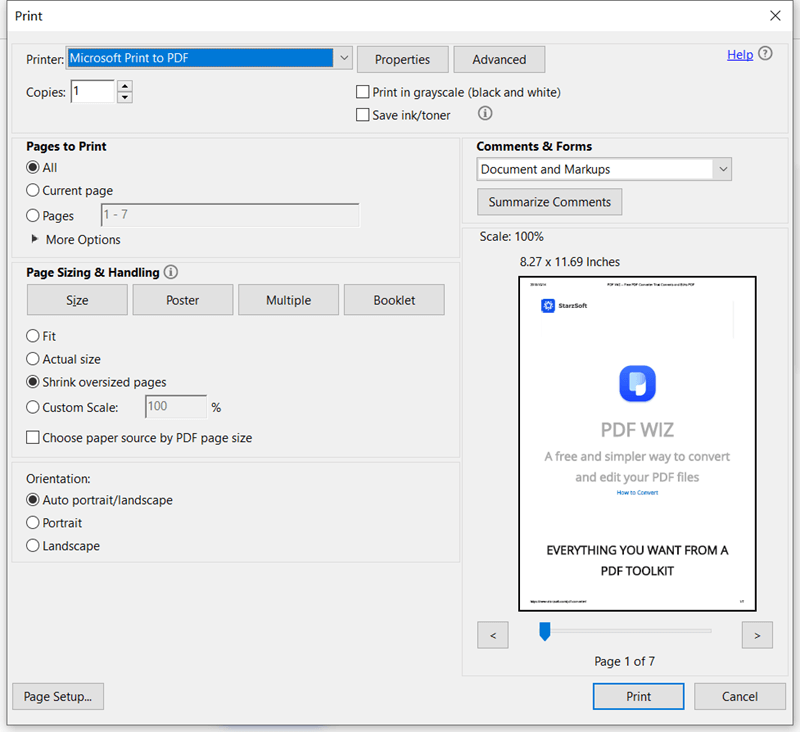
Step 4. Under “Pages to Pages”, check the “Pages” option and type whatever the page number is.
Step 5. Click “Print” at the bottom-right and enter a file name and save folder, before finally clicking “Save”.
Unlike the previous Adobe Acrobat Reader method, this is a free feature to use. Although you don’t need this Adobe program to access PDFs, it’s the random but helpful features like this that come in handy every once in a while that makes it worth having around.
How to Save One Page of a PDF in Google Chrome?
An unofficial way for saving one page of a PDF can be done with an internet browser. Here are steps to do so with Google Chrome.
Step 1. Right-click on the PDF file, hover over “Open with” and select “Google Chrome”.
Step 2. Press the CTRL + P keyboard shortcut or click the “Print” icon.
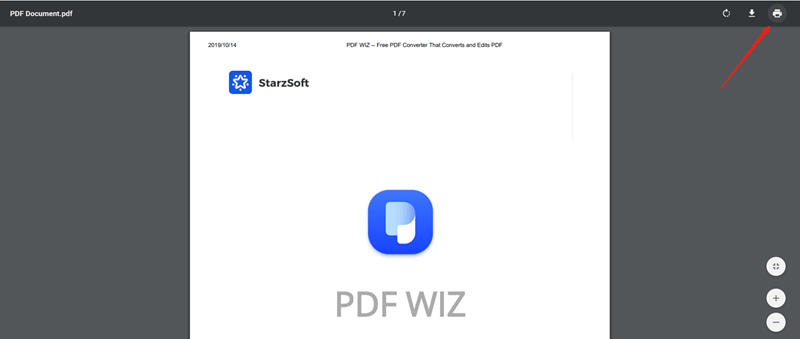
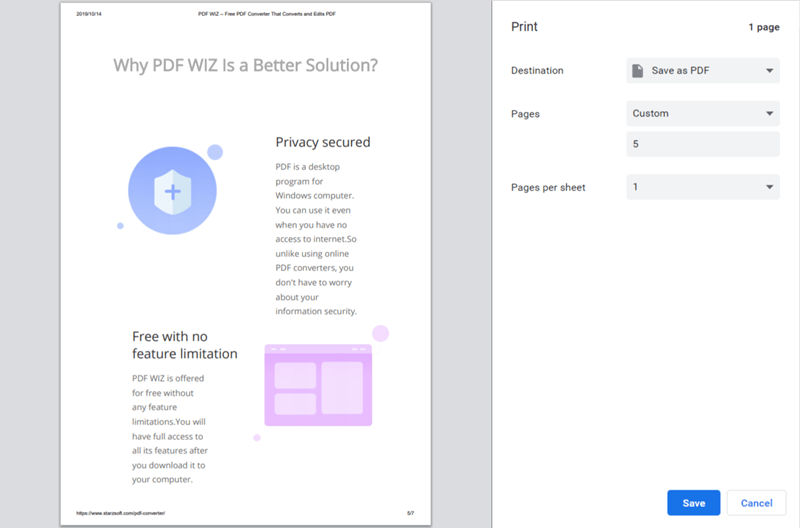
Step 3. Next to the “Destination” setting click on “Change…” and select “Save as PDF”.
Step 4. Next to “Pages”, switch the selection from “All” and type the page number you want to save.
Step 5. Press the “Save” button and select the save destination folder.
Microsoft Edge
Step 1. Right-click on the PDF and hover on “Open with”, then click “Microsoft Edge”.
Step 2 . Use the CTRL + P keyboard shortcut to view the Print menu.
Step 3 . Click on the “Printer” option and from this list choose “Microsoft Print to PDF”.
Step 4 . For the “Pages” option, choose “Page Range” and enter the number of the page to have saved.
Step 5. After you press the “Print” button you can choose the folder to save the PDF page in.
Saving One Page from a PDF on Mac
For Mac computer users, the built-in Preview application includes a feature to save one page of a PDF that can extract several pages at once too.
Step 1. Open the PDF document in the Preview app.
Step 2. At the top of the screen click the thumbnail icon which will display the PDF’s pages.
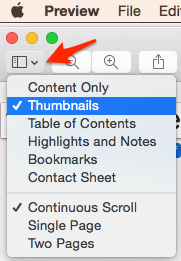
Step 3. Select the page you want to extract. Alternatively, to select multiple pages, click and drag them so that they are grouped together, then hold the Shift key when you click the first and last pages.
Step 4. Now go to “File > Print” and for the page range, choose “Selected Pages”.
Step 5. Click PDF at the bottom-left and from the drop-down menu, click “Save as PDF…”.
Step 6. Enter a name for the new PDF and a save folder, and click Save.
This is a quick way for Mac users to discover how to save one page of a PDF Mac and is close to effortless.
When a paid extraction feature is appropriate
Acrobat’s Organize Pages extraction is a separate workflow from printing a page through a free reader. Check whether your Acrobat edition includes it. Open Organize Pages, select the required page and use Extract; save a new document and verify its contents. Follow Adobe’s extraction instructions for the installed edition.
Check the saved page
Open the result, verify the page and inspect any required fields, links and signatures. Printing can change document behavior. Keep the original file. LeoPDFree does not provide the page-extraction operation described here; use a tool that explicitly offers it.
Questions about your LeoPDF edition?
Contact xuehui@leopdf.com with your platform, app version and the task you need.