
Tips & guides
doPDF Review: Free PDF Printing, Editions and Output Checks
Published
Among all of the PDF tools that are out there, doPDF is a little-known option. Its purpose is pretty basic – to turn files into a printable format with ease. Although not the simplest option you could use for this task, it's not ineffective by any means and may be worth checking out.
There are some questions surrounding the tool though. Such as, "Is this the best tool I can use for creating PDF files?" and "are there any better tools out there?", both are reasonable questions. For that reason, our doPDF review is going to examine this tool and consider the possibility of using alternatives.
Part 1. doPDF In-depth Review
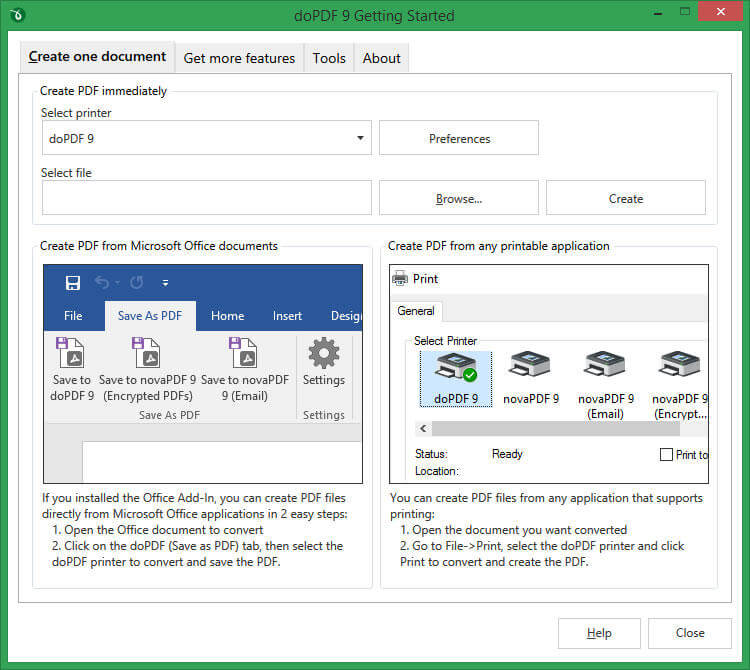
As we've already mentioned, doPDF creates PDF files, and it does this in a unique and slightly complex way. When you install it, doPDF is installed on your computer as a virtual PDF printer. What does this mean? Basically, it is recognised as being a printer but without having the printer hardware. So, when a file is sent to the virtual printer, instead of being printed it is saved as PDF.
1. Features of doPDF
This seems simple enough, but it can get quite complicated for the non-tech savvy users. Some of the main features that doPDF includes are:
- Can turn most document formats into a printable PDF (including Word/DOC/DOCX, HTML, Excel, PowerPoint, and other files)
- Installs as a Microsoft Word add-on which makes it easy to access
- Uses very little computer resources so that it doesn't affect computer performance
- Allows users to save the final PDF file in different sizes (e.g. A4, A5, etc)
- Graphics that are in the document can be made smaller or bigger
Whilst these features don't scream impressive, there's no way to deny that doPDF is effective in doing its purpose. A particularly interesting feature is that it comes as an add-on rather than a standalone tool.
Setting aside the positives, it would be wrong to not address the glaring negatives that come with this tool.
2. Cons of doPDF
- Doesn't let you install in any destination, it can only install in the "C:\Program Files\" directory
- Overall this is a very basic piece of software with no advanced or technical features for PDF management
3. Is doPDF Safe?
One concern a lot of users have when it comes to using new tools or software is whether or not it's safe to use. Because there's a risk of downloading viruses and malware, this is more than understandable.
Download the installer from the publisher and review the installation options before setting up the virtual printer.
4. Performance
The first thing to note regarding the performance of doPDF is that this is a free tool, but the same developers offer a paid version too. This paid version is called novaPDF Professional and it gives us access to a wider range of features. But there are some other areas of performance we need to focus on:
- 2. PDF Security. Unlike other PDF tools, you cannot handle the file's security in any way (e.g. by adding a password for extra protection).
Part 2. Top 2 Alternatives to doPDF
If we move on from doPDF and focus our attention on the different tools you could use, there are two tools that we'd suggest. Below we've given you a breakdown of the top 2 alternatives to doPDF.
1. LeoPDFree for local PDF tasks
LeoPDFree is the free Windows edition. Its supported conversions, merging, splitting, page organization and compression run locally on your computer without uploading files for processing. PDF-to-Word and PDF-to-Excel conversion do not include OCR.
LeoPDF app store editions provide paid cloud Word and Excel conversion with OCR for PDFs, images and scans. Conversion files are deleted when processing completes. Other supported conversion and file-processing tasks run locally on your device.
Choose the edition and platform that fits your document. For creating a PDF from an editable Word or Excel document, use that document application’s PDF export or a PDF printer. LeoPDF does not provide Word/Excel-to-PDF, signing, form filling, direct PDF editing, page or embedded-image extraction, or encryption/decryption.
2. PrimoPDF

PrimoPDF is similar to doPDF in the sense that it lets users create PDFs out of regular documents, but this is a standalone program whereas doPDF is a Microsoft Word add-on.
- Quickly converts documents from various formats into PDF
- PDF password protection can be managed
- PrimoPDF is a free PDF tool
Cons of PrimoPDF
- Some users report that a document's images are distorted after using PrimoPDF
- Doesn't have a lot of features
- For extra features for PDF management, users must buy Nitro Pro